> ## Documentation Index
> Fetch the complete documentation index at: https://docs.go.aiinsurance.io/llms.txt
> Use this file to discover all available pages before exploring further.
# API keys
> Create and manage API keys for programmatic access to your company's data, and revoke keys you no longer need.
API keys let external systems call the [AI Insurance
API](/api-reference/overview) on your company's behalf — integrations,
dashboards, data syncs, [configuration as
code](/api-reference/configuration/overview). The **API Keys** tab of the
admin area is where keys are created, reviewed, and revoked. Open it by
selecting your **company name** at the bottom of the left sidebar, then the
**API Keys** tab.
Any role that can read company data can **view** this tab. **Creating and
revoking** keys requires a role that can update company settings — of the
standard roles, **Carrier Admin** and **Policy Administrator**.
 ## Your Company ID
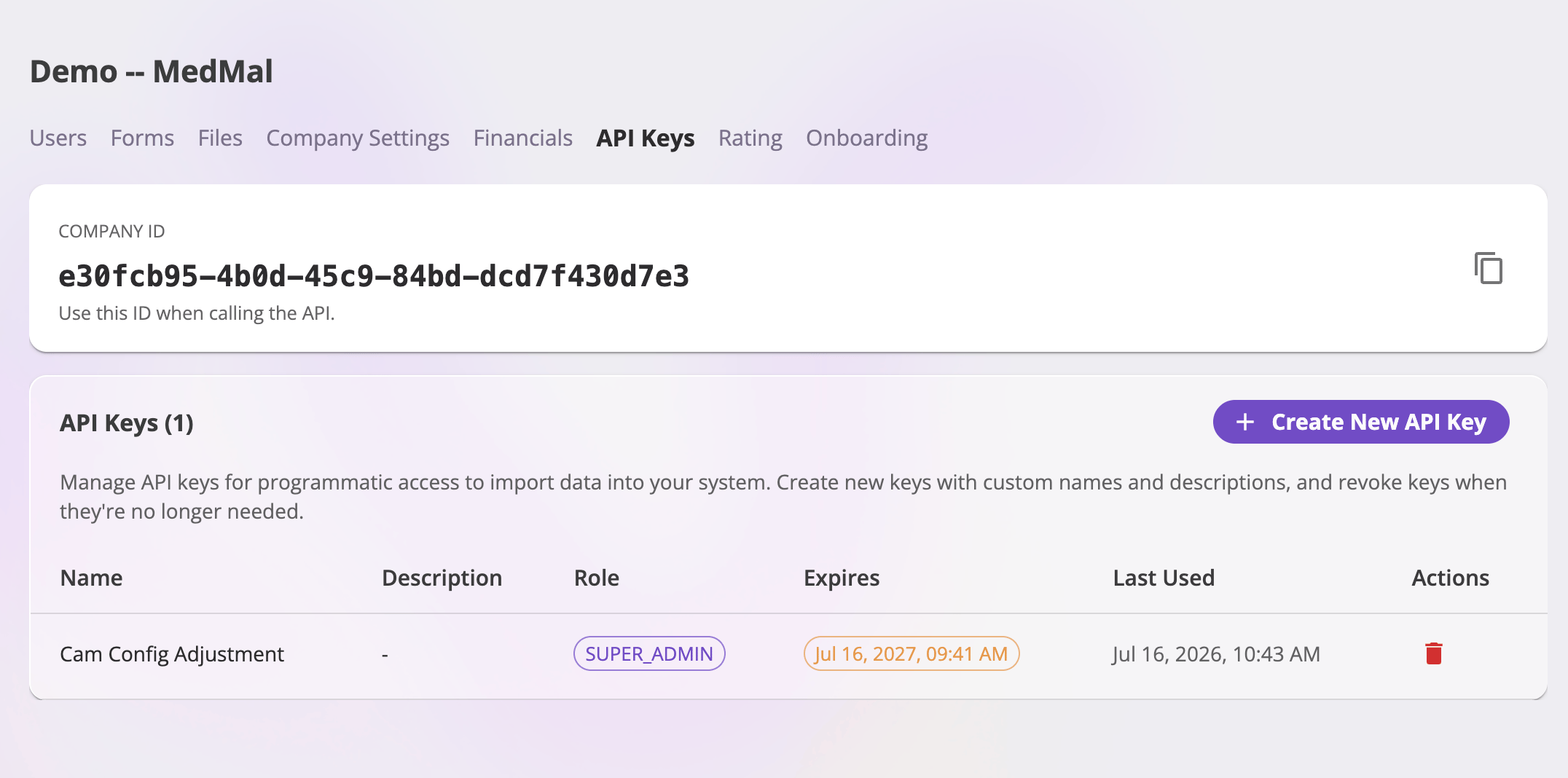
The card at the top of the page shows your **Company ID**, with a copy button.
Most API endpoints include the company ID in their URL, so you'll need it
alongside any key — see [Authentication](/api-reference/authentication) for
how the two fit together in a request.
## The key list
Each key row shows:
| Column | Meaning |
| -------------------------- | --------------------------------------------------------------------------------------------------- |
| **Name** / **Description** | The label and optional note you gave the key at creation. |
| **Role** | The role whose permissions the key carries — see [Keys have roles](#keys-have-roles). |
| **Expires** | The key's expiration date, or **No expiration**. An expired key stops working automatically. |
| **Last Used** | When the key last made a request (or **Never**) — a quick way to spot keys that are safe to revoke. |
| **Actions** | The revoke button. |
## Keys have roles
A key's access is scoped by a **role** — the same [role
catalog](/app/admin/users-roles#the-role-catalog) users have. A key with the
**Viewer** role can only read data; a key with **Carrier Admin** can write
everything its user counterpart could. Give each integration the least
powerful role that covers what it does — a read-only reporting integration
should get **Viewer** or **Viewer/Exporter**, not an admin role.
A couple of catalog roles (Super Admin, Support Engineer) are reserved for
AI Insurance staff — only our staff can grant them to a key.
## Create a key
The button sits at the top right of the API Keys card.
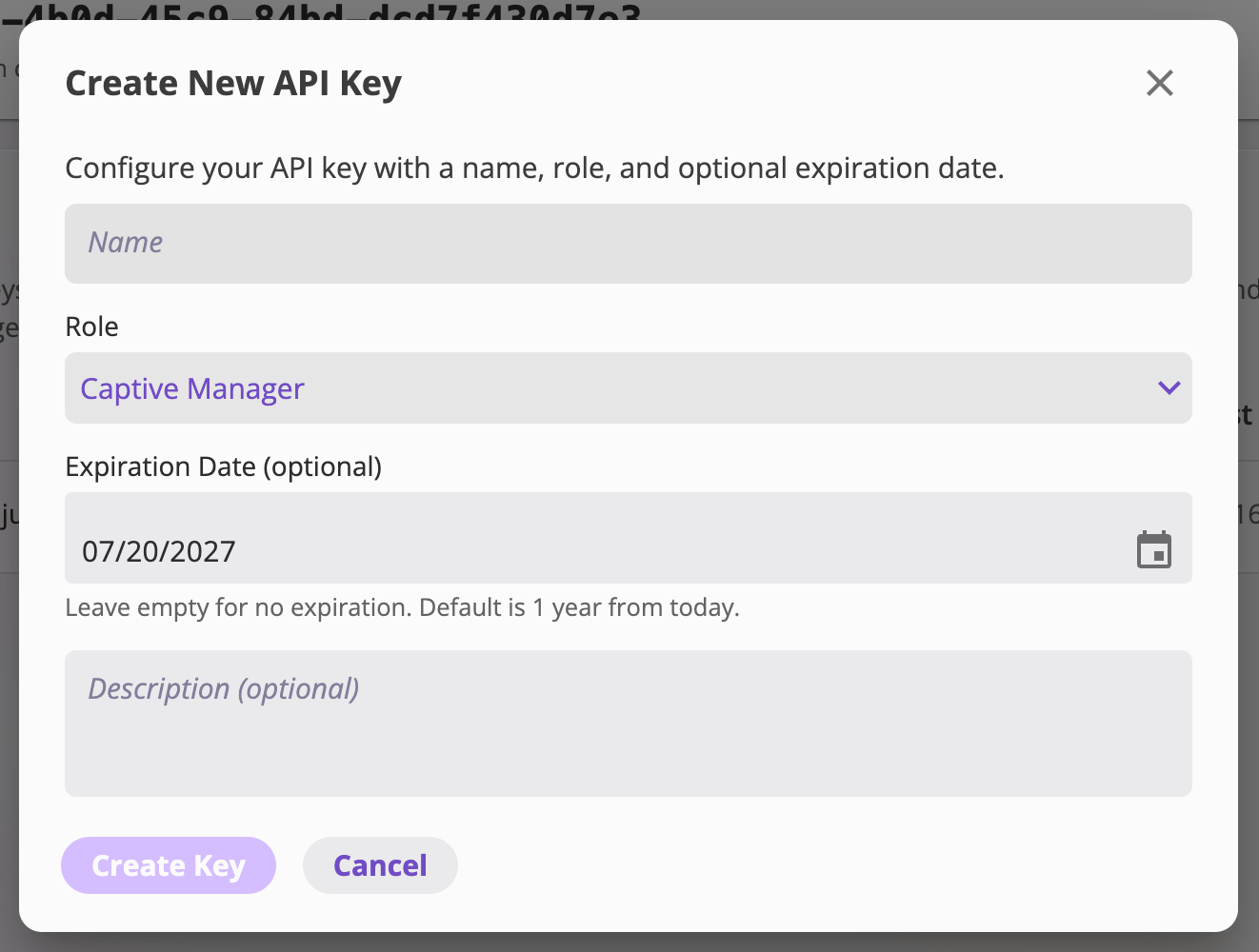
Give it a **Name** (e.g. "External Dashboard Integration"), pick its
**Role**, optionally set an **Expiration Date** (the field defaults to one
year from today; clear it for a key that never expires), and optionally
add a **Description**.
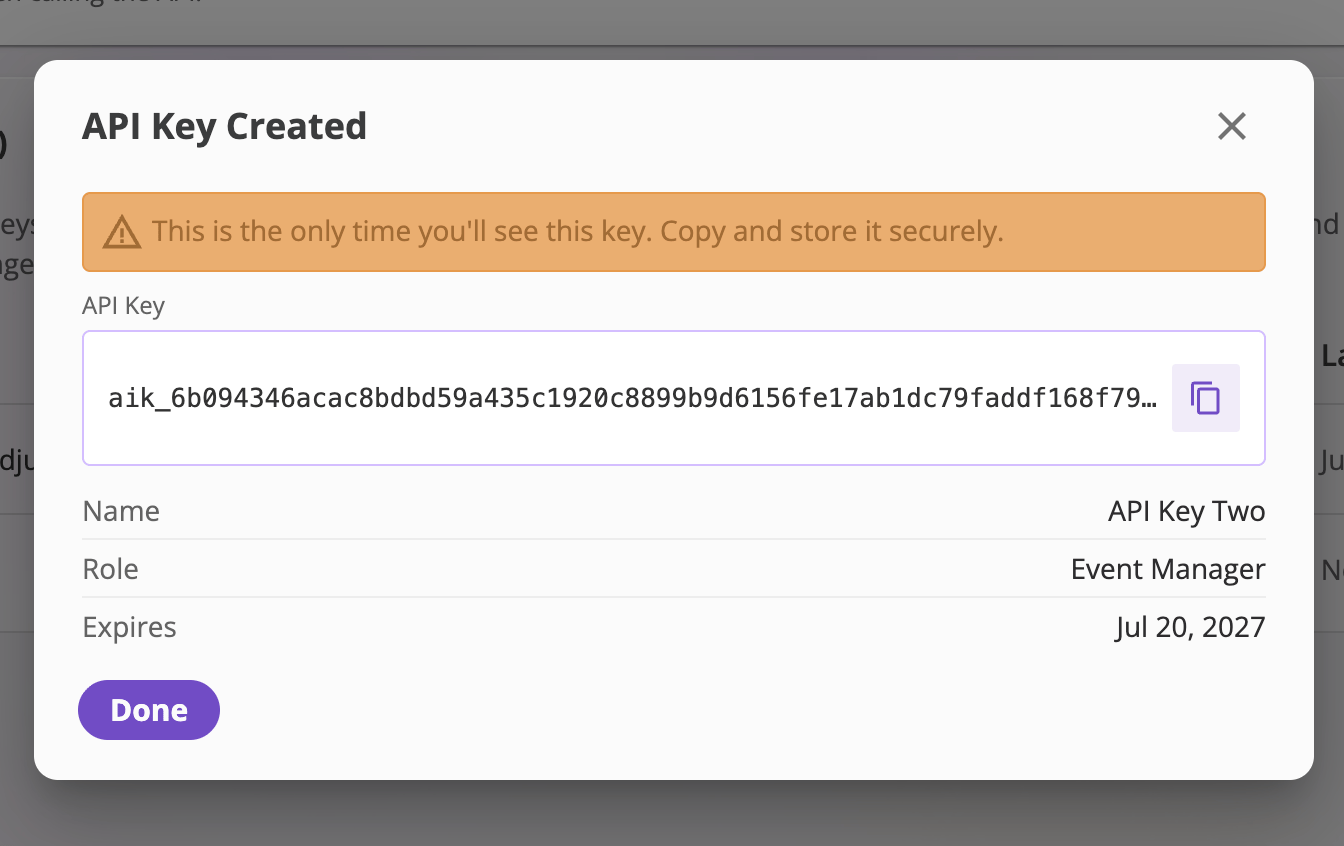
The new key is shown **once**, in the confirmation dialog, with a copy
button. Store it somewhere secure (a secrets manager, not a shared doc) —
after you close the dialog it can never be displayed again. The dialog
briefly holds the Done button so you don't dismiss it before copying.
## Your Company ID
The card at the top of the page shows your **Company ID**, with a copy button.
Most API endpoints include the company ID in their URL, so you'll need it
alongside any key — see [Authentication](/api-reference/authentication) for
how the two fit together in a request.
## The key list
Each key row shows:
| Column | Meaning |
| -------------------------- | --------------------------------------------------------------------------------------------------- |
| **Name** / **Description** | The label and optional note you gave the key at creation. |
| **Role** | The role whose permissions the key carries — see [Keys have roles](#keys-have-roles). |
| **Expires** | The key's expiration date, or **No expiration**. An expired key stops working automatically. |
| **Last Used** | When the key last made a request (or **Never**) — a quick way to spot keys that are safe to revoke. |
| **Actions** | The revoke button. |
## Keys have roles
A key's access is scoped by a **role** — the same [role
catalog](/app/admin/users-roles#the-role-catalog) users have. A key with the
**Viewer** role can only read data; a key with **Carrier Admin** can write
everything its user counterpart could. Give each integration the least
powerful role that covers what it does — a read-only reporting integration
should get **Viewer** or **Viewer/Exporter**, not an admin role.
A couple of catalog roles (Super Admin, Support Engineer) are reserved for
AI Insurance staff — only our staff can grant them to a key.
## Create a key
The button sits at the top right of the API Keys card.
Give it a **Name** (e.g. "External Dashboard Integration"), pick its
**Role**, optionally set an **Expiration Date** (the field defaults to one
year from today; clear it for a key that never expires), and optionally
add a **Description**.
The new key is shown **once**, in the confirmation dialog, with a copy
button. Store it somewhere secure (a secrets manager, not a shared doc) —
after you close the dialog it can never be displayed again. The dialog
briefly holds the Done button so you don't dismiss it before copying.
 Treat an API key like a password: it grants access to your company's data at
the level of its role. If a key is ever exposed, [revoke it](#revoke-a-key)
immediately and create a replacement.
## Use a key
Requests authenticate by sending the key in the `Authorization` header — the
raw key, with no prefix. The full request format, examples, and pitfalls are
in [Authentication](/api-reference/authentication); the endpoint catalog is in
the [API reference](/api-reference/overview).
## Revoke a key
The **trash** button on a key's row revokes it after a confirmation. Revoking
is immediate and permanent — any application still using the key loses access
on its next request, and the key can't be restored. To rotate a key, create
the new one first, switch your integration over, then revoke the old one.
Treat an API key like a password: it grants access to your company's data at
the level of its role. If a key is ever exposed, [revoke it](#revoke-a-key)
immediately and create a replacement.
## Use a key
Requests authenticate by sending the key in the `Authorization` header — the
raw key, with no prefix. The full request format, examples, and pitfalls are
in [Authentication](/api-reference/authentication); the endpoint catalog is in
the [API reference](/api-reference/overview).
## Revoke a key
The **trash** button on a key's row revokes it after a confirmation. Revoking
is immediate and permanent — any application still using the key loses access
on its next request, and the key can't be restored. To rotate a key, create
the new one first, switch your integration over, then revoke the old one.