> ## Documentation Index
> Fetch the complete documentation index at: https://docs.go.aiinsurance.io/llms.txt
> Use this file to discover all available pages before exploring further.
# Company settings & inboxes
> Edit your company profile and logo, set up email inboxes for automated document intake, and control which senders they accept.
The **Company Settings** tab of the admin area holds your company profile, your
app logo, and your **Inboxes** — the email addresses that feed documents into
AI Insurance automatically. Open it by selecting your **company name** at the
bottom of the left sidebar, then the **Company Settings** tab.
Everyone whose role can read company data can **view** this tab, but the
edit affordances (the Edit button, logo actions, inbox management, and the
sender allow-list controls) are only enabled for roles that can update
company settings — of the standard roles, **Carrier Admin** and **Policy
Administrator**.
## Company information
The **Company Information** card shows your **Company Name** and **Company
Legal Name**. Select **Edit**, change either field, and **Save** (or
**Cancel** to discard). Both fields are limited to 255 characters, and the
company name can't be blank.
 After saving you get a confirmation with an **Undo** button — select it within
ten seconds to restore the previous values.
## App logo
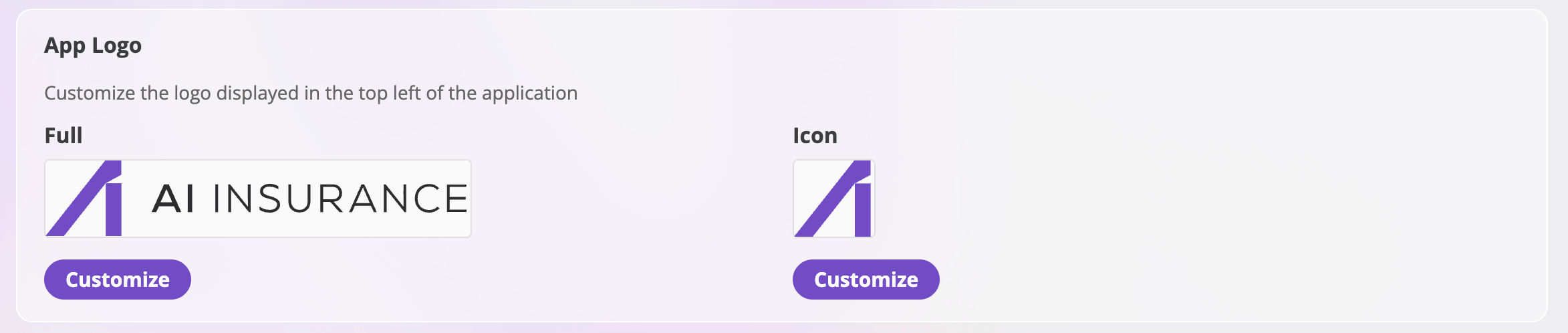
The **App Logo** card customizes the logo displayed at the top left of the
application — the branding your team sees in the sidebar. There are two
images:
* **Full** — the wide logo shown when the sidebar is expanded.
* **Icon** — the small square mark shown when the sidebar is collapsed.
After saving you get a confirmation with an **Undo** button — select it within
ten seconds to restore the previous values.
## App logo
The **App Logo** card customizes the logo displayed at the top left of the
application — the branding your team sees in the sidebar. There are two
images:
* **Full** — the wide logo shown when the sidebar is expanded.
* **Icon** — the small square mark shown when the sidebar is collapsed.
 Each image offers:
| Action | Appears when | What it does |
| ------------- | --------------------- | ------------------------------------------------------------------------------------------------ |
| **Customize** | No custom logo is set | Opens a file picker for an image, then a crop step sized to the logo's aspect ratio. |
| **Change** | A custom logo is set | Replaces the current image (after a confirmation suggesting you download the current one first). |
| **Download** | A custom logo is set | Downloads the current image as a PNG. |
| **Remove** | A custom logo is set | Clears the custom logo and reverts to the default AI Insurance logo, after a confirmation. |
When you pick an image you crop it in place — drag and zoom until the preview
looks right, then confirm. Changes take effect in the sidebar after you
refresh the page.
## Inboxes
**Inboxes** are company email addresses for automated document intake: files
emailed to an inbox are parsed into that inbox's flow for your company. This
is the email side of [creating submissions](/app/workflows/creating-submissions)
— for example, a broker can email an application PDF straight to your
submission inbox, and it shows up as an import on the
[Submissions](/app/features/submissions) page.
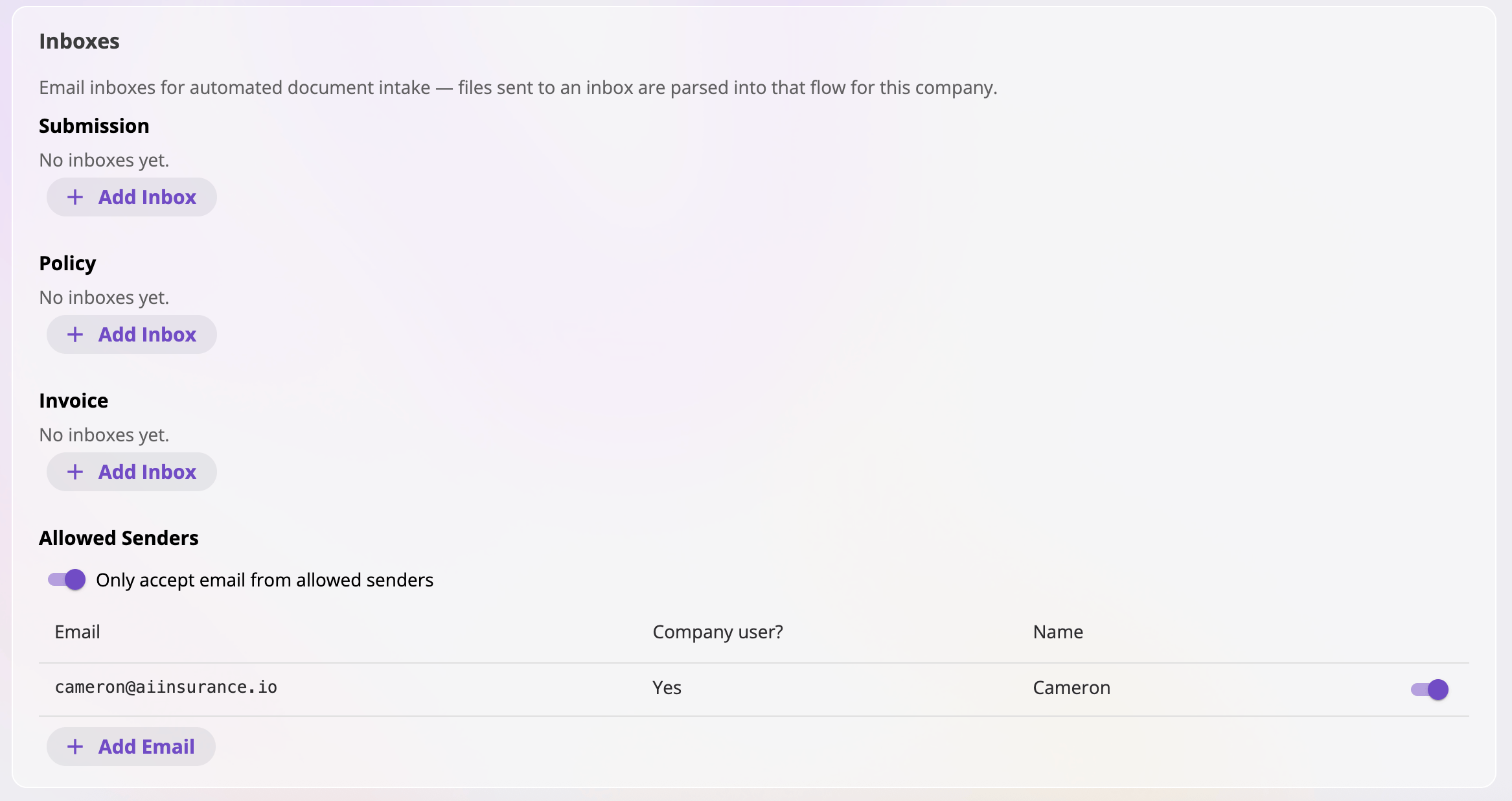
Inboxes are grouped by flow — **Submission** and **Policy** — and each flow
can have any number of addresses. Every address has the form
`name@inbox.aiinsurance.io`.
Each image offers:
| Action | Appears when | What it does |
| ------------- | --------------------- | ------------------------------------------------------------------------------------------------ |
| **Customize** | No custom logo is set | Opens a file picker for an image, then a crop step sized to the logo's aspect ratio. |
| **Change** | A custom logo is set | Replaces the current image (after a confirmation suggesting you download the current one first). |
| **Download** | A custom logo is set | Downloads the current image as a PNG. |
| **Remove** | A custom logo is set | Clears the custom logo and reverts to the default AI Insurance logo, after a confirmation. |
When you pick an image you crop it in place — drag and zoom until the preview
looks right, then confirm. Changes take effect in the sidebar after you
refresh the page.
## Inboxes
**Inboxes** are company email addresses for automated document intake: files
emailed to an inbox are parsed into that inbox's flow for your company. This
is the email side of [creating submissions](/app/workflows/creating-submissions)
— for example, a broker can email an application PDF straight to your
submission inbox, and it shows up as an import on the
[Submissions](/app/features/submissions) page.
Inboxes are grouped by flow — **Submission** and **Policy** — and each flow
can have any number of addresses. Every address has the form
`name@inbox.aiinsurance.io`.
 Per address:
| Action | What it does |
| ------------------------ | -------------------------------------------------------------------------------------------------------------------------------------------- |
| **Copy** (copy icon) | Copies the full address to your clipboard — handy for sharing it with senders. |
| **Rename** (pencil icon) | Changes the address's name. The old name stops working immediately. |
| **Delete** (trash icon) | Removes the inbox after a confirmation. Email sent to the address is no longer accepted, and the name becomes available for anyone to claim. |
| **Add Inbox** (per flow) | Creates a new address in that flow. |
When adding or renaming, you pick the **name** — the part before the `@`. A
name must be lowercase letters and numbers, optionally separated by single
dots, dashes, or underscores (up to 64 characters), and it must be unique
across the whole platform — if a name is taken, pick another. The dialog
shows the full resulting address as you type.
Inbox names are claimed platform-wide, first come first served. Deleting or
renaming an inbox releases its old name for anyone else to claim — so don't
recycle an address you've already printed on paperwork or shared widely.
## Allowed senders
The **Allowed Senders** section, at the bottom of the Inboxes card, controls
*who* may email your inboxes.
Per address:
| Action | What it does |
| ------------------------ | -------------------------------------------------------------------------------------------------------------------------------------------- |
| **Copy** (copy icon) | Copies the full address to your clipboard — handy for sharing it with senders. |
| **Rename** (pencil icon) | Changes the address's name. The old name stops working immediately. |
| **Delete** (trash icon) | Removes the inbox after a confirmation. Email sent to the address is no longer accepted, and the name becomes available for anyone to claim. |
| **Add Inbox** (per flow) | Creates a new address in that flow. |
When adding or renaming, you pick the **name** — the part before the `@`. A
name must be lowercase letters and numbers, optionally separated by single
dots, dashes, or underscores (up to 64 characters), and it must be unique
across the whole platform — if a name is taken, pick another. The dialog
shows the full resulting address as you type.
Inbox names are claimed platform-wide, first come first served. Deleting or
renaming an inbox releases its old name for anyone else to claim — so don't
recycle an address you've already printed on paperwork or shared widely.
## Allowed senders
The **Allowed Senders** section, at the bottom of the Inboxes card, controls
*who* may email your inboxes.
 * The **Only accept email from allowed senders** switch turns enforcement on
or off. With it **off**, your inboxes accept email from anyone. With it
**on**, only the senders in the table below are accepted.
* When enforcement is on, the table lists every sender in one place:
* **Company users** are allowed by default; use the per-row switch to turn
an individual user's access off or back on.
* **Additional emails** — outside senders like a broker — are added with the
**Add Email** button and removed with the trash icon.
### Blocked senders
Separately from the allow-list, a **Blocked Senders** table appears whenever
any address has been explicitly blocked. Blocking happens from the imports
list on the [Submissions](/app/features/submissions) page — when an email from
an unrecognized sender arrives, you can block that sender there. Email from a
blocked address is dropped completely — nothing is stored and nobody is
notified — **regardless of the allow-list switch**. This section is where you
review blocks and un-block an address (the trash icon on its row).
## Other admin tabs
The admin area has more tabs than this page covers, each documented
separately (tabs you don't have permission for simply don't appear):
* **[Users](/app/admin/users-roles)** — invite users, assign roles, revoke
access.
* **[Forms](/app/admin/form-templates)** — your form template library and the
document editor.
* **Files** — company-level files, in the same files interface used on every
entity (see [Files & notes](/app/features/files-notes)). This is where
files that belong to the company as a whole — rather than to a particular
quote, policy, or claim — live.
* **[Financials](/financials/invoice-types)** — invoice types, line items,
approval authority, and export settings.
* **[API Keys](/app/admin/api-keys)** — programmatic access to your data.
* **[Rating Run Logs](/app/admin/rating-logs)** — per-quote rating run
diagnostics.
* The **Only accept email from allowed senders** switch turns enforcement on
or off. With it **off**, your inboxes accept email from anyone. With it
**on**, only the senders in the table below are accepted.
* When enforcement is on, the table lists every sender in one place:
* **Company users** are allowed by default; use the per-row switch to turn
an individual user's access off or back on.
* **Additional emails** — outside senders like a broker — are added with the
**Add Email** button and removed with the trash icon.
### Blocked senders
Separately from the allow-list, a **Blocked Senders** table appears whenever
any address has been explicitly blocked. Blocking happens from the imports
list on the [Submissions](/app/features/submissions) page — when an email from
an unrecognized sender arrives, you can block that sender there. Email from a
blocked address is dropped completely — nothing is stored and nobody is
notified — **regardless of the allow-list switch**. This section is where you
review blocks and un-block an address (the trash icon on its row).
## Other admin tabs
The admin area has more tabs than this page covers, each documented
separately (tabs you don't have permission for simply don't appear):
* **[Users](/app/admin/users-roles)** — invite users, assign roles, revoke
access.
* **[Forms](/app/admin/form-templates)** — your form template library and the
document editor.
* **Files** — company-level files, in the same files interface used on every
entity (see [Files & notes](/app/features/files-notes)). This is where
files that belong to the company as a whole — rather than to a particular
quote, policy, or claim — live.
* **[Financials](/financials/invoice-types)** — invoice types, line items,
approval authority, and export settings.
* **[API Keys](/app/admin/api-keys)** — programmatic access to your data.
* **[Rating Run Logs](/app/admin/rating-logs)** — per-quote rating run
diagnostics.