> ## Documentation Index
> Fetch the complete documentation index at: https://docs.go.aiinsurance.io/llms.txt
> Use this file to discover all available pages before exploring further.
# Rating run logs
> Browse the log of every rating run, inspect a run's inputs and outputs, and export runs to Excel, CSV, or Google Drive.
Every time AI Insurance rates a quote, the calculation is logged
automatically. The **Rating Run Logs** tab of the admin area is the browser
for those logs — the place to answer *"why did this quote price the way it
did?"*: see exactly what went into a run, what came out, and whether anything
failed. Open it by selecting your **company name** at the bottom of the left
sidebar, then the **Rating Run Logs** tab.
Any role that can read company data can browse rating run logs — it's a
read-only diagnostic surface. What the runs themselves calculate depends on
how your company's rating is configured.
## The run list
Runs are listed newest first, 25 per page.
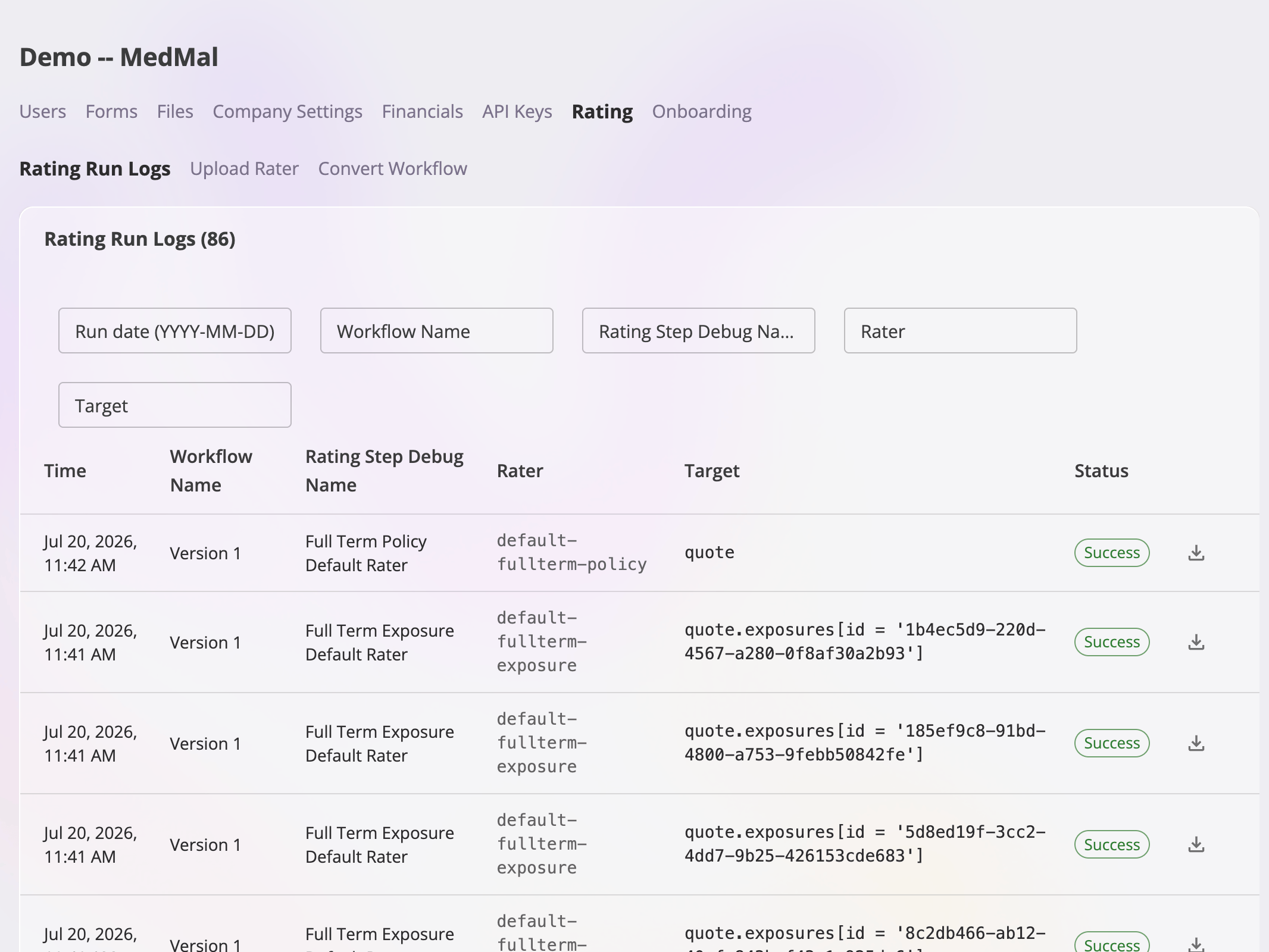 | Column | Meaning |
| -------------------------- | ------------------------------------------------------------------------------------------------------------------------------------------------------------ |
| **Time** | When the run happened. |
| **Workflow Name** | The rating workflow that produced the run. |
| **Rating Step Debug Name** | The rating step within that workflow. |
| **Rater** | The identifier of the rater the step evaluated. |
| **Target** | What the run rated. One click of **Generate Rating** on a quote can fan out into several runs (one per exposure, for example) — the target tells them apart. |
| **Status** | **Success**, **Failed** (with the stage it failed at), or **Incomplete** (the run's summary record is missing; its artifacts are still viewable). |
A successful run that produced errors in individual output cells also shows an
output-error count on its detail view, so a "green" run with bad cells is
still visible.
Above the table, free-text **filters** narrow the list by any column: **Run
date** (as `YYYY-MM-DD`), **Workflow Name**, **Rating Step Debug Name**,
**Rater**, and **Target**. Filters match anywhere in the value and ignore
case; changing one takes you back to the first page.
To open a run, select its row. To export without opening it, use the
**download icon** at the end of the row — it offers the same [export
menu](#export-a-run) as the detail view.
## What a run shows
A run's detail view has three parts: the metadata panel, and two artifacts.
| Column | Meaning |
| -------------------------- | ------------------------------------------------------------------------------------------------------------------------------------------------------------ |
| **Time** | When the run happened. |
| **Workflow Name** | The rating workflow that produced the run. |
| **Rating Step Debug Name** | The rating step within that workflow. |
| **Rater** | The identifier of the rater the step evaluated. |
| **Target** | What the run rated. One click of **Generate Rating** on a quote can fan out into several runs (one per exposure, for example) — the target tells them apart. |
| **Status** | **Success**, **Failed** (with the stage it failed at), or **Incomplete** (the run's summary record is missing; its artifacts are still viewable). |
A successful run that produced errors in individual output cells also shows an
output-error count on its detail view, so a "green" run with bad cells is
still visible.
Above the table, free-text **filters** narrow the list by any column: **Run
date** (as `YYYY-MM-DD`), **Workflow Name**, **Rating Step Debug Name**,
**Rater**, and **Target**. Filters match anywhere in the value and ignore
case; changing one takes you back to the first page.
To open a run, select its row. To export without opening it, use the
**download icon** at the end of the row — it offers the same [export
menu](#export-a-run) as the detail view.
## What a run shows
A run's detail view has three parts: the metadata panel, and two artifacts.
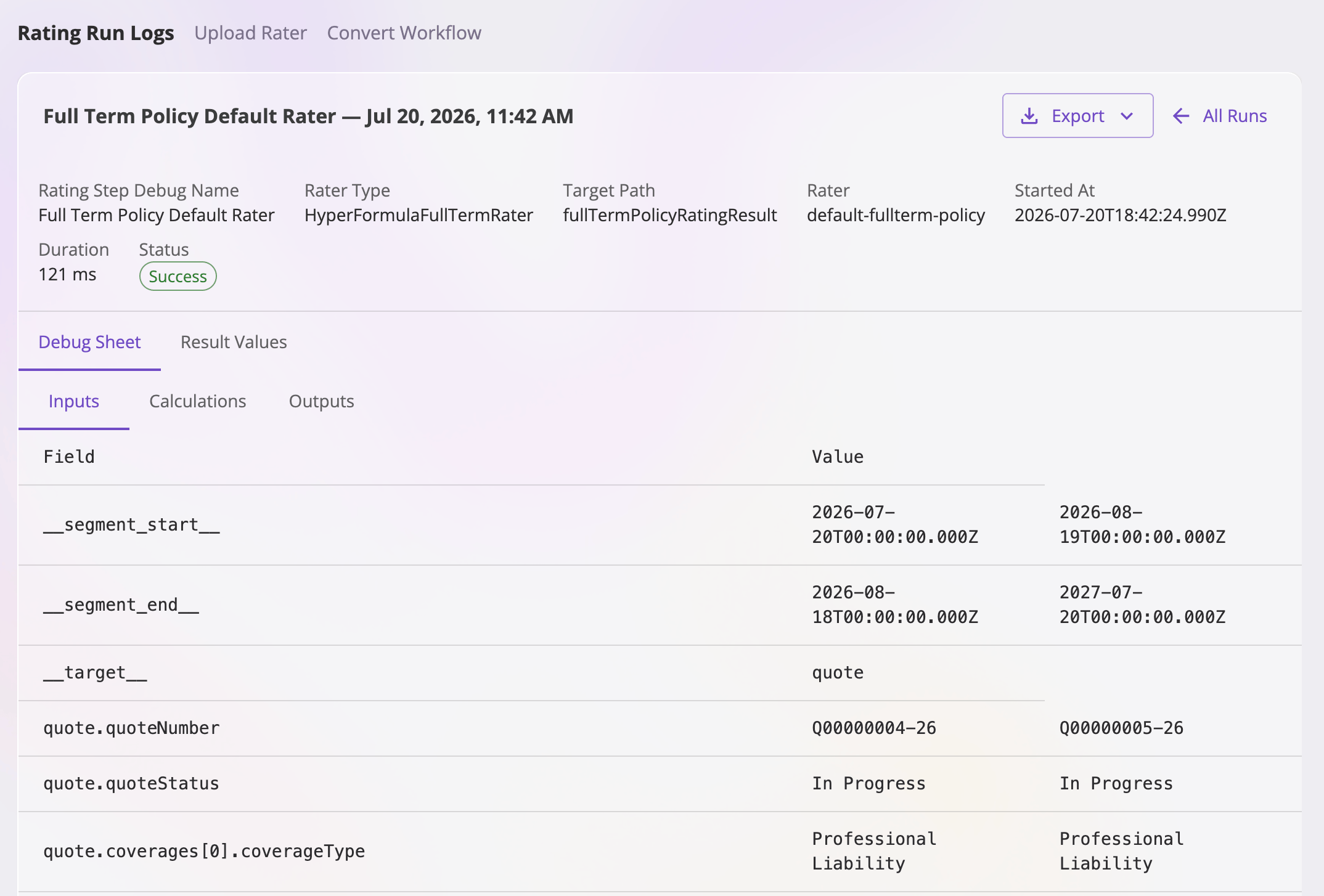 **Metadata** — the run's identity and outcome: the rating step's debug name,
the rater type, the target path, the rater identifier, when the run started,
how long it took, its status (including the failure stage and reason on a
failed run), and an output-error count if any output cells errored.
**Debug Sheet** — the full calculation worksheet exactly as it was evaluated
for this run: every tab, with the inputs that were written in and every
intermediate calculated cell. This is the artifact to read when you're
tracing *how* a number was produced.
**Result Values** — the output values read back from the run: the numbers the
quote actually received. Use this when you just need *what* came out.
Switch between the two artifacts with the tabs above the content; within an
artifact, each worksheet tab renders as its own table (scrollable for wide
sheets).
A **failed** run only has the artifacts that existed when the failure
happened — a run that failed before calculating writes no Result Values, for
example. Empty artifacts are labeled as such rather than hidden.
## Export a run
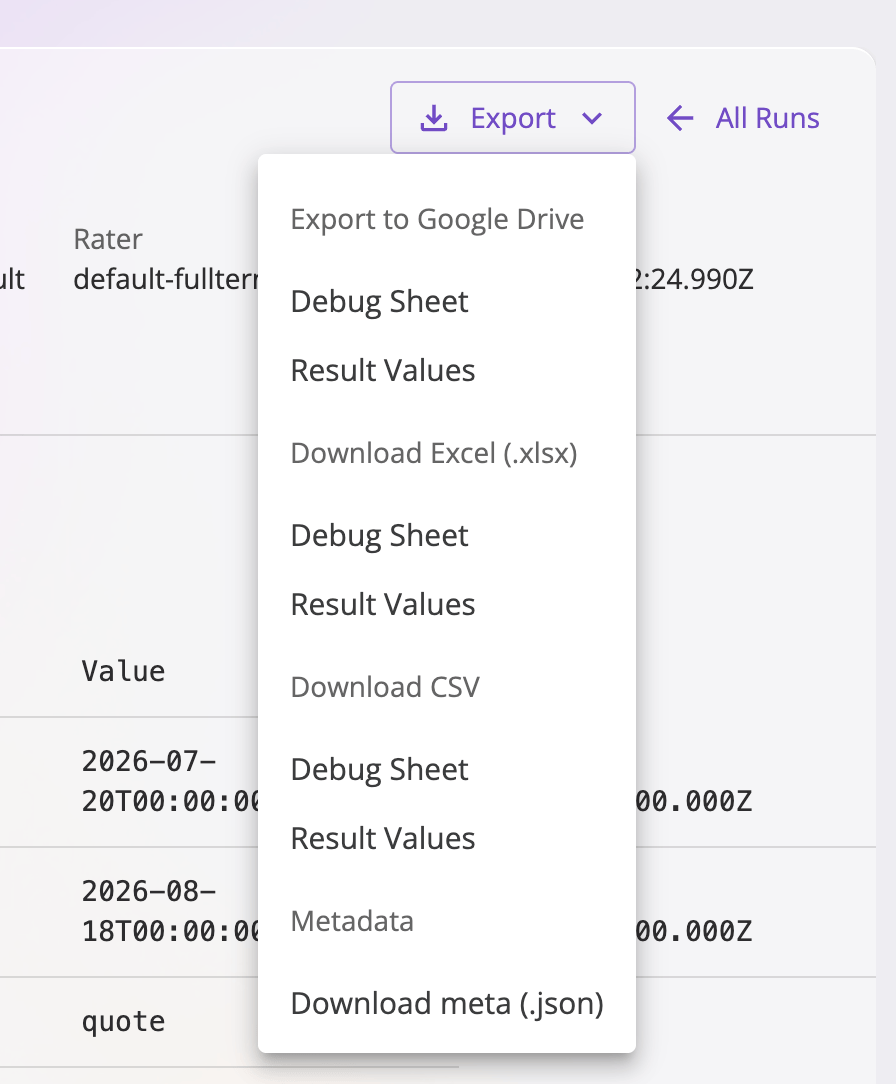
The **Export** button on the detail view (and the download icon on each list
row) opens the export menu. For each artifact — Debug Sheet or Result Values —
you can:
| Destination | What you get |
| -------------------------- | ------------------------------------------------------------------------------------------------------------------------------------------------------------------------------------------- |
| **Download Excel (.xlsx)** | The artifact as a workbook, one worksheet per tab, with formatting. |
| **Download CSV** | The artifact's tabs as CSV. |
| **Export to Google Drive** | A Google Sheets copy in a Drive folder you pick. You'll be asked to grant Google access and choose the destination folder; when the export finishes, you get a link to the new spreadsheet. |
The menu also offers **Download meta (.json)** — the run's metadata as a file,
useful when attaching a run to a support request. Artifacts a failed run never
wrote are disabled in the menu; the metadata is always available.
**Metadata** — the run's identity and outcome: the rating step's debug name,
the rater type, the target path, the rater identifier, when the run started,
how long it took, its status (including the failure stage and reason on a
failed run), and an output-error count if any output cells errored.
**Debug Sheet** — the full calculation worksheet exactly as it was evaluated
for this run: every tab, with the inputs that were written in and every
intermediate calculated cell. This is the artifact to read when you're
tracing *how* a number was produced.
**Result Values** — the output values read back from the run: the numbers the
quote actually received. Use this when you just need *what* came out.
Switch between the two artifacts with the tabs above the content; within an
artifact, each worksheet tab renders as its own table (scrollable for wide
sheets).
A **failed** run only has the artifacts that existed when the failure
happened — a run that failed before calculating writes no Result Values, for
example. Empty artifacts are labeled as such rather than hidden.
## Export a run
The **Export** button on the detail view (and the download icon on each list
row) opens the export menu. For each artifact — Debug Sheet or Result Values —
you can:
| Destination | What you get |
| -------------------------- | ------------------------------------------------------------------------------------------------------------------------------------------------------------------------------------------- |
| **Download Excel (.xlsx)** | The artifact as a workbook, one worksheet per tab, with formatting. |
| **Download CSV** | The artifact's tabs as CSV. |
| **Export to Google Drive** | A Google Sheets copy in a Drive folder you pick. You'll be asked to grant Google access and choose the destination folder; when the export finishes, you get a link to the new spreadsheet. |
The menu also offers **Download meta (.json)** — the run's metadata as a file,
useful when attaching a run to a support request. Artifacts a failed run never
wrote are disabled in the menu; the metadata is always available.