> ## Documentation Index
> Fetch the complete documentation index at: https://docs.go.aiinsurance.io/llms.txt
> Use this file to discover all available pages before exploring further.
# Roles & permissions
> Understand how roles and permissions control access, create custom roles, change what a role can do, move members between roles, and keep roles built from a template up to date.
Every member of your company, and every API key, holds exactly one **role**. A
role is a named bundle of **permissions**, and a permission is one action on
one kind of record: *View policies*, *Bind a quote*, *Approve an invoice*.
Whatever a role doesn't permit simply doesn't appear in the app — buttons,
menu items, and whole admin tabs are hidden rather than disabled.
The **Roles** tab of the admin area is where roles are created, edited, and
deleted. Open it by selecting your **company name** at the bottom of the left
sidebar, then the **Roles** tab.
Any role that can view roles sees this tab — every standard role except
**Client Member**. Creating, editing, and deleting roles needs the *Manage
roles* permission, which only the **Admin** role holds. Other roles see the
message *"You can view this role but not change it. Only an Admin can edit
roles."*
## How roles work
* **Roles belong to your company.** Each company has its own set of roles.
Changing a role here changes it for this company only, and if you belong to
several companies you hold a separate role in each.
* **Standard roles are copies of a template.** Every company starts with the
same eight [standard roles](#the-standard-roles), each copied from a template
AI Insurance maintains. A standard role you haven't touched stays **In
sync** with its template and picks up new permissions automatically.
* **Custom roles are yours.** Create one from scratch or by copying another
role, or edit a standard role — the moment you do, it becomes **Customized**
and stops changing on its own. See [Keep up with template
changes](#keep-up-with-template-changes).
* **Admin is locked.** It always holds every permission, can't be edited or
deleted, and is the only role that can manage roles. See [The Admin
role](#the-admin-role).
## The Roles tab
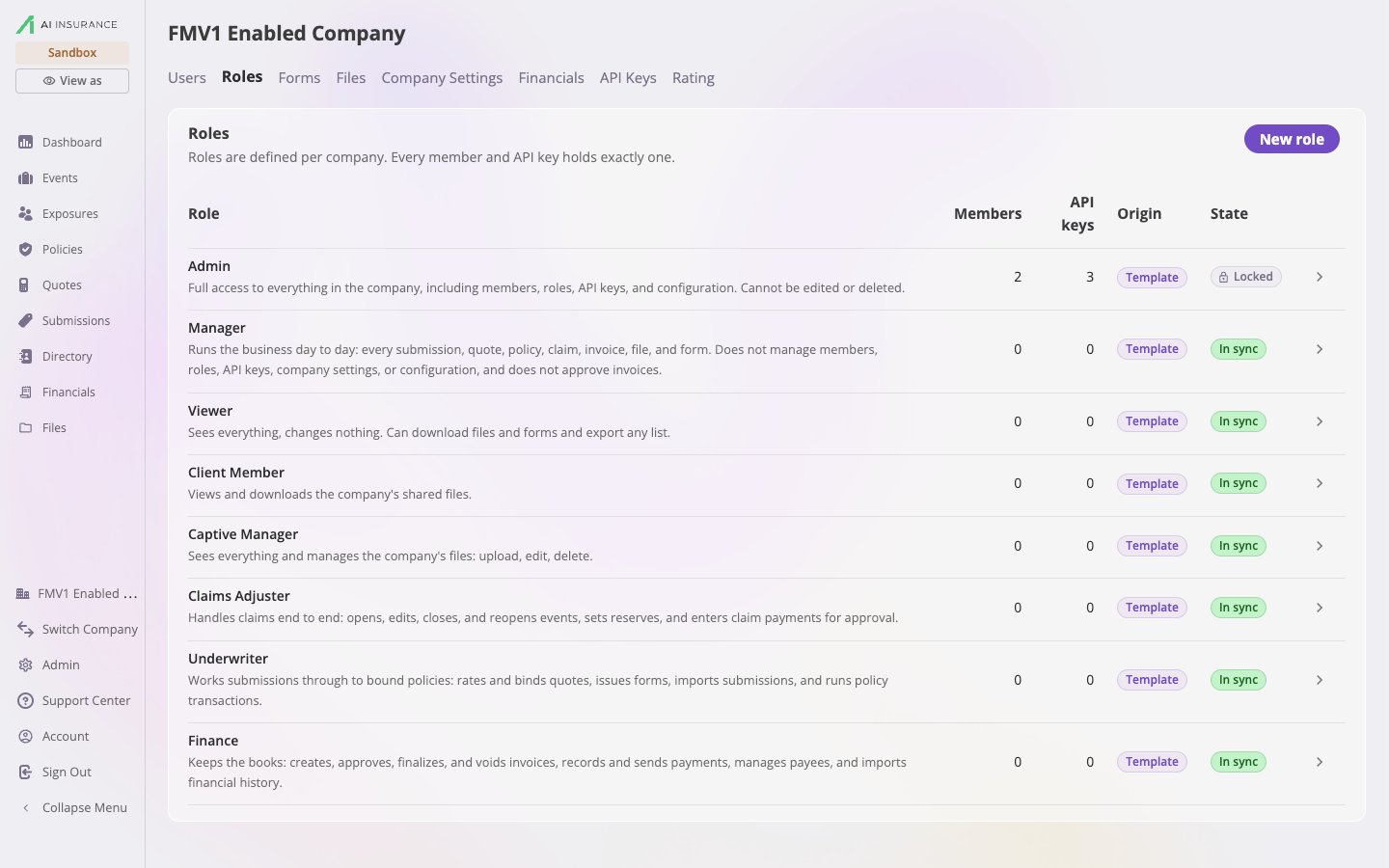
The table lists every role in your company: the eight standard roles first,
then your custom roles alphabetically.
| Column | Meaning |
| -------------------------- | ----------------------------------------------------------------------------------------------------------------------------------------------------------------------------------------------------------------------------------------------------------------------------- |
| **Role** | The role's name, with its description underneath. |
| **Members** / **API keys** | How many users and keys currently hold the role. |
| **Origin** | **Template** — this company's copy of a standard template. **Custom** — this company's own role; it follows no template. |
| **State** | **Locked** — always every permission, not editable (Admin only). **In sync** — untouched; receives new template permissions automatically. **Customized** — edited away from its template; new template permissions arrive as a notice instead. A custom role shows no state. |
 A **+N new** marker beside the state means the role's template has gained
permissions the role doesn't hold yet — open it to review them.
A **+N new** marker beside the state means the role's template has gained
permissions the role doesn't hold yet — open it to review them.
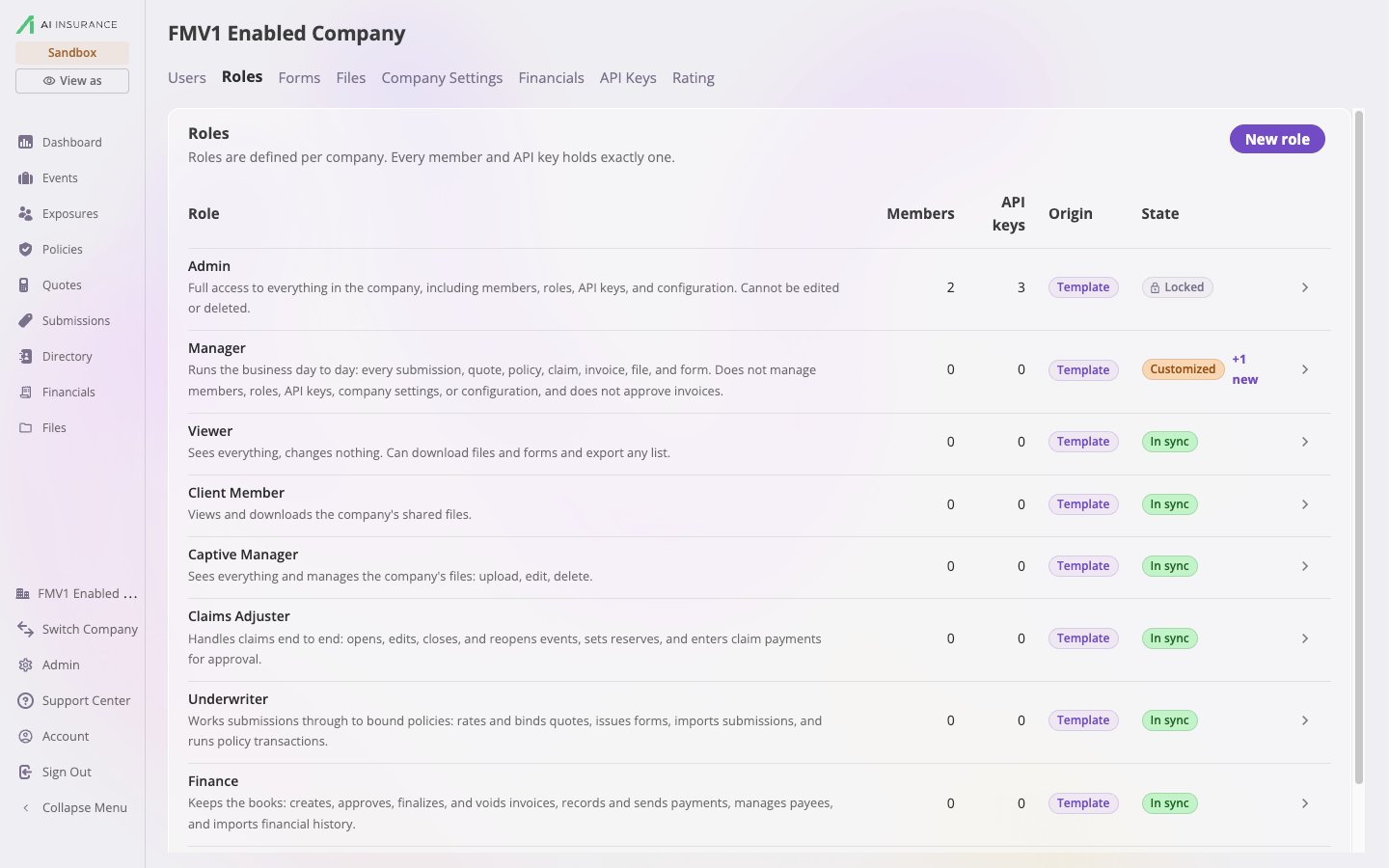 Select any row to open the role. The **New role** button at the top right of
the card appears only for roles that can manage roles.
## The standard roles
| Role | What it allows |
| ------------------- | --------------------------------------------------------------------------------------------------------------------------------------------------------------------------------------------------------------------------------- |
| **Admin** | Full access to everything in the company, including members, roles, API keys, and configuration. Cannot be edited or deleted. |
| **Manager** | Runs the business day to day: every submission, quote, policy, claim, invoice, file, and form. Does not manage members, roles, API keys, company settings, or configuration, and does not approve invoices or edit paid invoices. |
| **Viewer** | Sees everything, changes nothing. Can download files and forms and export any list. |
| **Client Member** | Views and downloads the company's shared files — nothing else. |
| **Captive Manager** | Sees everything and manages the company's files: upload, edit, delete. |
| **Claims Adjuster** | Handles claims end to end: opens, edits, closes, and reopens events, sets reserves, and enters claim payments for approval. Never approves, voids, or pays invoices. |
| **Underwriter** | Works submissions through to bound policies: rates and binds quotes, issues forms, imports submissions, and runs policy transactions. |
| **Finance** | Keeps the books: creates, approves, finalizes, and voids invoices, records and sends payments, manages payees, and imports financial history. |
Captive Manager, Claims Adjuster, Underwriter, and Finance all build on
Viewer: they can see everything and change only their own area. Open any role
to see its exact permission list.
## Create a role
The **New role** button sits at the top right of the Roles card.
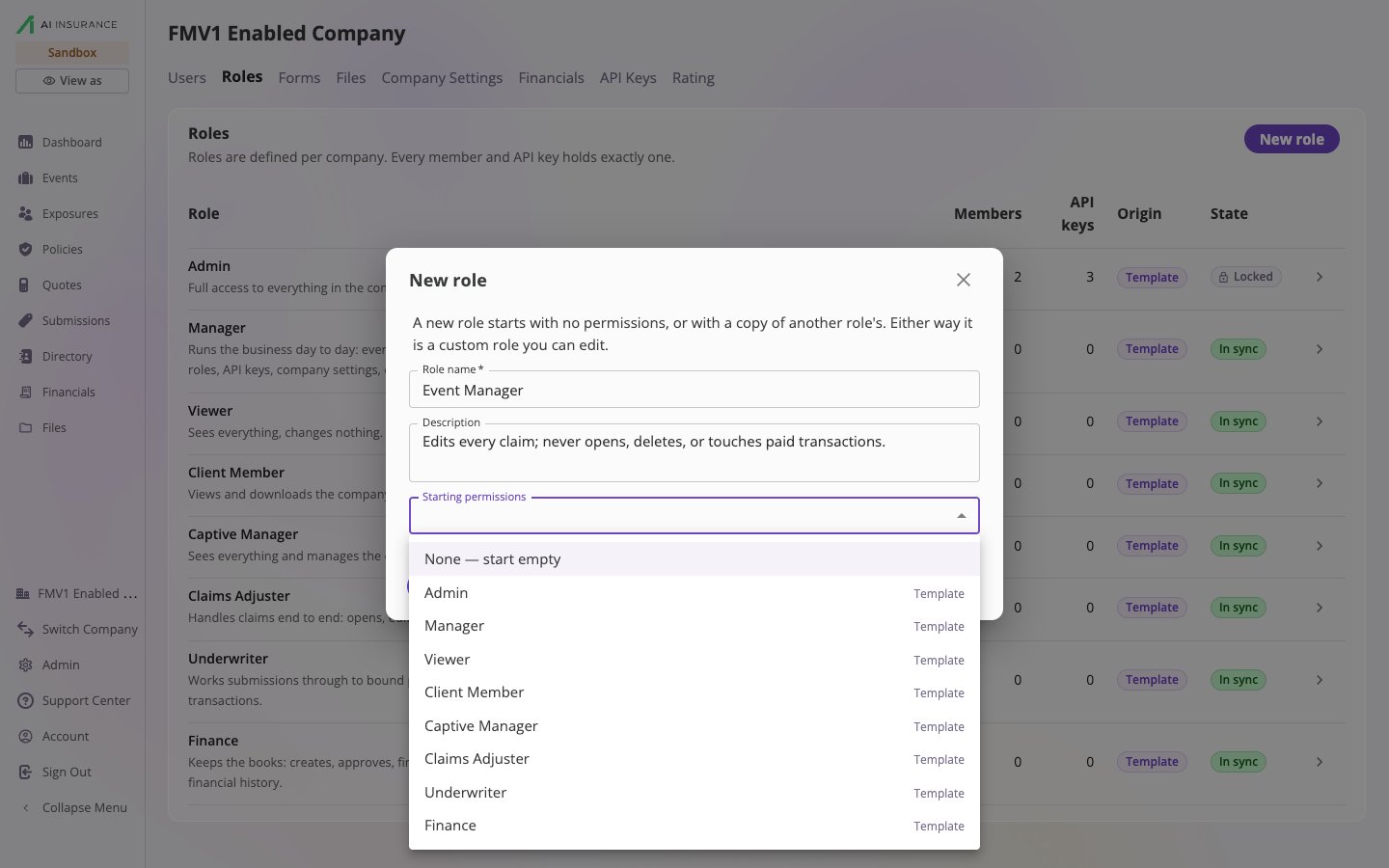
Enter a **Role name** and an optional **Description** — both appear in the
role picker when you invite users, so describe who the role is for.
**Starting permissions** decides what the role begins with: **None —
start empty**, or a copy of any existing role's permissions, standard or
custom. Copying **Admin** is allowed and gives you an ordinary, editable
role with every permission ticked.
The role is created as a **Custom** role and opens in the editor, where you
can adjust its permissions before anyone is assigned to it.
Select any row to open the role. The **New role** button at the top right of
the card appears only for roles that can manage roles.
## The standard roles
| Role | What it allows |
| ------------------- | --------------------------------------------------------------------------------------------------------------------------------------------------------------------------------------------------------------------------------- |
| **Admin** | Full access to everything in the company, including members, roles, API keys, and configuration. Cannot be edited or deleted. |
| **Manager** | Runs the business day to day: every submission, quote, policy, claim, invoice, file, and form. Does not manage members, roles, API keys, company settings, or configuration, and does not approve invoices or edit paid invoices. |
| **Viewer** | Sees everything, changes nothing. Can download files and forms and export any list. |
| **Client Member** | Views and downloads the company's shared files — nothing else. |
| **Captive Manager** | Sees everything and manages the company's files: upload, edit, delete. |
| **Claims Adjuster** | Handles claims end to end: opens, edits, closes, and reopens events, sets reserves, and enters claim payments for approval. Never approves, voids, or pays invoices. |
| **Underwriter** | Works submissions through to bound policies: rates and binds quotes, issues forms, imports submissions, and runs policy transactions. |
| **Finance** | Keeps the books: creates, approves, finalizes, and voids invoices, records and sends payments, manages payees, and imports financial history. |
Captive Manager, Claims Adjuster, Underwriter, and Finance all build on
Viewer: they can see everything and change only their own area. Open any role
to see its exact permission list.
## Create a role
The **New role** button sits at the top right of the Roles card.
Enter a **Role name** and an optional **Description** — both appear in the
role picker when you invite users, so describe who the role is for.
**Starting permissions** decides what the role begins with: **None —
start empty**, or a copy of any existing role's permissions, standard or
custom. Copying **Admin** is allowed and gives you an ordinary, editable
role with every permission ticked.
The role is created as a **Custom** role and opens in the editor, where you
can adjust its permissions before anyone is assigned to it.
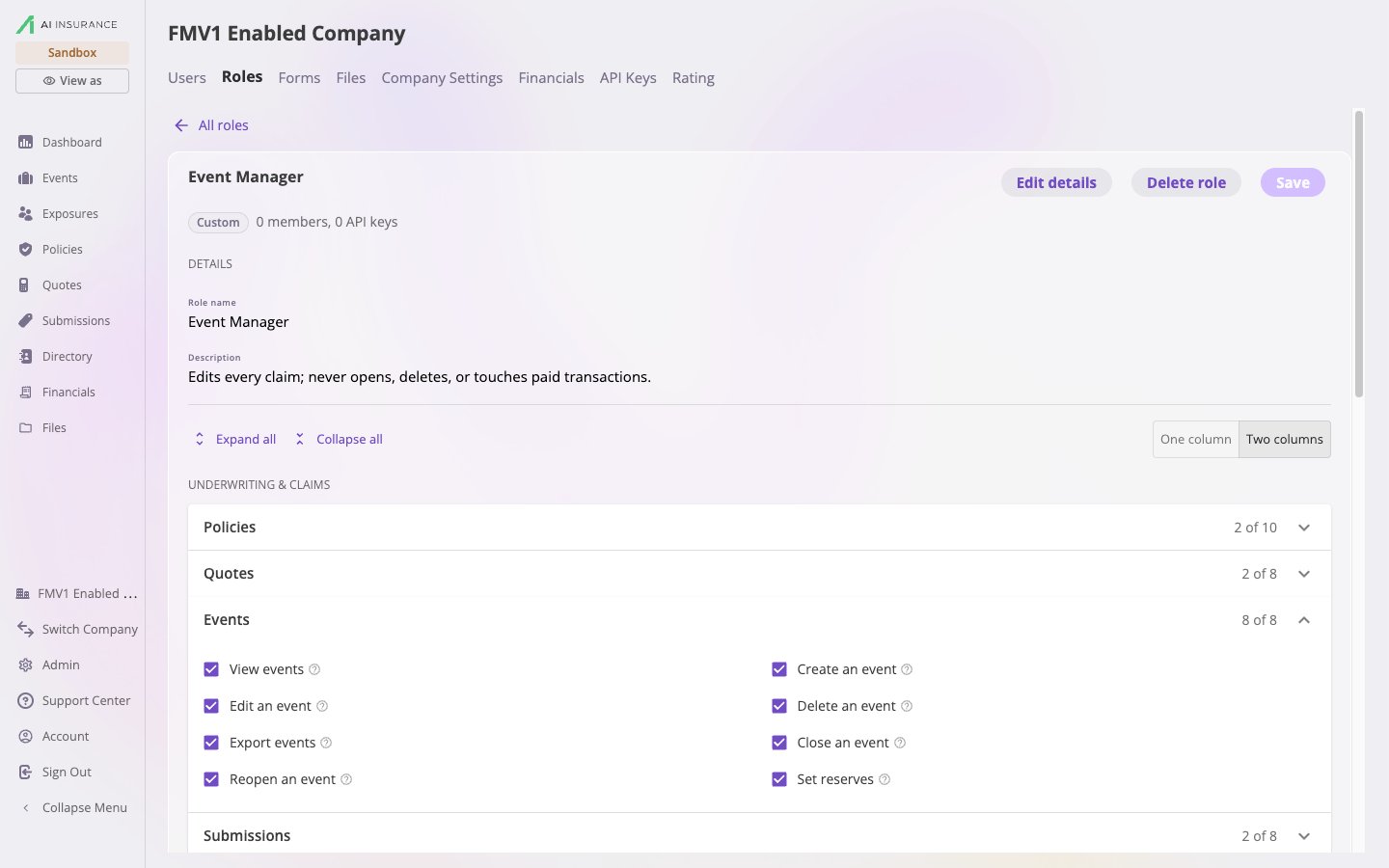
 Start from the standard role closest to what you need, then remove
permissions. For example, a claims role that may edit every claim but never
open or delete one: copy **Claims Adjuster**, untick *Create an event* and
*Delete an event* under **Events**, and save.
Two roles may share a display name, so give each a distinct name to keep the
role picker unambiguous.
## Edit a role
Opening a role shows its origin and state, a count of the members and API keys
holding it, and three areas: **Details**, the permission checklist, and
**Members**. The **Edit details**, **Delete role**, and **Save** buttons appear
only for roles that can manage roles, and never on Admin.
Start from the standard role closest to what you need, then remove
permissions. For example, a claims role that may edit every claim but never
open or delete one: copy **Claims Adjuster**, untick *Create an event* and
*Delete an event* under **Events**, and save.
Two roles may share a display name, so give each a distinct name to keep the
role picker unambiguous.
## Edit a role
Opening a role shows its origin and state, a count of the members and API keys
holding it, and three areas: **Details**, the permission checklist, and
**Members**. The **Edit details**, **Delete role**, and **Save** buttons appear
only for roles that can manage roles, and never on Admin.
 ### Details
The **Role name** and **Description** are plain text until you select **Edit
details**, which turns them into fields. Renaming a role doesn't touch its
permissions. While editing details the same button reads **Cancel** and
reverts only the name and description.
### Permissions
Permissions are grouped into five sections — **Underwriting & Claims**,
**Financials**, **Documents**, **Collaboration**, and **Administration** — and
within each section by the kind of record they act on: Policies, Quotes,
Events, Invoices, Files, Members, and so on. Each group's header shows how many
of its permissions the role holds, for example **4 of 9**.
* Tick or untick a permission to change the draft. Every permission has a
**?** button that explains what it covers.
* **Expand all** / **Collapse all** open or close every group; the
**One column** / **Two columns** toggle changes the layout. Neither is saved
with the role.
* Select **Save** to apply your changes — the message *"Role saved"* confirms
it. Changes you haven't saved are discarded when you leave the page.
Changes apply to everyone holding the role the next time their pages load.
### Restricted fields
If your company's field configuration marks some fields as restricted, an
extra block appears at the bottom of the relevant group under the heading
**Restricted fields — from this company's configuration**. Each restricted
group is a permission like any other, for example *Edit claim dates*, and
the fields it covers are listed beneath it as chips: a closed padlock while
the role lacks the permission, an open one once it's ticked.
A role without a restricted-field permission can still **see** those fields —
it just can't change them. This is how you make a handful of fields
read-only for most of your team while a few people keep editing them.
### Editing a standard role for the first time
The first time you change a standard role that is still **In sync** — a rename
counts — you're asked to confirm:
> *"\ still follows the \ template and receives new
> permissions automatically. Once you edit it, it becomes a customized role:
> new template permissions arrive as a notice for you to accept or dismiss
> instead. You only see this once."*
### Details
The **Role name** and **Description** are plain text until you select **Edit
details**, which turns them into fields. Renaming a role doesn't touch its
permissions. While editing details the same button reads **Cancel** and
reverts only the name and description.
### Permissions
Permissions are grouped into five sections — **Underwriting & Claims**,
**Financials**, **Documents**, **Collaboration**, and **Administration** — and
within each section by the kind of record they act on: Policies, Quotes,
Events, Invoices, Files, Members, and so on. Each group's header shows how many
of its permissions the role holds, for example **4 of 9**.
* Tick or untick a permission to change the draft. Every permission has a
**?** button that explains what it covers.
* **Expand all** / **Collapse all** open or close every group; the
**One column** / **Two columns** toggle changes the layout. Neither is saved
with the role.
* Select **Save** to apply your changes — the message *"Role saved"* confirms
it. Changes you haven't saved are discarded when you leave the page.
Changes apply to everyone holding the role the next time their pages load.
### Restricted fields
If your company's field configuration marks some fields as restricted, an
extra block appears at the bottom of the relevant group under the heading
**Restricted fields — from this company's configuration**. Each restricted
group is a permission like any other, for example *Edit claim dates*, and
the fields it covers are listed beneath it as chips: a closed padlock while
the role lacks the permission, an open one once it's ticked.
A role without a restricted-field permission can still **see** those fields —
it just can't change them. This is how you make a handful of fields
read-only for most of your team while a few people keep editing them.
### Editing a standard role for the first time
The first time you change a standard role that is still **In sync** — a rename
counts — you're asked to confirm:
> *"\ still follows the \ template and receives new
> permissions automatically. Once you edit it, it becomes a customized role:
> new template permissions arrive as a notice for you to accept or dismiss
> instead. You only see this once."*
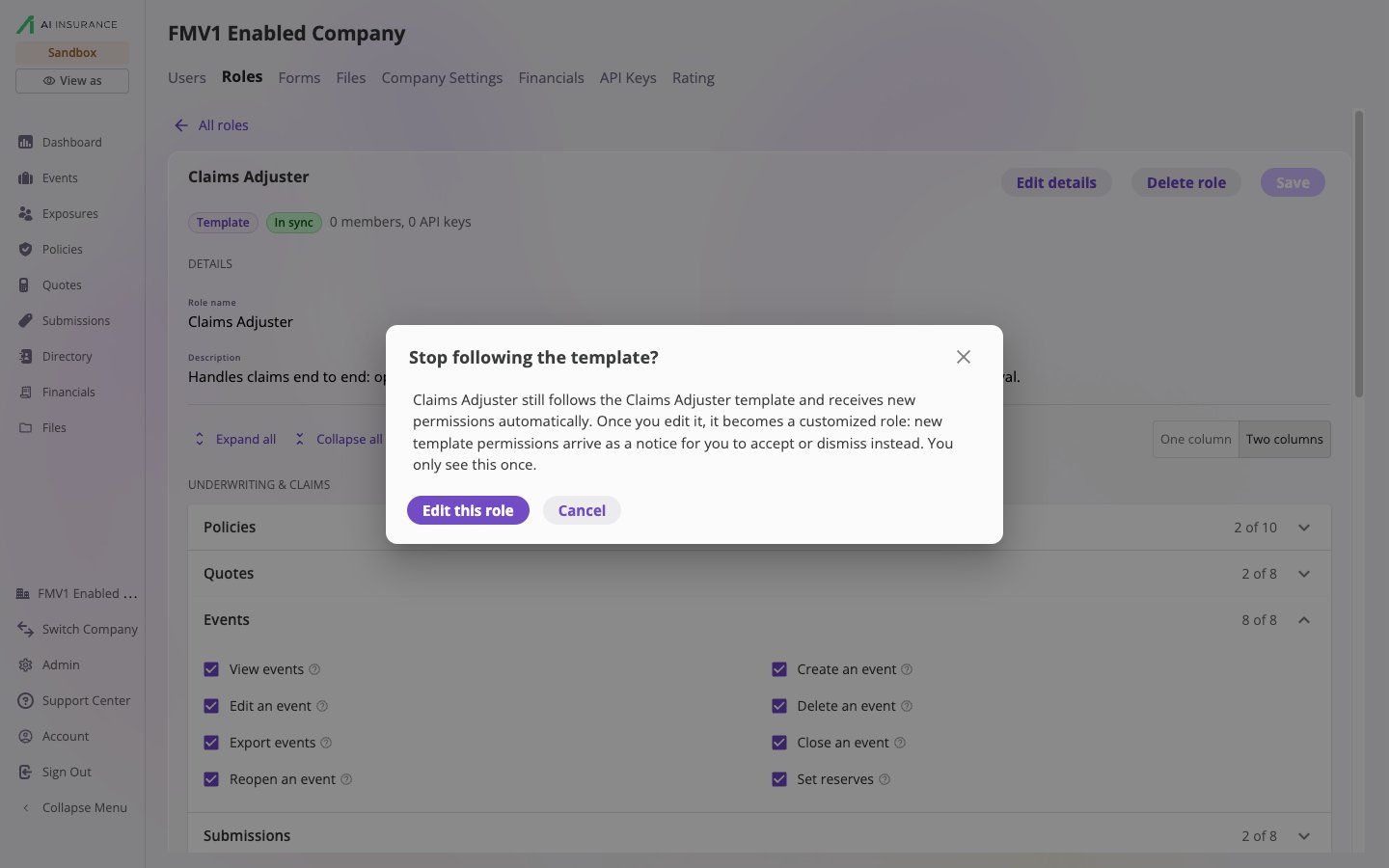 Select **Edit this role** to continue or **Cancel** to discard that change.
Customizing a standard role is safe and common — it is how most companies fit
the standard roles to their own team.
## Keep up with template changes
AI Insurance occasionally adds permissions to the templates, usually because a
new feature shipped with a permission of its own. What happens next depends on
the role's state:
* **In sync** roles receive the new permissions automatically. Nothing to do.
* **Customized** roles don't change on their own. Instead the Roles table
shows **+N new** beside the role, and opening it shows a notice: *"N new
permissions available. The \ template gained these since
\ was last synced,"* followed by the list. Select **Accept all**
to grant them or **Dismiss** to leave the role as it is. To take only some,
select **Accept all**, untick the ones you don't want, and **Save**.
* **Custom** roles that were never based on a template get no notices; you
grant new permissions by hand if you want them.
* **Admin** always holds every permission, including new ones.
Select **Edit this role** to continue or **Cancel** to discard that change.
Customizing a standard role is safe and common — it is how most companies fit
the standard roles to their own team.
## Keep up with template changes
AI Insurance occasionally adds permissions to the templates, usually because a
new feature shipped with a permission of its own. What happens next depends on
the role's state:
* **In sync** roles receive the new permissions automatically. Nothing to do.
* **Customized** roles don't change on their own. Instead the Roles table
shows **+N new** beside the role, and opening it shows a notice: *"N new
permissions available. The \ template gained these since
\ was last synced,"* followed by the list. Select **Accept all**
to grant them or **Dismiss** to leave the role as it is. To take only some,
select **Accept all**, untick the ones you don't want, and **Save**.
* **Custom** roles that were never based on a template get no notices; you
grant new permissions by hand if you want them.
* **Admin** always holds every permission, including new ones.
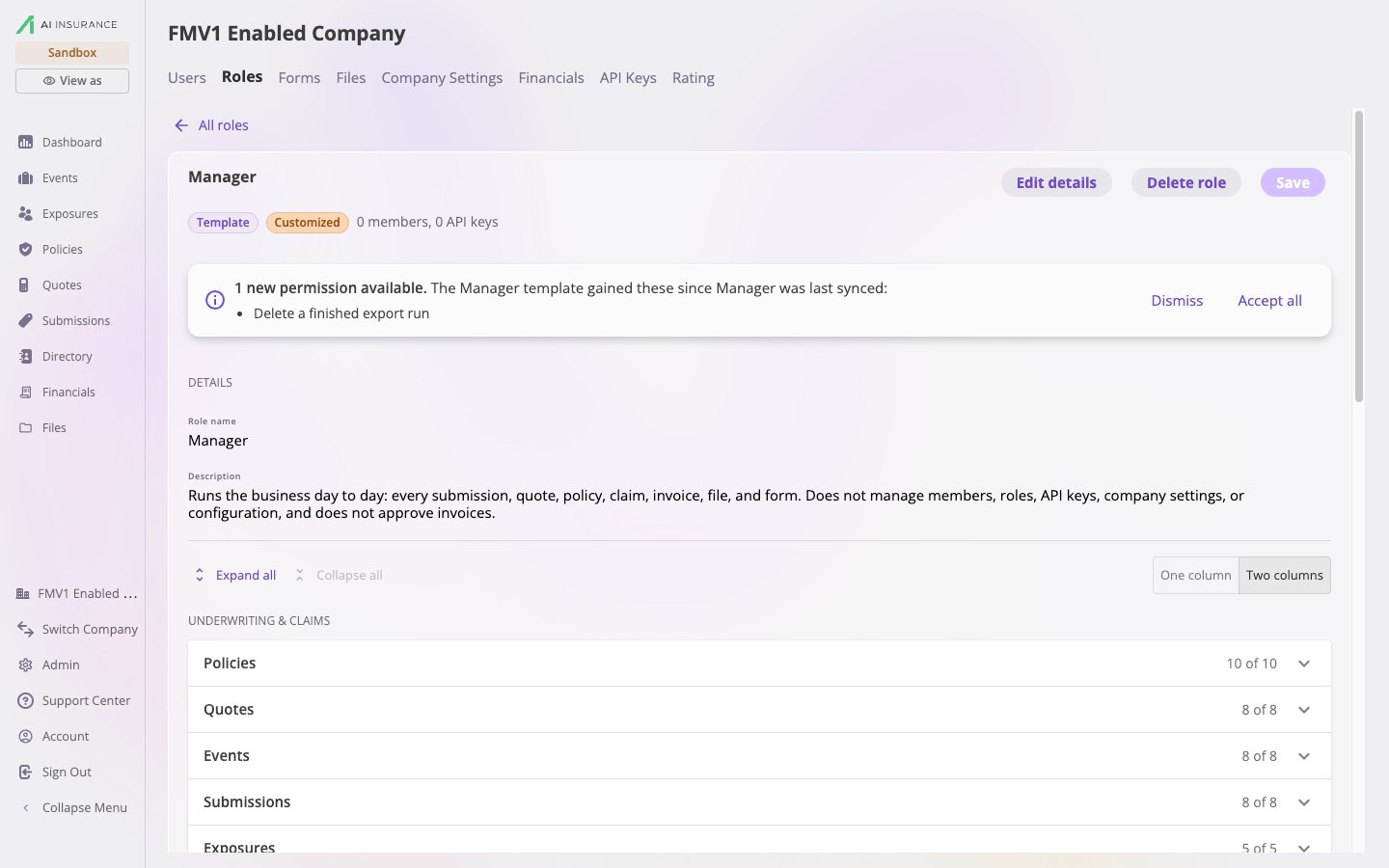 Either choice retires the notice. You aren't asked about the same additions
twice.
## Move members between roles
The **Members** section at the bottom of a role lists everyone who holds it,
with their name and email. To move someone onto this role, pick them from the
**Add members** dropdown — each option shows the person and the role they hold
now. The change applies immediately and you'll see *"\ now holds
\"*.
Because every member holds exactly one role, there is no "remove from role"
action: you move a person by assigning them another role, here or from the
[Users tab](/app/admin/users-roles#change-a-users-role). You can't change your
own role from either place.
## Delete a role
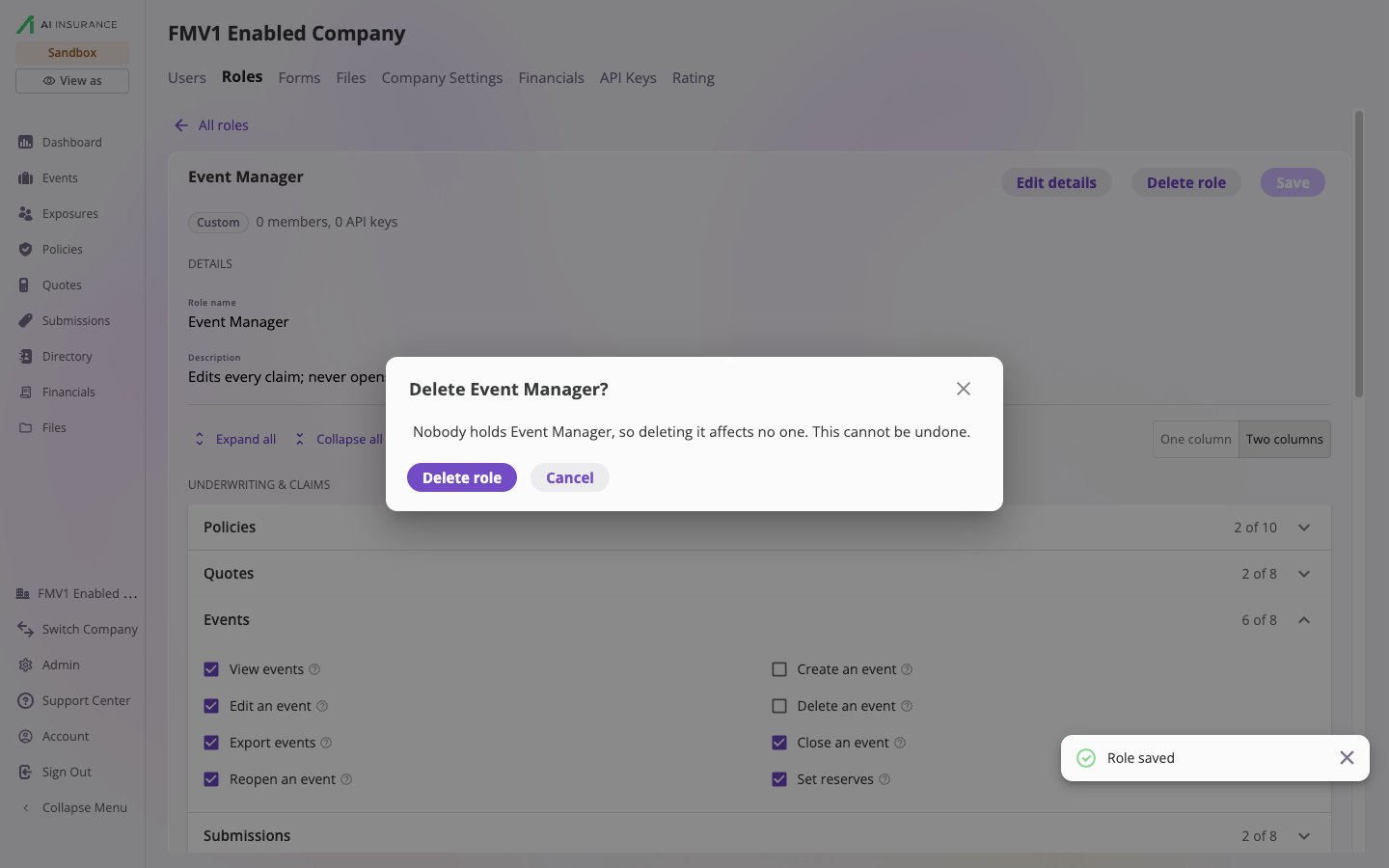
Select **Delete role** in the role editor. If nobody holds the role it is
simply removed. If members or API keys hold it, the dialog asks you to pick the
role they **Move them to** — the move and the delete happen together, so no
one is ever left without a role. Deleting a role cannot be undone.
Either choice retires the notice. You aren't asked about the same additions
twice.
## Move members between roles
The **Members** section at the bottom of a role lists everyone who holds it,
with their name and email. To move someone onto this role, pick them from the
**Add members** dropdown — each option shows the person and the role they hold
now. The change applies immediately and you'll see *"\ now holds
\"*.
Because every member holds exactly one role, there is no "remove from role"
action: you move a person by assigning them another role, here or from the
[Users tab](/app/admin/users-roles#change-a-users-role). You can't change your
own role from either place.
## Delete a role
Select **Delete role** in the role editor. If nobody holds the role it is
simply removed. If members or API keys hold it, the dialog asks you to pick the
role they **Move them to** — the move and the delete happen together, so no
one is ever left without a role. Deleting a role cannot be undone.
 The **Admin** role cannot be deleted.
## The Admin role
Admin is your company's locked role:
* It always holds every permission your company can use, including
permissions added later and any restricted-field permissions from your
configuration.
* It cannot be edited or deleted. Opening it shows *"Admin always holds every
permission the company can use, so there is nothing to change here. Build a
narrower role instead."*
* It is the only role that can create, edit, and delete roles. Of the
standard roles it is also the only one that can invite users, change their
roles, and remove them, though a custom role can be given those permissions.
* You can't move the last Admin in your company to another role — assign
another Admin first. This keeps you from locking everyone out of role and
user management.
To give someone broad access *without* role management, don't make them an
Admin — copy Admin into a new role and untick **Manage roles** and the
**Members** permissions.
## Roles and API keys
API keys hold roles exactly as users do, and appear in each role's **API keys**
count. A key can be given any of your company's roles, including a custom one
built just for that integration. See [API keys](/app/admin/api-keys#keys-have-roles).
The **Admin** role cannot be deleted.
## The Admin role
Admin is your company's locked role:
* It always holds every permission your company can use, including
permissions added later and any restricted-field permissions from your
configuration.
* It cannot be edited or deleted. Opening it shows *"Admin always holds every
permission the company can use, so there is nothing to change here. Build a
narrower role instead."*
* It is the only role that can create, edit, and delete roles. Of the
standard roles it is also the only one that can invite users, change their
roles, and remove them, though a custom role can be given those permissions.
* You can't move the last Admin in your company to another role — assign
another Admin first. This keeps you from locking everyone out of role and
user management.
To give someone broad access *without* role management, don't make them an
Admin — copy Admin into a new role and untick **Manage roles** and the
**Members** permissions.
## Roles and API keys
API keys hold roles exactly as users do, and appear in each role's **API keys**
count. A key can be given any of your company's roles, including a custom one
built just for that integration. See [API keys](/app/admin/api-keys#keys-have-roles).