> ## Documentation Index
> Fetch the complete documentation index at: https://docs.go.aiinsurance.io/llms.txt
> Use this file to discover all available pages before exploring further.
# Users & roles
> Invite people to your company, assign roles, change a user's role, and revoke access.
The **Users** tab of the admin area is where you manage who can sign in to your
company's AI Insurance instance and what each person is allowed to do. Open it
by selecting your **company name** at the bottom of the left sidebar, then the
**Users** tab.
The Users tab is only visible to users whose role allows managing users — of
the standard roles, that's **Carrier Admin** (and Super Admin). Other roles
don't see the tab at all.
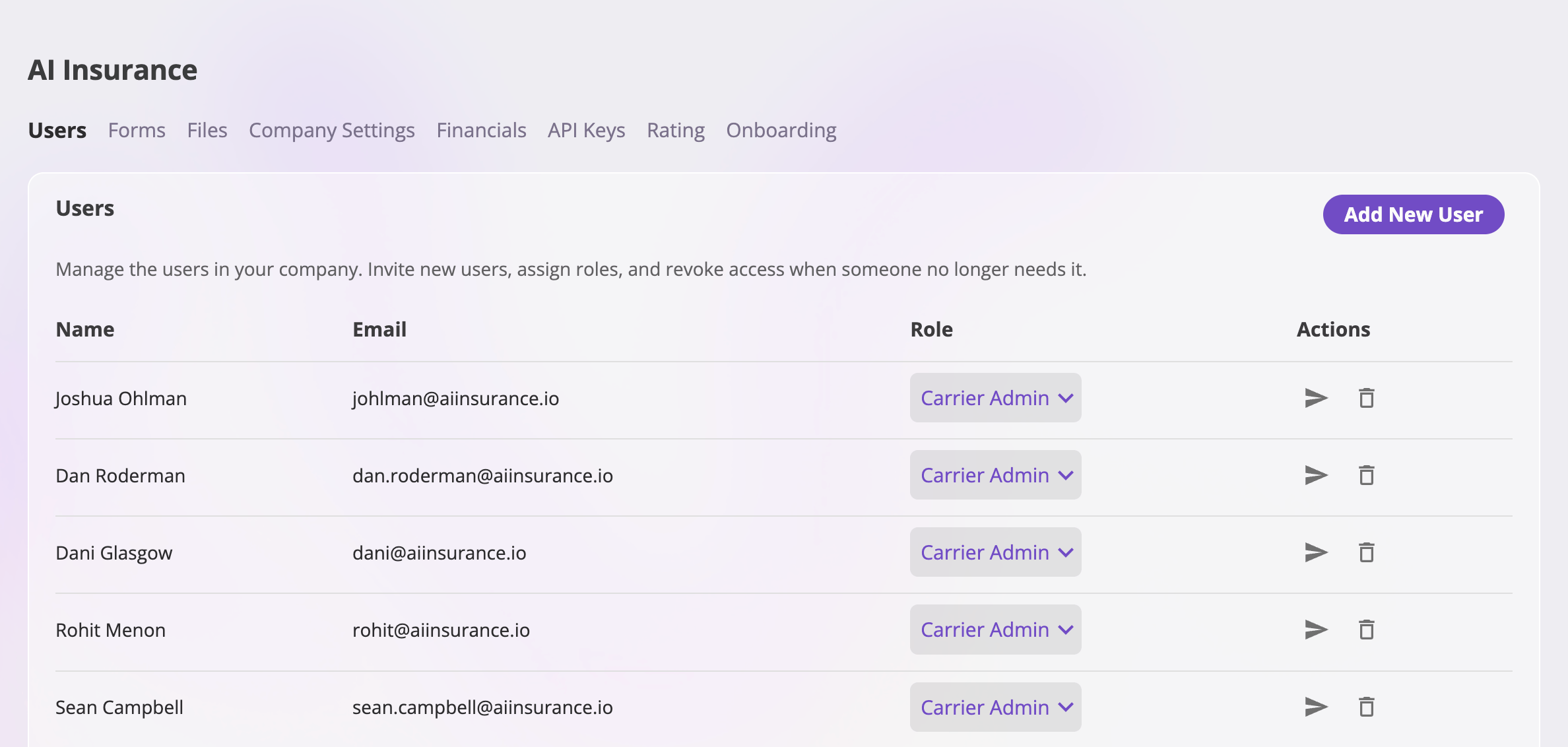 The table lists every user in your company with their **Name**, **Email**,
**Role**, and per-row **Actions** (resend invite, remove). Your own row is
special: you can't change your own role or remove yourself, so the role editor
is disabled and the action icons don't appear on it.
## Invite a user
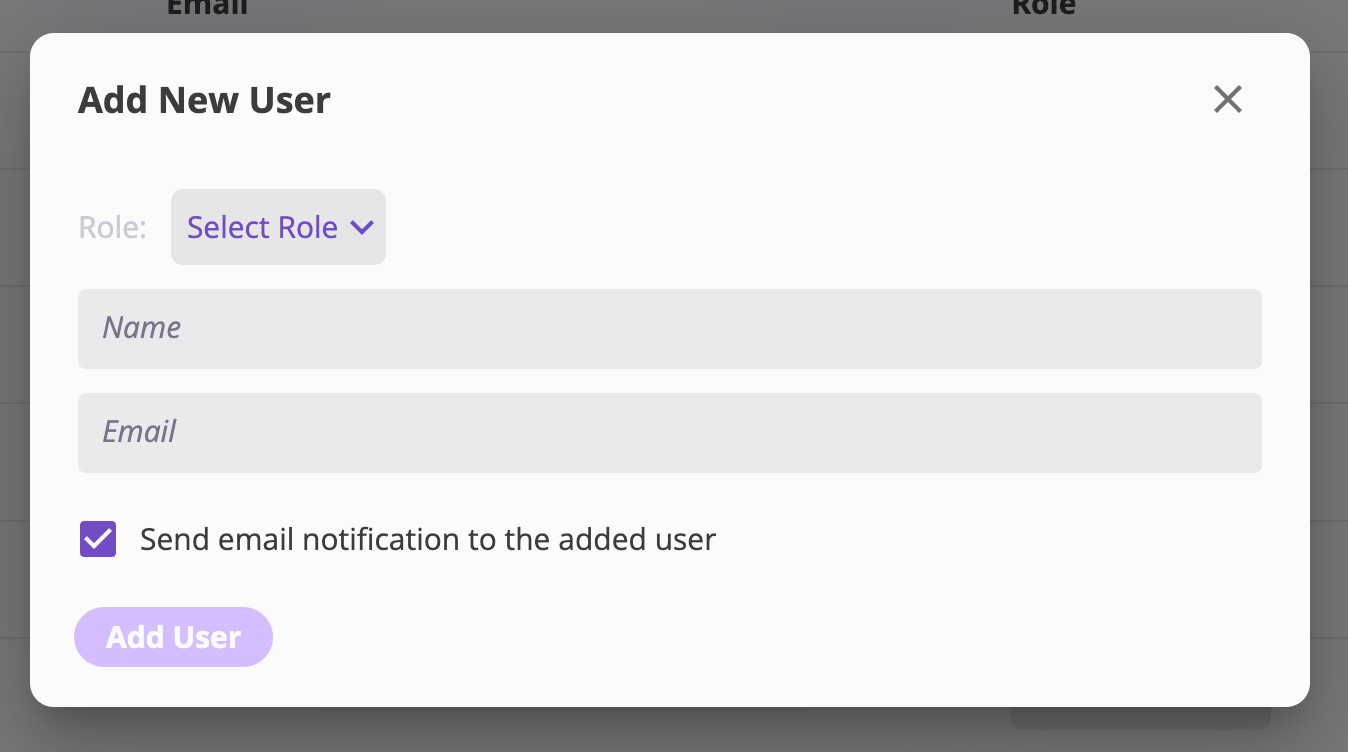
The **Add New User** button sits at the top right of the Users card.
Pick a **Role** (the dropdown shows each role's name and description), then
enter the user's **Name** and **Email**. The **Send email notification to
the added user** checkbox is checked by default — leave it on to send the
invite email.
The user is added to your company with the chosen role. If you left the
notification on, they receive an *"Account Added To \"*
email telling them which role they were given and where to sign in.
The table lists every user in your company with their **Name**, **Email**,
**Role**, and per-row **Actions** (resend invite, remove). Your own row is
special: you can't change your own role or remove yourself, so the role editor
is disabled and the action icons don't appear on it.
## Invite a user
The **Add New User** button sits at the top right of the Users card.
Pick a **Role** (the dropdown shows each role's name and description), then
enter the user's **Name** and **Email**. The **Send email notification to
the added user** checkbox is checked by default — leave it on to send the
invite email.
The user is added to your company with the chosen role. If you left the
notification on, they receive an *"Account Added To \"*
email telling them which role they were given and where to sign in.
 A few things to know about invites:
* **The email address is the identity.** The new user signs in with the email
you invited — see [Signing in](/app/getting-started/signing-in).
* **Duplicates are rejected.** If someone with that email is already a member
of your company, you'll get an error instead of a second account. To change
an existing member's access, [change their role](#change-a-users-role)
instead.
* **Re-adding works.** A user you previously removed — or a user who belongs to
a different company on the platform — can be invited again with the same
email. They keep their existing sign-in and get access to your company with
the role you chose.
* **A failed email isn't a failed invite.** If the invite email couldn't be
sent, the user is still added — you'll see a warning instead of a success
message, and you can [resend the invite](#resend-an-invite) from their row.
## The role catalog
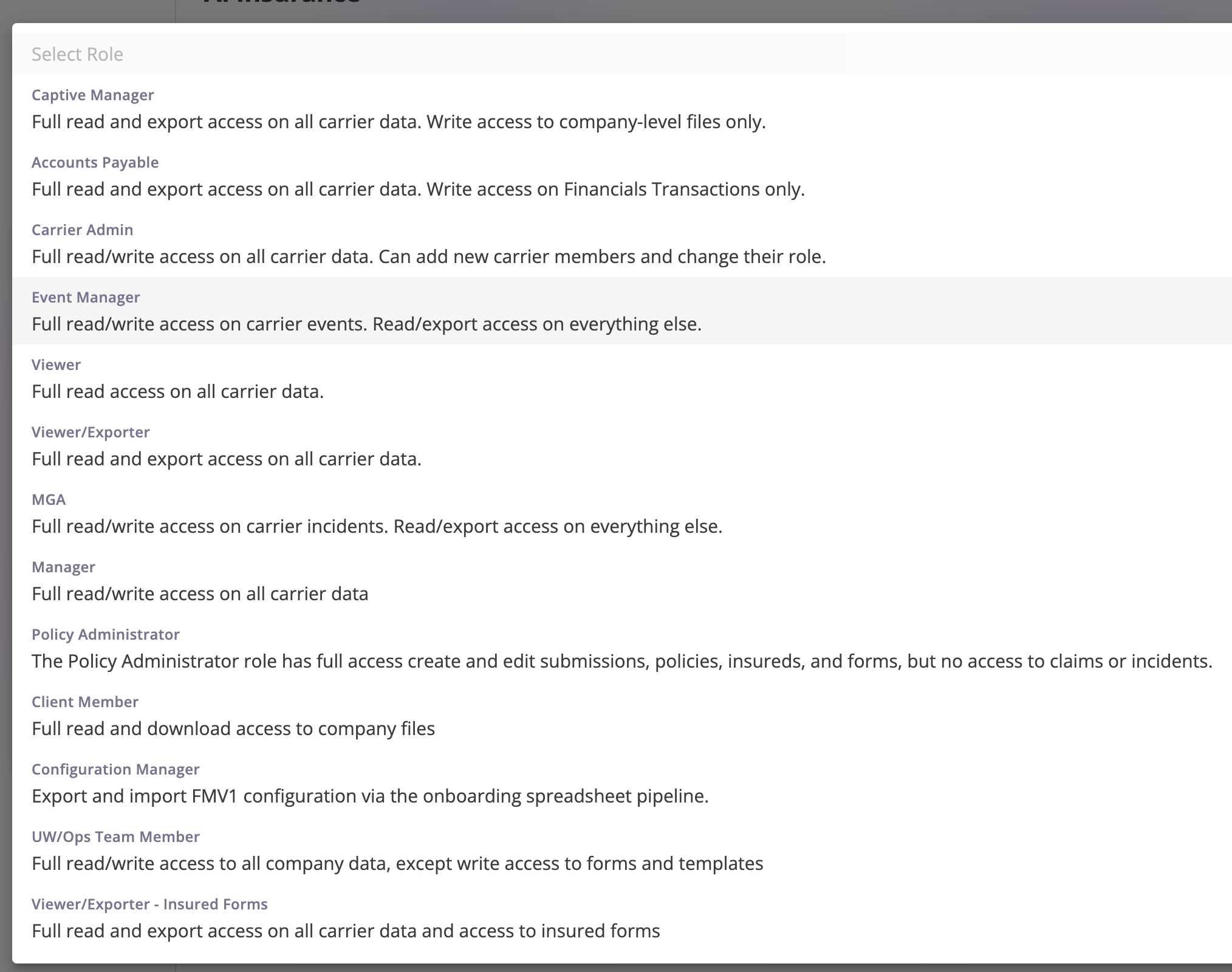
A user's role decides everything they can see and do. Roles are predefined —
you pick from the catalog rather than composing permissions by hand. The
dropdown shows each role's description, summarized here:
| Role | What it allows |
| ----------------------------------- | ------------------------------------------------------------------------------------------------------------------------------------------------------------------------------------------------------------------------- |
| **Carrier Admin** | Full read/write access to all company data. The only standard role that can **manage users** (invite, change roles, remove), edit **company settings**, manage **API keys**, and import/export company **configuration**. |
| **Manager** | Full read/write access to all company data — submissions, quotes, policies, claims, exposures, forms, financials. Cannot manage users, company settings, or API keys. |
| **Policy Administrator** | Full access to create and edit submissions, quotes, policies, exposures, and forms, and can edit company settings and manage API keys — but **no access to claims or incidents**. |
| **Event Manager** | Full read/write access to claims and incidents (events), plus quoting and policy work; read/export access on everything else. |
| **MGA** | Full read/write access to incidents; read and export access on everything else. |
| **UW/Ops Team Member** | Full read/write access to all company data, **except** write access to forms and form templates. |
| **Accounts Payable** | Read and export access to all company data; write access to financial transactions only. |
| **Captive Manager** | Read and export access to all company data; write access to company-level files only. |
| **Viewer** | Read-only access to all company data. |
| **Viewer/Exporter** | Read access to all company data, plus downloading files and exporting data. |
| **Viewer/Exporter - Insured Forms** | Read and export access to all company data, plus the ability to work with insured forms. |
| **Client Member** | Read and download access to company files only. |
| **Configuration Manager** | Export and import company configuration and upload raters — nothing else. Useful for a key that only manages [how your app is configured](/app/getting-started/configuration). |
| **Super Admin** | Every permission in the catalog, including configuration import/export. Assignment is normally reserved for AI Insurance staff working with you. |
You may also see a **Support Engineer** role in your users list from time to
time — it's an internal AI Insurance role used by our staff when helping with
a support request, and it **cannot be assigned** through the invite or
change-role flows.
Throughout the app, what a user's role doesn't allow simply doesn't appear:
buttons, menu items, and whole admin tabs are hidden rather than disabled, so
a Viewer never sees an Edit button they can't use.
## Change a user's role
Each row's **Role** column is an inline dropdown. Pick a new role and the
change applies immediately — you'll see a confirmation like *"Updated
\ to role: Manager"*, and the user's access changes the next time
their pages load.
A few things to know about invites:
* **The email address is the identity.** The new user signs in with the email
you invited — see [Signing in](/app/getting-started/signing-in).
* **Duplicates are rejected.** If someone with that email is already a member
of your company, you'll get an error instead of a second account. To change
an existing member's access, [change their role](#change-a-users-role)
instead.
* **Re-adding works.** A user you previously removed — or a user who belongs to
a different company on the platform — can be invited again with the same
email. They keep their existing sign-in and get access to your company with
the role you chose.
* **A failed email isn't a failed invite.** If the invite email couldn't be
sent, the user is still added — you'll see a warning instead of a success
message, and you can [resend the invite](#resend-an-invite) from their row.
## The role catalog
A user's role decides everything they can see and do. Roles are predefined —
you pick from the catalog rather than composing permissions by hand. The
dropdown shows each role's description, summarized here:
| Role | What it allows |
| ----------------------------------- | ------------------------------------------------------------------------------------------------------------------------------------------------------------------------------------------------------------------------- |
| **Carrier Admin** | Full read/write access to all company data. The only standard role that can **manage users** (invite, change roles, remove), edit **company settings**, manage **API keys**, and import/export company **configuration**. |
| **Manager** | Full read/write access to all company data — submissions, quotes, policies, claims, exposures, forms, financials. Cannot manage users, company settings, or API keys. |
| **Policy Administrator** | Full access to create and edit submissions, quotes, policies, exposures, and forms, and can edit company settings and manage API keys — but **no access to claims or incidents**. |
| **Event Manager** | Full read/write access to claims and incidents (events), plus quoting and policy work; read/export access on everything else. |
| **MGA** | Full read/write access to incidents; read and export access on everything else. |
| **UW/Ops Team Member** | Full read/write access to all company data, **except** write access to forms and form templates. |
| **Accounts Payable** | Read and export access to all company data; write access to financial transactions only. |
| **Captive Manager** | Read and export access to all company data; write access to company-level files only. |
| **Viewer** | Read-only access to all company data. |
| **Viewer/Exporter** | Read access to all company data, plus downloading files and exporting data. |
| **Viewer/Exporter - Insured Forms** | Read and export access to all company data, plus the ability to work with insured forms. |
| **Client Member** | Read and download access to company files only. |
| **Configuration Manager** | Export and import company configuration and upload raters — nothing else. Useful for a key that only manages [how your app is configured](/app/getting-started/configuration). |
| **Super Admin** | Every permission in the catalog, including configuration import/export. Assignment is normally reserved for AI Insurance staff working with you. |
You may also see a **Support Engineer** role in your users list from time to
time — it's an internal AI Insurance role used by our staff when helping with
a support request, and it **cannot be assigned** through the invite or
change-role flows.
Throughout the app, what a user's role doesn't allow simply doesn't appear:
buttons, menu items, and whole admin tabs are hidden rather than disabled, so
a Viewer never sees an Edit button they can't use.
## Change a user's role
Each row's **Role** column is an inline dropdown. Pick a new role and the
change applies immediately — you'll see a confirmation like *"Updated
\ to role: Manager"*, and the user's access changes the next time
their pages load.
 Two guardrails apply:
* **You can't change your own role.** Your own row's dropdown is disabled; ask
another admin.
* **You can't demote the last admin.** If the user is the only Carrier Admin in
your company, moving them to another role is rejected — assign another
Carrier Admin first. This keeps you from locking everyone out of user
management.
## Resend an invite
The **send** icon in a user's Actions column re-sends the invite email — useful
when someone lost the original message or it never arrived. Confirm the
recipient in the dialog and select **Confirm**; you'll see *"Successfully sent
new invite to \"*.
## Remove a user
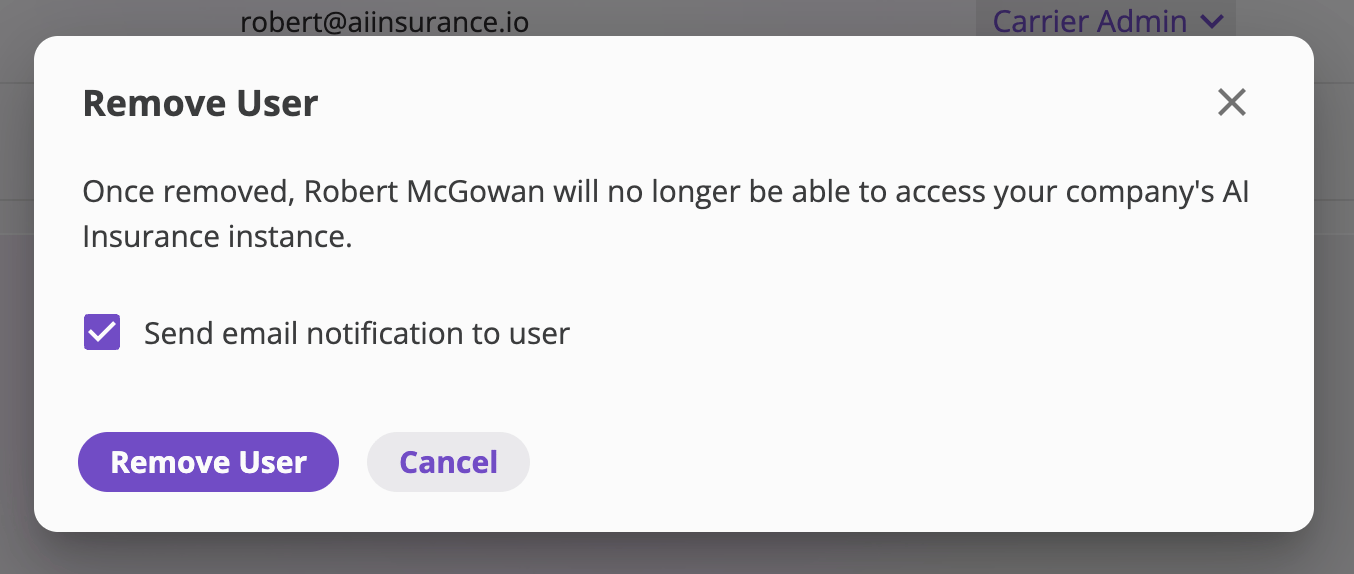
The **trash** icon in a user's Actions column revokes their access to your
company. The **Remove User** dialog confirms what removal means — once removed,
the person can no longer access your company's AI Insurance instance — and
offers a **Send email notification to user** checkbox (checked by default) so
they're told their access was revoked.
Two guardrails apply:
* **You can't change your own role.** Your own row's dropdown is disabled; ask
another admin.
* **You can't demote the last admin.** If the user is the only Carrier Admin in
your company, moving them to another role is rejected — assign another
Carrier Admin first. This keeps you from locking everyone out of user
management.
## Resend an invite
The **send** icon in a user's Actions column re-sends the invite email — useful
when someone lost the original message or it never arrived. Confirm the
recipient in the dialog and select **Confirm**; you'll see *"Successfully sent
new invite to \"*.
## Remove a user
The **trash** icon in a user's Actions column revokes their access to your
company. The **Remove User** dialog confirms what removal means — once removed,
the person can no longer access your company's AI Insurance instance — and
offers a **Send email notification to user** checkbox (checked by default) so
they're told their access was revoked.
 Removal is how you deactivate someone — there is no separate "deactivate"
switch. It only revokes their access to **your** company; records they created
(notes, files, tasks) are unaffected, and you can [invite them
back](#invite-a-user) later with the same email address.
Removal is how you deactivate someone — there is no separate "deactivate"
switch. It only revokes their access to **your** company; records they created
(notes, files, tasks) are unaffected, and you can [invite them
back](#invite-a-user) later with the same email address.