> ## Documentation Index
> Fetch the complete documentation index at: https://docs.go.aiinsurance.io/llms.txt
> Use this file to discover all available pages before exploring further.
# Dashboard & tasks
> The Dashboard's tasks calendar, the full task list, and creating, assigning, and completing tasks.
The **Dashboard** is the app's home page — it's where you land after signing
in, and you can return to it any time from the **Dashboard** entry in the
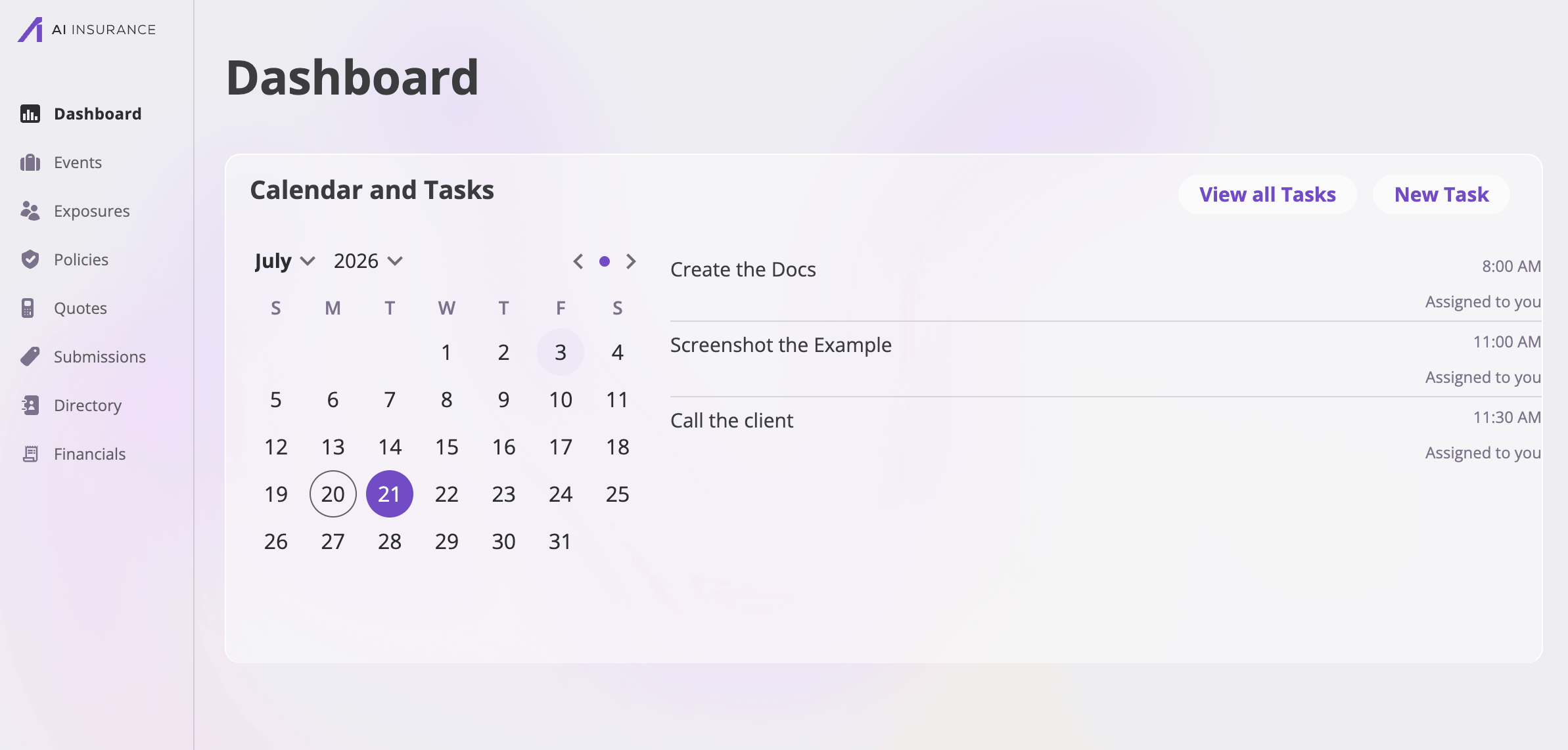
sidebar. Its centerpiece is the **Calendar and Tasks** card: your upcoming
work, laid out on a month calendar.
A **task** is a dated to-do — chase a document, call an adjuster, follow up on
a renewal — with a name, a due date and time, one or more assignees, and
optionally a link to the record it's about.
 Tasks follow your **permissions**: the New Task button only appears for
roles that can create tasks, and the edit/delete affordances described below
only show for roles allowed to perform them. If your role can't view tasks,
the tasks card and the tasks page aren't available.
## The tasks calendar
The calendar on the Dashboard shows **your own open work**: tasks assigned to
you that aren't complete yet, for the month on display.
* **Days with a dot** have at least one of your incomplete tasks due that day.
* **Select a day** to see its tasks on the right. The Dashboard shows up to
three; if there are more, a **+N more items** link takes you to the full
[task list](#the-task-list).
* **Navigate months** with the month and year dropdowns in the calendar
header, or the left/right arrows (the arrows move within the displayed year
— use the dropdowns to cross into another year). The small dot button
between the arrows jumps back to today.
Above the calendar, the card offers two buttons:
| Button | What it does |
| ------------------ | ------------------------------------------------ |
| **New Task** | Opens the [New Task dialog](#creating-a-task). |
| **View all Tasks** | Opens the full [task list](#the-task-list) page. |
### Task cards
Each task renders as a compact card wherever tasks are listed — on the
Dashboard, the task list, and a record's Tasks tab:
* The **task name** (shown in red when the task is overdue).
* The **due time** (the task list also shows the full date).
* The **linked record's name**, when the task is linked to one.
* An **assignee summary** — "Assigned to you", "Assigned to you and 2
others", "Assigned to *name*", or "No Assignees".
* A **checkbox** (on the task list and calendar views) that marks the task
complete — or incomplete again — in one click.
Selecting a card opens the [task details dialog](#viewing-and-editing-a-task).
## The task list
**View all Tasks** (or the **+N more items** link) opens the full task list.
It shows every task that matches the current filters, grouped by date:
* **Overdue** — past-due tasks that aren't complete, listed first with their
names in red.
* **Day-by-day groups** — today's and upcoming tasks under a header for each
date, in date order. Completed tasks keep their place under their date until
the date passes.
* **Complete** — past tasks that were completed.
### Searching and filtering
* **Search tasks** matches against task names as you type, highlighting the
match on each card.
* **Add Filters** opens the filter picker with two filters:
| Filter | Options | Default |
| --------------- | ------------------------------------------------- | ------------ |
| **Status** | All · Not Complete · Complete | Not Complete |
| **Assigned to** | Anyone, or a specific user (you're marked "(Me)") | You |
Active filters appear as **pills** under the search field — select a pill to
edit it, or its × to remove it. So by default the list opens on *your
incomplete tasks*; clear both filters to see every task in the company.
Filters live in the page URL, so they survive a refresh and the back button
— and you can share a filtered task list with a teammate by copying the
address.
## Creating a task
Select **New Task** (on the Dashboard or the task list) to open the New Task
dialog:
Tasks follow your **permissions**: the New Task button only appears for
roles that can create tasks, and the edit/delete affordances described below
only show for roles allowed to perform them. If your role can't view tasks,
the tasks card and the tasks page aren't available.
## The tasks calendar
The calendar on the Dashboard shows **your own open work**: tasks assigned to
you that aren't complete yet, for the month on display.
* **Days with a dot** have at least one of your incomplete tasks due that day.
* **Select a day** to see its tasks on the right. The Dashboard shows up to
three; if there are more, a **+N more items** link takes you to the full
[task list](#the-task-list).
* **Navigate months** with the month and year dropdowns in the calendar
header, or the left/right arrows (the arrows move within the displayed year
— use the dropdowns to cross into another year). The small dot button
between the arrows jumps back to today.
Above the calendar, the card offers two buttons:
| Button | What it does |
| ------------------ | ------------------------------------------------ |
| **New Task** | Opens the [New Task dialog](#creating-a-task). |
| **View all Tasks** | Opens the full [task list](#the-task-list) page. |
### Task cards
Each task renders as a compact card wherever tasks are listed — on the
Dashboard, the task list, and a record's Tasks tab:
* The **task name** (shown in red when the task is overdue).
* The **due time** (the task list also shows the full date).
* The **linked record's name**, when the task is linked to one.
* An **assignee summary** — "Assigned to you", "Assigned to you and 2
others", "Assigned to *name*", or "No Assignees".
* A **checkbox** (on the task list and calendar views) that marks the task
complete — or incomplete again — in one click.
Selecting a card opens the [task details dialog](#viewing-and-editing-a-task).
## The task list
**View all Tasks** (or the **+N more items** link) opens the full task list.
It shows every task that matches the current filters, grouped by date:
* **Overdue** — past-due tasks that aren't complete, listed first with their
names in red.
* **Day-by-day groups** — today's and upcoming tasks under a header for each
date, in date order. Completed tasks keep their place under their date until
the date passes.
* **Complete** — past tasks that were completed.
### Searching and filtering
* **Search tasks** matches against task names as you type, highlighting the
match on each card.
* **Add Filters** opens the filter picker with two filters:
| Filter | Options | Default |
| --------------- | ------------------------------------------------- | ------------ |
| **Status** | All · Not Complete · Complete | Not Complete |
| **Assigned to** | Anyone, or a specific user (you're marked "(Me)") | You |
Active filters appear as **pills** under the search field — select a pill to
edit it, or its × to remove it. So by default the list opens on *your
incomplete tasks*; clear both filters to see every task in the company.
Filters live in the page URL, so they survive a refresh and the back button
— and you can share a filtered task list with a teammate by copying the
address.
## Creating a task
Select **New Task** (on the Dashboard or the task list) to open the New Task
dialog:
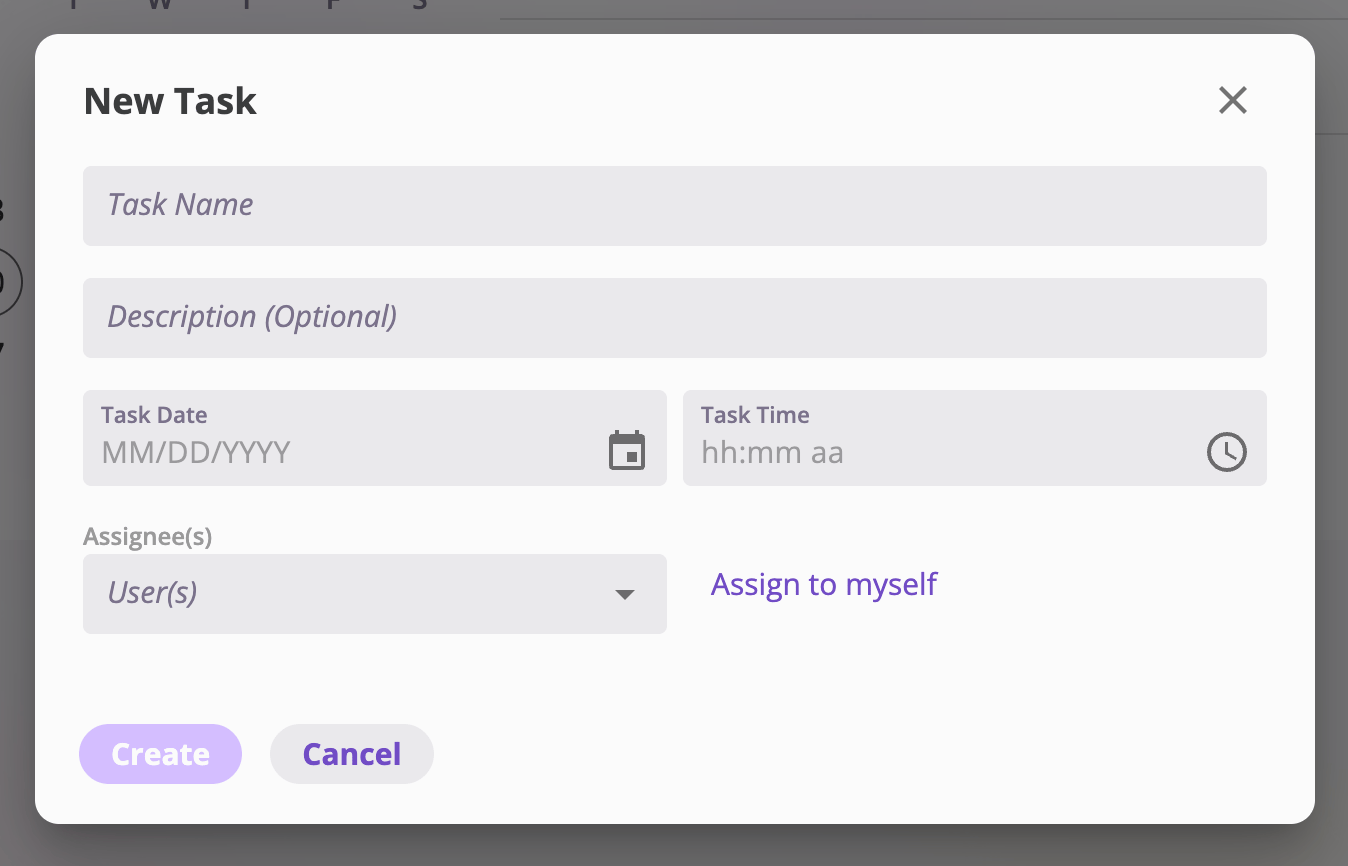 | Field | Required | Notes |
| --------------- | -------- | --------------------------------------------------------------------- |
| **Task Name** | Yes | Up to 100 characters. |
| **Description** | No | Up to 100 characters. |
| **Task Date** | Yes | The due date. |
| **Task Time** | Yes | The due time. |
| **Assignee(s)** | No | Pick any number of users; **Assign to myself** adds you in one click. |
**Create** saves the task; it appears on each assignee's Dashboard calendar
and task list.
### Linking a task to a record
A task's **linked record** comes from where you create it: tasks created from
the Dashboard or the task list stand alone, while tasks created from a record
are linked to it automatically. For example, an event's **Actions → New Task**
(and its Tasks tab) creates a task linked to that claim or incident — see
[Event actions](/app/features/event-actions). The dialog shows the linked
record above the task fields, and the link can't be changed afterwards.
In the task details dialog, the linked record's name is a link that takes you
straight to it — a [policy](/app/features/policies), an
[exposure](/app/features/exposures), or an [event](/app/features/events).
## Viewing and editing a task
Selecting a task card opens **Task Details**, a read-only view of the task —
linked record, name, author (who created it), description, date, time, and
assignees — with these buttons:
| Button | Shown when | What it does |
| --------------------------------------- | ---------------------------------------- | -------------------------------------------------------------------------------------------------------------------------------------------------------------------------------------------- |
| **Mark Complete** / **Mark Incomplete** | Always (label follows the task's status) | Toggles the task between Complete and Not Complete and closes the dialog. |
| **Edit** | Your role can update tasks | Switches the dialog into edit mode — the same fields as creation. **Save** applies your changes (enabled once name, date, and time are set and something changed); **Cancel** discards them. |
| **Delete Task** | Your role can delete tasks | Asks for confirmation, then permanently deletes the task. |
| **Close** | Always | Closes the dialog without changes. |
### Completing tasks
There are two ways to complete a task, and both are reversible:
* Tick the task card's **checkbox** on the task list or calendar.
* Open the task and select **Mark Complete**.
A completed task drops off the Dashboard calendar (which shows incomplete
tasks only) and moves under the task list's Complete grouping once its date
has passed. Use **Mark Incomplete** (or untick the checkbox) to reopen it.
## Task notifications
While you're on the Dashboard, the app surfaces pop-up notices for tasks that
need your attention:
* **"New task assigned: …"** — a task was assigned to you.
* **"Task due today: …"** — a task assigned to you is due today.
Each notice appears once per task; dismissing it (or simply seeing it) marks
it as seen, so it won't repeat.
| Field | Required | Notes |
| --------------- | -------- | --------------------------------------------------------------------- |
| **Task Name** | Yes | Up to 100 characters. |
| **Description** | No | Up to 100 characters. |
| **Task Date** | Yes | The due date. |
| **Task Time** | Yes | The due time. |
| **Assignee(s)** | No | Pick any number of users; **Assign to myself** adds you in one click. |
**Create** saves the task; it appears on each assignee's Dashboard calendar
and task list.
### Linking a task to a record
A task's **linked record** comes from where you create it: tasks created from
the Dashboard or the task list stand alone, while tasks created from a record
are linked to it automatically. For example, an event's **Actions → New Task**
(and its Tasks tab) creates a task linked to that claim or incident — see
[Event actions](/app/features/event-actions). The dialog shows the linked
record above the task fields, and the link can't be changed afterwards.
In the task details dialog, the linked record's name is a link that takes you
straight to it — a [policy](/app/features/policies), an
[exposure](/app/features/exposures), or an [event](/app/features/events).
## Viewing and editing a task
Selecting a task card opens **Task Details**, a read-only view of the task —
linked record, name, author (who created it), description, date, time, and
assignees — with these buttons:
| Button | Shown when | What it does |
| --------------------------------------- | ---------------------------------------- | -------------------------------------------------------------------------------------------------------------------------------------------------------------------------------------------- |
| **Mark Complete** / **Mark Incomplete** | Always (label follows the task's status) | Toggles the task between Complete and Not Complete and closes the dialog. |
| **Edit** | Your role can update tasks | Switches the dialog into edit mode — the same fields as creation. **Save** applies your changes (enabled once name, date, and time are set and something changed); **Cancel** discards them. |
| **Delete Task** | Your role can delete tasks | Asks for confirmation, then permanently deletes the task. |
| **Close** | Always | Closes the dialog without changes. |
### Completing tasks
There are two ways to complete a task, and both are reversible:
* Tick the task card's **checkbox** on the task list or calendar.
* Open the task and select **Mark Complete**.
A completed task drops off the Dashboard calendar (which shows incomplete
tasks only) and moves under the task list's Complete grouping once its date
has passed. Use **Mark Incomplete** (or untick the checkbox) to reopen it.
## Task notifications
While you're on the Dashboard, the app surfaces pop-up notices for tasks that
need your attention:
* **"New task assigned: …"** — a task was assigned to you.
* **"Task due today: …"** — a task assigned to you is due today.
Each notice appears once per task; dismissing it (or simply seeing it) marks
it as seen, so it won't repeat.