> ## Documentation Index
> Fetch the complete documentation index at: https://docs.go.aiinsurance.io/llms.txt
> Use this file to discover all available pages before exploring further.
# Directory & contacts
> People and organizations in one place — and how they attach to your records as contacts.
The **Directory** is where AI Insurance keeps the people and organizations
connected to your work: brokers, attorneys, claimants, adjusters, law firms,
brokerages, vendors. Open it from the **Directory** entry in the sidebar.
Directory records exist once and get reused everywhere. When you add a
**contact** to a [submission](/app/features/submissions),
[exposure](/app/features/exposures), or [event](/app/features/events), you're
linking a person from the Directory — the same person can be a contact on many
records, and updating their details once updates them everywhere.
Access to the Directory follows your **permissions**: if your role can't view
directory records, the Directory entry doesn't appear in the sidebar, and the
create and delete actions described below only show for roles allowed to
perform them.
## People and organizations
The Directory holds two kinds of record, shown as two tabs — **People** and
**Organizations**:
* A [**person**](/entities/person) is an individual — a broker, an attorney, a
claimant, any named contact.
* An [**organization**](/entities/organization) is a company or firm — a
brokerage, a law firm, a vendor — that people can belong to. A person may be
linked to at most one organization (a broker to their brokerage, an attorney
to their firm).
### Types
Both people and organizations carry a **type** (for example *Attorney*,
*Broker*, *Law Firm*, *Brokerage*). The list of types — and the extra fields
each type brings with it — is **configured per company**, so what you see
depends on how your company is set up. Every record has a baseline set of
fields (name, email, phone, …); the type then adds type-specific fields on top —
an *attorney* surfaces attorney details, a *law firm* surfaces law-firm
details.
## The list pages
Each Directory tab is a list page with the standard table tools:
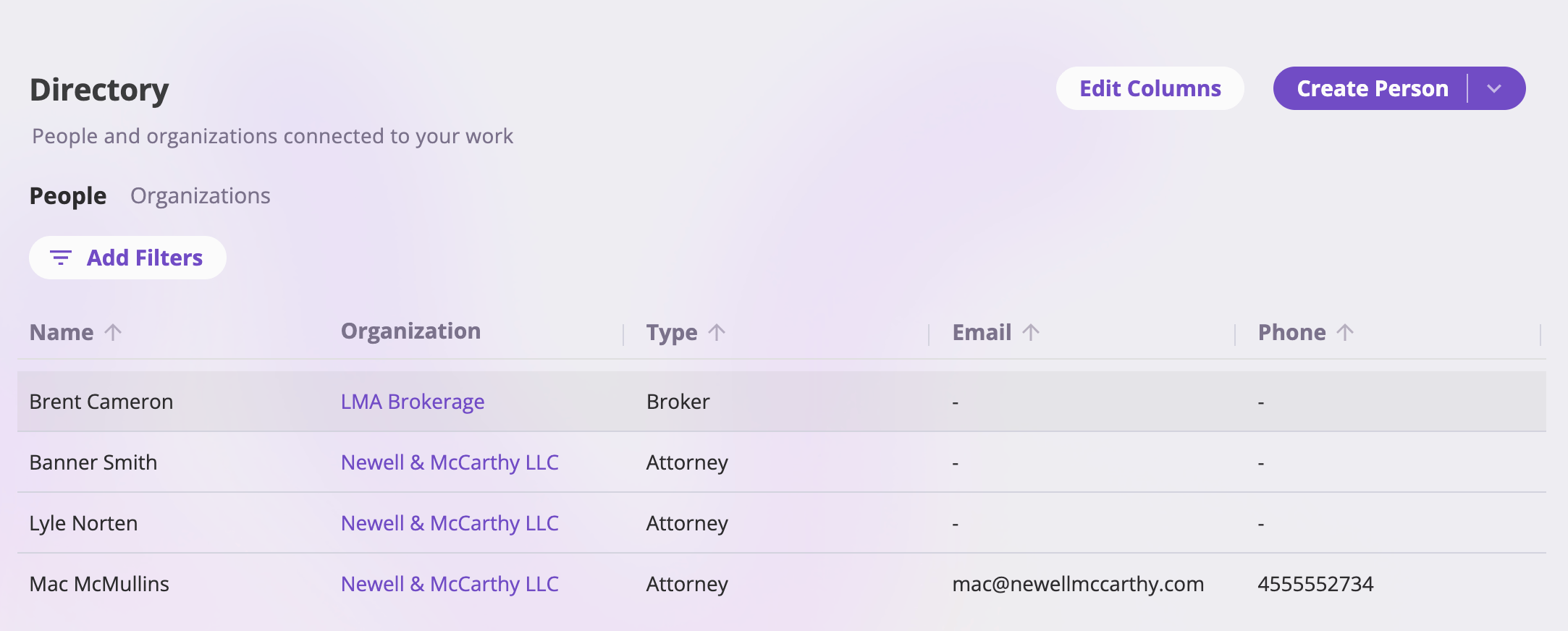 * **Columns** — People default to *Name, Organization, Type, Email, Phone*;
Organizations default to *Name, Type, Email, Phone, Address*. Use **Edit
Columns** to add, remove, and reorder columns (including any other configured
fields and the system columns *Created*, *Last Updated*, and *Created By*).
Drag column edges to resize, drag headers to reorder, and click a sortable
header to sort.
* **Filters** — **Add Filters** opens the filter picker; active filters show as
pills you can edit or remove. See
[Exports & saved views](/app/features/exports-saved-views) for how filtering
works across list pages.
* **Links** — on the People tab, a person's organization is a link straight to
that organization's record.
* **Pagination** — pick 25, 50, 100, or 200 rows per page at the bottom of the
table.
## Creating a directory record
At the top right of the list, the create button is labeled **Create Person** or
**Create Organization** to match the tab you're on. If your company has types
configured, the button opens a menu of them — pick the type and you land on the
create page with that type already filled in and locked.
* **Columns** — People default to *Name, Organization, Type, Email, Phone*;
Organizations default to *Name, Type, Email, Phone, Address*. Use **Edit
Columns** to add, remove, and reorder columns (including any other configured
fields and the system columns *Created*, *Last Updated*, and *Created By*).
Drag column edges to resize, drag headers to reorder, and click a sortable
header to sort.
* **Filters** — **Add Filters** opens the filter picker; active filters show as
pills you can edit or remove. See
[Exports & saved views](/app/features/exports-saved-views) for how filtering
works across list pages.
* **Links** — on the People tab, a person's organization is a link straight to
that organization's record.
* **Pagination** — pick 25, 50, 100, or 200 rows per page at the bottom of the
table.
## Creating a directory record
At the top right of the list, the create button is labeled **Create Person** or
**Create Organization** to match the tab you're on. If your company has types
configured, the button opens a menu of them — pick the type and you land on the
create page with that type already filled in and locked.
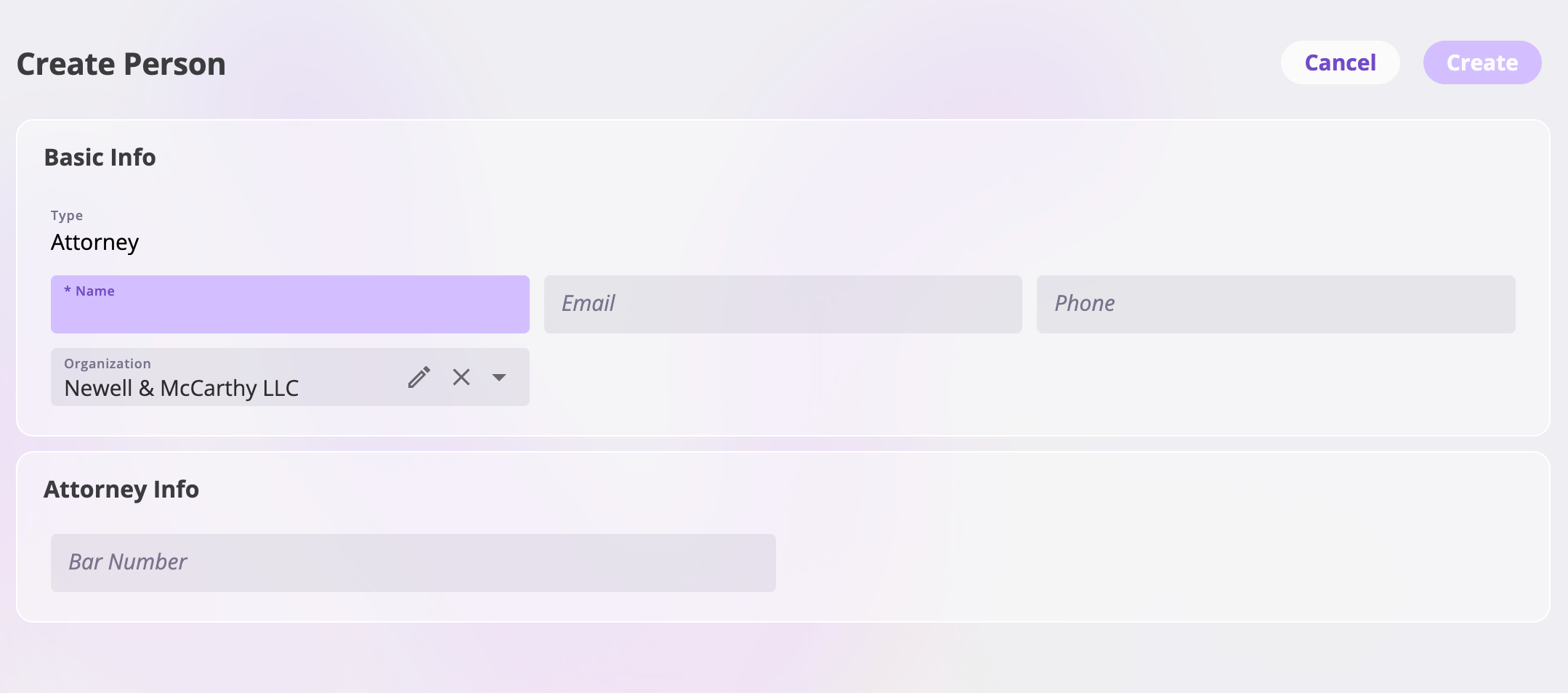 Fill in the fields — which fields appear, and which are required, depends on
your company's configuration and the chosen type. The **Create** button stays
disabled until every required field is filled. **Cancel** returns you to the
list; **Create** saves the record and takes you to its detail page.
## The record detail page
Opening a directory record shows its detail page, with the record's name in the
header and two tabs:
Fill in the fields — which fields appear, and which are required, depends on
your company's configuration and the chosen type. The **Create** button stays
disabled until every required field is filled. **Cancel** returns you to the
list; **Create** saves the record and takes you to its detail page.
## The record detail page
Opening a directory record shows its detail page, with the record's name in the
header and two tabs:
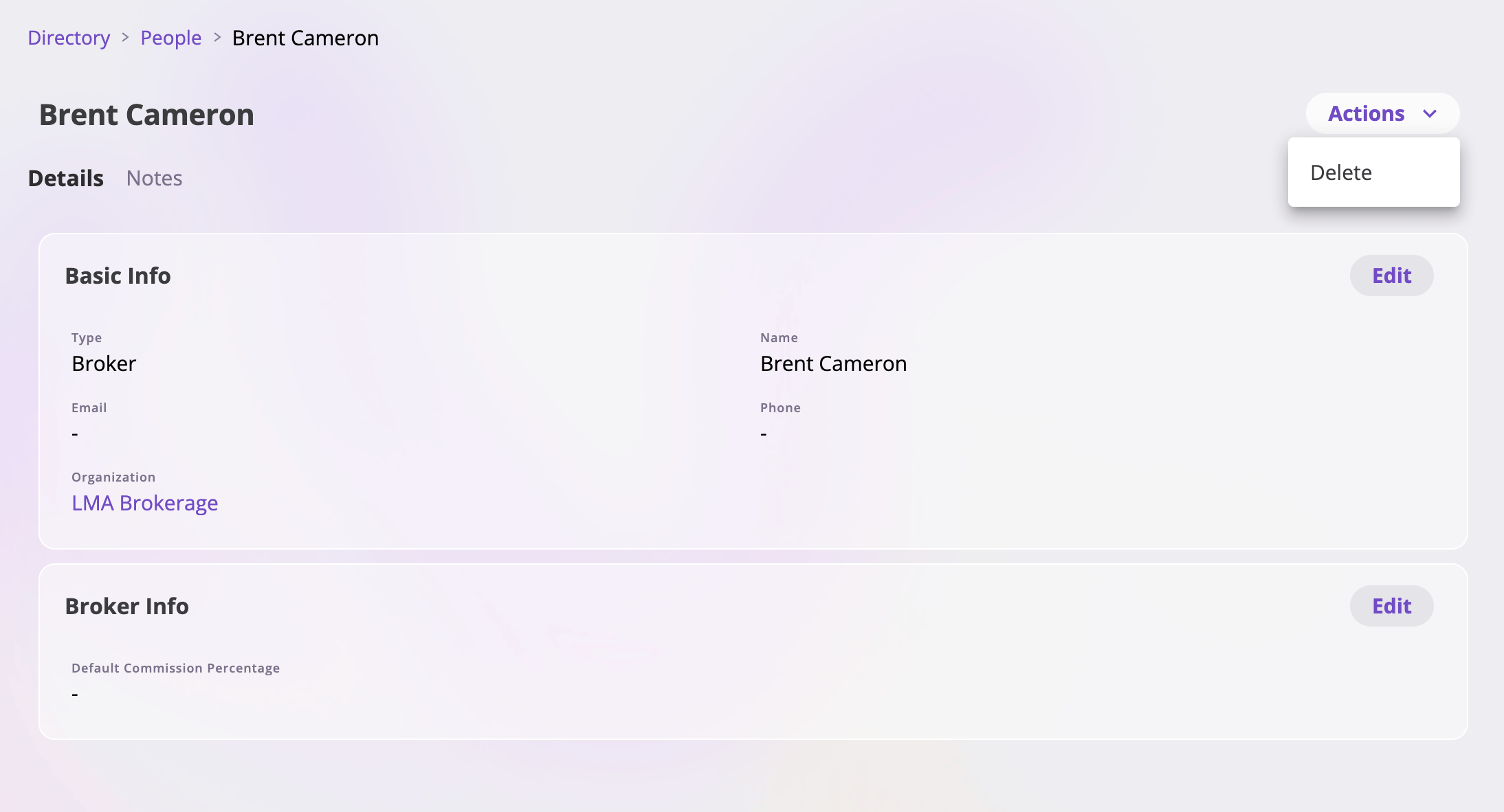 * **Details** — the record's fields, laid out in cards. Edit a card, change
what you need, and save — or cancel to discard. Because a contact is just a
link to this record, edits here show up everywhere the person or organization
is used. Renaming works the same way: edit the **name** field and save.
* **Notes** — free-form notes on the record, shown if your role can read
notes. Works exactly like the Notes tab on other entities — see
[Files & notes](/app/features/files-notes#the-notes-tab).
The **Actions** menu at the top right holds **Delete** (shown only if your role
can delete directory records). Deleting asks for confirmation — *"Are you sure
you want to delete «name»? This action cannot be undone."* — and permanently
removes the record.
Deleting a directory record is permanent — there is no undo.
## The Contacts tab on other records
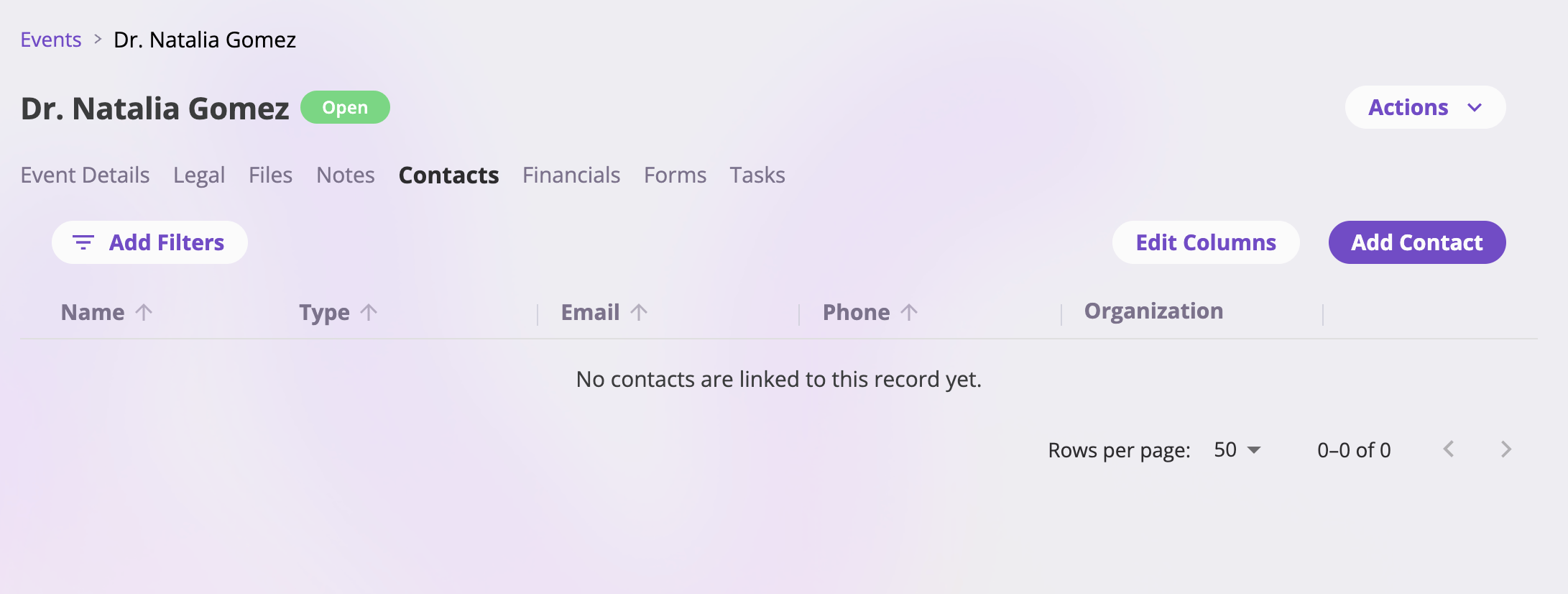
**Submissions, exposures, and events** each have a **Contacts** tab listing the
people linked to that record. It's a table of people — *Name, Type, Email,
Phone, Organization* by default, with its own **Edit Columns** button — where
the name links to the person's Directory record and the organization links to
the organization's record.
* **Details** — the record's fields, laid out in cards. Edit a card, change
what you need, and save — or cancel to discard. Because a contact is just a
link to this record, edits here show up everywhere the person or organization
is used. Renaming works the same way: edit the **name** field and save.
* **Notes** — free-form notes on the record, shown if your role can read
notes. Works exactly like the Notes tab on other entities — see
[Files & notes](/app/features/files-notes#the-notes-tab).
The **Actions** menu at the top right holds **Delete** (shown only if your role
can delete directory records). Deleting asks for confirmation — *"Are you sure
you want to delete «name»? This action cannot be undone."* — and permanently
removes the record.
Deleting a directory record is permanent — there is no undo.
## The Contacts tab on other records
**Submissions, exposures, and events** each have a **Contacts** tab listing the
people linked to that record. It's a table of people — *Name, Type, Email,
Phone, Organization* by default, with its own **Edit Columns** button — where
the name links to the person's Directory record and the organization links to
the organization's record.
 ### Adding contacts
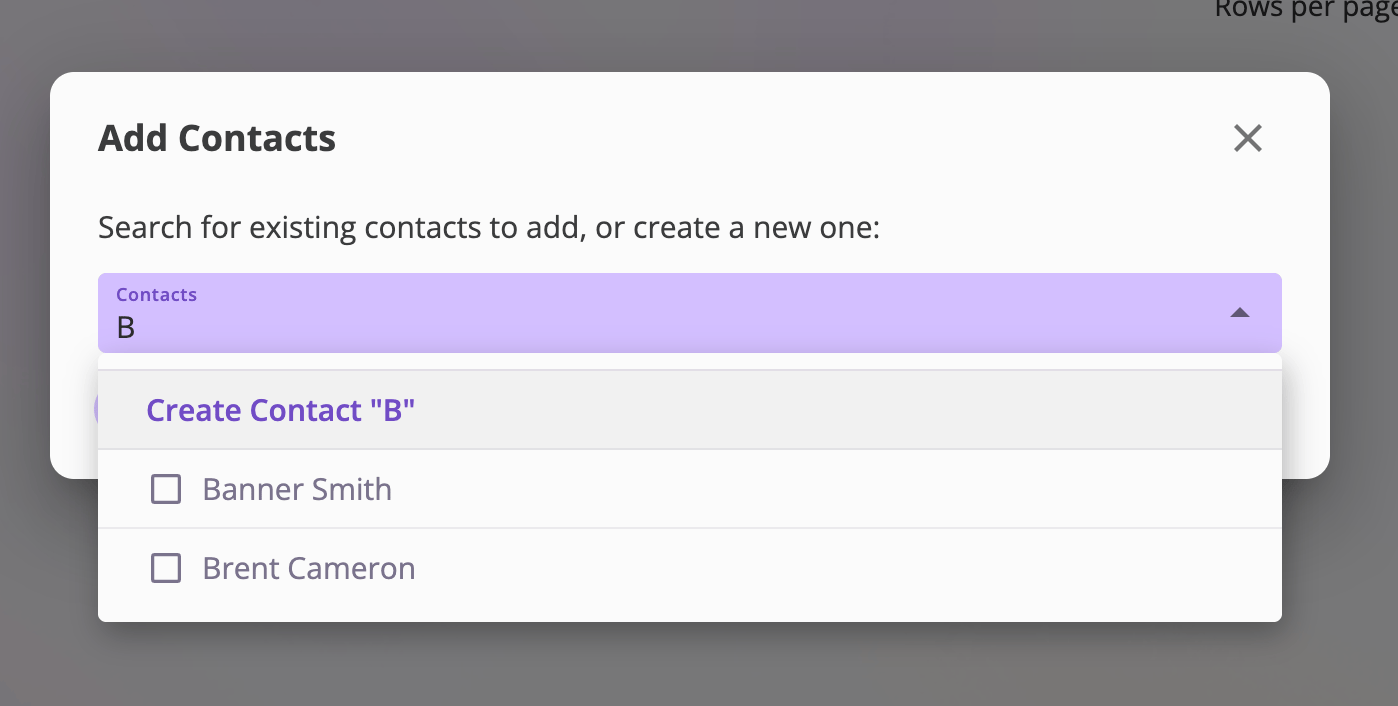
Select **Add Contact** to open the **Add Contacts** dialog:
Start typing in the **Contacts** field to search your existing people. You
can select several at once — each selection is added as a chip.
If the person isn't in the Directory yet, choose **Create Contact** in the
search results. A create form opens with the name you typed pre-filled; the
new person is saved to the Directory and added to your selection.
Select **Add Contacts** to link everyone you picked to the record.
### Adding contacts
Select **Add Contact** to open the **Add Contacts** dialog:
Start typing in the **Contacts** field to search your existing people. You
can select several at once — each selection is added as a chip.
If the person isn't in the Directory yet, choose **Create Contact** in the
search results. A create form opens with the name you typed pre-filled; the
new person is saved to the Directory and added to your selection.
Select **Add Contacts** to link everyone you picked to the record.
 People already linked to the record don't appear in the search results, so you
can't add the same contact twice.
### Editing a contact
The **Edit contact** icon on a row opens the person's details in a panel so you
can update them without leaving the page. You're editing the **Directory record
itself** — the changes apply everywhere that person appears, not just on this
record.
### Removing a contact
The **Remove contact** icon asks for confirmation: *"Remove «name» from this
record? This unlinks the contact but does not delete the person from the
Directory."* Removing a contact only breaks the link — the person stays in the
Directory and remains a contact anywhere else they're linked.
Use **Remove contact** freely — it never deletes data. To actually delete a
person or organization, do it from their Directory detail page.
People already linked to the record don't appear in the search results, so you
can't add the same contact twice.
### Editing a contact
The **Edit contact** icon on a row opens the person's details in a panel so you
can update them without leaving the page. You're editing the **Directory record
itself** — the changes apply everywhere that person appears, not just on this
record.
### Removing a contact
The **Remove contact** icon asks for confirmation: *"Remove «name» from this
record? This unlinks the contact but does not delete the person from the
Directory."* Removing a contact only breaks the link — the person stays in the
Directory and remains a contact anywhere else they're linked.
Use **Remove contact** freely — it never deletes data. To actually delete a
person or organization, do it from their Directory detail page.