> ## Documentation Index
> Fetch the complete documentation index at: https://docs.go.aiinsurance.io/llms.txt
> Use this file to discover all available pages before exploring further.
# Exports & saved views
> Export entity lists to Excel, CSV, or Google Drive with reusable presets — and shape list pages with columns, filters, and saved views.
The list pages — [submissions](/app/features/submissions),
[quotes](/app/features/quotes), [policies](/app/features/policies),
[exposures](/app/features/exposures), and [events](/app/features/events) —
share one set of table tools: **column editing**, **filters**, **saved views**,
and **export**. They're documented once here.
## Editing columns
Every list page has an **Edit Columns** button that opens the column manager:
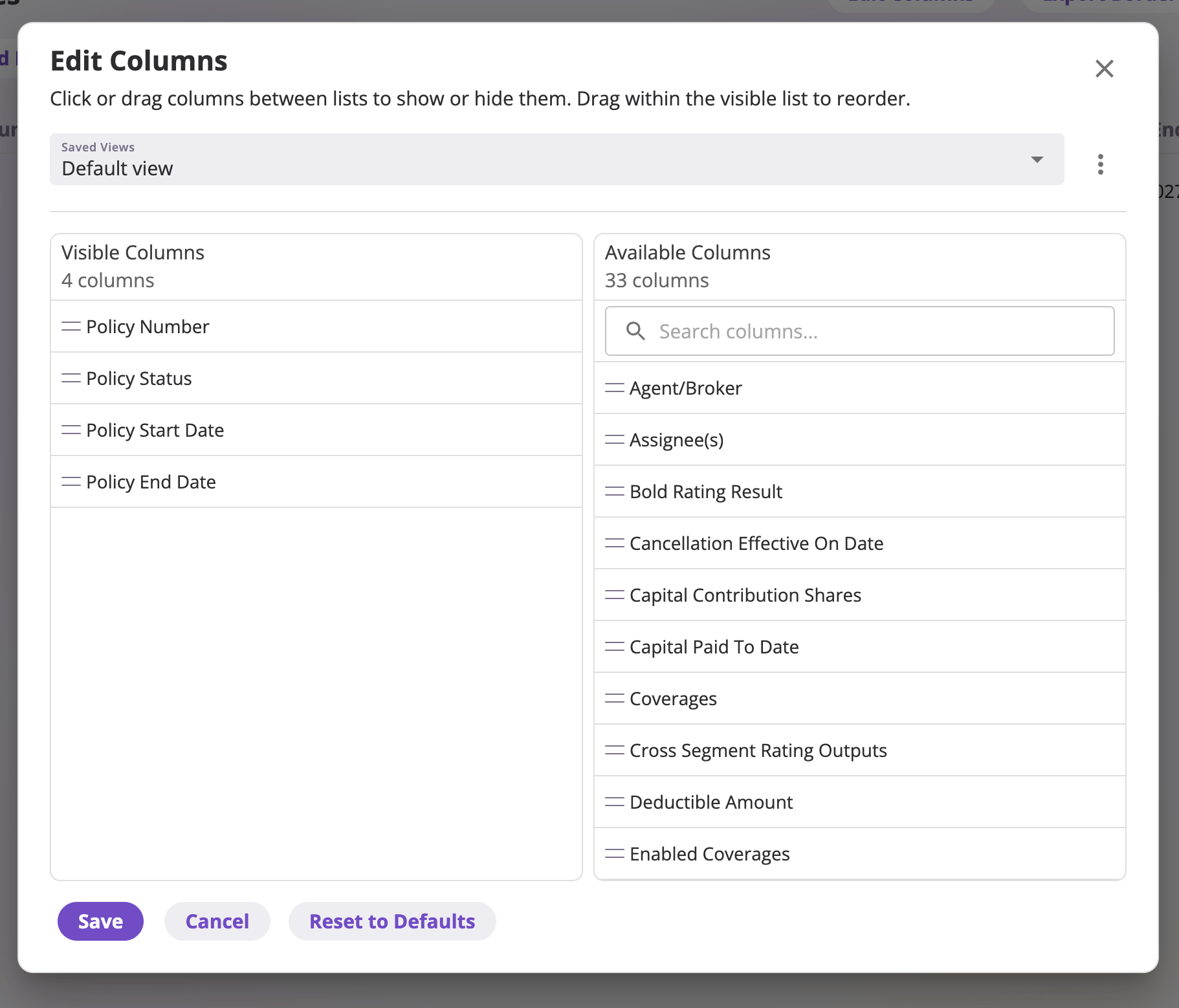 * Two lists — **Visible Columns** and **Available Columns** — with a live
count of each. *Click or drag columns between lists to show or hide them.
Drag within the visible list to reorder.*
* **Search columns...** filters the available list; available columns are
sorted alphabetically and include every configured field plus system columns
like *Created*, *Last Updated*, and *Created By*.
* **Save** applies your arrangement; **Cancel** discards it; **Reset to
Defaults** returns to the page's standard columns.
On the table itself, drag column edges to resize and click a header to sort.
## Filters
**Add Filters** opens the filter picker: choose a field on the left (visible
columns are listed first; **Search fields** finds the rest), set the condition
on the right, and **Apply**. Each active filter becomes a **pill** above the
table — click a pill to edit it, or its **X** to remove it.
* Two lists — **Visible Columns** and **Available Columns** — with a live
count of each. *Click or drag columns between lists to show or hide them.
Drag within the visible list to reorder.*
* **Search columns...** filters the available list; available columns are
sorted alphabetically and include every configured field plus system columns
like *Created*, *Last Updated*, and *Created By*.
* **Save** applies your arrangement; **Cancel** discards it; **Reset to
Defaults** returns to the page's standard columns.
On the table itself, drag column edges to resize and click a header to sort.
## Filters
**Add Filters** opens the filter picker: choose a field on the left (visible
columns are listed first; **Search fields** finds the rest), set the condition
on the right, and **Apply**. Each active filter becomes a **pill** above the
table — click a pill to edit it, or its **X** to remove it.
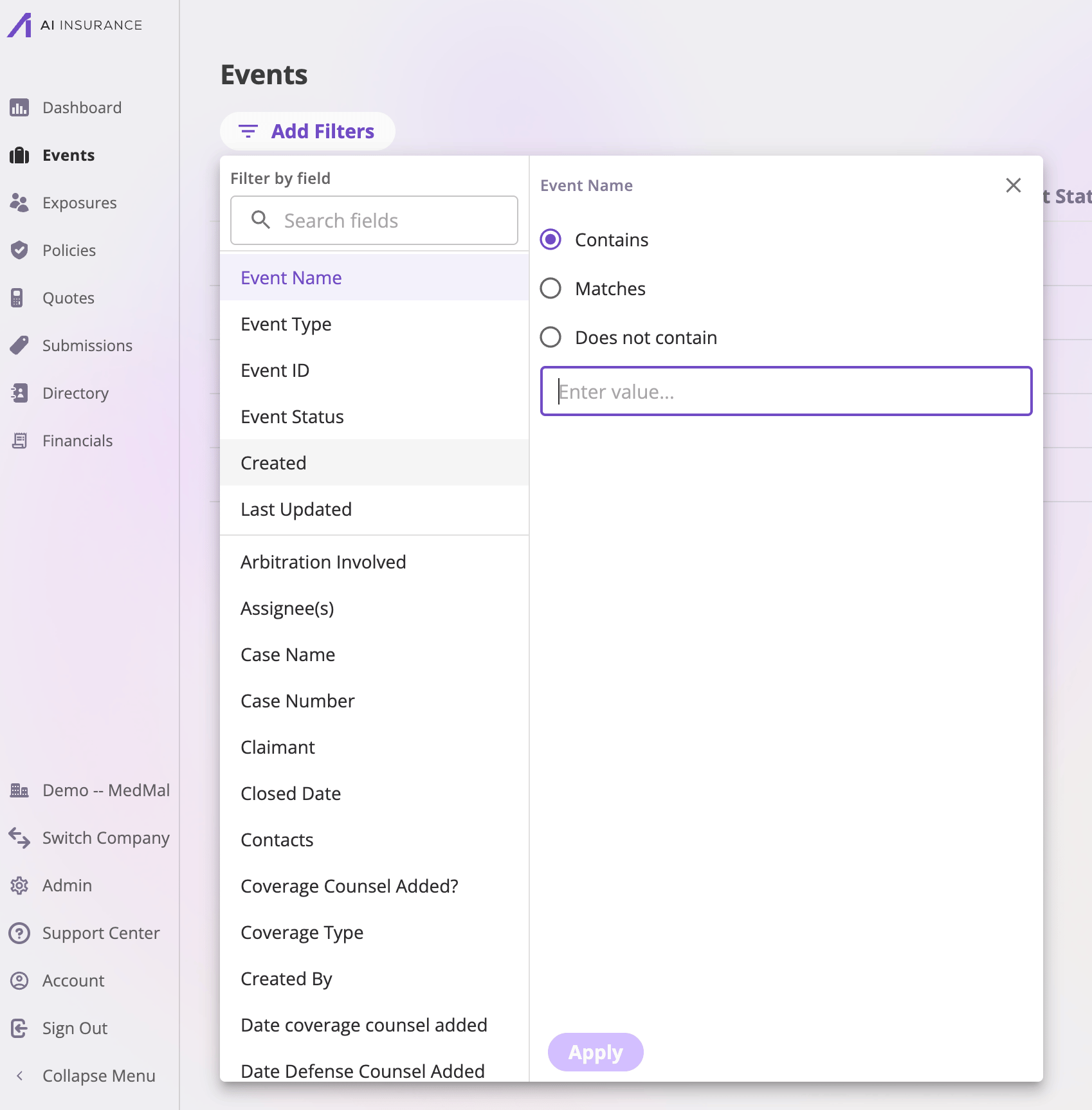 The conditions offered follow the field's type:
| Field type | Conditions |
| ---------------------------------- | ----------------------------------------------------------- |
| Text | **Contains** · **Matches** · **Does not contain** |
| Number / Currency | **Equals** · **Greater than** · **Less than** · **Between** |
| Date | **On** · **Before** · **After** · **Between** |
| Option sets, linked records, users | Pick one or more values (matches any of them) |
| Multi-value option sets | **includes any** · **includes all** · **excludes** |
| Yes/no | **Yes** · **No** |
Filters (along with the sort and page) live in the page's URL — so the
filtered list you're looking at can be shared as a link, and an
[export](#exporting-a-list) can carry the same filters.
## Saved views
On the five entity list pages, your column arrangement can be saved as a
**view**. Views are managed from the **Saved Views** dropdown at the top of
the **Edit Columns** dialog.
A view captures the **columns**: which are visible, their order, their widths,
and the page size. Filters and sort are *not* part of a view — they stay in
the URL, so one view works with any filters.
* **Save current columns as view…** — name the arrangement (*Save view* →
**View name** → **Save**).
* **Switching** — pick any view from the dropdown; **Default view** is the
system-standard arrangement. While one of your saved views is active, column
changes you make are **saved into it automatically** — there's no separate
"update" step.
* **Rename view…** and **Delete view** — on views you own. Deleting an active
view returns you to the default arrangement.
### Sharing views
A view starts **private** to you. On a view you own, **Share with company**
makes it visible to everyone at your company (grouped under **Shared with
me**, labeled with the owner's name); **Make private** takes it back.
Only the **owner** can change a shared view — everyone else can apply it, or
choose **Save as my own copy…** to clone it (pre-named *"Copy of «name»"*) and
tailor the copy.
### Default views
**Set as my default** makes a view you own load automatically when you open
that list page; **Reset to default view** clears it. Defaults are personal —
sharing a view never changes what anyone else sees by default.
## Exporting a list
Each entity list page has an export button at the top right — **Export
Policies**, **Export Quotes**, **Export Submissions**, **Export Exposures**,
**Export Events** — which opens the export page for that list, carrying over
your current filters and sort.
The conditions offered follow the field's type:
| Field type | Conditions |
| ---------------------------------- | ----------------------------------------------------------- |
| Text | **Contains** · **Matches** · **Does not contain** |
| Number / Currency | **Equals** · **Greater than** · **Less than** · **Between** |
| Date | **On** · **Before** · **After** · **Between** |
| Option sets, linked records, users | Pick one or more values (matches any of them) |
| Multi-value option sets | **includes any** · **includes all** · **excludes** |
| Yes/no | **Yes** · **No** |
Filters (along with the sort and page) live in the page's URL — so the
filtered list you're looking at can be shared as a link, and an
[export](#exporting-a-list) can carry the same filters.
## Saved views
On the five entity list pages, your column arrangement can be saved as a
**view**. Views are managed from the **Saved Views** dropdown at the top of
the **Edit Columns** dialog.
A view captures the **columns**: which are visible, their order, their widths,
and the page size. Filters and sort are *not* part of a view — they stay in
the URL, so one view works with any filters.
* **Save current columns as view…** — name the arrangement (*Save view* →
**View name** → **Save**).
* **Switching** — pick any view from the dropdown; **Default view** is the
system-standard arrangement. While one of your saved views is active, column
changes you make are **saved into it automatically** — there's no separate
"update" step.
* **Rename view…** and **Delete view** — on views you own. Deleting an active
view returns you to the default arrangement.
### Sharing views
A view starts **private** to you. On a view you own, **Share with company**
makes it visible to everyone at your company (grouped under **Shared with
me**, labeled with the owner's name); **Make private** takes it back.
Only the **owner** can change a shared view — everyone else can apply it, or
choose **Save as my own copy…** to clone it (pre-named *"Copy of «name»"*) and
tailor the copy.
### Default views
**Set as my default** makes a view you own load automatically when you open
that list page; **Reset to default view** clears it. Defaults are personal —
sharing a view never changes what anyone else sees by default.
## Exporting a list
Each entity list page has an export button at the top right — **Export
Policies**, **Export Quotes**, **Export Submissions**, **Export Exposures**,
**Export Events** — which opens the export page for that list, carrying over
your current filters and sort.
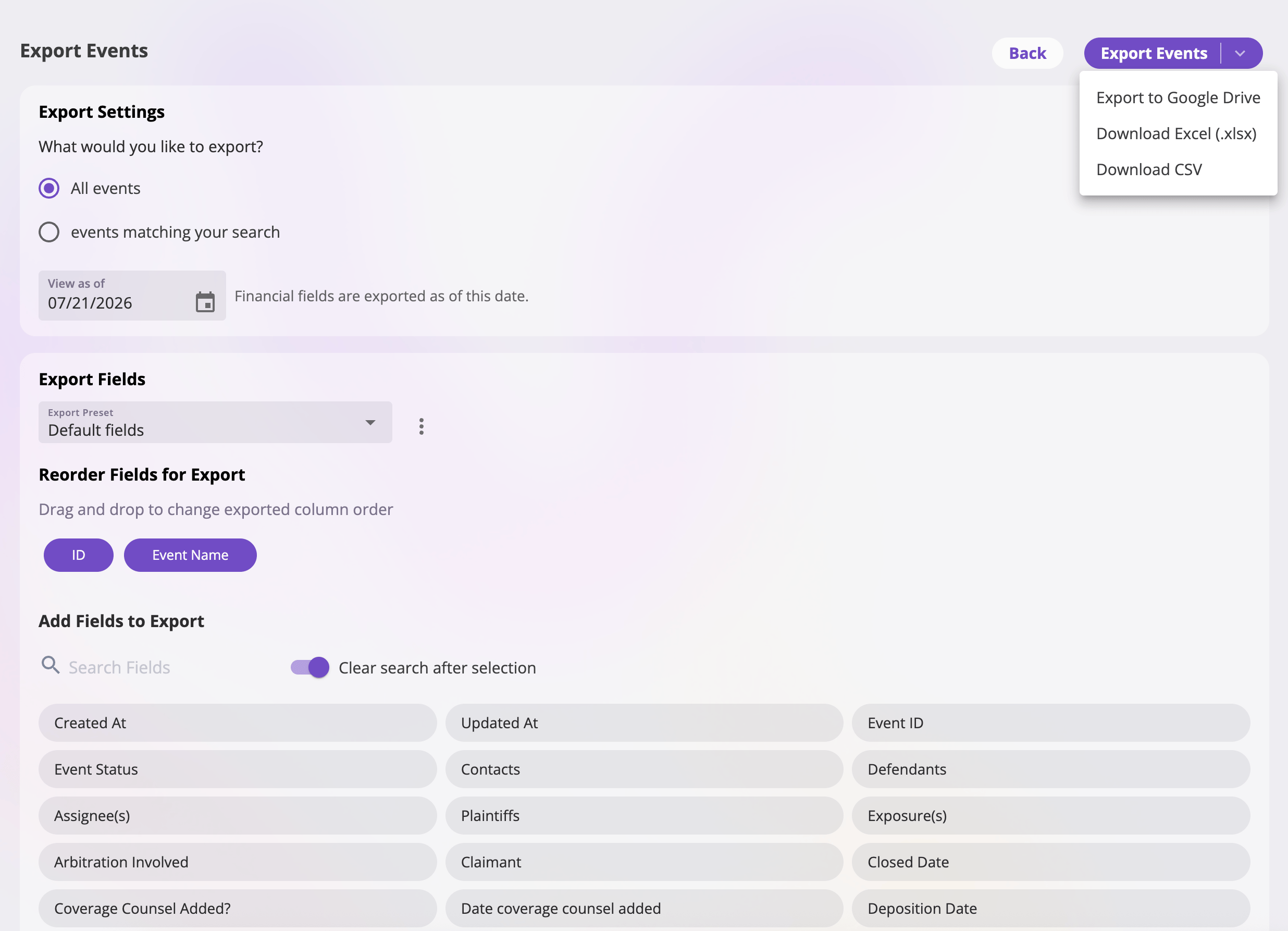 Under **Export Settings** — *What would you like to export?* — pick
**All** records, or only the records **matching your search** (the filters
you had on the list). Policy and event exports also ask for a **View as
of** date, so each record is exported as of that date (financial fields
included).
The **Export Fields** card controls the columns of the export —
independent of the list's visible columns. **Reorder Fields for Export**
shows the selected fields as chips (*drag and drop to change exported
column order*; remove any except the required ID and name fields), and
**Add Fields to Export** offers the other columns your company has set up
for this export, with a **Search Fields** box. Or start from a saved
[export preset](#export-presets).
The export button offers three destinations: **Export to Google Drive**,
**Download Excel (.xlsx)**, and **Download CSV**. While it runs, the
button shows progress (*Exporting…*); downloads are named with the date,
your company, and the entity (e.g. an *…Policies Export* file).
### Exporting to Google Drive
The first Drive export asks you to sign in to Google and grant access (only to
files the app creates); a pop-up blocker can block this — allow pop-ups and
try again. Then pick a destination **folder** in the Google Drive picker, and
the export is written there as a **Google Sheets spreadsheet**. When it
finishes, a confirmation appears with an **Open spreadsheet** link straight to
the new sheet.
## Export presets
An **export preset** is a saved field selection for the export page — the
export-side sibling of saved views. The **Export Preset** dropdown at the top
of the Export Fields card starts on **Default fields**; the menu next to it
manages presets:
* **Save current fields as preset…** — name and save the current selection.
* **Update preset with current fields** — overwrite a preset you own with
what's currently selected (presets don't auto-save, unlike views).
* **Rename preset…** / **Delete preset** — on presets you own.
* **Set as my default** / **Reset to default** — make a preset load
automatically on this export page.
* **Share with company** / **Make private** — shared presets appear for
everyone under **Shared with me**, read-only; others can apply one or
**Save as my own copy…** to clone it.
## Other exports
A few exports have their own purpose-built surfaces and are documented with
their features:
* **Bordereau export** — the policies list also has an **Export Bordereau**
button: the same field/preset/destination machinery, scoped by a reporting
**date range**. See [Policies](/app/features/policies).
* **Financial exports** — the Financials tables (transactions, loss & operating
report, reserves) have one-click **Export** buttons that export exactly the
rows on screen, honoring the page's filters, to the same three destinations.
See [Reference frames](/financials/reference-frames) for how each
exported figure gets its sign.
* **Rating run logs** — exportable from the admin area; see
[Rating run logs](/app/admin/rating-logs).
The [Directory](/app/features/directory) list pages support column editing
and filtering, but not saved views or export. Data in the Directory is
available through the [API](/api-reference/entities/overview) if you need it
outside the app.
Under **Export Settings** — *What would you like to export?* — pick
**All** records, or only the records **matching your search** (the filters
you had on the list). Policy and event exports also ask for a **View as
of** date, so each record is exported as of that date (financial fields
included).
The **Export Fields** card controls the columns of the export —
independent of the list's visible columns. **Reorder Fields for Export**
shows the selected fields as chips (*drag and drop to change exported
column order*; remove any except the required ID and name fields), and
**Add Fields to Export** offers the other columns your company has set up
for this export, with a **Search Fields** box. Or start from a saved
[export preset](#export-presets).
The export button offers three destinations: **Export to Google Drive**,
**Download Excel (.xlsx)**, and **Download CSV**. While it runs, the
button shows progress (*Exporting…*); downloads are named with the date,
your company, and the entity (e.g. an *…Policies Export* file).
### Exporting to Google Drive
The first Drive export asks you to sign in to Google and grant access (only to
files the app creates); a pop-up blocker can block this — allow pop-ups and
try again. Then pick a destination **folder** in the Google Drive picker, and
the export is written there as a **Google Sheets spreadsheet**. When it
finishes, a confirmation appears with an **Open spreadsheet** link straight to
the new sheet.
## Export presets
An **export preset** is a saved field selection for the export page — the
export-side sibling of saved views. The **Export Preset** dropdown at the top
of the Export Fields card starts on **Default fields**; the menu next to it
manages presets:
* **Save current fields as preset…** — name and save the current selection.
* **Update preset with current fields** — overwrite a preset you own with
what's currently selected (presets don't auto-save, unlike views).
* **Rename preset…** / **Delete preset** — on presets you own.
* **Set as my default** / **Reset to default** — make a preset load
automatically on this export page.
* **Share with company** / **Make private** — shared presets appear for
everyone under **Shared with me**, read-only; others can apply one or
**Save as my own copy…** to clone it.
## Other exports
A few exports have their own purpose-built surfaces and are documented with
their features:
* **Bordereau export** — the policies list also has an **Export Bordereau**
button: the same field/preset/destination machinery, scoped by a reporting
**date range**. See [Policies](/app/features/policies).
* **Financial exports** — the Financials tables (transactions, loss & operating
report, reserves) have one-click **Export** buttons that export exactly the
rows on screen, honoring the page's filters, to the same three destinations.
See [Reference frames](/financials/reference-frames) for how each
exported figure gets its sign.
* **Rating run logs** — exportable from the admin area; see
[Rating run logs](/app/admin/rating-logs).
The [Directory](/app/features/directory) list pages support column editing
and filtering, but not saved views or export. Data in the Directory is
available through the [API](/api-reference/entities/overview) if you need it
outside the app.