> ## Documentation Index
> Fetch the complete documentation index at: https://docs.go.aiinsurance.io/llms.txt
> Use this file to discover all available pages before exploring further.
# Files & notes
> Attach files and notes to your records — folders, versions, sharing across entities, malware scanning, and the Notes tab.
Most records in AI Insurance carry their own documents and commentary:
* The **Files** tab appears on [submissions](/app/features/submissions),
[exposures](/app/features/exposures), and [events](/app/features/events),
and there's a company-wide **Company Files** area for files that don't belong
to any one record.
* The **Notes** tab appears on submissions, quotes, exposures, events, and
[directory](/app/features/directory) records (people and organizations).
Both tabs work the same way everywhere, so they're documented once here.
What you can do follows your **permissions**. The tabs only show for roles
that can read files or notes, and each action below (upload, rename, delete,
download, …) appears only if your role is allowed to perform it — a button
you can't use either doesn't render or shows a tooltip explaining why.
## The Files tab
The Files tab is a small file manager for the record: a **folder tree** on the
left, and the current folder's contents on the right with a breadcrumb above
them. Folders list first, then files, in a table with **Name**, **Category**,
**Type**, and **Upload date** columns — click a header to sort. A checkbox on
each file row lets you select several files at once for bulk actions.
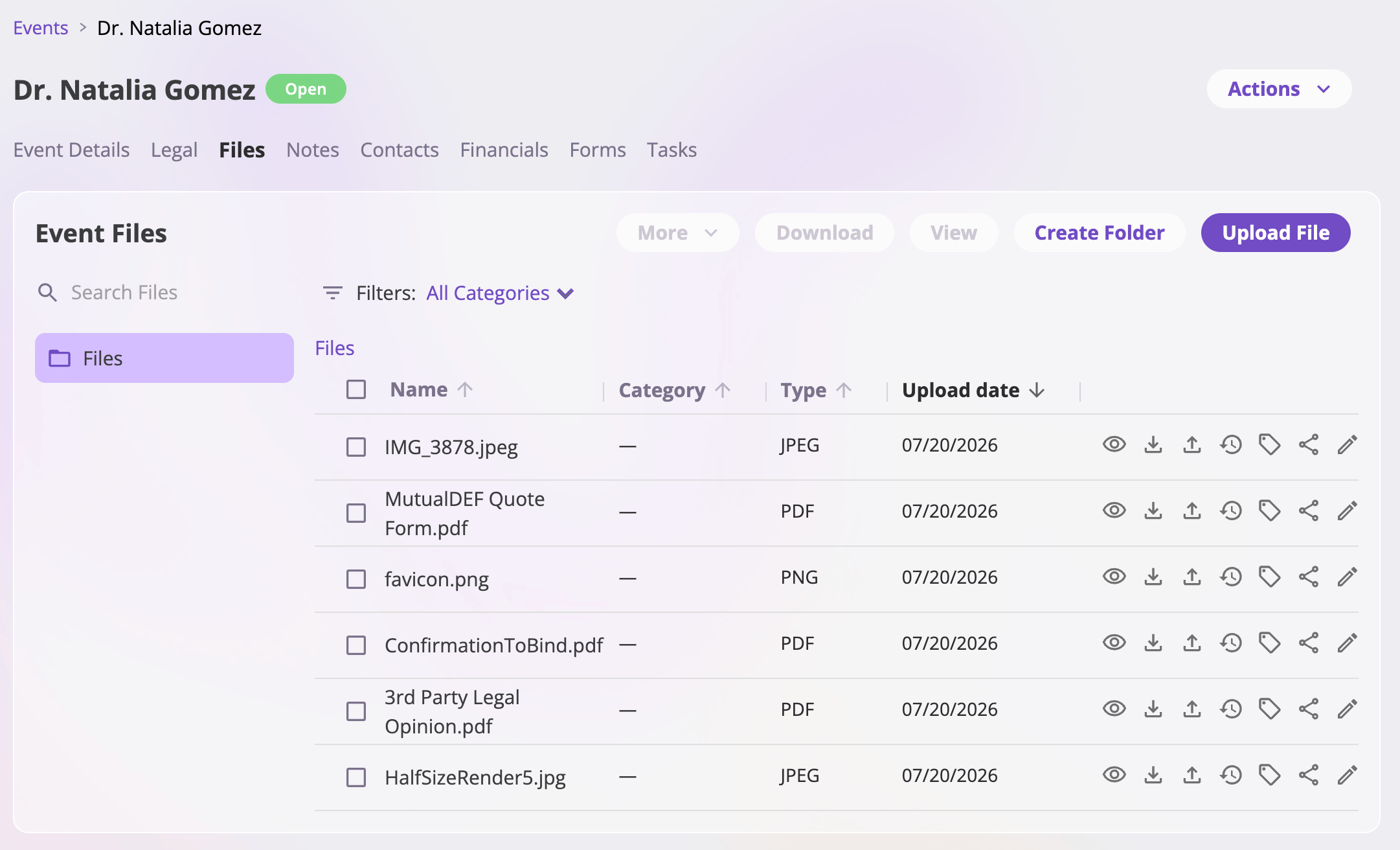 Above the table, **Search Files** filters the list by name and the
**Filters:** dropdown narrows it to one category (**All Categories** by
default).
### Uploading files
Select **Upload File** and pick one or more files — or simply **drag files
anywhere onto the tab** ("Drop files to upload"). Uploads land in the folder
you're currently viewing. While files upload, each shows a progress row with
its size and status, and a cancel button if you change your mind.
Two limits are enforced as you upload:
* **Size** — up to **1 GB** per file.
* **Type** — common business formats are accepted: PDF, Word, Excel,
PowerPoint, images (PNG, JPEG, GIF, WebP, TIFF, HEIF), CSV, plain text,
JSON, ZIP, email messages (`.msg`, `.eml`), audio and video, and a few
others. A file of an unsupported type is rejected with a message naming it.
Files can also arrive without a manual upload — for example, files dropped
into an AI file import are stored under **Company Files**, in an
**Imports** folder tree organized by date and time of the import run.
### Folders
* **Create Folder** adds a folder inside the current one — type a name and
select **Create**. Folders can be nested as deep as you like.
* **Rename** a folder with the pencil icon on its row — edit the name in
place.
* **Move** folders and files by **drag and drop**: drop a row onto a folder
row, a breadcrumb segment, or a folder in the sidebar. (A folder can't be
moved into its own subfolder.)
* **Delete** a folder with the trash icon on its row. This is recursive — the
confirmation warns that the folder, its subfolders, *and all files inside*
are permanently deleted.
### File actions
Each file row carries a strip of icon actions (hover for the tooltip). Actions
your role can't perform don't appear.
| Action | What it does |
| ------------------------- | -------------------------------------------------------------------------------------------------------- |
| **Preview** | Opens the file for viewing — see [Previews](#previews). |
| **Download** | Downloads the file. |
| **Upload new version** | Replaces the file's content with a new upload, keeping the old one in [version history](#file-versions). |
| **Version history** | Opens the file's full version history. |
| **Set category** | Tags the file with a category — see [Categories](#categories). |
| **Add to another entity** | Shares the file onto another record — see [One file, many records](#one-file-many-records). |
| **Rename** | Edits the file's name in place. |
| **Delete** | Deletes the file (or removes it from this record if it's shared elsewhere), after a confirmation. |
Selecting one or more files with the row checkboxes enables the toolbar
actions:
* **Download** — downloads the selection (multiple files arrive as a ZIP).
* **View** — opens a preview when exactly one file is selected.
* **More ▾** — bulk operations on the selection: **Move…** (pick a destination
folder from a tree), **Set Category…**, and **Delete…** (with a confirmation
that spells out what's permanent).
Deleting a file that exists only on this record is **permanent** — the
confirmation reads *"This will permanently delete «name». This cannot be
undone."* If the file is shared onto other records, deleting here only
removes it from this record and the dialog says so: *"The file stays
available everywhere else it appears."*
### Categories
Categories are free-form labels for organizing files — set one with **Set
category** on a row (or **Set Category…** for a whole selection). The dialog
suggests categories already in use at your company, but you can type any new
one; leave the field empty to clear a file's category. The category filter
above the table then narrows the list to one category.
### Previews
**Preview** (or **View** in the toolbar) opens PDFs in a full in-app viewer.
Other file types open in a new browser tab, where the browser shows what it
can (images, text) and downloads the rest. Files still being scanned, or
flagged as infected, can't be previewed or downloaded — the disabled button's
tooltip explains why.
### File versions
Uploading a new version of a file (the **Upload new version** action) keeps
the file's identity — its name, category, and every place it's attached — and
adds the new content on top. **Version history** shows every version, newest
first:
Above the table, **Search Files** filters the list by name and the
**Filters:** dropdown narrows it to one category (**All Categories** by
default).
### Uploading files
Select **Upload File** and pick one or more files — or simply **drag files
anywhere onto the tab** ("Drop files to upload"). Uploads land in the folder
you're currently viewing. While files upload, each shows a progress row with
its size and status, and a cancel button if you change your mind.
Two limits are enforced as you upload:
* **Size** — up to **1 GB** per file.
* **Type** — common business formats are accepted: PDF, Word, Excel,
PowerPoint, images (PNG, JPEG, GIF, WebP, TIFF, HEIF), CSV, plain text,
JSON, ZIP, email messages (`.msg`, `.eml`), audio and video, and a few
others. A file of an unsupported type is rejected with a message naming it.
Files can also arrive without a manual upload — for example, files dropped
into an AI file import are stored under **Company Files**, in an
**Imports** folder tree organized by date and time of the import run.
### Folders
* **Create Folder** adds a folder inside the current one — type a name and
select **Create**. Folders can be nested as deep as you like.
* **Rename** a folder with the pencil icon on its row — edit the name in
place.
* **Move** folders and files by **drag and drop**: drop a row onto a folder
row, a breadcrumb segment, or a folder in the sidebar. (A folder can't be
moved into its own subfolder.)
* **Delete** a folder with the trash icon on its row. This is recursive — the
confirmation warns that the folder, its subfolders, *and all files inside*
are permanently deleted.
### File actions
Each file row carries a strip of icon actions (hover for the tooltip). Actions
your role can't perform don't appear.
| Action | What it does |
| ------------------------- | -------------------------------------------------------------------------------------------------------- |
| **Preview** | Opens the file for viewing — see [Previews](#previews). |
| **Download** | Downloads the file. |
| **Upload new version** | Replaces the file's content with a new upload, keeping the old one in [version history](#file-versions). |
| **Version history** | Opens the file's full version history. |
| **Set category** | Tags the file with a category — see [Categories](#categories). |
| **Add to another entity** | Shares the file onto another record — see [One file, many records](#one-file-many-records). |
| **Rename** | Edits the file's name in place. |
| **Delete** | Deletes the file (or removes it from this record if it's shared elsewhere), after a confirmation. |
Selecting one or more files with the row checkboxes enables the toolbar
actions:
* **Download** — downloads the selection (multiple files arrive as a ZIP).
* **View** — opens a preview when exactly one file is selected.
* **More ▾** — bulk operations on the selection: **Move…** (pick a destination
folder from a tree), **Set Category…**, and **Delete…** (with a confirmation
that spells out what's permanent).
Deleting a file that exists only on this record is **permanent** — the
confirmation reads *"This will permanently delete «name». This cannot be
undone."* If the file is shared onto other records, deleting here only
removes it from this record and the dialog says so: *"The file stays
available everywhere else it appears."*
### Categories
Categories are free-form labels for organizing files — set one with **Set
category** on a row (or **Set Category…** for a whole selection). The dialog
suggests categories already in use at your company, but you can type any new
one; leave the field empty to clear a file's category. The category filter
above the table then narrows the list to one category.
### Previews
**Preview** (or **View** in the toolbar) opens PDFs in a full in-app viewer.
Other file types open in a new browser tab, where the browser shows what it
can (images, text) and downloads the rest. Files still being scanned, or
flagged as infected, can't be previewed or downloaded — the disabled button's
tooltip explains why.
### File versions
Uploading a new version of a file (the **Upload new version** action) keeps
the file's identity — its name, category, and every place it's attached — and
adds the new content on top. **Version history** shows every version, newest
first:
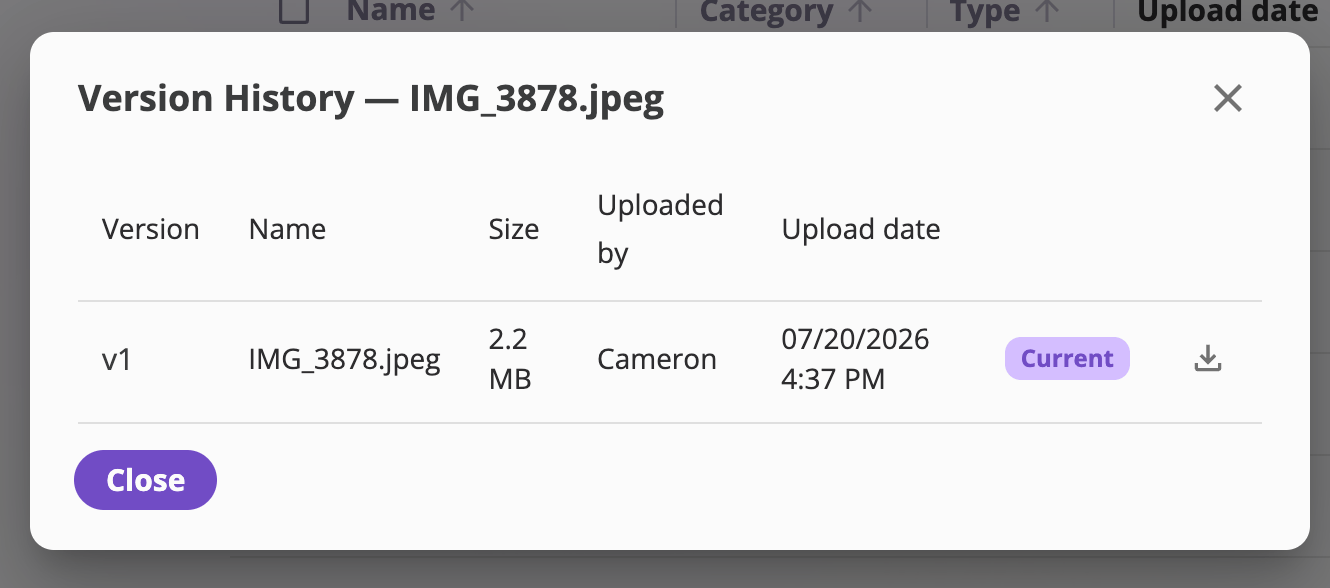 * Each version lists its number (**v1**, **v2**, …), name, size, uploader, and
upload date; the live one carries a **Current** badge.
* **Download** any past version.
* **Restore** an older version to make it current again — nothing is deleted,
the chosen version simply becomes current (*"v2 becomes the current version;
nothing is deleted."*).
### One file, many records
A file can be attached to more than one record at a time — it's **shared, not
copied**, so every appearance shows the same content (and the same version
history).
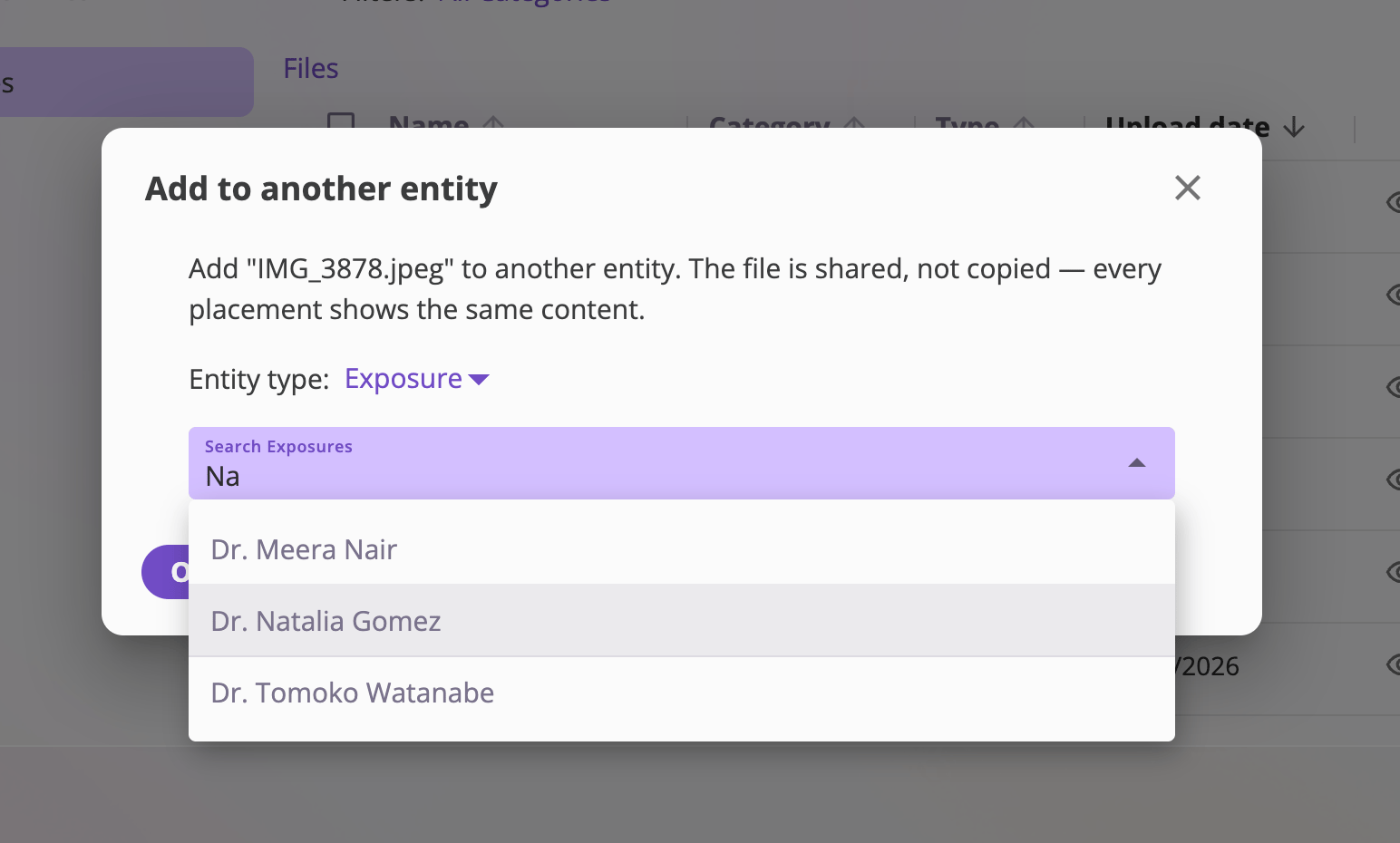
* **Add to another entity** on a file row opens a dialog: pick the entity type
(or **Company Files**), search for the target record, and the file appears
there too — *"File added. It now appears on both entities."*
* A shared file shows a **shared icon** next to its name (*"Shared — appears
in N places. Click to see where."*). Click it for the **"Also appears on:"**
list, with a link to every other record carrying the file.
* Each version lists its number (**v1**, **v2**, …), name, size, uploader, and
upload date; the live one carries a **Current** badge.
* **Download** any past version.
* **Restore** an older version to make it current again — nothing is deleted,
the chosen version simply becomes current (*"v2 becomes the current version;
nothing is deleted."*).
### One file, many records
A file can be attached to more than one record at a time — it's **shared, not
copied**, so every appearance shows the same content (and the same version
history).
* **Add to another entity** on a file row opens a dialog: pick the entity type
(or **Company Files**), search for the target record, and the file appears
there too — *"File added. It now appears on both entities."*
* A shared file shows a **shared icon** next to its name (*"Shared — appears
in N places. Click to see where."*). Click it for the **"Also appears on:"**
list, with a link to every other record carrying the file.
 Deleting a shared file from one record only removes it **there**; the last
deletion is the permanent one, and the confirmation dialog tells you which
case you're in. Moving a shared file into a folder only moves it on the record
you're viewing.
## Malware scanning
Files uploaded to AI Insurance are scanned for malware before they're released
for use:
* While a file is being checked, its row shows ***Scanning…*** — it can't be
previewed or downloaded yet (*"Scanning for malware — available once the
scan completes"*).
* If malware is detected, the file is permanently blocked: its row shows a red
**Infected** badge, and preview and download are disabled for good
(*"Malware detected — this file cannot be downloaded"*). The same applies
per version — an infected version of an otherwise healthy file can never be
downloaded or restored.
* Infected files can still be **deleted** like any other file.
## The Notes tab
The **Notes** tab is a running log of free-form commentary on the record.
Deleting a shared file from one record only removes it **there**; the last
deletion is the permanent one, and the confirmation dialog tells you which
case you're in. Moving a shared file into a folder only moves it on the record
you're viewing.
## Malware scanning
Files uploaded to AI Insurance are scanned for malware before they're released
for use:
* While a file is being checked, its row shows ***Scanning…*** — it can't be
previewed or downloaded yet (*"Scanning for malware — available once the
scan completes"*).
* If malware is detected, the file is permanently blocked: its row shows a red
**Infected** badge, and preview and download are disabled for good
(*"Malware detected — this file cannot be downloaded"*). The same applies
per version — an infected version of an otherwise healthy file can never be
downloaded or restored.
* Infected files can still be **deleted** like any other file.
## The Notes tab
The **Notes** tab is a running log of free-form commentary on the record.
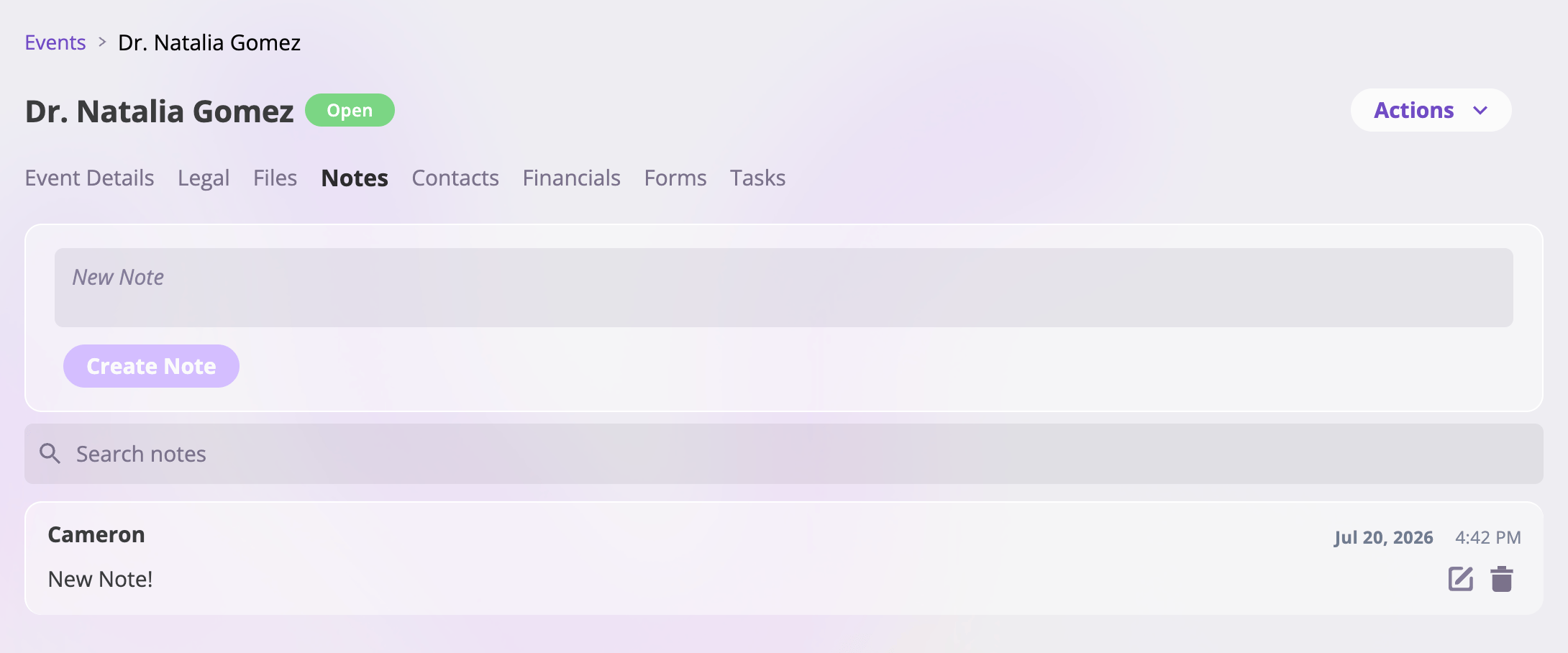 * **Create** — type into the **New Note** box at the top and select **Create
Note**. Notes are plain text; line breaks are preserved.
* **Search** — the **Search notes** box filters the list as you type.
* **Edit** — the pencil icon on a note opens it for editing in place; **Save**
or **Cancel**.
* **Delete** — the trash icon asks for confirmation (*"Are you sure you want
to delete this note? This action cannot be undone."*) and permanently
removes the note.
Every note shows its author and its date and time. Notes brought in by an
import show the **original author and date from the source system**, so a
migrated claim's history reads the way it was written.
* **Create** — type into the **New Note** box at the top and select **Create
Note**. Notes are plain text; line breaks are preserved.
* **Search** — the **Search notes** box filters the list as you type.
* **Edit** — the pencil icon on a note opens it for editing in place; **Save**
or **Cancel**.
* **Delete** — the trash icon asks for confirmation (*"Are you sure you want
to delete this note? This action cannot be undone."*) and permanently
removes the note.
Every note shows its author and its date and time. Notes brought in by an
import show the **original author and date from the source system**, so a
migrated claim's history reads the way it was written.