> ## Documentation Index
> Fetch the complete documentation index at: https://docs.go.aiinsurance.io/llms.txt
> Use this file to discover all available pages before exploring further.
# Generating forms
> Generate documents on quotes, policies, and events — filled from your data by smart tags, editable in the app, and bundled into packets.
AI Insurance generates documents — applications, dec pages, notices, claim
forms — from the **form templates** uploaded for your company. A template is a
document with **smart tags** where the data goes; when you generate a form on a
[quote](/app/features/quotes), [policy](/app/features/policies), or
[event](/app/features/events), the tags are filled from that record's data and
you get a finished document you can review, edit, and download.
Templates come in three categories, and each category generates on its own
entity: **Quote** forms are used while quoting, **Policy** forms while binding
and on a bound policy, and **Claim/Incident** forms generate on events. Which
templates exist — and what's in them — depends on how your company is
configured; templates are managed on the
[Form templates](/app/admin/form-templates) admin page, and
[auto-added forms](/app/admin/auto-added-forms) rules decide which quote and
policy forms are staged automatically during quoting.
Forms follow your **permissions**: a Forms tab shows only for roles that
can read forms, the generate actions and template pickers only for roles that
can create them, and the **Edit**, **Refresh**, and **Save** affordances
described below only appear if your role can update forms.
## Where forms happen
| Surface | What you can do |
| ------------------------------------------- | ---------------------------------------------------------------------------------------------------------------------------------------------------------------------------------------------------------------------- |
| **Quote wizard — Forms step** | Add quote/policy forms (by hand or [auto-added](/app/admin/auto-added-forms)), edit them, refresh smart tags, download a packet. The working surface while [quoting](/app/workflows/quoting). |
| **Quote detail — Forms tab** | Review the quote's finished forms: preview and download each, and build reusable [packets](#form-packets). |
| **Policy — Generate Policy Forms** | Compose policy-category documents as of a date in the policy term and **save** them to the policy. Reached from the policy's Actions menu or its Forms tab. |
| **Policy detail — Forms tab** | Review the policy's whole document set: its own saved policy forms plus the Policy and Quote forms of every quote bound into it. Preview and download each, and build [packets](#form-packets) anchored to the policy. |
| **Event detail — Forms tab & Actions menu** | **Generate Claim Form** / **Generate Incident Form**, then preview, edit, download, or delete the saved forms. |
## Generating on an event
On a claim or incident, open the **Actions** menu and choose **Generate Claim
Form** (or **Generate Incident Form**) — the same action also appears on the
event's **Forms** tab while it's empty. The **Generate Event Form** dialog asks
you to **Select a Form** from your company's claim/incident templates; select
**Generate** and you're taken to the generated document, pre-filled from the
event's data.
Review the document (and [edit it](#editing-the-generated-document) if
needed), then select **Save** to attach it to the event — saved forms appear on
the event's **Forms** tab. If you leave without saving, nothing is attached;
you can simply generate again later. See
[Event actions](/app/features/event-actions#generate-a-form) for the action's
place in the menu.
On the event's **Forms** tab, each saved form offers **Preview** (read-only),
**Edit** (if your role can edit forms), **Download**, and **Delete**. Deleting
asks for confirmation — *"Delete «name»? This removes the form from this
event."*
## Generating on a policy
A bound policy generates its own policy-category documents on the **Generate
Policy Forms** surface — reached from **Actions → Generate Policy Form** on the
policy, or from the **Generate Policy Form** button on its
[Forms tab](#the-forms-tab-on-a-policy). It's a full screen, laid out like the
quote wizard's Forms step: the as-of date and the template picker on the left,
the **Selected Forms** list on the right.
* **As-of date** — a date within the policy term. Because a policy's data
changes over its life (endorsements create new versions), this picks *which*
version of the policy fills the forms. There is no default: nothing can be
generated until you choose a date, and a date outside the term is refused with
the term's start and end shown.
* **The template picker** — your company's policy form templates. Picking one
generates it right away, bound against the chosen date, and adds it to
**Selected Forms**. The **same template can be picked more than once at
different as-of dates** — those are two legitimately different documents, and
each row's name carries the date it was bound against.
* **Selected Forms** — the composition list. Each row offers **Edit**,
**Preview**, **Download**, **Refresh Smart Tags**, and **Remove**, exactly as
in the quote wizard, and **Download Packet** in the header merges the whole
list into one PDF. A refresh re-binds the form against **its own** as-of date,
so a dated snapshot never silently drifts to a different version of the policy.
* **Save** — writes the composed forms to the policy. Saving is what makes them
appear on the policy's [Forms tab](#the-forms-tab-on-a-policy); a document you
generate and then leave without saving is not kept.
**Saved policy forms are final.** A saved form is a reviewed snapshot of the
policy as it stood on its as-of date, so it offers **Preview** and
**Download** only — no editing, no renaming, no refreshing smart tags. Review
and edit *before* you save; to correct a saved document, generate a new one.
Nothing is staged for you on this surface: [auto-added forms
rules](/app/admin/auto-added-forms) apply while quoting and binding, not here.
## Forms while quoting
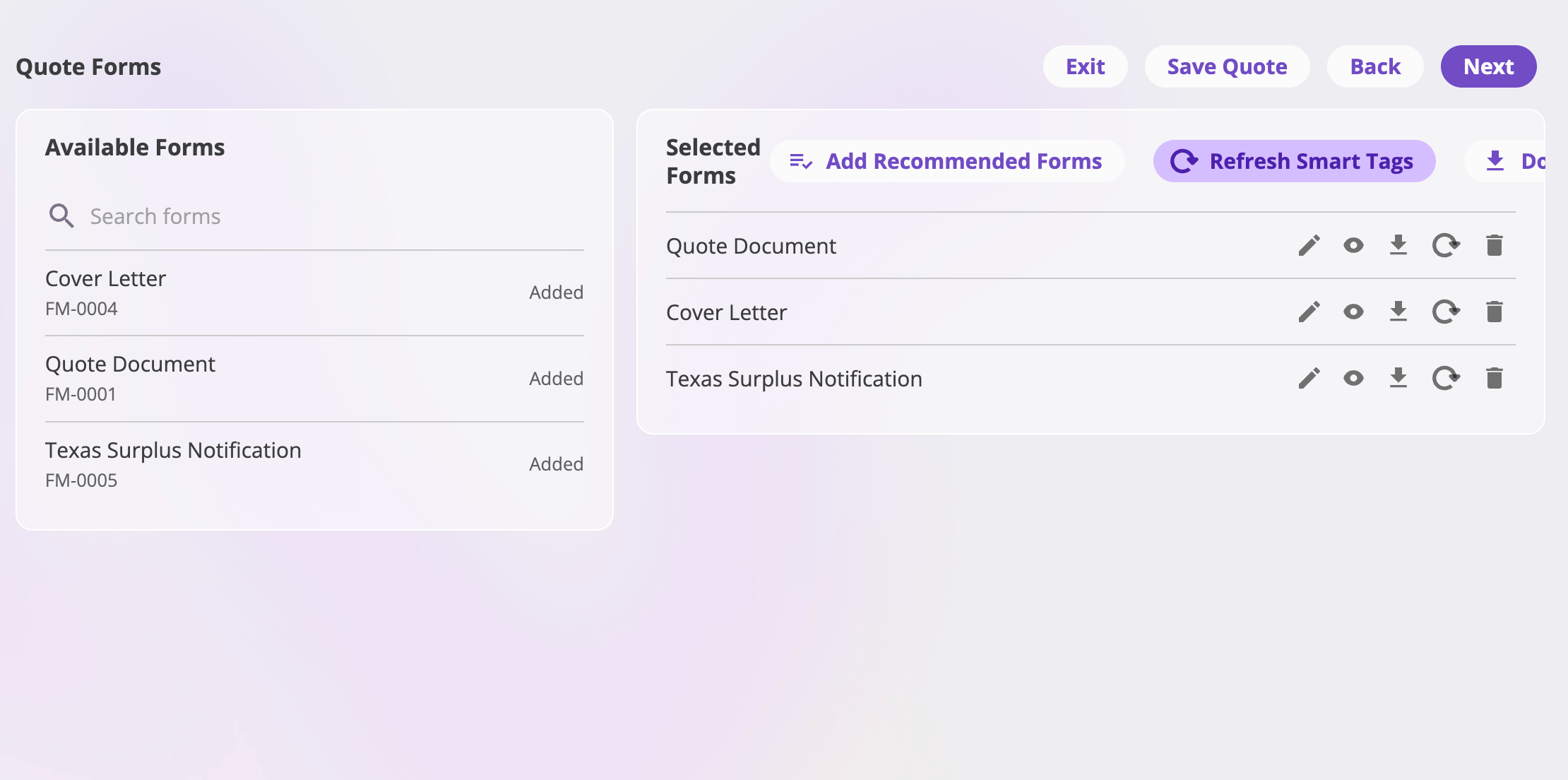
The quote wizard's **Forms** step is where a quote's form set is built: pick
templates from the picker on the left and they land in the **Selected Forms**
list, already filled from the quote's answers. Depending on your company's
configuration, the right forms are staged for you automatically by
[auto-added forms rules](/app/admin/auto-added-forms) — and the **Add
Recommended Forms** button re-applies those rules on demand.
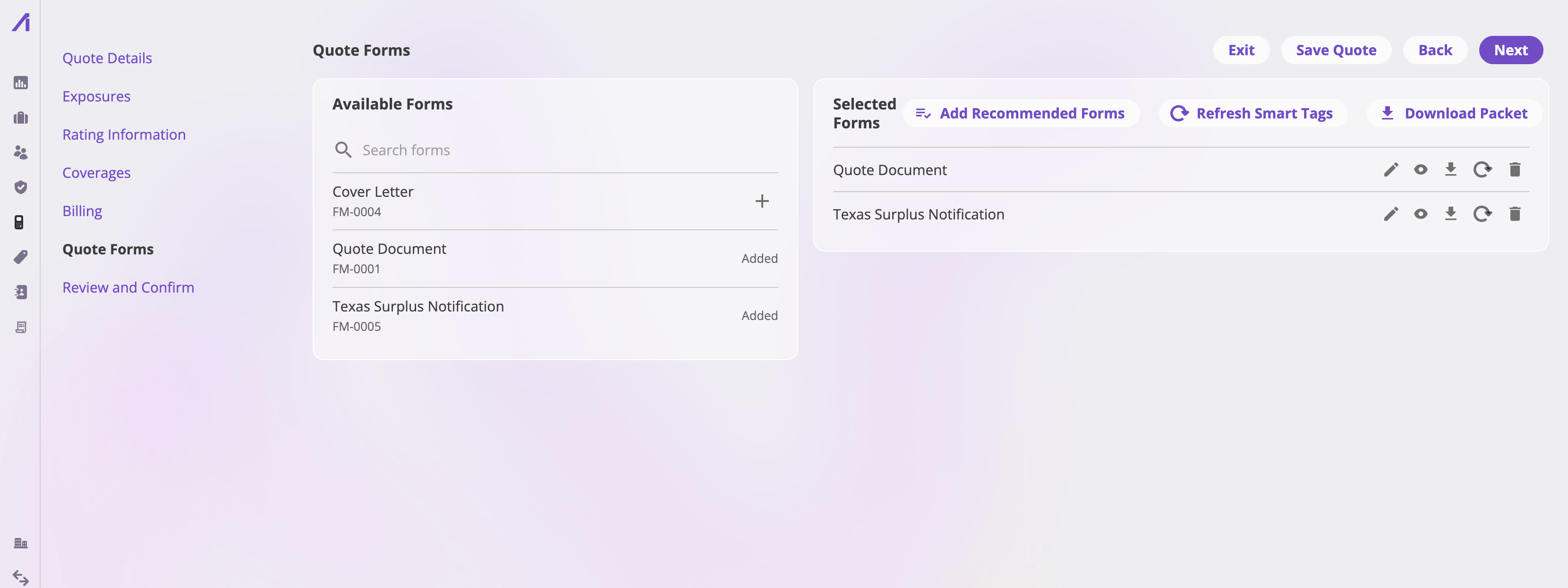 Each selected form offers **Edit**, **Preview**, **Download**, **Refresh Smart
Tags**, and **Remove** (removing warns *"If this form has any edits they will
be lost."*); a form you've edited also offers **Revert** to throw the edits
away. A form whose data may have drifted shows a **Needs review** chip so you
know to refresh or re-check it. The **Download Packet** button bundles the
currently selected forms into one PDF — name it (optional), reorder the forms,
and **Download**.
Once the quote is saved, its forms are also visible on the quote's **Forms**
tab (below).
## The Forms tab on a quote
The quote detail page's **Forms** tab shows the quote's forms in two sections:
* **Forms** — each generated form, with **Preview** and **Download** actions.
(To change a quote's form set or edit a form, go through the quote wizard's
Forms step.)
* **Packets** — reusable bundles of those forms; see
[Form packets](#form-packets).
## The Forms tab on a policy
The policy detail page's **Forms** tab is the policy's whole document set,
gathered from every place a policy's forms can come from. Each form offers
**Preview** and **Download**; **Generate Policy Form** at the top opens the
[Generate Policy Forms](#generating-on-a-policy) surface.
* **Policy Forms** — the policy-category documents: the ones staged during the
[bind flow's Policy Forms step](/app/workflows/binding), and the ones saved on
the policy's own generate surface.
* **Quote Forms** — the quote-category forms of the quotes bound into this
policy.
* **Packets** — reusable bundles anchored to the policy; see
[Form packets](#form-packets).
Both form sections gather across **every** quote bound into the policy — the
original new-business quote plus each endorsement, renewal, cancellation, and
reinstatement quote. Those quote-anchored forms are **the same records** the
quote's own Forms tab shows — linked here, never copied — so a form edited
through that quote's wizard reads the same on both pages. Reaching them also
needs quote read access: a role that can read forms but not quotes sees the
policy's own saved forms plus a note saying the quote forms are hidden rather
than absent. A policy with no bound quote at all (an imported or migrated
policy) still lists its own saved forms.
This tab lists the policy forms you **saved** on the generate surface. A
document you generated while composing and then left without saving is not
part of the policy's set and does not appear here.
## Smart tags: how forms are filled
Templates are filled by **smart tags** — named placeholders bound to your
entity fields. You don't normally deal with tags at all: the generated document
arrives with every tag already replaced by the record's current values. The
editor tells you when something needs attention, with a banner at the top of
the document:
* *"N tag(s) had no value: …"* — the record has no data for those tags yet.
* *"N tag(s) failed to bind: …"* — a tag couldn't be resolved.
When editing, an **Insert Smart Tag** button opens a panel listing every
available tag — filter, expand a tag's description with the info icon, and add
it to the document at the cursor; it's inserted already carrying its current
value. Tags with no value or a binding problem are highlighted in the list.
### Refreshing after data changes
A generated form is a snapshot — if the record's data changes afterwards, the
document doesn't update by itself. **Refresh Smart Tags** re-resolves every tag
against the latest data:
* In a **Selected Forms** list — the quote wizard's Forms step, the bind flow's
Policy Forms step, or a policy's generate surface: per form (the refresh icon
on the row) or **Refresh Smart Tags** in the header to refresh all, with a
per-form progress indicator. While quoting, a warning banner — *"N smart
tag(s) may not reflect the latest values: …"* — flags forms that look out of
date. A policy form carries no such flag: it is a snapshot of a date you chose,
not of the record's latest state, so there is nothing for it to fall behind.
* In the document editor: the **Refresh Smart Tags** toolbar button
(*"Re-resolve all Smart Tags (bound and unbound) with the latest data"*)
updates the open document live.
Refresh re-resolves the **tags** — text you've typed into the document
yourself is not what it targets, but a refreshed tag does replace whatever
value was in that tag before. If you've hand-corrected a tag's value, expect
a refresh to overwrite that correction with the record's current data.
## Editing the generated document
Generated forms open in a full-screen **document editor built into the app** —
no download-edit-reupload cycle. In view mode you can read and **Download**;
select **Edit** (if your role can edit forms) to change anything in the
document — text, formatting, inserted tags. A standing notice reminds you that
*"Editing this document will not change the original template."*
Each selected form offers **Edit**, **Preview**, **Download**, **Refresh Smart
Tags**, and **Remove** (removing warns *"If this form has any edits they will
be lost."*); a form you've edited also offers **Revert** to throw the edits
away. A form whose data may have drifted shows a **Needs review** chip so you
know to refresh or re-check it. The **Download Packet** button bundles the
currently selected forms into one PDF — name it (optional), reorder the forms,
and **Download**.
Once the quote is saved, its forms are also visible on the quote's **Forms**
tab (below).
## The Forms tab on a quote
The quote detail page's **Forms** tab shows the quote's forms in two sections:
* **Forms** — each generated form, with **Preview** and **Download** actions.
(To change a quote's form set or edit a form, go through the quote wizard's
Forms step.)
* **Packets** — reusable bundles of those forms; see
[Form packets](#form-packets).
## The Forms tab on a policy
The policy detail page's **Forms** tab is the policy's whole document set,
gathered from every place a policy's forms can come from. Each form offers
**Preview** and **Download**; **Generate Policy Form** at the top opens the
[Generate Policy Forms](#generating-on-a-policy) surface.
* **Policy Forms** — the policy-category documents: the ones staged during the
[bind flow's Policy Forms step](/app/workflows/binding), and the ones saved on
the policy's own generate surface.
* **Quote Forms** — the quote-category forms of the quotes bound into this
policy.
* **Packets** — reusable bundles anchored to the policy; see
[Form packets](#form-packets).
Both form sections gather across **every** quote bound into the policy — the
original new-business quote plus each endorsement, renewal, cancellation, and
reinstatement quote. Those quote-anchored forms are **the same records** the
quote's own Forms tab shows — linked here, never copied — so a form edited
through that quote's wizard reads the same on both pages. Reaching them also
needs quote read access: a role that can read forms but not quotes sees the
policy's own saved forms plus a note saying the quote forms are hidden rather
than absent. A policy with no bound quote at all (an imported or migrated
policy) still lists its own saved forms.
This tab lists the policy forms you **saved** on the generate surface. A
document you generated while composing and then left without saving is not
part of the policy's set and does not appear here.
## Smart tags: how forms are filled
Templates are filled by **smart tags** — named placeholders bound to your
entity fields. You don't normally deal with tags at all: the generated document
arrives with every tag already replaced by the record's current values. The
editor tells you when something needs attention, with a banner at the top of
the document:
* *"N tag(s) had no value: …"* — the record has no data for those tags yet.
* *"N tag(s) failed to bind: …"* — a tag couldn't be resolved.
When editing, an **Insert Smart Tag** button opens a panel listing every
available tag — filter, expand a tag's description with the info icon, and add
it to the document at the cursor; it's inserted already carrying its current
value. Tags with no value or a binding problem are highlighted in the list.
### Refreshing after data changes
A generated form is a snapshot — if the record's data changes afterwards, the
document doesn't update by itself. **Refresh Smart Tags** re-resolves every tag
against the latest data:
* In a **Selected Forms** list — the quote wizard's Forms step, the bind flow's
Policy Forms step, or a policy's generate surface: per form (the refresh icon
on the row) or **Refresh Smart Tags** in the header to refresh all, with a
per-form progress indicator. While quoting, a warning banner — *"N smart
tag(s) may not reflect the latest values: …"* — flags forms that look out of
date. A policy form carries no such flag: it is a snapshot of a date you chose,
not of the record's latest state, so there is nothing for it to fall behind.
* In the document editor: the **Refresh Smart Tags** toolbar button
(*"Re-resolve all Smart Tags (bound and unbound) with the latest data"*)
updates the open document live.
Refresh re-resolves the **tags** — text you've typed into the document
yourself is not what it targets, but a refreshed tag does replace whatever
value was in that tag before. If you've hand-corrected a tag's value, expect
a refresh to overwrite that correction with the record's current data.
## Editing the generated document
Generated forms open in a full-screen **document editor built into the app** —
no download-edit-reupload cycle. In view mode you can read and **Download**;
select **Edit** (if your role can edit forms) to change anything in the
document — text, formatting, inserted tags. A standing notice reminds you that
*"Editing this document will not change the original template."*
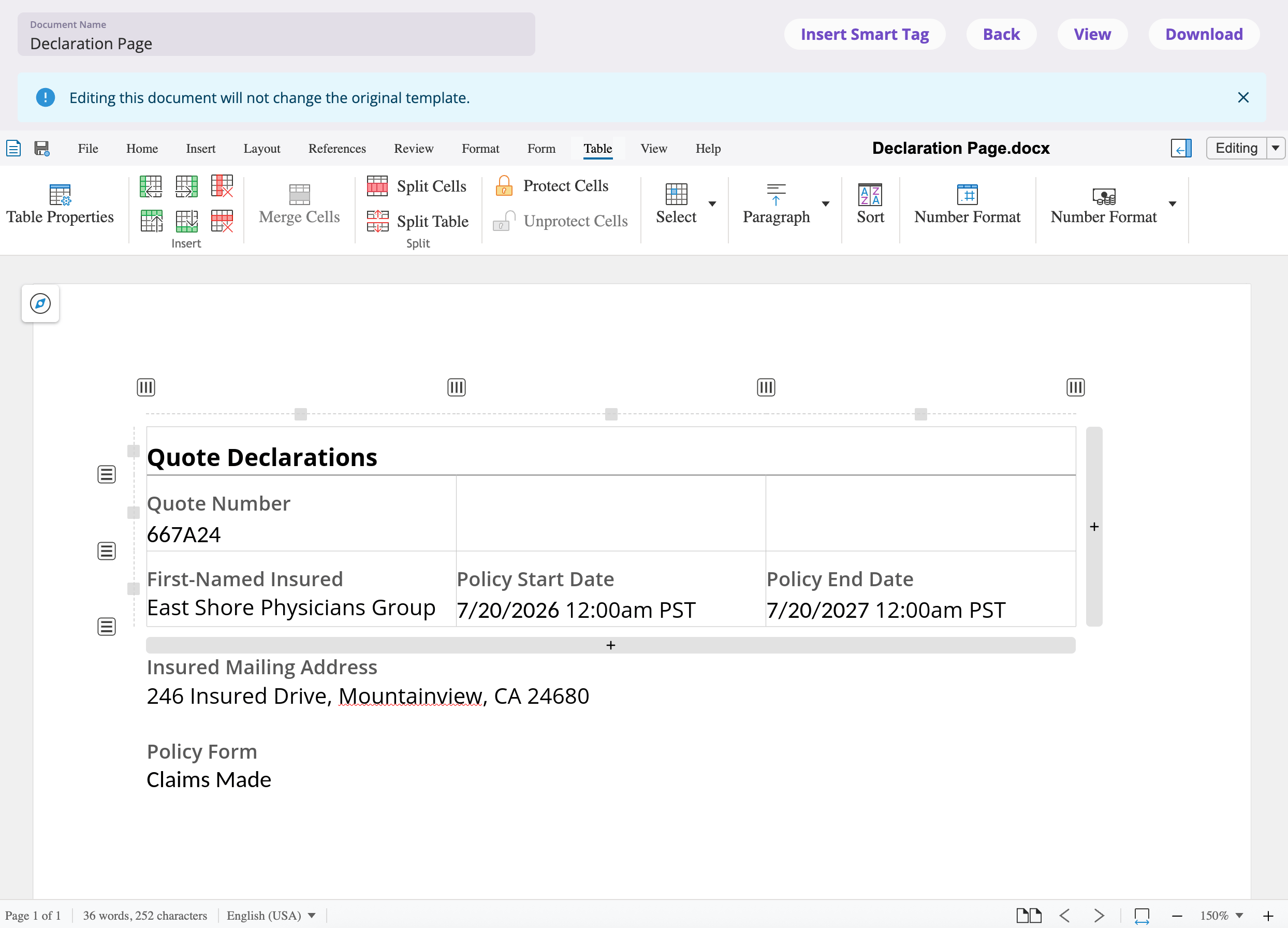 * **View / Edit** toggles between reading and editing (edits are saved when
you toggle back to View).
* The **Document Name** field renames the generated form.
* In the quote wizard, leaving an edited form asks whether to keep your work —
**Save and Exit** keeps the edits on the quote's form; **Exit** discards
them.
* On an event's generate preview, **Save** attaches the document to the event
(the button flips to **Saved**).
* On a policy's generate surface, edits go straight into the form you're
composing; the surface's own **Save** is what commits the finished set to the
policy.
## Downloading
**Download** — on a form row, in the preview, or in the editor — downloads the
generated form as a **PDF**. Downloading from the editor while editing saves
your pending changes first, so the PDF always matches what you see.
## Form packets
A **packet** is a named, ordered bundle of a record's forms, merged into a
single PDF — the thing you send as one attachment. Packets live in the
**Packets** section of a Forms tab, and belong to the record whose tab you built
them on: a quote's packets on the quote, a policy's packets on the policy (drawn
from everything that tab lists).
* **View / Edit** toggles between reading and editing (edits are saved when
you toggle back to View).
* The **Document Name** field renames the generated form.
* In the quote wizard, leaving an edited form asks whether to keep your work —
**Save and Exit** keeps the edits on the quote's form; **Exit** discards
them.
* On an event's generate preview, **Save** attaches the document to the event
(the button flips to **Saved**).
* On a policy's generate surface, edits go straight into the form you're
composing; the surface's own **Save** is what commits the finished set to the
policy.
## Downloading
**Download** — on a form row, in the preview, or in the editor — downloads the
generated form as a **PDF**. Downloading from the editor while editing saves
your pending changes first, so the PDF always matches what you see.
## Form packets
A **packet** is a named, ordered bundle of a record's forms, merged into a
single PDF — the thing you send as one attachment. Packets live in the
**Packets** section of a Forms tab, and belong to the record whose tab you built
them on: a quote's packets on the quote, a policy's packets on the policy (drawn
from everything that tab lists).
 * **Create Packet** opens the packet dialog: give it a name, **Add forms**
(a checklist of the record's forms not yet in the packet), drag rows to set
the order, and **Save**. A packet needs a name and at least one form.
* Each packet row expands to show its member forms, and offers **Edit**
(reopen the dialog), **View** (an in-app preview of the merged PDF),
**Download** (one merged PDF), and **Delete**.
* Deleting a packet removes only the bundle — *"The packet and its ordering
will be removed. The underlying forms are not affected."*
* On a Selected Forms list — in the quote wizard, the bind flow, or a policy's
generate surface — **Download Packet** produces the same merged PDF on the fly
without saving a named packet.
* **Create Packet** opens the packet dialog: give it a name, **Add forms**
(a checklist of the record's forms not yet in the packet), drag rows to set
the order, and **Save**. A packet needs a name and at least one form.
* Each packet row expands to show its member forms, and offers **Edit**
(reopen the dialog), **View** (an in-app preview of the merged PDF),
**Download** (one merged PDF), and **Delete**.
* Deleting a packet removes only the bundle — *"The packet and its ordering
will be removed. The underlying forms are not affected."*
* On a Selected Forms list — in the quote wizard, the bind flow, or a policy's
generate surface — **Download Packet** produces the same merged PDF on the fly
without saving a named packet.