> ## Documentation Index
> Fetch the complete documentation index at: https://docs.go.aiinsurance.io/llms.txt
> Use this file to discover all available pages before exploring further.
# List filters
> How your team finds records, why available filters differ between lists, and what to include when configuring your company.
You may know someone's surname without knowing their policy number, or part of
a building's address without knowing its record name. **List filters** let you
find records using those details.
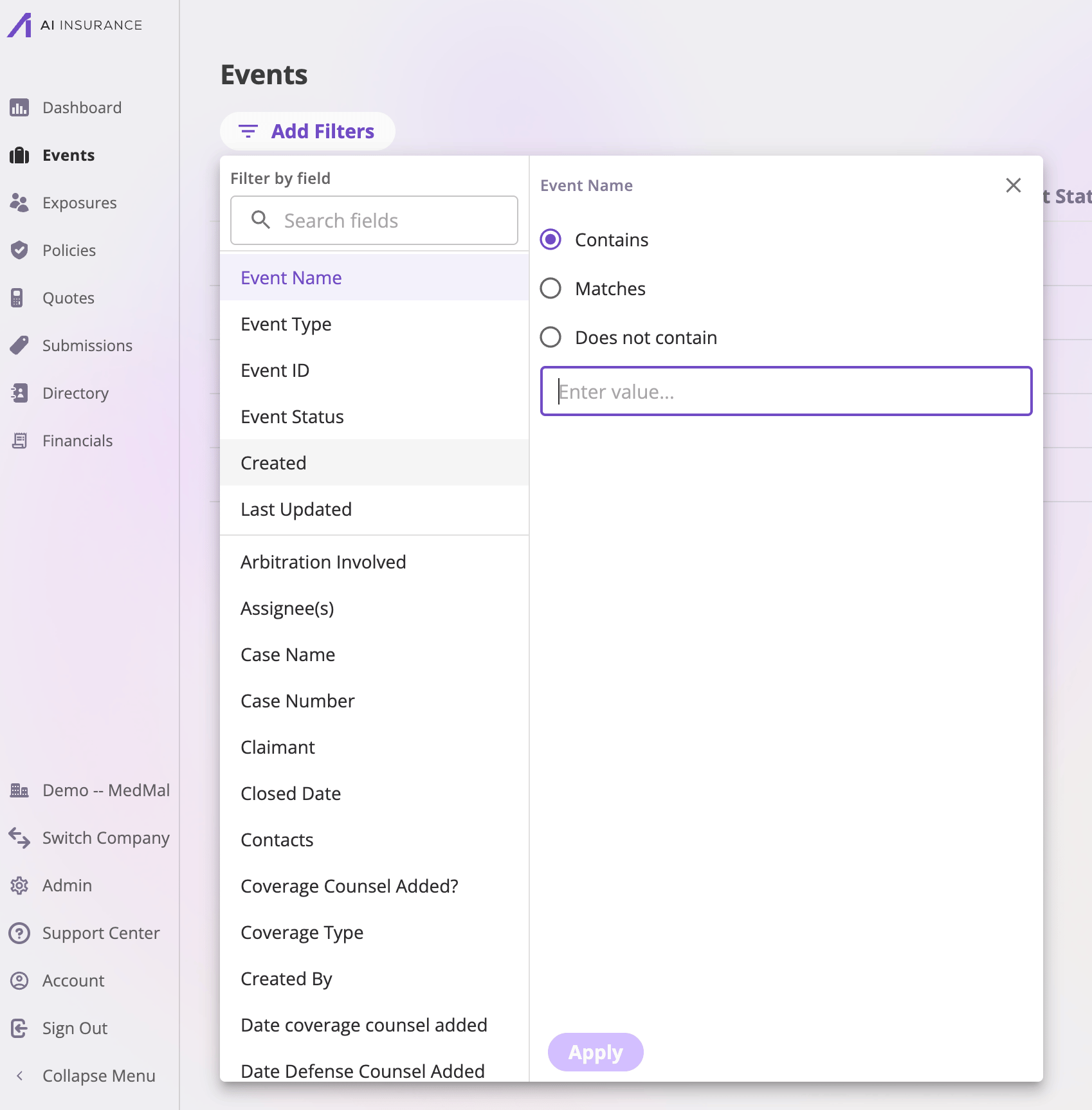
On the main entity lists, such as Exposures, Quotes, and Policies, there is no
general search box that searches every field. Select **Add Filters** and choose
the detail you want to match. For example, a **Name** filter with **Contains**
finds names that include the text you enter.
Your company's configuration defines which filters each list offers and which
conditions each filter supports. Those choices determine how your team can
find records, so they are part of setting up an instance.
## Find someone without knowing their policy
If the person is saved in Directory, open **Directory → People** to find their
contact record. If your program records insured people as exposures, open
**Exposures** to find the insured record instead.
On a list configured with a **Name** filter that supports **Contains**:
1. Select **Add Filters**, then **Name**.
2. Select **Contains** and enter part of the name, such as `Campbell`.
3. Select **Apply** to see matching records.
You can open the matching record without knowing its policy number. Filters
apply across the list, including records beyond the page currently displayed.
Select an active filter above the table to edit it, or its **X** to remove it.
 ## A field or column does not automatically become a filter
These are separate configuration choices:
| Configuration | What it controls |
| - | - |
| Fields | What information records hold. |
| List columns | What information appears in the table. |
| List filters | What information users can use to find records. |
You can display a Name column without offering a Name filter. You can also
offer a filter for a calculated value without displaying that value as a
column.
Filters are configured separately for Events, Exposures, Quotes, Submissions,
People, Organizations, and Policies. Adding Name to People does not add it to
Exposures. The app also provides built-in filters, such as creation dates, on
the lists that support them.
## If the filter you need is missing
The **Search fields** box inside **Add Filters** searches the names of available
filters. It does not search record values. If Name is missing, typing a person's
name into that box will not find their record, and adding a Name column will
not create the missing filter.
Ask your AI Insurance team to add the filter to the relevant list, or
[configure it yourself](/app/admin/configuring-list-filters) if you manage
your company's configuration. If Name exists but **Contains** is missing,
the filter's configured conditions need to include **Contains**.
Some other areas of the app have their own search boxes. This guide describes
the configured filters on entity lists.
## Include record lookups in your instance setup
Give the person or AI assistant configuring your instance examples of what
staff need to find. For example:
* "Find an insured exposure using only part of their name."
* "Find a location using part of its address."
* "Find a quote or policy using its reference number."
* "Find policies ending within a date range."
For each lookup, agree on the list, filter label, and matching conditions.
Choose the filters your team needs rather than exposing every field by default.
Before handing over the instance, test those lookups in **Add Filters** with
representative records. A configuration with fields and columns can still be
missing the filters needed for everyday work.
This documentation is built and hosted on [Mintlify](https://mintlify.com), a developer documentation platform.
## A field or column does not automatically become a filter
These are separate configuration choices:
| Configuration | What it controls |
| - | - |
| Fields | What information records hold. |
| List columns | What information appears in the table. |
| List filters | What information users can use to find records. |
You can display a Name column without offering a Name filter. You can also
offer a filter for a calculated value without displaying that value as a
column.
Filters are configured separately for Events, Exposures, Quotes, Submissions,
People, Organizations, and Policies. Adding Name to People does not add it to
Exposures. The app also provides built-in filters, such as creation dates, on
the lists that support them.
## If the filter you need is missing
The **Search fields** box inside **Add Filters** searches the names of available
filters. It does not search record values. If Name is missing, typing a person's
name into that box will not find their record, and adding a Name column will
not create the missing filter.
Ask your AI Insurance team to add the filter to the relevant list, or
[configure it yourself](/app/admin/configuring-list-filters) if you manage
your company's configuration. If Name exists but **Contains** is missing,
the filter's configured conditions need to include **Contains**.
Some other areas of the app have their own search boxes. This guide describes
the configured filters on entity lists.
## Include record lookups in your instance setup
Give the person or AI assistant configuring your instance examples of what
staff need to find. For example:
* "Find an insured exposure using only part of their name."
* "Find a location using part of its address."
* "Find a quote or policy using its reference number."
* "Find policies ending within a date range."
For each lookup, agree on the list, filter label, and matching conditions.
Choose the filters your team needs rather than exposing every field by default.
Before handing over the instance, test those lookups in **Add Filters** with
representative records. A configuration with fields and columns can still be
missing the filters needed for everyday work.
This documentation is built and hosted on [Mintlify](https://mintlify.com), a developer documentation platform.