> ## Documentation Index
> Fetch the complete documentation index at: https://docs.go.aiinsurance.io/llms.txt
> Use this file to discover all available pages before exploring further.
# Submissions
> The Submissions list, the submission detail page and its tabs, statuses, imports and parse-run history, and every submission action.
A [submission](/entities/submission) is the intake record for a risk — the
application that arrives before any quote exists. Every quote belongs to a
submission. This page is the reference for the **Submissions** area; for the
step-by-step guide to getting submissions into the system (manual entry, AI
import, email), see [Creating submissions](/app/workflows/creating-submissions).
## The Submissions list
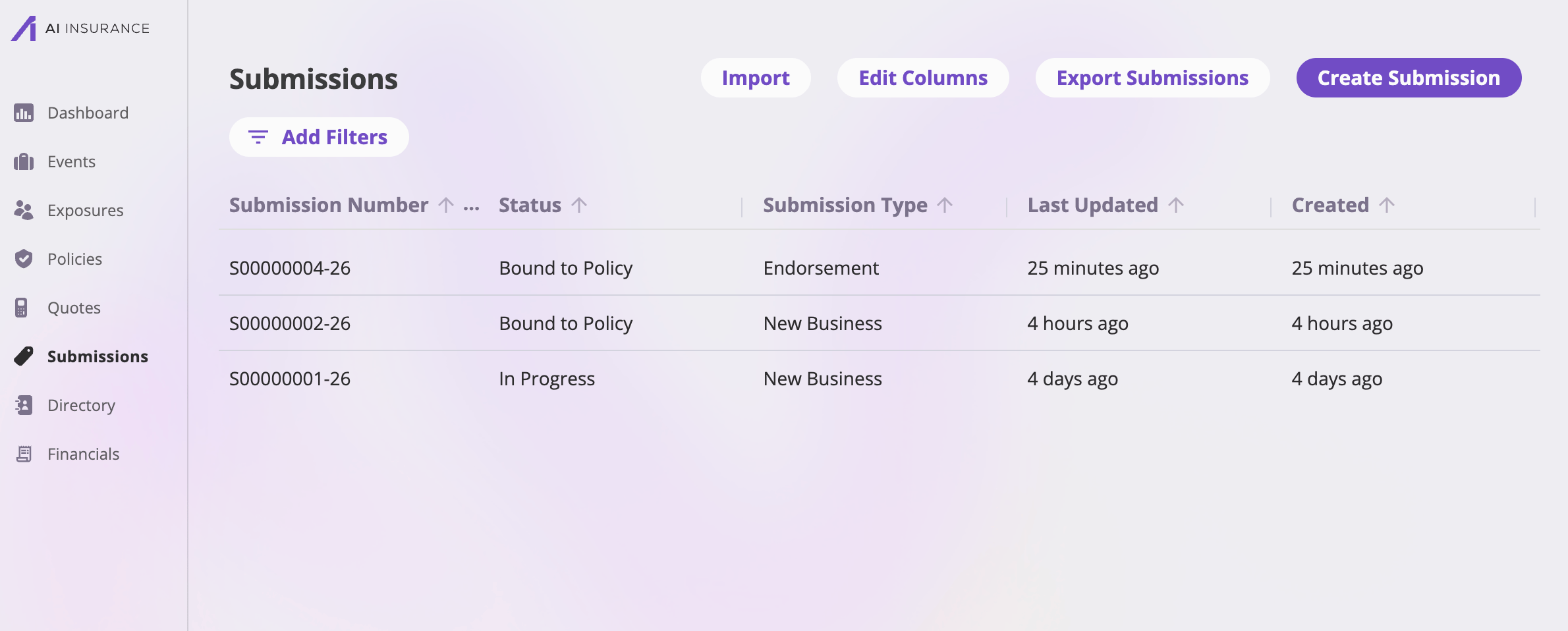
Open **Submissions** in the sidebar. Each row is a submission; selecting a row
opens its [detail page](#the-submission-detail-page).
 ### Toolbar
| Button | What it does |
| ---------------------- | ----------------------------------------------------------------------------------------------------------------- |
| **Import** | Opens the [Import page](#imports-and-parse-run-history). Shown when your role can upload files. |
| **Edit Columns** | Choose, reorder, and save the list's columns — including shared [saved views](/app/features/exports-saved-views). |
| **Export Submissions** | Exports the list — see [Exports & saved views](/app/features/exports-saved-views). |
| **Create Submission** | Starts a new submission via the quote wizard — see [Creating submissions](/app/workflows/creating-submissions). |
### Columns
Column headers follow your company's configured field labels. By default the
list shows **Submission Number** (always pinned as the first column),
**Submission Name**, **Status**, **Type**, **Last Updated**, and **Created**.
**Edit Columns** can add any other configured submission field, plus the
system columns *Created*, *Last Updated*, *Created By*, and *Updated By*.
* **Sorting** — click a sortable header to sort. Submission Number, Name,
Status, and Type are sortable, as are Created and Last Updated (the default
sort is Last Updated, newest first).
* **Filters** — **Add Filters** opens the filter picker; you can filter on
the list's fields with type-appropriate inputs (text, dates, numbers,
option choices, users). Active filters show as pills you can edit or
remove.
* **Pagination** — the footer pages through results at 25, 50, 100, or 200
rows per page.
### Submission statuses
Every submission carries a **status**. The status keys are fixed by the
platform; the labels shown in the app are configurable per company. The
defaults:
| Status | Meaning |
| --------------------- | ----------------------------------------------------------------- |
| **In Progress** | The submission is being worked. Every new submission starts here. |
| **Submitted** | The application has been formally submitted. |
| **Quote in Progress** | A quote is being prepared for it. |
| **Quote Complete** | A quote has been completed. |
| **Quote Accepted** | The insured has accepted a quote. |
| **Quote Sent** | A quote has been sent out. |
| **Bound to Policy** | A quote on this submission has been bound. |
| **Declined** | The submission was declined. |
The status field is system-managed rather than directly editable on the page;
how (and whether) a submission advances through these statuses beyond the
initial *In Progress* depends on how your company is configured and on
[API](/api-reference/entities/overview) integrations.
## The submission detail page
The detail page is headed by the submission's name (falling back to its
number), with the **Actions** menu at the top right and the tab bar beneath.
### Toolbar
| Button | What it does |
| ---------------------- | ----------------------------------------------------------------------------------------------------------------- |
| **Import** | Opens the [Import page](#imports-and-parse-run-history). Shown when your role can upload files. |
| **Edit Columns** | Choose, reorder, and save the list's columns — including shared [saved views](/app/features/exports-saved-views). |
| **Export Submissions** | Exports the list — see [Exports & saved views](/app/features/exports-saved-views). |
| **Create Submission** | Starts a new submission via the quote wizard — see [Creating submissions](/app/workflows/creating-submissions). |
### Columns
Column headers follow your company's configured field labels. By default the
list shows **Submission Number** (always pinned as the first column),
**Submission Name**, **Status**, **Type**, **Last Updated**, and **Created**.
**Edit Columns** can add any other configured submission field, plus the
system columns *Created*, *Last Updated*, *Created By*, and *Updated By*.
* **Sorting** — click a sortable header to sort. Submission Number, Name,
Status, and Type are sortable, as are Created and Last Updated (the default
sort is Last Updated, newest first).
* **Filters** — **Add Filters** opens the filter picker; you can filter on
the list's fields with type-appropriate inputs (text, dates, numbers,
option choices, users). Active filters show as pills you can edit or
remove.
* **Pagination** — the footer pages through results at 25, 50, 100, or 200
rows per page.
### Submission statuses
Every submission carries a **status**. The status keys are fixed by the
platform; the labels shown in the app are configurable per company. The
defaults:
| Status | Meaning |
| --------------------- | ----------------------------------------------------------------- |
| **In Progress** | The submission is being worked. Every new submission starts here. |
| **Submitted** | The application has been formally submitted. |
| **Quote in Progress** | A quote is being prepared for it. |
| **Quote Complete** | A quote has been completed. |
| **Quote Accepted** | The insured has accepted a quote. |
| **Quote Sent** | A quote has been sent out. |
| **Bound to Policy** | A quote on this submission has been bound. |
| **Declined** | The submission was declined. |
The status field is system-managed rather than directly editable on the page;
how (and whether) a submission advances through these statuses beyond the
initial *In Progress* depends on how your company is configured and on
[API](/api-reference/entities/overview) integrations.
## The submission detail page
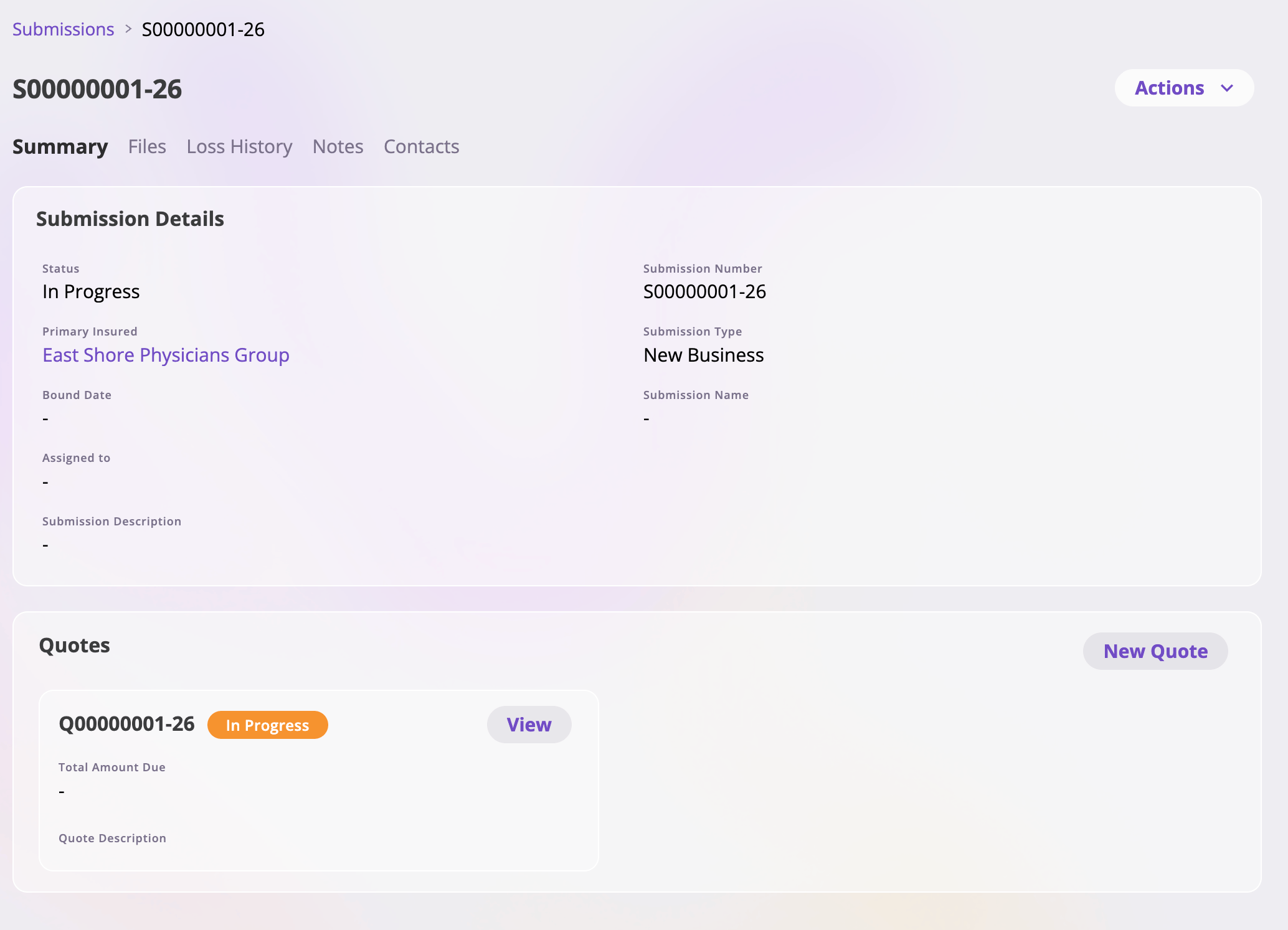
The detail page is headed by the submission's name (falling back to its
number), with the **Actions** menu at the top right and the tab bar beneath.
 ### Tabs
| Tab | Shown when | What's on it |
| ---------------- | ----------------------------------- | ----------------------------------------------------------------------------------------------------------------------------- |
| **Summary** | Always | The submission's details card — the fields your company configured for submissions — and the [Quotes card](#the-quotes-card). |
| **Files** | Your role can view files | Documents attached to this submission — see [Files & notes](/app/features/files-notes). |
| **Loss History** | Always | Reserved for the submission's loss history; it has no content yet. |
| **Notes** | Your role can view submission notes | Free-form notes on the submission — see [Files & notes](/app/features/files-notes). |
| **Contacts** | Always | The people linked to this submission — see [Directory & contacts](/app/features/directory). |
### The Quotes card
The Summary tab's **Quotes** card lists every [quote](/app/features/quotes) on
the submission. Each quote shows its number, a status tag, its **Total Amount
Due**, and its **Quote Description**, with a **View** button that opens the
quote.
**New Quote** (shown when your role can create quotes) starts another quote on
this submission in the quote wizard:
* If the submission already has a quote that isn't cancelled or archived, the
new quote is a **copy of the most recent one** — same kind of quote,
pre-filled from it.
* Otherwise it starts a **fresh new-business quote** seeded from the
submission's details.
See [Quoting new business](/app/workflows/quoting) for the wizard itself.
### Clearance warnings
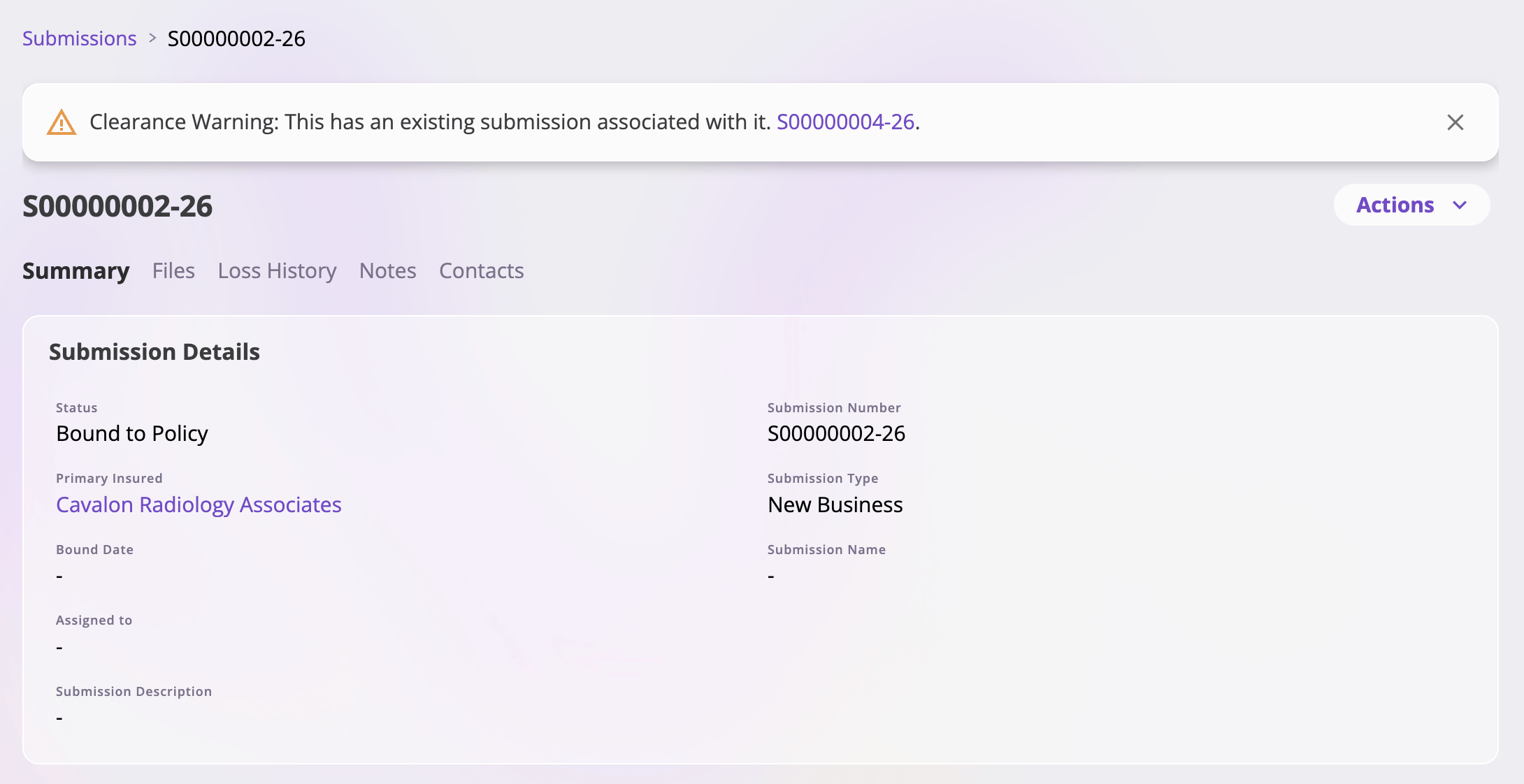
When a submission's primary insured name matches another **active submission**
in your company (a case-insensitive match, ignoring extra whitespace), a
**Clearance Warning** banner appears at the top of the detail page — one per
match — linking to the potential duplicate so you can compare before
proceeding. Renewal submissions never show clearance warnings, since a renewal
is expected to share its prior term's insured.
### Tabs
| Tab | Shown when | What's on it |
| ---------------- | ----------------------------------- | ----------------------------------------------------------------------------------------------------------------------------- |
| **Summary** | Always | The submission's details card — the fields your company configured for submissions — and the [Quotes card](#the-quotes-card). |
| **Files** | Your role can view files | Documents attached to this submission — see [Files & notes](/app/features/files-notes). |
| **Loss History** | Always | Reserved for the submission's loss history; it has no content yet. |
| **Notes** | Your role can view submission notes | Free-form notes on the submission — see [Files & notes](/app/features/files-notes). |
| **Contacts** | Always | The people linked to this submission — see [Directory & contacts](/app/features/directory). |
### The Quotes card
The Summary tab's **Quotes** card lists every [quote](/app/features/quotes) on
the submission. Each quote shows its number, a status tag, its **Total Amount
Due**, and its **Quote Description**, with a **View** button that opens the
quote.
**New Quote** (shown when your role can create quotes) starts another quote on
this submission in the quote wizard:
* If the submission already has a quote that isn't cancelled or archived, the
new quote is a **copy of the most recent one** — same kind of quote,
pre-filled from it.
* Otherwise it starts a **fresh new-business quote** seeded from the
submission's details.
See [Quoting new business](/app/workflows/quoting) for the wizard itself.
### Clearance warnings
When a submission's primary insured name matches another **active submission**
in your company (a case-insensitive match, ignoring extra whitespace), a
**Clearance Warning** banner appears at the top of the detail page — one per
match — linking to the potential duplicate so you can compare before
proceeding. Renewal submissions never show clearance warnings, since a renewal
is expected to share its prior term's insured.
 ## Actions
The **Actions** menu at the top right of the detail page collects the
submission-level actions. Options your role isn't allowed to perform don't
appear — if none are allowed, the menu itself is hidden.
### The menu at a glance
| Action | Available when | What it does |
| ----------------------------------------- | ---------------------------- | ----------------------------------- |
| [Delete Submission](#delete-a-submission) | The submission has no quotes | Permanently deletes the submission. |
### Delete a submission
**Delete Submission** asks for confirmation, permanently deletes the
submission, and returns you to the Submissions list.
The option is **disabled while the submission still has quotes** (the menu
shows *"Delete every quote on this submission before it can be deleted."*) —
delete the quotes first from each quote's own
[Actions menu](/app/features/quotes#actions).
Deleting a submission is permanent — there is no undo.
## Imports and parse-run history
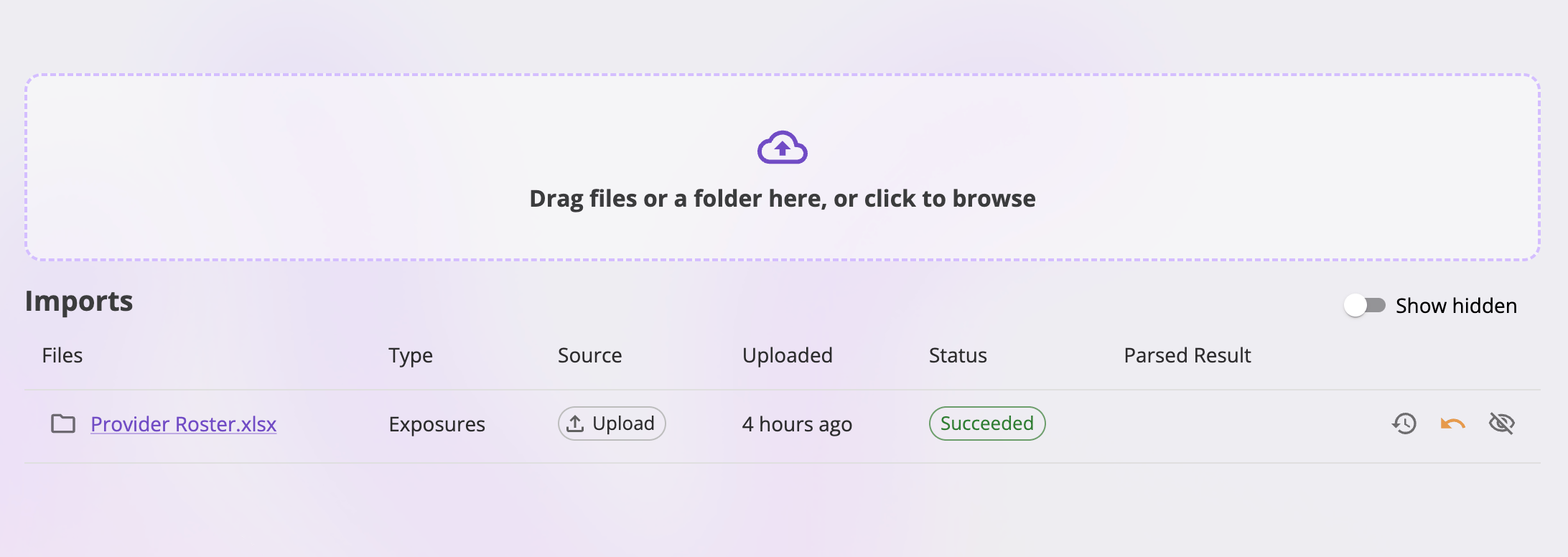
The **Import** button on the Submissions list opens the Import page, where
dropped documents are parsed by AI into submissions (or policies). The page —
available to roles that can upload files — has two parts: a **dropzone** on
top and the **Imports table** below it.
## Actions
The **Actions** menu at the top right of the detail page collects the
submission-level actions. Options your role isn't allowed to perform don't
appear — if none are allowed, the menu itself is hidden.
### The menu at a glance
| Action | Available when | What it does |
| ----------------------------------------- | ---------------------------- | ----------------------------------- |
| [Delete Submission](#delete-a-submission) | The submission has no quotes | Permanently deletes the submission. |
### Delete a submission
**Delete Submission** asks for confirmation, permanently deletes the
submission, and returns you to the Submissions list.
The option is **disabled while the submission still has quotes** (the menu
shows *"Delete every quote on this submission before it can be deleted."*) —
delete the quotes first from each quote's own
[Actions menu](/app/features/quotes#actions).
Deleting a submission is permanent — there is no undo.
## Imports and parse-run history
The **Import** button on the Submissions list opens the Import page, where
dropped documents are parsed by AI into submissions (or policies). The page —
available to roles that can upload files — has two parts: a **dropzone** on
top and the **Imports table** below it.
 ### Uploading files
Drag files (or a whole folder) onto the dropzone, or click it to browse. As
soon as you drop, a dialog asks **what you're importing** — **Submission** or
**Policy** — listing every dropped file so you can see exactly what the choice
covers. Cancel abandons the drop; choosing a type uploads the files and adds
one row to the Imports table (one row per drop, however many files it
contained).
Accepted file types are the ones the parser can read: **PDF, PNG, JPEG, WebP,
plain text, CSV, and Excel (.xlsx)**, up to **1 GB** per file. Unsupported or
oversized files are rejected up front — before anything uploads — with a
message naming the file.
Uploading and parsing are separate steps. The upload only stores the files
(they land in a dated import folder you can also reach in your company
files); nothing is parsed until you run the import.
### The Imports table
One row per import, newest first — including imports from previous sessions
and imports that arrived by email:
| Column | What it shows |
| ------------------ | ------------------------------------------------------------------------------------------------------------------------------------------------------------------------------------------------------------------------------------ |
| **Files** | The dropped files — the first file's name plus "+N more". Selecting it opens an in-app **preview** (one tab per file); the folder icon next to it opens the import's folder in your company files. |
| **Type** | The declared type: **Submission** or **Policy** ("—" for an old import that predates the type prompt). |
| **Source** | How the import arrived: an **Upload** chip for in-app drops, or an **Email** chip labeled with the sender (hover for the sender, recipient, and subject). An email from an unrecognized sender shows a warning chip instead. |
| **Uploaded** | When the import was created (relative time). |
| **Status** | Upload progress while uploading, then the **latest run's status** — or **Not run** / **Needs sender review** if it has never run. While a run is live, the status chip is clickable and opens the run history on the run's progress. |
| **Parsed Result** | A link to the record the most recent successful parse created — the generated quote, opening the quote (and through it the submission). Shows "(deleted)" unlinked if that record was later deleted. |
| *(trailing icons)* | The run trigger, active-run and run-history buttons, and hide/unhide — described below. |
Trailing actions on each row:
| Icon | Shown when | What it does |
| ---------------------------- | -------------------------------------------------------------------------------------- | -------------------------------------------------------------------------------------------------------------------------------------------------------------------------------------------------------------------------------------------------------- |
| **Run** (play) | The import has never run | Starts the parse using the type declared at drop time (the tooltip names it: *Parse Submission* / *Parse Policy*). An old import with no declared type asks for the type first. While the run is starting, the icon is replaced by a **Starting…** chip. |
| **Recognize / Block sender** | An email import from an unrecognized sender, and your role can update company settings | See [Email imports](#email-imports). |
| **View active run** | The latest run is still running | Opens the run history on the live run's advancing progress. |
| **View run history** | Always (once uploaded) | Opens the [run history](#run-history) dialog. |
| **Hide / Unhide** | Always (once uploaded) | Hides the import from the table (it's parked, not deleted — flip the **Show hidden** toggle at the top right to see hidden imports, rendered muted, and unhide them). |
### Run statuses
Each parse run moves through these statuses:
| Status | Meaning |
| ------------- | ------------------------------------------------------------------------------------------------------------------------------------------------------------------------------------------------------------------------------ |
| **Running** | The run is in flight. While live, the row also shows which stage is active — *Extracting 1/2* (reading the documents) then *Parsing 2/2* (building the records) — with the attempt count. |
| **Waiting** | The run is holding for something it needs before it can read your files — most often a virus scan that has not finished. Nothing has gone wrong; the run history says what it is waiting on, and the run continues on its own. |
| **Retrying** | A stage failed and is automatically retrying. |
| **Succeeded** | The run finished and created its records. A run that skipped some rows says so — e.g. *"Added 12 exposures (2 rows failed)"*. |
| **Failed** | The run stopped. The full error text is shown verbatim in the run history. |
The table refreshes automatically every few seconds while any run is live.
### Run history
The history icon on any row opens **Run history** — every parse run of that
import, newest first:
### Uploading files
Drag files (or a whole folder) onto the dropzone, or click it to browse. As
soon as you drop, a dialog asks **what you're importing** — **Submission** or
**Policy** — listing every dropped file so you can see exactly what the choice
covers. Cancel abandons the drop; choosing a type uploads the files and adds
one row to the Imports table (one row per drop, however many files it
contained).
Accepted file types are the ones the parser can read: **PDF, PNG, JPEG, WebP,
plain text, CSV, and Excel (.xlsx)**, up to **1 GB** per file. Unsupported or
oversized files are rejected up front — before anything uploads — with a
message naming the file.
Uploading and parsing are separate steps. The upload only stores the files
(they land in a dated import folder you can also reach in your company
files); nothing is parsed until you run the import.
### The Imports table
One row per import, newest first — including imports from previous sessions
and imports that arrived by email:
| Column | What it shows |
| ------------------ | ------------------------------------------------------------------------------------------------------------------------------------------------------------------------------------------------------------------------------------ |
| **Files** | The dropped files — the first file's name plus "+N more". Selecting it opens an in-app **preview** (one tab per file); the folder icon next to it opens the import's folder in your company files. |
| **Type** | The declared type: **Submission** or **Policy** ("—" for an old import that predates the type prompt). |
| **Source** | How the import arrived: an **Upload** chip for in-app drops, or an **Email** chip labeled with the sender (hover for the sender, recipient, and subject). An email from an unrecognized sender shows a warning chip instead. |
| **Uploaded** | When the import was created (relative time). |
| **Status** | Upload progress while uploading, then the **latest run's status** — or **Not run** / **Needs sender review** if it has never run. While a run is live, the status chip is clickable and opens the run history on the run's progress. |
| **Parsed Result** | A link to the record the most recent successful parse created — the generated quote, opening the quote (and through it the submission). Shows "(deleted)" unlinked if that record was later deleted. |
| *(trailing icons)* | The run trigger, active-run and run-history buttons, and hide/unhide — described below. |
Trailing actions on each row:
| Icon | Shown when | What it does |
| ---------------------------- | -------------------------------------------------------------------------------------- | -------------------------------------------------------------------------------------------------------------------------------------------------------------------------------------------------------------------------------------------------------- |
| **Run** (play) | The import has never run | Starts the parse using the type declared at drop time (the tooltip names it: *Parse Submission* / *Parse Policy*). An old import with no declared type asks for the type first. While the run is starting, the icon is replaced by a **Starting…** chip. |
| **Recognize / Block sender** | An email import from an unrecognized sender, and your role can update company settings | See [Email imports](#email-imports). |
| **View active run** | The latest run is still running | Opens the run history on the live run's advancing progress. |
| **View run history** | Always (once uploaded) | Opens the [run history](#run-history) dialog. |
| **Hide / Unhide** | Always (once uploaded) | Hides the import from the table (it's parked, not deleted — flip the **Show hidden** toggle at the top right to see hidden imports, rendered muted, and unhide them). |
### Run statuses
Each parse run moves through these statuses:
| Status | Meaning |
| ------------- | ------------------------------------------------------------------------------------------------------------------------------------------------------------------------------------------------------------------------------ |
| **Running** | The run is in flight. While live, the row also shows which stage is active — *Extracting 1/2* (reading the documents) then *Parsing 2/2* (building the records) — with the attempt count. |
| **Waiting** | The run is holding for something it needs before it can read your files — most often a virus scan that has not finished. Nothing has gone wrong; the run history says what it is waiting on, and the run continues on its own. |
| **Retrying** | A stage failed and is automatically retrying. |
| **Succeeded** | The run finished and created its records. A run that skipped some rows says so — e.g. *"Added 12 exposures (2 rows failed)"*. |
| **Failed** | The run stopped. The full error text is shown verbatim in the run history. |
The table refreshes automatically every few seconds while any run is live.
### Run history
The history icon on any row opens **Run history** — every parse run of that
import, newest first:
 | Column | What it shows |
| ---------------------- | ----------------------------------------------------------------------------------------------------------------------------------------------------------------------------------------------------------- |
| **Status** | The run's status (with live stage progress and any partial-success note). |
| **Type** | The type the run parsed as (Submission / Policy). |
| **Started / Finished** | Relative timestamps. |
| **Extract** | A **View extract** link — the raw data the AI read out of the documents, viewable as JSON and downloadable. Shown once the extraction step has succeeded, even if the run later failed at the parsing step. |
| **Parsed Result** | The record that run created (the generated quote), linked. |
| *(trailing icon)* | The **re-run** menu on finished runs. |
A failed run's **error message appears in full** directly under its row.
### Re-running an import
The replay icon on a finished (succeeded or failed) run opens two choices:
* **Re-run from Extract** — re-parses using that run's already-extracted
data, skipping re-reading the documents. Available once the run's extract
succeeded.
* **Re-run from Start** — re-extracts the documents and re-parses from
scratch. Always available.
Re-running creates a **new** submission and quote. Records created by
earlier runs — including partial data from failed runs — are not replaced
or cleaned up, so re-running produces duplicates you may need to delete.
A confirmation dialog states this before anything runs.
### Email imports
Depending on how your company is configured, brokers can email applications
straight to a company inbox — each such email becomes an import row with an
**Email** source chip, and its first parse run starts automatically (the row
shows **Starting…** with no action needed). See
[Creating submissions](/app/workflows/creating-submissions) for the email
workflow.
An email from a sender your company hasn't recognized is **stored but not
processed**: the row shows a warning chip and a **Needs sender review**
status. Users who can manage company settings get two actions on the row:
* **Recognize sender** — adds the sender to your company's allowed senders;
their stored imports become runnable and future emails from them are
processed automatically.
* **Block sender** — future emails from the address are dropped entirely
(not stored, not shown, nobody notified). The stored import stays visible
— hide it separately if you want it gone. Blocked senders can be unblocked
later from your company's inbox settings — see
[Company settings & inboxes](/app/admin/company-settings).
Both choices ask for confirmation, since they set company-wide policy.
| Column | What it shows |
| ---------------------- | ----------------------------------------------------------------------------------------------------------------------------------------------------------------------------------------------------------- |
| **Status** | The run's status (with live stage progress and any partial-success note). |
| **Type** | The type the run parsed as (Submission / Policy). |
| **Started / Finished** | Relative timestamps. |
| **Extract** | A **View extract** link — the raw data the AI read out of the documents, viewable as JSON and downloadable. Shown once the extraction step has succeeded, even if the run later failed at the parsing step. |
| **Parsed Result** | The record that run created (the generated quote), linked. |
| *(trailing icon)* | The **re-run** menu on finished runs. |
A failed run's **error message appears in full** directly under its row.
### Re-running an import
The replay icon on a finished (succeeded or failed) run opens two choices:
* **Re-run from Extract** — re-parses using that run's already-extracted
data, skipping re-reading the documents. Available once the run's extract
succeeded.
* **Re-run from Start** — re-extracts the documents and re-parses from
scratch. Always available.
Re-running creates a **new** submission and quote. Records created by
earlier runs — including partial data from failed runs — are not replaced
or cleaned up, so re-running produces duplicates you may need to delete.
A confirmation dialog states this before anything runs.
### Email imports
Depending on how your company is configured, brokers can email applications
straight to a company inbox — each such email becomes an import row with an
**Email** source chip, and its first parse run starts automatically (the row
shows **Starting…** with no action needed). See
[Creating submissions](/app/workflows/creating-submissions) for the email
workflow.
An email from a sender your company hasn't recognized is **stored but not
processed**: the row shows a warning chip and a **Needs sender review**
status. Users who can manage company settings get two actions on the row:
* **Recognize sender** — adds the sender to your company's allowed senders;
their stored imports become runnable and future emails from them are
processed automatically.
* **Block sender** — future emails from the address are dropped entirely
(not stored, not shown, nobody notified). The stored import stays visible
— hide it separately if you want it gone. Blocked senders can be unblocked
later from your company's inbox settings — see
[Company settings & inboxes](/app/admin/company-settings).
Both choices ask for confirmation, since they set company-wide policy.