> ## Documentation Index
> Fetch the complete documentation index at: https://docs.go.aiinsurance.io/llms.txt
> Use this file to discover all available pages before exploring further.
# Navigating the app
> The sidebar areas, the record workspace pattern, and how list pages work — columns, filters, sorting, and saved views.
The app has one consistent layout: a **sidebar** on the left for moving between
areas, **breadcrumbs** across the top showing where you are, and the working
area filling the rest. Once you know the two page patterns — the **list page**
and the **record workspace** — you know the whole app.
## The sidebar
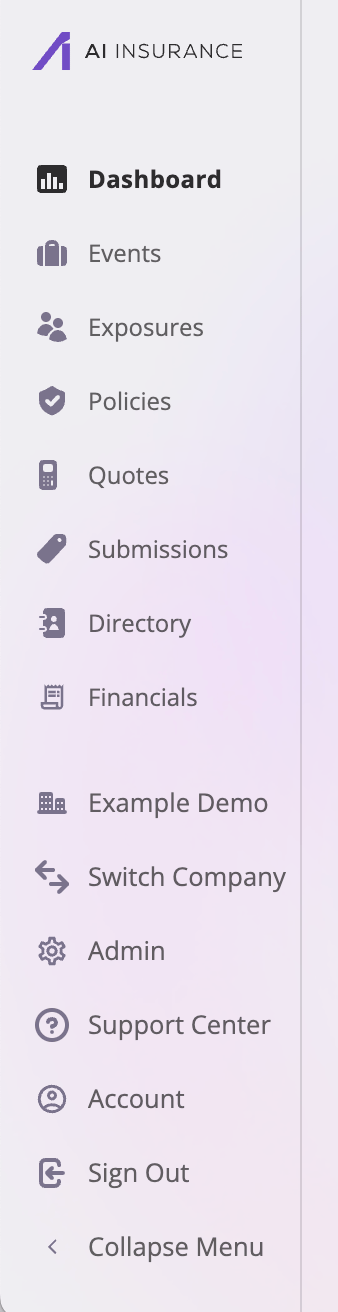 The top group is the work areas:
| Area | What's there |
| --------------- | --------------------------------------------------------------------- |
| **Dashboard** | Your home page — the [tasks calendar](/app/features/dashboard-tasks). |
| **Events** | [Claims and incidents](/app/features/events). |
| **Exposures** | [The things being insured](/app/features/exposures). |
| **Policies** | [Bound policies](/app/features/policies). |
| **Quotes** | [Quotes and the quote wizard](/app/features/quotes). |
| **Submissions** | [Incoming requests to be quoted](/app/features/submissions). |
| **Directory** | [People and organizations](/app/features/directory). |
| **Financials** | [Invoices, payments, and reserves](/financials/overview). |
The bottom group holds account and company controls:
| Item | What it does |
| --------------------- | -------------------------------------------------------------------------------------------------------------------------------------------------------------------------------------------------------------------------------- |
| *Your company's name* | Opens the **Administration** area — users, forms, company settings, financial configuration, API keys, and rating run logs, each on its own tab. See [Users & roles](/app/admin/users-roles) and the other Administration pages. |
| **Switch Company** | Switches your active company, if you have access to more than one. See [multi-company access](/app/getting-started/signing-in#working-across-companies). |
| **Support Center** | Opens this documentation site. |
| **Account** | Your [account settings](/app/getting-started/signing-in#account-settings). |
| **Sign Out** | Signs you out. |
| **Collapse Menu** | Shrinks the sidebar to icons only; select it again to expand. |
The sidebar shows only what you're allowed to use. Areas your role can't
read — and administration tabs you can't manage — simply don't appear, so
your sidebar may be shorter than the one pictured.
## The record workspace
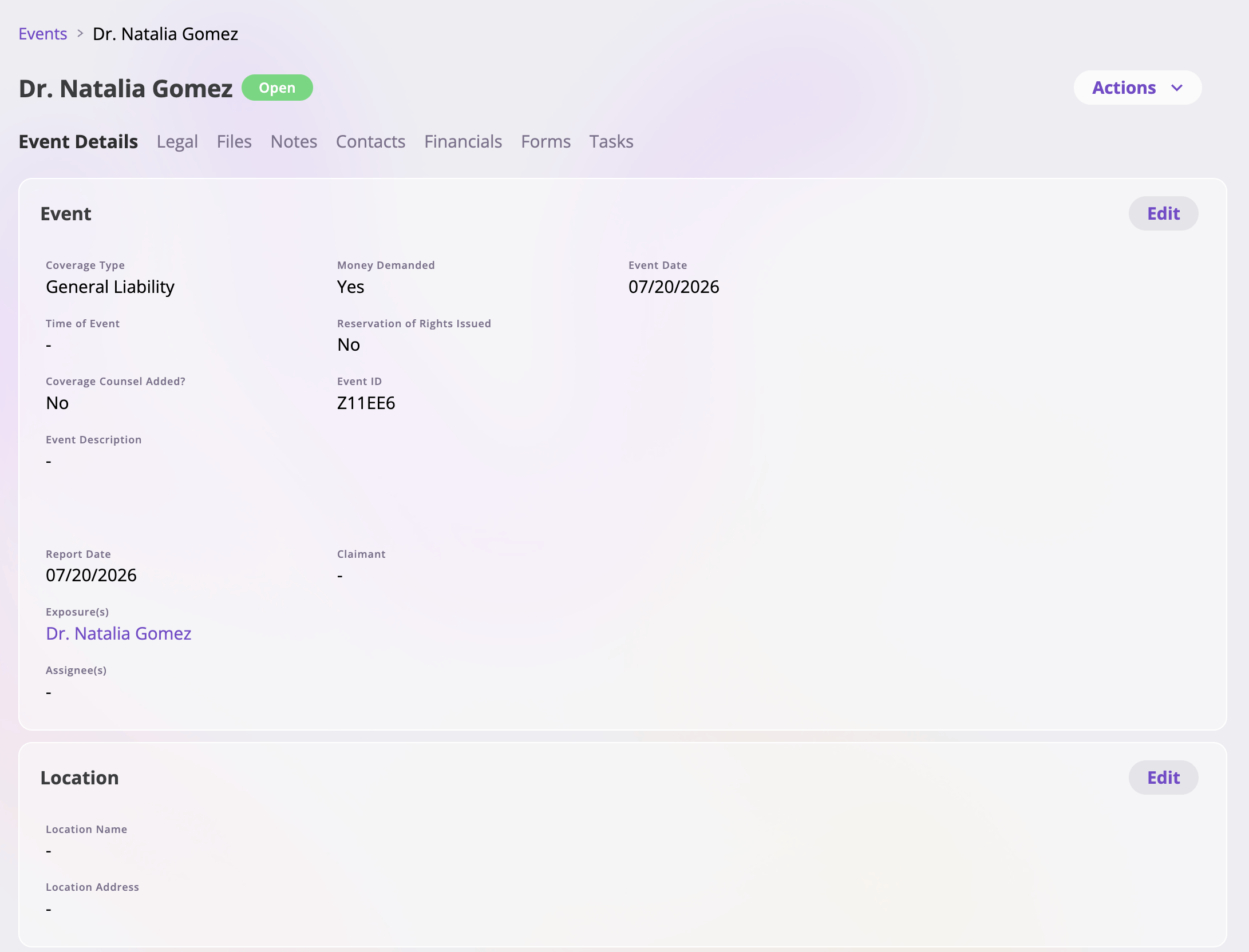
Every record — a submission, quote, policy, event, exposure, or directory
entry — opens into the same kind of detail page: a **header** with the record's
name, status, and an **Actions** menu, and a row of **tabs** underneath. The
first tab is the record's own fields; the rest attach related work to the
record so everything about it lives in one place.
The top group is the work areas:
| Area | What's there |
| --------------- | --------------------------------------------------------------------- |
| **Dashboard** | Your home page — the [tasks calendar](/app/features/dashboard-tasks). |
| **Events** | [Claims and incidents](/app/features/events). |
| **Exposures** | [The things being insured](/app/features/exposures). |
| **Policies** | [Bound policies](/app/features/policies). |
| **Quotes** | [Quotes and the quote wizard](/app/features/quotes). |
| **Submissions** | [Incoming requests to be quoted](/app/features/submissions). |
| **Directory** | [People and organizations](/app/features/directory). |
| **Financials** | [Invoices, payments, and reserves](/financials/overview). |
The bottom group holds account and company controls:
| Item | What it does |
| --------------------- | -------------------------------------------------------------------------------------------------------------------------------------------------------------------------------------------------------------------------------- |
| *Your company's name* | Opens the **Administration** area — users, forms, company settings, financial configuration, API keys, and rating run logs, each on its own tab. See [Users & roles](/app/admin/users-roles) and the other Administration pages. |
| **Switch Company** | Switches your active company, if you have access to more than one. See [multi-company access](/app/getting-started/signing-in#working-across-companies). |
| **Support Center** | Opens this documentation site. |
| **Account** | Your [account settings](/app/getting-started/signing-in#account-settings). |
| **Sign Out** | Signs you out. |
| **Collapse Menu** | Shrinks the sidebar to icons only; select it again to expand. |
The sidebar shows only what you're allowed to use. Areas your role can't
read — and administration tabs you can't manage — simply don't appear, so
your sidebar may be shorter than the one pictured.
## The record workspace
Every record — a submission, quote, policy, event, exposure, or directory
entry — opens into the same kind of detail page: a **header** with the record's
name, status, and an **Actions** menu, and a row of **tabs** underneath. The
first tab is the record's own fields; the rest attach related work to the
record so everything about it lives in one place.
 Which tabs a record has depends on its type:
| Tab | Submission | Quote | Policy | Event | Exposure |
| ---------------------------- | :----------: | :---: | :------: | :---: | :------: |
| Details / Summary / Overview | ✓ | ✓ | ✓ | ✓ | ✓ |
| Files | ✓ | — | — | ✓ | ✓ |
| Notes | ✓ | ✓ | — | ✓ | ✓ |
| Contacts | ✓ | — | — | ✓ | ✓ |
| Forms | — | ✓ | ✓ | ✓ | — |
| Financials | — | — | — | ✓ | — |
| Tasks | — | — | — | ✓ | — |
| Exposures | — | ✓ | ✓ | — | — |
| Quotes | — | — | ✓ | — | ✓ |
| Policies | — | — | — | — | ✓ |
| Submissions | — | — | — | — | ✓ |
| Events | — | — | ✓ | — | ✓ |
| Other | Loss History | — | Activity | Legal | — |
A few notes on reading this table:
* **The shared tools work the same everywhere they appear.** Files, notes, and
forms behave identically on every record type — see
[Files & notes](/app/features/files-notes) and
[Generating forms](/app/features/forms).
* **Cross-reference tabs are live lists.** An exposure's Policies tab, a
policy's Events tab, and so on are real list tables of the related records —
filterable and column-editable like any list.
* **Tabs follow your permissions.** A tab you can't read doesn't render, so two
users can see different tab sets on the same record.
## List pages
Each work area opens on a **list page**: the page title and action buttons
(such as **Edit Columns** and **Export**) across the top, a filter toolbar, and
the table itself. Selecting a row opens that record's workspace.
Which tabs a record has depends on its type:
| Tab | Submission | Quote | Policy | Event | Exposure |
| ---------------------------- | :----------: | :---: | :------: | :---: | :------: |
| Details / Summary / Overview | ✓ | ✓ | ✓ | ✓ | ✓ |
| Files | ✓ | — | — | ✓ | ✓ |
| Notes | ✓ | ✓ | — | ✓ | ✓ |
| Contacts | ✓ | — | — | ✓ | ✓ |
| Forms | — | ✓ | ✓ | ✓ | — |
| Financials | — | — | — | ✓ | — |
| Tasks | — | — | — | ✓ | — |
| Exposures | — | ✓ | ✓ | — | — |
| Quotes | — | — | ✓ | — | ✓ |
| Policies | — | — | — | — | ✓ |
| Submissions | — | — | — | — | ✓ |
| Events | — | — | ✓ | — | ✓ |
| Other | Loss History | — | Activity | Legal | — |
A few notes on reading this table:
* **The shared tools work the same everywhere they appear.** Files, notes, and
forms behave identically on every record type — see
[Files & notes](/app/features/files-notes) and
[Generating forms](/app/features/forms).
* **Cross-reference tabs are live lists.** An exposure's Policies tab, a
policy's Events tab, and so on are real list tables of the related records —
filterable and column-editable like any list.
* **Tabs follow your permissions.** A tab you can't read doesn't render, so two
users can see different tab sets on the same record.
## List pages
Each work area opens on a **list page**: the page title and action buttons
(such as **Edit Columns** and **Export**) across the top, a filter toolbar, and
the table itself. Selecting a row opens that record's workspace.
 ### Filtering
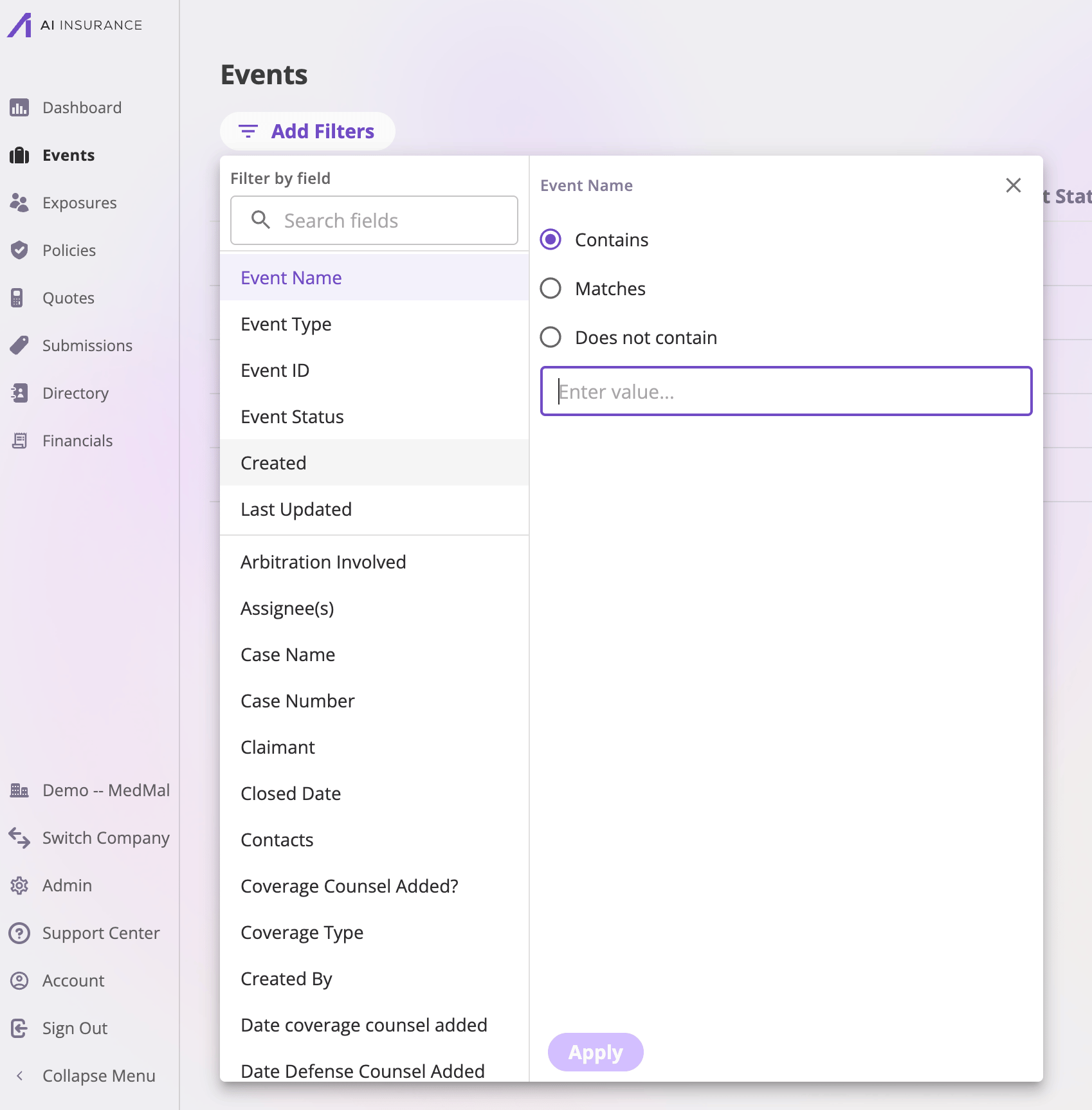
Select **Add Filters** to open the filter panel: pick a field from the list on
the left, then set the condition on the right. The input matches the field's
type — a date field offers date ranges, a dropdown field offers its choices, a
currency field offers amount comparisons, and so on. Fields that can't be
filtered are grayed out.
Active filters appear as **pills** below the toolbar — select a pill's × to
remove that filter. On some tables (mostly embedded tabs and pickers) a
free-text **search box** sits alongside the filter button.
Your filters, sorting, and page are carried in the page's URL — copy the
address and share it, and a teammate opens the list exactly as you see it
(within their own permissions).
### Sorting
Click a column header to sort by it; click again to flip the direction. Not
every column is sortable — sortable headers show it on hover.
### Choosing columns
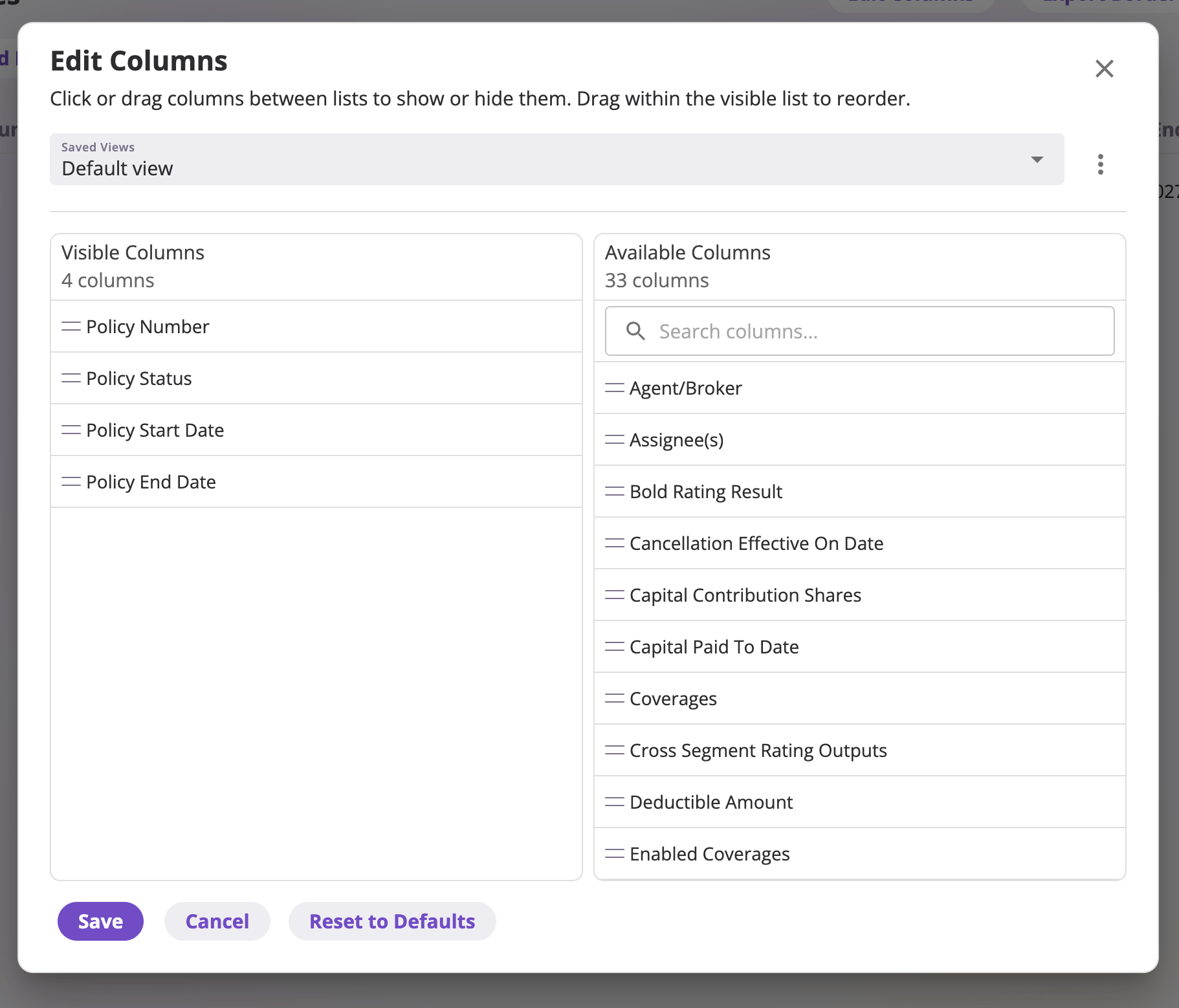
Select **Edit Columns** to control what the table shows. The dialog has two
lists — **visible** columns and the remaining available ones. Drag columns to
reorder, move them between the lists, and search the available columns to find
the one you want. Every field configured on the record type is available as a
column, plus system columns like created and updated dates.
### Filtering
Select **Add Filters** to open the filter panel: pick a field from the list on
the left, then set the condition on the right. The input matches the field's
type — a date field offers date ranges, a dropdown field offers its choices, a
currency field offers amount comparisons, and so on. Fields that can't be
filtered are grayed out.
Active filters appear as **pills** below the toolbar — select a pill's × to
remove that filter. On some tables (mostly embedded tabs and pickers) a
free-text **search box** sits alongside the filter button.
Your filters, sorting, and page are carried in the page's URL — copy the
address and share it, and a teammate opens the list exactly as you see it
(within their own permissions).
### Sorting
Click a column header to sort by it; click again to flip the direction. Not
every column is sortable — sortable headers show it on hover.
### Choosing columns
Select **Edit Columns** to control what the table shows. The dialog has two
lists — **visible** columns and the remaining available ones. Drag columns to
reorder, move them between the lists, and search the available columns to find
the one you want. Every field configured on the record type is available as a
column, plus system columns like created and updated dates.
 ### Saved views
A column arrangement you like can be kept as a **saved view**, managed from the
**Saved Views** dropdown and its ⋮ menu inside Edit Columns:
| Action | What it does |
| --------------------------------- | ------------------------------------------------------------------------------------- |
| **Save current columns as view…** | Saves the current arrangement under a name of your choice. |
| **Rename view…** | Renames a view you own. |
| **Set as my default** | Makes the view what the list opens with for you; **Reset to default view** undoes it. |
| **Share with company** | Makes your view visible to everyone in the company; **Make private** takes it back. |
| **Delete view** | Deletes a view you own. |
| **Save as my own copy…** | On a view shared by someone else — clones it into a view you own and can edit. |
Views shared by teammates appear in the dropdown under **Shared with me**. You
can apply them, but only the owner can change them — to tweak one, save your
own copy. See [Exports & saved views](/app/features/exports-saved-views) for
the full story, including export presets.
Exactly which columns, filters, and default views you see depends on your
company's configuration — the fields configured on each record type are what
the tables offer. See
[How your app is configured](/app/getting-started/configuration).
### Saved views
A column arrangement you like can be kept as a **saved view**, managed from the
**Saved Views** dropdown and its ⋮ menu inside Edit Columns:
| Action | What it does |
| --------------------------------- | ------------------------------------------------------------------------------------- |
| **Save current columns as view…** | Saves the current arrangement under a name of your choice. |
| **Rename view…** | Renames a view you own. |
| **Set as my default** | Makes the view what the list opens with for you; **Reset to default view** undoes it. |
| **Share with company** | Makes your view visible to everyone in the company; **Make private** takes it back. |
| **Delete view** | Deletes a view you own. |
| **Save as my own copy…** | On a view shared by someone else — clones it into a view you own and can edit. |
Views shared by teammates appear in the dropdown under **Shared with me**. You
can apply them, but only the owner can change them — to tweak one, save your
own copy. See [Exports & saved views](/app/features/exports-saved-views) for
the full story, including export presets.
Exactly which columns, filters, and default views you see depends on your
company's configuration — the fields configured on each record type are what
the tables offer. See
[How your app is configured](/app/getting-started/configuration).