> ## Documentation Index
> Fetch the complete documentation index at: https://docs.go.aiinsurance.io/llms.txt
> Use this file to discover all available pages before exploring further.
# Signing in & your account
> Log in to AI Insurance, manage your linked sign-in methods, and switch between companies.
## Signing in
Open your AI Insurance app URL in a browser. If you're not already signed in,
you're sent straight to the secure sign-in page — there is no separate "log in"
button to find.
Depending on how your account was set up, you can sign in with:
| Method | How it works |
| ------------------------- | -------------------------------------------------- |
| **Google** | Sign in with your Google account. |
| **Microsoft** | Sign in with your Microsoft account. |
| **Email & password** | A username/password credential on your work email. |
| **Email (one-time code)** | A single-use code sent to your email each time. |
After you sign in, you land on the **Dashboard** — or, if you followed a link
to a specific record, on the page you were originally headed to.
Accounts are created by invitation. If you sign in successfully but see a
**"No account found"** page, your email isn't set up in the app yet — ask an
administrator at your organization to add you. Administrators manage users
under [Users & roles](/app/admin/users-roles).
Your session stays signed in across visits. If it can't be renewed quietly in
the background (for example, after a long absence), you're simply sent back
through the sign-in page and returned to where you were.
To sign out, select **Sign Out** at the bottom of the sidebar.
## Account settings
Select **Account** near the bottom of the sidebar to open your account
settings. Everything on this page is about your own account — no special
permissions are needed.
 ### Profile
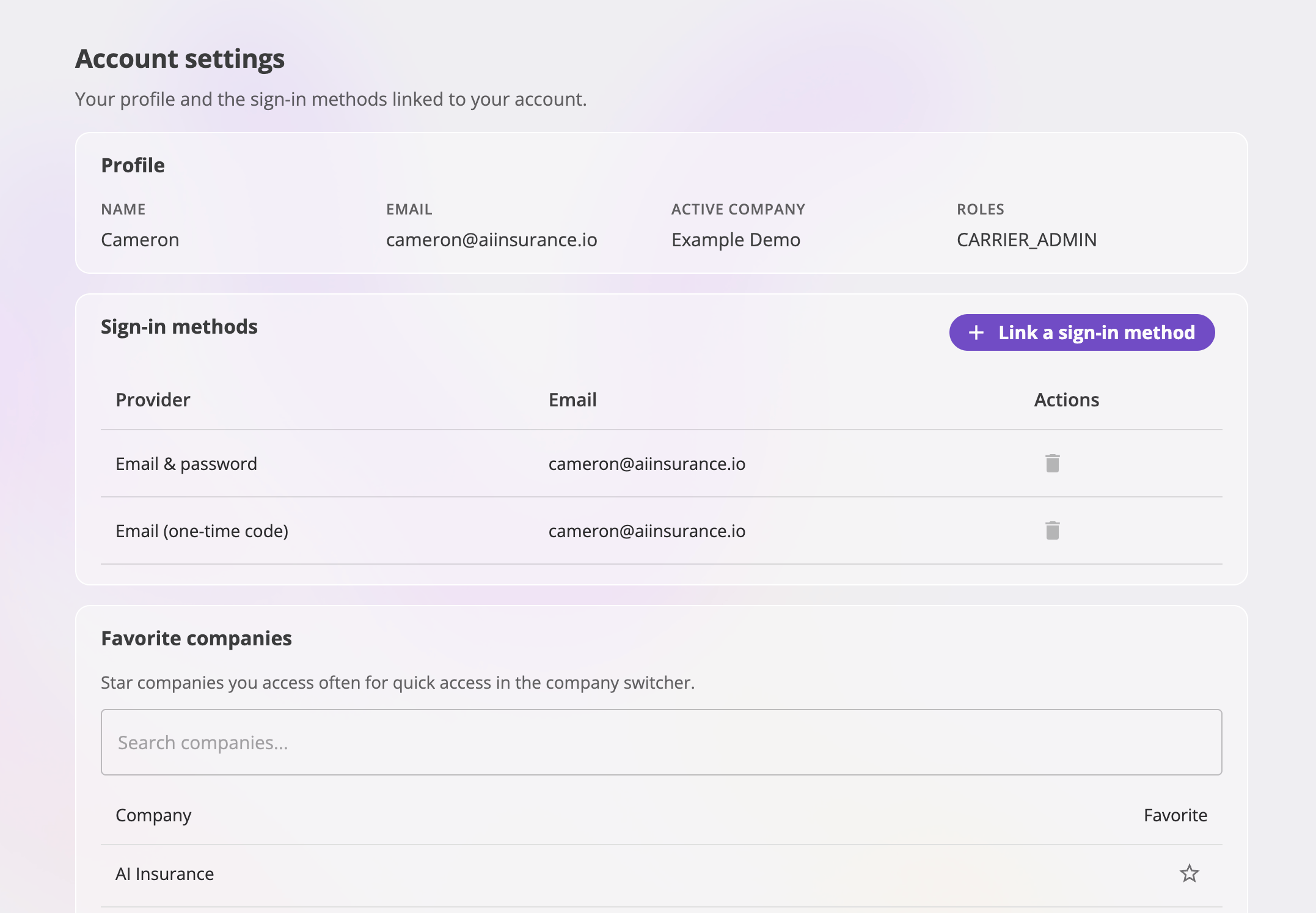
A read-only summary of who you are in the app: your **name**, **email**, the
**active company** you're currently working in, and the **roles** you hold in
that company. Roles determine what you can see and do — see
[Users & roles](/app/admin/users-roles).
### Sign-in methods
One account can have several sign-in methods linked to it — for example, both
Google and a one-time email code. However you sign in, you're the same user
with the same access.
The **Sign-in methods** card lists each linked method with its provider and
email. From here you can:
* **Link a sign-in method** — select the button, pick a provider (Google,
Microsoft, or Email one-time code), and complete a sign-in popup for it. The
new method must authenticate the **same email address** as your account; a
method with a different email won't link.
* **Remove a sign-in method** — select the delete icon on a row and confirm.
You can link it again later.
You can't remove the method you're **currently signed in with** (switch to
another method first), and you can't remove your **only** sign-in method —
link another one before removing it. A few methods that were merged at the
identity provider also can't be removed here.
### Favorite companies
If you have access to more than one company, the **Favorite companies** card
lets you star the ones you work in most. Search the list of companies you can
access and select the star to add or remove a favorite. With access to only
one company, there's nothing to manage here.
## Working across companies
Everything you see in the app is scoped to one company at a time — your
**active company**. If your account has access to several companies (for
example, you work across multiple programs), you can switch between them:
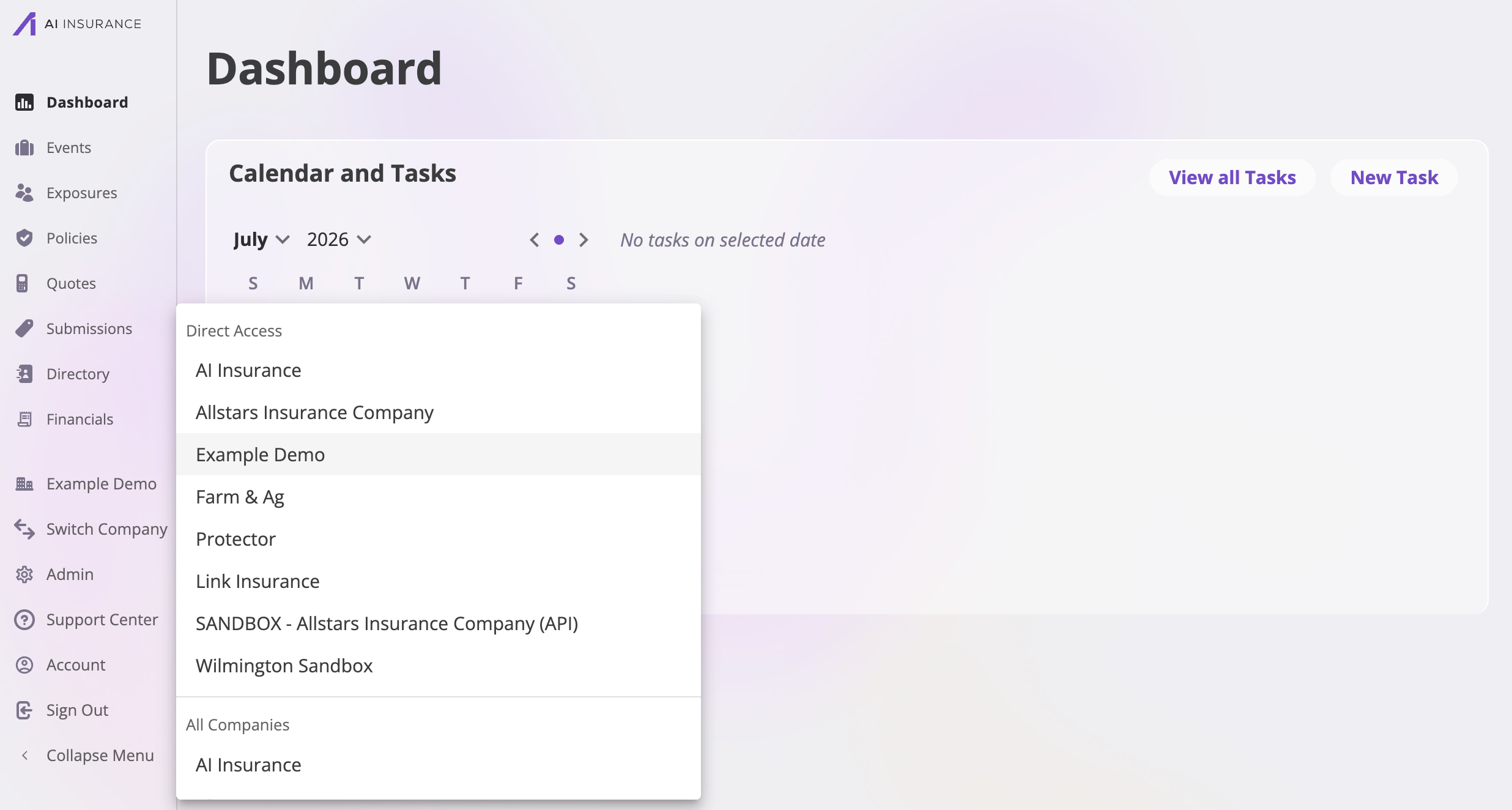
Select **Switch Company** near the bottom of the sidebar.
A menu lists the companies you have access to. Select one.
The app reloads on that company's dashboard. Every list, record, and
permission now reflects the company you switched to.
### Profile
A read-only summary of who you are in the app: your **name**, **email**, the
**active company** you're currently working in, and the **roles** you hold in
that company. Roles determine what you can see and do — see
[Users & roles](/app/admin/users-roles).
### Sign-in methods
One account can have several sign-in methods linked to it — for example, both
Google and a one-time email code. However you sign in, you're the same user
with the same access.
The **Sign-in methods** card lists each linked method with its provider and
email. From here you can:
* **Link a sign-in method** — select the button, pick a provider (Google,
Microsoft, or Email one-time code), and complete a sign-in popup for it. The
new method must authenticate the **same email address** as your account; a
method with a different email won't link.
* **Remove a sign-in method** — select the delete icon on a row and confirm.
You can link it again later.
You can't remove the method you're **currently signed in with** (switch to
another method first), and you can't remove your **only** sign-in method —
link another one before removing it. A few methods that were merged at the
identity provider also can't be removed here.
### Favorite companies
If you have access to more than one company, the **Favorite companies** card
lets you star the ones you work in most. Search the list of companies you can
access and select the star to add or remove a favorite. With access to only
one company, there's nothing to manage here.
## Working across companies
Everything you see in the app is scoped to one company at a time — your
**active company**. If your account has access to several companies (for
example, you work across multiple programs), you can switch between them:
Select **Switch Company** near the bottom of the sidebar.
A menu lists the companies you have access to. Select one.
The app reloads on that company's dashboard. Every list, record, and
permission now reflects the company you switched to.
 Your roles — and therefore what you can do — are granted **per company**, so
you may be an administrator in one company and read-only in another. The
sidebar and page actions adapt automatically after you switch.
Your roles — and therefore what you can do — are granted **per company**, so
you may be an administrator in one company and read-only in another. The
sidebar and page actions adapt automatically after you switch.