> ## Documentation Index
> Fetch the complete documentation index at: https://docs.go.aiinsurance.io/llms.txt
> Use this file to discover all available pages before exploring further.
# Billing & getting paid
> Record invoices as transactions, track what's owed, register payments in full or in parts, and manage invoice statuses through to Paid.
Billing in AI Insurance runs on **invoices**: you record an invoice against the
entity it belongs to, and its status tracks the money from **Owed** through to
**Paid**. This page follows that flow end to end — where invoices live, how to
record one, what the statuses mean, and how payments get registered.
The invoice types you can record, their line items, and the payment methods are
all defined by your company's configuration — see [Financials
overview](/financials/overview) and [Invoice types and line
items](/financials/invoice-types).
Today's billing surface centers on **events** (claims and incidents) — every
invoice is recorded from an event's Financials tab and linked to that event.
Policy-side financials (the **Policy Financials** tab) are marked **Coming
Soon** in the app.
## Where invoices live
Invoices appear in two places:
* **On the event** — each claim or incident's **Financials** tab lists the
transactions linked to that event, beneath its Loss & Operating Report. This
is also where new invoices are recorded. See
[Handling claims](/app/workflows/claims#reserves--claim-financials-at-a-glance).
* **Company-wide** — **Financials** in the sidebar opens the **Event
Financials** page: an **Overview** report aggregated across every event,
above the full, searchable company-wide invoice listing.
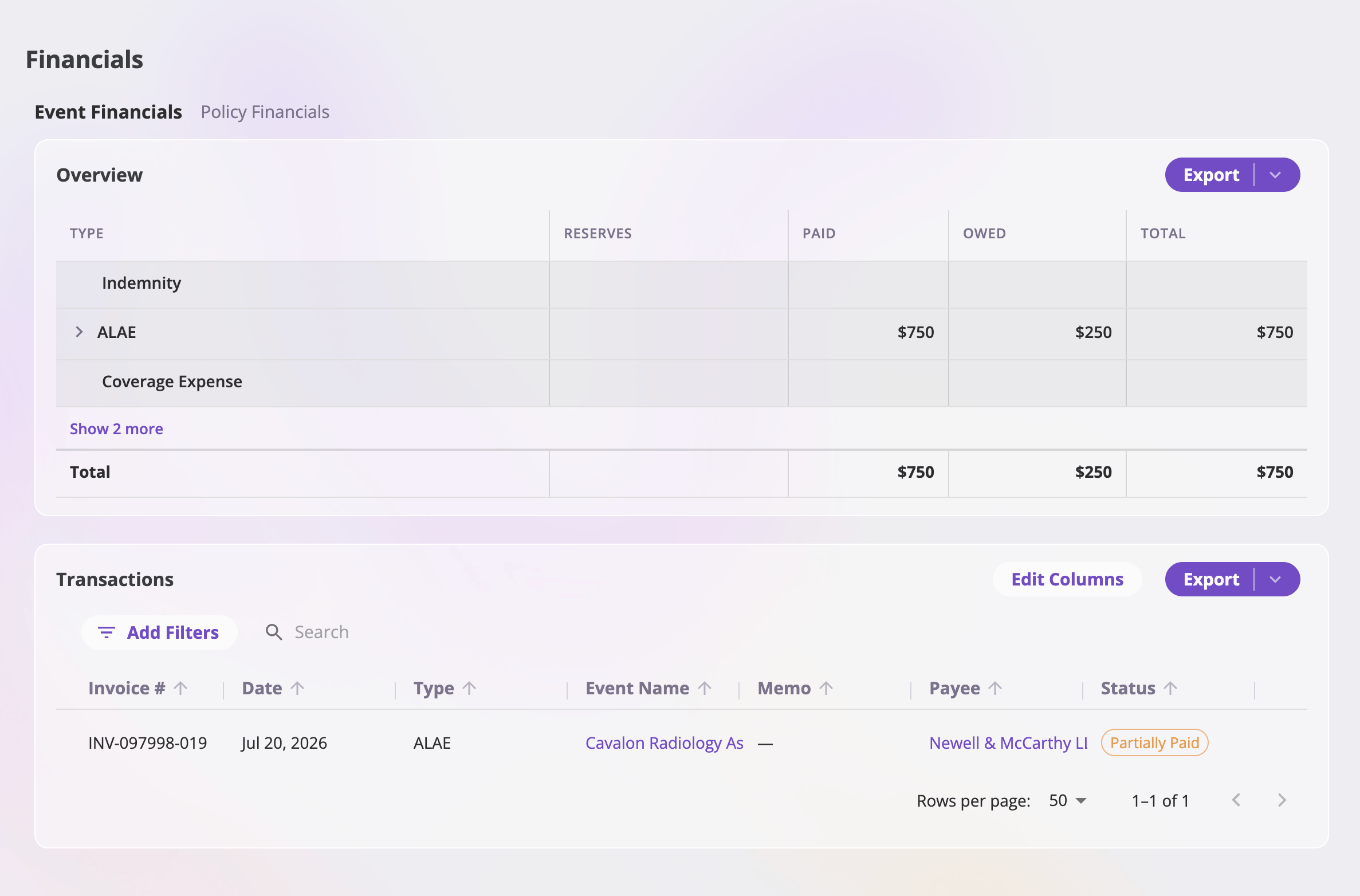 The listing shows each invoice's **Date**, **Type**, **Memo**, **Payee**, its
linked **Event**, its **Status**, its **Paid Date** (blank until fully paid),
and its net **Amount** (green for income, black for expense — gray on a voided
invoice, whose amount no longer counts toward any total). You can:
* **Filter** by date, type, memo, payee, or event, and **search** free text.
* **Sort** the Date, Type, Memo, and Payee columns; the listing is paginated.
* **Export** the listing to Excel, CSV, or Google Drive with the export split
button — exports respect your active filters and search.
Seeing financials requires the financials read permission; recording invoices
and payments requires the financials update permission — without it, rows are
read-only.
## Recording an invoice
New invoices are recorded from an event's **Financials** tab.
On the event's Financials tab, select **Add New** above the Transactions
listing and pick the invoice type. (With a single configured type the
button goes straight to it; with several it's a dropdown.) Only types your
configuration allows to link to events are offered.
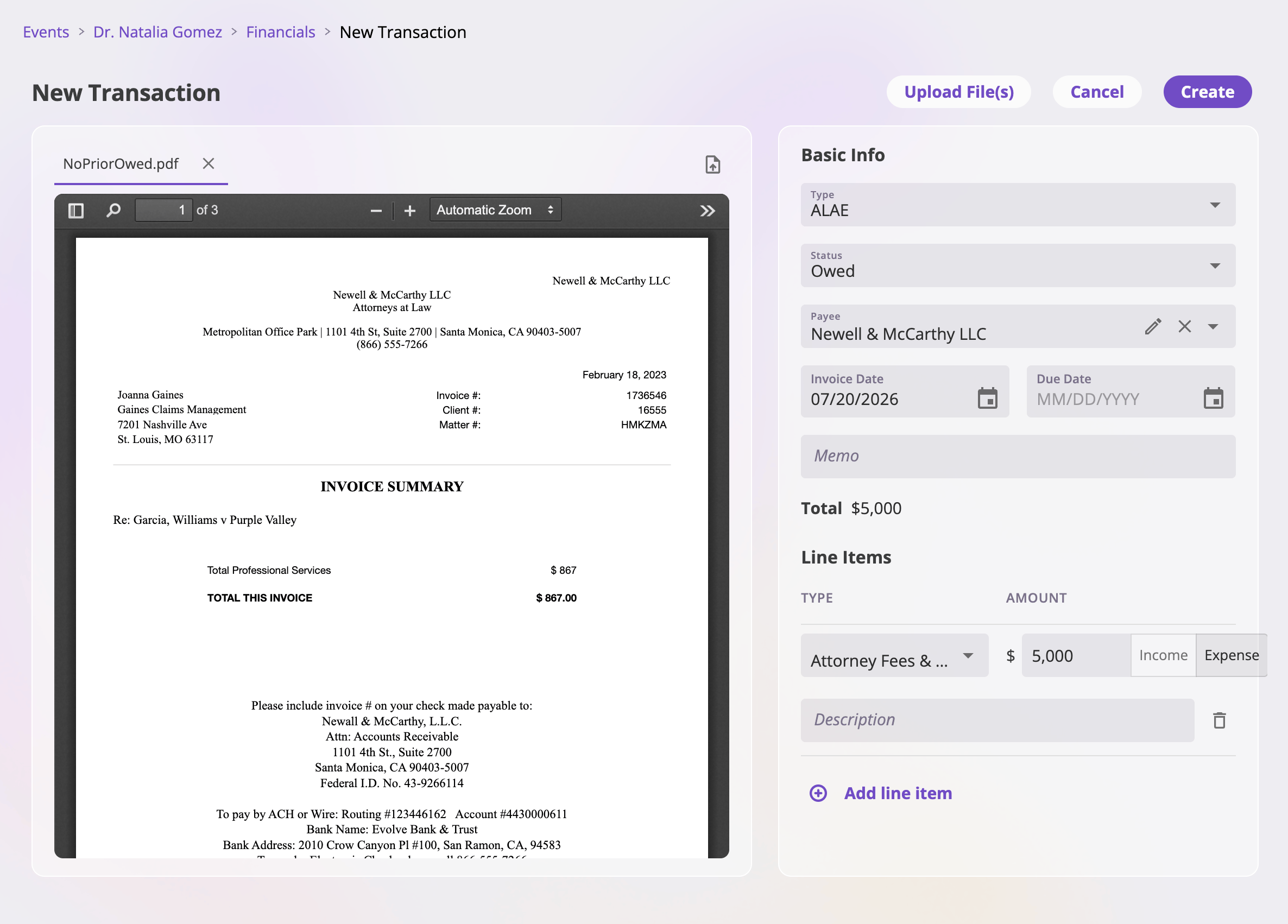
The invoice opens as a full-page form, pre-linked to the launching event.
The left pane takes **attachments** — drop or pick the source PDFs or
images (the invoice you were sent, receipts) so the document is readable
while you key in its data. The right side is the form itself.
* **Type** — changeable here, though switching discards entered line items
(a confirmation guards it).
* **Status** — **Owed** (default) or **Paid**. Choosing Paid asks for a
**Paid Date** and records the invoice as settled in full on save. The
Paid option is available only when your configuration has a payment
method set up to post paid invoices.
* **Payee** — who the invoice is paid to: any person or organization in
your [Directory](/app/features/directory), creatable inline.
* **Invoice Date** (defaults to today) and an optional **Due Date**.
* **Memo** — a free-text description.
* **Line items** — one row per component, each with its type and an
explicit **income** or **expense** amount.
**Create** saves the invoice and returns you to the event's Financials
tab, where it appears in the Transactions listing and rolls into the
event's report. At least one line item and an invoice date are required;
**Cancel** abandons the draft.
The listing shows each invoice's **Date**, **Type**, **Memo**, **Payee**, its
linked **Event**, its **Status**, its **Paid Date** (blank until fully paid),
and its net **Amount** (green for income, black for expense — gray on a voided
invoice, whose amount no longer counts toward any total). You can:
* **Filter** by date, type, memo, payee, or event, and **search** free text.
* **Sort** the Date, Type, Memo, and Payee columns; the listing is paginated.
* **Export** the listing to Excel, CSV, or Google Drive with the export split
button — exports respect your active filters and search.
Seeing financials requires the financials read permission; recording invoices
and payments requires the financials update permission — without it, rows are
read-only.
## Recording an invoice
New invoices are recorded from an event's **Financials** tab.
On the event's Financials tab, select **Add New** above the Transactions
listing and pick the invoice type. (With a single configured type the
button goes straight to it; with several it's a dropdown.) Only types your
configuration allows to link to events are offered.
The invoice opens as a full-page form, pre-linked to the launching event.
The left pane takes **attachments** — drop or pick the source PDFs or
images (the invoice you were sent, receipts) so the document is readable
while you key in its data. The right side is the form itself.
* **Type** — changeable here, though switching discards entered line items
(a confirmation guards it).
* **Status** — **Owed** (default) or **Paid**. Choosing Paid asks for a
**Paid Date** and records the invoice as settled in full on save. The
Paid option is available only when your configuration has a payment
method set up to post paid invoices.
* **Payee** — who the invoice is paid to: any person or organization in
your [Directory](/app/features/directory), creatable inline.
* **Invoice Date** (defaults to today) and an optional **Due Date**.
* **Memo** — a free-text description.
* **Line items** — one row per component, each with its type and an
explicit **income** or **expense** amount.
**Create** saves the invoice and returns you to the event's Financials
tab, where it appears in the Transactions listing and rolls into the
event's report. At least one line item and an invoice date are required;
**Cancel** abandons the draft.
 ## Invoice statuses
An invoice's status is derived from its payments — you don't set it directly
(beyond the create-time Owed/Paid choice above):
| Status | Meaning |
| -------------------- | ------------------------------------------------------------------------------------------------------------------------------------------------------------------------------------------------------------------------- |
| **Unpaid** | The invoice has charges and nothing has been applied to them. |
| **Partially paid** | Some, but not all, of the balance has been paid. |
| **Paid** | The full balance is settled. The **Paid Date** column fills in once an invoice reaches this state. |
| **No charges** | The invoice has no line-item amounts to settle. |
| **Payment (status)** | A payment is in flight under one of your configured payment-method statuses — for example "Payment Processing". Shown while the latest payment hasn't fully posted, depending on how your payment methods are configured. |
| **Void** | The invoice has been voided — it stays listed with a neutral **Void** chip, its **Amount** grayed out, but is excluded from every total and report. |
## Getting paid — recording payments
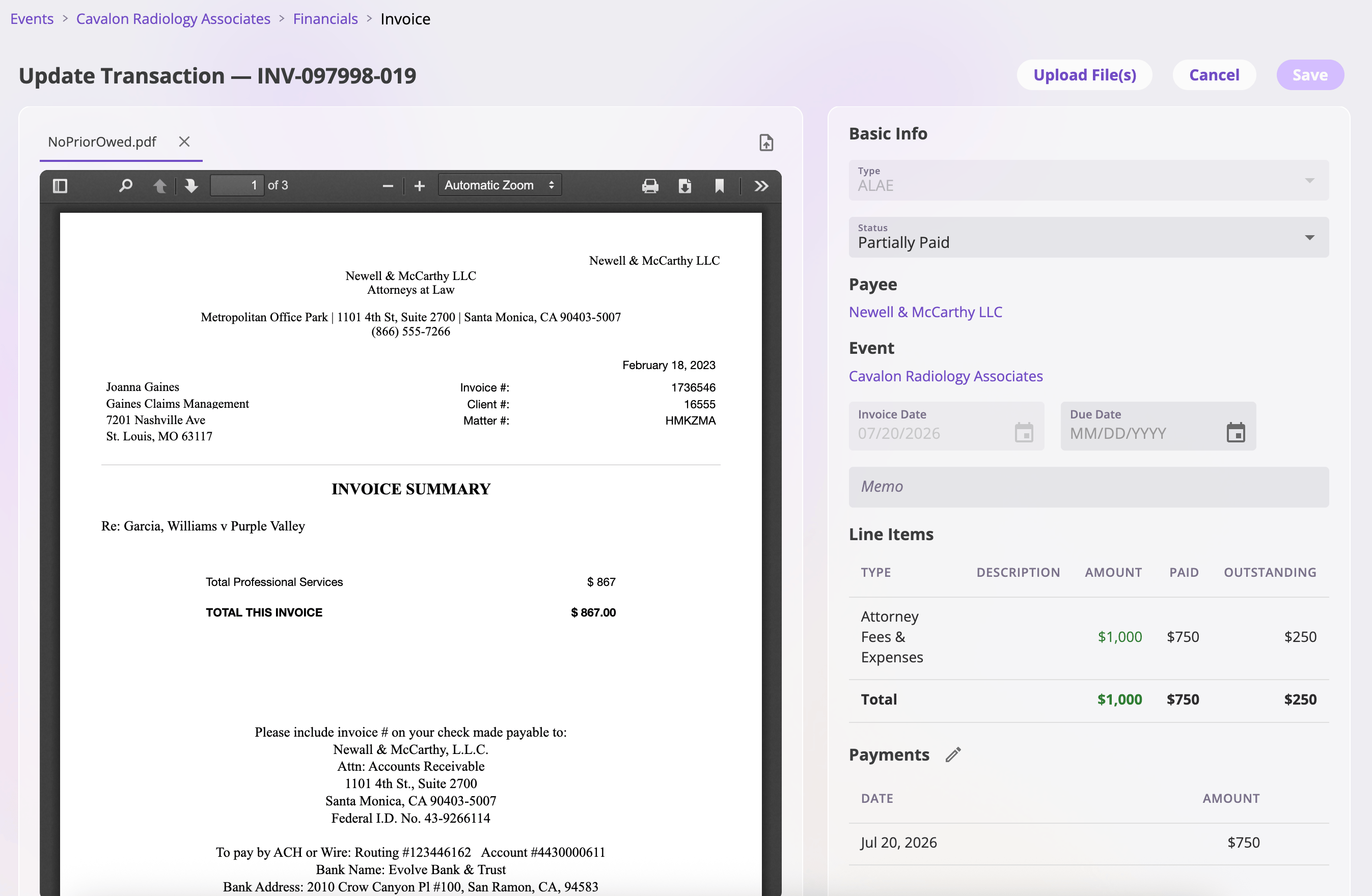
Clicking an invoice row (on the event tab or the company-wide listing) opens
the **Update Transaction** modal — the one place an existing invoice is
updated. What the invoice *is* (type, line items, payee) is read-only here;
the modal is about how it gets **settled**. Each line item row shows its
**Amount**, what's been **Paid**, and what's **Outstanding**.
## Invoice statuses
An invoice's status is derived from its payments — you don't set it directly
(beyond the create-time Owed/Paid choice above):
| Status | Meaning |
| -------------------- | ------------------------------------------------------------------------------------------------------------------------------------------------------------------------------------------------------------------------- |
| **Unpaid** | The invoice has charges and nothing has been applied to them. |
| **Partially paid** | Some, but not all, of the balance has been paid. |
| **Paid** | The full balance is settled. The **Paid Date** column fills in once an invoice reaches this state. |
| **No charges** | The invoice has no line-item amounts to settle. |
| **Payment (status)** | A payment is in flight under one of your configured payment-method statuses — for example "Payment Processing". Shown while the latest payment hasn't fully posted, depending on how your payment methods are configured. |
| **Void** | The invoice has been voided — it stays listed with a neutral **Void** chip, its **Amount** grayed out, but is excluded from every total and report. |
## Getting paid — recording payments
Clicking an invoice row (on the event tab or the company-wide listing) opens
the **Update Transaction** modal — the one place an existing invoice is
updated. What the invoice *is* (type, line items, payee) is read-only here;
the modal is about how it gets **settled**. Each line item row shows its
**Amount**, what's been **Paid**, and what's **Outstanding**.
 The actions offered follow the invoice's state:
| Action | When | What it does |
| ------------------------------------------------ | ------------------------ | ---------------------------------------------------------------------------------------------------------------------------------------------------------------------------------------------------------------------------- |
| **Mark Fully Paid** | Balance outstanding | Settles the whole outstanding balance as of today, in one payment. |
| **Itemize Partial Payments** | Balance outstanding | Switches the line items into entry mode — enter an amount and paid date per row, then **Record Partial Payments** saves them (the label becomes **Record Complement Payment** when your entries settle the invoice exactly). |
| **Revert Payment** / **Revert Partial Payments** | Fully or partially paid | Unwinds the recorded payments and restores the full outstanding balance. The books stay auditable — reverting posts offsetting entries rather than deleting history. |
| **Void Invoice** | Fully owed (no payments) | Voids the invoice after a confirmation: it drops out of every total and report but stays listed with a **Void** chip. An invoice with payments must be reverted first. |
The **Due Date** is the one invoice attribute editable here — click the pencil
next to it; picking a date saves immediately.
### Voided invoices
Voiding is reversible. A voided invoice's row opens a read-only view whose
single action is **Restore**, which brings the invoice (and its amounts) back
to life.
### Bulk status changes
On an event's Financials tab, the Transactions listing supports
**multi-select**: check several invoices and use the **Mark As** dropdown
(**Paid** / **Owed** / **Void**) to transition them together. A confirmation
summarizes the change; invoices already in the target state are skipped, and
if any fail they stay selected so you can retry exactly those.
## Where the money shows up
Every invoice and payment rolls up into:
* **The event's Overview report** — reserves, owed, paid, and total for that
claim or incident. See [Invoice types and line
items](/financials/invoice-types).
* **The company-wide Overview** on the Financials page — the same report
aggregated over every event, exportable.
* **The invoice listing exports** — Excel, CSV, or Google Drive, with the
listing's filters applied.
For the mechanics of invoices, invoice types, line items, and payees, see
[Invoices](/financials/invoices), [Invoice types and line
items](/financials/invoice-types), and [What an invoice attaches
to](/financials/attaching-invoices).
The actions offered follow the invoice's state:
| Action | When | What it does |
| ------------------------------------------------ | ------------------------ | ---------------------------------------------------------------------------------------------------------------------------------------------------------------------------------------------------------------------------- |
| **Mark Fully Paid** | Balance outstanding | Settles the whole outstanding balance as of today, in one payment. |
| **Itemize Partial Payments** | Balance outstanding | Switches the line items into entry mode — enter an amount and paid date per row, then **Record Partial Payments** saves them (the label becomes **Record Complement Payment** when your entries settle the invoice exactly). |
| **Revert Payment** / **Revert Partial Payments** | Fully or partially paid | Unwinds the recorded payments and restores the full outstanding balance. The books stay auditable — reverting posts offsetting entries rather than deleting history. |
| **Void Invoice** | Fully owed (no payments) | Voids the invoice after a confirmation: it drops out of every total and report but stays listed with a **Void** chip. An invoice with payments must be reverted first. |
The **Due Date** is the one invoice attribute editable here — click the pencil
next to it; picking a date saves immediately.
### Voided invoices
Voiding is reversible. A voided invoice's row opens a read-only view whose
single action is **Restore**, which brings the invoice (and its amounts) back
to life.
### Bulk status changes
On an event's Financials tab, the Transactions listing supports
**multi-select**: check several invoices and use the **Mark As** dropdown
(**Paid** / **Owed** / **Void**) to transition them together. A confirmation
summarizes the change; invoices already in the target state are skipped, and
if any fail they stay selected so you can retry exactly those.
## Where the money shows up
Every invoice and payment rolls up into:
* **The event's Overview report** — reserves, owed, paid, and total for that
claim or incident. See [Invoice types and line
items](/financials/invoice-types).
* **The company-wide Overview** on the Financials page — the same report
aggregated over every event, exportable.
* **The invoice listing exports** — Excel, CSV, or Google Drive, with the
listing's filters applied.
For the mechanics of invoices, invoice types, line items, and payees, see
[Invoices](/financials/invoices), [Invoice types and line
items](/financials/invoice-types), and [What an invoice attaches
to](/financials/attaching-invoices).