> ## Documentation Index
> Fetch the complete documentation index at: https://docs.go.aiinsurance.io/llms.txt
> Use this file to discover all available pages before exploring further.
# Handling claims
> Record incidents and claims as events, convert between the two, work the claim in its workspace, manage the open/close lifecycle, and track reserves and claim financials.
Claims and incidents are both **events** in AI Insurance. An **incident**
records that something happened — a loss, an occurrence, a circumstance — that
may or may not develop into a claim; a **claim** is the real thing. The two are
the same kind of record wearing different labels, so an incident can be promoted
to a claim (and an open claim reverted to an incident) at any time without
losing anything.
This page follows the workflow end to end: creating an event, converting
between incident and claim, working the claim in its workspace, closing and
re-opening it, and keeping its reserves and financials current. For the
reference view of the events area, see [Events](/app/features/events); for
every action in the Actions menu, see
[Event actions](/app/features/event-actions).
## The Events list
Events live under **Events** in the sidebar. The list shows every claim and
incident with configurable columns — by default the event's name, type
(claim or incident), reference ID, status (Open/Closed), and created/updated
dates — plus filters, sorting, and saved views like the app's other list pages.
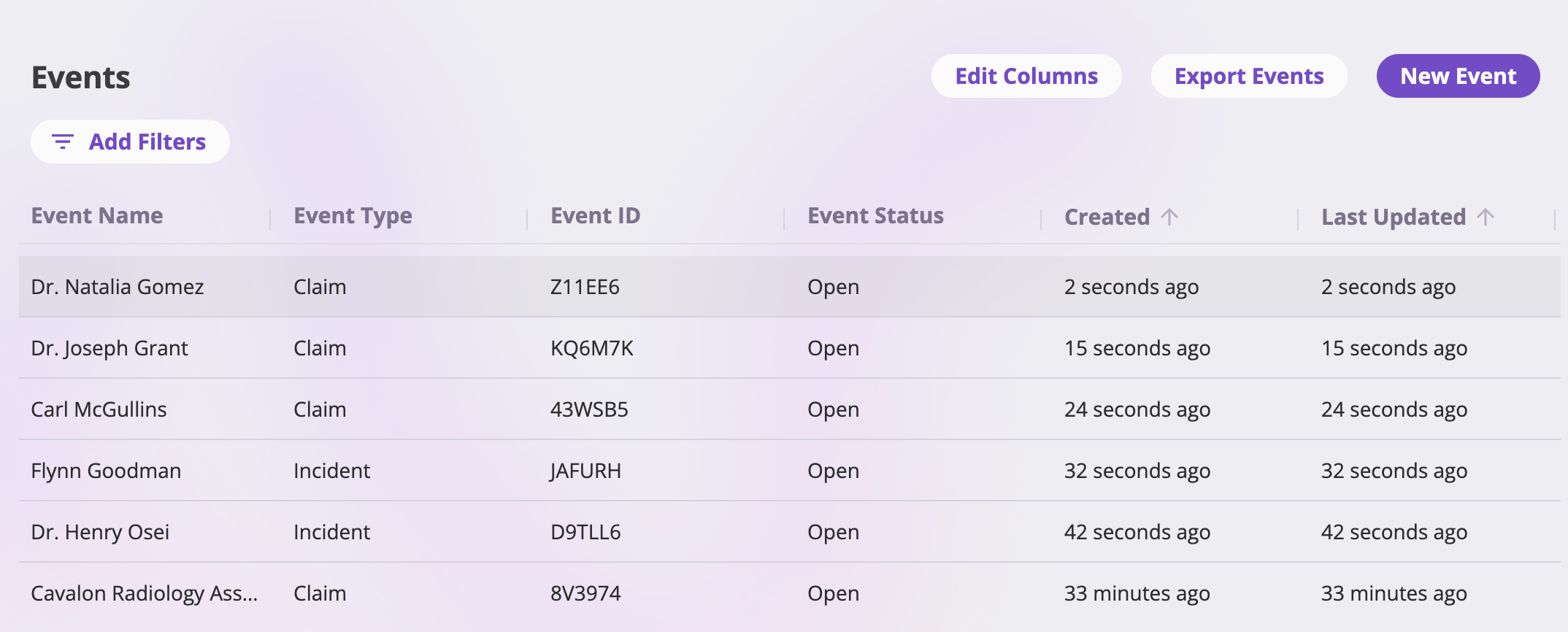 The toolbar has three actions:
| Button | What it does |
| ----------------- | -------------------------------------------------------------------------------------------- |
| **Edit Columns** | Choose and reorder the visible columns, and save the layout as a shared view. |
| **Export Events** | Export the (filtered) list — see [Exports & saved views](/app/features/exports-saved-views). |
| **New Event** | Opens the event creation page. |
Clicking any row opens that event's workspace.
## Creating an event
Select **New Event** on the Events list to open the **Create New Event** page.
The fields on this page are defined by your company's configuration, so what
you're asked depends on how your company is configured. Typical creation fields
include:
* **Event type** — whether this is a **claim** or an **incident**. Don't
agonize over the choice: you can convert later.
* **Coverage type** — which coverage the event falls under.
* **A description** of what happened.
* **An assignee** — the user who owns the event.
* **The exposures involved** — the insured people, vehicles, locations, or
other exposures the event references.
The toolbar has three actions:
| Button | What it does |
| ----------------- | -------------------------------------------------------------------------------------------- |
| **Edit Columns** | Choose and reorder the visible columns, and save the layout as a shared view. |
| **Export Events** | Export the (filtered) list — see [Exports & saved views](/app/features/exports-saved-views). |
| **New Event** | Opens the event creation page. |
Clicking any row opens that event's workspace.
## Creating an event
Select **New Event** on the Events list to open the **Create New Event** page.
The fields on this page are defined by your company's configuration, so what
you're asked depends on how your company is configured. Typical creation fields
include:
* **Event type** — whether this is a **claim** or an **incident**. Don't
agonize over the choice: you can convert later.
* **Coverage type** — which coverage the event falls under.
* **A description** of what happened.
* **An assignee** — the user who owns the event.
* **The exposures involved** — the insured people, vehicles, locations, or
other exposures the event references.
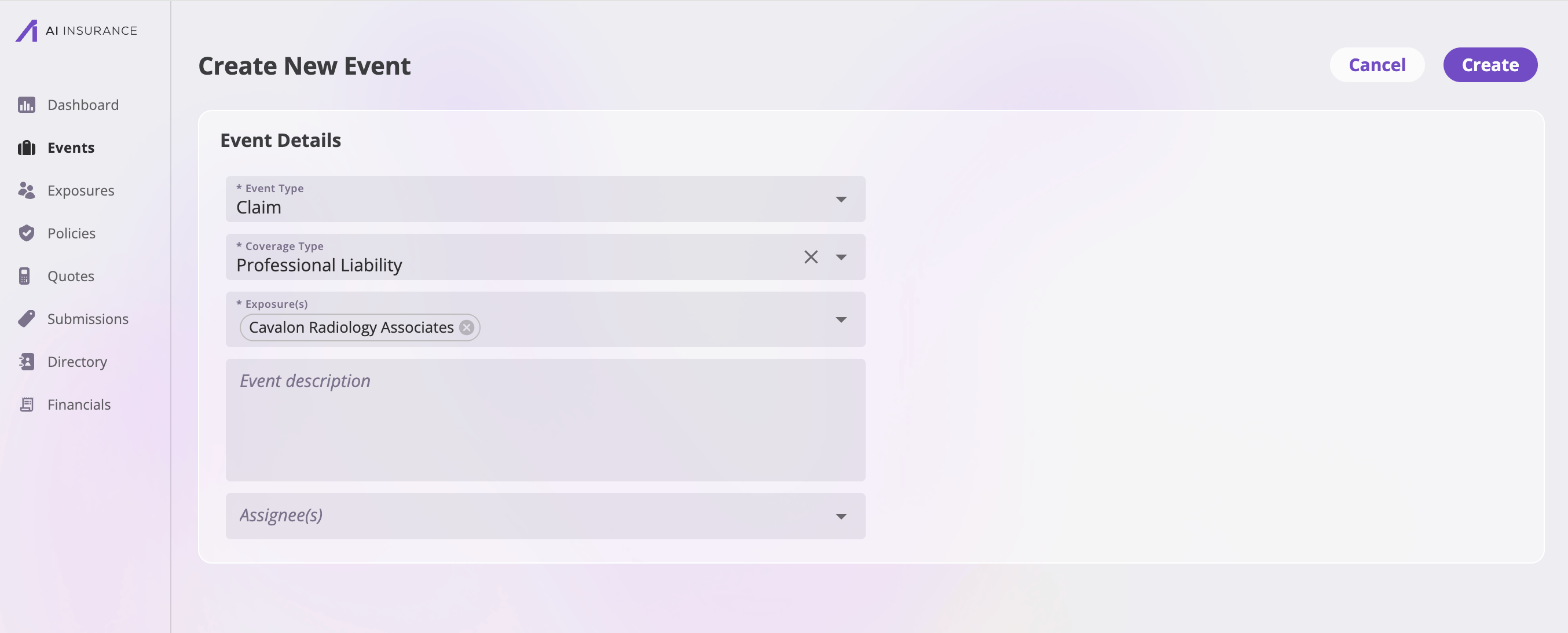 **Create** stays disabled until every required field is filled; **Cancel**
returns to the Events list. On create you land on the new event's workspace,
where the rest of its details are captured.
A few things happen automatically:
* The event starts with an **Open** status.
* The platform **generates the event's name** from the exposures and claimant
involved (you can override it later with **Rename** — see
[Event actions](/app/features/event-actions#rename-an-event)).
* The event gets a **reference ID** you can search and filter by.
Details like the claimant, the event date, the report date, the related
policy, and the loss location are typically captured on the event's detail
tabs after creation, depending on how your company is configured.
## Incident ↔ claim conversion
An event's type isn't fixed. Two actions in the **Actions** menu move an event
between the types while keeping everything else — fields, files, notes,
contacts, financials, tasks — intact:
* **Create Claim From Incident** — promotes an incident (open or closed) to a
claim. Use it the moment an incident turns into an actual demand.
* **Revert to Incident** — turns an **open** claim back into an incident, for
when something was recorded as a claim prematurely.
Both ask for confirmation, and after converting, the whole page (the Actions
menu included) reflects the new type. See
[Event actions](/app/features/event-actions#convert-between-claim-and-incident)
for the details.
## The claim workspace
An event's detail page is the claim workspace: a header with the event's name,
its **Open**/**Closed** status tag, and the **Actions** menu, above a set of
tabs that hold everything about the event.
**Create** stays disabled until every required field is filled; **Cancel**
returns to the Events list. On create you land on the new event's workspace,
where the rest of its details are captured.
A few things happen automatically:
* The event starts with an **Open** status.
* The platform **generates the event's name** from the exposures and claimant
involved (you can override it later with **Rename** — see
[Event actions](/app/features/event-actions#rename-an-event)).
* The event gets a **reference ID** you can search and filter by.
Details like the claimant, the event date, the report date, the related
policy, and the loss location are typically captured on the event's detail
tabs after creation, depending on how your company is configured.
## Incident ↔ claim conversion
An event's type isn't fixed. Two actions in the **Actions** menu move an event
between the types while keeping everything else — fields, files, notes,
contacts, financials, tasks — intact:
* **Create Claim From Incident** — promotes an incident (open or closed) to a
claim. Use it the moment an incident turns into an actual demand.
* **Revert to Incident** — turns an **open** claim back into an incident, for
when something was recorded as a claim prematurely.
Both ask for confirmation, and after converting, the whole page (the Actions
menu included) reflects the new type. See
[Event actions](/app/features/event-actions#convert-between-claim-and-incident)
for the details.
## The claim workspace
An event's detail page is the claim workspace: a header with the event's name,
its **Open**/**Closed** status tag, and the **Actions** menu, above a set of
tabs that hold everything about the event.
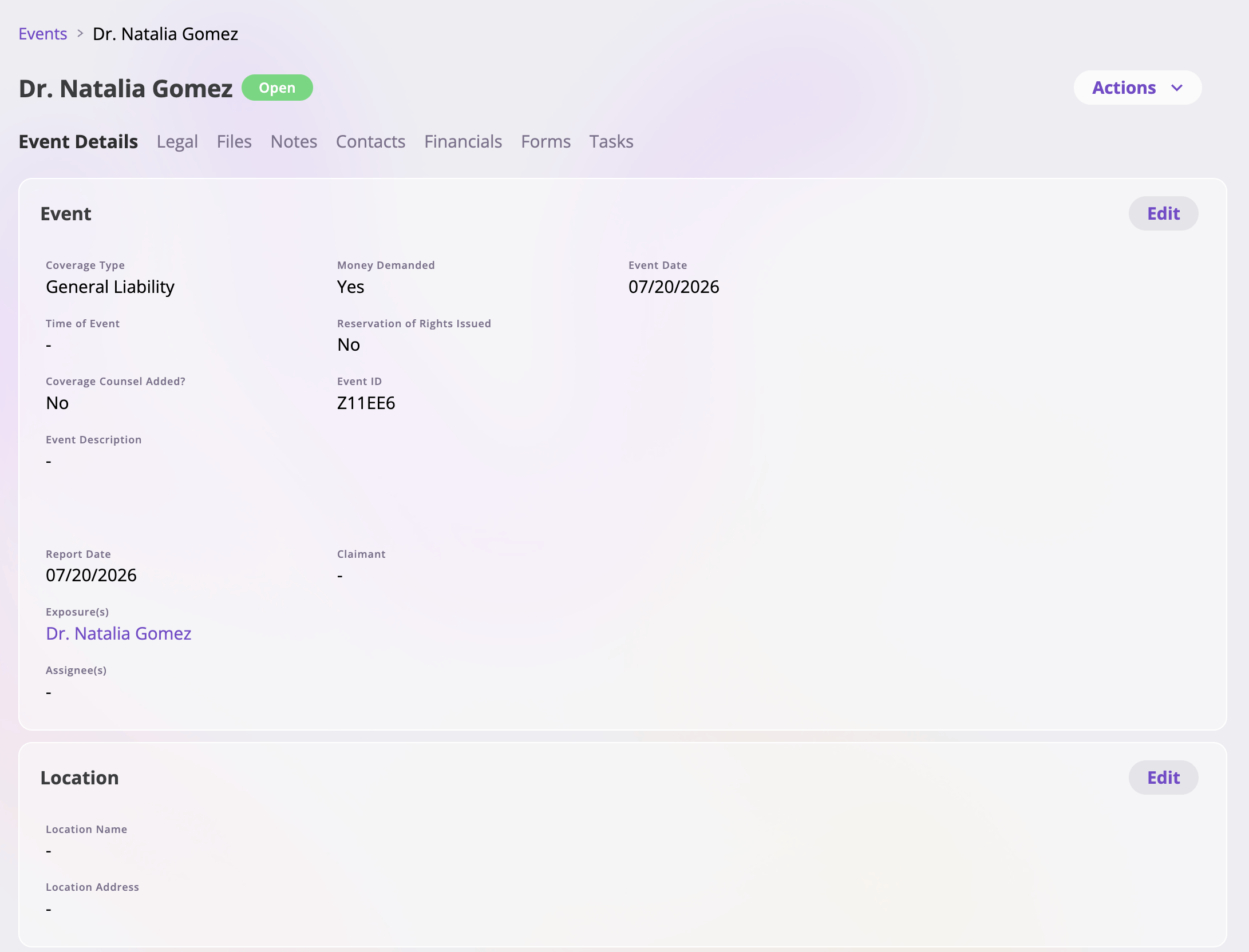 | Tab | What it holds |
| ----------------- | ------------------------------------------------------------------------------------------------------------------------------------------------------------------------------------------------------------------------------------------------------------------------------------------------ |
| **Event Details** | The event's core facts — typically the claimant, event date, report date, description, assignee, related exposures and policy, and loss location, as configured for your company. Fields are grouped into cards; each card edits in place (**Edit**, change the fields, **Save** or **Cancel**). |
| **Legal** | The litigation side of the claim (see below). |
| **Files** | Documents attached to the event — correspondence, photos, reports. See [Files & notes](/app/features/files-notes). |
| **Notes** | Free-form notes on the event. |
| **Contacts** | The people and organizations involved — adjusters, attorneys, vendors — drawn from your [Directory](/app/features/directory). |
| **Financials** | The event's reserves, transactions, and loss & operating report (see [Reserves & claim financials](#reserves--claim-financials-at-a-glance)). |
| **Forms** | Documents generated for this event from your company's claim/incident form templates. See [Generating forms](/app/features/forms). |
| **Tasks** | Follow-up work linked to this event — assignable, with due dates. |
Which tabs you see follows your **permissions** — tabs your role can't read
simply don't appear — and the fields inside the Event Details and Legal tabs
depend on how your company is configured.
### The Legal tab
The **Legal** tab keeps a claim's litigation record in one place. Depending on
your company's configuration, it typically tracks:
* Whether a **lawsuit** exists, and if so the **case name and number**,
**plaintiffs and defendants**, **venue**, **judge**, and the key dates —
served, filed, and trial.
* Pre-trial milestones: **mediation**, **deposition**, and **pretrial
conference** dates, and whether **arbitration** is involved.
* Settlement posture: the **settlement demand** and **settlement type**.
| Tab | What it holds |
| ----------------- | ------------------------------------------------------------------------------------------------------------------------------------------------------------------------------------------------------------------------------------------------------------------------------------------------ |
| **Event Details** | The event's core facts — typically the claimant, event date, report date, description, assignee, related exposures and policy, and loss location, as configured for your company. Fields are grouped into cards; each card edits in place (**Edit**, change the fields, **Save** or **Cancel**). |
| **Legal** | The litigation side of the claim (see below). |
| **Files** | Documents attached to the event — correspondence, photos, reports. See [Files & notes](/app/features/files-notes). |
| **Notes** | Free-form notes on the event. |
| **Contacts** | The people and organizations involved — adjusters, attorneys, vendors — drawn from your [Directory](/app/features/directory). |
| **Financials** | The event's reserves, transactions, and loss & operating report (see [Reserves & claim financials](#reserves--claim-financials-at-a-glance)). |
| **Forms** | Documents generated for this event from your company's claim/incident form templates. See [Generating forms](/app/features/forms). |
| **Tasks** | Follow-up work linked to this event — assignable, with due dates. |
Which tabs you see follows your **permissions** — tabs your role can't read
simply don't appear — and the fields inside the Event Details and Legal tabs
depend on how your company is configured.
### The Legal tab
The **Legal** tab keeps a claim's litigation record in one place. Depending on
your company's configuration, it typically tracks:
* Whether a **lawsuit** exists, and if so the **case name and number**,
**plaintiffs and defendants**, **venue**, **judge**, and the key dates —
served, filed, and trial.
* Pre-trial milestones: **mediation**, **deposition**, and **pretrial
conference** dates, and whether **arbitration** is involved.
* Settlement posture: the **settlement demand** and **settlement type**.
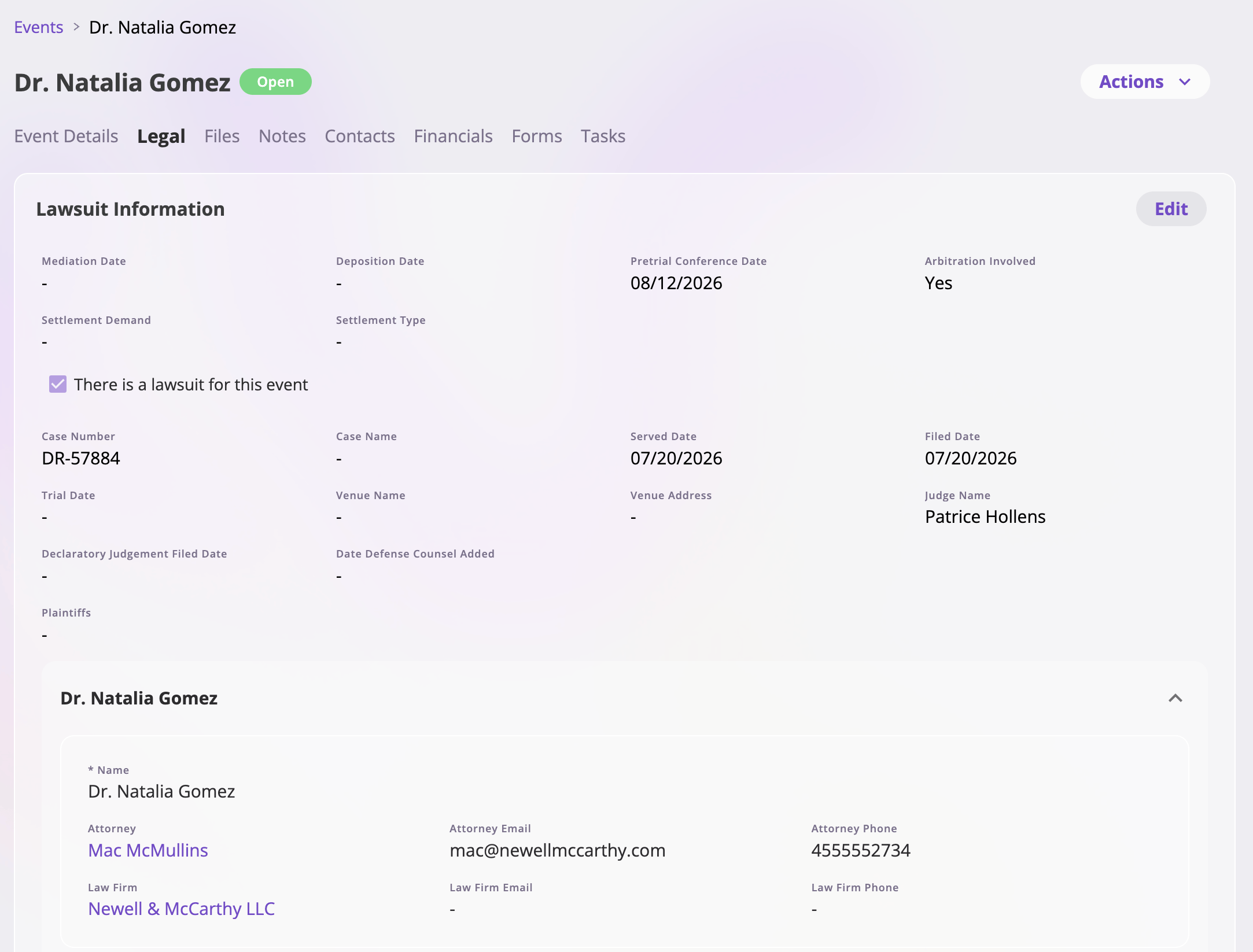 Like the Event Details tab, cards on the Legal tab edit in place — some fields
appear only when they're relevant (for example, case details appear once the
claim is marked as having a lawsuit).
## Open, close, re-open
Every event is **Open** or **Closed**, shown as a tag next to its name.
An open event offers the full set of actions — converting, closing,
renaming, generating forms, creating tasks.
**Actions → Close Claim** (or **Close Incident**) asks for a **Closed
Date**, pre-filled with today. Closing sets the status to **Closed** and
records the date — it doesn't lock anything away: every tab stays
viewable.
On a closed event the close action is replaced by **Re-open Claim** /
**Re-open Incident**, which returns the status to **Open** and clears the
closed date.
If an event simply shouldn't be active anymore, **close it** rather than
deleting it — deletion is permanent, while closing keeps the full record and
is reversible. See
[Event actions](/app/features/event-actions#delete-an-event).
The Actions menu also covers renaming the event, creating linked tasks, and
generating claim/incident forms — the full menu is documented in
[Event actions](/app/features/event-actions).
## Reserves & claim financials at a glance
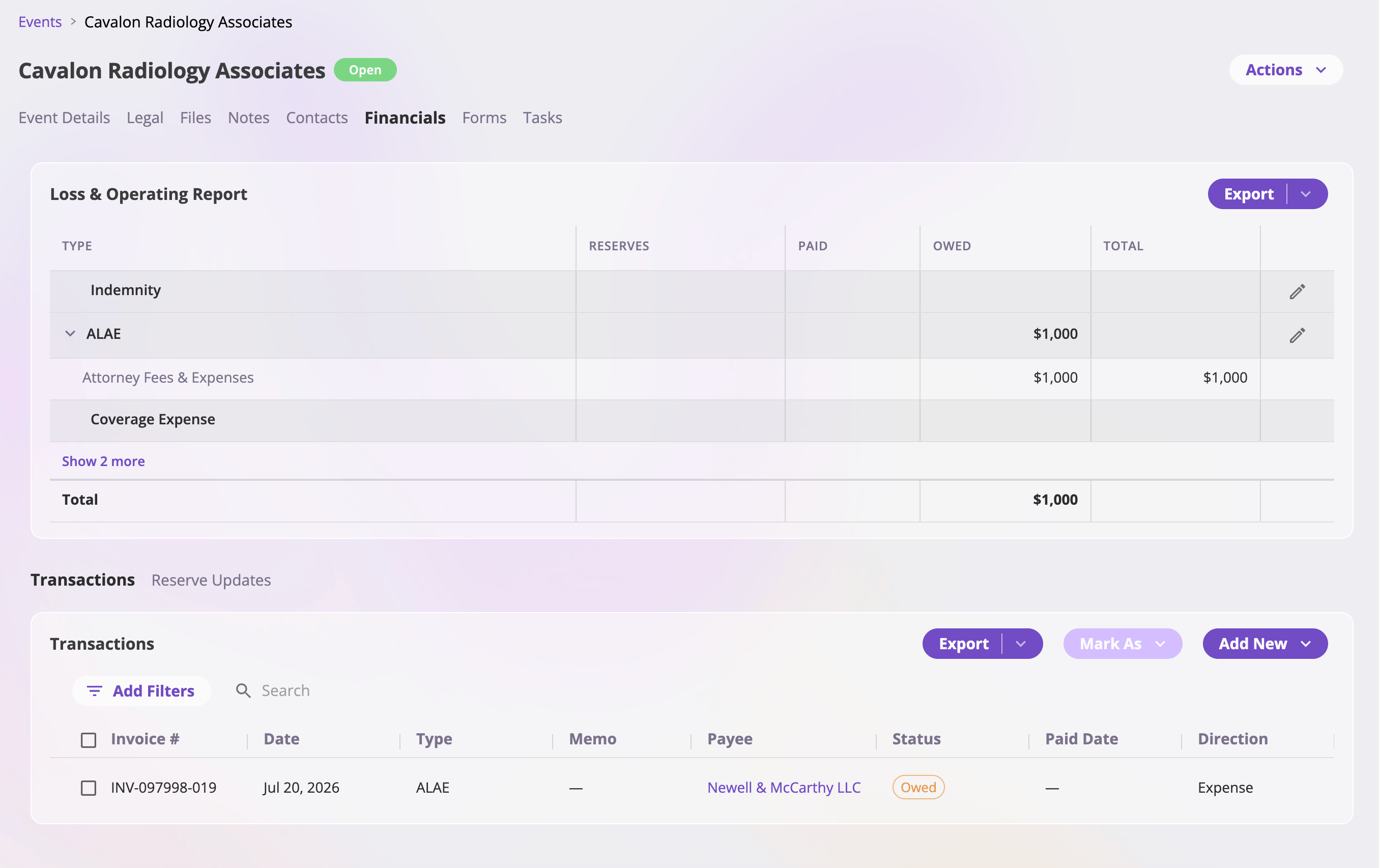
The event's **Financials** tab is where the money side of the claim lives
(visible with the financials permission):
* **The Loss & Operating Report** at the top summarizes the event's
**reserves**, **owed**, **paid**, and **total** amounts per configured
transaction type. Each loss-recognition row offers an **update reserves**
action to record a new expected total for that type.
* **The Transactions sub-tab** lists the event's invoices — with filters,
search, export, and an **Add New** action to record a new transaction
pre-linked to this event.
* **The Reserve Updates sub-tab** lists the history of reserve changes.
Like the Event Details tab, cards on the Legal tab edit in place — some fields
appear only when they're relevant (for example, case details appear once the
claim is marked as having a lawsuit).
## Open, close, re-open
Every event is **Open** or **Closed**, shown as a tag next to its name.
An open event offers the full set of actions — converting, closing,
renaming, generating forms, creating tasks.
**Actions → Close Claim** (or **Close Incident**) asks for a **Closed
Date**, pre-filled with today. Closing sets the status to **Closed** and
records the date — it doesn't lock anything away: every tab stays
viewable.
On a closed event the close action is replaced by **Re-open Claim** /
**Re-open Incident**, which returns the status to **Open** and clears the
closed date.
If an event simply shouldn't be active anymore, **close it** rather than
deleting it — deletion is permanent, while closing keeps the full record and
is reversible. See
[Event actions](/app/features/event-actions#delete-an-event).
The Actions menu also covers renaming the event, creating linked tasks, and
generating claim/incident forms — the full menu is documented in
[Event actions](/app/features/event-actions).
## Reserves & claim financials at a glance
The event's **Financials** tab is where the money side of the claim lives
(visible with the financials permission):
* **The Loss & Operating Report** at the top summarizes the event's
**reserves**, **owed**, **paid**, and **total** amounts per configured
transaction type. Each loss-recognition row offers an **update reserves**
action to record a new expected total for that type.
* **The Transactions sub-tab** lists the event's invoices — with filters,
search, export, and an **Add New** action to record a new transaction
pre-linked to this event.
* **The Reserve Updates sub-tab** lists the history of reserve changes.
 Reserving is covered in [Reserves](/financials/reserves) and the report's
mechanics in [Invoice types and line
items](/financials/invoice-types); recording invoices and getting them
settled is the subject of [Billing & getting paid](/app/workflows/billing).
Reserving is covered in [Reserves](/financials/reserves) and the report's
mechanics in [Invoice types and line
items](/financials/invoice-types); recording invoices and getting them
settled is the subject of [Billing & getting paid](/app/workflows/billing).