> ## Documentation Index
> Fetch the complete documentation index at: https://docs.go.aiinsurance.io/llms.txt
> Use this file to discover all available pages before exploring further.
# Creating submissions
> Start a submission by hand, by dropping documents on the AI importer, or by emailing a company inbox — and act on clearance warnings.
A [submission](/entities/submission) is the intake record for a risk: the
application that arrives from a broker or insured, before any quote exists.
Every quote belongs to a submission, so creating a submission is the first step
of the [quoting workflow](/app/workflows/quoting).
There are three ways a submission comes into existence:
| Method | Where | Best for |
| ---------------------------------------------------- | ----------------------------------- | ------------------------------------------------------------------------------------------ |
| [Manual entry](#create-a-submission-manually) | **Submissions → Create Submission** | Keying in an application yourself |
| [AI file import](#import-submissions-from-documents) | **Submissions → Import** | Turning application documents (PDFs, spreadsheets, images) into a submission automatically |
| [Email](#email-a-submission-in) | Your company's inbox address | Brokers sending applications straight from their inbox |
## Create a submission manually
Open **Submissions** in the sidebar and select **Create Submission** at the top
right of the list.
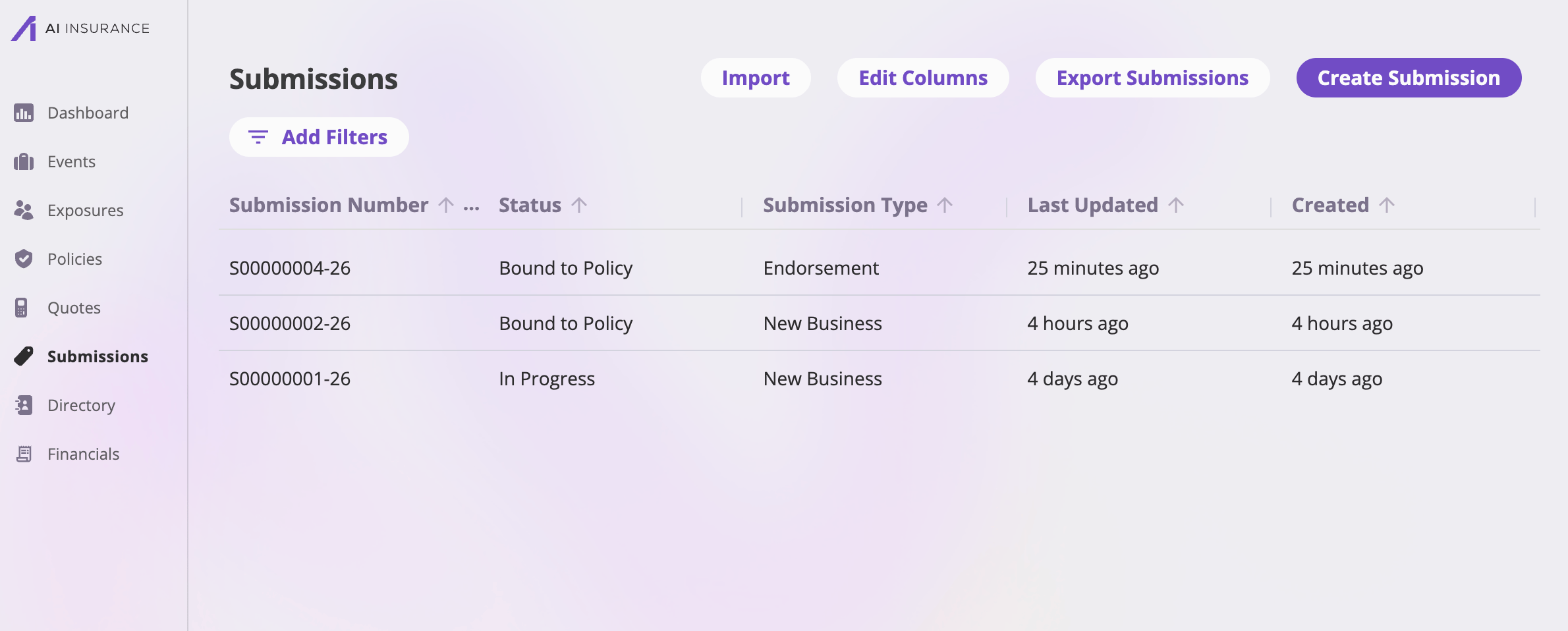 **Create Submission** drops you straight into the [quote
wizard](/app/workflows/quoting) on a fresh new-business quote. That's
deliberate: entering a submission and starting its first quote are the same
data entry, so the app doesn't make you do it twice. The first time you select
**Save Quote** in the wizard, the app creates the submission *and* its first
quote together — the insured details you entered are copied onto both records,
and the quote is linked to the submission from the start.
You don't have to finish the wizard for the submission to exist. Save once,
exit, and the submission (with its in-progress quote) is on the Submissions
list waiting for you.
The rest of the toolbar:
| Button | What it does |
| ---------------------- | -------------------------------------------------------------------------------------------------- |
| **Import** | Opens the [Import page](#import-submissions-from-documents) (shown if your role can upload files). |
| **Edit Columns** | Choose and reorder the list's columns; save shared views for your team. |
| **Export Submissions** | Export the (filtered) list — see [Exports & saved views](/app/features/exports-saved-views). |
| **Create Submission** | Starts a new submission via the quote wizard. |
## Import submissions from documents
The **Import** page (**Submissions → Import**) turns real-world application
documents into submissions: drop the files, and AI extraction reads them and
builds a submission — and a draft quote — from what it finds.
### Upload files
The page starts with a dropzone. Drag files (or a whole folder) onto it, or
click to browse. Supported types are the ones the extraction engine can
actually read: **PDF, PNG, JPEG, WebP, plain text, CSV, and Excel (.xlsx)**.
Unsupported or oversized files are rejected up front with a message — nothing
half-uploads.
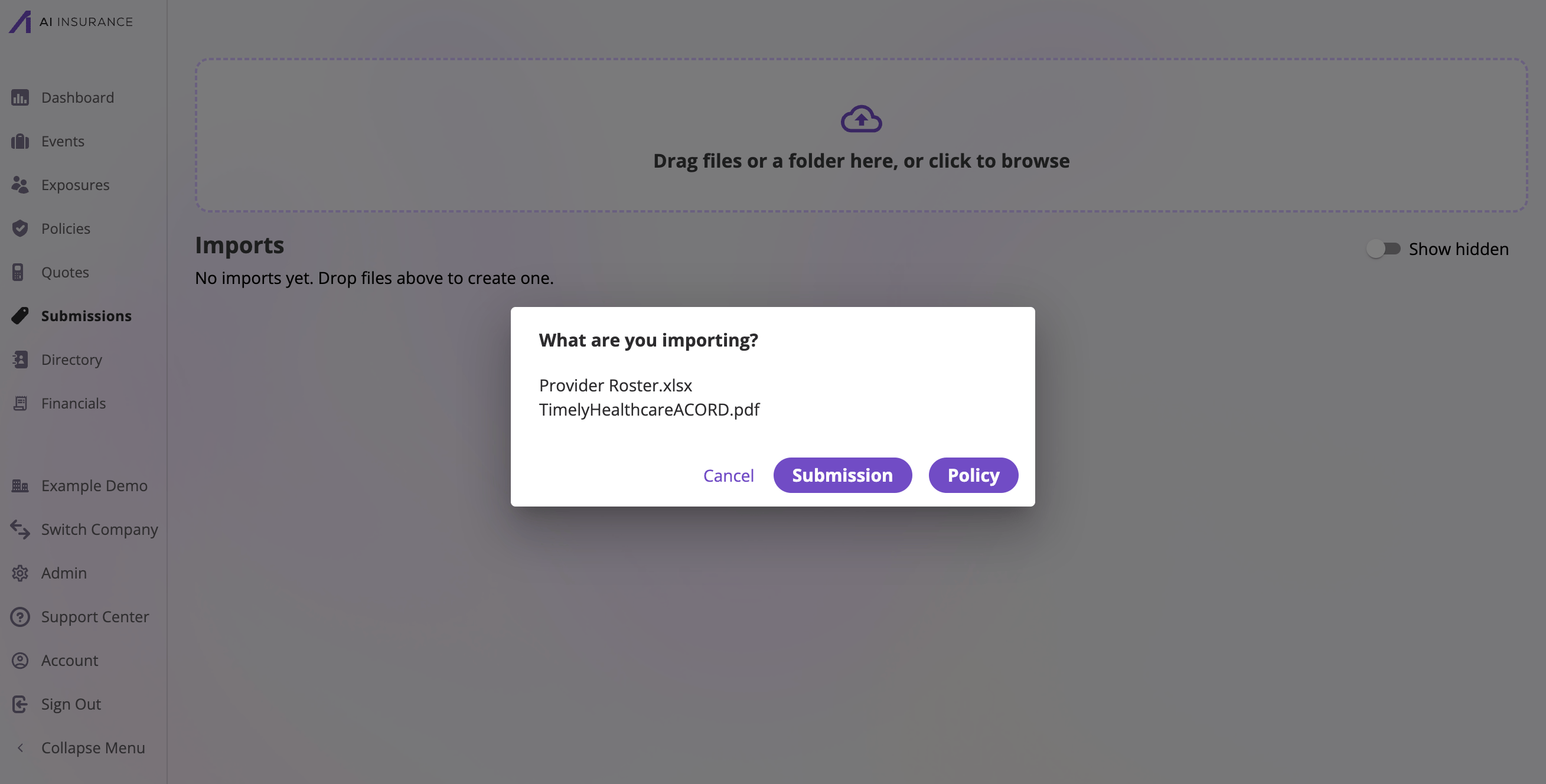
As soon as you drop, a dialog asks **"What are you importing?"** — every
dropped file is listed by name, and you choose **Submission** or **Policy**.
The choice is saved with the import so it never asks again. (The Policy option
builds a policy record instead of a submission; this page covers the
Submission flow.) Cancel abandons the drop entirely.
**Create Submission** drops you straight into the [quote
wizard](/app/workflows/quoting) on a fresh new-business quote. That's
deliberate: entering a submission and starting its first quote are the same
data entry, so the app doesn't make you do it twice. The first time you select
**Save Quote** in the wizard, the app creates the submission *and* its first
quote together — the insured details you entered are copied onto both records,
and the quote is linked to the submission from the start.
You don't have to finish the wizard for the submission to exist. Save once,
exit, and the submission (with its in-progress quote) is on the Submissions
list waiting for you.
The rest of the toolbar:
| Button | What it does |
| ---------------------- | -------------------------------------------------------------------------------------------------- |
| **Import** | Opens the [Import page](#import-submissions-from-documents) (shown if your role can upload files). |
| **Edit Columns** | Choose and reorder the list's columns; save shared views for your team. |
| **Export Submissions** | Export the (filtered) list — see [Exports & saved views](/app/features/exports-saved-views). |
| **Create Submission** | Starts a new submission via the quote wizard. |
## Import submissions from documents
The **Import** page (**Submissions → Import**) turns real-world application
documents into submissions: drop the files, and AI extraction reads them and
builds a submission — and a draft quote — from what it finds.
### Upload files
The page starts with a dropzone. Drag files (or a whole folder) onto it, or
click to browse. Supported types are the ones the extraction engine can
actually read: **PDF, PNG, JPEG, WebP, plain text, CSV, and Excel (.xlsx)**.
Unsupported or oversized files are rejected up front with a message — nothing
half-uploads.
As soon as you drop, a dialog asks **"What are you importing?"** — every
dropped file is listed by name, and you choose **Submission** or **Policy**.
The choice is saved with the import so it never asks again. (The Policy option
builds a policy record instead of a submission; this page covers the
Submission flow.) Cancel abandons the drop entirely.
 Uploading and parsing are separate steps: the drop only uploads the files into
a dated import folder (you can open it any time via the folder icon — **Open in
Company Files**). Each drop becomes one row in the **Imports** table below,
which also shows every import from previous sessions, whoever made them.
### The Imports table
Uploading and parsing are separate steps: the drop only uploads the files into
a dated import folder (you can open it any time via the folder icon — **Open in
Company Files**). Each drop becomes one row in the **Imports** table below,
which also shows every import from previous sessions, whoever made them.
### The Imports table
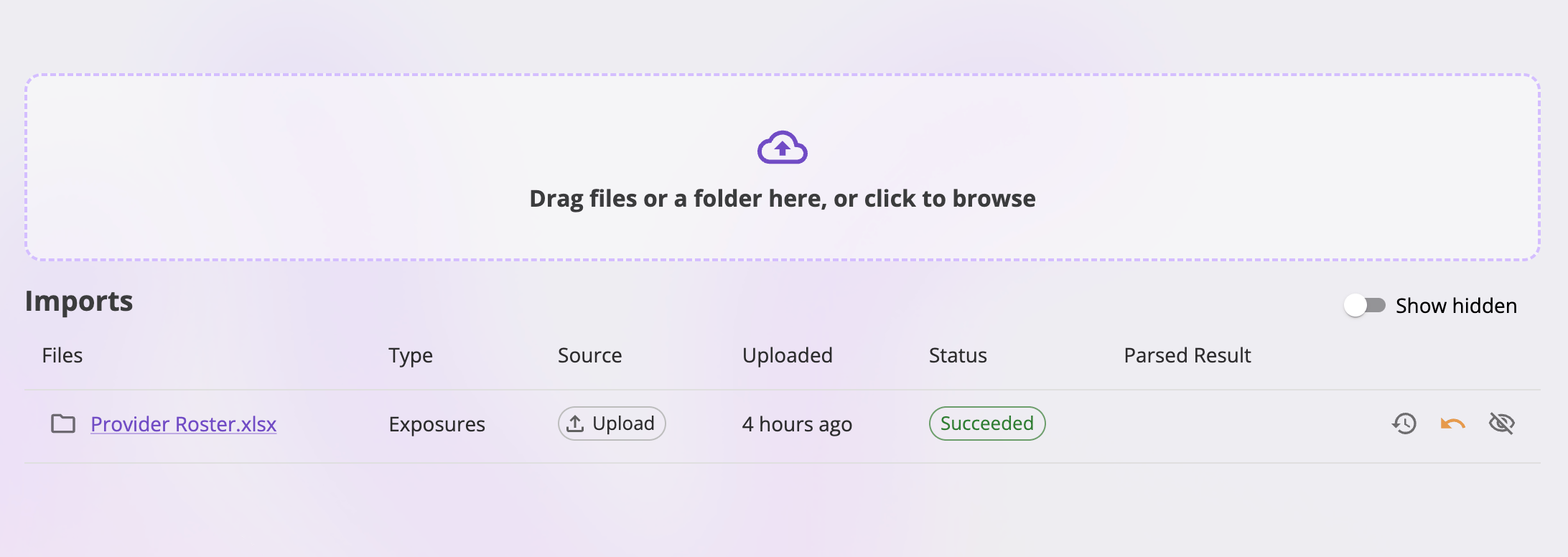 | Column | What it shows |
| ----------------- | --------------------------------------------------------------------------------------------------------------------------------------------------------------------------------------------- |
| **Files** | The dropped file names (click to preview the files in-app, one tab per file) and a folder icon that opens the import's folder in Company Files. |
| **Type** | The declared type — Submission or Policy. |
| **Source** | **Upload** for in-app drops, or an **email chip** naming the sender for imports that [arrived by email](#email-a-submission-in). Hover the email chip for the sender, recipient, and subject. |
| **Uploaded** | When the files arrived. |
| **Status** | The latest run's state: **Not run**, **Starting…**, **Running**, **Retrying**, **Succeeded**, or **Failed**. While a run is live, the chip is clickable and opens the run's live progress. |
| **Parsed Result** | A link to the quote the parse produced (labeled with its quote number). Opens the quote — its submission is one click away from there. |
Row actions (right-hand icons):
| Action | When it appears | What it does |
| ----------------------------------------------- | ------------------------ | -------------------------------------------------------------------------------------------------------------------------- |
| **Parse Submission / Parse Policy** (play icon) | Import has never run | Starts the AI parse using the type declared at drop time. |
| **View active run** | While a run is in flight | Opens the run history on the live run's advancing progress. |
| **View run history** | Always | Opens the full [run history](#run-history-and-re-runs) for the import. |
| **Hide import / Unhide import** | Always | Parks the row out of the table. Hidden imports render muted under the **Show hidden** toggle and can be unhidden any time. |
### Run the parse and watch it
Select the play icon to start the run. A parse has two stages — extracting the
documents' contents, then parsing them into a submission — and the row's
status chip (and the run history) shows live progress like *"Extracting 1/2 ·
attempt 1"* then *"Parsing 2/2"*. The table refreshes itself every few seconds
while any run is live, so you can navigate away and come back.
When the run **succeeds**, the **Parsed Result** column links to the quote the
import created; the quote sits on a new submission built from the same
documents, with the uploaded files attached. Open the quote to review what the
AI extracted — everything is editable in the [quote
wizard](/app/workflows/quoting) — or follow **Back to Submission** from the
quote to see the submission itself.
When a run **fails**, the error is shown verbatim in the run history so you can
see exactly what went wrong, and you can re-run.
### Run history and re-runs
The history icon on any row opens the import's full run history: every run,
newest first, with its status, type, started/finished times, a **View Extract**
action (inspect or download the raw extracted data as JSON, once extraction
succeeded), and the run's parsed result.
| Column | What it shows |
| ----------------- | --------------------------------------------------------------------------------------------------------------------------------------------------------------------------------------------- |
| **Files** | The dropped file names (click to preview the files in-app, one tab per file) and a folder icon that opens the import's folder in Company Files. |
| **Type** | The declared type — Submission or Policy. |
| **Source** | **Upload** for in-app drops, or an **email chip** naming the sender for imports that [arrived by email](#email-a-submission-in). Hover the email chip for the sender, recipient, and subject. |
| **Uploaded** | When the files arrived. |
| **Status** | The latest run's state: **Not run**, **Starting…**, **Running**, **Retrying**, **Succeeded**, or **Failed**. While a run is live, the chip is clickable and opens the run's live progress. |
| **Parsed Result** | A link to the quote the parse produced (labeled with its quote number). Opens the quote — its submission is one click away from there. |
Row actions (right-hand icons):
| Action | When it appears | What it does |
| ----------------------------------------------- | ------------------------ | -------------------------------------------------------------------------------------------------------------------------- |
| **Parse Submission / Parse Policy** (play icon) | Import has never run | Starts the AI parse using the type declared at drop time. |
| **View active run** | While a run is in flight | Opens the run history on the live run's advancing progress. |
| **View run history** | Always | Opens the full [run history](#run-history-and-re-runs) for the import. |
| **Hide import / Unhide import** | Always | Parks the row out of the table. Hidden imports render muted under the **Show hidden** toggle and can be unhidden any time. |
### Run the parse and watch it
Select the play icon to start the run. A parse has two stages — extracting the
documents' contents, then parsing them into a submission — and the row's
status chip (and the run history) shows live progress like *"Extracting 1/2 ·
attempt 1"* then *"Parsing 2/2"*. The table refreshes itself every few seconds
while any run is live, so you can navigate away and come back.
When the run **succeeds**, the **Parsed Result** column links to the quote the
import created; the quote sits on a new submission built from the same
documents, with the uploaded files attached. Open the quote to review what the
AI extracted — everything is editable in the [quote
wizard](/app/workflows/quoting) — or follow **Back to Submission** from the
quote to see the submission itself.
When a run **fails**, the error is shown verbatim in the run history so you can
see exactly what went wrong, and you can re-run.
### Run history and re-runs
The history icon on any row opens the import's full run history: every run,
newest first, with its status, type, started/finished times, a **View Extract**
action (inspect or download the raw extracted data as JSON, once extraction
succeeded), and the run's parsed result.
 Every finished run has a replay icon with two re-run modes:
* **Re-run from Extract** — re-parses using that run's already-extracted data,
skipping document extraction. Available once the run's extraction succeeded.
* **Re-run from Start** — extracts and parses again from scratch. Always
available.
Every re-run creates a **brand-new submission and quote**. Records created by
earlier runs — including partial data from failed runs — are not replaced or
cleaned up, so re-running produces duplicates. The app asks you to confirm
before any re-run starts.
## Email a submission in
Your company can receive submissions by email. An administrator creates one or
more **inbox addresses** (for example
`your-company-submissions@inbox.aiinsurance.io`) on the [Company settings
page](/app/admin/company-settings), each tied to an import type — a
submissions inbox or a policies inbox.
Anyone who emails application documents to a submissions inbox creates an
import on the [Import page](#the-imports-table), exactly as if the attachments
had been dropped there — the row shows an **email chip** as its source, naming
the sender.
What happens next depends on whether the sender is recognized:
* **Recognized sender** (on your company's allowed-senders list): the parse
starts automatically — no one has to click Run. The row shows **Starting…**
and then live progress, and the resulting quote appears in **Parsed Result**.
* **Unrecognized sender**: the email's files are stored but **nothing runs**.
The row shows a warning chip with the sender's address and a
**Needs sender review** status, and offers two actions to users who can
manage company settings:
| Action | What it does |
| -------------------- | ------------------------------------------------------------------------------------------------------------------------------------------------------------------------------------------------------------------------- |
| **Recognize sender** | Adds the address to your allowed senders. This import becomes runnable, and future emails from the address process automatically. |
| **Block sender** | Future emails from the address are dropped completely — not stored, not shown. The already-stored import stays visible (hide it separately if you want it gone). You can un-block the sender later from Company settings. |
Every finished run has a replay icon with two re-run modes:
* **Re-run from Extract** — re-parses using that run's already-extracted data,
skipping document extraction. Available once the run's extraction succeeded.
* **Re-run from Start** — extracts and parses again from scratch. Always
available.
Every re-run creates a **brand-new submission and quote**. Records created by
earlier runs — including partial data from failed runs — are not replaced or
cleaned up, so re-running produces duplicates. The app asks you to confirm
before any re-run starts.
## Email a submission in
Your company can receive submissions by email. An administrator creates one or
more **inbox addresses** (for example
`your-company-submissions@inbox.aiinsurance.io`) on the [Company settings
page](/app/admin/company-settings), each tied to an import type — a
submissions inbox or a policies inbox.
Anyone who emails application documents to a submissions inbox creates an
import on the [Import page](#the-imports-table), exactly as if the attachments
had been dropped there — the row shows an **email chip** as its source, naming
the sender.
What happens next depends on whether the sender is recognized:
* **Recognized sender** (on your company's allowed-senders list): the parse
starts automatically — no one has to click Run. The row shows **Starting…**
and then live progress, and the resulting quote appears in **Parsed Result**.
* **Unrecognized sender**: the email's files are stored but **nothing runs**.
The row shows a warning chip with the sender's address and a
**Needs sender review** status, and offers two actions to users who can
manage company settings:
| Action | What it does |
| -------------------- | ------------------------------------------------------------------------------------------------------------------------------------------------------------------------------------------------------------------------- |
| **Recognize sender** | Adds the address to your allowed senders. This import becomes runnable, and future emails from the address process automatically. |
| **Block sender** | Future emails from the address are dropped completely — not stored, not shown. The already-stored import stays visible (hide it separately if you want it gone). You can un-block the sender later from Company settings. |
 Sender recognition and blocking are company-wide policy, not per-import
settings — both ask for confirmation. The full sender allow-list is managed
on the [Company settings page](/app/admin/company-settings).
## Clearance warnings
When a submission's primary insured matches another record your company
already has, the submission's detail page shows a **clearance warning** banner
— one per match — so an underwriter spots a potential duplicate before working
it up.
Sender recognition and blocking are company-wide policy, not per-import
settings — both ask for confirmation. The full sender allow-list is managed
on the [Company settings page](/app/admin/company-settings).
## Clearance warnings
When a submission's primary insured matches another record your company
already has, the submission's detail page shows a **clearance warning** banner
— one per match — so an underwriter spots a potential duplicate before working
it up.
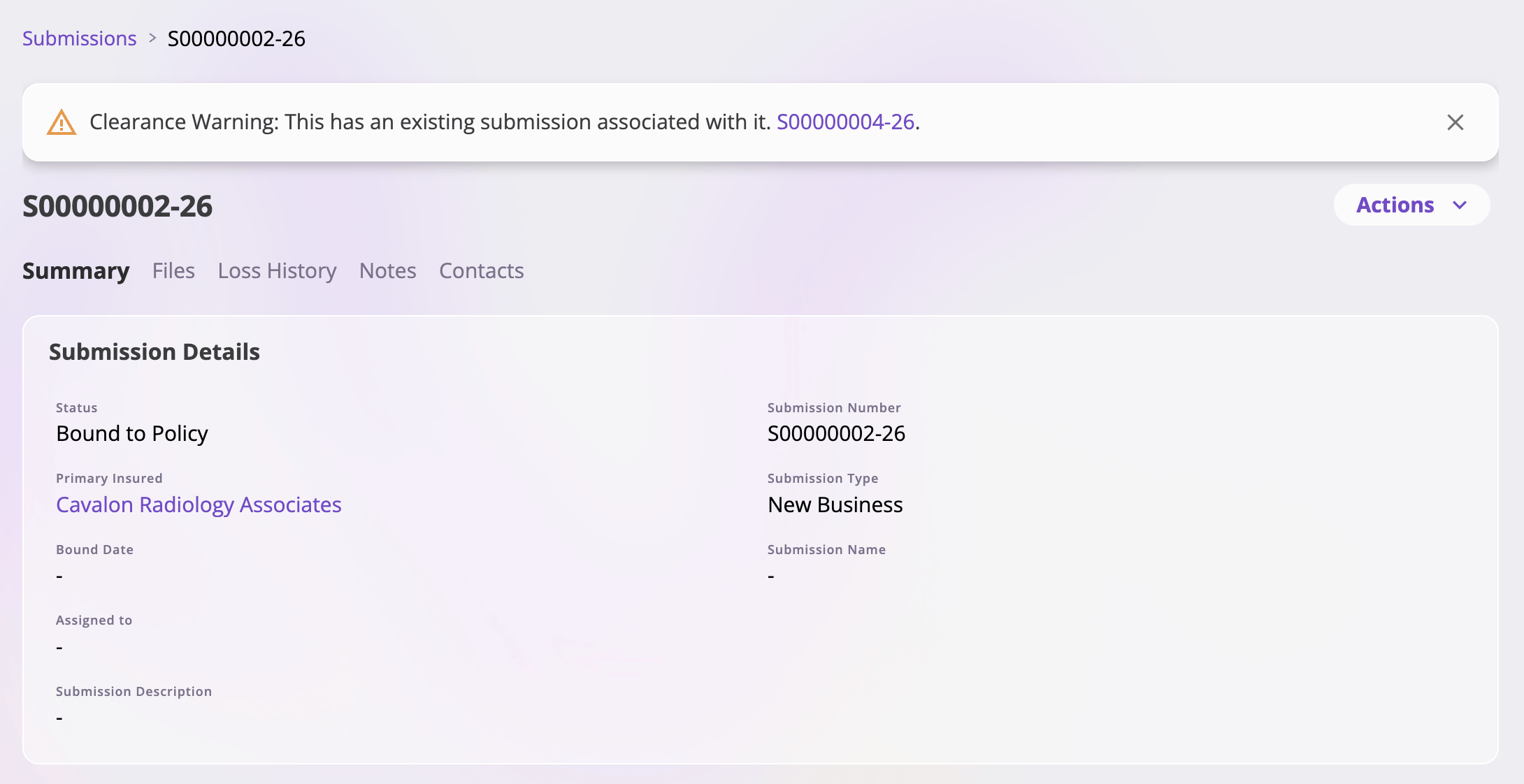 * The match is on the **primary insured's name** (ignoring case and extra
whitespace) against your company's other submissions.
* Each banner names the matching submission's number; click it to open that
submission and compare.
* **Renewals are excluded on both sides** — a renewal submission never shows
clearance warnings, and never appears as a match, since a renewal is
expected to share its prior term's insured.
The warning is informational: it doesn't block quoting or binding. It's up to
you to decide whether the new submission is a true duplicate.
## After the submission exists
Opening a submission from the list lands on its detail page:
* The match is on the **primary insured's name** (ignoring case and extra
whitespace) against your company's other submissions.
* Each banner names the matching submission's number; click it to open that
submission and compare.
* **Renewals are excluded on both sides** — a renewal submission never shows
clearance warnings, and never appears as a match, since a renewal is
expected to share its prior term's insured.
The warning is informational: it doesn't block quoting or binding. It's up to
you to decide whether the new submission is a true duplicate.
## After the submission exists
Opening a submission from the list lands on its detail page:
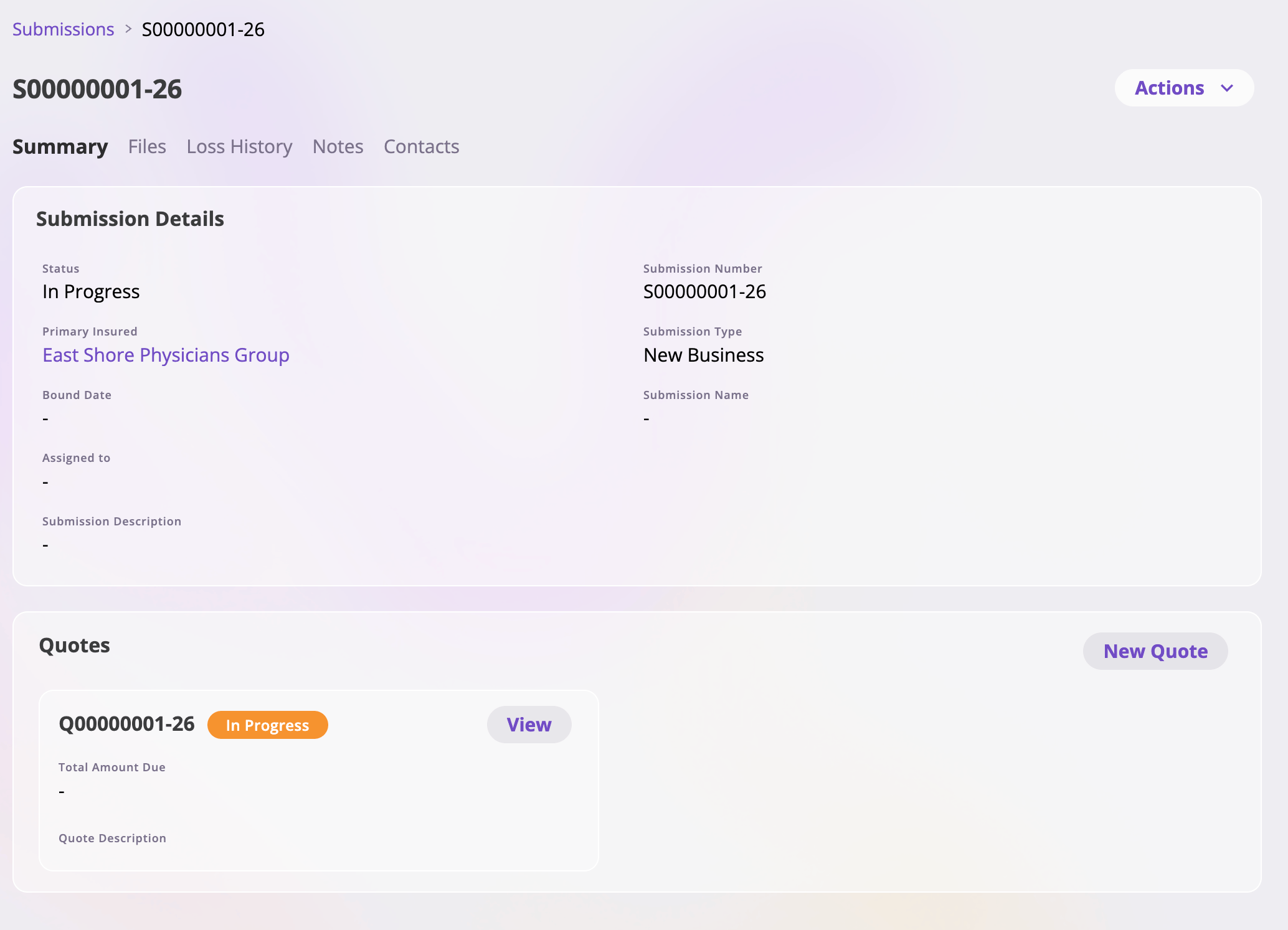 * **Tabs** — **Summary** (the submission's fields plus its **Quotes** card),
**Files**, **Loss History**, **Notes**, and **Contacts**. Tabs your role
can't access don't appear. See the [Submissions feature
reference](/app/features/submissions) for each tab in detail.
* **Status** — submissions carry a status through their life. The standard
statuses are **In Progress**, **Submitted**, **Quote in Progress**, **Quote
Complete**, **Quote Accepted**, **Quote Sent**, **Bound to Policy**, and
**Declined** (labels can vary depending on how your company is configured).
* **Actions** menu — **Delete Submission** permanently deletes the submission
after a confirmation. It's disabled while the submission still has quotes:
delete those first, since deleting a submission out from under its quotes
would orphan them.
* **Quotes card** — every quote on the submission, each with its number,
status, total amount due, and a **View** button. **New Quote** starts
another quote: if the submission already has an active quote, the new one
starts as a copy of the latest; otherwise it starts fresh from the
submission's data.
Which fields appear on the Summary tab — and on the quote wizard that
follows — depends on how your company is configured. See [How your app is
configured](/app/getting-started/configuration).
## Next: quote it
With the submission in place, the next step is working up terms — exposures,
rating, coverages, and forms — in the quote wizard. Continue to [Quoting new
business](/app/workflows/quoting).
* **Tabs** — **Summary** (the submission's fields plus its **Quotes** card),
**Files**, **Loss History**, **Notes**, and **Contacts**. Tabs your role
can't access don't appear. See the [Submissions feature
reference](/app/features/submissions) for each tab in detail.
* **Status** — submissions carry a status through their life. The standard
statuses are **In Progress**, **Submitted**, **Quote in Progress**, **Quote
Complete**, **Quote Accepted**, **Quote Sent**, **Bound to Policy**, and
**Declined** (labels can vary depending on how your company is configured).
* **Actions** menu — **Delete Submission** permanently deletes the submission
after a confirmation. It's disabled while the submission still has quotes:
delete those first, since deleting a submission out from under its quotes
would orphan them.
* **Quotes card** — every quote on the submission, each with its number,
status, total amount due, and a **View** button. **New Quote** starts
another quote: if the submission already has an active quote, the new one
starts as a copy of the latest; otherwise it starts fresh from the
submission's data.
Which fields appear on the Summary tab — and on the quote wizard that
follows — depends on how your company is configured. See [How your app is
configured](/app/getting-started/configuration).
## Next: quote it
With the submission in place, the next step is working up terms — exposures,
rating, coverages, and forms — in the quote wizard. Continue to [Quoting new
business](/app/workflows/quoting).