> ## Documentation Index
> Fetch the complete documentation index at: https://docs.go.aiinsurance.io/llms.txt
> Use this file to discover all available pages before exploring further.
# Quoting new business
> Work a quote through the wizard — insured details, exposures (with spreadsheet import), rating on the underwriter workbench, coverages, billing, forms, and completion.
Quoting happens in the **quote wizard**: a stepper that walks a
[quote](/entities/quote) from insured details through exposures, rating,
coverages, billing, and forms to a completed, bindable quote. This page follows
the new-business flow end to end; endorsements and renewals reuse the same
steps (see [Servicing a policy](/app/workflows/servicing-policies)).
## Starting a quote
You can enter the wizard from several places:
| From | How | What you get |
| ----------------------------- | ---------------------------------------------------------------------------------------------------------- | --------------------------------------------------------------------------------------------------------------------- |
| The Submissions list | **Create Submission** | A blank new-business quote. The first save creates the submission and the quote together. |
| A submission's Summary tab | **New Quote** on the Quotes card | A quote pre-filled from the submission — or, if the submission already has an active quote, a copy of the latest one. |
| A quote's detail page | **Continue Editing** (in-progress quotes) or **Edit Quote** in the Actions menu | The same quote, back in the wizard where you left off. |
| A quote's detail page | **Copy Quote** in the Actions menu | A fresh draft copied from the source quote, on the same submission. |
| An import's **Parsed Result** | The quote link on the [Import page](/app/workflows/creating-submissions#import-submissions-from-documents) | A draft quote the AI built from your documents, ready to review in the wizard. |
## Finding your way around the wizard
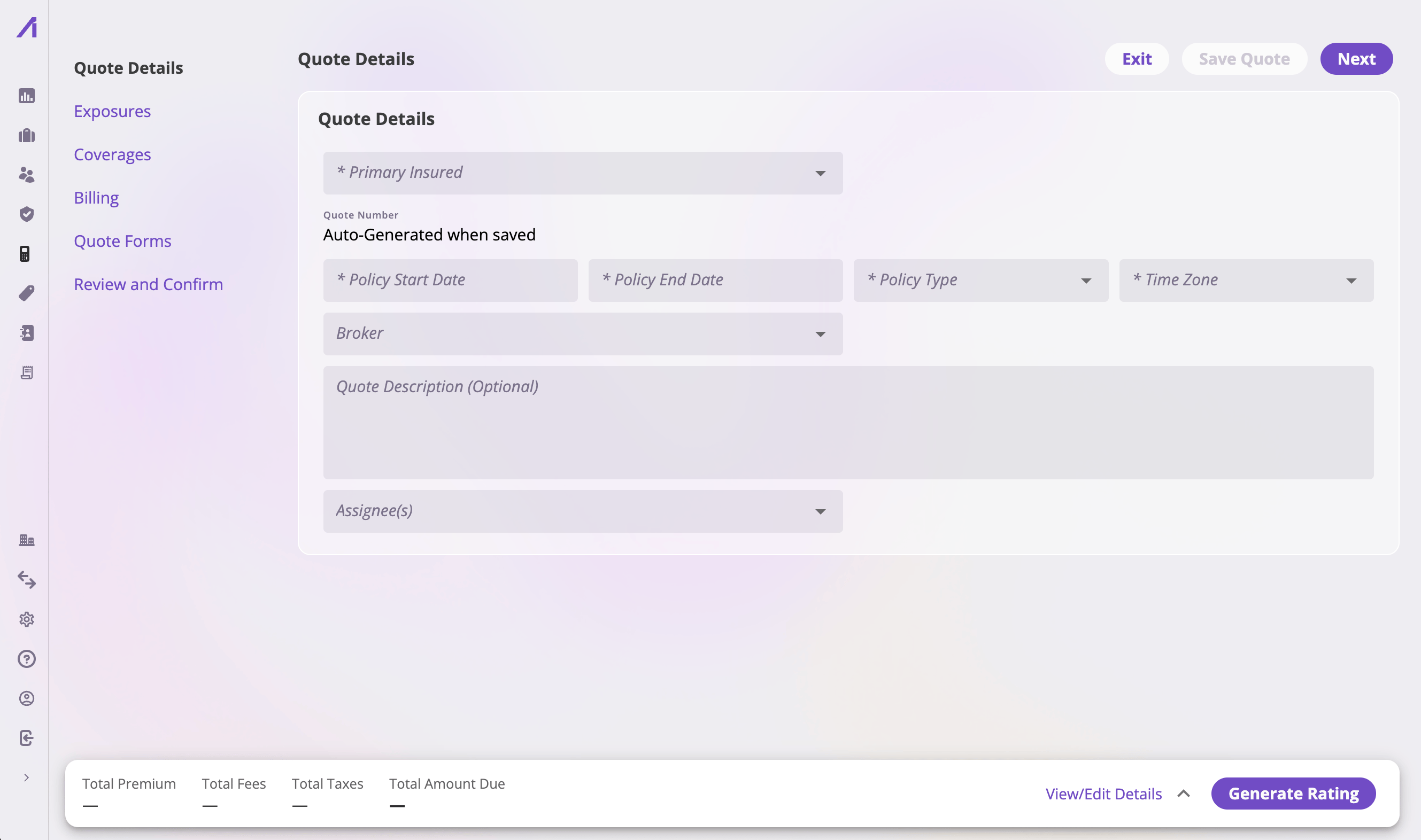 * **The sidebar** lists the flow's steps in order. Click any step to jump
straight to it — you're not forced to move linearly.
* **The header buttons**:
| Button | What it does |
| ------------------------------ | ------------------------------------------------------------------------------------------------------------------------------------------------------------------------------------------------------ |
| **Exit** | Leaves the wizard for the quote's detail page (or the Quotes list if nothing is saved yet). With unsaved changes, a dialog offers **Save and Exit**, **Exit Without Saving**, or **Continue Editing**. |
| **Save Quote** | Persists the draft. Enabled only while there are unsaved changes. |
| **Back / Next** | Move one step. **Next** is disabled on the Exposures step until the quote has at least one exposure (when your configuration expects exposures on a quote). |
| **Complete Quote** (last step) | The finishing action — see [Review and complete](#review-and-complete). |
* **The floating workbench bar** along the bottom shows live premium totals and
hosts rating — see [Rating & the underwriter
workbench](#rating--the-underwriter-workbench).
### Saving
The wizard is draft-based: nothing exists on the server until the first
**Save Quote**. That first save creates the quote — and, when you started from
scratch, its parent submission too, with the shared insured details copied onto
both. After it, the quote appears on the Quotes list with status
**In Progress**, and you can exit and resume any time.
If a save fails validation, the messages appear verbatim in a notification so
you can fix the offending fields and save again.
The exact fields on each step are defined by your company's configuration —
two companies can see quite different cards on the same steps. What follows
describes the steps themselves and the controls that are always there. See
[How your app is configured](/app/getting-started/configuration).
## Step 1 — Quote Details
The first step collects the basics: the insured, effective dates, and whatever
identifying fields your configuration places here. On an endorsement the same
step appears as **Endorsement Details**.
## Step 2 — Exposures
The Exposures step is where the risks being insured go — buildings, vehicles,
locations, physicians, whatever your lines of business insure. You can add
exposures two ways:
* **Manually** — fill in the exposure cards on the page: pick existing
exposures from your book or create new ones inline.
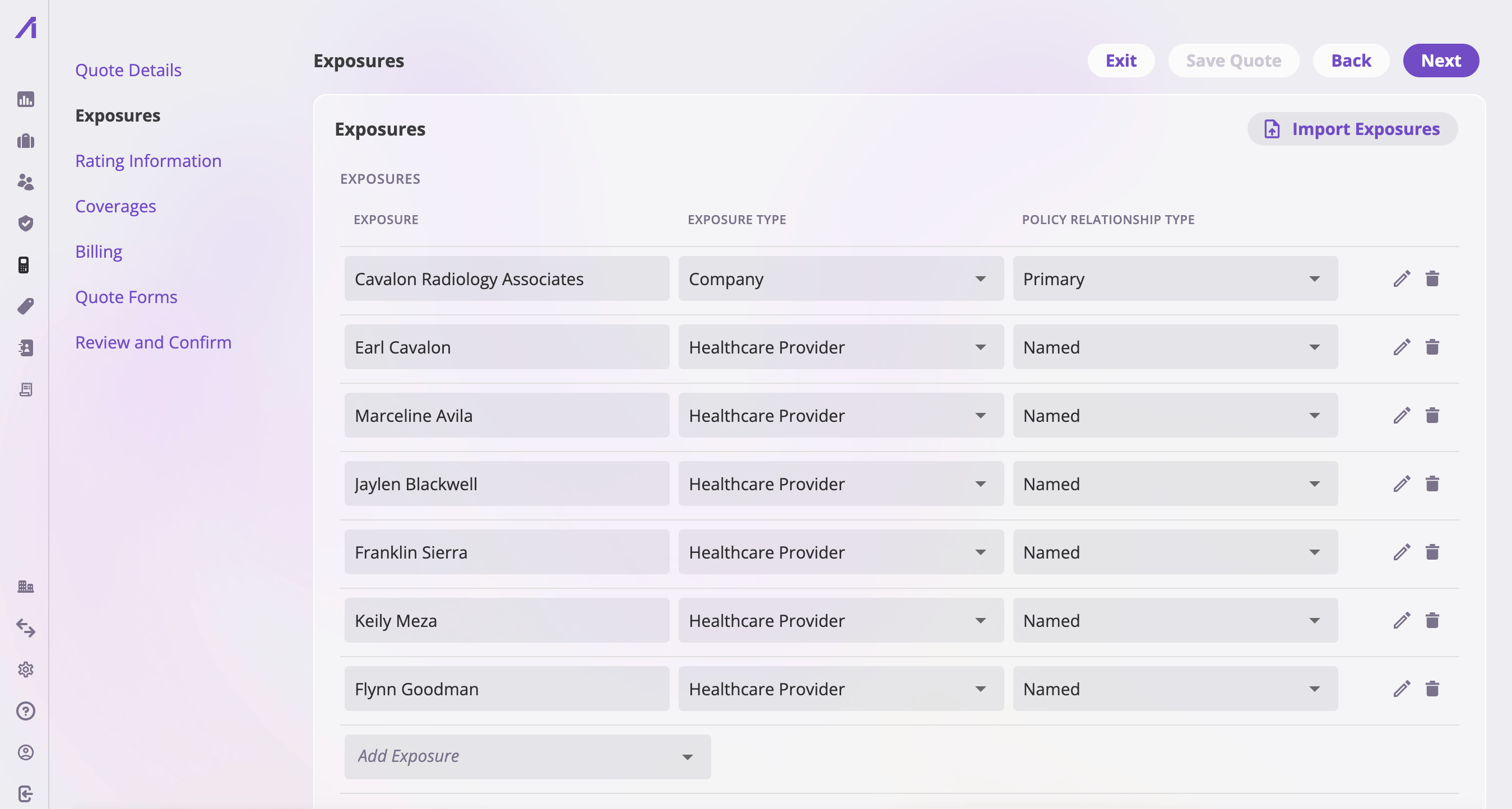
* **In bulk, from files** — select **Import Exposures** on the exposures card.
* **The sidebar** lists the flow's steps in order. Click any step to jump
straight to it — you're not forced to move linearly.
* **The header buttons**:
| Button | What it does |
| ------------------------------ | ------------------------------------------------------------------------------------------------------------------------------------------------------------------------------------------------------ |
| **Exit** | Leaves the wizard for the quote's detail page (or the Quotes list if nothing is saved yet). With unsaved changes, a dialog offers **Save and Exit**, **Exit Without Saving**, or **Continue Editing**. |
| **Save Quote** | Persists the draft. Enabled only while there are unsaved changes. |
| **Back / Next** | Move one step. **Next** is disabled on the Exposures step until the quote has at least one exposure (when your configuration expects exposures on a quote). |
| **Complete Quote** (last step) | The finishing action — see [Review and complete](#review-and-complete). |
* **The floating workbench bar** along the bottom shows live premium totals and
hosts rating — see [Rating & the underwriter
workbench](#rating--the-underwriter-workbench).
### Saving
The wizard is draft-based: nothing exists on the server until the first
**Save Quote**. That first save creates the quote — and, when you started from
scratch, its parent submission too, with the shared insured details copied onto
both. After it, the quote appears on the Quotes list with status
**In Progress**, and you can exit and resume any time.
If a save fails validation, the messages appear verbatim in a notification so
you can fix the offending fields and save again.
The exact fields on each step are defined by your company's configuration —
two companies can see quite different cards on the same steps. What follows
describes the steps themselves and the controls that are always there. See
[How your app is configured](/app/getting-started/configuration).
## Step 1 — Quote Details
The first step collects the basics: the insured, effective dates, and whatever
identifying fields your configuration places here. On an endorsement the same
step appears as **Endorsement Details**.
## Step 2 — Exposures
The Exposures step is where the risks being insured go — buildings, vehicles,
locations, physicians, whatever your lines of business insure. You can add
exposures two ways:
* **Manually** — fill in the exposure cards on the page: pick existing
exposures from your book or create new ones inline.
* **In bulk, from files** — select **Import Exposures** on the exposures card.
 ### Bulk import from a spreadsheet or schedule
**Import Exposures** opens a drop dialog: drop an exposure schedule — an SOV,
a spreadsheet (.xlsx or CSV), or a PDF — and the AI reads it and creates one
exposure per row/record. You can drop several batches without closing the
dialog; each shows its upload progress and confirmation.
### Bulk import from a spreadsheet or schedule
**Import Exposures** opens a drop dialog: drop an exposure schedule — an SOV,
a spreadsheet (.xlsx or CSV), or a PDF — and the AI reads it and creates one
exposure per row/record. You can drop several batches without closing the
dialog; each shows its upload progress and confirmation.
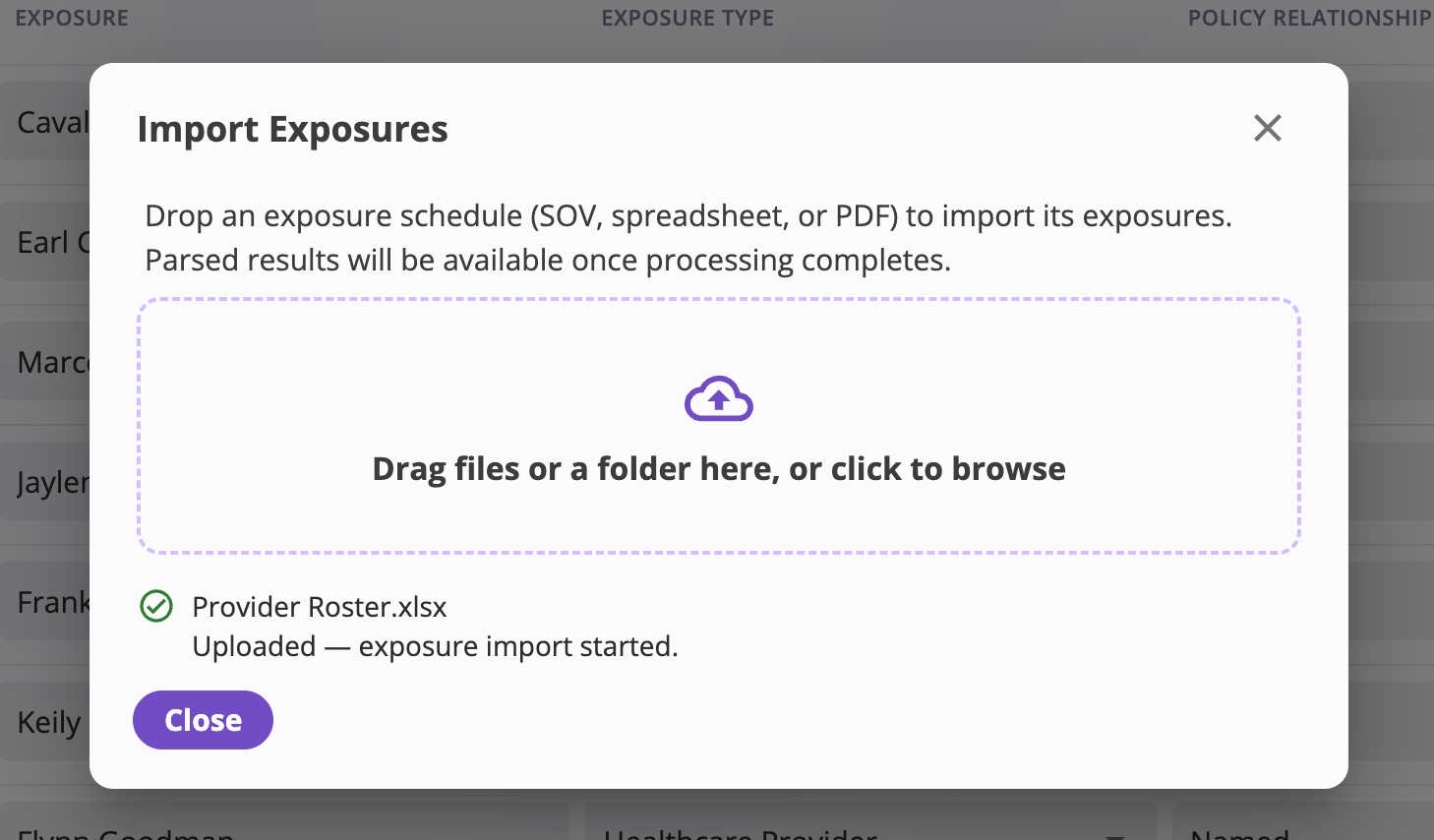 Closing the dialog cancels nothing — imports keep running, and a status strip
at the top of the step tracks each file:
* *Importing exposures…* while the parse runs.
* *Adding N exposures to this quote…* then **Added N exposures** once they're
attached to the quote automatically. The message also tells you when some
exposures were already on the quote, when any couldn't be attached
automatically (they're still created, in the [Exposures
list](/app/features/exposures)), and when some rows failed to import
(*"3 rows failed"*).
* On failure, the error is shown, including how many exposures were created
before the failure.
Manual entry stays available the whole time — the import never blocks the
step. Every exposure import also appears on the company-wide [Import
page](/app/workflows/creating-submissions#the-imports-table) for later
reference.
You can't leave the Exposures step forward (**Next**) until the quote has at
least one exposure — if your company's configuration puts exposures on
quotes at all.
## Step 3 — Rating Information
This step gathers the inputs your rating requires that don't belong to a
specific exposure — class codes, territory answers, modifiers. It only appears
when your configuration puts cards on it; companies whose rating needs nothing
extra skip straight from Exposures to Coverages.
## Rating & the underwriter workbench
Rating isn't a step — it's the **underwriter workbench**, a floating bar that
travels with you along the bottom of every quote-authoring step, so you can
rate and re-rate from anywhere in the wizard.
The collapsed bar shows the four policy-level totals — **Total Premium**,
**Total Fees**, **Total Taxes**, and **Total Amount Due** — plus:
* **Generate Rating** — runs your company's rater against the quote's current
data and fills the totals. After the first run the button reads **Regenerate
Rating**. Rating failures appear inline on the bar with the error message.
* **View/Edit Details** (or the expand arrow) — opens the full workbench.
The expanded workbench is where an underwriter works the numbers:
* **Editable policy-level cards** — the rating inputs your configuration puts
on the workbench (credits, debits, overrides). Adjust them and select
**Generate Rating** to see the effect on premium immediately.
* **Embedded-exposure tables** — your configuration controls which exposure
rows and fields appear. The default workbench uses a compact, read-only table
for existing quote exposures and their rated figures. Tenant configuration
can expose selected per-exposure inputs inline through the table's row
configuration. The workbench does not use exposure tabs or a selector, and
it is not a full exposure editor: add or remove exposures on the Exposures
step.
* **Rater** — when your company has more than one rating workflow
registered, pick which one to run. **Generate Rating** stays disabled until
a rater is selected (the selection is remembered with the quote).
The workbench appears on quote-authoring flows only, and only when rating is
enabled in your company's configuration.
## Step 4 — Coverages
The Coverages step defines what the policy will cover: coverage lines, limits,
deductibles, and endorsement-style options, as configured for your company.
Values that rating produced (premium per coverage, for example) show up here
once you've generated a rating.
## Step 5 — Billing
The Billing step shows the money side of the quote — a read-only billing
summary driven by your configuration and the generated rating. Invoicing
itself happens after binding — see [Billing & getting paid](/app/workflows/billing).
## Step 6 — Quote Forms
The Forms step assembles the quote's document set.
Closing the dialog cancels nothing — imports keep running, and a status strip
at the top of the step tracks each file:
* *Importing exposures…* while the parse runs.
* *Adding N exposures to this quote…* then **Added N exposures** once they're
attached to the quote automatically. The message also tells you when some
exposures were already on the quote, when any couldn't be attached
automatically (they're still created, in the [Exposures
list](/app/features/exposures)), and when some rows failed to import
(*"3 rows failed"*).
* On failure, the error is shown, including how many exposures were created
before the failure.
Manual entry stays available the whole time — the import never blocks the
step. Every exposure import also appears on the company-wide [Import
page](/app/workflows/creating-submissions#the-imports-table) for later
reference.
You can't leave the Exposures step forward (**Next**) until the quote has at
least one exposure — if your company's configuration puts exposures on
quotes at all.
## Step 3 — Rating Information
This step gathers the inputs your rating requires that don't belong to a
specific exposure — class codes, territory answers, modifiers. It only appears
when your configuration puts cards on it; companies whose rating needs nothing
extra skip straight from Exposures to Coverages.
## Rating & the underwriter workbench
Rating isn't a step — it's the **underwriter workbench**, a floating bar that
travels with you along the bottom of every quote-authoring step, so you can
rate and re-rate from anywhere in the wizard.
The collapsed bar shows the four policy-level totals — **Total Premium**,
**Total Fees**, **Total Taxes**, and **Total Amount Due** — plus:
* **Generate Rating** — runs your company's rater against the quote's current
data and fills the totals. After the first run the button reads **Regenerate
Rating**. Rating failures appear inline on the bar with the error message.
* **View/Edit Details** (or the expand arrow) — opens the full workbench.
The expanded workbench is where an underwriter works the numbers:
* **Editable policy-level cards** — the rating inputs your configuration puts
on the workbench (credits, debits, overrides). Adjust them and select
**Generate Rating** to see the effect on premium immediately.
* **Embedded-exposure tables** — your configuration controls which exposure
rows and fields appear. The default workbench uses a compact, read-only table
for existing quote exposures and their rated figures. Tenant configuration
can expose selected per-exposure inputs inline through the table's row
configuration. The workbench does not use exposure tabs or a selector, and
it is not a full exposure editor: add or remove exposures on the Exposures
step.
* **Rater** — when your company has more than one rating workflow
registered, pick which one to run. **Generate Rating** stays disabled until
a rater is selected (the selection is remembered with the quote).
The workbench appears on quote-authoring flows only, and only when rating is
enabled in your company's configuration.
## Step 4 — Coverages
The Coverages step defines what the policy will cover: coverage lines, limits,
deductibles, and endorsement-style options, as configured for your company.
Values that rating produced (premium per coverage, for example) show up here
once you've generated a rating.
## Step 5 — Billing
The Billing step shows the money side of the quote — a read-only billing
summary driven by your configuration and the generated rating. Invoicing
itself happens after binding — see [Billing & getting paid](/app/workflows/billing).
## Step 6 — Quote Forms
The Forms step assembles the quote's document set.
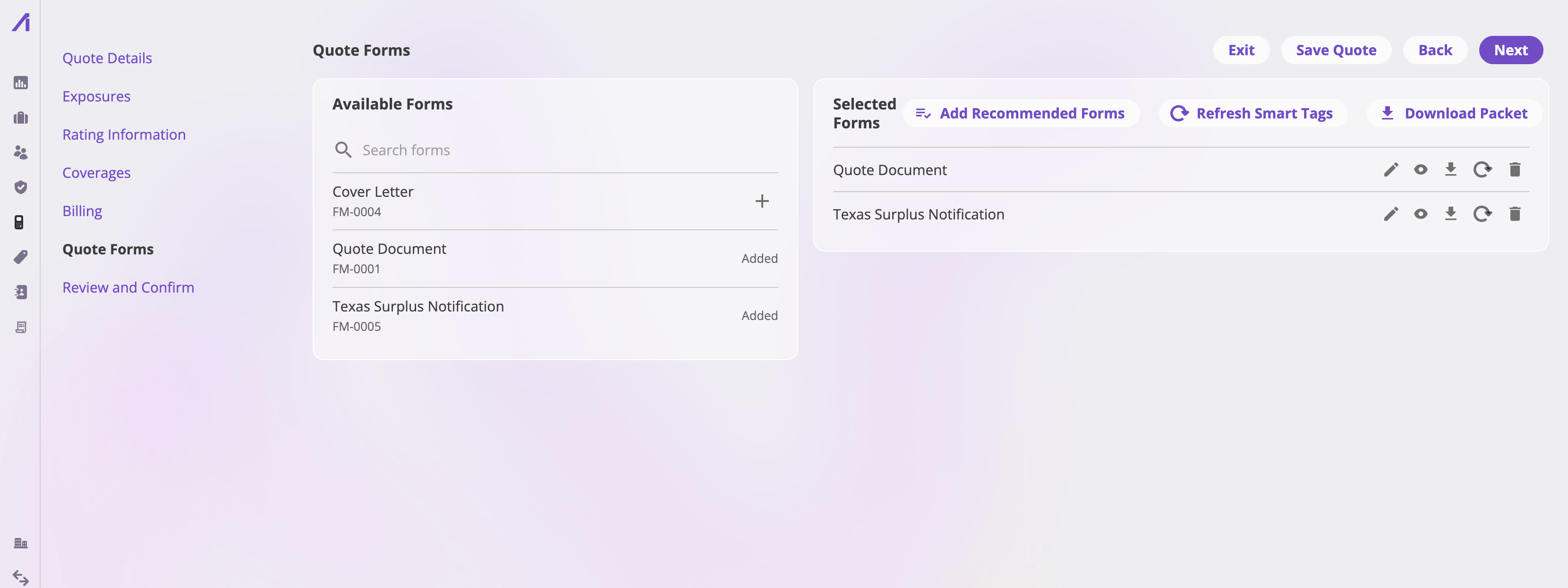 * **The picker** (left) lists your company's quote form templates with a
search box. Selecting a template generates the form with its smart tags
filled from the quote's current data and adds it to the list. A template
already on the quote disappears from the picker, so you can't add it twice.
* **Recommended forms** are added for you: the first time the Forms step loads
on a new quote, your company's form rules run against the quote's answers
and stage every matching form automatically. (If you complete a quote
without ever visiting the Forms step, the same rules run at save.) Removing
a recommended form is respected — it won't creep back on the next save.
Each form row offers:
| Action | What it does |
| ---------------------- | ------------------------------------------------------------------------------- |
| **Edit** | Opens the form in the document editor to adjust its contents. |
| **Preview** | Opens the form read-only. |
| **Download** | Downloads the individual form. |
| **Refresh Smart Tags** | Regenerates the form's tagged values from the quote's current data. |
| **Remove** | Takes the form off the quote (confirmed; committed when you save). |
| **Revert** | On a form you've edited this session — discards the edits back to the original. |
And the list header:
| Action | What it does |
| ------------------------- | -------------------------------------------------------------------------------------------------------------------------------------------- |
| **Add Recommended Forms** | Re-runs the form rules and stages anything newly matching (a saved quote's rules don't re-run on their own). |
| **Refresh Smart Tags** | Refreshes every form in the list, one by one, with per-row progress. |
| **Download Packet** | Opens the packet builder: reorder the forms (drag to arrange), add or drop forms, name the file, and download them combined as a single PDF. |
A **Needs Review** pill on a form means the quote's data has changed since
the form's values were filled (or a tag has no value) — open the form to
review, or use **Refresh Smart Tags** to re-fill it. A **Bind Failed** pill
means a tag could not be resolved at all.
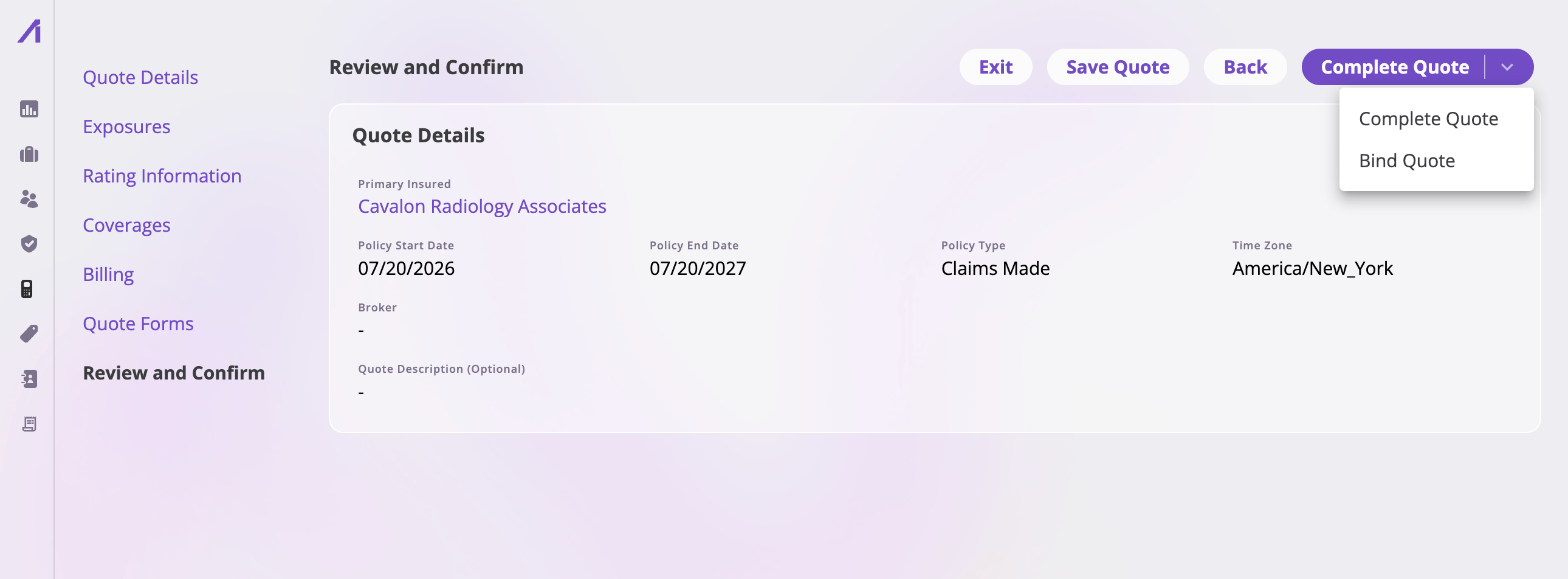
## Step 7 — Review and complete
The last step, **Review and Confirm**, shows the quote for a final read-through.
* If required fields are still missing, the finish button is disabled and a
**View Missing Fields** button lists exactly which fields need values, so
you can jump back and fill them.
* The finishing control is a split button:
* **Complete Quote** — saves any outstanding edits and marks the quote
complete (status **Quote Complete**). You land on the quote's detail
page, ready to generate documents for the broker or move to binding.
* **Bind Quote** — saves and jumps straight into the [bind
flow](/app/workflows/binding) without the intermediate stop.
* **The picker** (left) lists your company's quote form templates with a
search box. Selecting a template generates the form with its smart tags
filled from the quote's current data and adds it to the list. A template
already on the quote disappears from the picker, so you can't add it twice.
* **Recommended forms** are added for you: the first time the Forms step loads
on a new quote, your company's form rules run against the quote's answers
and stage every matching form automatically. (If you complete a quote
without ever visiting the Forms step, the same rules run at save.) Removing
a recommended form is respected — it won't creep back on the next save.
Each form row offers:
| Action | What it does |
| ---------------------- | ------------------------------------------------------------------------------- |
| **Edit** | Opens the form in the document editor to adjust its contents. |
| **Preview** | Opens the form read-only. |
| **Download** | Downloads the individual form. |
| **Refresh Smart Tags** | Regenerates the form's tagged values from the quote's current data. |
| **Remove** | Takes the form off the quote (confirmed; committed when you save). |
| **Revert** | On a form you've edited this session — discards the edits back to the original. |
And the list header:
| Action | What it does |
| ------------------------- | -------------------------------------------------------------------------------------------------------------------------------------------- |
| **Add Recommended Forms** | Re-runs the form rules and stages anything newly matching (a saved quote's rules don't re-run on their own). |
| **Refresh Smart Tags** | Refreshes every form in the list, one by one, with per-row progress. |
| **Download Packet** | Opens the packet builder: reorder the forms (drag to arrange), add or drop forms, name the file, and download them combined as a single PDF. |
A **Needs Review** pill on a form means the quote's data has changed since
the form's values were filled (or a tag has no value) — open the form to
review, or use **Refresh Smart Tags** to re-fill it. A **Bind Failed** pill
means a tag could not be resolved at all.
## Step 7 — Review and complete
The last step, **Review and Confirm**, shows the quote for a final read-through.
* If required fields are still missing, the finish button is disabled and a
**View Missing Fields** button lists exactly which fields need values, so
you can jump back and fill them.
* The finishing control is a split button:
* **Complete Quote** — saves any outstanding edits and marks the quote
complete (status **Quote Complete**). You land on the quote's detail
page, ready to generate documents for the broker or move to binding.
* **Bind Quote** — saves and jumps straight into the [bind
flow](/app/workflows/binding) without the intermediate stop.
 Entering the bind flow is not a commitment — if you exit it without binding,
the quote stays as it was. Only an actual bind changes the quote's status to
**Bound to Policy**.
## Quote statuses
A quote moves through these statuses (shown as a tag next to the quote number
everywhere the quote appears):
| Status | Meaning |
| ------------------- | ---------------------------------------------------------------------------- |
| **In Progress** | A draft — still being worked in the wizard. |
| **Quote Complete** | Finished via **Complete Quote**; terms are ready to present. |
| **Bound to Policy** | Bound — the policy now carries the terms. |
| **Canceled** | Withdrawn via **Cancel Quote** (the submission stays open for other quotes). |
| **Archived** | Retired from active consideration. |
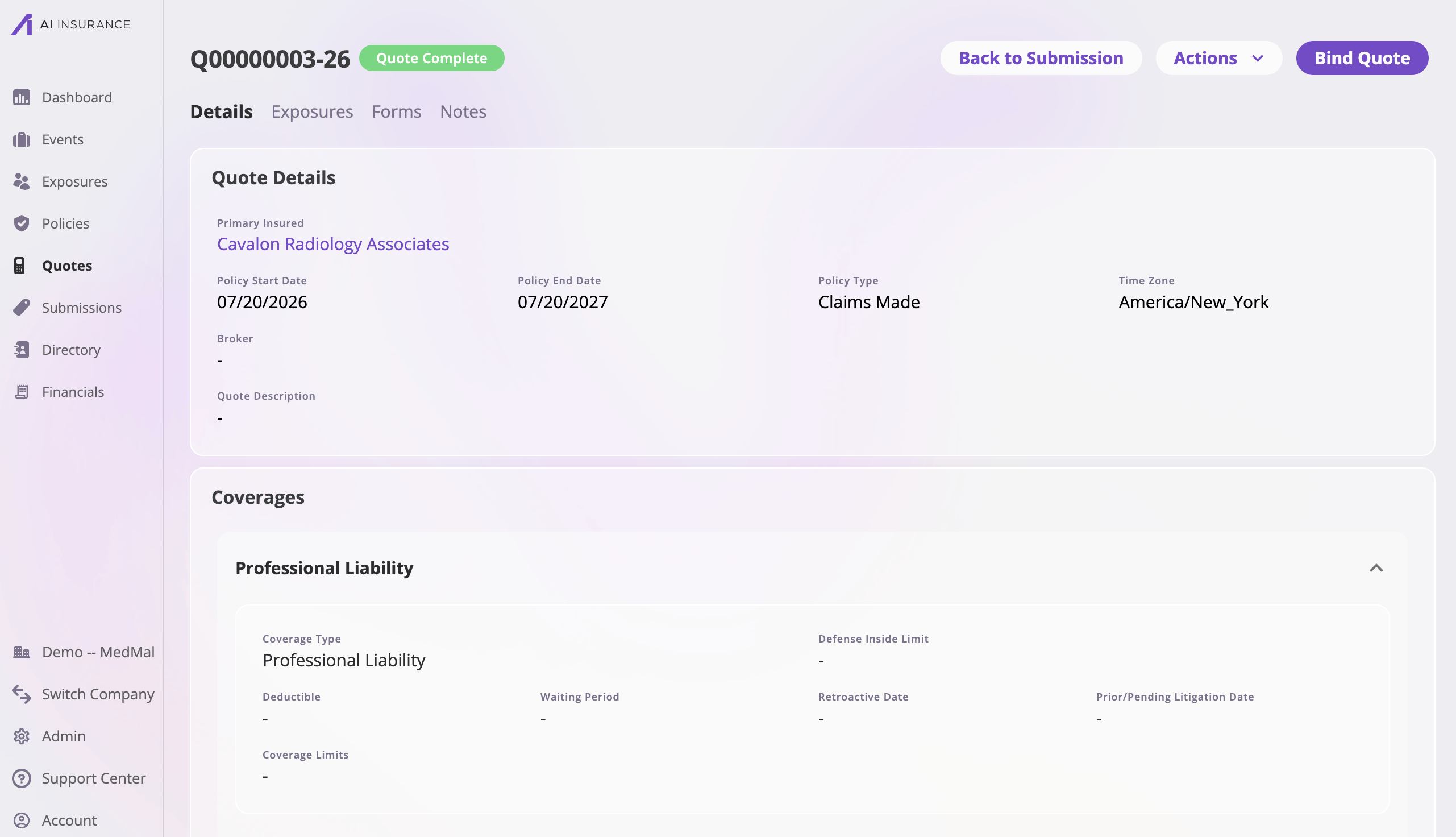
## After the wizard: the quote detail page
Exiting the wizard (or completing the quote) lands on the quote's detail page:
the quote number and status up top, the quote's data below, and tabs for
Exposures, Forms, and Notes (see the [Quotes feature
reference](/app/features/quotes)).
The header adapts to the quote's status:
* **Continue Editing** — on an **In Progress** quote, straight back into the
wizard.
* **Bind Quote** — a standout button on a **Quote Complete** new-business
quote (also available in the Actions menu). This is where
[binding](/app/workflows/binding) picks up.
* **Back to Submission** / **Go to Policy** — jump to the quote's submission,
or (once bound) its policy.
* **Actions** — the status-appropriate set of **Bind Quote**, **Copy Quote**,
**Cancel Quote**, and **Delete Quote** (Cancel appears on completed quotes;
Delete on anything not bound).
Entering the bind flow is not a commitment — if you exit it without binding,
the quote stays as it was. Only an actual bind changes the quote's status to
**Bound to Policy**.
## Quote statuses
A quote moves through these statuses (shown as a tag next to the quote number
everywhere the quote appears):
| Status | Meaning |
| ------------------- | ---------------------------------------------------------------------------- |
| **In Progress** | A draft — still being worked in the wizard. |
| **Quote Complete** | Finished via **Complete Quote**; terms are ready to present. |
| **Bound to Policy** | Bound — the policy now carries the terms. |
| **Canceled** | Withdrawn via **Cancel Quote** (the submission stays open for other quotes). |
| **Archived** | Retired from active consideration. |
## After the wizard: the quote detail page
Exiting the wizard (or completing the quote) lands on the quote's detail page:
the quote number and status up top, the quote's data below, and tabs for
Exposures, Forms, and Notes (see the [Quotes feature
reference](/app/features/quotes)).
The header adapts to the quote's status:
* **Continue Editing** — on an **In Progress** quote, straight back into the
wizard.
* **Bind Quote** — a standout button on a **Quote Complete** new-business
quote (also available in the Actions menu). This is where
[binding](/app/workflows/binding) picks up.
* **Back to Submission** / **Go to Policy** — jump to the quote's submission,
or (once bound) its policy.
* **Actions** — the status-appropriate set of **Bind Quote**, **Copy Quote**,
**Cancel Quote**, and **Delete Quote** (Cancel appears on completed quotes;
Delete on anything not bound).
 ## Next: bind it
When the insured accepts, bind the quote to issue the policy. Continue to
[Binding a quote](/app/workflows/binding).
## Next: bind it
When the insured accepts, bind the quote to issue the policy. Continue to
[Binding a quote](/app/workflows/binding).