> ## Documentation Index
> Fetch the complete documentation index at: https://docs.go.aiinsurance.io/llms.txt
> Use this file to discover all available pages before exploring further.
# Servicing a policy
> Endorse, renew, cancel, and reinstate a bound policy; browse its endorsement history and activity; and view the policy — or your whole book — as of any date.
Once a quote is [bound](/app/workflows/binding), everything that happens to the
resulting [policy](/entities/policy) happens from the policy's detail page.
A policy is never edited directly — every change is recorded as a dated
**transaction** (an endorsement, a cancellation, a reinstatement), and the app
derives what the policy looked like on any day of its term. That one idea
powers everything on this page: the servicing actions, the endorsement
history, the Activity log, and the **View as of** date controls.
## The policy Actions menu
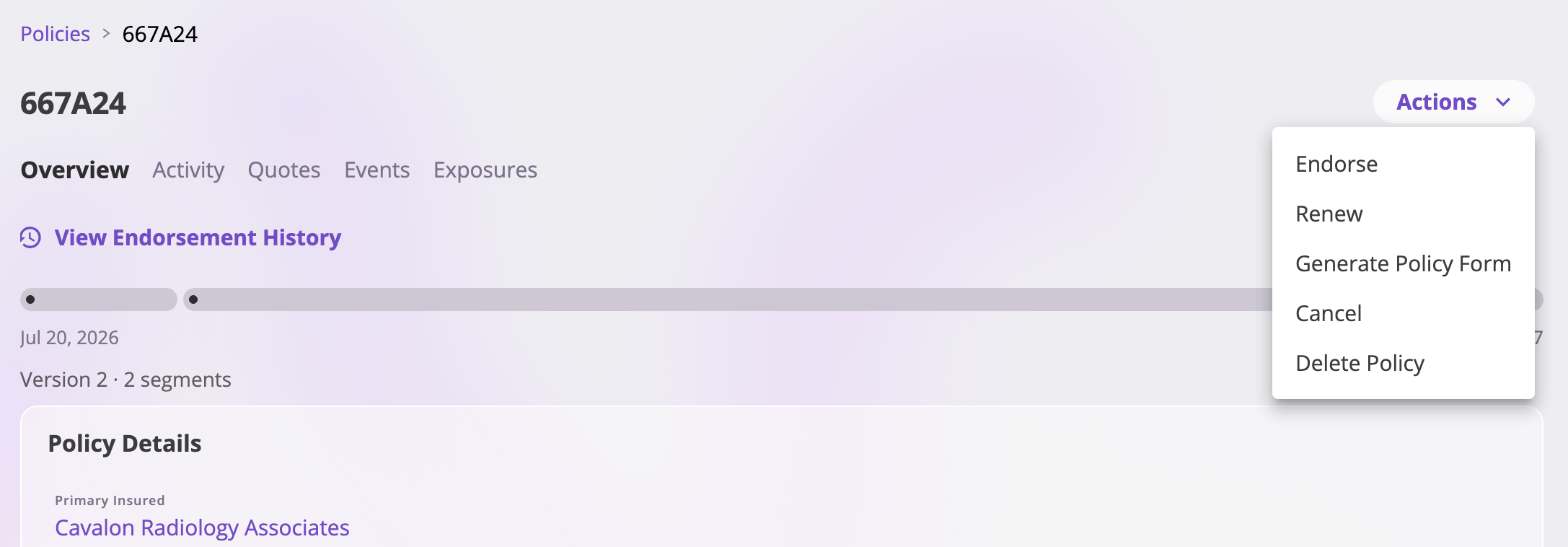
The **Actions** menu at the top right of the policy's detail page collects the
servicing actions:
| Action | Appears when | What it starts |
| ------------------------------------------------------------ | ------------------------------------------------------------------------------ | ------------------------------------------------------------------------------------------------- |
| [Endorse](#endorse-a-mid-term-change) | Always | A mid-term change, effective on a date you choose. |
| [Renew](#renew) | Always | A new policy term, quoted from the expiring policy. |
| [Generate Policy Form](#generate-a-policy-form-as-of-a-date) | Always | Composing documents from the policy as it stood on dates you pick, and saving them to the policy. |
| [Cancel](#cancel) | The policy is currently active and has no cancellation on it yet | Ending coverage from a date you choose. |
| [Reinstate](#reinstate) | The policy carries a cancellation — including one that hasn't taken effect yet | Voiding the cancellation and restoring coverage. |
| [Delete Policy](#delete-a-policy) | Always | Permanently deleting the policy (confirmed first). |
 Each entry follows your permissions — actions your role can't perform don't
appear. Cancel and Reinstate are mutually aware: an active policy offers
**Cancel**; once a cancellation exists (even a future-dated one), **Cancel**
is replaced by **Reinstate**. To move a cancellation to a different date,
reinstate first, then cancel again on the new date.
### How the servicing flows work
Endorse, renew, cancel, and reinstate all follow the same shape:
1. **You start from the policy** — a dialog collects the date(s) the change
needs (renew needs none).
2. **A wizard opens** where the change is worked as its own quote — a full
quote for endorsements and renewals, a short three-step flow for
cancellations and reinstatements. Like any quote, it can be saved and
resumed, and it moves through the same statuses: an endorsement or
renewal goes **In Progress** → **Quote Complete** → **Bound to Policy**;
a cancellation or reinstatement goes straight from **In Progress** to
**Bound to Policy** when confirmed.
3. **The change lands on the policy at the final bind or confirm** — for an
endorsement or renewal, complete the quote, then select **Bind Quote** on
its page and finish the [bind
flow](/app/workflows/binding#the-bind-flow) with **Bind Policy**; for a
cancellation or reinstatement, select **Confirm Cancellation** /
**Confirm Reinstatement** on the wizard's last step. Nothing changes on
the policy until that final action — an in-flight servicing quote can
always be discarded.
## Endorse (a mid-term change)
Use **Endorse** for any change during the policy term: adding or removing an
exposure, changing a limit, correcting a value, updating the insured's
details.
### Choose the dates
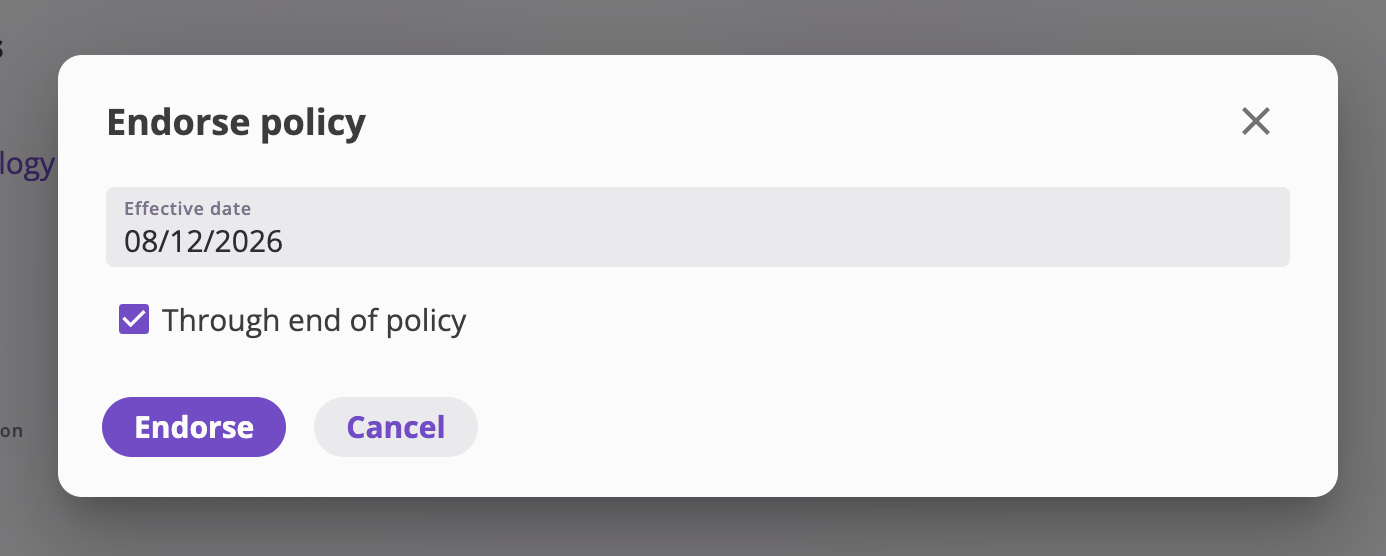
**Actions → Endorse** opens the *Endorse policy* dialog:
* **Effective date** — the day the change starts applying. It must fall within
the policy term (the dialog tells you the term if you pick outside it).
* **Through end of policy** — checked by default: the change applies from the
effective date to the end of the term. Uncheck it to set an explicit
**End date** instead, for a change that only applies for part of the term —
say, an extra insured for the summer months. The end date must be on or
after the effective date and within the term.
Each entry follows your permissions — actions your role can't perform don't
appear. Cancel and Reinstate are mutually aware: an active policy offers
**Cancel**; once a cancellation exists (even a future-dated one), **Cancel**
is replaced by **Reinstate**. To move a cancellation to a different date,
reinstate first, then cancel again on the new date.
### How the servicing flows work
Endorse, renew, cancel, and reinstate all follow the same shape:
1. **You start from the policy** — a dialog collects the date(s) the change
needs (renew needs none).
2. **A wizard opens** where the change is worked as its own quote — a full
quote for endorsements and renewals, a short three-step flow for
cancellations and reinstatements. Like any quote, it can be saved and
resumed, and it moves through the same statuses: an endorsement or
renewal goes **In Progress** → **Quote Complete** → **Bound to Policy**;
a cancellation or reinstatement goes straight from **In Progress** to
**Bound to Policy** when confirmed.
3. **The change lands on the policy at the final bind or confirm** — for an
endorsement or renewal, complete the quote, then select **Bind Quote** on
its page and finish the [bind
flow](/app/workflows/binding#the-bind-flow) with **Bind Policy**; for a
cancellation or reinstatement, select **Confirm Cancellation** /
**Confirm Reinstatement** on the wizard's last step. Nothing changes on
the policy until that final action — an in-flight servicing quote can
always be discarded.
## Endorse (a mid-term change)
Use **Endorse** for any change during the policy term: adding or removing an
exposure, changing a limit, correcting a value, updating the insured's
details.
### Choose the dates
**Actions → Endorse** opens the *Endorse policy* dialog:
* **Effective date** — the day the change starts applying. It must fall within
the policy term (the dialog tells you the term if you pick outside it).
* **Through end of policy** — checked by default: the change applies from the
effective date to the end of the term. Uncheck it to set an explicit
**End date** instead, for a change that only applies for part of the term —
say, an extra insured for the summer months. The end date must be on or
after the effective date and within the term.
 **Effective dates in plain terms:** the effective date is *when the change
applies on the policy*, not when you're entering it. Pick a past date to
record a **backdated correction** — the policy then reads as if the change
had been in force since that date. Pick a future date to **book a change
ahead of time**. Either way the [Activity log](#the-activity-tab) separately
records *when it was filed*, so the audit trail always shows both dates.
### Work the endorsement
Confirming the dialog opens the endorsement in the quote wizard, pre-filled
with the policy exactly as it stands on your effective date. It's the same
wizard as [quoting](/app/workflows/quoting) — the first step is titled
**Endorsement Details**, followed by Exposures, Rating Information, Coverages,
Billing, Forms, and Review — so you change what's changing, re-rate to price
it, and generate any endorsement documents, with everything else carried over.
While an endorsement is unbound, the policy's page shows a persistent banner —
*"You have an endorsement in progress."* — with two actions:
* **Continue** — opens the endorsement quote to keep working it.
* **Discard Edits** — after a confirmation, permanently deletes the
in-progress endorsement (its quote and the submission created with it).
This can't be undone.
### Bind the endorsement
The wizard's last step, **Review and Confirm**, ends with **Complete Quote**,
which marks the endorsement **Quote Complete** and returns you to its detail
page — nothing has touched the policy yet. When the change is ready to apply,
select **Bind Quote** on the completed endorsement's page (the standout
button at the top right, also an **Actions** menu entry). It enters the same
short [bind flow](/app/workflows/binding#the-bind-flow) as new business
(**Policy Details**, **Policy Forms**, then **Review and Confirm**), finished
with **Bind Policy**.
There's no rush between completing and binding. Like a new-business quote,
an endorsement can be saved mid-wizard and resumed later (**Continue
Editing** on its page while it's In Progress), completed, and bound
whenever the change is ready — the policy is untouched until **Bind
Policy**. If the endorsement shouldn't happen after all, use the policy
banner's **Discard Edits** to delete it.
### What binding it does
Selecting **Bind Policy** applies the change to the policy:
* The app works out exactly which fields changed and records them as a new
**version** of the same policy, effective over the date window you chose.
Outside that window the policy is untouched — an endorsement effective
April 1 changes nothing about January–March.
* The endorsement quote's status becomes **Bound to Policy**, the banner
clears, and the endorsement appears in the policy's [endorsement
history](#endorsement-history) and on its [Activity tab](#the-activity-tab).
* The policy keeps one continuous record: viewing it **as of** a date before
the effective date shows the old values; on or after, the new ones.
## Renew
**Actions → Renew** starts the next policy term. There's no date dialog — the
renewal opens straight into the full quote wizard, seeded from the expiring
policy's latest state, with the new term dates defaulted so the new term
starts where the expiring one ends (all editable in the flow). From there it's
a normal quote: adjust exposures and coverages, re-rate, generate forms.
To issue the new term, finish the wizard the same way as an
[endorsement](#bind-the-endorsement): select **Complete Quote** on the final
**Review and Confirm** step, then **Bind Quote** on the completed renewal
quote's page, and work the short
[bind flow](/app/workflows/binding#the-bind-flow) — **Policy Details** (the
new term's policy number), **Policy Forms**, and **Review and Confirm** —
ending with **Bind Policy**. (Like any quote, a renewal can also be saved
mid-wizard and picked up later — nothing is issued until **Bind Policy**.)
**Bind Policy** creates a **new policy** — its own policy number, term, and
history — linked to the term it renews; the renewal quote's status becomes
**Bound to Policy** and you land on the new policy's detail page. The new
term may start on or after the expiring term's end date, but the two terms
can't overlap. The link shows on both policies' Overview tabs:
* **Renewed From** — on the new policy, linking back to the expiring one.
* **Renewed Into** — on the old policy, linking forward (with a **More** link
if several renewal terms trace back to it).
This renewal chain is how you walk an account across years of terms.
## Cancel
**Actions → Cancel** ends coverage mid-term. It's offered while the policy is
currently active and has no cancellation recorded.
The *Cancel policy* dialog asks for a single **Cancellation date** — the
day coverage ends. It must fall within the policy term. Selecting
**Continue** opens the cancellation flow (nothing is cancelled yet).
The cancellation flow's **Billing** step shows the financial effect. Each
charge on the policy is recalculated for you server-side to **what that
charge had earned by the cancellation date** — the insured owes only for the
coverage they had, and a charge your company models as non-refundable
(fully earned at inception) stays whole. Existing charges are not yours to
edit here; what you can do is **add** one — a short-rate penalty, a
cancellation fee — which is charged in full on the cancellation date. If a
charge itself is wrong, endorse the policy first and then cancel.
Generate the cancellation notices from your company's policy form
templates — the same forms tooling as everywhere else.
A final read-through, finished with **Confirm Cancellation**.
Once confirmed:
* The policy's status is **Cancelled** from the cancellation date through the
end of the term. For dates *before* the cancellation date it still reads as
active — the coverage that existed isn't erased.
* A **future** cancellation date leaves the policy active today with a pending
cancellation booked; it takes effect automatically when the date arrives.
(While one is pending you can't stack a second cancellation — reinstate
first to change the date.)
* The cancellation appears on the Activity tab like any other transaction.
## Reinstate
**Actions → Reinstate** undoes a cancellation — offered whenever the latest
state of the policy carries one, whether it has already taken effect or is
still pending.
The *Reinstate policy* dialog explains what will happen and shows the
**Reinstatement date**, pre-filled with the policy's cancellation date and
locked to it. That's deliberate: reinstatement applies **as of the
cancellation date**, voiding the cancellation so coverage runs uninterrupted
through the end of the term, and the **whole pre-cancellation pricing is
restored** — every charge, not just the premium: taxes, fees and commissions
all come back at the amounts the policy carried before it was cancelled.
A reinstatement can't leave a gap in coverage — you can't cancel June 15 and
reinstate "from July 1", leaving two uncovered weeks. If coverage genuinely
lapsed and should restart later, that's a new term: quote it as new business
or a [renewal](#renew) instead.
**Continue** opens the reinstatement flow — the same three steps as
cancellation (a **Billing** step for any reinstatement fees, **Reinstatement
Forms**, then **Review and Confirm**, finished with **Confirm
Reinstatement**). As on a cancellation, the Billing step is for **adding** a
charge; the restored charges are the server's and are not editable there.
Once confirmed, the cancellation is voided: the policy reads as continuously
active, as if it had never been cancelled. Both the cancellation and the
reinstatement remain visible on the [Activity tab](#the-activity-tab) — the
outcome is clean, the audit trail is complete.
## The policy's history
### The Overview timeline
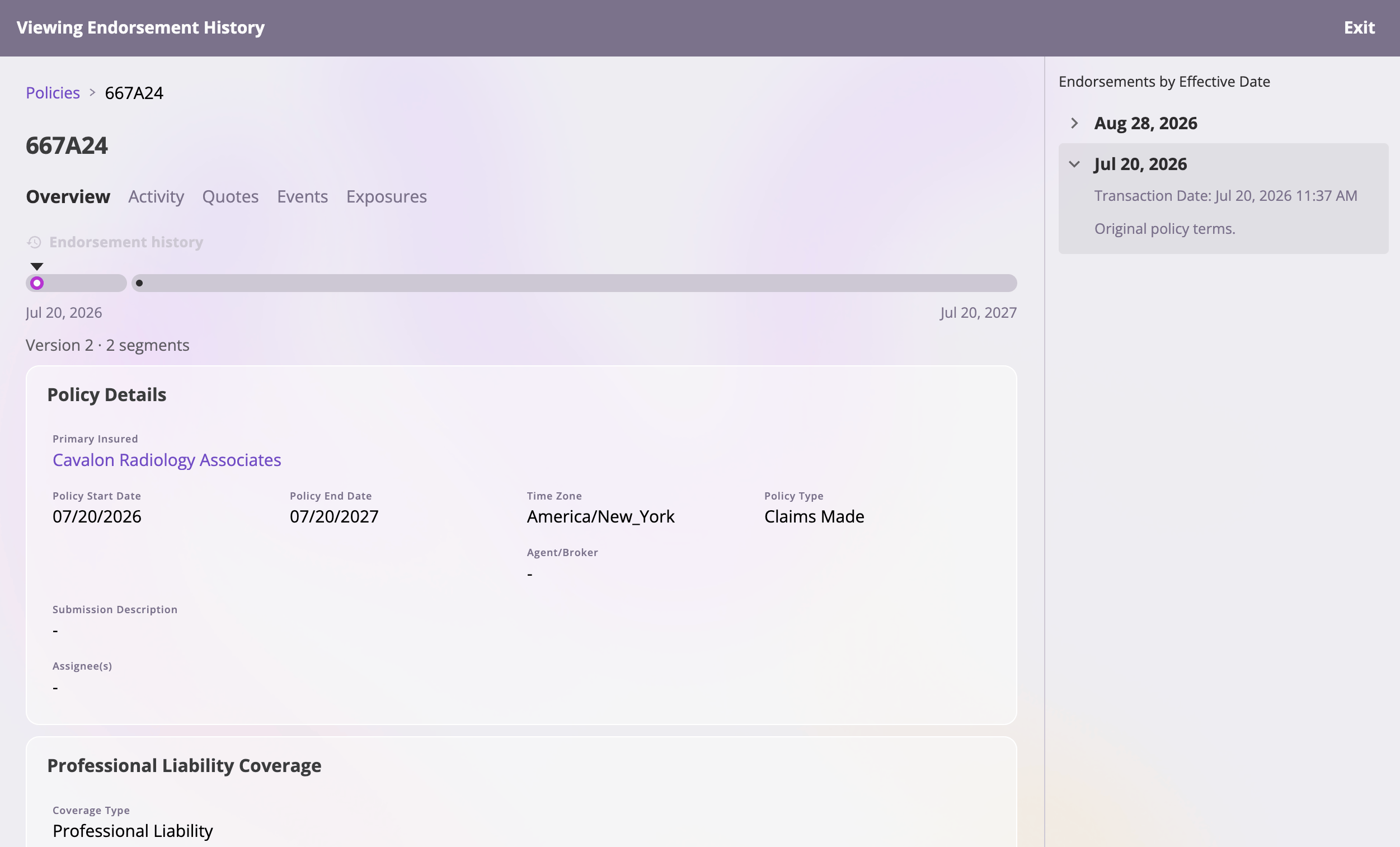
The policy's **Overview** tab opens with a timeline bar spanning the term. The
bar is split into a pill per period during which the policy's values were
constant, dots mark the effective date of every change (inception included),
and the purple fill shows how much of the term has elapsed. Below it, a
caption reports the current version and period count, and the fields shown on
the page are the policy **as of the date in view** — today, by default.
**Effective dates in plain terms:** the effective date is *when the change
applies on the policy*, not when you're entering it. Pick a past date to
record a **backdated correction** — the policy then reads as if the change
had been in force since that date. Pick a future date to **book a change
ahead of time**. Either way the [Activity log](#the-activity-tab) separately
records *when it was filed*, so the audit trail always shows both dates.
### Work the endorsement
Confirming the dialog opens the endorsement in the quote wizard, pre-filled
with the policy exactly as it stands on your effective date. It's the same
wizard as [quoting](/app/workflows/quoting) — the first step is titled
**Endorsement Details**, followed by Exposures, Rating Information, Coverages,
Billing, Forms, and Review — so you change what's changing, re-rate to price
it, and generate any endorsement documents, with everything else carried over.
While an endorsement is unbound, the policy's page shows a persistent banner —
*"You have an endorsement in progress."* — with two actions:
* **Continue** — opens the endorsement quote to keep working it.
* **Discard Edits** — after a confirmation, permanently deletes the
in-progress endorsement (its quote and the submission created with it).
This can't be undone.
### Bind the endorsement
The wizard's last step, **Review and Confirm**, ends with **Complete Quote**,
which marks the endorsement **Quote Complete** and returns you to its detail
page — nothing has touched the policy yet. When the change is ready to apply,
select **Bind Quote** on the completed endorsement's page (the standout
button at the top right, also an **Actions** menu entry). It enters the same
short [bind flow](/app/workflows/binding#the-bind-flow) as new business
(**Policy Details**, **Policy Forms**, then **Review and Confirm**), finished
with **Bind Policy**.
There's no rush between completing and binding. Like a new-business quote,
an endorsement can be saved mid-wizard and resumed later (**Continue
Editing** on its page while it's In Progress), completed, and bound
whenever the change is ready — the policy is untouched until **Bind
Policy**. If the endorsement shouldn't happen after all, use the policy
banner's **Discard Edits** to delete it.
### What binding it does
Selecting **Bind Policy** applies the change to the policy:
* The app works out exactly which fields changed and records them as a new
**version** of the same policy, effective over the date window you chose.
Outside that window the policy is untouched — an endorsement effective
April 1 changes nothing about January–March.
* The endorsement quote's status becomes **Bound to Policy**, the banner
clears, and the endorsement appears in the policy's [endorsement
history](#endorsement-history) and on its [Activity tab](#the-activity-tab).
* The policy keeps one continuous record: viewing it **as of** a date before
the effective date shows the old values; on or after, the new ones.
## Renew
**Actions → Renew** starts the next policy term. There's no date dialog — the
renewal opens straight into the full quote wizard, seeded from the expiring
policy's latest state, with the new term dates defaulted so the new term
starts where the expiring one ends (all editable in the flow). From there it's
a normal quote: adjust exposures and coverages, re-rate, generate forms.
To issue the new term, finish the wizard the same way as an
[endorsement](#bind-the-endorsement): select **Complete Quote** on the final
**Review and Confirm** step, then **Bind Quote** on the completed renewal
quote's page, and work the short
[bind flow](/app/workflows/binding#the-bind-flow) — **Policy Details** (the
new term's policy number), **Policy Forms**, and **Review and Confirm** —
ending with **Bind Policy**. (Like any quote, a renewal can also be saved
mid-wizard and picked up later — nothing is issued until **Bind Policy**.)
**Bind Policy** creates a **new policy** — its own policy number, term, and
history — linked to the term it renews; the renewal quote's status becomes
**Bound to Policy** and you land on the new policy's detail page. The new
term may start on or after the expiring term's end date, but the two terms
can't overlap. The link shows on both policies' Overview tabs:
* **Renewed From** — on the new policy, linking back to the expiring one.
* **Renewed Into** — on the old policy, linking forward (with a **More** link
if several renewal terms trace back to it).
This renewal chain is how you walk an account across years of terms.
## Cancel
**Actions → Cancel** ends coverage mid-term. It's offered while the policy is
currently active and has no cancellation recorded.
The *Cancel policy* dialog asks for a single **Cancellation date** — the
day coverage ends. It must fall within the policy term. Selecting
**Continue** opens the cancellation flow (nothing is cancelled yet).
The cancellation flow's **Billing** step shows the financial effect. Each
charge on the policy is recalculated for you server-side to **what that
charge had earned by the cancellation date** — the insured owes only for the
coverage they had, and a charge your company models as non-refundable
(fully earned at inception) stays whole. Existing charges are not yours to
edit here; what you can do is **add** one — a short-rate penalty, a
cancellation fee — which is charged in full on the cancellation date. If a
charge itself is wrong, endorse the policy first and then cancel.
Generate the cancellation notices from your company's policy form
templates — the same forms tooling as everywhere else.
A final read-through, finished with **Confirm Cancellation**.
Once confirmed:
* The policy's status is **Cancelled** from the cancellation date through the
end of the term. For dates *before* the cancellation date it still reads as
active — the coverage that existed isn't erased.
* A **future** cancellation date leaves the policy active today with a pending
cancellation booked; it takes effect automatically when the date arrives.
(While one is pending you can't stack a second cancellation — reinstate
first to change the date.)
* The cancellation appears on the Activity tab like any other transaction.
## Reinstate
**Actions → Reinstate** undoes a cancellation — offered whenever the latest
state of the policy carries one, whether it has already taken effect or is
still pending.
The *Reinstate policy* dialog explains what will happen and shows the
**Reinstatement date**, pre-filled with the policy's cancellation date and
locked to it. That's deliberate: reinstatement applies **as of the
cancellation date**, voiding the cancellation so coverage runs uninterrupted
through the end of the term, and the **whole pre-cancellation pricing is
restored** — every charge, not just the premium: taxes, fees and commissions
all come back at the amounts the policy carried before it was cancelled.
A reinstatement can't leave a gap in coverage — you can't cancel June 15 and
reinstate "from July 1", leaving two uncovered weeks. If coverage genuinely
lapsed and should restart later, that's a new term: quote it as new business
or a [renewal](#renew) instead.
**Continue** opens the reinstatement flow — the same three steps as
cancellation (a **Billing** step for any reinstatement fees, **Reinstatement
Forms**, then **Review and Confirm**, finished with **Confirm
Reinstatement**). As on a cancellation, the Billing step is for **adding** a
charge; the restored charges are the server's and are not editable there.
Once confirmed, the cancellation is voided: the policy reads as continuously
active, as if it had never been cancelled. Both the cancellation and the
reinstatement remain visible on the [Activity tab](#the-activity-tab) — the
outcome is clean, the audit trail is complete.
## The policy's history
### The Overview timeline
The policy's **Overview** tab opens with a timeline bar spanning the term. The
bar is split into a pill per period during which the policy's values were
constant, dots mark the effective date of every change (inception included),
and the purple fill shows how much of the term has elapsed. Below it, a
caption reports the current version and period count, and the fields shown on
the page are the policy **as of the date in view** — today, by default.
 ### Endorsement history
Select **View Endorsement History** (or click any dot or pill on the timeline)
to browse how the policy evolved:
* A full-width **Viewing Endorsement History** banner takes over the page —
the policy is read-only while browsing (the Actions menu is hidden) — with
**Exit** to return to the live, current-date view.
* A side rail lists **Endorsements by Effective Date**, newest first, the
original policy at the bottom. Expanding an entry shows exactly which fields
that change touched; clicking a date shows the policy **as of that date**,
with the fields that endorsement changed highlighted on the page.
### Endorsement history
Select **View Endorsement History** (or click any dot or pill on the timeline)
to browse how the policy evolved:
* A full-width **Viewing Endorsement History** banner takes over the page —
the policy is read-only while browsing (the Actions menu is hidden) — with
**Exit** to return to the live, current-date view.
* A side rail lists **Endorsements by Effective Date**, newest first, the
original policy at the bottom. Expanding an entry shows exactly which fields
that change touched; clicking a date shows the policy **as of that date**,
with the fields that endorsement changed highlighted on the page.
 ### The Activity tab
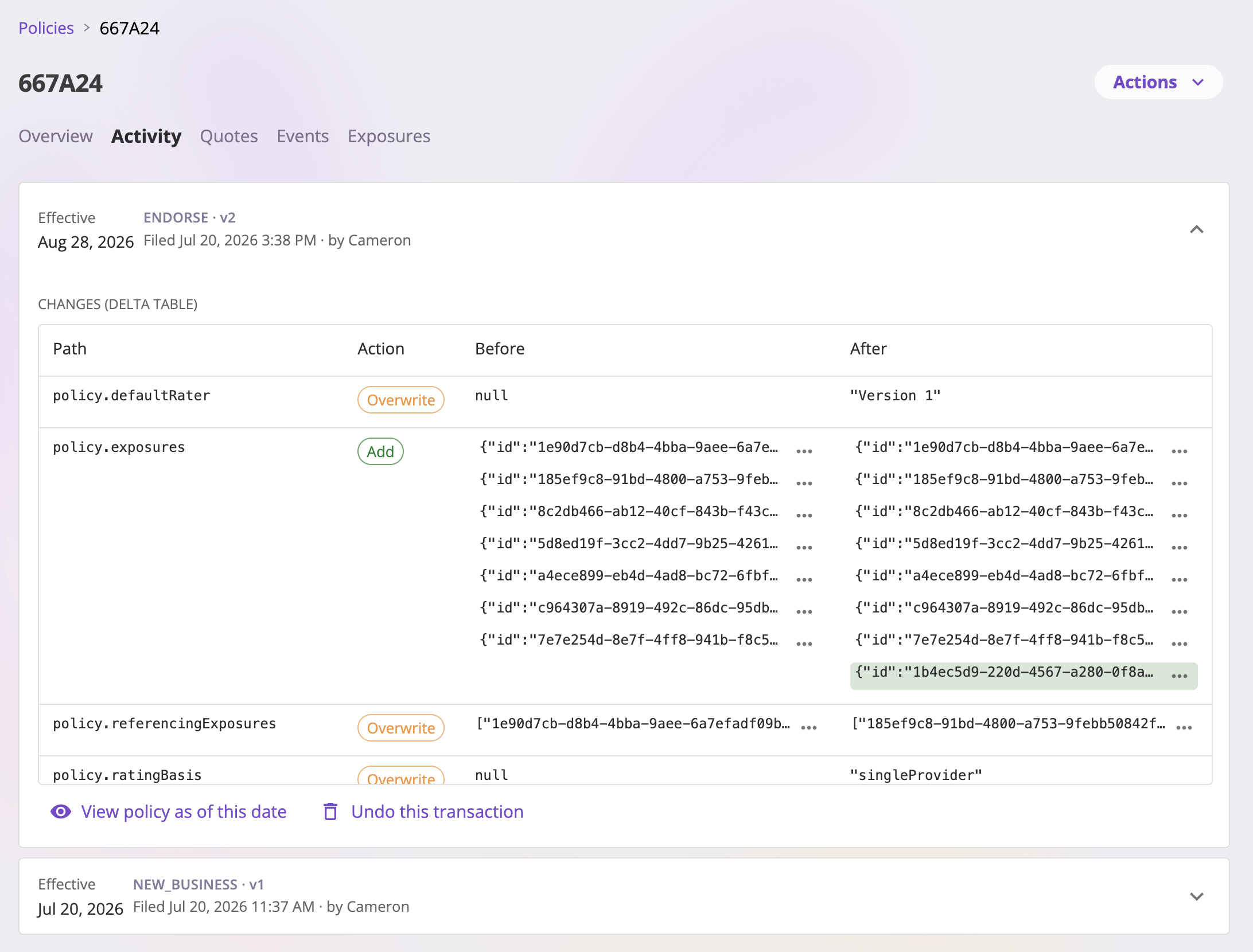
The **Activity** tab is the policy's transaction log — every transaction,
newest first. Each row shows:
* **Effective** — where on the term the change applies.
* The **transaction type and version** it produced (new business, endorsement,
cancellation, …).
* **Filed** — when it was recorded, and by whom.
Expanding a row reveals the exact changes the transaction recorded, as a table
of field-by-field values with their date ranges. Two actions sit under the
details:
* **View policy as of this date** — jumps to the Overview showing the policy
as of the transaction's effective date.
* **Undo this transaction** — on the **most recent** transaction only.
After a confirmation, it reverts the policy to its previous version. Older
transactions can't be undone from the middle of the history — and an undo
is blocked (with the reason shown) when other records, like invoices,
already depend on that transaction.
### The Activity tab
The **Activity** tab is the policy's transaction log — every transaction,
newest first. Each row shows:
* **Effective** — where on the term the change applies.
* The **transaction type and version** it produced (new business, endorsement,
cancellation, …).
* **Filed** — when it was recorded, and by whom.
Expanding a row reveals the exact changes the transaction recorded, as a table
of field-by-field values with their date ranges. Two actions sit under the
details:
* **View policy as of this date** — jumps to the Overview showing the policy
as of the transaction's effective date.
* **Undo this transaction** — on the **most recent** transaction only.
After a confirmation, it reverts the policy to its previous version. Older
transactions can't be undone from the middle of the history — and an undo
is blocked (with the reason shown) when other records, like invoices,
already depend on that transaction.
 **Effective vs. Filed are two different clocks.** *Effective* is where the
change lands on the policy term; *Filed* is when it entered the system. A
correction filed in June can be effective March 15 — the policy reads
correctly from March, and the log still shows the decision was made in June.
(API users: the same model is documented in [Effective Dates & the Policy
Timeline](/api-reference/policies/effective-dates).)
## Viewing the book as of a date
Because policies are date-resolved, you can view them as of **any** date — not
just today.
### The Policies list
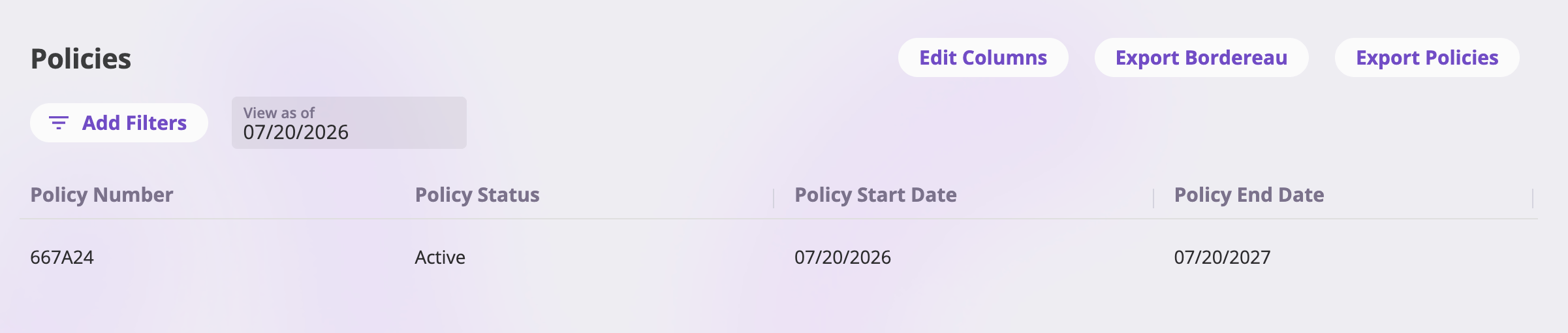
The [Policies list](/app/features/policies) has a **View as of** date field in
its toolbar. It defaults to today; pick another date and every row re-resolves
to what that policy looked like on that date — statuses, limits, exposures,
premium — which is how you answer "what did our book look like on June 30?".
While viewing a non-today date, a **Today** link resets the lens. Your chosen
date sticks for the browser tab as you navigate away and back, and it carries
into [list exports](/app/features/exports-saved-views), so an exported book
matches what's on screen.
**Effective vs. Filed are two different clocks.** *Effective* is where the
change lands on the policy term; *Filed* is when it entered the system. A
correction filed in June can be effective March 15 — the policy reads
correctly from March, and the log still shows the decision was made in June.
(API users: the same model is documented in [Effective Dates & the Policy
Timeline](/api-reference/policies/effective-dates).)
## Viewing the book as of a date
Because policies are date-resolved, you can view them as of **any** date — not
just today.
### The Policies list
The [Policies list](/app/features/policies) has a **View as of** date field in
its toolbar. It defaults to today; pick another date and every row re-resolves
to what that policy looked like on that date — statuses, limits, exposures,
premium — which is how you answer "what did our book look like on June 30?".
While viewing a non-today date, a **Today** link resets the lens. Your chosen
date sticks for the browser tab as you navigate away and back, and it carries
into [list exports](/app/features/exports-saved-views), so an exported book
matches what's on screen.
 ### A single policy
On a policy's detail page, the date in view is driven by the timeline, the
endorsement history rail, or an Activity row's **View policy as of this
date** — and it survives switching between the policy's tabs, so Overview and
Activity stay on the same date while you investigate.
### Generate a policy form as of a date
**Actions → Generate Policy Form** opens the policy's **Generate Policy Forms**
surface, which asks for a date within the policy term before it will generate
anything — there's no default, because the answer changes with the date. Each
document fills its values from the policy exactly as it stood on the date you
pick, so a certificate generated "as of March 1" reflects March's coverage even
if the policy has been endorsed since. That makes the same template at two dates
two different documents, and the surface lets you compose both.
**Save** attaches the composed forms to the policy and lists them on its
[Forms tab](/app/features/forms#the-forms-tab-on-a-policy), alongside the forms
of every quote bound into it. A saved policy form is a settled dated snapshot:
preview and download only. Full walkthrough:
[Generating forms](/app/features/forms#generating-on-a-policy).
## Policy status, in dates
A policy's status is **date-scoped** — the same policy can be active for June
and cancelled for July:
| Status | Meaning |
| ------------- | ------------------------------------------------------------------------------------------------------ |
| **Active** | Coverage is in force for the date in view. |
| **Cancelled** | Coverage ended on or before the date in view — from the cancellation date through the end of the term. |
The status shown on the Policies list is the status **as of the list's "View
as of" date**. A policy whose term has simply ended isn't marked with a
special status — its term dates tell you it has expired, and
[renewal](#renew) is how the account continues.
## Delete a policy
**Actions → Delete Policy** permanently deletes the policy after a
confirmation — including the bound quote it was created from. There is no
undo. The delete is refused (with the reason shown in the dialog) when other
records still reference the policy.
Deleting is for records that should never have existed. If the coverage
simply ended, [cancel](#cancel) instead — cancellation keeps the full,
auditable history and is reversible via [reinstatement](#reinstate); if a
recent change was a mistake, [undo the latest
transaction](#the-activity-tab) from the Activity tab.
### A single policy
On a policy's detail page, the date in view is driven by the timeline, the
endorsement history rail, or an Activity row's **View policy as of this
date** — and it survives switching between the policy's tabs, so Overview and
Activity stay on the same date while you investigate.
### Generate a policy form as of a date
**Actions → Generate Policy Form** opens the policy's **Generate Policy Forms**
surface, which asks for a date within the policy term before it will generate
anything — there's no default, because the answer changes with the date. Each
document fills its values from the policy exactly as it stood on the date you
pick, so a certificate generated "as of March 1" reflects March's coverage even
if the policy has been endorsed since. That makes the same template at two dates
two different documents, and the surface lets you compose both.
**Save** attaches the composed forms to the policy and lists them on its
[Forms tab](/app/features/forms#the-forms-tab-on-a-policy), alongside the forms
of every quote bound into it. A saved policy form is a settled dated snapshot:
preview and download only. Full walkthrough:
[Generating forms](/app/features/forms#generating-on-a-policy).
## Policy status, in dates
A policy's status is **date-scoped** — the same policy can be active for June
and cancelled for July:
| Status | Meaning |
| ------------- | ------------------------------------------------------------------------------------------------------ |
| **Active** | Coverage is in force for the date in view. |
| **Cancelled** | Coverage ended on or before the date in view — from the cancellation date through the end of the term. |
The status shown on the Policies list is the status **as of the list's "View
as of" date**. A policy whose term has simply ended isn't marked with a
special status — its term dates tell you it has expired, and
[renewal](#renew) is how the account continues.
## Delete a policy
**Actions → Delete Policy** permanently deletes the policy after a
confirmation — including the bound quote it was created from. There is no
undo. The delete is refused (with the reason shown in the dialog) when other
records still reference the policy.
Deleting is for records that should never have existed. If the coverage
simply ended, [cancel](#cancel) instead — cancellation keeps the full,
auditable history and is reversible via [reinstatement](#reinstate); if a
recent change was a mistake, [undo the latest
transaction](#the-activity-tab) from the Activity tab.