> ## Documentation Index
> Fetch the complete documentation index at: https://docs.go.aiinsurance.io/llms.txt
> Use this file to discover all available pages before exploring further.
# Approving and Unapproving Invoices
> Approve or unapprove invoices within configured authority
Approve an invoice when you have reviewed its posted amount and authorized a
later payment. Remove approval when an unpaid invoice should return to review.
Approval is separate from payment status: an invoice can be **Owed** and either
approved or not approved.
## Check Your Authority
With custom approval rules off, every user can approve invoices. With custom
rules on, your assigned role must allow the invoice's Type and total amount.
The action remains visible when you lack authority, but is disabled and
explains why.
See [Approvals](/financials/approvals) for the authority model and [Configuring
Approval Rules](/financials/guides/configuring-approval-rules) for the
administrative task.
## Approve One Invoice
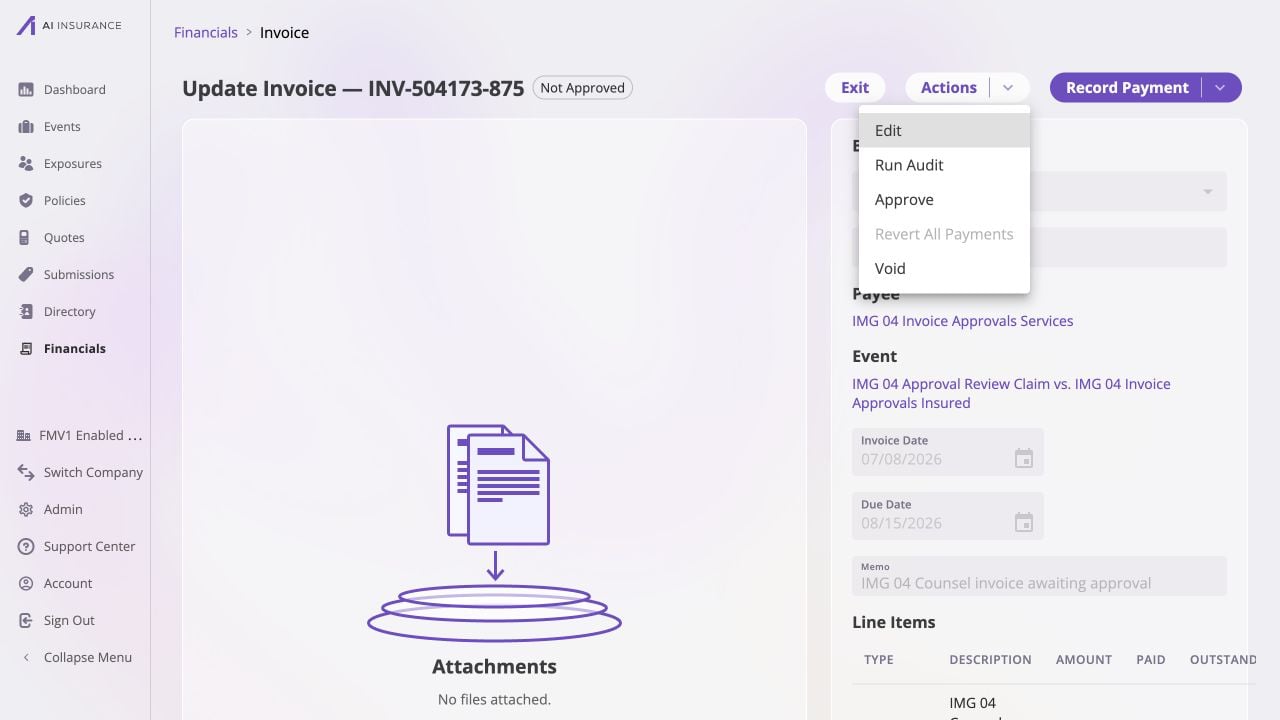
1. Open an invoice from a company- or event-scoped Financials list.
2. Confirm the Type, payee, line items, Total, event, and supporting files.
3. Select **Actions → Approve**.
4. Check that the header badge changes from **Not Approved** to **Approved**.
 The invoice stays Owed; approval does not record a payment. When an authorized
user records a payment against an unapproved invoice, the app can also approve
it implicitly as part of that payment.
## Approve Several Invoices
1. In a Financials invoice list, select the rows you reviewed.
2. Select **Actions → Approve**.
3. Review the **Approve Invoices** confirmation. It separates invoices that
will be approved from ones already approved and skipped.
4. Select **Approve**.
The invoice stays Owed; approval does not record a payment. When an authorized
user records a payment against an unapproved invoice, the app can also approve
it implicitly as part of that payment.
## Approve Several Invoices
1. In a Financials invoice list, select the rows you reviewed.
2. Select **Actions → Approve**.
3. Review the **Approve Invoices** confirmation. It separates invoices that
will be approved from ones already approved and skipped.
4. Select **Approve**.
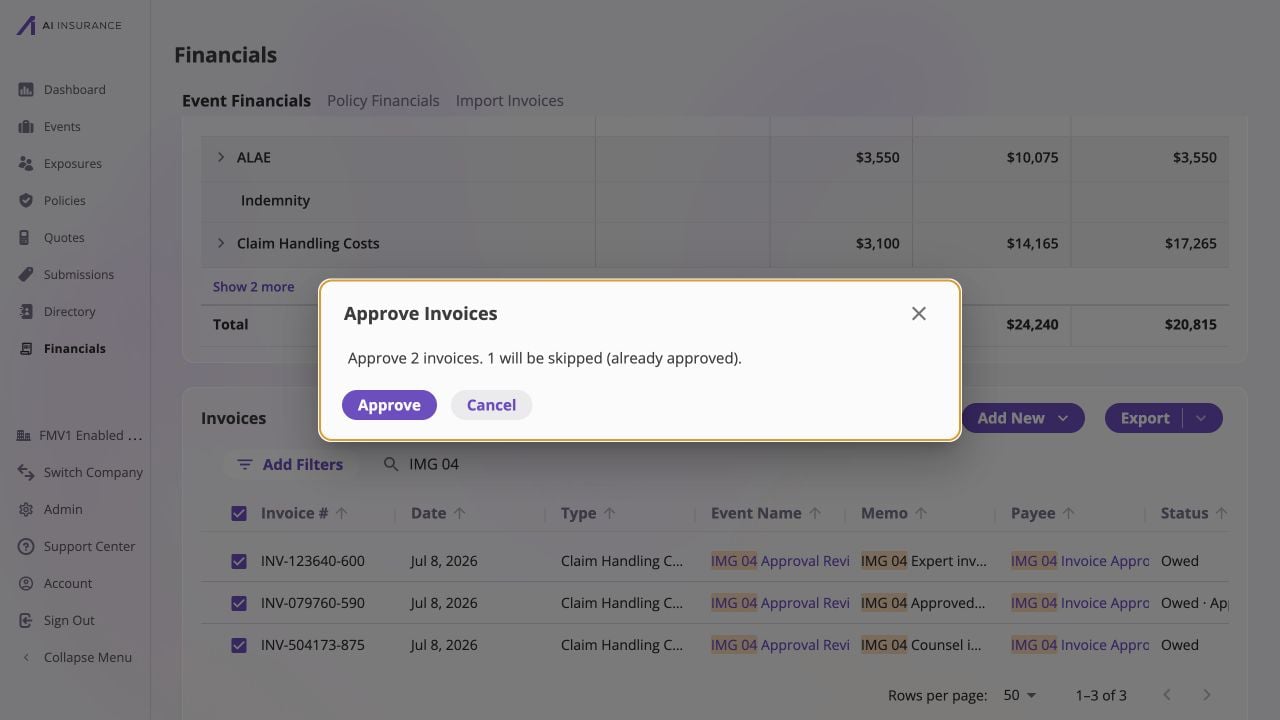 Bulk approval is available only when you have authority over every eligible
invoice in the selection. Remove a row outside your limit or ask a user with the
required role to approve it.
## Remove Approval
Approval can be removed only while no payments are recorded.
1. Open an approved Owed invoice.
2. Select **Actions → Unapprove**.
3. Confirm that the badge changes to **Not Approved**.
Bulk approval is available only when you have authority over every eligible
invoice in the selection. Remove a row outside your limit or ask a user with the
required role to approve it.
## Remove Approval
Approval can be removed only while no payments are recorded.
1. Open an approved Owed invoice.
2. Select **Actions → Unapprove**.
3. Confirm that the badge changes to **Not Approved**.
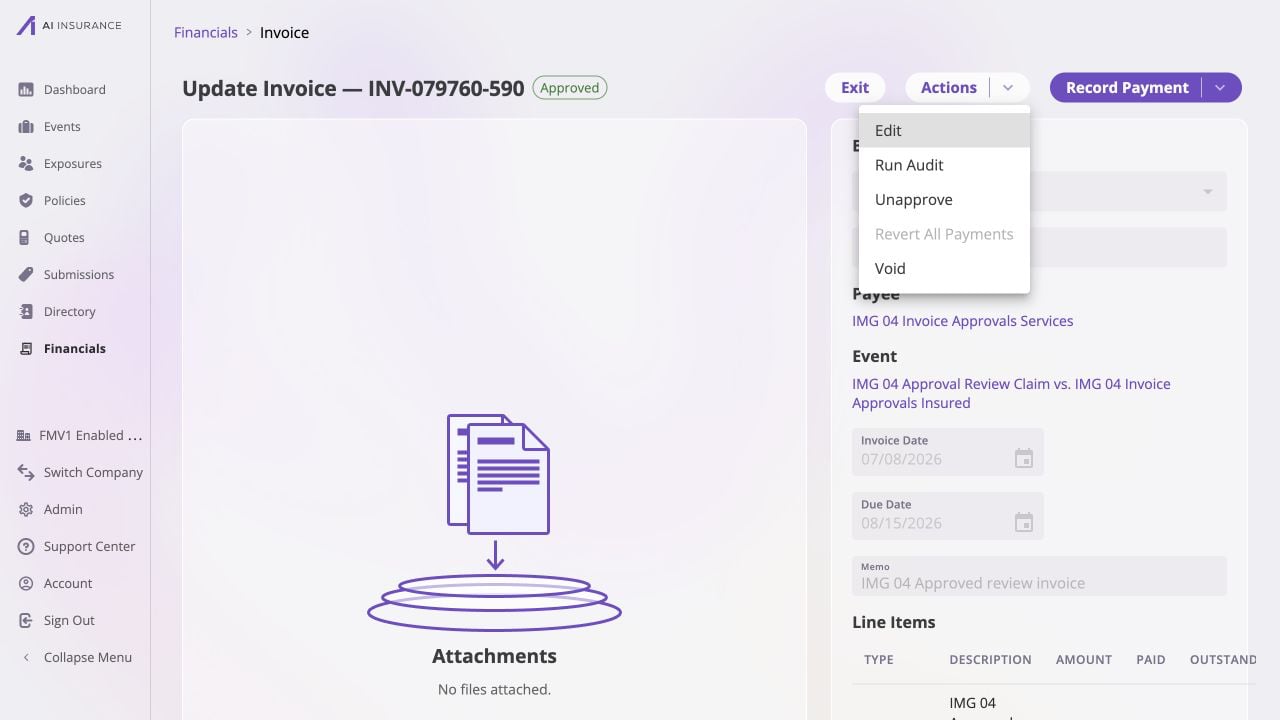 If the invoice is Partially Paid or Paid, **Unapprove** is disabled. Hover or
focus it to see the explanation. To remove the approval:
1. Select **Actions → Revert All Payments**.
2. Review the payment count and total, then confirm **Revert All Payments**.
3. After the invoice returns to Owed, select **Actions → Unapprove**.
Reverting payments does not remove approval. It only makes approval revocable
again. The separate **Unapprove** action is required.
After any approval change, verify both axes: the invoice's payment-derived
status and the approval badge. [The Invoice
Lifecycle](/financials/lifecycle#status-is-derived-not-set) explains why they
change independently.
If the invoice is Partially Paid or Paid, **Unapprove** is disabled. Hover or
focus it to see the explanation. To remove the approval:
1. Select **Actions → Revert All Payments**.
2. Review the payment count and total, then confirm **Revert All Payments**.
3. After the invoice returns to Owed, select **Actions → Unapprove**.
Reverting payments does not remove approval. It only makes approval revocable
again. The separate **Unapprove** action is required.
After any approval change, verify both axes: the invoice's payment-derived
status and the approval badge. [The Invoice
Lifecycle](/financials/lifecycle#status-is-derived-not-set) explains why they
change independently.