> ## Documentation Index
> Fetch the complete documentation index at: https://docs.go.aiinsurance.io/llms.txt
> Use this file to discover all available pages before exploring further.
# Bill Review
> Write your billing standards, review an invoice against them, and read the findings
A bill review checks one invoice against your company's billing standards
before you pay it. You write the standards in plain english, the review reads
the invoice against them, and anything that looks wrong comes back as a
finding on the invoice itself.
A bill review never blocks anything. It does not hold up approval, it does
not hold up payment, and a flagged invoice can still be approved and paid. The
findings are a prompt for a person to look, not a gate.
**Before you begin:** bill review is configured once for the whole company
and then run per invoice. You need permission to manage company payments to
write standards or start a review. Nothing needs to be true of the invoice
first — a draft, an approved invoice, and an already-paid invoice can all be
reviewed. Only a voided or deleted invoice cannot.
## How a Bill Review Works
A review moves through three visible stages:
1. **Your standards** live on **Admin → Financials → Bill Review** and apply
to every invoice in the company.
2. **A run** happens on one invoice, started by you or automatically after an
invoice is parsed from an upload.
3. **The findings** come back on that invoice — a banner at the top and a flag
beside each field the review has something to say about.
## Writing Your Billing Standards
Open **Admin → Financials → Bill Review**. The **Bill review rules**
section at the top of the tab is where the standards live.
Type your restrictions into the **Add rules** box the way you would explain
them to a new employee, not the way they appear in your outside-counsel
guidelines. Write everything in one go — the system splits what you type into
separate rules for you.
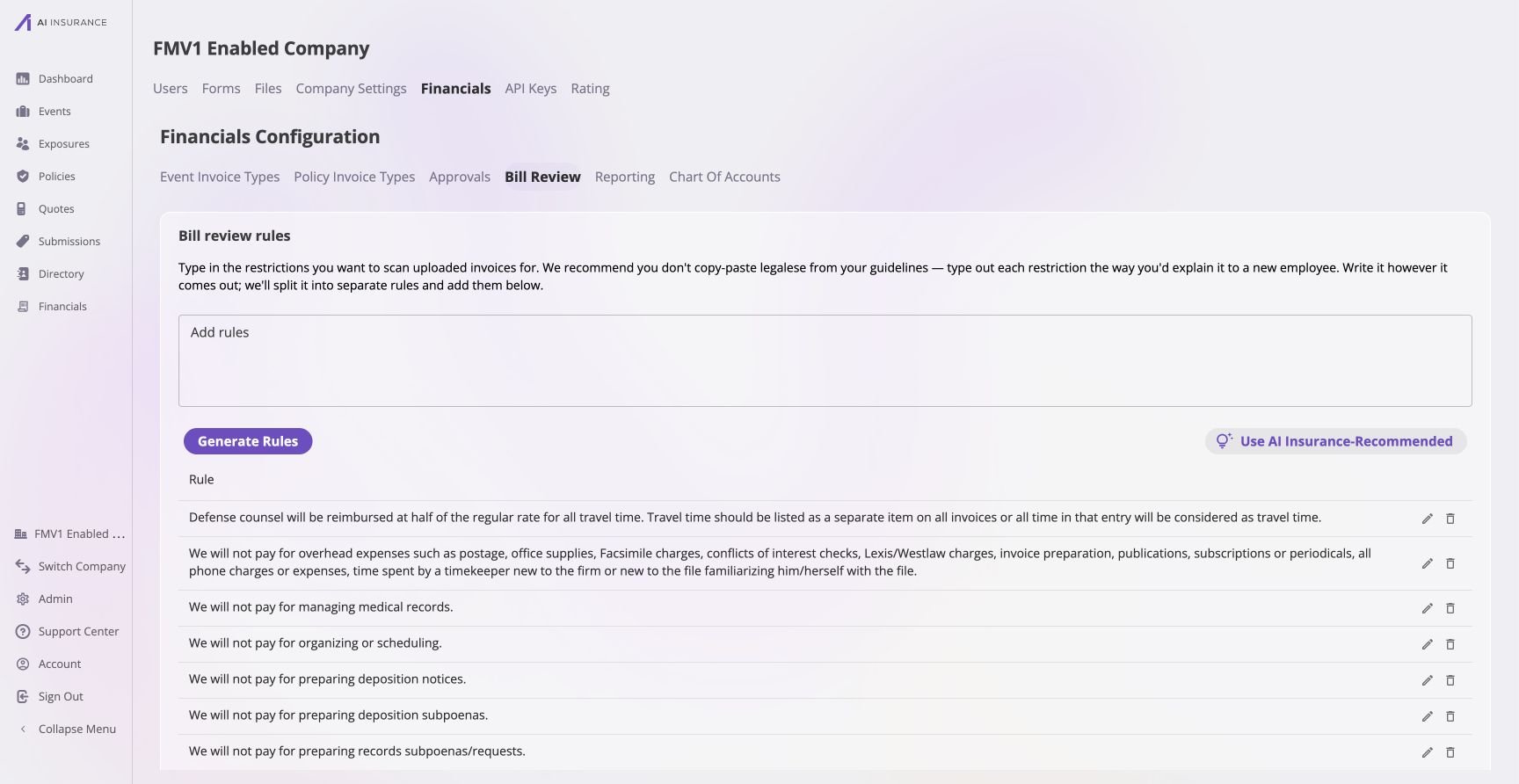 Type them into the **Add rules** box. One thought per sentence works best.
For example: no charges for administrative or clerical work; bill time in
tenths of an hour; no block billing; travel time at half rate; no
first-class airfare; no hotel over \$350 per night.
Choose **Add Rules**, or press ⌘/Ctrl + Enter. The box accepts up to 10,000
characters at a time and produces at most 40 rules from one paste.
Each rule appears as its own row in the **Rule** table below the box. A
confirmation tells you how many were added — for example `7 rules added`.
Expect the count to differ from the number of sentences you wrote: a
sentence covering two restrictions is split into one rule for each, so the
six restrictions above become seven rules.
A rule is nothing but its text. There is no expression to write, no severity to
choose, and no message to compose — the review decides how serious each finding
is when it reads the invoice.
Use the pencil icon on a row to reword a rule and the trash icon to delete one.
Every rule in the table is live; there is no way to switch one off temporarily,
so a standard you no longer want is deleted.
If nothing in your text reads as a restriction you'll see **We couldn't find
any restrictions in that text. Try writing each restriction as its own
sentence.** Rewrite it as separate sentences and add it again. If only some
rules save, the ones that didn't are put back in the box for you, one per
line.
Users with read-only access to company payments see the rule table but no box,
no **Add Rules** button, and no row icons.
### What a Rule Can Be About
A rule can name any part of the invoice, and the review sees all of it:
| Part of the invoice | What a rule can be written about |
| ----------------------- | --------------------------------------------------------------------------------------------------------------------------------------------------------------------------------------------------- |
| The invoice itself | Its number, status, whether it's approved, its category, the event or policy it's linked to, the payee, the invoice date, the due date, the memo, the total, what's been paid, and what's still due |
| Line items | A single line's type, its memo, and its amount |
| Attachments | What is attached — a file's name, type, size, and category — and whether anything required is missing |
| Payments | How the invoice was settled: each payment's amount, date, and memo, and which line it paid |
| Your own invoice fields | Any field your company has configured, named the way your configuration names it — write **Purchase Order Number**, not the field's reference id |
Name the field the way the invoice page labels it and the review will find it.
A rule that is about the invoice as a whole rather than any one field —
*invoices must be approved before payment* — works too.
A rule cannot be about what is *inside* an attachment. The review is told what
is attached, never the contents of the file, so *the receipt must show the
vendor name* cannot be checked. Rules about a file's name, type, size,
category, or whether it is there at all work as expected.
## Running a Bill Review
There are three ways a review starts. All three do the same work; they differ
only in how they're kicked off.
| How it starts | Where | When to use it |
| --------------- | --------------------------------------------------------------------------- | -------------------------------------------------------------------------------------------------------------- |
| **Manual** | An invoice's **Actions ▾** menu → **Run Bill Review** | Reviewing one invoice you're about to approve |
| **Bulk** | Select invoices in a Financials listing → **Actions** → **Run Bill Review** | Working through a batch of invoices |
| **After parse** | Automatic | An invoice created by [invoice parsing](/financials/guides/invoice-parsing) is reviewed as soon as it's parsed |
### One invoice
Open the invoice and choose **Actions ▾ → Run Bill Review**. There's no
confirmation — the review starts immediately and you'll see **Bill review
started.**
### Several invoices at once
In **Financials → Event Financials** or **Policy Financials**, select the
invoices you want, then choose **Actions → Run Bill Review**. A confirmation
tells you what's about to happen, including anything it will skip:
> Run a bill review on 12 transactions. 3 will be skipped (a bill review
> is already running). Each result appears on its transaction when its run
> finishes.
Review up to 100 invoices in one go.
A company with no rules can still run a review. It passes with nothing
checked, so the green result means only that there were no standards to check
against. Write your standards before you rely on a passing review.
### While a review is running
A spinner appears beside the invoice number and the invoice reads **In
Progress** in a listing. The page keeps itself up to date, so there's nothing
to refresh.
This is the one moment a review holds something up: while it runs, **Edit** and
**Run Bill Review** are both unavailable on that invoice. Hovering **Edit**
explains why — *A bill review is running on this transaction. Editing
unlocks when it finishes.*
## Reading the Results
Results land in three places.
### The banner on the invoice
A card at the top of the invoice gives the verdict.
* **Bill Review Passed** — green, with **No findings were reported.**
* **Bill Review Flagged** — red, with **4 findings require attention.**
Type them into the **Add rules** box. One thought per sentence works best.
For example: no charges for administrative or clerical work; bill time in
tenths of an hour; no block billing; travel time at half rate; no
first-class airfare; no hotel over \$350 per night.
Choose **Add Rules**, or press ⌘/Ctrl + Enter. The box accepts up to 10,000
characters at a time and produces at most 40 rules from one paste.
Each rule appears as its own row in the **Rule** table below the box. A
confirmation tells you how many were added — for example `7 rules added`.
Expect the count to differ from the number of sentences you wrote: a
sentence covering two restrictions is split into one rule for each, so the
six restrictions above become seven rules.
A rule is nothing but its text. There is no expression to write, no severity to
choose, and no message to compose — the review decides how serious each finding
is when it reads the invoice.
Use the pencil icon on a row to reword a rule and the trash icon to delete one.
Every rule in the table is live; there is no way to switch one off temporarily,
so a standard you no longer want is deleted.
If nothing in your text reads as a restriction you'll see **We couldn't find
any restrictions in that text. Try writing each restriction as its own
sentence.** Rewrite it as separate sentences and add it again. If only some
rules save, the ones that didn't are put back in the box for you, one per
line.
Users with read-only access to company payments see the rule table but no box,
no **Add Rules** button, and no row icons.
### What a Rule Can Be About
A rule can name any part of the invoice, and the review sees all of it:
| Part of the invoice | What a rule can be written about |
| ----------------------- | --------------------------------------------------------------------------------------------------------------------------------------------------------------------------------------------------- |
| The invoice itself | Its number, status, whether it's approved, its category, the event or policy it's linked to, the payee, the invoice date, the due date, the memo, the total, what's been paid, and what's still due |
| Line items | A single line's type, its memo, and its amount |
| Attachments | What is attached — a file's name, type, size, and category — and whether anything required is missing |
| Payments | How the invoice was settled: each payment's amount, date, and memo, and which line it paid |
| Your own invoice fields | Any field your company has configured, named the way your configuration names it — write **Purchase Order Number**, not the field's reference id |
Name the field the way the invoice page labels it and the review will find it.
A rule that is about the invoice as a whole rather than any one field —
*invoices must be approved before payment* — works too.
A rule cannot be about what is *inside* an attachment. The review is told what
is attached, never the contents of the file, so *the receipt must show the
vendor name* cannot be checked. Rules about a file's name, type, size,
category, or whether it is there at all work as expected.
## Running a Bill Review
There are three ways a review starts. All three do the same work; they differ
only in how they're kicked off.
| How it starts | Where | When to use it |
| --------------- | --------------------------------------------------------------------------- | -------------------------------------------------------------------------------------------------------------- |
| **Manual** | An invoice's **Actions ▾** menu → **Run Bill Review** | Reviewing one invoice you're about to approve |
| **Bulk** | Select invoices in a Financials listing → **Actions** → **Run Bill Review** | Working through a batch of invoices |
| **After parse** | Automatic | An invoice created by [invoice parsing](/financials/guides/invoice-parsing) is reviewed as soon as it's parsed |
### One invoice
Open the invoice and choose **Actions ▾ → Run Bill Review**. There's no
confirmation — the review starts immediately and you'll see **Bill review
started.**
### Several invoices at once
In **Financials → Event Financials** or **Policy Financials**, select the
invoices you want, then choose **Actions → Run Bill Review**. A confirmation
tells you what's about to happen, including anything it will skip:
> Run a bill review on 12 transactions. 3 will be skipped (a bill review
> is already running). Each result appears on its transaction when its run
> finishes.
Review up to 100 invoices in one go.
A company with no rules can still run a review. It passes with nothing
checked, so the green result means only that there were no standards to check
against. Write your standards before you rely on a passing review.
### While a review is running
A spinner appears beside the invoice number and the invoice reads **In
Progress** in a listing. The page keeps itself up to date, so there's nothing
to refresh.
This is the one moment a review holds something up: while it runs, **Edit** and
**Run Bill Review** are both unavailable on that invoice. Hovering **Edit**
explains why — *A bill review is running on this transaction. Editing
unlocks when it finishes.*
## Reading the Results
Results land in three places.
### The banner on the invoice
A card at the top of the invoice gives the verdict.
* **Bill Review Passed** — green, with **No findings were reported.**
* **Bill Review Flagged** — red, with **4 findings require attention.**

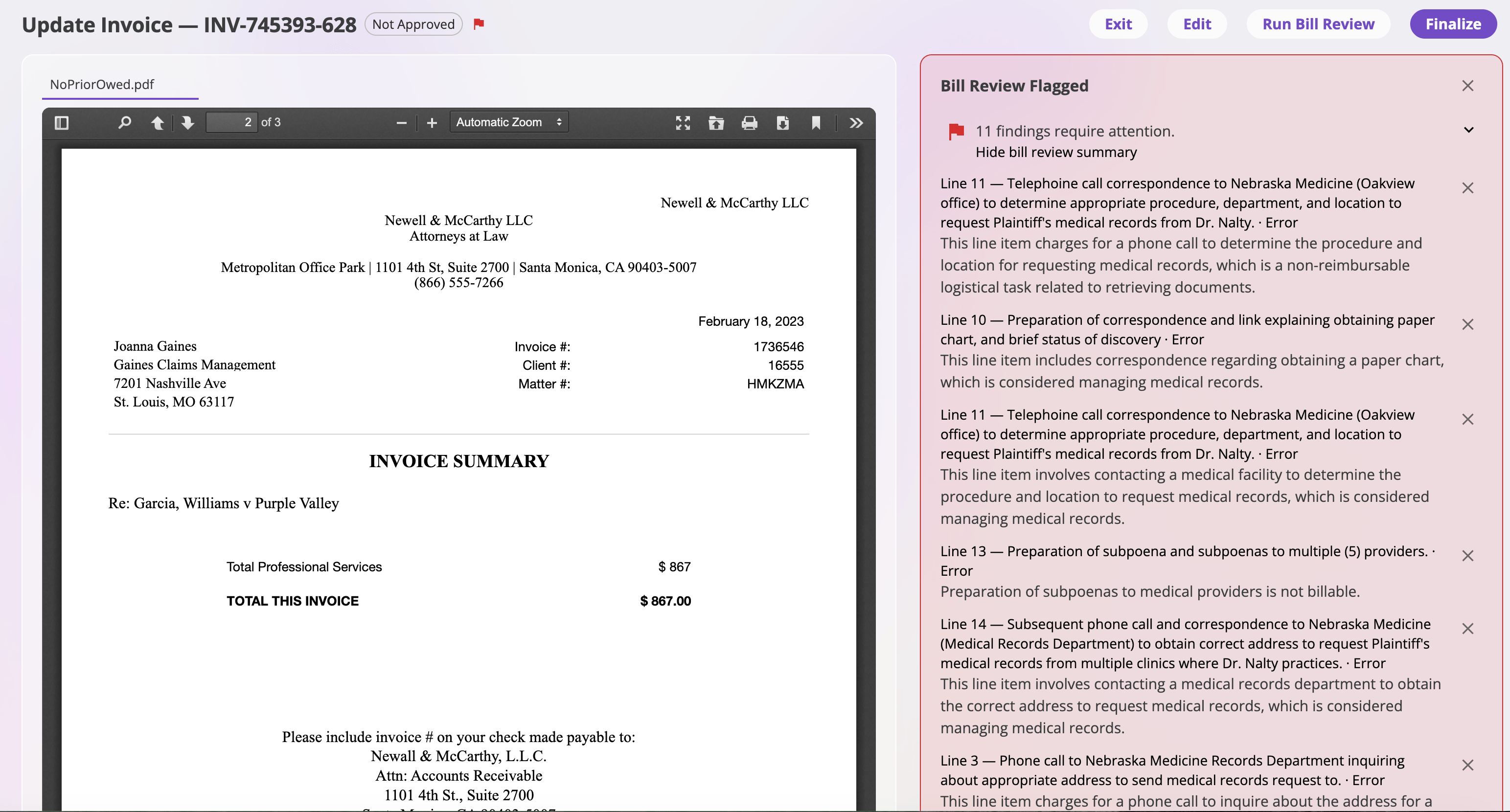 Choose **View bill review summary** to expand the findings in place. Each
one names what it's about, how serious it is, and what the problem is:
| Part of a finding | What it tells you |
| ----------------- | ------------------------------------------------------------------------------------------------------------------------------------------------------------------------------------------------------------------------------------------------------------------------- |
| Subject | The part of the invoice it concerns — a field such as **Payee**, **Memo**, **Due Date**, or **Total**, a line such as `Line 3 — Attorney Fees`, a named attachment or payment, one of your own invoice fields, or **This invoice** for a finding about the whole document |
| Severity | **Info**, **Warning**, or **Error** |
| Message | What the review believes is wrong, written against your standards |
An **Info** finding does not flag the invoice. A review that reports only info
findings still reads **Bill Review Passed**, with the findings listed
underneath.
### Flags beside the fields
Every finding also puts a small red flag next to the part of the invoice it
concerns — the status, the category, the payee, the invoice date, the due date,
the memo, the total, the attachments pane, the **Payments** heading, a specific
line item, or a specific payment in the payment history. Choose a flag to read
its findings. A number appears on the flag when a field has more than one.
The flags look the same whatever the severity; the banner is where severity is
shown.
A finding about something the invoice page has nowhere to flag is listed at the
top of the invoice instead, where it reads and clears the same way. That is
where findings about the invoice number, whether the invoice is approved, the
amount paid, the balance due, the linked event or policy, one of your own
invoice fields, one specific attachment, and the invoice as a whole appear.
If you edit the invoice after a review has run, the flags stay but say so:
**These bill review flags were raised on an earlier version of this
transaction.** Run the review again to refresh them.
### The invoice listing
Listings can show a **Bill Review** column reading **In Progress**,
**Passed**, **Flagged**, or **Resolved** — or `—` for an invoice that has never
been reviewed. You can filter on those values.
The column is hidden by default on the company-wide listing; add it from **Edit
Columns**. Whether or not you add it, the same spinner, green check, or red flag
appears beside every invoice number in the list.
## Clearing Findings
Findings don't go away on their own — you clear them once you've dealt with
them. Nothing is deleted; the run is kept either way.
* **One finding at a time** — the **×** beside it, in the banner or in a field
flag's popover.
* **All of them** — **Clear all findings** at the bottom of the banner.
* **Just hide the banner** — the **×** in the banner's top corner. This tidies
the invoice without clearing anything, so the field flags stay and the
listing still reads **Flagged**.
Once every finding is cleared, the banner and the mark beside the invoice
number both disappear, and the listing reads **Resolved**. A review that passed
never reads **Resolved** — only a flagged review that's been cleared does.
## Bill Review History
The lower half of **Admin → Financials → Bill Review** lists every review
the company has run, newest first, including runs whose invoice has since been
reviewed again or had its flags cleared.
| Column | What it shows |
| ----------- | ------------------------------------------------------- |
| Run | When the review ran |
| Transaction | A link to the invoice |
| Trigger | **Manual**, **Bulk**, or **After parse** |
| Verdict | **Passed**, **Flagged**, **In Progress**, or **Failed** |
| Findings | How many were reported |
| Resolved | **Resolved** or **Unresolved**, for flagged runs |
This is the only place a **failed** review is visible. A run that fails leaves
no banner and no mark on the invoice, and the listing's Bill Review column
reads `—`, exactly as it would for an invoice that was never reviewed. If a
review seems not to have happened, check here — hover the **Verdict** cell to
read why it failed, then run it again.
## What You'll See Under Different Conditions
| Condition | Result |
| ------------------------------------ | ---------------------------------------------------------------------------------------------------------------- |
| No review has run | `—` in the listing; no banner, no mark |
| A review is running | Spinner beside the invoice number; **In Progress** in the listing; editing locked |
| No rules configured | Green **Bill Review Passed** — nothing was checked |
| Rules configured, nothing wrong | Green **Bill Review Passed**, **No findings were reported.** |
| Only info-level findings | Green **Bill Review Passed**, with the findings listed |
| A warning or error found | Red **Bill Review Flagged**, **N findings require attention.**, red flags beside the affected fields |
| Findings cleared | Banner and mark gone; listing reads **Resolved** |
| Banner hidden, findings outstanding | Banner gone, field flags remain, listing still reads **Flagged** |
| Invoice edited after the run | Findings stay, marked as raised on an earlier version |
| The run failed | Nothing on the invoice; **Failed** in Bill Review History, with the reason on hover |
| A review is already running | **A bill review is already running on this invoice.** |
| Too much background work in progress | The review is refused and says how many there's room for — wait for the work in flight to finish, then try again |
Verify the result: the invoice shows a green or red banner at the top; a flagged
invoice has a red flag beside each field with a finding; the run appears at the
top of **Bill Review History** with the trigger you used.
Bill review is separate from [approvals](/financials/approvals) — it tells
you what to look at, approval is what lets money move.
Choose **View bill review summary** to expand the findings in place. Each
one names what it's about, how serious it is, and what the problem is:
| Part of a finding | What it tells you |
| ----------------- | ------------------------------------------------------------------------------------------------------------------------------------------------------------------------------------------------------------------------------------------------------------------------- |
| Subject | The part of the invoice it concerns — a field such as **Payee**, **Memo**, **Due Date**, or **Total**, a line such as `Line 3 — Attorney Fees`, a named attachment or payment, one of your own invoice fields, or **This invoice** for a finding about the whole document |
| Severity | **Info**, **Warning**, or **Error** |
| Message | What the review believes is wrong, written against your standards |
An **Info** finding does not flag the invoice. A review that reports only info
findings still reads **Bill Review Passed**, with the findings listed
underneath.
### Flags beside the fields
Every finding also puts a small red flag next to the part of the invoice it
concerns — the status, the category, the payee, the invoice date, the due date,
the memo, the total, the attachments pane, the **Payments** heading, a specific
line item, or a specific payment in the payment history. Choose a flag to read
its findings. A number appears on the flag when a field has more than one.
The flags look the same whatever the severity; the banner is where severity is
shown.
A finding about something the invoice page has nowhere to flag is listed at the
top of the invoice instead, where it reads and clears the same way. That is
where findings about the invoice number, whether the invoice is approved, the
amount paid, the balance due, the linked event or policy, one of your own
invoice fields, one specific attachment, and the invoice as a whole appear.
If you edit the invoice after a review has run, the flags stay but say so:
**These bill review flags were raised on an earlier version of this
transaction.** Run the review again to refresh them.
### The invoice listing
Listings can show a **Bill Review** column reading **In Progress**,
**Passed**, **Flagged**, or **Resolved** — or `—` for an invoice that has never
been reviewed. You can filter on those values.
The column is hidden by default on the company-wide listing; add it from **Edit
Columns**. Whether or not you add it, the same spinner, green check, or red flag
appears beside every invoice number in the list.
## Clearing Findings
Findings don't go away on their own — you clear them once you've dealt with
them. Nothing is deleted; the run is kept either way.
* **One finding at a time** — the **×** beside it, in the banner or in a field
flag's popover.
* **All of them** — **Clear all findings** at the bottom of the banner.
* **Just hide the banner** — the **×** in the banner's top corner. This tidies
the invoice without clearing anything, so the field flags stay and the
listing still reads **Flagged**.
Once every finding is cleared, the banner and the mark beside the invoice
number both disappear, and the listing reads **Resolved**. A review that passed
never reads **Resolved** — only a flagged review that's been cleared does.
## Bill Review History
The lower half of **Admin → Financials → Bill Review** lists every review
the company has run, newest first, including runs whose invoice has since been
reviewed again or had its flags cleared.
| Column | What it shows |
| ----------- | ------------------------------------------------------- |
| Run | When the review ran |
| Transaction | A link to the invoice |
| Trigger | **Manual**, **Bulk**, or **After parse** |
| Verdict | **Passed**, **Flagged**, **In Progress**, or **Failed** |
| Findings | How many were reported |
| Resolved | **Resolved** or **Unresolved**, for flagged runs |
This is the only place a **failed** review is visible. A run that fails leaves
no banner and no mark on the invoice, and the listing's Bill Review column
reads `—`, exactly as it would for an invoice that was never reviewed. If a
review seems not to have happened, check here — hover the **Verdict** cell to
read why it failed, then run it again.
## What You'll See Under Different Conditions
| Condition | Result |
| ------------------------------------ | ---------------------------------------------------------------------------------------------------------------- |
| No review has run | `—` in the listing; no banner, no mark |
| A review is running | Spinner beside the invoice number; **In Progress** in the listing; editing locked |
| No rules configured | Green **Bill Review Passed** — nothing was checked |
| Rules configured, nothing wrong | Green **Bill Review Passed**, **No findings were reported.** |
| Only info-level findings | Green **Bill Review Passed**, with the findings listed |
| A warning or error found | Red **Bill Review Flagged**, **N findings require attention.**, red flags beside the affected fields |
| Findings cleared | Banner and mark gone; listing reads **Resolved** |
| Banner hidden, findings outstanding | Banner gone, field flags remain, listing still reads **Flagged** |
| Invoice edited after the run | Findings stay, marked as raised on an earlier version |
| The run failed | Nothing on the invoice; **Failed** in Bill Review History, with the reason on hover |
| A review is already running | **A bill review is already running on this invoice.** |
| Too much background work in progress | The review is refused and says how many there's room for — wait for the work in flight to finish, then try again |
Verify the result: the invoice shows a green or red banner at the top; a flagged
invoice has a red flag beside each field with a finding; the run appears at the
top of **Bill Review History** with the trigger you used.
Bill review is separate from [approvals](/financials/approvals) — it tells
you what to look at, approval is what lets money move.