> ## Documentation Index
> Fetch the complete documentation index at: https://docs.go.aiinsurance.io/llms.txt
> Use this file to discover all available pages before exploring further.
# Configuring Approval Rules
> Configure approval roles, limits, and approvers
Configure custom approval rules when invoice authority should depend on the
reviewer, Invoice Type, and amount. A role defines the limits; an approver
assignment gives one person that role.
With custom rules off, every user can approve every invoice. Turning them on
changes the default to no authority: only listed approvers can approve. Review
[Approvals](/financials/approvals) for the relationship between approval and
payment before restricting a live company.
## Design the Authority Model
List the approval levels your company needs before editing. For each level,
decide the maximum invoice total it may approve for every active Invoice Type.
| Limit | Use it when |
| ------------------- | ------------------------------------------------------------------- |
| **No limit** | The role can approve any amount for that Invoice Type. |
| **Specific amount** | The role can approve totals up to and including the entered amount. |
| **Not allowed** | The role must not approve that Invoice Type at any amount. |
The built-in **Financial Administrator** role always has unlimited authority
for every type, including Invoice Types created later. Use a custom role when
authority needs any narrower scope.
Enabling custom rules takes effect immediately. Prepare at least one approver
assignment, including an administrator when appropriate, so invoices do not
become unintentionally unapprovable.
## Enable Custom Rules
1. Open **Admin → Financials → Approvals**.
2. Turn on **Use custom approval rules**.
3. Confirm that the **Roles** and **Approvers** sections appear.
The switch saves immediately; there is no page-level Save or Cancel. Turning
custom rules off later immediately returns authority to every user without
deleting the saved roles and approvers.
## Create a Role
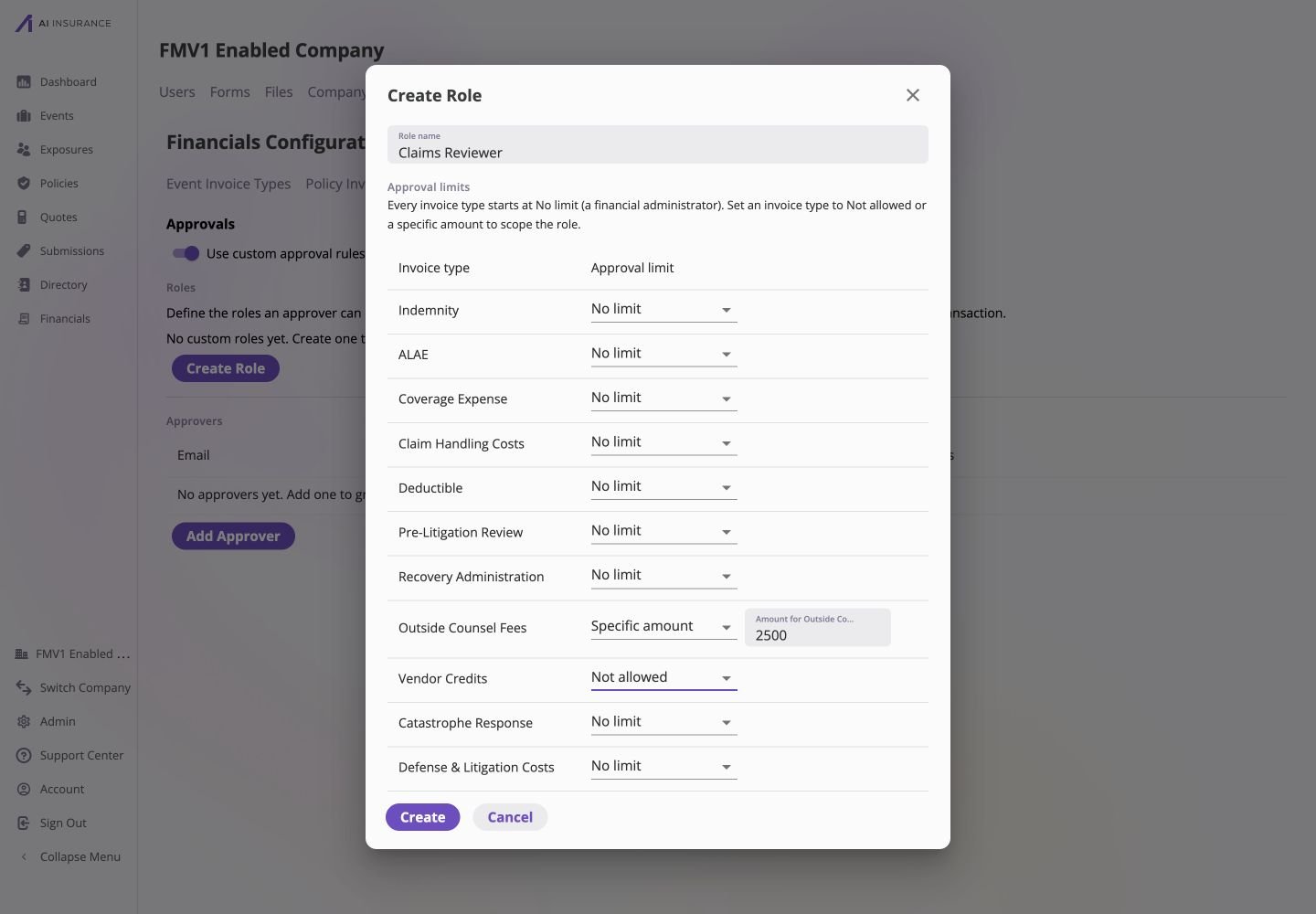
1. Under **Roles**, select **Create Role**.
2. Enter a unique **Role name**.
3. Review every active Invoice Type in **Approval limits**.
4. For each row, keep **No limit**, choose **Not allowed**, or choose
**Specific amount** and enter the ceiling.
5. Select **Create**.
Every row starts at **No limit**. Leaving all rows unchanged creates the
fully-open Financial Administrator kind; change at least one row when the role
is intended to be scoped.
 A custom role has no authority over an Invoice Type added after the role was
created until that role is edited to include the new type. The built-in
Financial Administrator remains unlimited.
The new role appears as its own table under **Roles**. Review the displayed
limit for each Invoice Type. Select its edit control to change the name or
limits; each saved edit replaces that role's authority immediately.
## Assign an Approver
Approvers are selected from people in your company's user directory. The
person must have an email address and cannot already be listed.
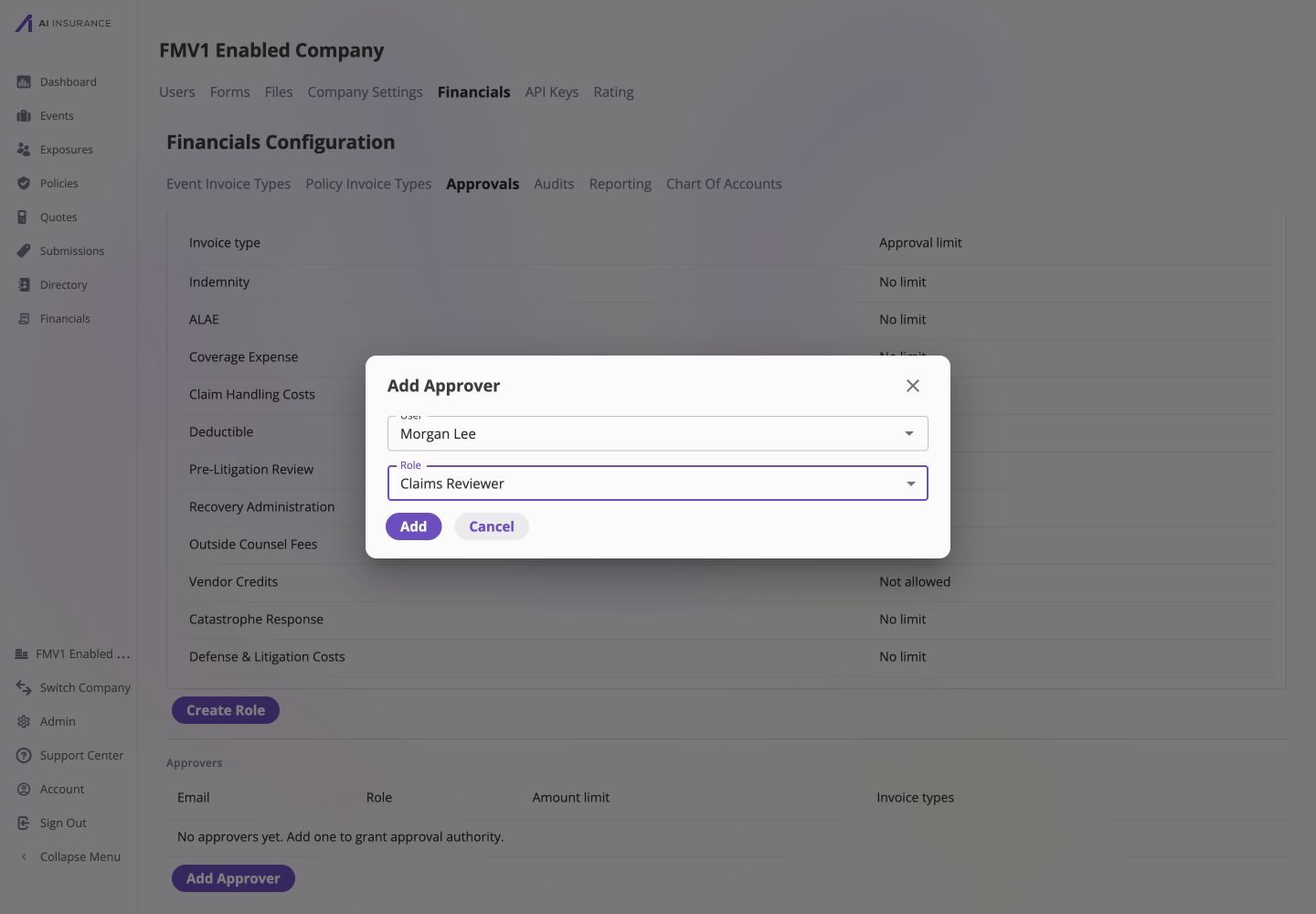
1. Under **Approvers**, select **Add Approver**.
2. Choose the **User**.
3. Choose the **Role** that should apply to that person.
4. Select **Add**.
A custom role has no authority over an Invoice Type added after the role was
created until that role is edited to include the new type. The built-in
Financial Administrator remains unlimited.
The new role appears as its own table under **Roles**. Review the displayed
limit for each Invoice Type. Select its edit control to change the name or
limits; each saved edit replaces that role's authority immediately.
## Assign an Approver
Approvers are selected from people in your company's user directory. The
person must have an email address and cannot already be listed.
1. Under **Approvers**, select **Add Approver**.
2. Choose the **User**.
3. Choose the **Role** that should apply to that person.
4. Select **Add**.
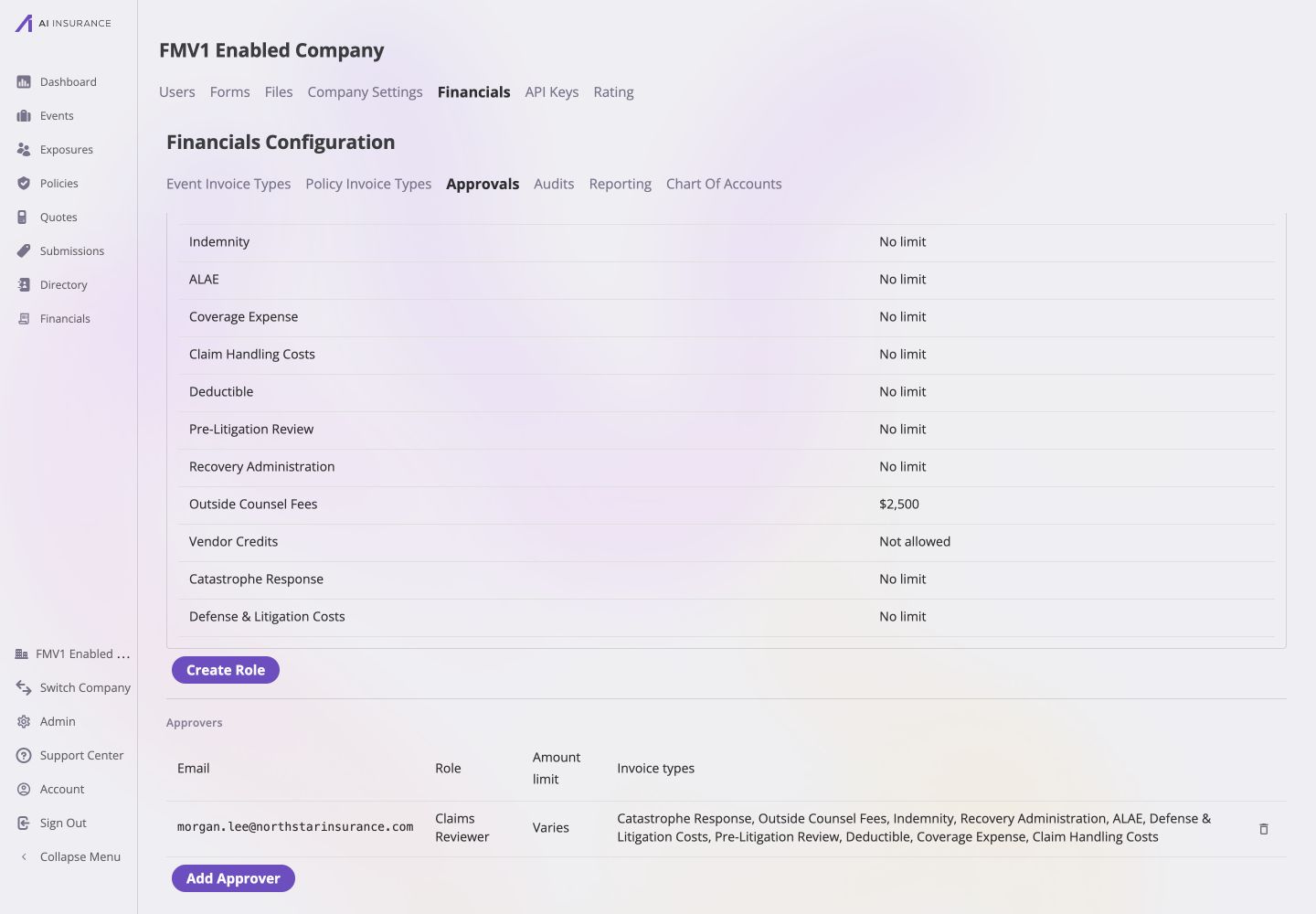
 The assignment saves immediately. The Approvers table resolves the role into
its summarized amount limit and Invoice Type scope.
The assignment saves immediately. The Approvers table resolves the role into
its summarized amount limit and Invoice Type scope.
 ## Validate the Rules
Use invoices created specifically for this check so a test approval does not
affect production work.
1. Sign in as the assigned approver.
2. Open an unpaid invoice whose Type is allowed and whose total is at or below
the role's ceiling.
3. Confirm **Actions → Approve** is available, then approve it if the test is
intended to change the invoice.
4. Open an invoice above the ceiling or on a **Not allowed** type.
5. Confirm the approval action is unavailable and explains the missing
authority.
The limit applies to the invoice's total, not its remaining balance. Recording
a payment also requires approval authority and approves the invoice as part of
the same action when the user is authorized.
## Maintain Access Safely
* **Change a role:** edit its limits and select **Save**.
* **Remove an approver:** select the delete control on the approver row. Their
authority ends immediately.
* **Delete a role:** first remove or reassign every approver using it. The app
blocks deletion while assignments still depend on the role.
* **Return to open approval:** turn off **Use custom approval rules**. Everyone
can approve again.
API callers do not match these email-based roles. Their approval authority
comes from the API key's permissions, as described in [API and Integration
Callers](/financials/approvals#api-and-integration-callers). See the
[Approvals configuration page](/financials/pages/approvals) for a compact
reference to every control.
## Validate the Rules
Use invoices created specifically for this check so a test approval does not
affect production work.
1. Sign in as the assigned approver.
2. Open an unpaid invoice whose Type is allowed and whose total is at or below
the role's ceiling.
3. Confirm **Actions → Approve** is available, then approve it if the test is
intended to change the invoice.
4. Open an invoice above the ceiling or on a **Not allowed** type.
5. Confirm the approval action is unavailable and explains the missing
authority.
The limit applies to the invoice's total, not its remaining balance. Recording
a payment also requires approval authority and approves the invoice as part of
the same action when the user is authorized.
## Maintain Access Safely
* **Change a role:** edit its limits and select **Save**.
* **Remove an approver:** select the delete control on the approver row. Their
authority ends immediately.
* **Delete a role:** first remove or reassign every approver using it. The app
blocks deletion while assignments still depend on the role.
* **Return to open approval:** turn off **Use custom approval rules**. Everyone
can approve again.
API callers do not match these email-based roles. Their approval authority
comes from the API key's permissions, as described in [API and Integration
Callers](/financials/approvals#api-and-integration-callers). See the
[Approvals configuration page](/financials/pages/approvals) for a compact
reference to every control.