> ## Documentation Index
> Fetch the complete documentation index at: https://docs.go.aiinsurance.io/llms.txt
> Use this file to discover all available pages before exploring further.
# Configuring Financial Reporting
> Configure reporting reference frames and type overrides
Configure Financials reporting when an export or generated document needs a
different sign convention. Reporting settings do not change stored amounts,
screen colors, invoice balances, or reserves. They only determine how a figure
is signed when it leaves the app.
[Reference Frames](/financials/reference-frames) defines **Flow** and **Type**
and includes a worked example. Decide which question each output should answer
before changing the settings:
* **Flow** — did money come in or go out? Inflow is positive and outflow is
negative.
* **Type** — did activity follow the Invoice Type's expected direction?
Expected activity is positive and reversed activity is negative.
## Map the Outputs
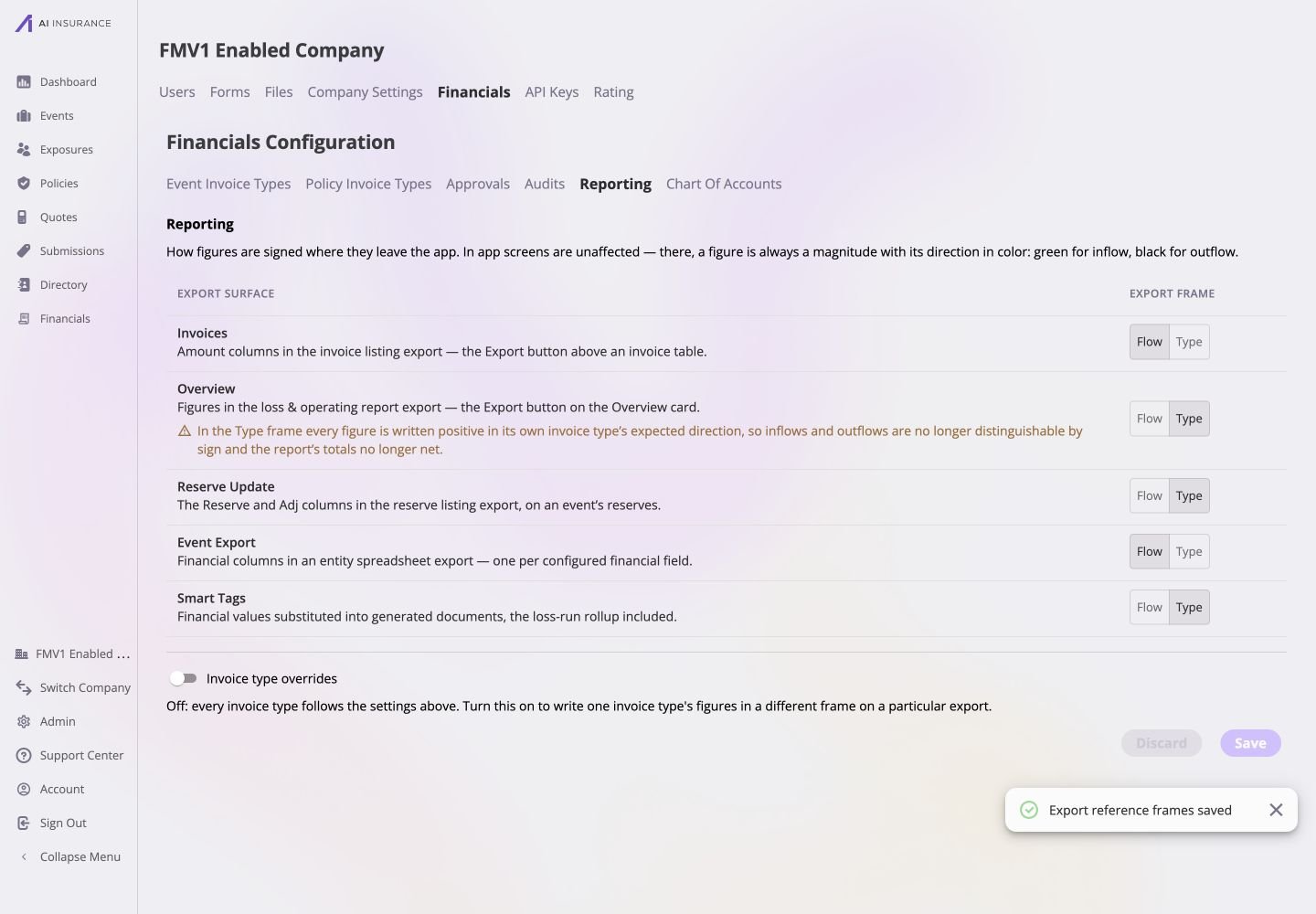
Open **Admin → Financials → Reporting**. The company-wide table contains one
independent setting for each surface:
| Surface | What the setting controls |
| ------------------ | --------------------------------------------------------- |
| **Invoices** | Amounts in invoice-list exports. |
| **Overview** | Figures in the loss and operating Overview export. |
| **Reserve Update** | Reserve and adjustment figures in reserve-update exports. |
| **Event Export** | Financial values included in an event spreadsheet export. |
| **Smart Tags** | Financial values inserted into generated documents. |
An untouched company uses **Flow** for all five. Changing one row does not
change the others.
## Set Company-Wide Frames
1. For each surface, select **Flow** or **Type**.
2. Read any warning shown below a Type selection.
3. Continue through all five rows before saving so the set remains deliberate.
 Invoice and Overview exports add figures across Invoice Types. In the Type
frame, activity that follows each type's expectation is positive even when
some money flows in and some flows out. Their summed column therefore measures
activity, not net cash flow.
The page holds these changes as a draft. Select **Discard** to return every row
and override to its last saved value, or continue to type-specific overrides
before selecting **Save**.
## Add an Invoice Type Override
Use an override when one active Invoice Type needs a different frame on one
eligible output.
1. Turn on **Invoice type overrides**.
2. Select **Add Override**.
3. Choose the **Invoice type** first. This determines which exports are
meaningful for it.
4. Choose the **Export**.
5. Choose the **Frame**.
6. Select **Add**.
Invoice and Overview exports add figures across Invoice Types. In the Type
frame, activity that follows each type's expectation is positive even when
some money flows in and some flows out. Their summed column therefore measures
activity, not net cash flow.
The page holds these changes as a draft. Select **Discard** to return every row
and override to its last saved value, or continue to type-specific overrides
before selecting **Save**.
## Add an Invoice Type Override
Use an override when one active Invoice Type needs a different frame on one
eligible output.
1. Turn on **Invoice type overrides**.
2. Select **Add Override**.
3. Choose the **Invoice type** first. This determines which exports are
meaningful for it.
4. Choose the **Export**.
5. Choose the **Frame**.
6. Select **Add**.
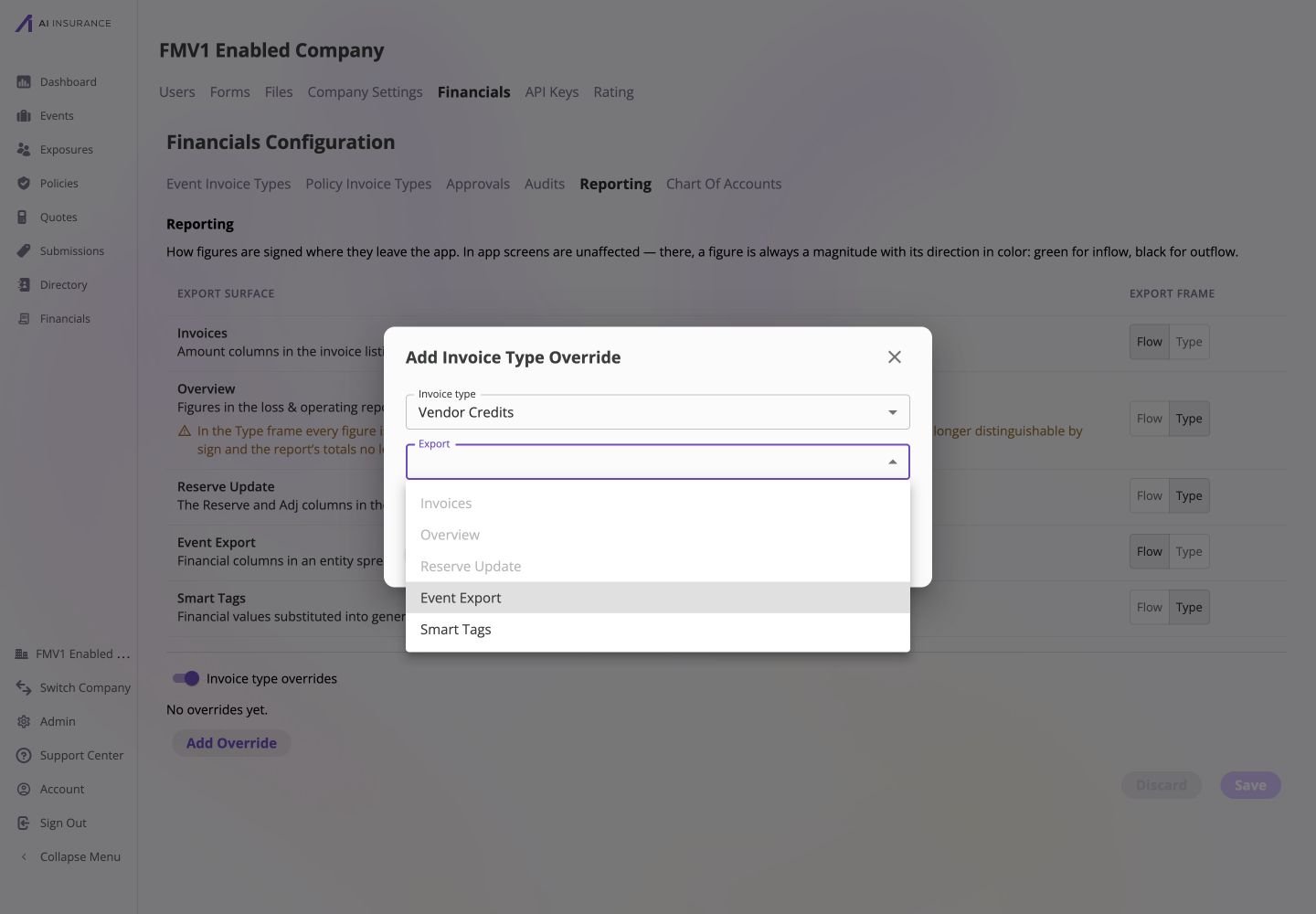 Overrides are intentionally limited:
* **Invoices** and **Overview** must remain uniform across types because their
columns aggregate across Invoice Types.
* **Reserve Update** is available only for Loss/Recovery types.
* A type/export pair that already has an override cannot be added twice.
* Deprecated Invoice Types cannot receive new overrides.
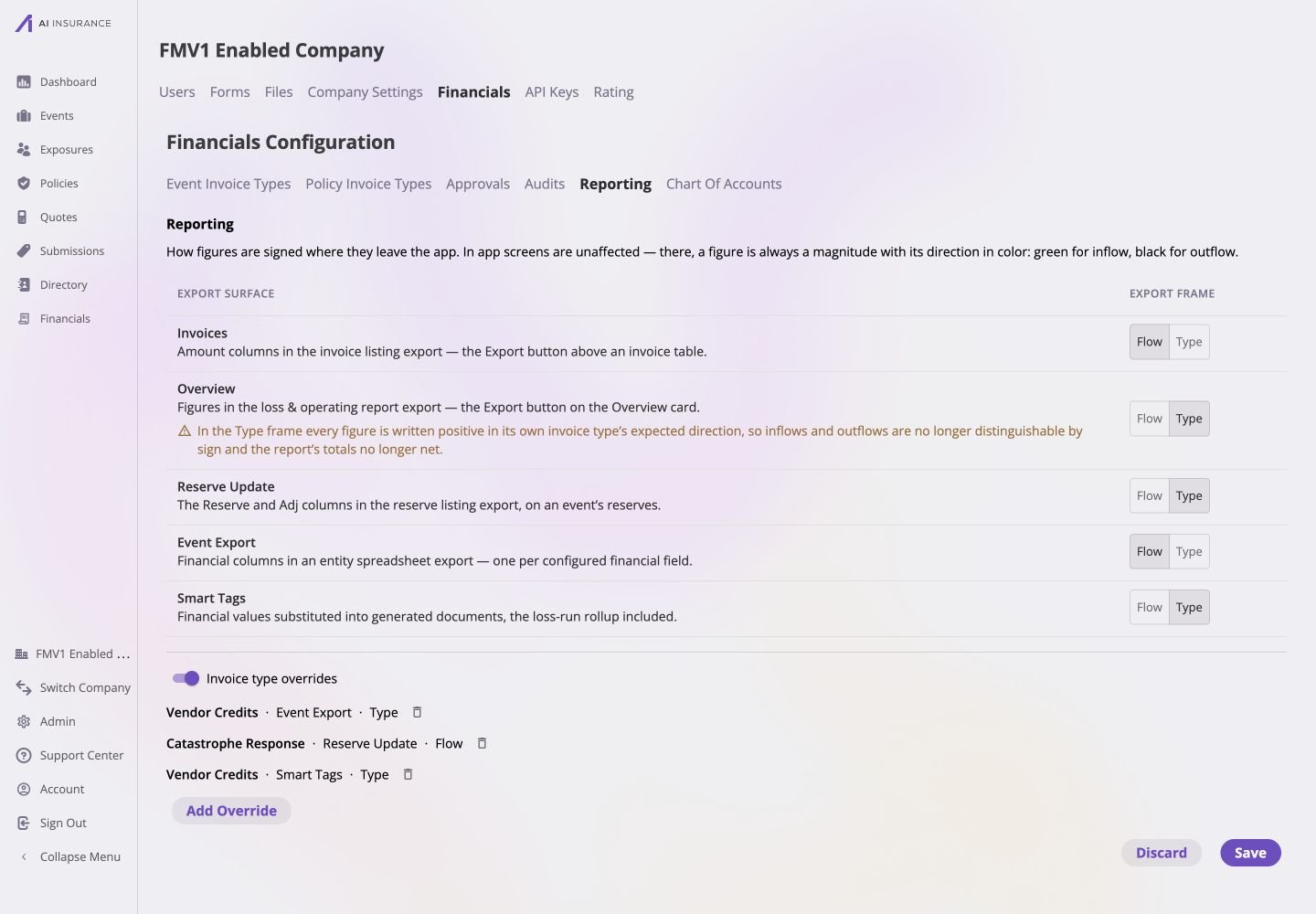
The added row remains part of the unsaved draft. It names the Invoice Type,
surface, and frame. Remove a row to make that type follow the company-wide
setting again.
Overrides are intentionally limited:
* **Invoices** and **Overview** must remain uniform across types because their
columns aggregate across Invoice Types.
* **Reserve Update** is available only for Loss/Recovery types.
* A type/export pair that already has an override cannot be added twice.
* Deprecated Invoice Types cannot receive new overrides.
The added row remains part of the unsaved draft. It names the Invoice Type,
surface, and frame. Remove a row to make that type follow the company-wide
setting again.
 ## Save and Verify
Select **Save** and wait for the confirmation that export reference frames were
saved. The Save and Discard controls become unavailable when the page matches
the stored settings.
Generate a fresh example from every changed surface. Use an Invoice Type whose
expected direction makes the two frames visibly different—for example, an
Expense type with outgoing activity:
* confirm the screen still shows the unsigned magnitude in black;
* confirm a Flow-framed output writes the outgoing figure as negative;
* confirm a Type-framed output writes expected outgoing activity as positive;
and
* confirm a type-specific override differs only on its named surface.
Do not compare an old download: reporting changes affect newly generated
outputs and do not rewrite files that have already left the app.
## Remove Overrides or Revert a Change
* Select the delete control beside one override to return that pair to its
company-wide frame, then **Save**.
* Turn off **Invoice type overrides** to remove all override rows. When rows
exist, confirm **Remove overrides**, then **Save**.
* Change a company-wide row back to its prior frame and **Save** when the new
convention was not appropriate.
* Select **Discard** before saving to abandon the entire current draft.
Turning the overrides switch off does not take effect until the reporting
draft is saved. See the [Reporting configuration
page](/financials/pages/reporting) for a concise control reference.
## Save and Verify
Select **Save** and wait for the confirmation that export reference frames were
saved. The Save and Discard controls become unavailable when the page matches
the stored settings.
Generate a fresh example from every changed surface. Use an Invoice Type whose
expected direction makes the two frames visibly different—for example, an
Expense type with outgoing activity:
* confirm the screen still shows the unsigned magnitude in black;
* confirm a Flow-framed output writes the outgoing figure as negative;
* confirm a Type-framed output writes expected outgoing activity as positive;
and
* confirm a type-specific override differs only on its named surface.
Do not compare an old download: reporting changes affect newly generated
outputs and do not rewrite files that have already left the app.
## Remove Overrides or Revert a Change
* Select the delete control beside one override to return that pair to its
company-wide frame, then **Save**.
* Turn off **Invoice type overrides** to remove all override rows. When rows
exist, confirm **Remove overrides**, then **Save**.
* Change a company-wide row back to its prior frame and **Save** when the new
convention was not appropriate.
* Select **Discard** before saving to abandon the entire current draft.
Turning the overrides switch off does not take effect until the reporting
draft is saved. See the [Reporting configuration
page](/financials/pages/reporting) for a concise control reference.