> ## Documentation Index
> Fetch the complete documentation index at: https://docs.go.aiinsurance.io/llms.txt
> Use this file to discover all available pages before exploring further.
# Creating an Invoice
> Create an Owed or Paid invoice from company or event scope
Create an invoice when you need to record a new amount owed to or by your
company. You can start company-wide and optionally assign an event, or start
from one event so the invoice is linked automatically.
Before you begin, identify the correct Invoice Type and gather the source
document, payee, invoice date, due date, and line-item breakdown. The Invoice
Type and posted line items cannot be changed after creation, so review them
carefully. [Invoices](/financials/invoices) explains which values remain
editable later.
## Start in the Right Scope
Choose the starting point that matches the work:
| Starting point | Use it when |
| ------------------------------------------- | ---------------------------------------------------------------------------------------------------------------------------------------------- |
| **Financials → Event Financials → Add New** | You are working across the company. The new-invoice page includes an optional Event picker, so the invoice can be linked now or left unlinked. |
| **Event → Financials → Add New** | You already know which event owns the activity. The new invoice is linked to that event automatically. |
If **Add New** opens a menu, select the Invoice Type you want to use. The Type
remains selectable on the New Invoice page until you create the record.
## Enter the Invoice
Confirm **Type** first. It controls the available Line Item Types. If you
started company-wide, select **Event (optional)** or leave it empty to
create an unlinked invoice.
Keep **Status** as **Owed** when the amount has not been settled. Choose
**Paid** only when the money has already moved; a **Paid Date** then
becomes required.
Select the **Payee** when known. Set **Invoice Date** to the date the
amount should be recognized. Add an optional **Due Date** for when payment
is expected.
Enter a concise **Memo** that will help someone identify the transaction
from a listing or export.
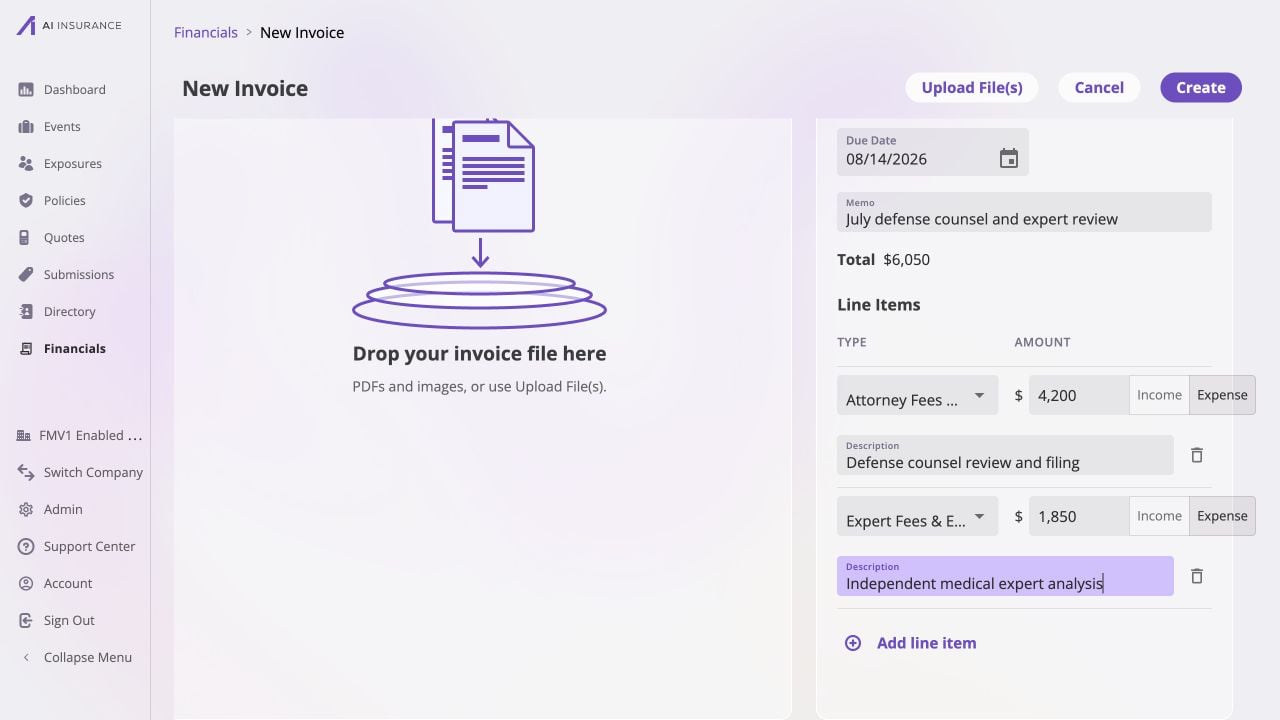
Select **Add line item** for each component. Choose a Line Item Type, keep
the amount positive, and use the **Income** or **Expense** side to show
direction. Add a line description when the type alone is not specific
enough.
Drag files into the attachment pane or select **Upload File(s)**. Confirm
that each staged file appears before creating the invoice.
 Changing **Type** after adding line items discards the line-item work after you
confirm the change. Attachments remain staged. After the invoice is created,
its Type, Line Item Types, amounts, and directions are fixed.
## Review and Create
Before selecting **Create**, check:
* the event is correct, or intentionally blank;
* **Invoice Date** is present, and — unless the invoice is linked to a policy,
where a future date records a scheduled installment — is not in the future;
* every line has a type, a positive amount, and the intended direction;
* the displayed **Total** is the expected net of all lines; and
* a Paid invoice has a **Paid Date** and at least one non-zero line.
Select **Create**. The app assigns the invoice number, posts an Owed invoice or
records the full settlement for a Paid invoice, commits the attachments, and
returns you to the invoice list.
For a Paid Loss/Recovery invoice linked to an event, you may be asked whether
the payment should update reserves or expected totals. Use the explanation in
the prompt and see [Reserves](/financials/reserves#when-the-app-asks-how-to-record-a-payment)
before continuing.
Changing **Type** after adding line items discards the line-item work after you
confirm the change. Attachments remain staged. After the invoice is created,
its Type, Line Item Types, amounts, and directions are fixed.
## Review and Create
Before selecting **Create**, check:
* the event is correct, or intentionally blank;
* **Invoice Date** is present, and — unless the invoice is linked to a policy,
where a future date records a scheduled installment — is not in the future;
* every line has a type, a positive amount, and the intended direction;
* the displayed **Total** is the expected net of all lines; and
* a Paid invoice has a **Paid Date** and at least one non-zero line.
Select **Create**. The app assigns the invoice number, posts an Owed invoice or
records the full settlement for a Paid invoice, commits the attachments, and
returns you to the invoice list.
For a Paid Loss/Recovery invoice linked to an event, you may be asked whether
the payment should update reserves or expected totals. Use the explanation in
the prompt and see [Reserves](/financials/reserves#when-the-app-asks-how-to-record-a-payment)
before continuing.
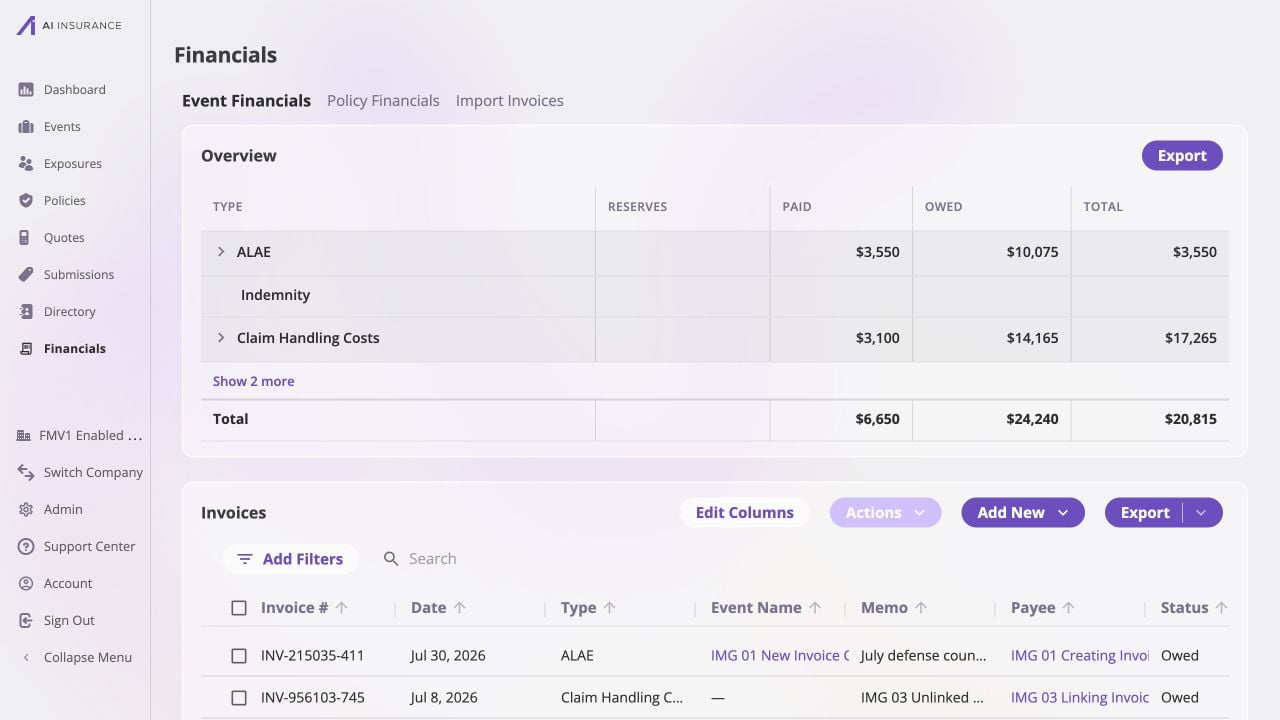 Open the new row and verify its type, dates, line items, attachment, Total,
Paid, and Balance Due. If an immutable value is wrong, do not try to edit the
posted lines; follow [Replacing an Incorrect
Invoice](/financials/guides/replacing-an-incorrect-invoice).
Open the new row and verify its type, dates, line items, attachment, Total,
Paid, and Balance Due. If an immutable value is wrong, do not try to edit the
posted lines; follow [Replacing an Incorrect
Invoice](/financials/guides/replacing-an-incorrect-invoice).