> ## Documentation Index
> Fetch the complete documentation index at: https://docs.go.aiinsurance.io/llms.txt
> Use this file to discover all available pages before exploring further.
# Invoice Parsing
> Bring invoice documents in by upload or email, parse them into drafts, and finalize
Invoice parsing turns a vendor's invoice document into an invoice in FMV1. You
bring the document in, the parse reads it, and what it finds becomes a **draft**
invoice with the document attached — sitting alongside the fields it extracted
so you can check them before anything is posted.
Nothing reaches your books automatically. A parsed invoice is a draft until you
choose **Finalize**, and until then it holds no payments and appears in no
balances or reports.
**Before you begin:** parsing maps each invoice onto the transaction types and
line item types you've configured, so at least one type with a live line item
type must exist — see
[Creating an Invoice Type](/financials/guides/creating-an-invoice-type). You
need permission to add files to the company.
## How Invoice Parsing Works
Four visible stages:
1. **The document arrives** — you upload it, or a vendor emails it in.
2. **A parse runs** — you start it for an upload; an emailed document starts on
its own.
3. **A draft appears** — one draft invoice per parsed document, with the
document attached and the extracted fields filled in.
4. **You finalize it** — the draft is posted and starts counting.
## Getting Documents In
There are two ways to trigger automated invoice parsing: email an invoice to a
configured inbox, or upload the document yourself.
### Emailing invoices in
**Emailing an invoice is the simplest way to get it parsed.** Send the invoice
to your invoice address, with the document attached or in the email body, and
AI Insurance creates an import and starts the parse for you. You do not need to
upload the document or choose **Parse Invoice**.
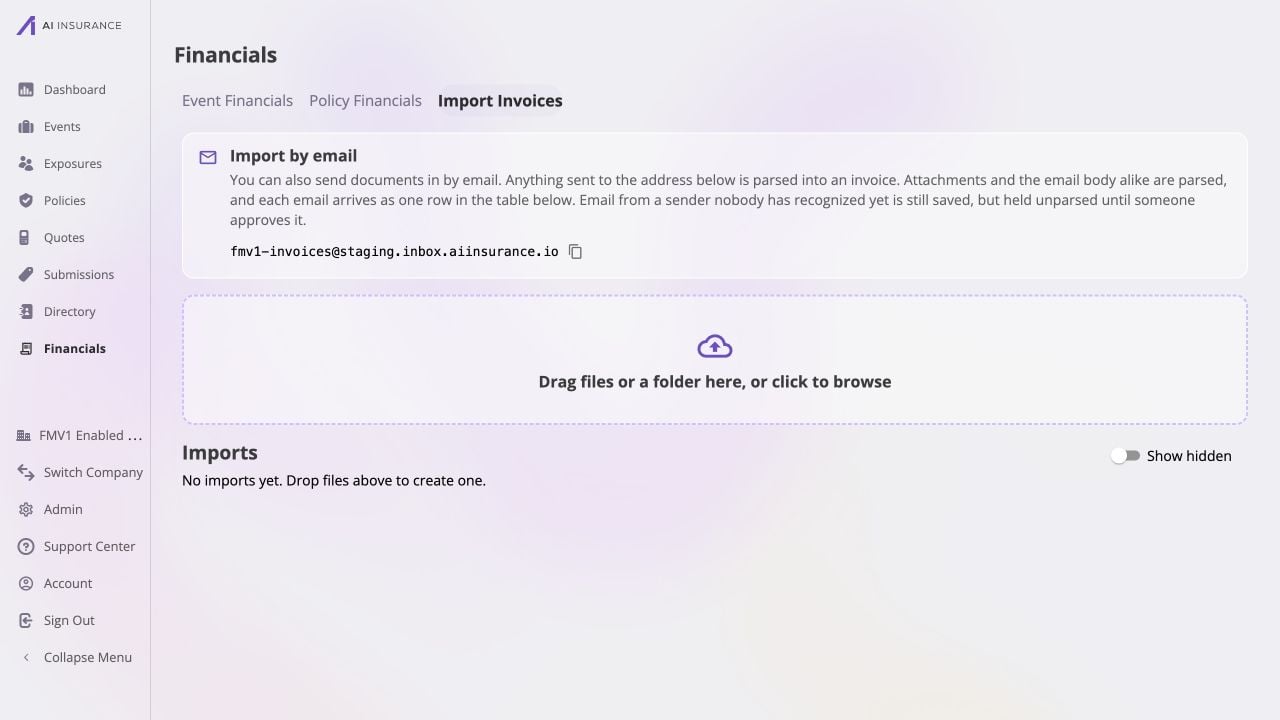
Find the address on **Financials → Import Invoices**. The **Import by email**
card at the top of the page lists every invoice address for your company; use
the copy button beside an address to share it with a vendor or paste it into an
email. Each email arrives as one row in the **Imports** table.
You can also find an address already configured for your company in **Company
Settings → Inboxes → Invoice**. This is the place to copy, rename, or add an
inbox.
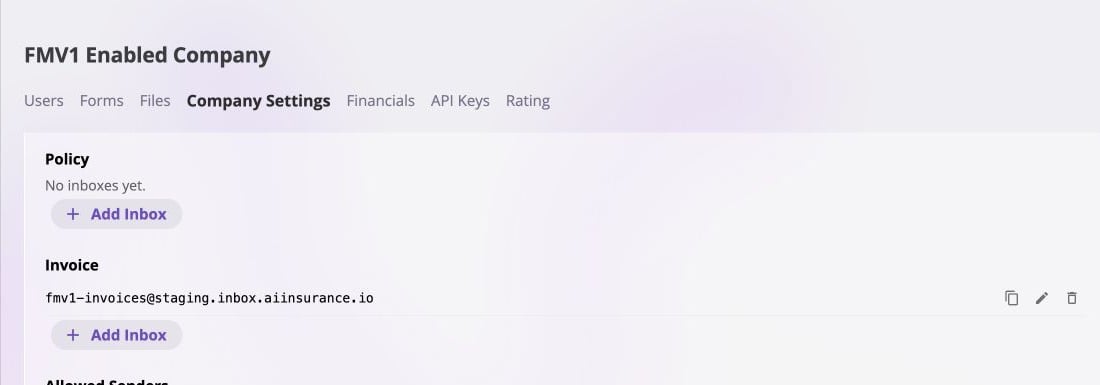 For the quickest day-to-day lookup, go to **Financials → Import Invoices**.
The **Import by email** card shows the same configured address above the upload
area.
For the quickest day-to-day lookup, go to **Financials → Import Invoices**.
The **Import by email** card shows the same configured address above the upload
area.
 Email from a sender nobody has recognized yet is still kept, but held unparsed.
The row reads **Needs sender review** with an amber **Unrecognized sender**
marker, and offers **Recognize sender** or **Block sender**:
* **Recognize sender** adds the address to your allowed senders. Their stored
imports become runnable, and their future emails are parsed automatically.
* **Block sender** drops their future emails completely — not stored, not
shown.
### Configuring Invoice Parsing Inbox
If **Import by email** does not show an address, creating one takes just a few
clicks. You need permission to update company settings — standard **Carrier
Admin** and **Policy Administrator** roles have it.
1. Select your **company name** at the bottom of the left sidebar, then choose
**Company Settings**.
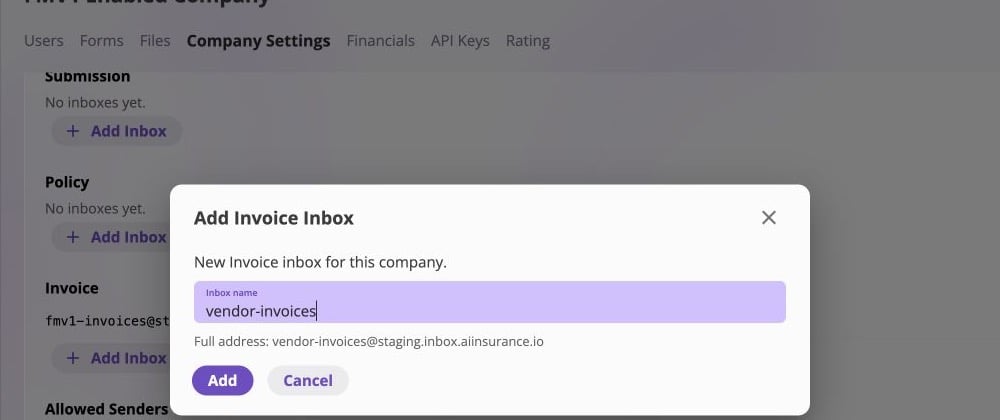
2. In the **Inboxes** card, find **Invoice** and choose **Add Inbox**. Make
sure you use the **Invoice** section; Submission and Policy inboxes send
documents to different workflows.
3. Enter a short, recognizable inbox name and choose **Add**. The dialog shows
the full address as you type. The name is trimmed and lowercased, must use
letters or numbers with single dots, dashes, or underscores (up to 64
characters), and must be available platform-wide. If it is already taken,
try another name.
Email from a sender nobody has recognized yet is still kept, but held unparsed.
The row reads **Needs sender review** with an amber **Unrecognized sender**
marker, and offers **Recognize sender** or **Block sender**:
* **Recognize sender** adds the address to your allowed senders. Their stored
imports become runnable, and their future emails are parsed automatically.
* **Block sender** drops their future emails completely — not stored, not
shown.
### Configuring Invoice Parsing Inbox
If **Import by email** does not show an address, creating one takes just a few
clicks. You need permission to update company settings — standard **Carrier
Admin** and **Policy Administrator** roles have it.
1. Select your **company name** at the bottom of the left sidebar, then choose
**Company Settings**.
2. In the **Inboxes** card, find **Invoice** and choose **Add Inbox**. Make
sure you use the **Invoice** section; Submission and Policy inboxes send
documents to different workflows.
3. Enter a short, recognizable inbox name and choose **Add**. The dialog shows
the full address as you type. The name is trimmed and lowercased, must use
letters or numbers with single dots, dashes, or underscores (up to 64
characters), and must be available platform-wide. If it is already taken,
try another name.
 That is all the setup required: copy the new address from the **Invoice**
section and send an invoice to it. The address also appears immediately on
**Financials → Import Invoices**, ready to share with vendors.
The **Allowed Senders** controls below the inboxes are optional company-wide
restrictions. With **Only accept email from allowed senders** on, add an
outside vendor with **Add Email** before asking them to send invoices. You can
also leave it off and approve a new sender from the Imports table the first
time they email you.
### Uploading
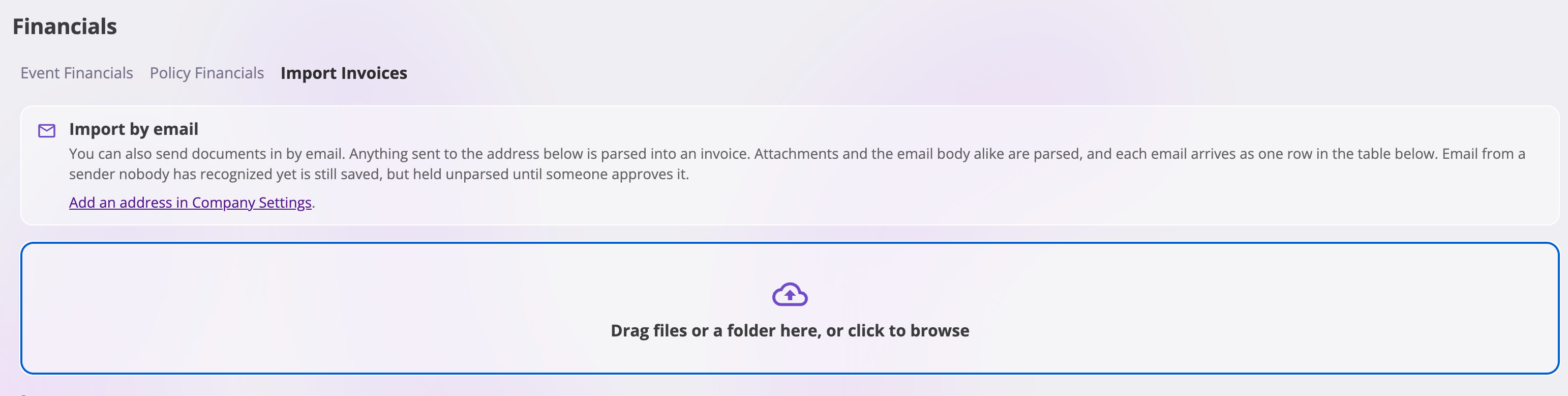
Drag files or a whole folder onto the drop area — **Drag files or a folder here,
or click to browse** — or choose it to pick files. A folder is flattened into
its files.
That is all the setup required: copy the new address from the **Invoice**
section and send an invoice to it. The address also appears immediately on
**Financials → Import Invoices**, ready to share with vendors.
The **Allowed Senders** controls below the inboxes are optional company-wide
restrictions. With **Only accept email from allowed senders** on, add an
outside vendor with **Add Email** before asking them to send invoices. You can
also leave it off and approve a new sender from the Imports table the first
time they email you.
### Uploading
Drag files or a whole folder onto the drop area — **Drag files or a folder here,
or click to browse** — or choose it to pick files. A folder is flattened into
its files.
 Send PDFs, PNGs, JPEGs, or WebP images. Anything else, and you'll see *is not a
supported file type — attach a PDF or an image.* Very large files are rejected
too, with *exceeds the maximum upload size of 1.0 GB.* In practice a PDF over
50 MB or around a thousand pages is too big to read and will fail at parse time
rather than at upload.
**An uploaded file is not parsed automatically.** It arrives in the **Imports**
table reading **Not run**, with a play button — **Parse Invoice** — that starts
it. This is the one extra step for an upload.
Send PDFs, PNGs, JPEGs, or WebP images. Anything else, and you'll see *is not a
supported file type — attach a PDF or an image.* Very large files are rejected
too, with *exceeds the maximum upload size of 1.0 GB.* In practice a PDF over
50 MB or around a thousand pages is too big to read and will fail at parse time
rather than at upload.
**An uploaded file is not parsed automatically.** It arrives in the **Imports**
table reading **Not run**, with a play button — **Parse Invoice** — that starts
it. This is the one extra step for an upload.
 Your files appear in the **Imports** table as soon as they've uploaded.
The play button on the row. The status changes to **Starting…**, then
**Running**.
The table refreshes itself while a parse is live — there's no need to
reload. Choose the **Running** marker to watch the stages: *Extracting 1/2*,
then *Parsing 2/2*.
When the status reads **Succeeded**, the **Parsed Result** column holds a
**Transaction** link to the new draft.
## Tracking the Parse
Whether you emailed the invoice or uploaded it, find its progress in the
**Imports** table on **Financials → Import Invoices**. Each email and upload
has its own row, so you can track either flow in the same place.
An emailed invoice from a recognized sender is already under way when its row
appears — there is nothing to click. An uploaded invoice starts after you
choose **Parse Invoice** above. In either case, the table refreshes itself
while a parse is live, so there is no need to reload.
Your files appear in the **Imports** table as soon as they've uploaded.
The play button on the row. The status changes to **Starting…**, then
**Running**.
The table refreshes itself while a parse is live — there's no need to
reload. Choose the **Running** marker to watch the stages: *Extracting 1/2*,
then *Parsing 2/2*.
When the status reads **Succeeded**, the **Parsed Result** column holds a
**Transaction** link to the new draft.
## Tracking the Parse
Whether you emailed the invoice or uploaded it, find its progress in the
**Imports** table on **Financials → Import Invoices**. Each email and upload
has its own row, so you can track either flow in the same place.
An emailed invoice from a recognized sender is already under way when its row
appears — there is nothing to click. An uploaded invoice starts after you
choose **Parse Invoice** above. In either case, the table refreshes itself
while a parse is live, so there is no need to reload.
 ### What the statuses mean
| Status | What's happening |
| ----------------------- | ------------------------------------------------------------- |
| **Uploading…** | The file is still being sent |
| **Upload failed** | It didn't arrive — the row explains why, and can be dismissed |
| **Not run** | Uploaded and waiting for you to choose **Parse Invoice** |
| **Needs sender review** | An email from a sender you haven't recognized yet |
| **Starting…** | The parse is being kicked off |
| **Running** | Reading the document, then building the draft |
| **Retrying** | Something went wrong and it's having another go on its own |
| **Succeeded** | A draft was created — see **Parsed Result** |
| **Failed** | No draft was created; the reason is in the run history |
The **Imports** table shows **Files**, **Source** (an upload, or the sender's
address), **Uploaded**, **Status**, and **Parsed Result**. Choose the file
summary on a row to preview the document without leaving the page. The clock
icon opens the row's run history, where a failed run shows its error. Rows you
no longer care about can be hidden and brought back with **Show hidden**.
## Reviewing the Draft
The **Transaction** link opens the draft with the document on the left and the
extracted fields on the right, so you can read one against the other.
A banner at the top says where you stand:
> This is a draft transaction — it isn't posted yet, so it holds no payments and
> shows in no balances or reports. Edit its details, then Finalize to post it
> (its number is kept).
### What gets extracted
| Field | What you get |
| --------------------------------- | --------------------------------------------------------------------------------------------------------------------------------- |
| **Type** | The transaction type that best matches the document, chosen from the ones you've configured |
| **Invoice Date** and **Due Date** | As stated on the document |
| **Memo** | A short summary including the vendor's name and what the invoice is for |
| **Line Items** | The document's lines in order, each with its type, memo, and amount |
| **Payments** | Only when the document plainly evidences payment already made — a paid stamp, a dated payment line, a zero balance. Usually empty |
| **Attachments** | The source document, attached to the draft |
Two things are deliberately left for you: the **Payee** is never guessed — the
vendor's name is in the memo instead — and the **Event** is never assigned,
because the document doesn't say which claim it belongs to. Set the Event on the
draft before finalizing if the invoice belongs to one.
### Correcting what it read
The draft opens read-only; choose **Edit** to change anything. This is your one
chance at some of it — the **Type** and the **line items** can only be changed
while the invoice is a draft, never after it's posted.
Changing the Type re-types the existing line items onto the new type's line item
types, keeping their amounts, so check them before saving. **Save Draft** keeps
your changes without posting.
### Where the parse tells you it's unsure
There are no confidence scores and no highlighted fields. Instead, when
something didn't add up, the parse writes a note into the **Memo** — or into a
line's memo — in square brackets, and still succeeds. Read the memo on every
draft.
| Note in the memo | What it means |
| --------------------------------------------------------------------------------------- | -------------------------------------------------------------------------------------------------------- |
| *line items sum to X but the document states a total of Y — review the amounts* | The lines and the document's total disagree. Check which is right |
| *the document total could not be read, so the line items were not validated against it* | Nothing to check the lines against |
| *mapped line-item type "X" is not configured — placed on "Y"* | The line's real type doesn't exist in your configuration; the amount was kept and parked on another type |
You can also choose **Run Bill Review** on the draft to check it against
your billing standards — see
[Bill Review](/financials/guides/bill-review). If your company has any
standards written, a review runs on a parsed invoice automatically as soon as
it's created.
## Finalizing
When the draft is right, choose **Finalize**. The confirmation is explicit:
> This draft will be posted: its charges (and any parsed payments) are recorded,
> and it starts appearing in balances and reports. This can't be undone, but the
> posted invoice can be voided.
Finalizing can't be undone. The invoice keeps its number, and from that point
the Type and its line items are fixed — a mistake has to be handled by
[voiding](/financials/guides/voiding-and-restoring-an-invoice) or
[replacing](/financials/guides/replacing-an-incorrect-invoice) the invoice
rather than editing it.
Until you finalize, the draft shows in invoice listings with a **Draft** status
and a muted, italic amount, and is left out of Owed totals.
## When a Parse Fails
A failed run creates no draft. Open the row's run history to read why. The
common causes are all fixable:
| Cause | What to do |
| -------------------------------------------------------------------------------------------------------- | ----------------------------------------------------------------- |
| The document couldn't be read — a scan too poor to read, or a PDF over 50 MB or roughly a thousand pages | Supply a clearer or smaller file |
| The file type can't be read, even though the upload accepted it | Re-upload as a PDF, PNG, JPEG, or WebP |
| No active transaction types are configured | Configure one, then parse again |
| A type has no live line item type to place a parsed line on | Configure one, then parse again |
| Too much background work already in progress | Wait for the work in flight to finish, then start the parse again |
To try again, use **Re-run from Start** or **Re-run from Extract** in the run
history.
Re-running creates **another** draft invoice. Nothing from the earlier run is
replaced or cleaned up, so you'll have duplicates. The same is true of
uploading the same document twice — nothing detects that an invoice has
already been imported. Delete the draft you don't want.
## What You'll See Under Different Conditions
| Condition | Result |
| ------------------------------------------------------- | ----------------------------------------------------------------------- |
| A supported file is uploaded | Row reads **Not run** and waits for **Parse Invoice** |
| An unsupported type or an oversized file | Rejected as it's chosen, with a message naming the file |
| A recognized sender emails an invoice | Row appears already **Starting…**; no action needed |
| An unrecognized sender emails an invoice | Row reads **Needs sender review** until you recognize or block them |
| The document reads cleanly | **Succeeded**, with a **Transaction** link to a draft ready to finalize |
| The lines and the total disagree | **Succeeded**, with a *\[Parse check: …]* note in the draft's memo |
| A line's type isn't configured | **Succeeded**, with the amount kept and a note on that line's memo |
| The document can't be read, or configuration is missing | **Failed**, no draft, reason in the run history |
| The same document is parsed twice | Two separate drafts |
| Too much background work in progress | The parse is refused; try again once the work in flight finishes |
Verify the result: the import row reads **Succeeded** with a **Transaction**
link; the draft shows the source document beside the extracted fields; the memo
carries no *\[Parse check: …]* note, or you've resolved the one it carries; the
line items match the document's total.
Once finalized, the invoice behaves like any other — see
[The Invoice Lifecycle](/financials/lifecycle) and
[Import Invoices](/financials/pages/import-tab).
### What the statuses mean
| Status | What's happening |
| ----------------------- | ------------------------------------------------------------- |
| **Uploading…** | The file is still being sent |
| **Upload failed** | It didn't arrive — the row explains why, and can be dismissed |
| **Not run** | Uploaded and waiting for you to choose **Parse Invoice** |
| **Needs sender review** | An email from a sender you haven't recognized yet |
| **Starting…** | The parse is being kicked off |
| **Running** | Reading the document, then building the draft |
| **Retrying** | Something went wrong and it's having another go on its own |
| **Succeeded** | A draft was created — see **Parsed Result** |
| **Failed** | No draft was created; the reason is in the run history |
The **Imports** table shows **Files**, **Source** (an upload, or the sender's
address), **Uploaded**, **Status**, and **Parsed Result**. Choose the file
summary on a row to preview the document without leaving the page. The clock
icon opens the row's run history, where a failed run shows its error. Rows you
no longer care about can be hidden and brought back with **Show hidden**.
## Reviewing the Draft
The **Transaction** link opens the draft with the document on the left and the
extracted fields on the right, so you can read one against the other.
A banner at the top says where you stand:
> This is a draft transaction — it isn't posted yet, so it holds no payments and
> shows in no balances or reports. Edit its details, then Finalize to post it
> (its number is kept).
### What gets extracted
| Field | What you get |
| --------------------------------- | --------------------------------------------------------------------------------------------------------------------------------- |
| **Type** | The transaction type that best matches the document, chosen from the ones you've configured |
| **Invoice Date** and **Due Date** | As stated on the document |
| **Memo** | A short summary including the vendor's name and what the invoice is for |
| **Line Items** | The document's lines in order, each with its type, memo, and amount |
| **Payments** | Only when the document plainly evidences payment already made — a paid stamp, a dated payment line, a zero balance. Usually empty |
| **Attachments** | The source document, attached to the draft |
Two things are deliberately left for you: the **Payee** is never guessed — the
vendor's name is in the memo instead — and the **Event** is never assigned,
because the document doesn't say which claim it belongs to. Set the Event on the
draft before finalizing if the invoice belongs to one.
### Correcting what it read
The draft opens read-only; choose **Edit** to change anything. This is your one
chance at some of it — the **Type** and the **line items** can only be changed
while the invoice is a draft, never after it's posted.
Changing the Type re-types the existing line items onto the new type's line item
types, keeping their amounts, so check them before saving. **Save Draft** keeps
your changes without posting.
### Where the parse tells you it's unsure
There are no confidence scores and no highlighted fields. Instead, when
something didn't add up, the parse writes a note into the **Memo** — or into a
line's memo — in square brackets, and still succeeds. Read the memo on every
draft.
| Note in the memo | What it means |
| --------------------------------------------------------------------------------------- | -------------------------------------------------------------------------------------------------------- |
| *line items sum to X but the document states a total of Y — review the amounts* | The lines and the document's total disagree. Check which is right |
| *the document total could not be read, so the line items were not validated against it* | Nothing to check the lines against |
| *mapped line-item type "X" is not configured — placed on "Y"* | The line's real type doesn't exist in your configuration; the amount was kept and parked on another type |
You can also choose **Run Bill Review** on the draft to check it against
your billing standards — see
[Bill Review](/financials/guides/bill-review). If your company has any
standards written, a review runs on a parsed invoice automatically as soon as
it's created.
## Finalizing
When the draft is right, choose **Finalize**. The confirmation is explicit:
> This draft will be posted: its charges (and any parsed payments) are recorded,
> and it starts appearing in balances and reports. This can't be undone, but the
> posted invoice can be voided.
Finalizing can't be undone. The invoice keeps its number, and from that point
the Type and its line items are fixed — a mistake has to be handled by
[voiding](/financials/guides/voiding-and-restoring-an-invoice) or
[replacing](/financials/guides/replacing-an-incorrect-invoice) the invoice
rather than editing it.
Until you finalize, the draft shows in invoice listings with a **Draft** status
and a muted, italic amount, and is left out of Owed totals.
## When a Parse Fails
A failed run creates no draft. Open the row's run history to read why. The
common causes are all fixable:
| Cause | What to do |
| -------------------------------------------------------------------------------------------------------- | ----------------------------------------------------------------- |
| The document couldn't be read — a scan too poor to read, or a PDF over 50 MB or roughly a thousand pages | Supply a clearer or smaller file |
| The file type can't be read, even though the upload accepted it | Re-upload as a PDF, PNG, JPEG, or WebP |
| No active transaction types are configured | Configure one, then parse again |
| A type has no live line item type to place a parsed line on | Configure one, then parse again |
| Too much background work already in progress | Wait for the work in flight to finish, then start the parse again |
To try again, use **Re-run from Start** or **Re-run from Extract** in the run
history.
Re-running creates **another** draft invoice. Nothing from the earlier run is
replaced or cleaned up, so you'll have duplicates. The same is true of
uploading the same document twice — nothing detects that an invoice has
already been imported. Delete the draft you don't want.
## What You'll See Under Different Conditions
| Condition | Result |
| ------------------------------------------------------- | ----------------------------------------------------------------------- |
| A supported file is uploaded | Row reads **Not run** and waits for **Parse Invoice** |
| An unsupported type or an oversized file | Rejected as it's chosen, with a message naming the file |
| A recognized sender emails an invoice | Row appears already **Starting…**; no action needed |
| An unrecognized sender emails an invoice | Row reads **Needs sender review** until you recognize or block them |
| The document reads cleanly | **Succeeded**, with a **Transaction** link to a draft ready to finalize |
| The lines and the total disagree | **Succeeded**, with a *\[Parse check: …]* note in the draft's memo |
| A line's type isn't configured | **Succeeded**, with the amount kept and a note on that line's memo |
| The document can't be read, or configuration is missing | **Failed**, no draft, reason in the run history |
| The same document is parsed twice | Two separate drafts |
| Too much background work in progress | The parse is refused; try again once the work in flight finishes |
Verify the result: the import row reads **Succeeded** with a **Transaction**
link; the draft shows the source document beside the extracted fields; the memo
carries no *\[Parse check: …]* note, or you've resolved the one it carries; the
line items match the document's total.
Once finalized, the invoice behaves like any other — see
[The Invoice Lifecycle](/financials/lifecycle) and
[Import Invoices](/financials/pages/import-tab).