> ## Documentation Index
> Fetch the complete documentation index at: https://docs.go.aiinsurance.io/llms.txt
> Use this file to discover all available pages before exploring further.
# Recording a Full or Partial Payment
> Record a full or partial payment against an invoice
Record a payment when money has actually moved against an Owed or Partially
Paid invoice. The app records payments against individual line items, then
derives the invoice's Paid amount, Balance Due, and status from those records.
Before you begin, confirm the source record, the date the money moved, and how
the amount belongs across the invoice's line items. If the invoice is not
approved, you must have approval authority to record the payment; an authorized
payment approves the invoice automatically. See
[Approvals](/financials/approvals) for the approval rule.
## Choose Full or Partial
Open the invoice from **Financials → Event Financials** or from an event's
**Financials** tab. Review its line-item **Amount**, **Paid**, and
**Outstanding** figures before choosing a payment path.
| Choose | When to use it | What the app records |
| -------------------------- | --------------------------------------------------------------------- | --------------------------------------------------------------------------------------- |
| **Mark Paid in Full** | Every open line item is being settled now. | One payment for the full remaining amount of each open line item, all on one paid date. |
| **Record Partial Payment** | Only some lines are being settled, or a line is being paid in stages. | One payment for each line where you enter an amount, with a paid date for that entry. |
Settlement is determined per line item. A net Balance Due of zero does not mean
the invoice is Paid when offsetting income and expense lines are still open.
[The Invoice Lifecycle](/financials/lifecycle#status-is-derived-not-set)
explains the status rules.
 ## Mark the Invoice Paid in Full
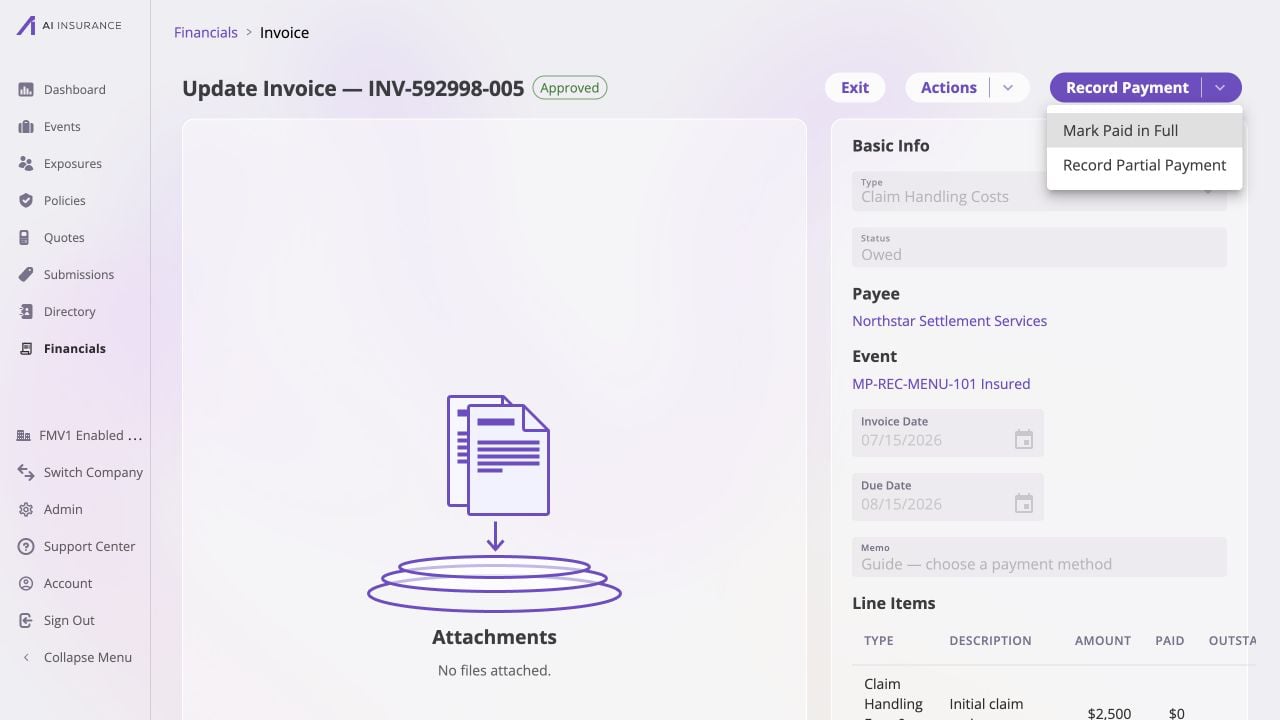
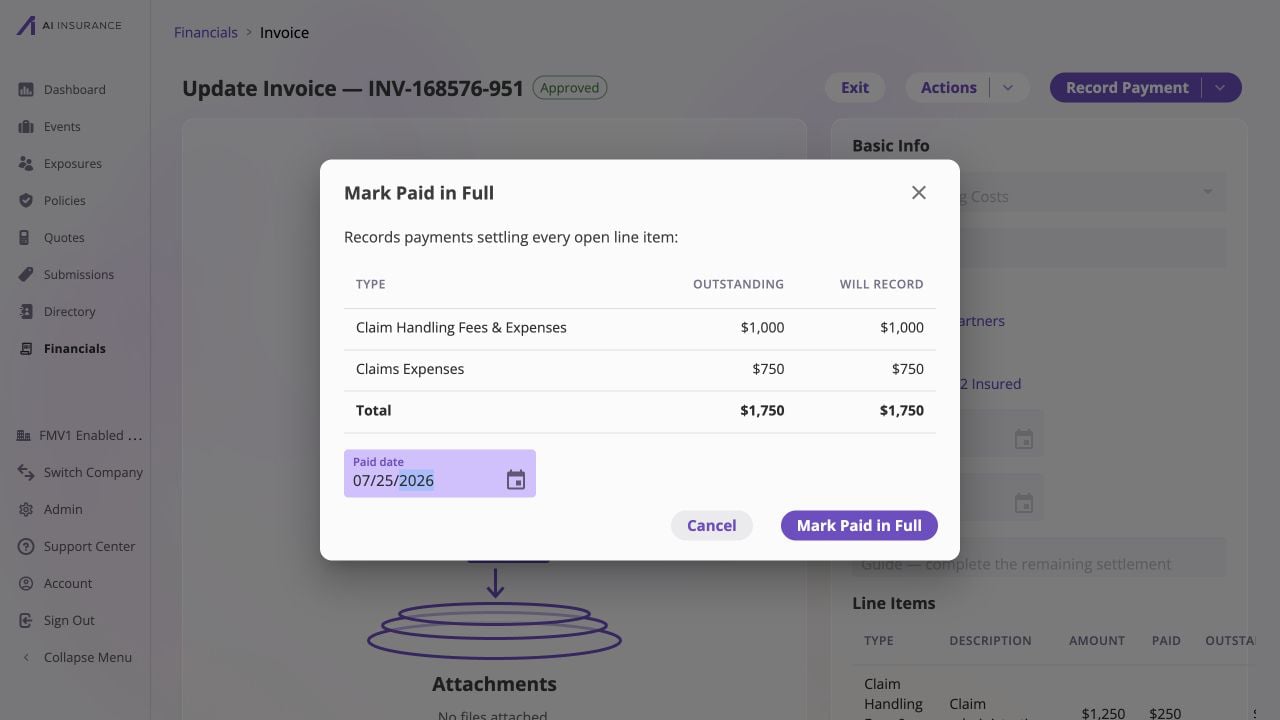
Select **Record Payment → Mark Paid in Full**. The confirmation lists each
open line item, its outstanding amount, and the amount that will be
recorded. Already-settled lines are omitted.
Set **Paid date** to the date the money moved. One date applies to every
payment created by this action.
Review the line-item amounts and total, then select **Mark Paid in Full**.
Select **Cancel** if the allocation or date is not correct.
## Mark the Invoice Paid in Full
Select **Record Payment → Mark Paid in Full**. The confirmation lists each
open line item, its outstanding amount, and the amount that will be
recorded. Already-settled lines are omitted.
Set **Paid date** to the date the money moved. One date applies to every
payment created by this action.
Review the line-item amounts and total, then select **Mark Paid in Full**.
Select **Cancel** if the allocation or date is not correct.
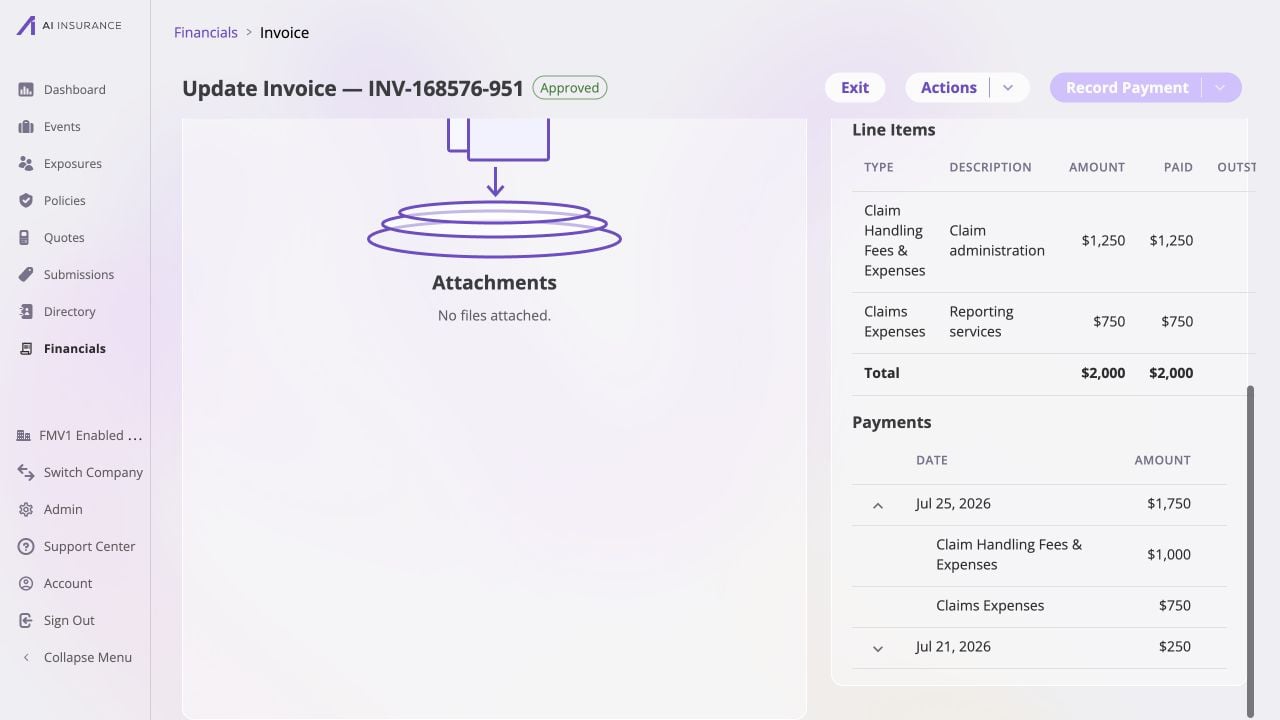
 After the action completes, every line item should show no outstanding amount,
the invoice status should be **Paid**, and the Payments section should contain
the newly recorded payment gesture. Expand a payment row to see the individual
line-item records behind it.
After the action completes, every line item should show no outstanding amount,
the invoice status should be **Paid**, and the Payments section should contain
the newly recorded payment gesture. Expand a payment row to see the individual
line-item records behind it.
 ## Record a Partial Payment
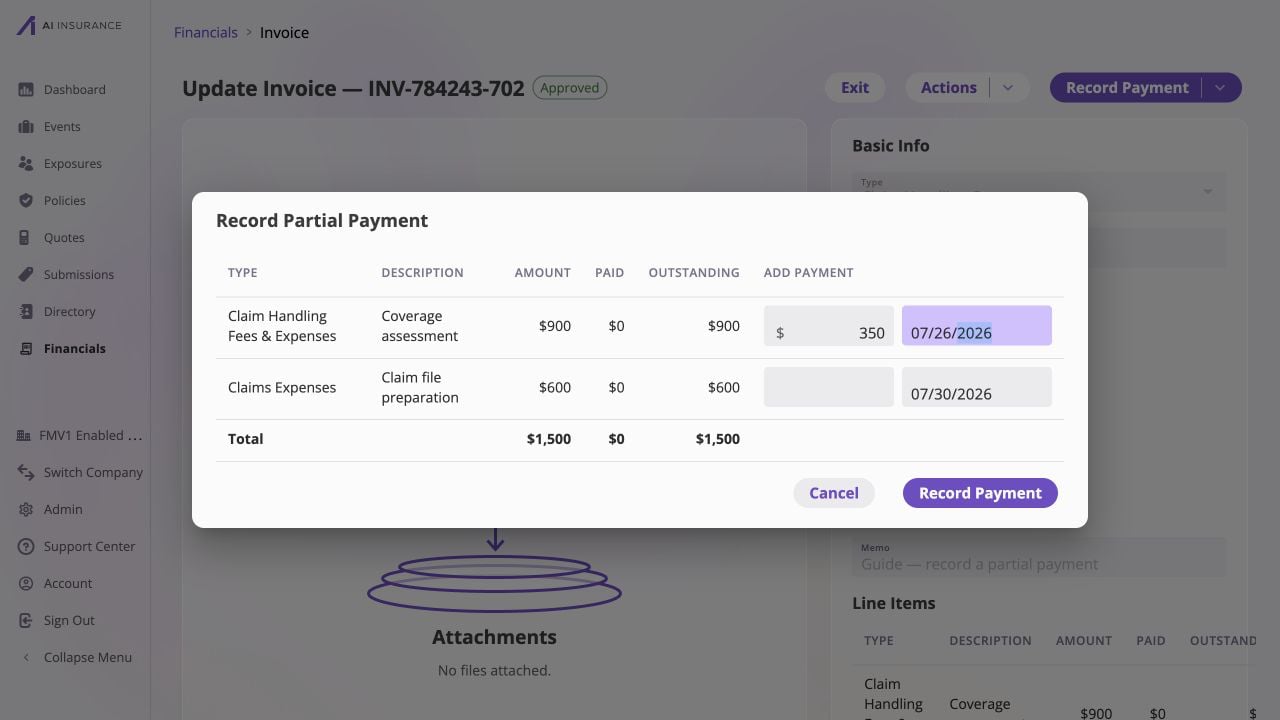
Select **Record Payment → Record Partial Payment**. The dialog repeats each
line item's Amount, Paid, and Outstanding figures so you can allocate the
new money without leaving the invoice.
In **Add Payment**, enter a positive amount for each line being paid.
Leave every untouched line blank. An entry cannot exceed that line's
remaining balance; the line's configured direction determines whether it
represents money in or money out.
Confirm the date beside every amount you entered. Different line items can
use different paid dates when the money moved on different days.
Review the itemized amounts and select **Record Payment**. The Payments
section below the table shows earlier payment history when the invoice was
already partially paid.
## Record a Partial Payment
Select **Record Payment → Record Partial Payment**. The dialog repeats each
line item's Amount, Paid, and Outstanding figures so you can allocate the
new money without leaving the invoice.
In **Add Payment**, enter a positive amount for each line being paid.
Leave every untouched line blank. An entry cannot exceed that line's
remaining balance; the line's configured direction determines whether it
represents money in or money out.
Confirm the date beside every amount you entered. Different line items can
use different paid dates when the money moved on different days.
Review the itemized amounts and select **Record Payment**. The Payments
section below the table shows earlier payment history when the invoice was
already partially paid.
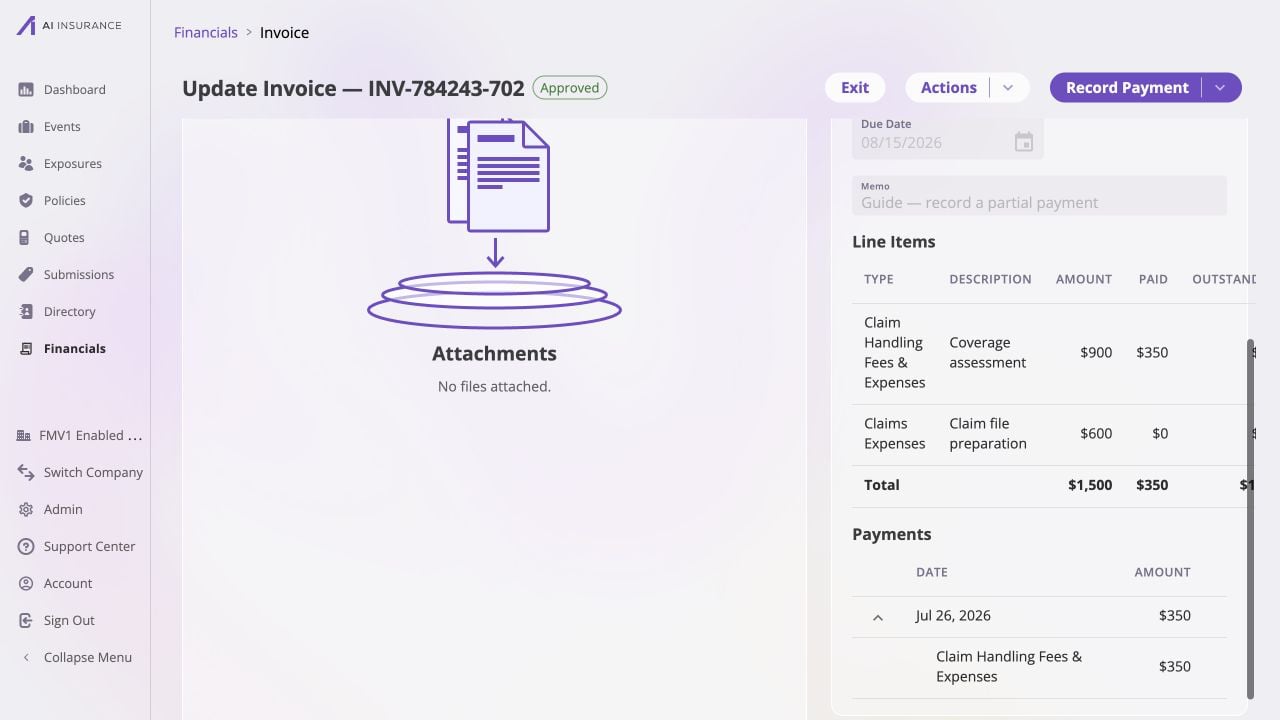
 The dialog is additive: it records new payments without replacing earlier
ones. The invoice becomes **Partially Paid** while any line remains open.
Confirm that Paid increased by the amount recorded and that Balance Due and the
line-level Outstanding figures decreased as expected.
The dialog is additive: it records new payments without replacing earlier
ones. The invoice becomes **Partially Paid** while any line remains open.
Confirm that Paid increased by the amount recorded and that Balance Due and the
line-level Outstanding figures decreased as expected.
 ## Add a Later Payment
Open the partially paid invoice again and choose based on what happened next:
* use **Record Partial Payment** for another installment or for selected line
items; or
* use **Mark Paid in Full** when every remaining line is now being settled.
Each action adds payment records to the existing history. It does not rewrite
the invoice total or earlier payments. To correct an amount or paid date that
was already recorded, follow [Editing, Removing, or Reverting
Payments](/financials/guides/editing-removing-or-reverting-payments).
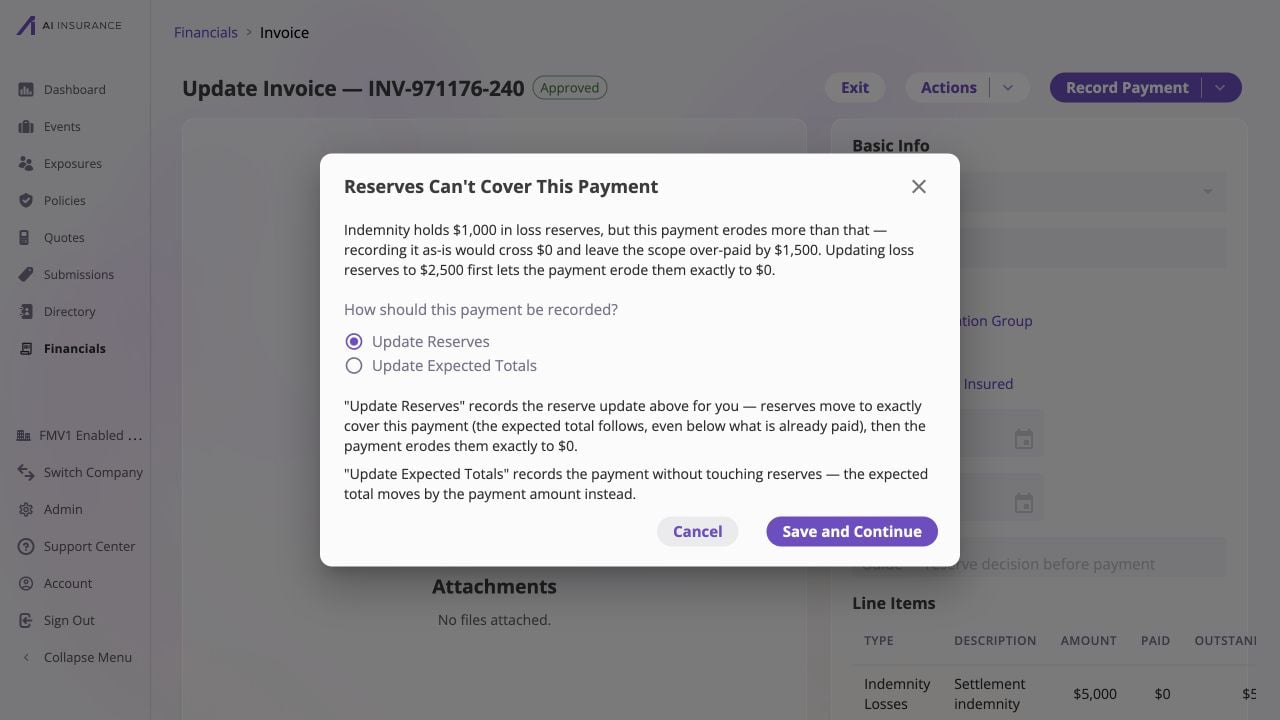
## Resolve a Reserve Decision
Payments on a Loss/Recovery Invoice Type linked to an event normally reduce
that event's reserve silently. The app pauses when the payment would cross the
reserve through zero or move it away from zero.
When prompted, review the event, Invoice Type, current reserve, payment, and
resulting amount before choosing:
* **Update Reserves** adjusts the reserve basis so the payment can update
reserves as described in the dialog. This is selected by default.
* **Update Expected Totals** records the payment without reducing the existing
reserve, so the expected total changes instead.
Select **Save and Continue** only after the chosen result matches the claim or
recovery estimate. Select **Cancel** to return without recording the payment.
For the accounting meaning and worked examples, see [When the App Asks How to
Record a Payment](/financials/reserves#when-the-app-asks-how-to-record-a-payment).
## Add a Later Payment
Open the partially paid invoice again and choose based on what happened next:
* use **Record Partial Payment** for another installment or for selected line
items; or
* use **Mark Paid in Full** when every remaining line is now being settled.
Each action adds payment records to the existing history. It does not rewrite
the invoice total or earlier payments. To correct an amount or paid date that
was already recorded, follow [Editing, Removing, or Reverting
Payments](/financials/guides/editing-removing-or-reverting-payments).
## Resolve a Reserve Decision
Payments on a Loss/Recovery Invoice Type linked to an event normally reduce
that event's reserve silently. The app pauses when the payment would cross the
reserve through zero or move it away from zero.
When prompted, review the event, Invoice Type, current reserve, payment, and
resulting amount before choosing:
* **Update Reserves** adjusts the reserve basis so the payment can update
reserves as described in the dialog. This is selected by default.
* **Update Expected Totals** records the payment without reducing the existing
reserve, so the expected total changes instead.
Select **Save and Continue** only after the chosen result matches the claim or
recovery estimate. Select **Cancel** to return without recording the payment.
For the accounting meaning and worked examples, see [When the App Asks How to
Record a Payment](/financials/reserves#when-the-app-asks-how-to-record-a-payment).
 ## Verify the Result
After any payment, confirm:
* **Status** is Partially Paid or Paid based on line-level settlement;
* **Approved** is shown, including when your payment implicitly approved the
invoice;
* **Paid** and **Balance Due** match the source record;
* every payment has the intended line item, amount, and paid date; and
* for Loss/Recovery activity, the event's Overview Report and **Reserve
Updates** reflect the reserve choice you made.
Payments post on their own effective dates and remain separate from the
invoice's incurred record. [What Each Action
Posts](/financials/accounting-model/postings#two-regions) describes that
accounting separation.
## Verify the Result
After any payment, confirm:
* **Status** is Partially Paid or Paid based on line-level settlement;
* **Approved** is shown, including when your payment implicitly approved the
invoice;
* **Paid** and **Balance Due** match the source record;
* every payment has the intended line item, amount, and paid date; and
* for Loss/Recovery activity, the event's Overview Report and **Reserve
Updates** reflect the reserve choice you made.
Payments post on their own effective dates and remain separate from the
invoice's incurred record. [What Each Action
Posts](/financials/accounting-model/postings#two-regions) describes that
accounting separation.