> ## Documentation Index
> Fetch the complete documentation index at: https://docs.go.aiinsurance.io/llms.txt
> Use this file to discover all available pages before exploring further.
# Resetting Reserve History
> Clear reserve history and establish a new starting state
Reset reserve history only when an event's accumulated reserve trail is wrong
in a way that another reserve update cannot correct, or when non-zero reserves
must be cleared before deleting the event. A reset returns the selected reserve
balance to zero and establishes a new starting point for its history.
A reset cannot be undone. Recorded payments and invoices remain, but the
selected category's earlier reserve updates fall behind the new history
horizon. Use [Setting a
Reserve](/financials/guides/setting-a-reserve) for a normal estimate change.
## Choose Between Zero and Reset
Both actions can leave the current reserve at zero, but they preserve different
stories.
| Action | Use it when | Result |
| -------------------------- | ------------------------------------------------------------------------------------ | ------------------------------------------------------------------------------------------------------------------ |
| **Set the reserve to `0`** | The current estimate has changed and nothing more is expected to move. | Adds a normal update. Earlier reserve history remains part of the active trail. |
| **Reset reserve history** | The accumulated trail must be cleared or reserve residue is blocking event deletion. | Returns the reserve to \$0, leaves recorded payments unchanged, and starts the active history from a reset marker. |
The reset confirmation shows the exact effect before anything changes. For the
selected category, **Expected Total** falls by the current reserve; when the
reserve becomes \$0, the remaining expected total is the amount already paid.
See [Reserves](/financials/reserves#resetting-reserve-history) for the conceptual
model and [What Each Action
Posts](/financials/accounting-model/postings#resetting-reserve-history) for the
accounting treatment.
## Select What to Reset
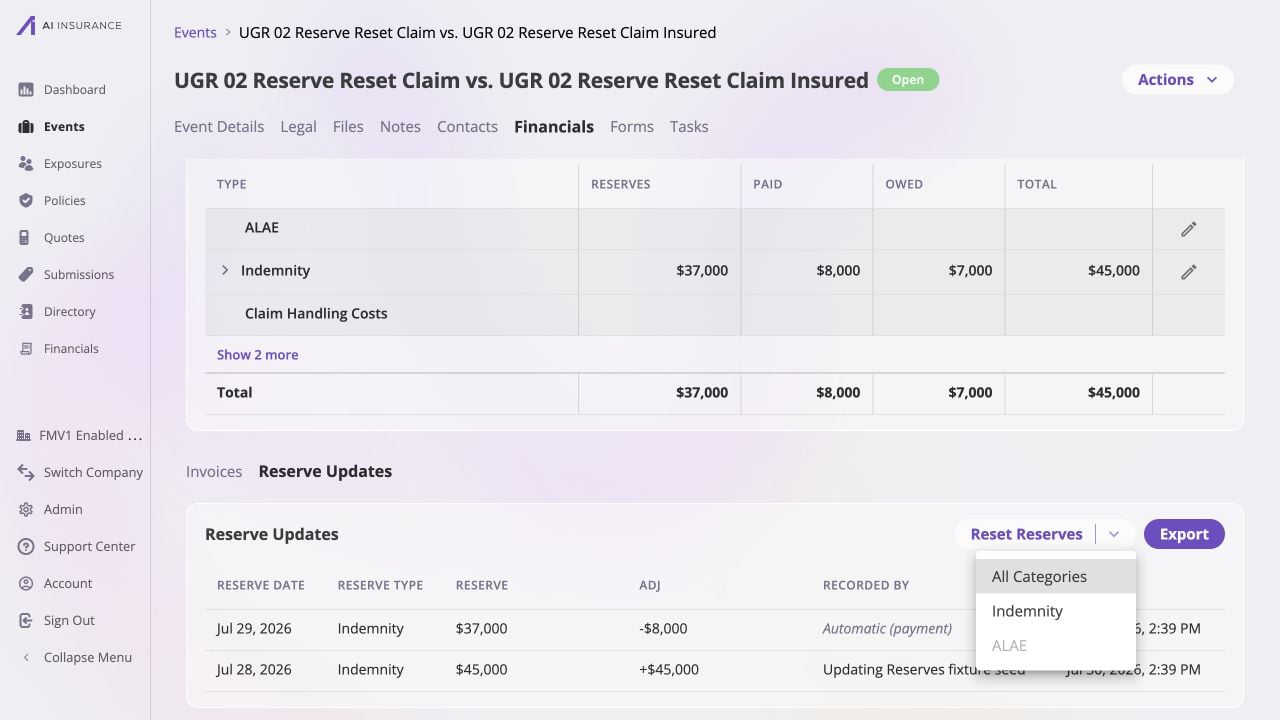
Open the event and select **Financials → Reserve Updates**. The **Reset
Reserves** control is available only to users who can update financial
activity, and only when at least one Loss/Recovery Invoice Type has reserve
history.
Open **Reset Reserves** and choose:
* one Invoice Type to reset only that category; or
* **All Categories** to reset every category on the event that currently has
reserve history.
A category without active history remains visible in the menu but is disabled.
You can also reset one category from its reserve editor by selecting **Reset
History** above that category's history table.
 ## Review and Confirm
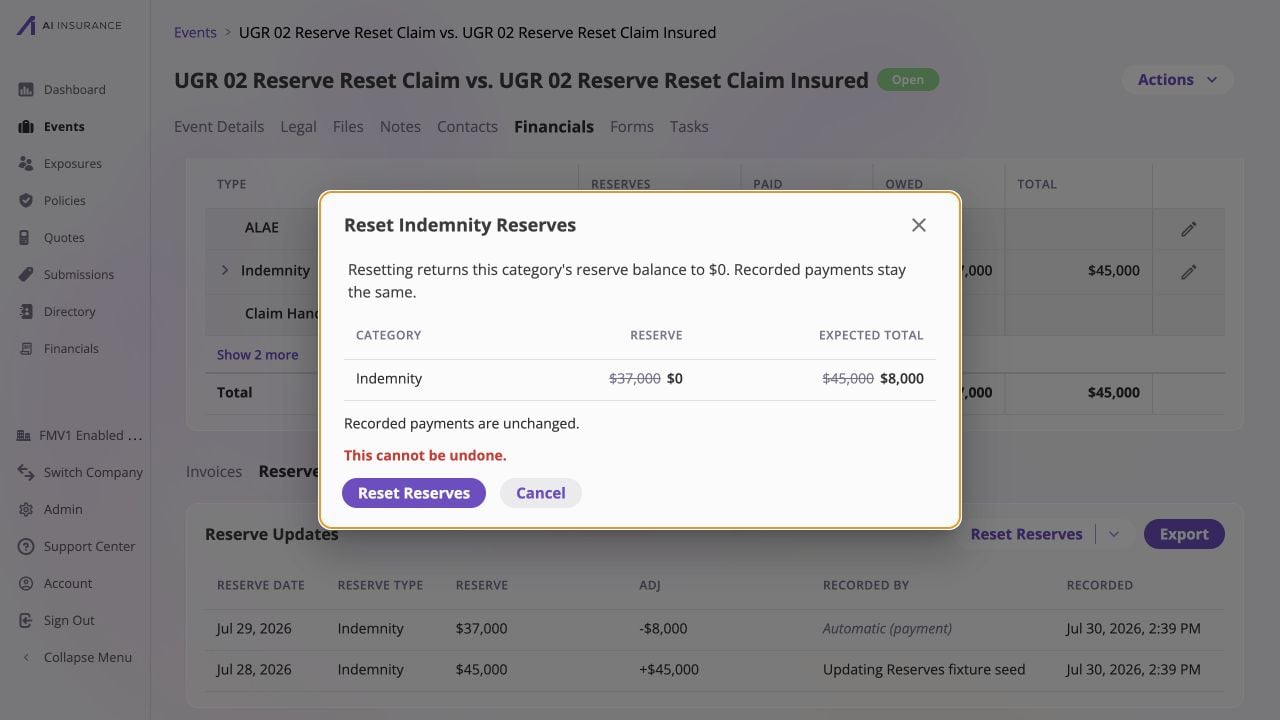
After choosing a category or **All Categories**, review the confirmation
carefully.
The title says **Reset \[Type] Reserves** for one category or **Reset All
Reserves** for the event-wide selection. Check each category listed in the
preview.
For each category, the preview strikes through the current **Reserve** and
**Expected Total**, then shows the resulting reserve of \$0 and the new
expected total.
Confirm the message states that recorded payments stay the same. A reset
does not void invoices, remove payments, or change invoice statuses.
Select **Reset Reserves** only when the scope and preview are correct.
Select **Cancel** to leave the history untouched.
## Review and Confirm
After choosing a category or **All Categories**, review the confirmation
carefully.
The title says **Reset \[Type] Reserves** for one category or **Reset All
Reserves** for the event-wide selection. Check each category listed in the
preview.
For each category, the preview strikes through the current **Reserve** and
**Expected Total**, then shows the resulting reserve of \$0 and the new
expected total.
Confirm the message states that recorded payments stay the same. A reset
does not void invoices, remove payments, or change invoice statuses.
Select **Reset Reserves** only when the scope and preview are correct.
Select **Cancel** to leave the history untouched.
 When **All Categories** is selected, the app resets each eligible category in
sequence. If only part of the selection succeeds, the message reports how many
categories were reset. Review the remaining enabled categories and retry only
those that still need a reset.
## Verify the New Starting State
After the success message appears:
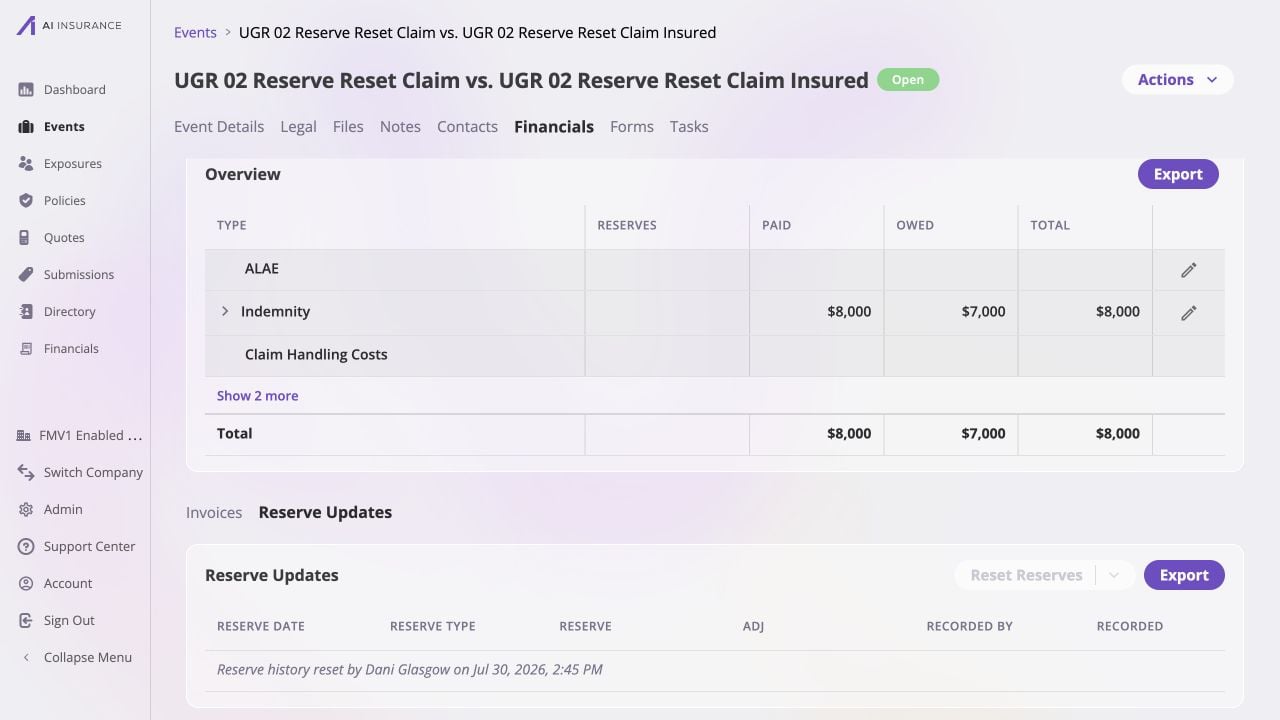
1. Return to the Overview Report and confirm each selected category's
**Reserves** cell is blank, representing a zero reserve.
2. Confirm its **Paid** amount is unchanged and its **Total** now matches the
paid amount.
3. Open **Reserve Updates** and find the italic reset marker naming who reset
the history and when.
4. Confirm the earlier rows no longer appear in the active listing. Any reserve
updates recorded later will appear after the marker as the new history.
5. If the reset was performed to unblock event deletion, check every reserved
category; a non-zero reserve in any category still blocks deletion.
When **All Categories** is selected, the app resets each eligible category in
sequence. If only part of the selection succeeds, the message reports how many
categories were reset. Review the remaining enabled categories and retry only
those that still need a reset.
## Verify the New Starting State
After the success message appears:
1. Return to the Overview Report and confirm each selected category's
**Reserves** cell is blank, representing a zero reserve.
2. Confirm its **Paid** amount is unchanged and its **Total** now matches the
paid amount.
3. Open **Reserve Updates** and find the italic reset marker naming who reset
the history and when.
4. Confirm the earlier rows no longer appear in the active listing. Any reserve
updates recorded later will appear after the marker as the new history.
5. If the reset was performed to unblock event deletion, check every reserved
category; a non-zero reserve in any category still blocks deletion.
 Resetting one category does not affect the event's other reserve categories.
Use **All Categories** only when every active reserve history on the event is
intended to start over.
Resetting one category does not affect the event's other reserve categories.
Use **All Categories** only when every active reserve history on the event is
intended to start over.