> ## Documentation Index
> Fetch the complete documentation index at: https://docs.go.aiinsurance.io/llms.txt
> Use this file to discover all available pages before exploring further.
# Setting a Reserve
> Set a new remaining reserve for an event
Set a reserve when the amount still expected to move for one Loss/Recovery
Invoice Type changes on an event. The amount you enter becomes the **new
remaining reserve**. It replaces the current balance; it is not added to or
subtracted from it.
See [Reserves](/financials/reserves) for the reserve identity, expected
direction, and payment-driven changes. This guide covers the event-level task.
## Before You Set the Reserve
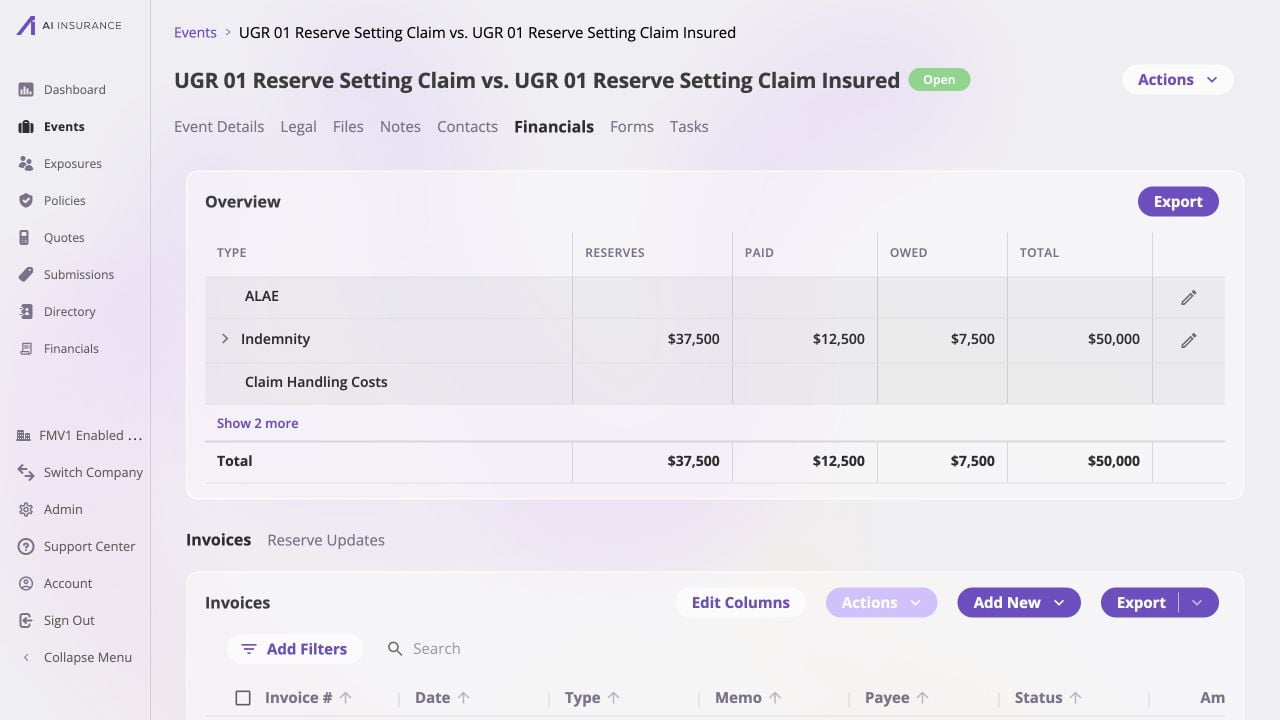
Open the event whose estimate you need to change, then select **Financials**.
In the Overview Report, confirm:
* the event in the page header is the intended event;
* the row is the intended Invoice Type;
* the row has a reserve edit control, which means it is a Loss/Recovery type;
and
* the current **Reserves**, **Paid**, and **Total** values are the position you
expect to update.
Operating types do not carry reserves. If a Loss/Recovery row has no edit
control, your role may not have permission to update financial activity.
 ## Enter the New Remaining Reserve
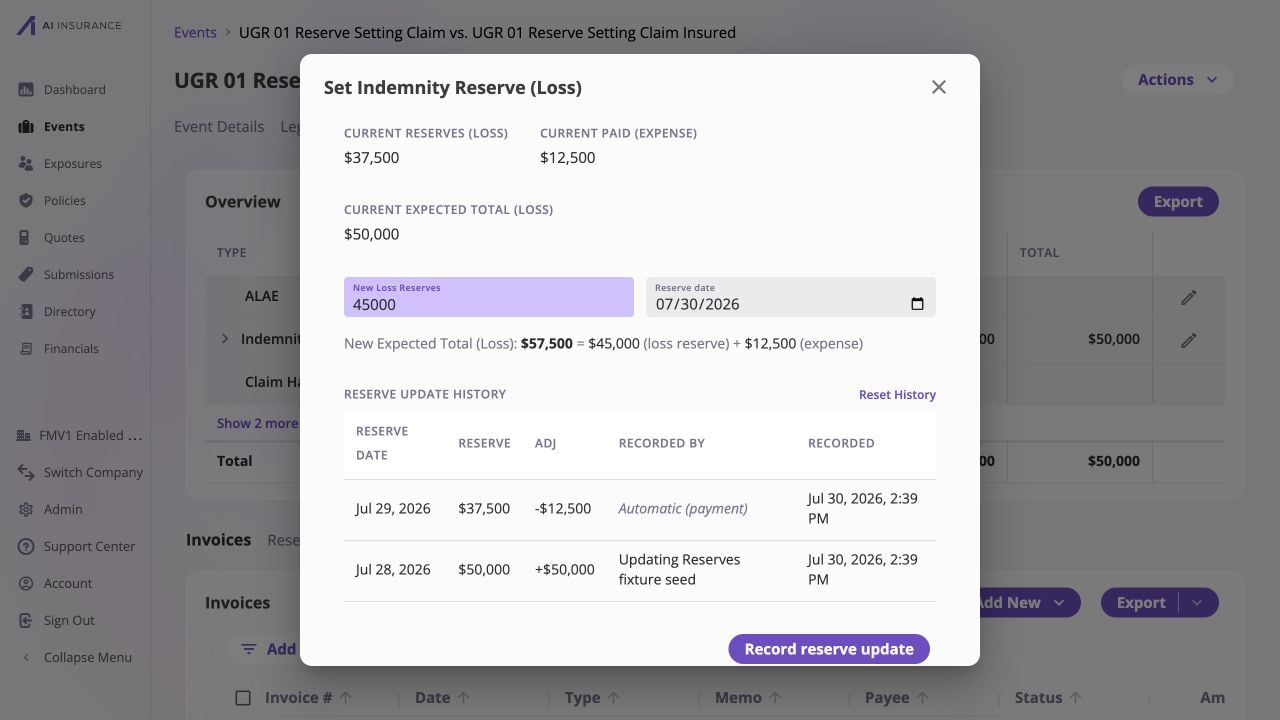
Select the reserve edit control at the right of the Loss/Recovery row. The
dialog title names the Invoice Type and whether its configured direction is
**Loss** or **Recovery**.
Check **Current Reserves**, **Current Paid**, and **Current Expected Total**
at the top of the dialog. These values are scoped to this Invoice Type on
this event.
In **New Loss Reserves** or **New Recovery Reserves**, enter a positive
amount or zero. Enter the full amount still expected to move, not the
adjustment from the current reserve.
Keep today's default date or choose an earlier effective date. A future date
is not allowed. An earlier date displays a warning so you can confirm that
the retroactive update is intentional.
Read **New Expected Total** before saving. It shows the entered reserve plus
the amount already paid, with Loss or Recovery direction made explicit.
## Enter the New Remaining Reserve
Select the reserve edit control at the right of the Loss/Recovery row. The
dialog title names the Invoice Type and whether its configured direction is
**Loss** or **Recovery**.
Check **Current Reserves**, **Current Paid**, and **Current Expected Total**
at the top of the dialog. These values are scoped to this Invoice Type on
this event.
In **New Loss Reserves** or **New Recovery Reserves**, enter a positive
amount or zero. Enter the full amount still expected to move, not the
adjustment from the current reserve.
Keep today's default date or choose an earlier effective date. A future date
is not allowed. An earlier date displays a warning so you can confirm that
the retroactive update is intentional.
Read **New Expected Total** before saving. It shows the entered reserve plus
the amount already paid, with Loss or Recovery direction made explicit.
 Entering `0` clears the amount still expected to move, but it still records a
normal reserve update and preserves the update trail. Do not use **Reset
History** for an ordinary estimate change. Resetting establishes a new history
horizon and cannot be undone; see [Resetting Reserve
History](/financials/guides/resetting-reserve-history).
## Record and Verify the Update
Select **Record reserve update**. After the success message appears, the dialog
closes and the Overview Report refreshes.
Verify both the resulting balance and its audit entry:
1. In the Overview Report, confirm **Reserves** equals the remaining amount you
entered.
2. Confirm **Total** equals the new reserve plus **Paid**.
3. Select **Reserve Updates** below the Overview Report.
4. Find the newest row for the Invoice Type and confirm its **Reserve Date**,
resulting **Reserve**, signed **Adj**, **Recorded By**, and **Recorded**
timestamp.
Entering `0` clears the amount still expected to move, but it still records a
normal reserve update and preserves the update trail. Do not use **Reset
History** for an ordinary estimate change. Resetting establishes a new history
horizon and cannot be undone; see [Resetting Reserve
History](/financials/guides/resetting-reserve-history).
## Record and Verify the Update
Select **Record reserve update**. After the success message appears, the dialog
closes and the Overview Report refreshes.
Verify both the resulting balance and its audit entry:
1. In the Overview Report, confirm **Reserves** equals the remaining amount you
entered.
2. Confirm **Total** equals the new reserve plus **Paid**.
3. Select **Reserve Updates** below the Overview Report.
4. Find the newest row for the Invoice Type and confirm its **Reserve Date**,
resulting **Reserve**, signed **Adj**, **Recorded By**, and **Recorded**
timestamp.
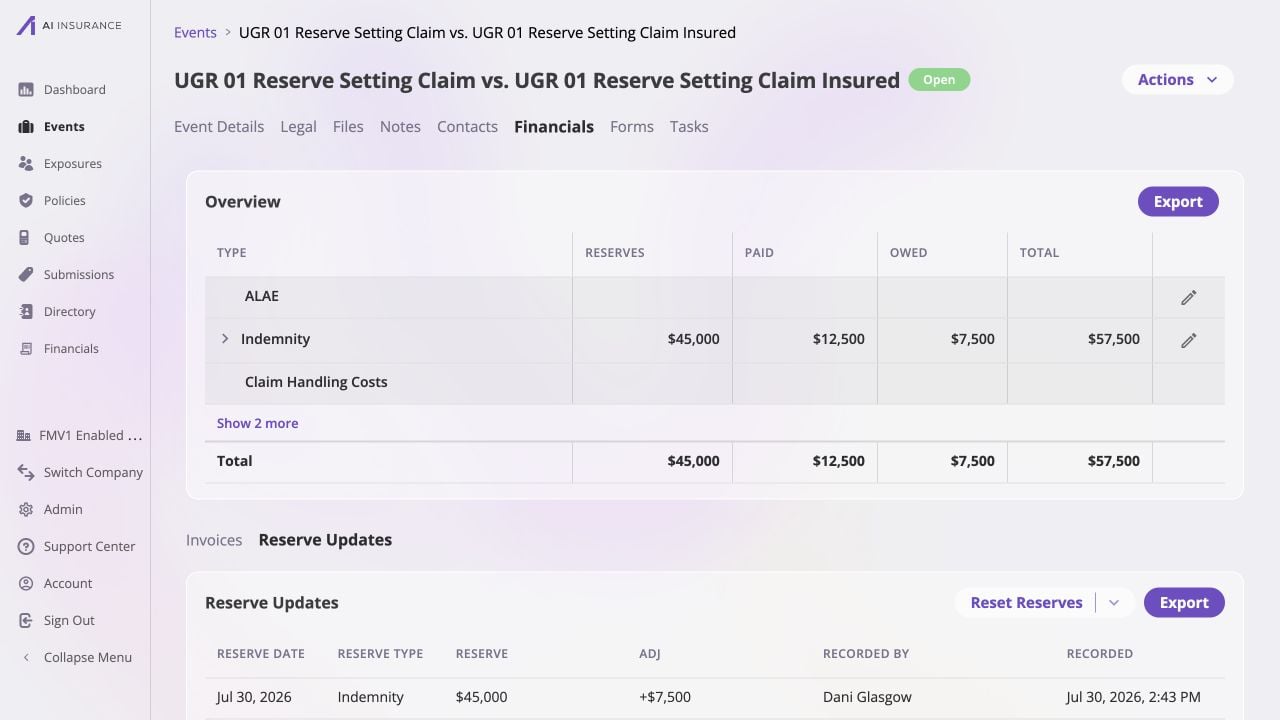 For example, if Paid is \$12,500 and the current reserve is \$37,500, entering
\$45,000 produces a \$57,500 expected total. The history row's adjustment is
\$7,500 because the new absolute balance is \$7,500 higher than the previous
reserve.
Reserve updates cannot be edited. If the estimate is wrong, open the editor
again and record the correct remaining balance. Use a history reset only when
the accumulated history itself must be cleared.
For example, if Paid is \$12,500 and the current reserve is \$37,500, entering
\$45,000 produces a \$57,500 expected total. The history row's adjustment is
\$7,500 because the new absolute balance is \$7,500 higher than the previous
reserve.
Reserve updates cannot be edited. If the estimate is wrong, open the editor
again and record the correct remaining balance. Use a history reset only when
the accumulated history itself must be cleared.