> ## Documentation Index
> Fetch the complete documentation index at: https://docs.go.aiinsurance.io/llms.txt
> Use this file to discover all available pages before exploring further.
# Updating Invoice Details
> Update the editable non-payment details of an invoice
Update an invoice when its dates, memo, event link, or supporting files need to
change but the posted amount is still correct. These edits preserve the invoice
number, approval, and recorded payments.
This guide focuses on descriptive invoice details. To change the event link,
follow [Linking, Unlinking, or Moving an
Invoice](/financials/guides/linking-unlinking-or-moving-an-invoice), which
covers the additional steps for invoices with payments.
## Open Edit Mode
1. Open **Financials → Event Financials**, or open an event and select
**Financials**.
2. Select the invoice row.
3. On the invoice page, select **Actions → Edit**.
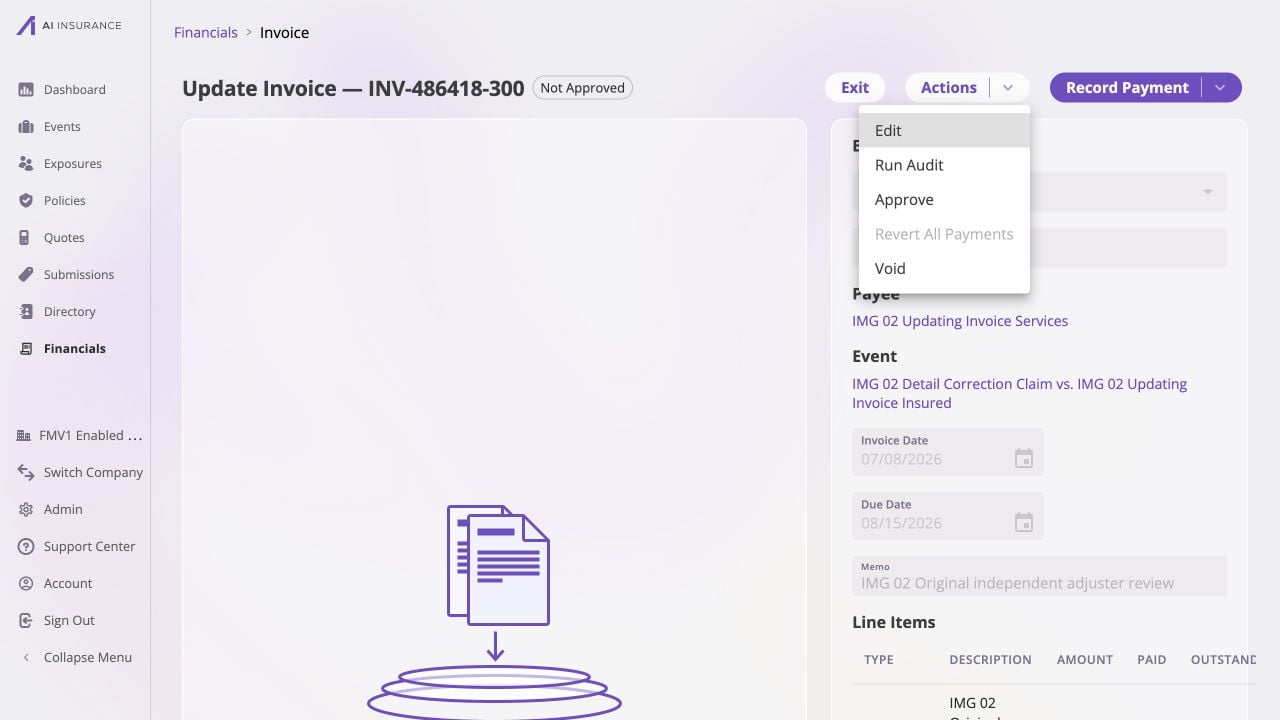 The page switches from read mode to edit mode. The header now shows **Upload
File(s)**, **Cancel**, and **Save**.
## Make the Changes
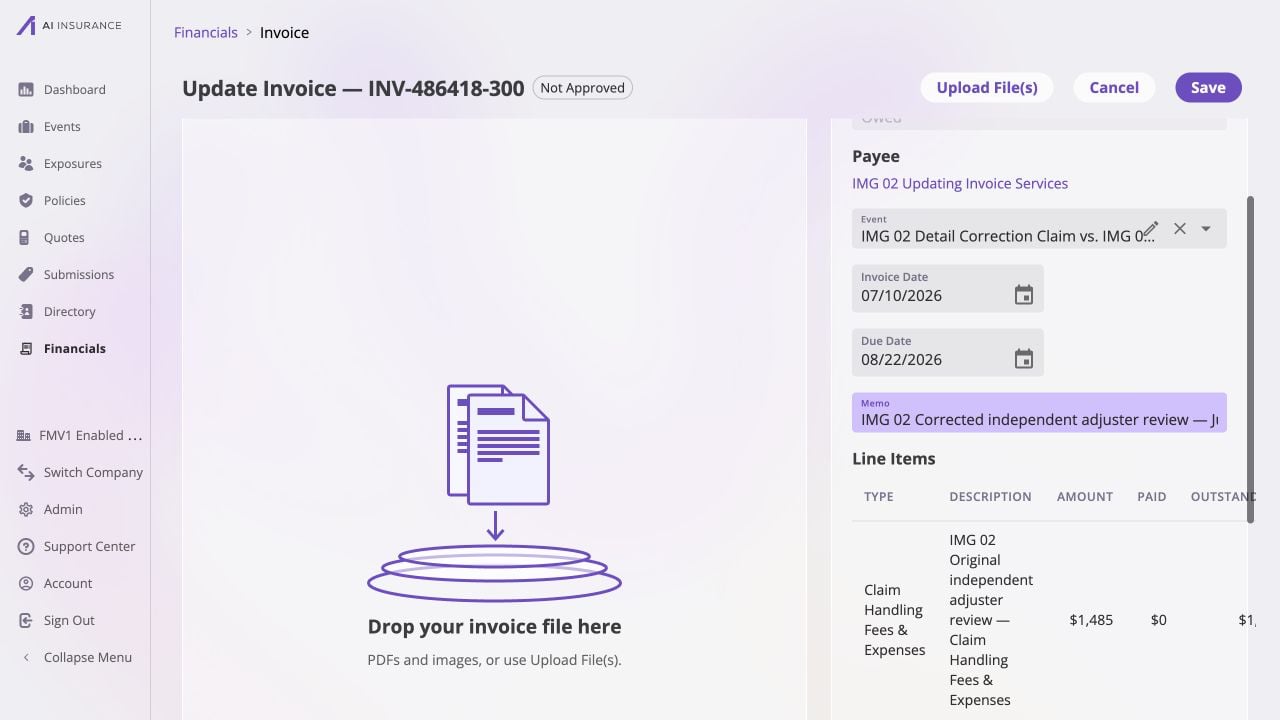
Update any of these fields:
| Field | What to check |
| ---------------- | ---------------------------------------------------------------------------------------------------------------------------------------------------- |
| **Invoice Date** | Required. Changing it moves the invoice's incurred activity to the new reporting date without changing payment dates. |
| **Due Date** | Optional and informational. Clear it if no due date should be shown. |
| **Memo** | Optional description used on the invoice and in the listing. |
| **Event** | Select another event or clear the event to leave the invoice unlinked. A paid or partially paid invoice requires an additional confirmation at Save. |
| **Attachments** | Add files with **Upload File(s)** or the drop zone; remove files that no longer belong. Attachment changes remain staged until Save. |
The page switches from read mode to edit mode. The header now shows **Upload
File(s)**, **Cancel**, and **Save**.
## Make the Changes
Update any of these fields:
| Field | What to check |
| ---------------- | ---------------------------------------------------------------------------------------------------------------------------------------------------- |
| **Invoice Date** | Required. Changing it moves the invoice's incurred activity to the new reporting date without changing payment dates. |
| **Due Date** | Optional and informational. Clear it if no due date should be shown. |
| **Memo** | Optional description used on the invoice and in the listing. |
| **Event** | Select another event or clear the event to leave the invoice unlinked. A paid or partially paid invoice requires an additional confirmation at Save. |
| **Attachments** | Add files with **Upload File(s)** or the drop zone; remove files that no longer belong. Attachment changes remain staged until Save. |
 For a posted invoice, **Type, payee, Line Item Types, amounts, and directions
cannot be edited here**. Reverting payments does not unlock them. If one of
those facts is wrong, [replace the
invoice](/financials/guides/replacing-an-incorrect-invoice).
## Save and Verify
Select **Save**. If the event changed on an invoice with recorded payments, the
app first explains that it will remove the payments, move the invoice, and
re-record the same payments against the new event. Confirm only after checking
the source and destination.
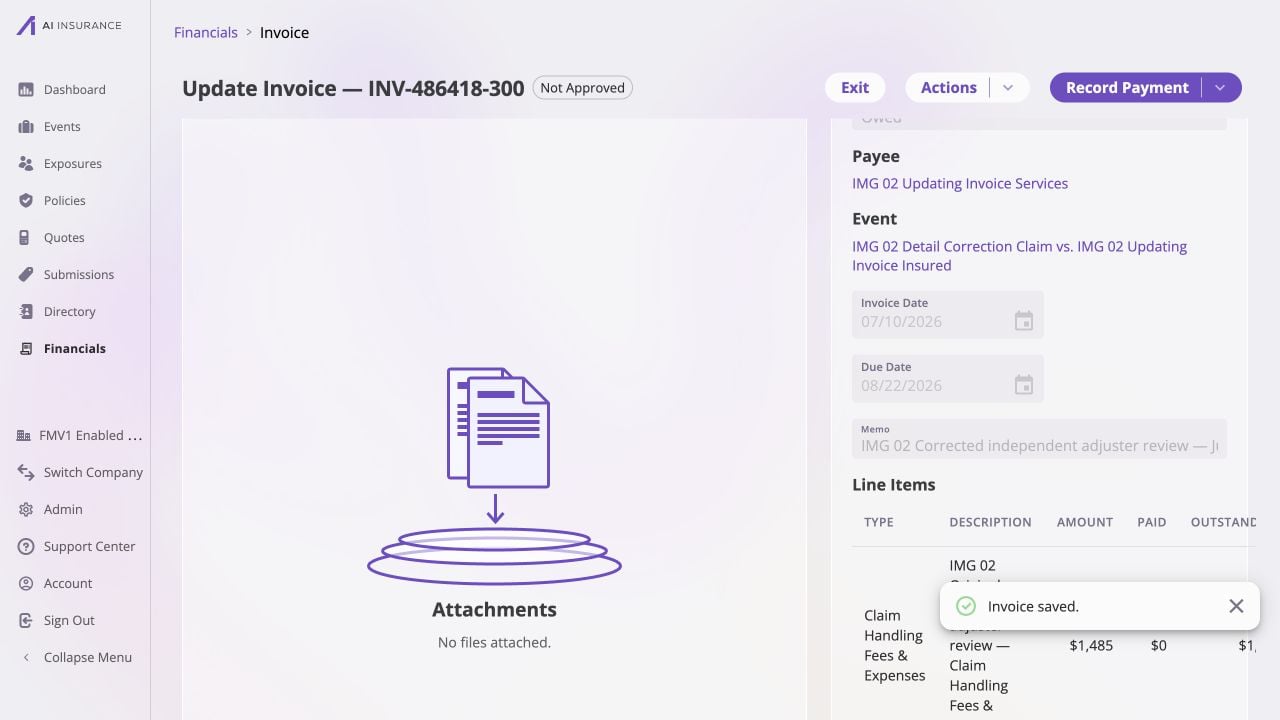
After the page returns to read mode, verify:
* the revised dates and memo appear in **Basic Info**;
* the intended event link is shown;
* the attachment pane contains the correct files;
* the status, approval badge, Paid amount, and Balance Due are unchanged; and
* event-level reserve figures reflect any decision made while moving recorded
payments.
Selecting **Cancel** discards the staged changes. If you have changed anything,
the page asks whether to keep editing or discard the changes.
For a posted invoice, **Type, payee, Line Item Types, amounts, and directions
cannot be edited here**. Reverting payments does not unlock them. If one of
those facts is wrong, [replace the
invoice](/financials/guides/replacing-an-incorrect-invoice).
## Save and Verify
Select **Save**. If the event changed on an invoice with recorded payments, the
app first explains that it will remove the payments, move the invoice, and
re-record the same payments against the new event. Confirm only after checking
the source and destination.
After the page returns to read mode, verify:
* the revised dates and memo appear in **Basic Info**;
* the intended event link is shown;
* the attachment pane contains the correct files;
* the status, approval badge, Paid amount, and Balance Due are unchanged; and
* event-level reserve figures reflect any decision made while moving recorded
payments.
Selecting **Cancel** discards the staged changes. If you have changed anything,
the page asks whether to keep editing or discard the changes.
 The accounting record keeps the correction auditable: a date change reverses
the incurred posting on the old date and reposts it on the new one. See [What
Each Action Posts](/financials/accounting-model/postings#corrections-are-reversals)
for the underlying model.
The accounting record keeps the correction auditable: a date change reverses
the incurred posting on the old date and reposts it on the new one. See [What
Each Action Posts](/financials/accounting-model/postings#corrections-are-reversals)
for the underlying model.