> ## Documentation Index
> Fetch the complete documentation index at: https://docs.go.aiinsurance.io/llms.txt
> Use this file to discover all available pages before exploring further.
# The Invoice Lifecycle
> Draft, owed, partially paid, paid, void — and what moves an invoice between them
An invoice is created, paid, and eventually settled. Its status is never set
directly: it is derived from the payments recorded against it.
## The Statuses
| Status | What it means |
| ------------------ | -------------------------------------------------------------------------------------- |
| **Draft** | The invoice exists as a document but has not been finalized. It counts toward nothing. |
| **Owed** | The invoice exists and nothing has been paid against it. |
| **Partially Paid** | Some money has been recorded, but at least one line item is still open. |
| **Paid** | Every line item is fully settled. |
| **No Charges** | Every line item's amount is zero. There is nothing to pay. |
| **Void** | The invoice is kept as a record but excluded from every total. |
## Status Is Derived, Not Set
**An invoice's status is derived from its payments, not stored as a label.** An
invoice is never "set to Paid". The money that makes it paid is recorded, and the
status follows.
The app reads the status like this, first match winning:
1. Created as a draft and not yet finalized → **Draft**
2. Voided → **Void**
3. Every line item's amount is zero → **No Charges**
4. Every line item is fully settled → **Paid**
5. No payments recorded at all → **Owed**
6. Otherwise → **Partially Paid**
Settlement is judged **per line item**, not on the invoice total. This matters on
an invoice with lines pointing in opposite directions: a \$1,000 expense line and
a \$1,000 credit line net to zero, but both lines are still open, so the invoice
is **Owed** — not Paid. A total of zero is not the same as nothing left to do.
On the invoice page, **Status is a read-only field** — no control sets it. It
moves when money moves. The invoice listing's bulk **Mark As** is the one place a
status is named directly, and even there the app is being told to record or
remove the payments that make the status true, not to relabel anything.
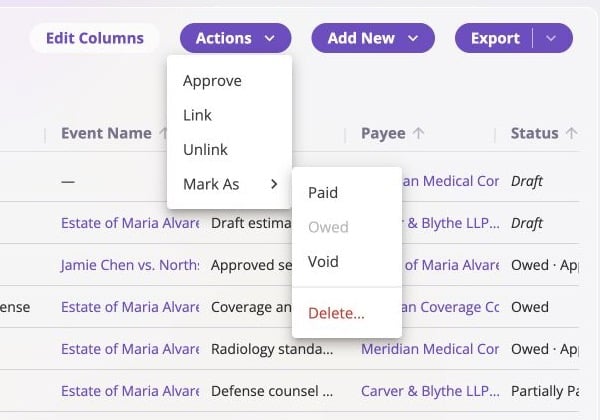
The menu reflects the selected invoice's current state. Here an Owed invoice can
be made Paid or Void; **Owed** is disabled because no transition is necessary.
 ## Drafts
**Draft** is the one status that says nothing about money. A draft is an invoice
that exists as a document but has not been finalized: nothing is recorded against
it, and it contributes to no total, no report figure, and no reserve.
A draft is never typed by hand. Two things produce one:
* **Document parsing.** An invoice read out of a PDF lands as a draft, for review
before it counts.
* **The external API.** A create call can bring an invoice into being unfinalized.
Drafts appear in the invoice listing by default — a draft is a row someone has to
find and finalize — with the status and the amount both in italics.
A draft is the one place an invoice's **type and line items are editable**. It
opens read-only behind an explicit **Edit**; from there, line items can be added,
removed, re-typed, and re-priced, and the type itself can be switched. This is
the window in which a mis-parsed invoice gets corrected.
Two things a draft does not admit: **payments cannot be recorded** against it, and
it **cannot be voided** — a draft that should not exist is deleted instead.
Editing, relinking, and deleting all stay legal.
**Finalize** turns the draft into an ordinary invoice in place, keeping the same
invoice number and the same URL. Its figures enter the totals, its type and line
items freeze, and it takes a status from the rules above — normally Owed, with
payment recorded from there like any other invoice.
## Creating an Invoice
The type decides which line items are available. It cannot be changed later.
Add one or more line items and enter each amount on its Income or Expense
side. At least one line item is required, and each needs a type.
Required. This is when the money is recognized, and it is the date reports
count the figure from. On an invoice linked to a policy it may be in the
future — that is how a scheduled installment is recorded. On an invoice
linked to an event, or on an unlinked one, it cannot.
Due date, payee, memo, and any files. Optional.
Owed records the obligation and nothing else. Paid also records a settling
payment for the full amount, and needs a paid date.
## Dates
Three dates, doing three different jobs:
| Date | Job |
| ---------------- | ---------------------------------------------------------------------------------------------------------------------------------------------------------------------------------------------------------------- |
| **Invoice date** | When the money is recognized. This is the reporting date — it decides which period the figure lands in. Required. It may be in the future on a policy invoice; on an event invoice or an unlinked one it cannot. |
| **Due date** | When payment is expected. Purely informational: it never affects a total, a report, or a status. Always allowed to be in the future. |
| **Paid date** | The date a payment moved. Recorded per payment, not on the invoice itself. |
## Recording Payments
Payments are recorded **per line item**. A payment is an amount against one line
item, with its own date and an optional memo — the same unit the payment history
lists and the app later edits.
The **Record Payment** menu on an invoice offers the two ways to do it:
| | What it records |
| -------------------------- | --------------------------------------------------------------------------------------------------------------------------------------------- |
| **Mark Paid in Full** | One payment per open line item, each for that line's whole remaining, on a single date. Nothing to fill in but the date. |
| **Record Partial Payment** | An itemized table: an amount and a date per line item, filled in only where money moved. Strictly additive — it adds to what is already paid. |
Settling in stages is ordinary: a \$15,000 invoice paid in three \$5,000
instalments is Partially Paid twice and then Paid.
On a Loss/Recovery type, recording a payment normally updates the event's
remaining reserve for that type. Sometimes the app asks how the payment should be
applied — see [Reserves](/financials/reserves).
### Editing and Removing Payments
The payment history is authored, not append-only. Expanding a line item and
opening its history gives every payment on that line — amount and date, both
editable — plus **Add Payment** for another, and a control to remove one. A
removed payment shows struck through until the save, and can be restored before
then.
**Revert All Payments**, in the invoice's **Actions** menu, removes every payment
at once and returns the invoice to Owed.
A line item never accepts more than its own amount. Payments on a line may sum to
less — that is an ordinary partly-paid line — but not to more, and the app reports
each line's outstanding figure as amounts are typed.
### Worked Example
An invoice with three line items: \$1,000 of indemnity and \$500 of legal fees on
the expense side, and a \$300 salvage credit on the income side. Its total is
\$1,200 expense — the net of the three.
A first **Record Partial Payment** pays the law firm \$500 and nothing else:
| Line item | Amount | Paid | Outstanding | Status of the line |
| -------------- | --------------- | ------------- | --------------- | ------------------ |
| Indemnity | \$1,000 expense | \$0 | \$1,000 expense | Open |
| Legal fees | \$500 expense | \$500 expense | \$0 | Settled |
| Salvage credit | \$300 income | \$0 | \$300 income | Open |
The invoice is **Partially Paid**. Two lines are still open — including the
salvage credit, which is money owed *to* the business and settles only when the
recovery is actually collected.
**Mark Paid in Full** from here settles both remaining lines on one date, in both
directions at once:
| Line item | Outstanding before | Recorded | Outstanding after |
| -------------- | ------------------ | --------------- | ----------------- |
| Indemnity | \$1,000 expense | \$1,000 expense | \$0 |
| Legal fees | \$0 | — | \$0 |
| Salvage credit | \$300 income | \$300 income | \$0 |
Now every line is settled, so the invoice is **Paid**. Settlement is judged line by
line, which is why settling the legal fees in full still left the invoice
Partially Paid.
An integration writing through the API has the same two choices: settle the whole
balance due in one call, or name the line items and the exact cents for each. See
[Record Payment](/api-reference/financials/record-payment).
## What Can and Cannot Change
Every invoice figure feeds the company's record of where its money is. That record
is only ever added to — a correction is a new entry that supersedes an old one,
never a rewrite of what was already written. That single rule decides which
changes an invoice allows, and what each one costs.
### Frozen at Creation
**The Invoice Type, which line items are on the invoice, and each line item's
amount are fixed from the moment the invoice is created.** For a draft, "created"
is the moment it is finalized.
These are the facts the money record was built from. Changing one would not
correct that record, it would contradict it. So a correction is not an edit: it is
a **void and a replacement** — void the invoice, create the right one.
The freeze never loosens. Reverting a paid invoice to Owed does not unlock its
line items, and no later status makes the type or the amounts editable again.
### Changes That Don't Touch the Money
The invoice's **dates**, its **memos**, and its **files** describe the money
without moving it. They can be changed on any invoice at any status: a fully paid
invoice's dates and memos edit in place, with its payments left exactly where they
are.
### Changes That Move the Money
Everything else writes to the money record, and divides by whether the app has to
walk the invoice through other states to get there.
**Direct — each writes its own entry.** Recording a payment, editing one,
removing one. The status simply follows from the result.
**Composed — the app walks the invoice through the intermediate states.** Some changes
are legal only on an invoice with no payments against it. Rather than refuse, the
app takes the payments off, makes the change, and puts them back, all in one step,
after a dialog that spells out the steps — because none of them are visible in the
result.
**Relinking a paid invoice to a different event** is the clearest case. Its
payments were attributed to the old event, so the invoice cannot simply be pointed
elsewhere while they stand:
1. Remove every recorded payment.
2. Move the invoice to the new event.
3. Re-record every payment against the new event.
The invoice passes through Owed on the way and ends up back at Paid. **Voiding a
paid invoice** composes the same way, without the third step — the payments are
reverted and the balances zeroed as part of the void.
## Voiding
Voiding keeps the invoice as a record but takes it out of the numbers entirely. A
voided invoice:
* still appears in listings, its status reading **Void**;
* is excluded from every count, total, and report figure;
* opens read-only, offering **Restore**, and can still be relinked or deleted.
Voiding a paid invoice reverts its payments as part of the same step, so there is
nothing to undo first.
Restoring a voided invoice returns it exactly as it was, and its figures come
back into the totals.
## Deleting
Deleting removes the invoice from the app. Unlike voiding, it is not a browsable
state — the invoice is gone from listings and reports, and deletion is final.
Deleting an invoice has no preconditions: an invoice with payments recorded
against it can be deleted, and the app unwinds them.
Void and delete answer different questions. **Void** marks an invoice as not
counting while keeping it visible as a record. **Delete** removes it entirely.
Void is the right choice when the record itself is meaningful.
## Bulk Actions
[Company Event Financials](/financials/pages/event-financials-page#bulk-actions)
and the [Event Financials Tab](/financials/pages/event-financials-tab#bulk-actions)
both support multi-select. With rows selected, the **Actions** menu offers:
* **Mark As** — move the selected invoices to Owed or Paid in bulk, with a
confirmation that spells out what will be recorded or removed.
* **Approve** — see [Approvals](/financials/approvals).
* **Link** and **Unlink** — change the primary entity in bulk. Company-wide only;
inside an event's own tab the event is fixed.
## Drafts
**Draft** is the one status that says nothing about money. A draft is an invoice
that exists as a document but has not been finalized: nothing is recorded against
it, and it contributes to no total, no report figure, and no reserve.
A draft is never typed by hand. Two things produce one:
* **Document parsing.** An invoice read out of a PDF lands as a draft, for review
before it counts.
* **The external API.** A create call can bring an invoice into being unfinalized.
Drafts appear in the invoice listing by default — a draft is a row someone has to
find and finalize — with the status and the amount both in italics.
A draft is the one place an invoice's **type and line items are editable**. It
opens read-only behind an explicit **Edit**; from there, line items can be added,
removed, re-typed, and re-priced, and the type itself can be switched. This is
the window in which a mis-parsed invoice gets corrected.
Two things a draft does not admit: **payments cannot be recorded** against it, and
it **cannot be voided** — a draft that should not exist is deleted instead.
Editing, relinking, and deleting all stay legal.
**Finalize** turns the draft into an ordinary invoice in place, keeping the same
invoice number and the same URL. Its figures enter the totals, its type and line
items freeze, and it takes a status from the rules above — normally Owed, with
payment recorded from there like any other invoice.
## Creating an Invoice
The type decides which line items are available. It cannot be changed later.
Add one or more line items and enter each amount on its Income or Expense
side. At least one line item is required, and each needs a type.
Required. This is when the money is recognized, and it is the date reports
count the figure from. On an invoice linked to a policy it may be in the
future — that is how a scheduled installment is recorded. On an invoice
linked to an event, or on an unlinked one, it cannot.
Due date, payee, memo, and any files. Optional.
Owed records the obligation and nothing else. Paid also records a settling
payment for the full amount, and needs a paid date.
## Dates
Three dates, doing three different jobs:
| Date | Job |
| ---------------- | ---------------------------------------------------------------------------------------------------------------------------------------------------------------------------------------------------------------- |
| **Invoice date** | When the money is recognized. This is the reporting date — it decides which period the figure lands in. Required. It may be in the future on a policy invoice; on an event invoice or an unlinked one it cannot. |
| **Due date** | When payment is expected. Purely informational: it never affects a total, a report, or a status. Always allowed to be in the future. |
| **Paid date** | The date a payment moved. Recorded per payment, not on the invoice itself. |
## Recording Payments
Payments are recorded **per line item**. A payment is an amount against one line
item, with its own date and an optional memo — the same unit the payment history
lists and the app later edits.
The **Record Payment** menu on an invoice offers the two ways to do it:
| | What it records |
| -------------------------- | --------------------------------------------------------------------------------------------------------------------------------------------- |
| **Mark Paid in Full** | One payment per open line item, each for that line's whole remaining, on a single date. Nothing to fill in but the date. |
| **Record Partial Payment** | An itemized table: an amount and a date per line item, filled in only where money moved. Strictly additive — it adds to what is already paid. |
Settling in stages is ordinary: a \$15,000 invoice paid in three \$5,000
instalments is Partially Paid twice and then Paid.
On a Loss/Recovery type, recording a payment normally updates the event's
remaining reserve for that type. Sometimes the app asks how the payment should be
applied — see [Reserves](/financials/reserves).
### Editing and Removing Payments
The payment history is authored, not append-only. Expanding a line item and
opening its history gives every payment on that line — amount and date, both
editable — plus **Add Payment** for another, and a control to remove one. A
removed payment shows struck through until the save, and can be restored before
then.
**Revert All Payments**, in the invoice's **Actions** menu, removes every payment
at once and returns the invoice to Owed.
A line item never accepts more than its own amount. Payments on a line may sum to
less — that is an ordinary partly-paid line — but not to more, and the app reports
each line's outstanding figure as amounts are typed.
### Worked Example
An invoice with three line items: \$1,000 of indemnity and \$500 of legal fees on
the expense side, and a \$300 salvage credit on the income side. Its total is
\$1,200 expense — the net of the three.
A first **Record Partial Payment** pays the law firm \$500 and nothing else:
| Line item | Amount | Paid | Outstanding | Status of the line |
| -------------- | --------------- | ------------- | --------------- | ------------------ |
| Indemnity | \$1,000 expense | \$0 | \$1,000 expense | Open |
| Legal fees | \$500 expense | \$500 expense | \$0 | Settled |
| Salvage credit | \$300 income | \$0 | \$300 income | Open |
The invoice is **Partially Paid**. Two lines are still open — including the
salvage credit, which is money owed *to* the business and settles only when the
recovery is actually collected.
**Mark Paid in Full** from here settles both remaining lines on one date, in both
directions at once:
| Line item | Outstanding before | Recorded | Outstanding after |
| -------------- | ------------------ | --------------- | ----------------- |
| Indemnity | \$1,000 expense | \$1,000 expense | \$0 |
| Legal fees | \$0 | — | \$0 |
| Salvage credit | \$300 income | \$300 income | \$0 |
Now every line is settled, so the invoice is **Paid**. Settlement is judged line by
line, which is why settling the legal fees in full still left the invoice
Partially Paid.
An integration writing through the API has the same two choices: settle the whole
balance due in one call, or name the line items and the exact cents for each. See
[Record Payment](/api-reference/financials/record-payment).
## What Can and Cannot Change
Every invoice figure feeds the company's record of where its money is. That record
is only ever added to — a correction is a new entry that supersedes an old one,
never a rewrite of what was already written. That single rule decides which
changes an invoice allows, and what each one costs.
### Frozen at Creation
**The Invoice Type, which line items are on the invoice, and each line item's
amount are fixed from the moment the invoice is created.** For a draft, "created"
is the moment it is finalized.
These are the facts the money record was built from. Changing one would not
correct that record, it would contradict it. So a correction is not an edit: it is
a **void and a replacement** — void the invoice, create the right one.
The freeze never loosens. Reverting a paid invoice to Owed does not unlock its
line items, and no later status makes the type or the amounts editable again.
### Changes That Don't Touch the Money
The invoice's **dates**, its **memos**, and its **files** describe the money
without moving it. They can be changed on any invoice at any status: a fully paid
invoice's dates and memos edit in place, with its payments left exactly where they
are.
### Changes That Move the Money
Everything else writes to the money record, and divides by whether the app has to
walk the invoice through other states to get there.
**Direct — each writes its own entry.** Recording a payment, editing one,
removing one. The status simply follows from the result.
**Composed — the app walks the invoice through the intermediate states.** Some changes
are legal only on an invoice with no payments against it. Rather than refuse, the
app takes the payments off, makes the change, and puts them back, all in one step,
after a dialog that spells out the steps — because none of them are visible in the
result.
**Relinking a paid invoice to a different event** is the clearest case. Its
payments were attributed to the old event, so the invoice cannot simply be pointed
elsewhere while they stand:
1. Remove every recorded payment.
2. Move the invoice to the new event.
3. Re-record every payment against the new event.
The invoice passes through Owed on the way and ends up back at Paid. **Voiding a
paid invoice** composes the same way, without the third step — the payments are
reverted and the balances zeroed as part of the void.
## Voiding
Voiding keeps the invoice as a record but takes it out of the numbers entirely. A
voided invoice:
* still appears in listings, its status reading **Void**;
* is excluded from every count, total, and report figure;
* opens read-only, offering **Restore**, and can still be relinked or deleted.
Voiding a paid invoice reverts its payments as part of the same step, so there is
nothing to undo first.
Restoring a voided invoice returns it exactly as it was, and its figures come
back into the totals.
## Deleting
Deleting removes the invoice from the app. Unlike voiding, it is not a browsable
state — the invoice is gone from listings and reports, and deletion is final.
Deleting an invoice has no preconditions: an invoice with payments recorded
against it can be deleted, and the app unwinds them.
Void and delete answer different questions. **Void** marks an invoice as not
counting while keeping it visible as a record. **Delete** removes it entirely.
Void is the right choice when the record itself is meaningful.
## Bulk Actions
[Company Event Financials](/financials/pages/event-financials-page#bulk-actions)
and the [Event Financials Tab](/financials/pages/event-financials-tab#bulk-actions)
both support multi-select. With rows selected, the **Actions** menu offers:
* **Mark As** — move the selected invoices to Owed or Paid in bulk, with a
confirmation that spells out what will be recorded or removed.
* **Approve** — see [Approvals](/financials/approvals).
* **Link** and **Unlink** — change the primary entity in bulk. Company-wide only;
inside an event's own tab the event is fixed.