> ## Documentation Index
> Fetch the complete documentation index at: https://docs.go.aiinsurance.io/llms.txt
> Use this file to discover all available pages before exploring further.
# Company Event Financials
> Review event financials across the company
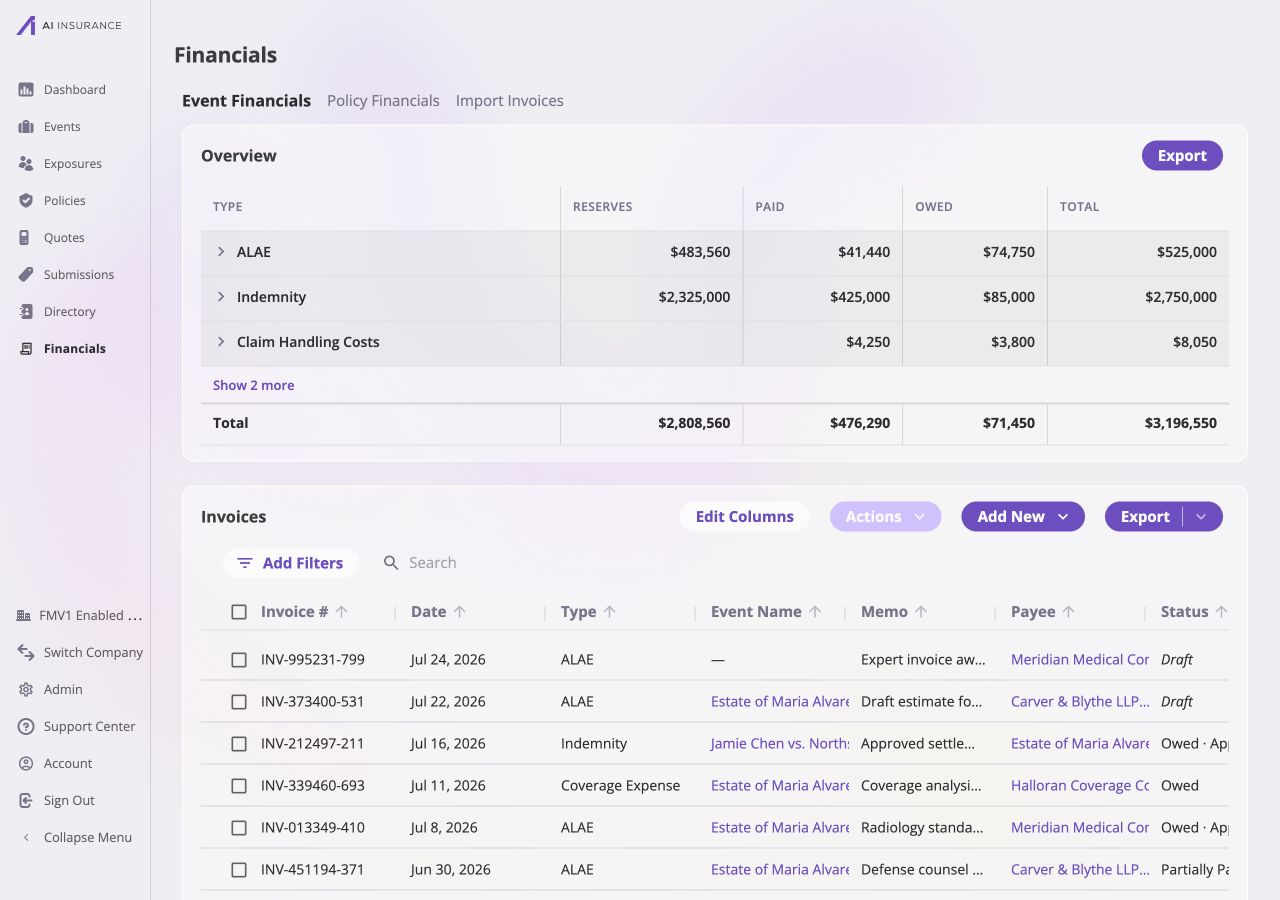
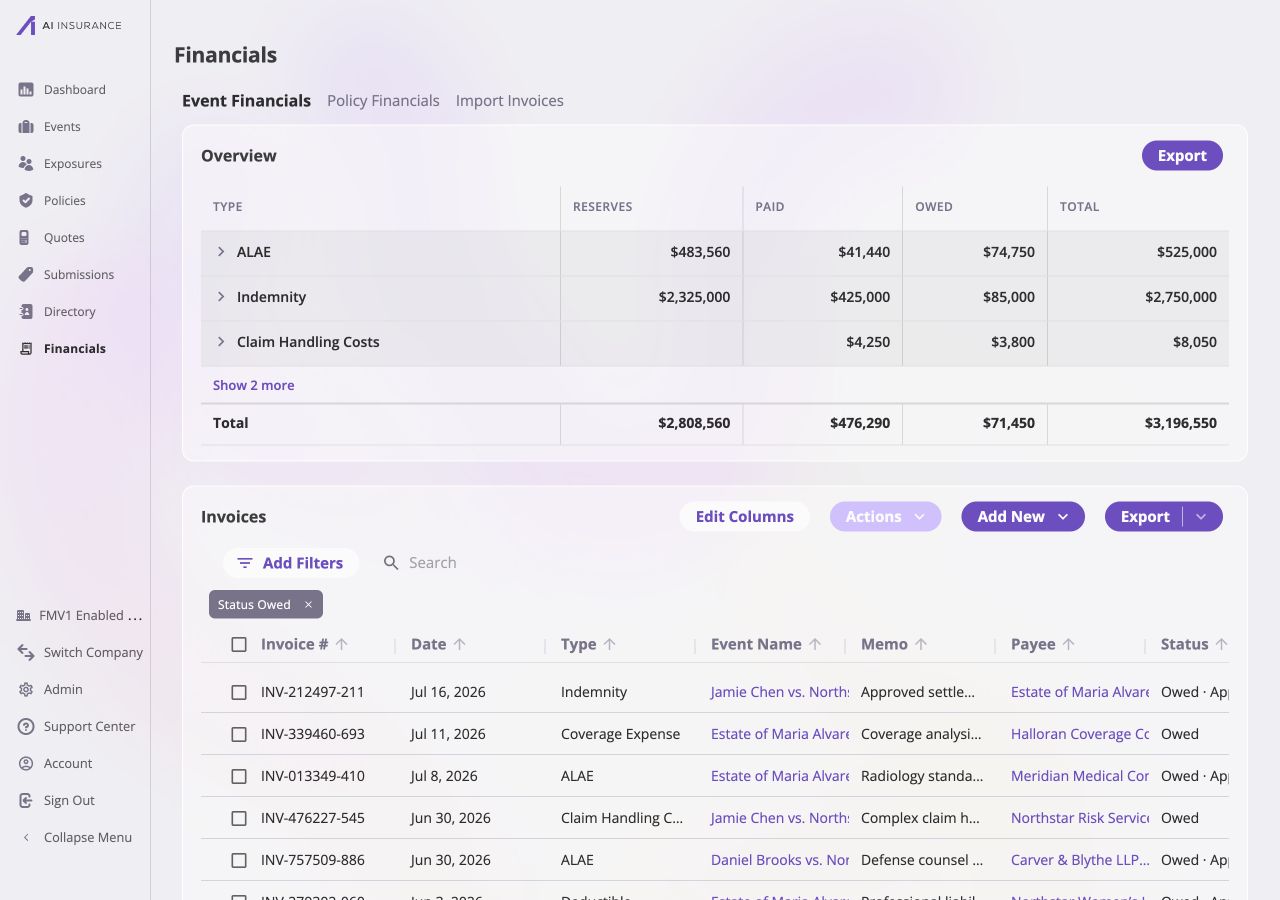
Open **Financials → Event Financials** to review the company-wide view of
event-side [Reserves](/financials/reserves) and [Invoices](/financials/invoices). It combines an
Overview Report with **Invoices** and **Reserve Updates** sub-tabs holding the
records behind those totals, including invoices that are not yet linked to an
event.
 ## Overview Report
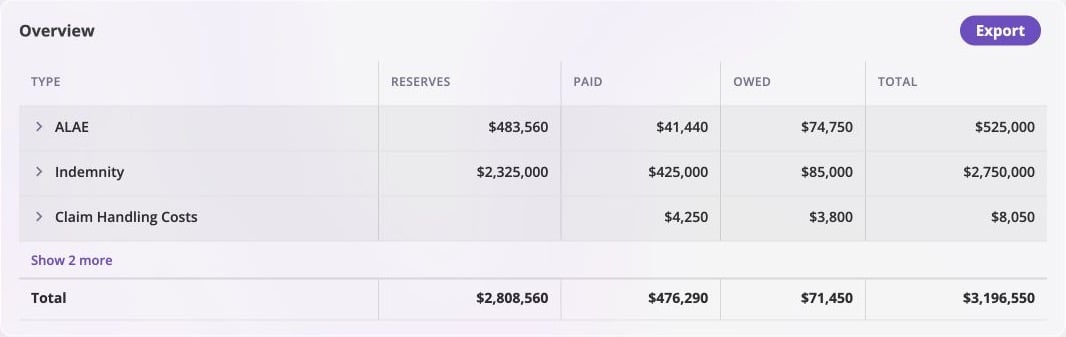 Each row represents a configured [Invoice Type](/financials/invoice-types).
| Column | Meaning |
| ------------ | ----------------------------------------------------------------------------------- |
| **Type** | Configured Invoice Type. Expand a row to see its line-item breakdown. |
| **Reserves** | Amount still expected to move for Loss/Recovery types. Empty for Operating types. |
| **Paid** | Amount already settled. |
| **Owed** | Posted invoice amount that remains unpaid. Draft invoices are excluded. |
| **Total** | For Loss/Recovery types, **Paid + Reserves**. For Operating types, **Paid + Owed**. |
Select **Show more** when more than the first three types have activity. Select
the chevron beside a type to reveal its line items. Reserves remain type-level;
line-item rows break out Paid, Owed, and Total only. On screen, figures are
unsigned: green means money coming into the business and normal text means money
going out. [Reference Frames](/financials/reference-frames) explains how those
directions become signs in exports. The [Accounting
Model](/financials/accounting-model/overview) explains how posted activity
produces these balances.
The Overview Report's **Export** button exports this report using the frame
configured under [Reporting](/financials/pages/reporting).
## Invoice List
Each row represents a configured [Invoice Type](/financials/invoice-types).
| Column | Meaning |
| ------------ | ----------------------------------------------------------------------------------- |
| **Type** | Configured Invoice Type. Expand a row to see its line-item breakdown. |
| **Reserves** | Amount still expected to move for Loss/Recovery types. Empty for Operating types. |
| **Paid** | Amount already settled. |
| **Owed** | Posted invoice amount that remains unpaid. Draft invoices are excluded. |
| **Total** | For Loss/Recovery types, **Paid + Reserves**. For Operating types, **Paid + Owed**. |
Select **Show more** when more than the first three types have activity. Select
the chevron beside a type to reveal its line items. Reserves remain type-level;
line-item rows break out Paid, Owed, and Total only. On screen, figures are
unsigned: green means money coming into the business and normal text means money
going out. [Reference Frames](/financials/reference-frames) explains how those
directions become signs in exports. The [Accounting
Model](/financials/accounting-model/overview) explains how posted activity
produces these balances.
The Overview Report's **Export** button exports this report using the frame
configured under [Reporting](/financials/pages/reporting).
## Invoice List
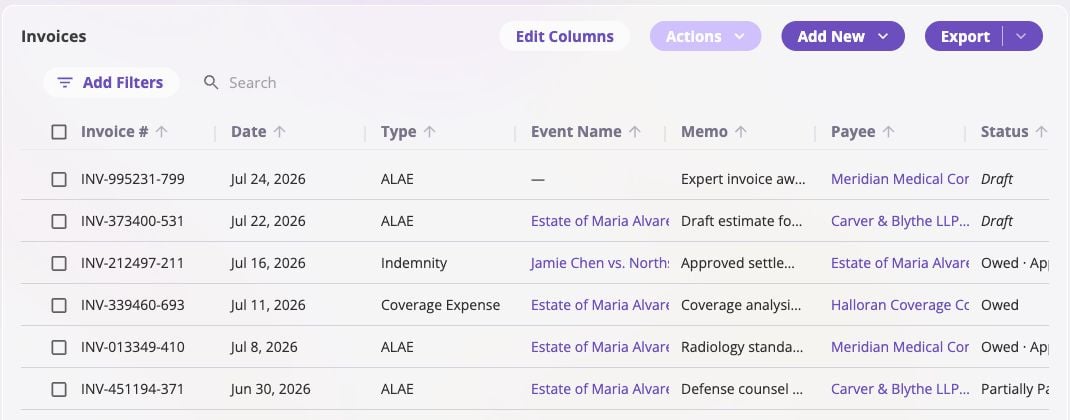 Select a row to open [Invoice Detail](/financials/pages/invoice-detail).
**Add New** opens [New Invoice](/financials/pages/new-invoice) without a
preselected event, which can then remain unlinked or be linked to an event.
## Reserve Updates
The **Reserve Updates** sub-tab lists every reserve change in the company —
recorded updates and the automatic adjustments from payments that erode
reserves — newest first. It is the company-wide form of the same listing an
event's own Financials tab shows.
| Column | Meaning |
| -------------------------------- | ----------------------------------------------------------------------------- |
| **Event Name** | The event the reserve change belongs to. Select it to open that event. |
| **Reserve Date** | The date the change takes effect. |
| **Reserve Type** | The [Invoice Type](/financials/invoice-types) whose reserves changed. |
| **Reserve** | The running reserves balance for that event and type, just after this change. |
| **Adj** | The change itself. |
| **Recorded By** and **Recorded** | Who entered the change, and when. |
Where reserve history has been reset for an event and type, a line marks the
reset so an empty history reads as a deliberate act rather than missing data.
This listing is **read-only**. Reserves are updated, and reserve history reset,
from an event's own Financials tab, because both actions apply to a single
event and type. **Export** produces a spreadsheet of the same rows as of a
chosen date, grouped by event so each event's running balance reads in order.
## Invoice Column Reference
The default view shows eight columns. Four more are available through **Edit
Columns**.
| Column | Meaning | Default? |
| -------------- | --------------------------------------------------------------------------------------------------------------- | -------- |
| **Invoice #** | Server-assigned identifier, such as `INV-013349-410`. | Yes |
| **Date** | Date the charges were incurred. | Yes |
| **Type** | Configured Invoice Type that controls line items, reserve behavior, and expected direction. | Yes |
| **Event Name** | Event currently linked to the invoice. An em dash means the invoice is unassigned. | Yes |
| **Memo** | Invoice description. | Yes |
| **Payee** | Directory entity receiving or sending the money. This is separate from the linked event. | Yes |
| **Status** | Draft, Owed, Partially Paid, Paid, No Charges, or Void. **Owed · Approved** shows status and approval together. | Yes |
| **Amount** | Invoice total. Draft amounts are muted and italic because they have not posted. | Yes |
| **Event ID** | Reference ID of the linked event. | No |
| **Paid Date** | Date the invoice became fully paid. Empty until then. | No |
| **Direction** | Income or Expense, derived from the configured line-item directions. | No |
| **Approval** | Whether the invoice has been approved for payment. | No |
[The Invoice Lifecycle](/financials/lifecycle) explains status transitions, and
[Approvals](/financials/approvals) explains the separate approval axis.
## Filters and Search
Select **Add Filters** to filter by invoice number, date, type, event, memo,
payee, status, amount, approval, direction, or paid date. Multiple filters can
be combined, and Search narrows the filtered result further.
Select a row to open [Invoice Detail](/financials/pages/invoice-detail).
**Add New** opens [New Invoice](/financials/pages/new-invoice) without a
preselected event, which can then remain unlinked or be linked to an event.
## Reserve Updates
The **Reserve Updates** sub-tab lists every reserve change in the company —
recorded updates and the automatic adjustments from payments that erode
reserves — newest first. It is the company-wide form of the same listing an
event's own Financials tab shows.
| Column | Meaning |
| -------------------------------- | ----------------------------------------------------------------------------- |
| **Event Name** | The event the reserve change belongs to. Select it to open that event. |
| **Reserve Date** | The date the change takes effect. |
| **Reserve Type** | The [Invoice Type](/financials/invoice-types) whose reserves changed. |
| **Reserve** | The running reserves balance for that event and type, just after this change. |
| **Adj** | The change itself. |
| **Recorded By** and **Recorded** | Who entered the change, and when. |
Where reserve history has been reset for an event and type, a line marks the
reset so an empty history reads as a deliberate act rather than missing data.
This listing is **read-only**. Reserves are updated, and reserve history reset,
from an event's own Financials tab, because both actions apply to a single
event and type. **Export** produces a spreadsheet of the same rows as of a
chosen date, grouped by event so each event's running balance reads in order.
## Invoice Column Reference
The default view shows eight columns. Four more are available through **Edit
Columns**.
| Column | Meaning | Default? |
| -------------- | --------------------------------------------------------------------------------------------------------------- | -------- |
| **Invoice #** | Server-assigned identifier, such as `INV-013349-410`. | Yes |
| **Date** | Date the charges were incurred. | Yes |
| **Type** | Configured Invoice Type that controls line items, reserve behavior, and expected direction. | Yes |
| **Event Name** | Event currently linked to the invoice. An em dash means the invoice is unassigned. | Yes |
| **Memo** | Invoice description. | Yes |
| **Payee** | Directory entity receiving or sending the money. This is separate from the linked event. | Yes |
| **Status** | Draft, Owed, Partially Paid, Paid, No Charges, or Void. **Owed · Approved** shows status and approval together. | Yes |
| **Amount** | Invoice total. Draft amounts are muted and italic because they have not posted. | Yes |
| **Event ID** | Reference ID of the linked event. | No |
| **Paid Date** | Date the invoice became fully paid. Empty until then. | No |
| **Direction** | Income or Expense, derived from the configured line-item directions. | No |
| **Approval** | Whether the invoice has been approved for payment. | No |
[The Invoice Lifecycle](/financials/lifecycle) explains status transitions, and
[Approvals](/financials/approvals) explains the separate approval axis.
## Filters and Search
Select **Add Filters** to filter by invoice number, date, type, event, memo,
payee, status, amount, approval, direction, or paid date. Multiple filters can
be combined, and Search narrows the filtered result further.
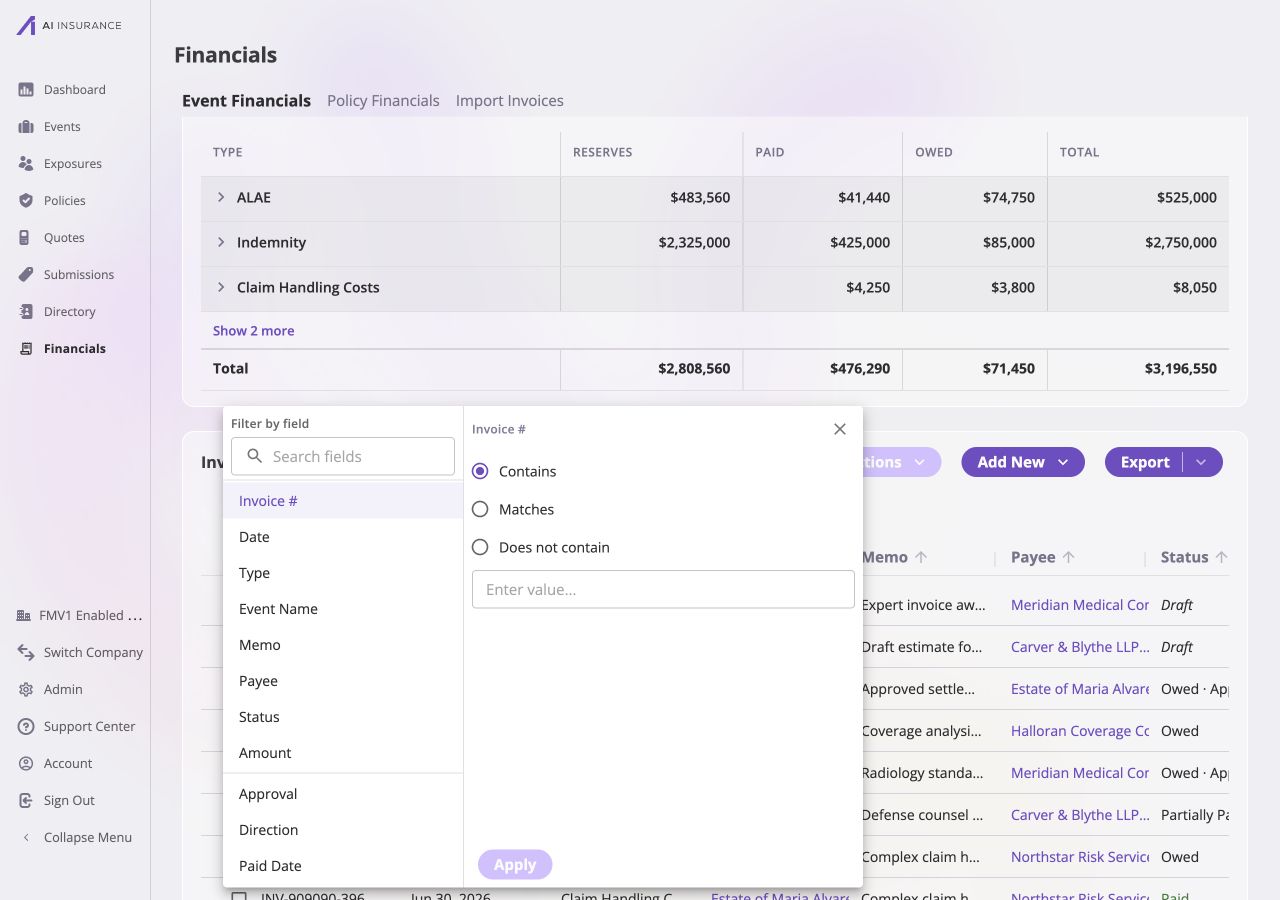 Applied filters appear as chips above the table. Remove a chip to clear that
condition, or reopen it to change the value.
Applied filters appear as chips above the table. Remove a chip to clear that
condition, or reopen it to change the value.
 ## Columns and Saved Views
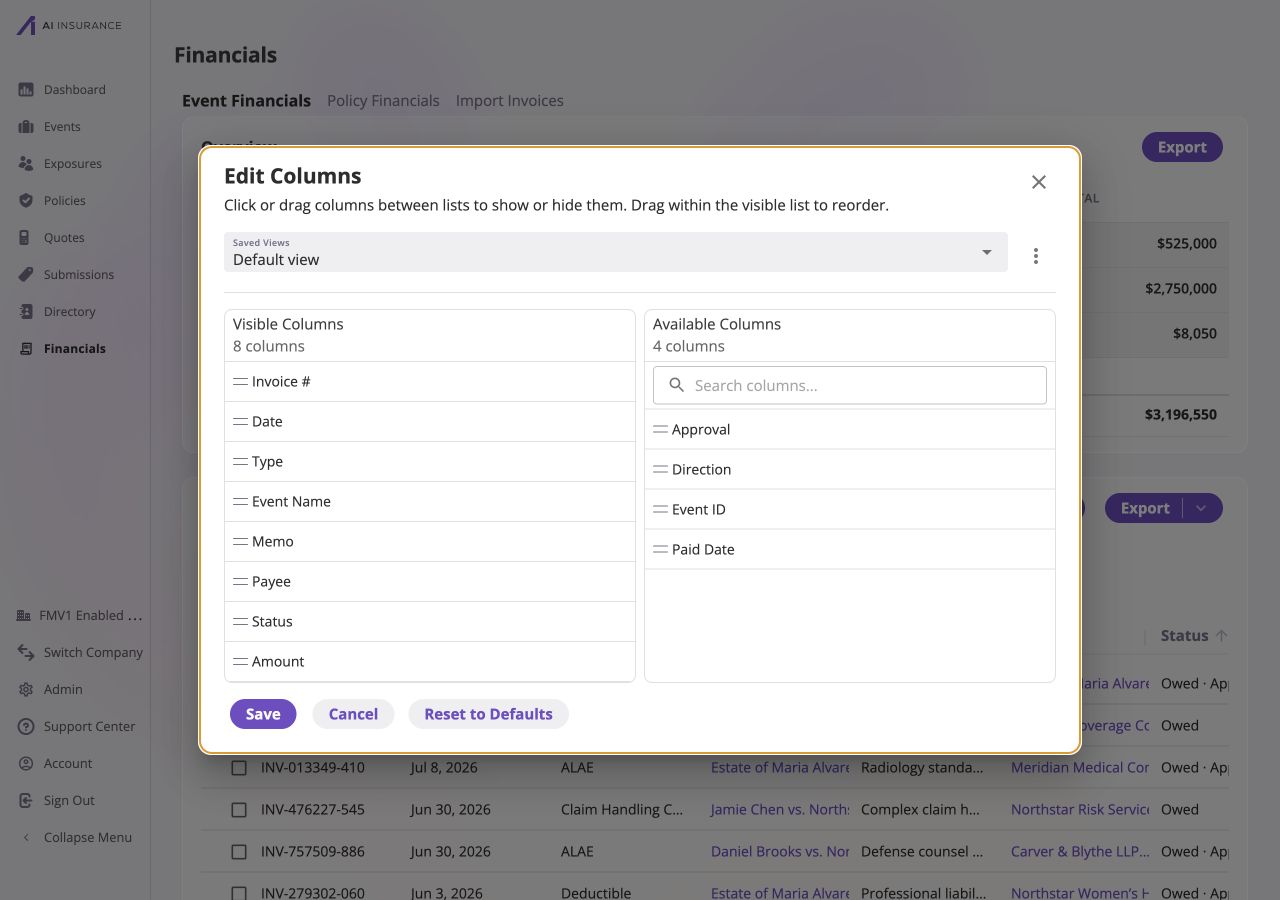
Select **Edit Columns** to choose which fields are visible and reorder them.
Select a column to move it between Visible and Available, or drag within the
visible list to change its order. Saved Views at the top of the dialog restore a
saved arrangement; **Reset to Defaults** restores the original eight-column
view.
## Columns and Saved Views
Select **Edit Columns** to choose which fields are visible and reorder them.
Select a column to move it between Visible and Available, or drag within the
visible list to change its order. Saved Views at the top of the dialog restore a
saved arrangement; **Reset to Defaults** restores the original eight-column
view.
 ## Bulk Actions
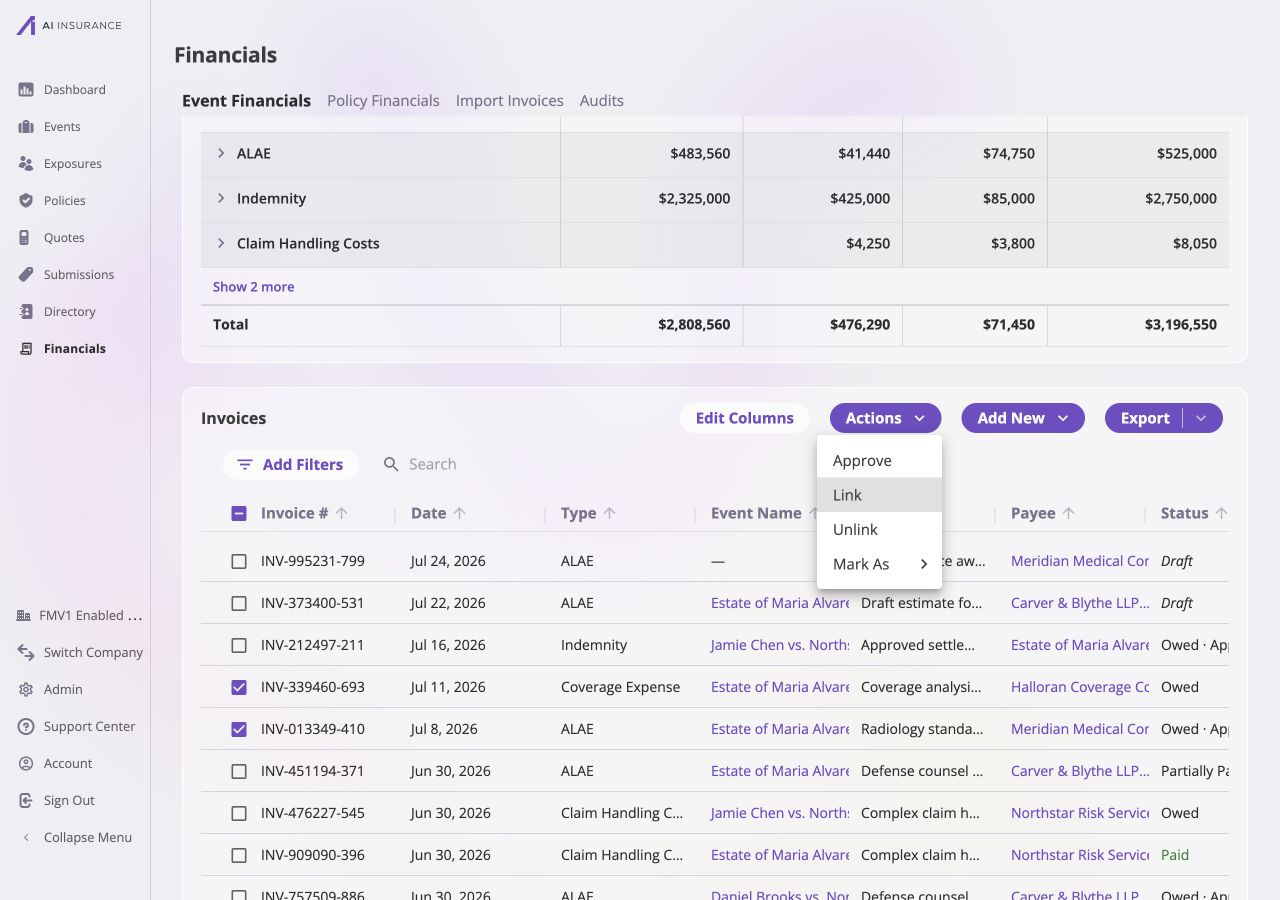
Select one or more invoices to make **Actions** available. The menu can approve
the selection, link or unlink it, or open the available **Mark As** lifecycle
transitions. The confirmation explains which selected rows can complete the
requested action.
## Bulk Actions
Select one or more invoices to make **Actions** available. The menu can approve
the selection, link or unlink it, or open the available **Mark As** lifecycle
transitions. The confirmation explains which selected rows can complete the
requested action.
 [Invoice to Entity Linking](/financials/attaching-invoices) explains why Link
and Unlink are company-scoped. The [Event Financials
Tab](/financials/pages/event-financials-tab#bulk-actions) supports approval and
lifecycle actions but deliberately omits those linking actions.
## Exporting Invoices
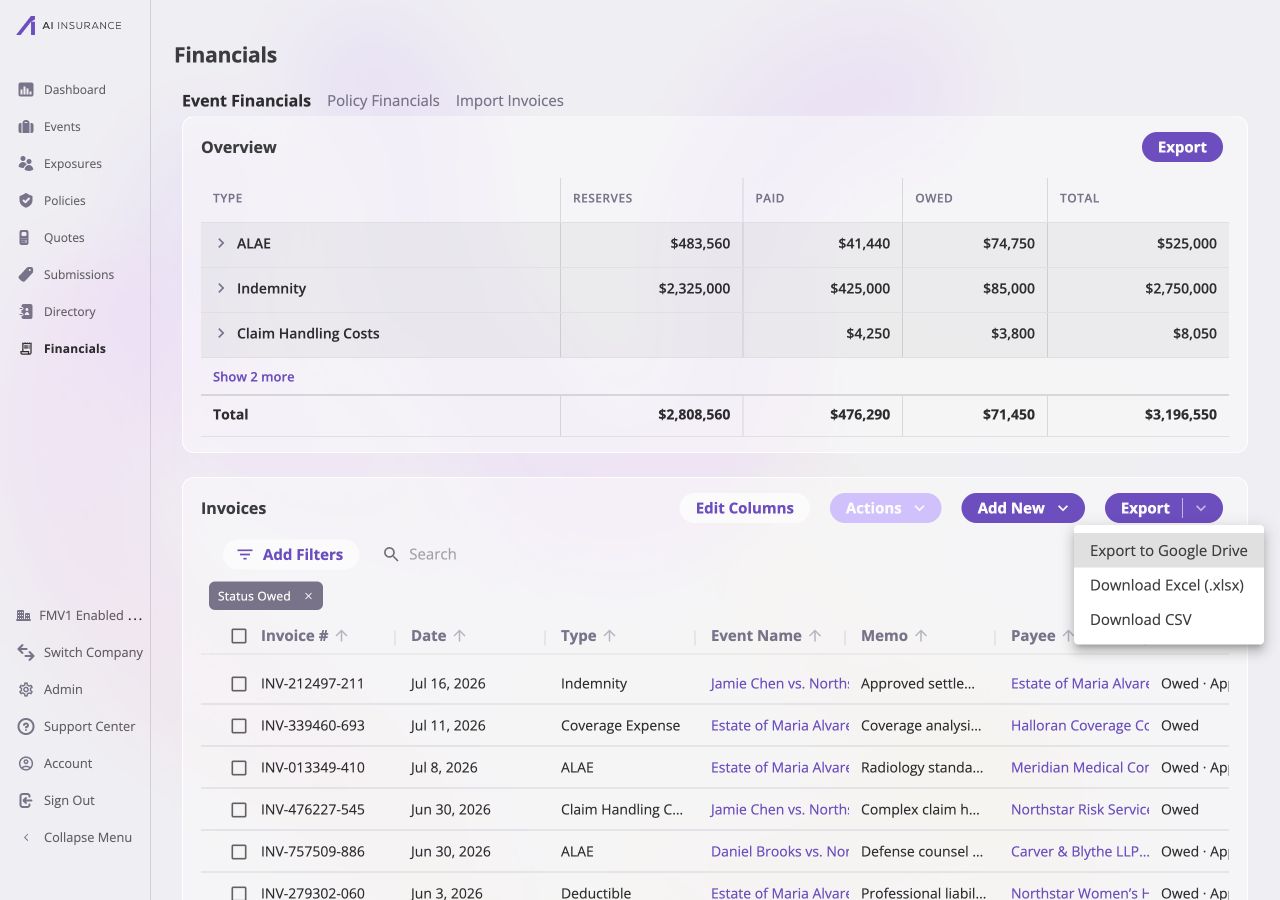
The invoice **Export** menu uses the table's current scope, filters, Search
term, visible columns, and column order. Choose Google Drive, Excel (`.xlsx`),
or CSV.
The export includes every row that matches that state across all result pages,
including matching rows not currently shown in the paginated table. Voided
invoices may remain visible in the app for audit context, but are not included
in the live invoice export.
[Invoice to Entity Linking](/financials/attaching-invoices) explains why Link
and Unlink are company-scoped. The [Event Financials
Tab](/financials/pages/event-financials-tab#bulk-actions) supports approval and
lifecycle actions but deliberately omits those linking actions.
## Exporting Invoices
The invoice **Export** menu uses the table's current scope, filters, Search
term, visible columns, and column order. Choose Google Drive, Excel (`.xlsx`),
or CSV.
The export includes every row that matches that state across all result pages,
including matching rows not currently shown in the paginated table. Voided
invoices may remain visible in the app for audit context, but are not included
in the live invoice export.
 ## Event-Scoped Financials
Use the [Event Financials Tab](/financials/pages/event-financials-tab) when the
work is already centered on a claim. It removes repeated event columns, links
new invoices to the current event, allows reserve updates, and adds reserve
history. Return to [Company Financials](/financials/pages/company-financials)
for the workspace map and other company-wide areas.
## Event-Scoped Financials
Use the [Event Financials Tab](/financials/pages/event-financials-tab) when the
work is already centered on a claim. It removes repeated event columns, links
new invoices to the current event, allows reserve updates, and adds reserve
history. Return to [Company Financials](/financials/pages/company-financials)
for the workspace map and other company-wide areas.