> ## Documentation Index
> Fetch the complete documentation index at: https://docs.go.aiinsurance.io/llms.txt
> Use this file to discover all available pages before exploring further.
# Event Financials Tab
> Manage invoices and reserves for one event
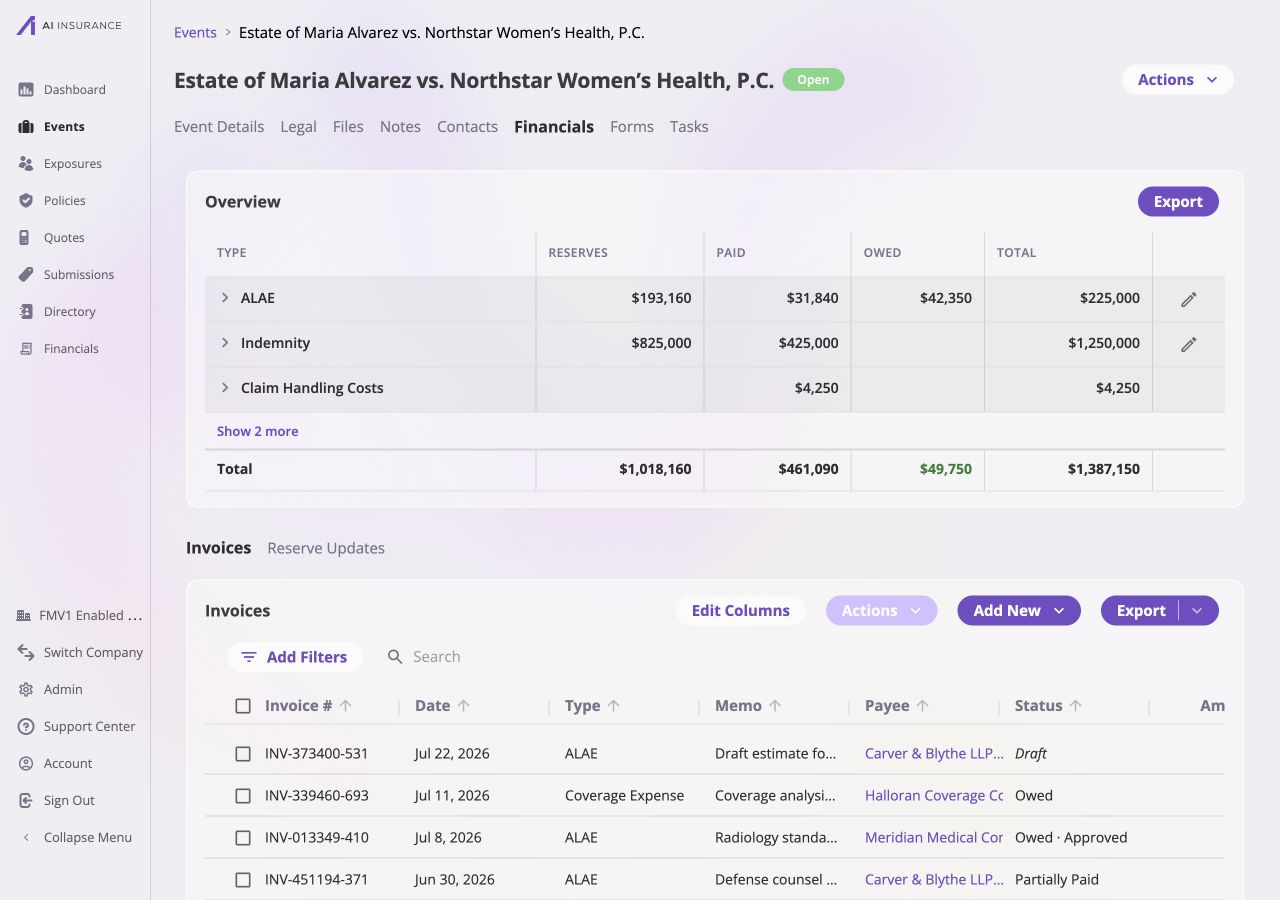
Open an event and select **Financials** to work with that event's invoices and
reserves. The tab follows the same reporting and invoice-list model as
[Company Event Financials](/financials/pages/event-financials-page), then adds
event-specific reserve controls and history.
 ## Overview Report
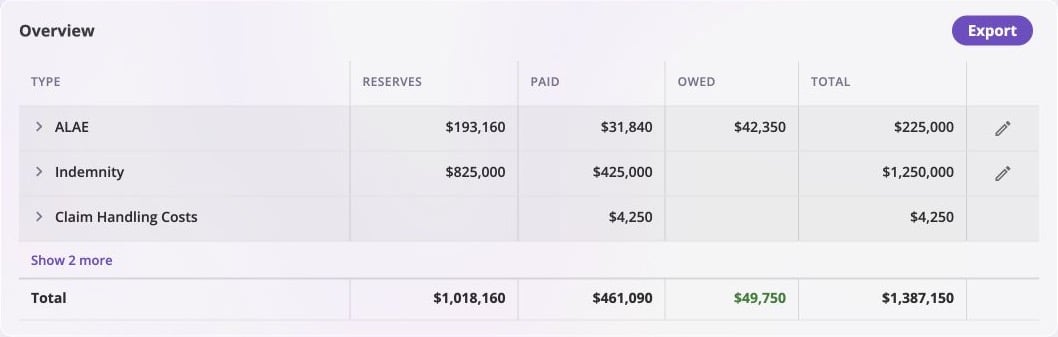 Every row is one configured [Invoice Type](/financials/invoice-types). The
figures have the same meaning as the company-wide report, but include only this
event.
| Column | Meaning |
| ------------ | ---------------------------------------------------------------------------------------------- |
| **Reserves** | Amount still expected to move for a Loss/Recovery type. Operating types leave this cell empty. |
| **Paid** | Amount already settled. |
| **Owed** | Posted invoice amount that remains unpaid. Draft invoices are excluded. |
| **Total** | For Loss/Recovery types, **Paid + Reserves**. For Operating types, **Paid + Owed**. |
Select the chevron on a type to inspect its line-item breakdown. Select **Show
more** to reveal additional types. Amounts coming into the business appear in
green; amounts going out use normal text. [Reference
Frames](/financials/reference-frames) explains how those colors become signs in
an export. The [Accounting
Model](/financials/accounting-model/overview) explains how posted activity
produces the displayed balances.
## Setting a Reserve
Only the Event Financials Tab can change reserves. Select the edit control on a
Loss/Recovery row, enter the new remaining reserve, and record the effective
date and reason. The app derives the new expected total from the amount already
paid plus the reserve entered.
[Reserves](/financials/reserves) explains the reserve identity, updates, and
payment-driven changes.
## Invoice List
Every row is one configured [Invoice Type](/financials/invoice-types). The
figures have the same meaning as the company-wide report, but include only this
event.
| Column | Meaning |
| ------------ | ---------------------------------------------------------------------------------------------- |
| **Reserves** | Amount still expected to move for a Loss/Recovery type. Operating types leave this cell empty. |
| **Paid** | Amount already settled. |
| **Owed** | Posted invoice amount that remains unpaid. Draft invoices are excluded. |
| **Total** | For Loss/Recovery types, **Paid + Reserves**. For Operating types, **Paid + Owed**. |
Select the chevron on a type to inspect its line-item breakdown. Select **Show
more** to reveal additional types. Amounts coming into the business appear in
green; amounts going out use normal text. [Reference
Frames](/financials/reference-frames) explains how those colors become signs in
an export. The [Accounting
Model](/financials/accounting-model/overview) explains how posted activity
produces the displayed balances.
## Setting a Reserve
Only the Event Financials Tab can change reserves. Select the edit control on a
Loss/Recovery row, enter the new remaining reserve, and record the effective
date and reason. The app derives the new expected total from the amount already
paid plus the reserve entered.
[Reserves](/financials/reserves) explains the reserve identity, updates, and
payment-driven changes.
## Invoice List
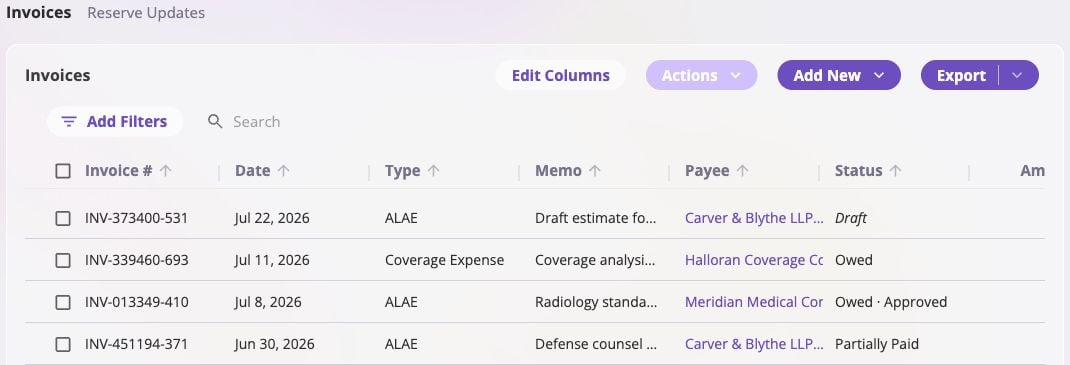 The table presents [Invoices](/financials/invoices) and supports the same
filters, Search, editable columns, saved views, sorting, bulk selection, and
export formats as the company-wide list. Two details change with the narrower
scope:
* **Add New** opens [New Invoice](/financials/pages/new-invoice) already linked
to this event. Selecting a row opens [Invoice
Detail](/financials/pages/invoice-detail).
* Event Name and Event ID are not available as columns because they would repeat
the same value on every row.
The remaining default columns are Invoice #, Date, Type, Memo, Payee, Status,
and Amount. See the [Company Event Financials invoice column
reference](/financials/pages/event-financials-page#invoice-column-reference) for
their definitions and [Filters and
Search](/financials/pages/event-financials-page#filters-and-search) for the
shared table behavior.
## Bulk Actions
The table presents [Invoices](/financials/invoices) and supports the same
filters, Search, editable columns, saved views, sorting, bulk selection, and
export formats as the company-wide list. Two details change with the narrower
scope:
* **Add New** opens [New Invoice](/financials/pages/new-invoice) already linked
to this event. Selecting a row opens [Invoice
Detail](/financials/pages/invoice-detail).
* Event Name and Event ID are not available as columns because they would repeat
the same value on every row.
The remaining default columns are Invoice #, Date, Type, Memo, Payee, Status,
and Amount. See the [Company Event Financials invoice column
reference](/financials/pages/event-financials-page#invoice-column-reference) for
their definitions and [Filters and
Search](/financials/pages/event-financials-page#filters-and-search) for the
shared table behavior.
## Bulk Actions
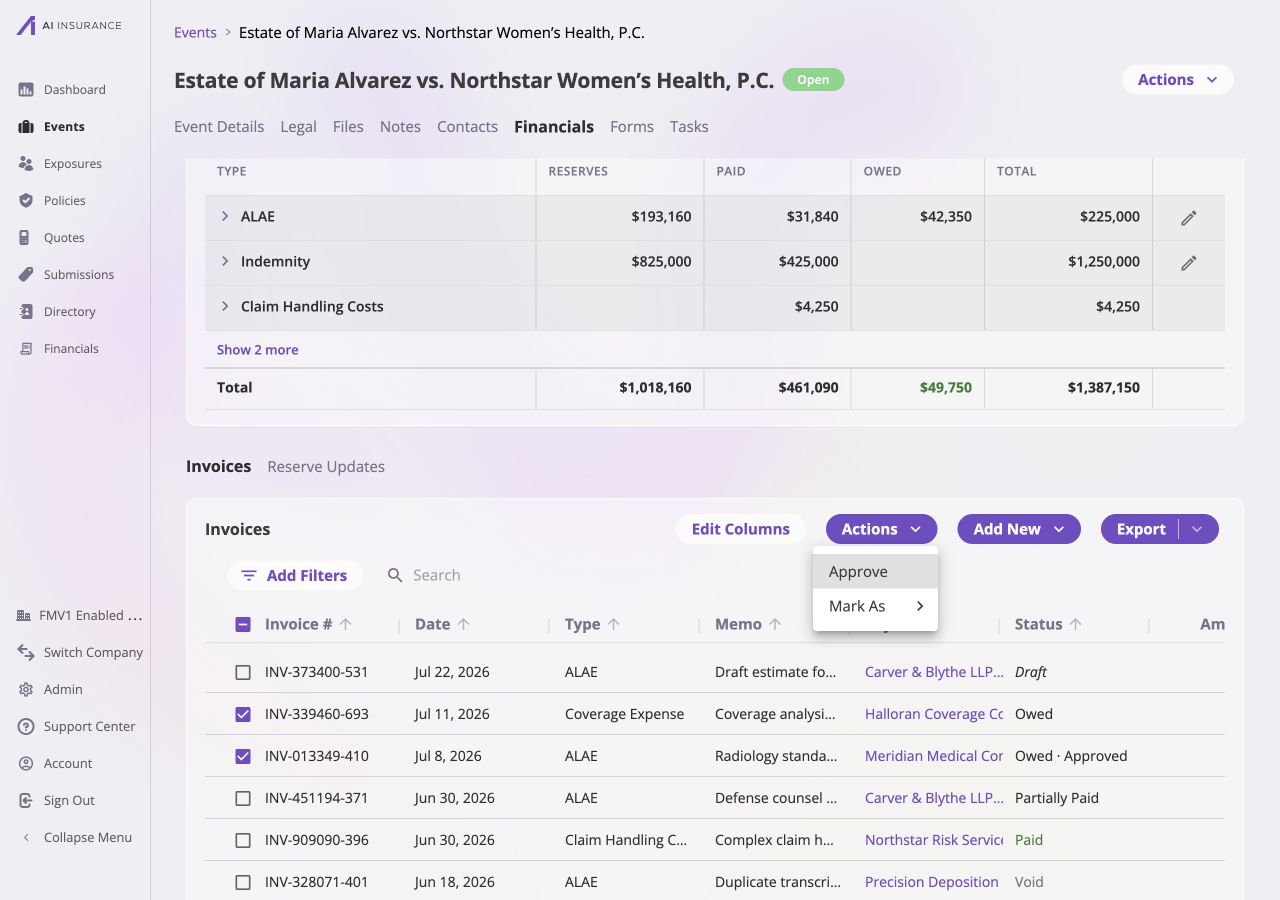 Select one or more invoices, then use **Actions** to approve invoices or open
the available **Mark As** transitions. [Approvals](/financials/approvals) and
[The Invoice Lifecycle](/financials/lifecycle) explain those rules. [Invoice to
Entity Linking](/financials/attaching-invoices) explains why linking belongs at
company scope. To link, unlink, or move an invoice to another event, use
[Company Event Financials](/financials/pages/event-financials-page#bulk-actions),
where those company-scoped actions are available.
## Reserve Updates
Select **Reserve Updates** below the Overview Report to see every change to this
event's reserve balance.
Select one or more invoices, then use **Actions** to approve invoices or open
the available **Mark As** transitions. [Approvals](/financials/approvals) and
[The Invoice Lifecycle](/financials/lifecycle) explain those rules. [Invoice to
Entity Linking](/financials/attaching-invoices) explains why linking belongs at
company scope. To link, unlink, or move an invoice to another event, use
[Company Event Financials](/financials/pages/event-financials-page#bulk-actions),
where those company-scoped actions are available.
## Reserve Updates
Select **Reserve Updates** below the Overview Report to see every change to this
event's reserve balance.
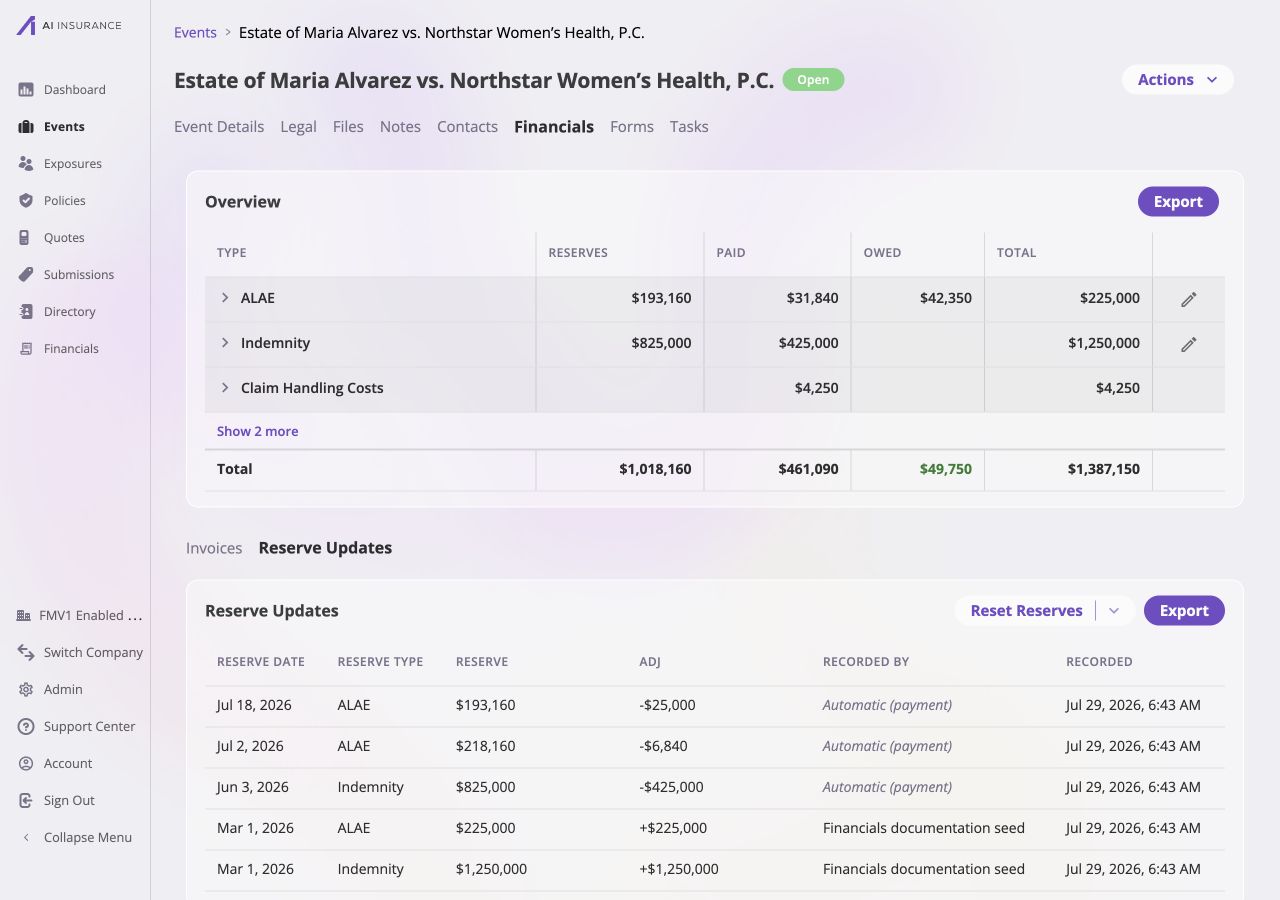 | Column | Meaning |
| ---------------- | ----------------------------------------------------------------------------------------------------------------------- |
| **Reserve Date** | Effective date of the estimate or payment-driven change. |
| **Reserve Type** | Loss/Recovery Invoice Type whose reserve changed. |
| **Reserve** | Running remaining reserve after the entry. |
| **Adj** | Amount added to or removed from the previous reserve balance. |
| **Recorded By** | User or automatic process that created the entry. **Automatic (payment)** means an eroding payment reduced the reserve. |
| **Recorded** | Timestamp when the entry was written. |
Use **Export** to download the history. **Reset Reserves** is an administrative
correction that starts a type's reserve history fresh; [Resetting Reserve
History](/financials/reserves#resetting-reserve-history) explains its effect.
## Differences from Company Invoice List
The Event Financials Tab presents the event-scoped controls first: reserve
updates, reserve history, and invoices that start linked to the current event.
Because the event is already known, Event Name and Event ID are unnecessary.
Filters, Search, columns, saved views, and exports otherwise follow the
[Company Event Financials](/financials/pages/event-financials-page) model. The
company-wide list includes cross-event and unassigned invoices, and its
[Bulk Actions](/financials/pages/event-financials-page#bulk-actions) can Link or
Unlink them. This tab intentionally cannot.
| Column | Meaning |
| ---------------- | ----------------------------------------------------------------------------------------------------------------------- |
| **Reserve Date** | Effective date of the estimate or payment-driven change. |
| **Reserve Type** | Loss/Recovery Invoice Type whose reserve changed. |
| **Reserve** | Running remaining reserve after the entry. |
| **Adj** | Amount added to or removed from the previous reserve balance. |
| **Recorded By** | User or automatic process that created the entry. **Automatic (payment)** means an eroding payment reduced the reserve. |
| **Recorded** | Timestamp when the entry was written. |
Use **Export** to download the history. **Reset Reserves** is an administrative
correction that starts a type's reserve history fresh; [Resetting Reserve
History](/financials/reserves#resetting-reserve-history) explains its effect.
## Differences from Company Invoice List
The Event Financials Tab presents the event-scoped controls first: reserve
updates, reserve history, and invoices that start linked to the current event.
Because the event is already known, Event Name and Event ID are unnecessary.
Filters, Search, columns, saved views, and exports otherwise follow the
[Company Event Financials](/financials/pages/event-financials-page) model. The
company-wide list includes cross-event and unassigned invoices, and its
[Bulk Actions](/financials/pages/event-financials-page#bulk-actions) can Link or
Unlink them. This tab intentionally cannot.