> ## Documentation Index
> Fetch the complete documentation index at: https://docs.go.aiinsurance.io/llms.txt
> Use this file to discover all available pages before exploring further.
# Import Tab
> Import invoice documents and review invoice parsing runs
Open **Financials → Import Invoices** to bring invoice documents into
Financials.
 ## Ways to Import
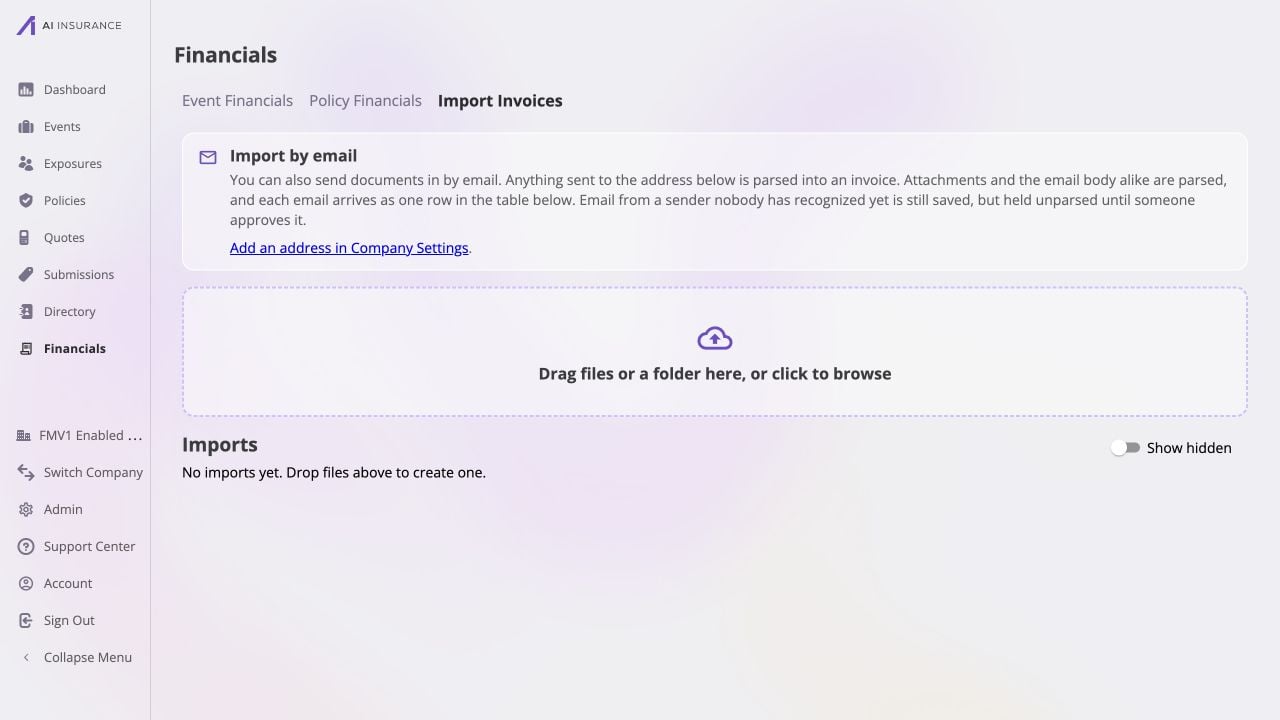
* **Email intake** uses the invoice address configured in Company Settings.
Attachments and the email body are parsed as one invoice import. Mail from an
unrecognized sender is retained but held for approval before parsing.
* **File upload** accepts invoice PDFs and supported image formats. Drag files
or a folder into the dropzone, or select it to browse.
## Import Runs
Each upload or inbound email appears in **Imports** while it is processed. A
successful parse creates a draft invoice that can be reviewed before it posts
to the books. Use **Show hidden** to include runs that were removed from the
default view.
The example company has no import runs yet, so the screenshot shows the clean
starting state. Return to [Company
Financials](/financials/pages/company-financials) for the other workspaces.
## Ways to Import
* **Email intake** uses the invoice address configured in Company Settings.
Attachments and the email body are parsed as one invoice import. Mail from an
unrecognized sender is retained but held for approval before parsing.
* **File upload** accepts invoice PDFs and supported image formats. Drag files
or a folder into the dropzone, or select it to browse.
## Import Runs
Each upload or inbound email appears in **Imports** while it is processed. A
successful parse creates a draft invoice that can be reviewed before it posts
to the books. Use **Show hidden** to include runs that were removed from the
default view.
The example company has no import runs yet, so the screenshot shows the clean
starting state. Return to [Company
Financials](/financials/pages/company-financials) for the other workspaces.