
Before You Set the Reserve
Open the event whose estimate you need to change, then select Financials. In the Overview Report, confirm:- the event in the page header is the intended event;
- the row is the intended Invoice Type;
- the row has a reserve edit control, which means it is a Loss/Recovery type; and
- the current Reserves, Paid, and Total values are the position you expect to update.
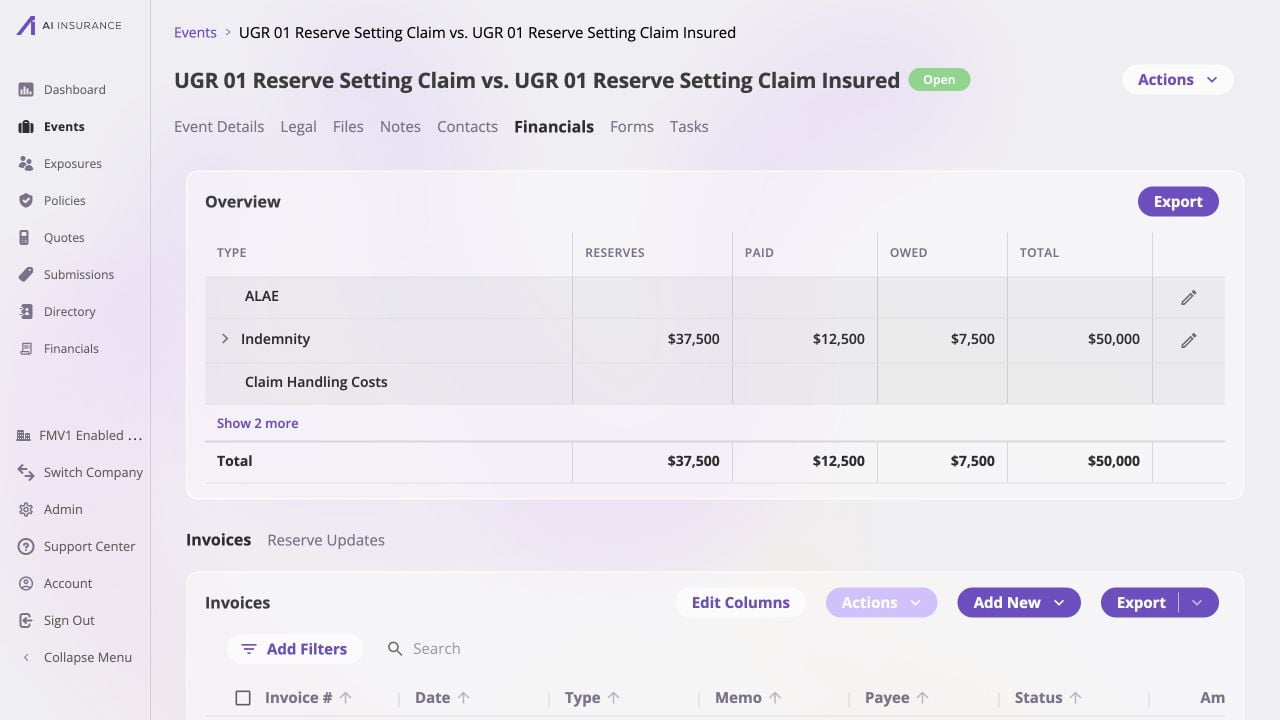
Confirm the event and current Indemnity position before changing its remaining reserve.
Enter the New Remaining Reserve
1
Open the reserve editor
Select the reserve edit control at the right of the Loss/Recovery row. The
dialog title names the Invoice Type and whether its configured direction is
Loss or Recovery.
2
Review the current position
Check Current Reserves, Current Paid, and Current Expected Total
at the top of the dialog. These values are scoped to this Invoice Type on
this event.
3
Enter the new reserve balance
In New Loss Reserves or New Recovery Reserves, enter a positive
amount or zero. Enter the full amount still expected to move, not the
adjustment from the current reserve.
4
Choose the reserve date
Keep today’s default date or choose an earlier effective date. A future date
is not allowed. An earlier date displays a warning so you can confirm that
the retroactive update is intentional.
5
Check the expected-total preview
Read New Expected Total before saving. It shows the entered reserve plus
the amount already paid, with Loss or Recovery direction made explicit.
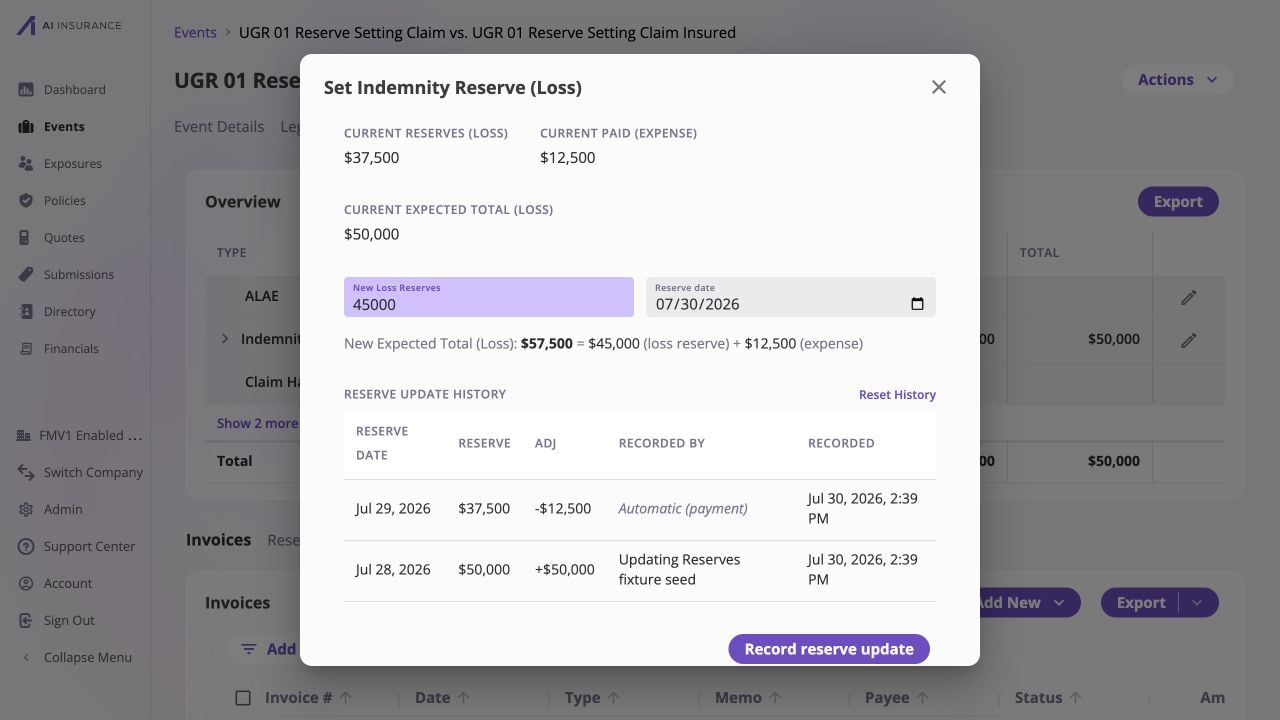
The expected-total preview confirms that the new $45,000 remaining reserve plus $12,500 paid will produce $57,500.
Record and Verify the Update
Select Record reserve update. After the success message appears, the dialog closes and the Overview Report refreshes. Verify both the resulting balance and its audit entry:- In the Overview Report, confirm Reserves equals the remaining amount you entered.
- Confirm Total equals the new reserve plus Paid.
- Select Reserve Updates below the Overview Report.
- Find the newest row for the Invoice Type and confirm its Reserve Date, resulting Reserve, signed Adj, Recorded By, and Recorded On timestamp.
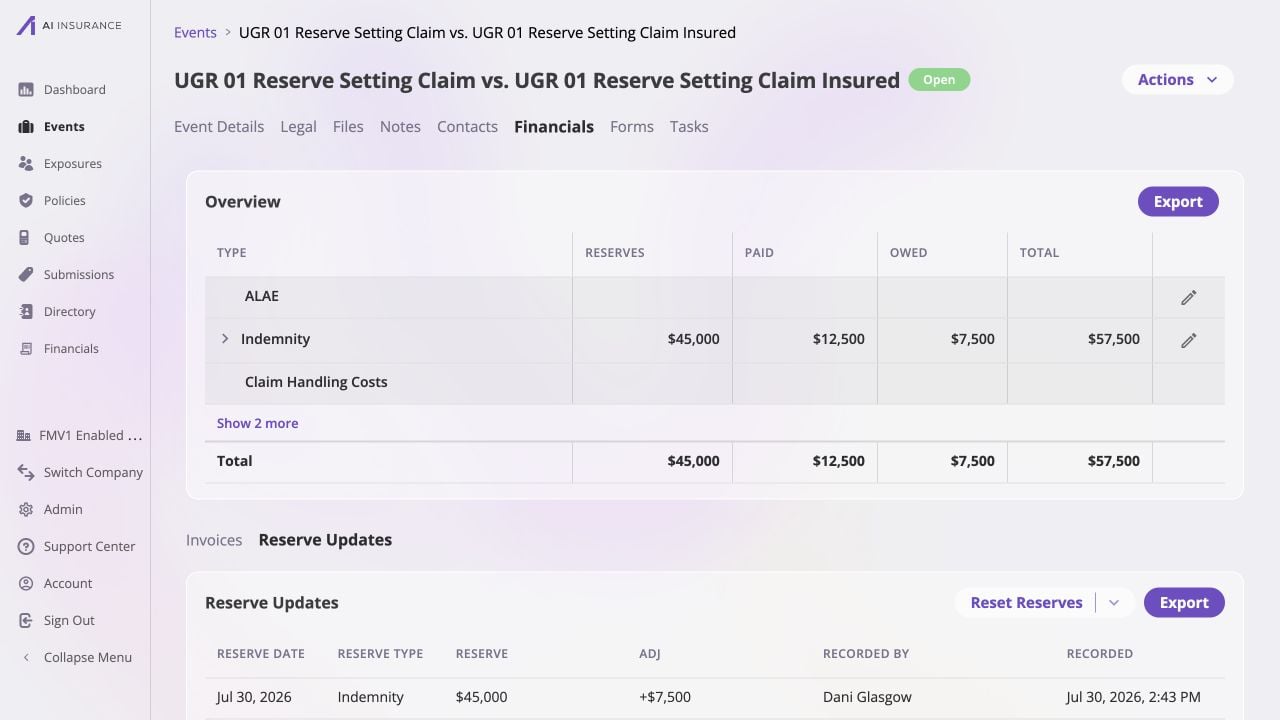
After recording, the overview and audit trail agree on the new $45,000 reserve and its $7,500 increase.