
Choose Between Zero and Reset
Both actions can leave the current reserve at zero, but they preserve different stories.
The reset confirmation shows the exact effect before anything changes. For the
selected category, Expected Total falls by the current reserve; when the
reserve becomes $0, the remaining expected total is the amount already paid.
See Reserves for the conceptual
model and What Each Action
Posts for the
accounting treatment.
Select What to Reset
Open the event and select Financials → Reserve Updates. The Reset Reserves control is available only to users who can update financial activity, and only when at least one Loss/Recovery Invoice Type has reserve history. Open Reset Reserves and choose:- one Invoice Type to reset only that category; or
- All Categories to reset every category on the event that currently has reserve history.
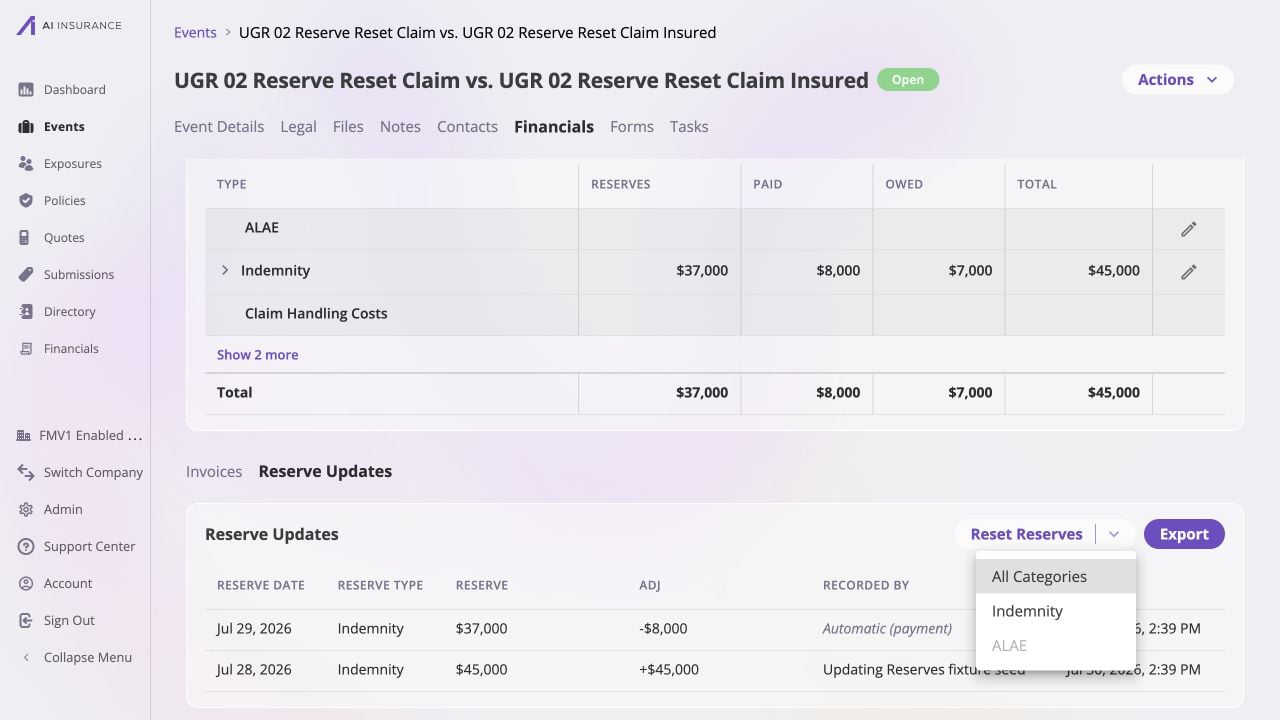
Only categories with active reserve history can be reset; the existing Indemnity updates remain visible until you confirm the reset.
Review and Confirm
After choosing a category or All Categories, review the confirmation carefully.1
Confirm the scope
The title says Reset [Type] Reserves for one category or Reset All
Reserves for the event-wide selection. Check each category listed in the
preview.
2
Compare the before and after values
For each category, the preview strikes through the current Reserve and
Expected Total, then shows the resulting reserve of $0 and the new
expected total.
3
Protect recorded activity
Confirm the message states that recorded payments stay the same. A reset
does not void invoices, remove payments, or change invoice statuses.
4
Acknowledge the irreversible change
Select Reset Reserves only when the scope and preview are correct.
Select Cancel to leave the history untouched.
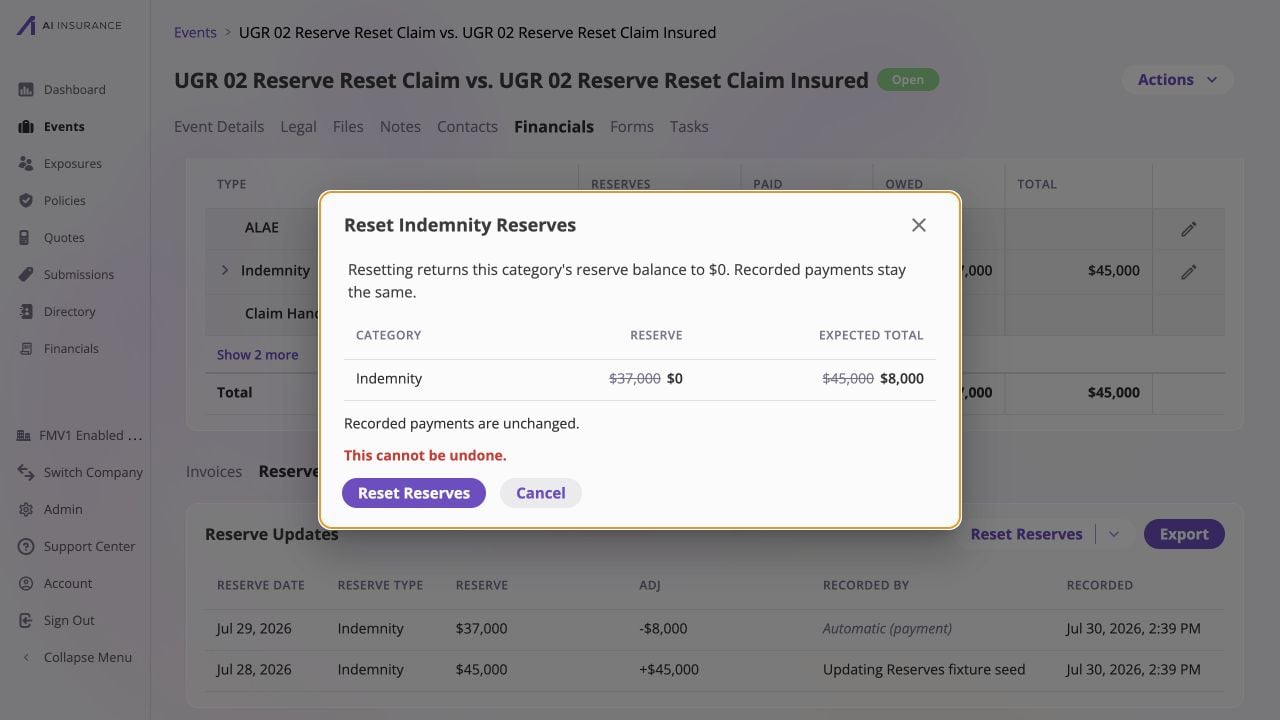
The confirmation makes the financial effect explicit before the irreversible action is submitted.
Verify the New Starting State
After the success message appears:- Return to the Overview Report and confirm each selected category’s Reserves cell is blank, representing a zero reserve.
- Confirm its Paid amount is unchanged and its Total now matches the paid amount.
- Open Reserve Updates and find the italic reset marker naming who reset the history and when.
- Confirm the earlier rows no longer appear in the active listing. Any reserve updates recorded later will appear after the marker as the new history.
- If the reset was performed to unblock event deletion, check every reserved category; a non-zero reserve in any category still blocks deletion.
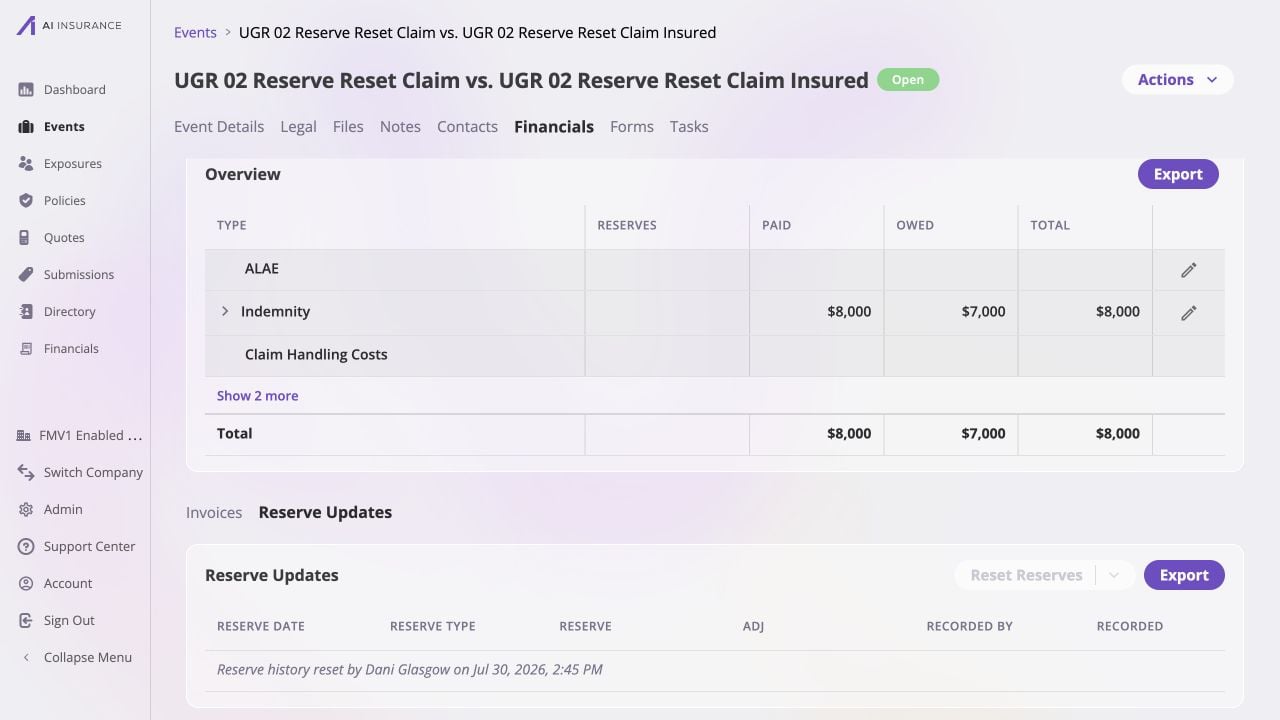
After the reset, the overview retains the paid amount while the reset marker becomes the first item in the active reserve history.