
Reserves Belong to a Type on an Event
Only on Loss/Recovery Types
Reserves exist only on Loss/Recovery Invoice Types. An Operating type has no
reserve figure anywhere. See Invoice Types and Line
Items.
Per Event, Per Type
A reserve is set for one Invoice Type on one event — “Indemnity on this
claim.” It is not set on an invoice, and not company-wide.
Never Per Line Item
A reserve is an estimate of what the whole type will cost. It is not divided
across the line items subsequently invoiced.
The Reserve Identity
One equation governs every reserve figure:- Expected Total — the estimate of what this type will eventually cost on this event.
- Paid — what has actually moved so far.
- Reserves — what is left, the money still expected to move.
Recording a Reserve Update
Reserve updates are recorded from the Event Financials Tab — reserves are per event, so the company-wide Company Event Financials Overview Report is read-only for them. On the Overview Report, each Loss/Recovery type has an update action on its row. The event Overview puts Reserves, Paid, Owed, and Total together. Only the Loss/Recovery rows have the update control at the far right; the Operating row for Claim Handling Costs has no reserve action or reserve value.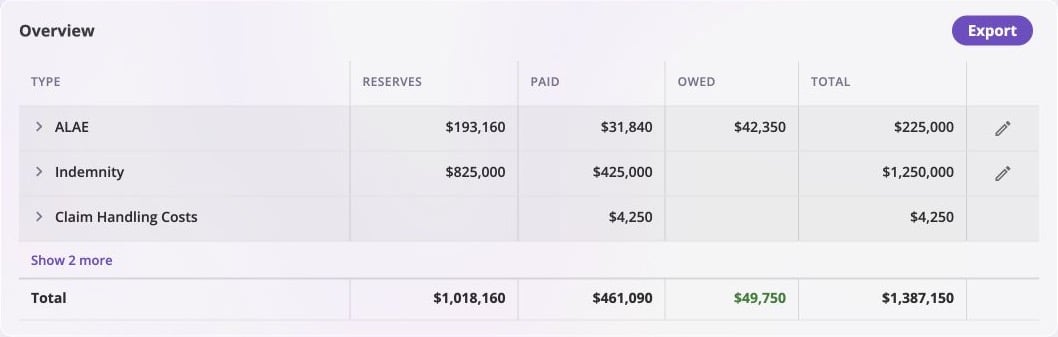
An event Overview shows reserve balances by Invoice Type and exposes reserve updates only where reserves apply.
- The new reserves balance — a positive figure on the type’s own side.
- A reserve date — when this estimate takes effect. Cannot be in the future; a date in the past asks for confirmation.
- A memo — optionally, why it changed.
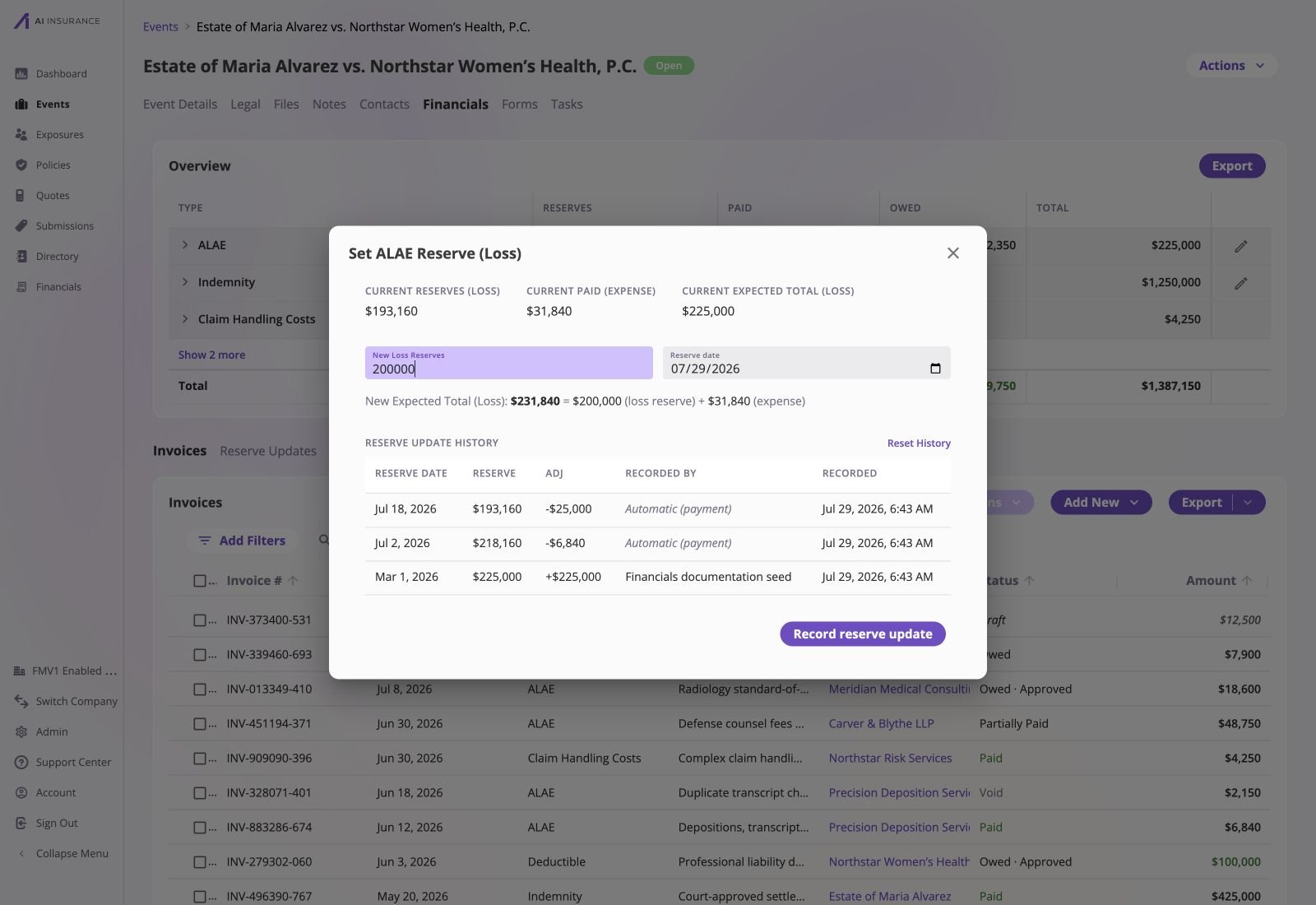
The reserve update dialog shows the new balance, effective date, derived expected total, and the event's reserve history before anything is recorded.
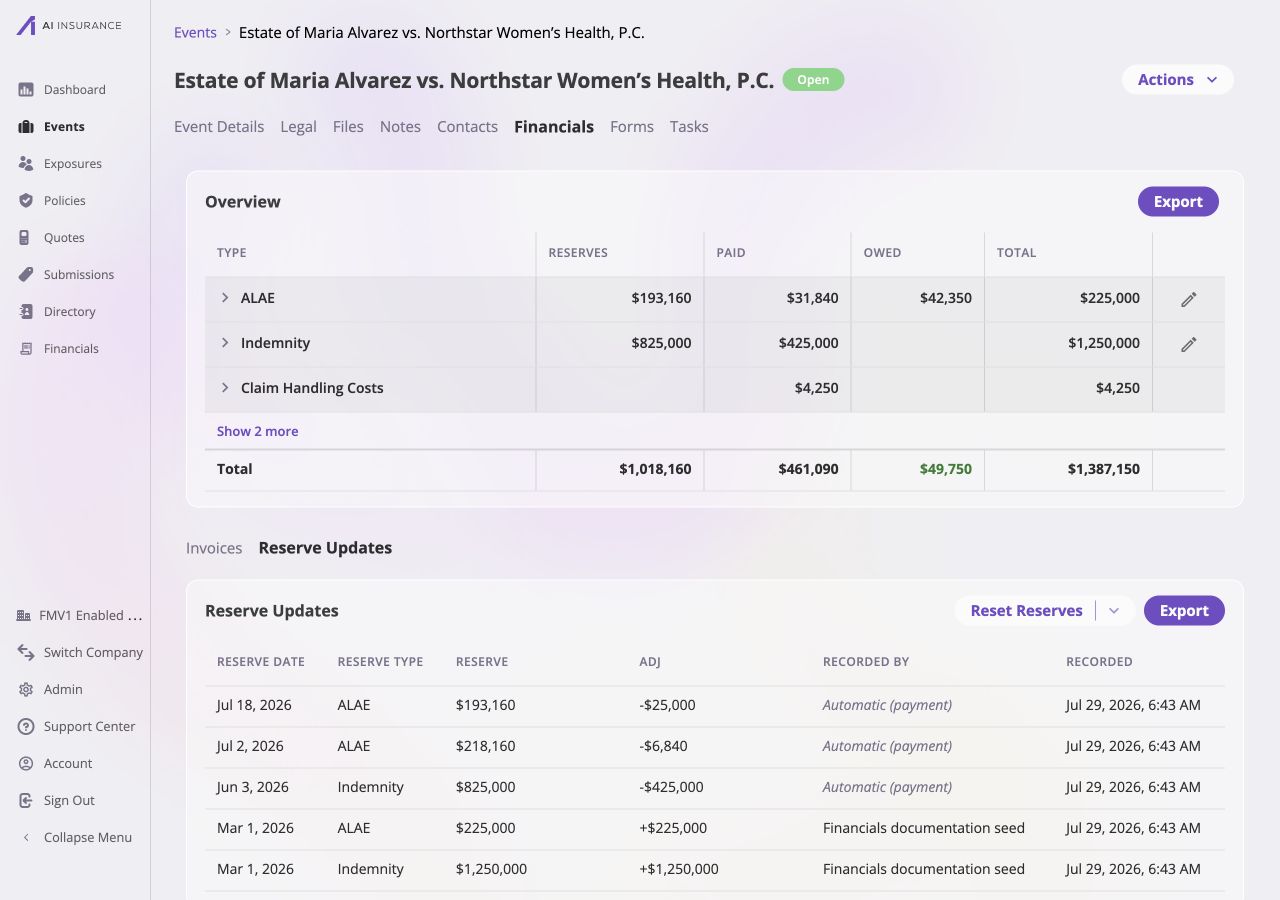
Reserve Updates preserves the estimate history and the automatic adjustments created as payments post.
Reserves Have a Direction
A reserve is money expected to move, and it needs to know which way. That direction comes from the Invoice Type’s expected direction: an Indemnity reserve is money expected to go out, a Subrogation reserve is money expected to come in. This is why the expected direction on a Loss/Recovery type is structural and cannot be changed after the type is created — see Expected Direction. On screen it behaves like every other figure: an unsigned amount, green when it represents money coming in. In an export it takes a sign according to the reference frame — see Reference Frames.When the App Asks How to Record a Payment
A payment against a Loss/Recovery type normally updates the reserve silently. Two situations are ambiguous enough that the app stops and asks. The payment would carry the reserve across zero. A $5,000 payment against a $3,000 reserve runs straight through zero and out the other side — and so does any payment against a type with no reserve set at all. A payment that lands exactly on zero is clean, and never prompts. The payment moves the reserve the wrong way. A payment that grows the balance away from zero rather than toward it — a recovery collected on a loss type, for instance. Both offer the same two choices, with Update Reserves selected by default:- Update Reserves — raise the expected total so the payment brings the reserve cleanly to zero. Appropriate when the estimate was simply too low.
- Update Expected Totals — leave the reserve where it is and let the expected total grow by the payment instead. Appropriate when the payment is additional to what was reserved for.
Worked Example
Indemnity on one event: a $50,000 expected total, $47,000 of it already paid, leaving $3,000 reserved. A $5,000 payment arrives — more than the reserve can absorb — so the app prompts.
Update Reserves treats the estimate as having been too low. It lifts the
expected total just far enough for the payment to bring the reserve exactly to
zero: the claim is now fully paid out, and nothing further is expected on it.
Update Expected Totals treats the payment as additional to what was reserved
for. The reserve is left untouched and the expected total absorbs the payment on
top of it, so $3,000 is still expected to move.
Both record the same $5,000. They disagree about what the claim is now expected
to cost, which is why only the person recording the payment can settle it.
It is legal for a reserve to end up with a balance opposite its expected
direction, and it means something specific: more money has moved than the
expected total says the claim is worth. The app reads that as over-paid (on a
type expecting money out) or over-collected (on a type expecting money in),
not as a reserve now running the other way.
Resetting Reserve History
A type’s reserve history on an event can be reset. A reset reverses the accumulated reserve estimates for that type on that event, returning the reserve balance to zero and starting the history fresh from that point. The reserve updates before the reset stay visible, marked as history that was reset. There are two reasons to use it:- The reserve history on an event is wrong in a way that individual updates cannot untangle.
- The event needs to be deleted, and its reserve balance is blocking the delete.