
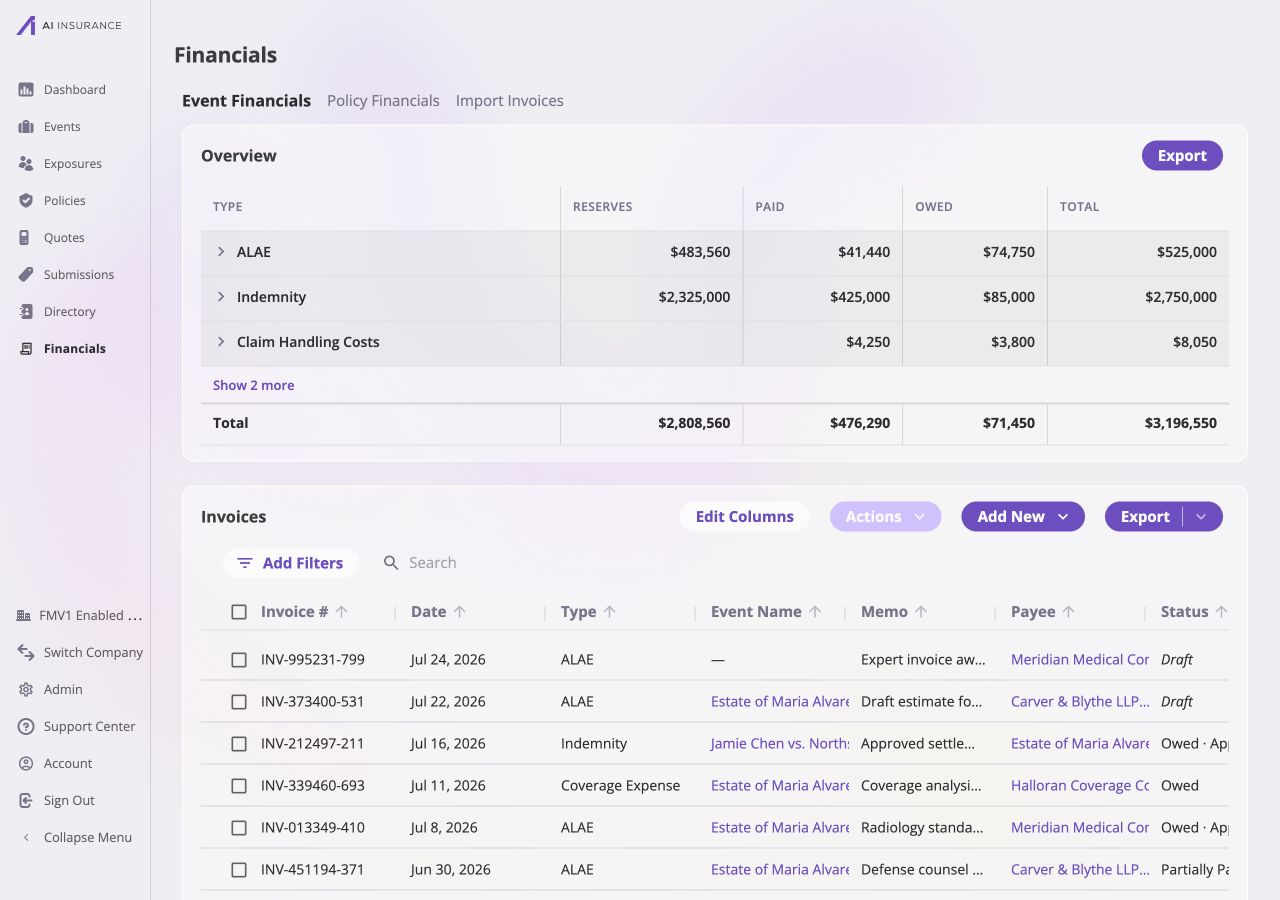
Company Event Financials combines a company-wide Overview Report with the invoice list behind its totals.
Overview Report
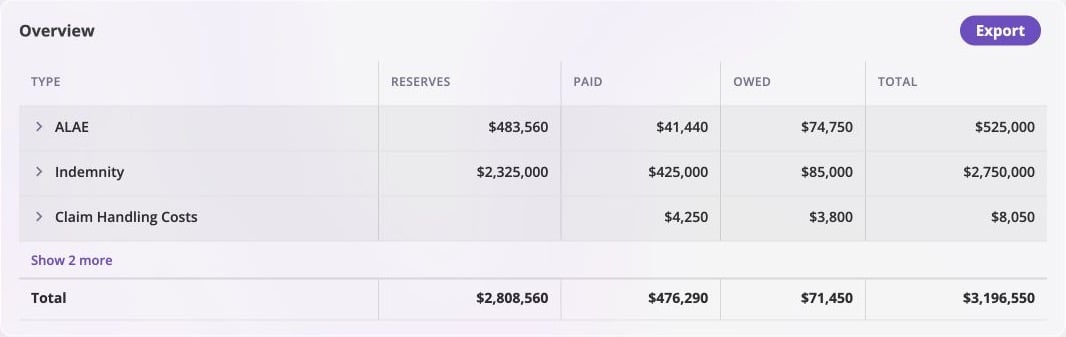
The company-wide Overview Report. Each row rolls up one Invoice Type across all events, and the Total row nets money coming in against money going out.
Invoice List
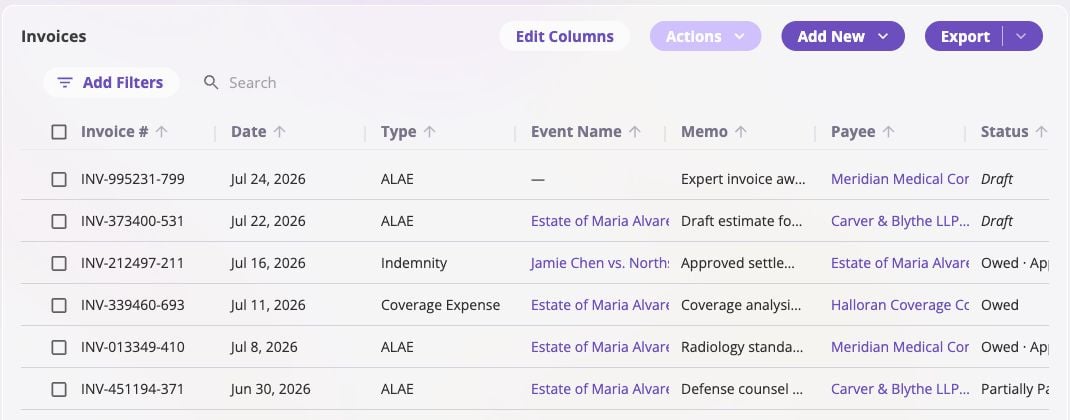
The invoice table behind the Overview Report. Company-wide rows include an Event Name so activity can be compared without opening each event.
Reserve Updates
The Reserve Updates sub-tab lists every reserve change in the company — recorded updates and the automatic adjustments from payments that erode reserves — newest first by default. It is the company-wide form of the same listing an event’s own Financials tab shows.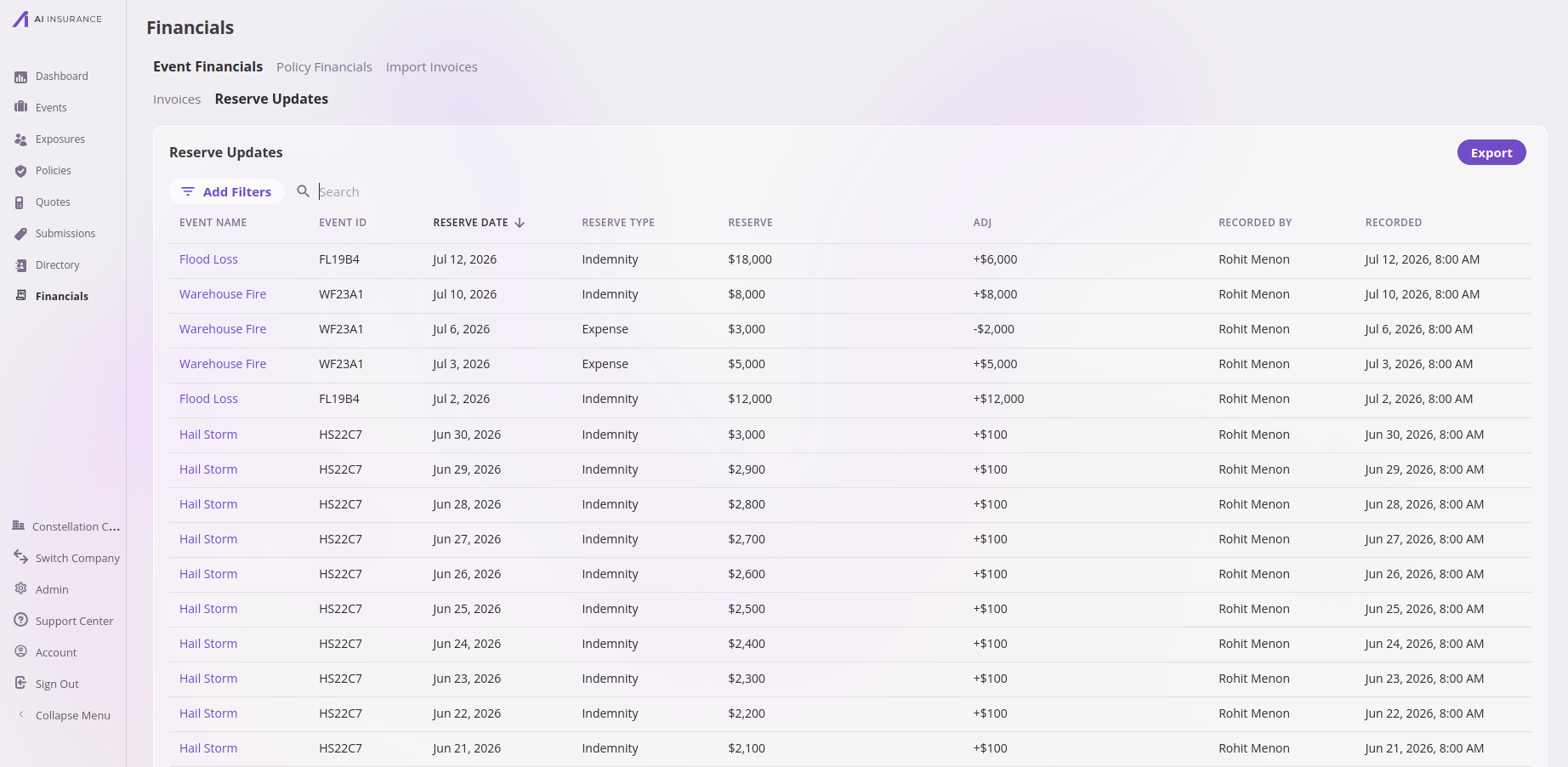
The company-wide Reserve Updates listing. Each change carries an Event Name and Event ID, so reserve activity across every event reads in one table.
-500 to find the decreases. Reset lines carry no date,
Reserve, or Adj, so those three filters hide them; the other filters keep a
reset line when it matches (a Reserve Type filter, for instance, keeps
each selected type’s reset lines). Each remaining row keeps its true running
Reserve, so hiding rows never changes the money the visible rows show.
The Search box beside Add Filters matches free text against
Event Name, Event ID, Reserve Type, and Recorded By at once,
highlighting each match in the table — the same search the invoice listing
offers. Search applies to the whole listing, combines with any active
filters, and returns the listing to the first page as you type.
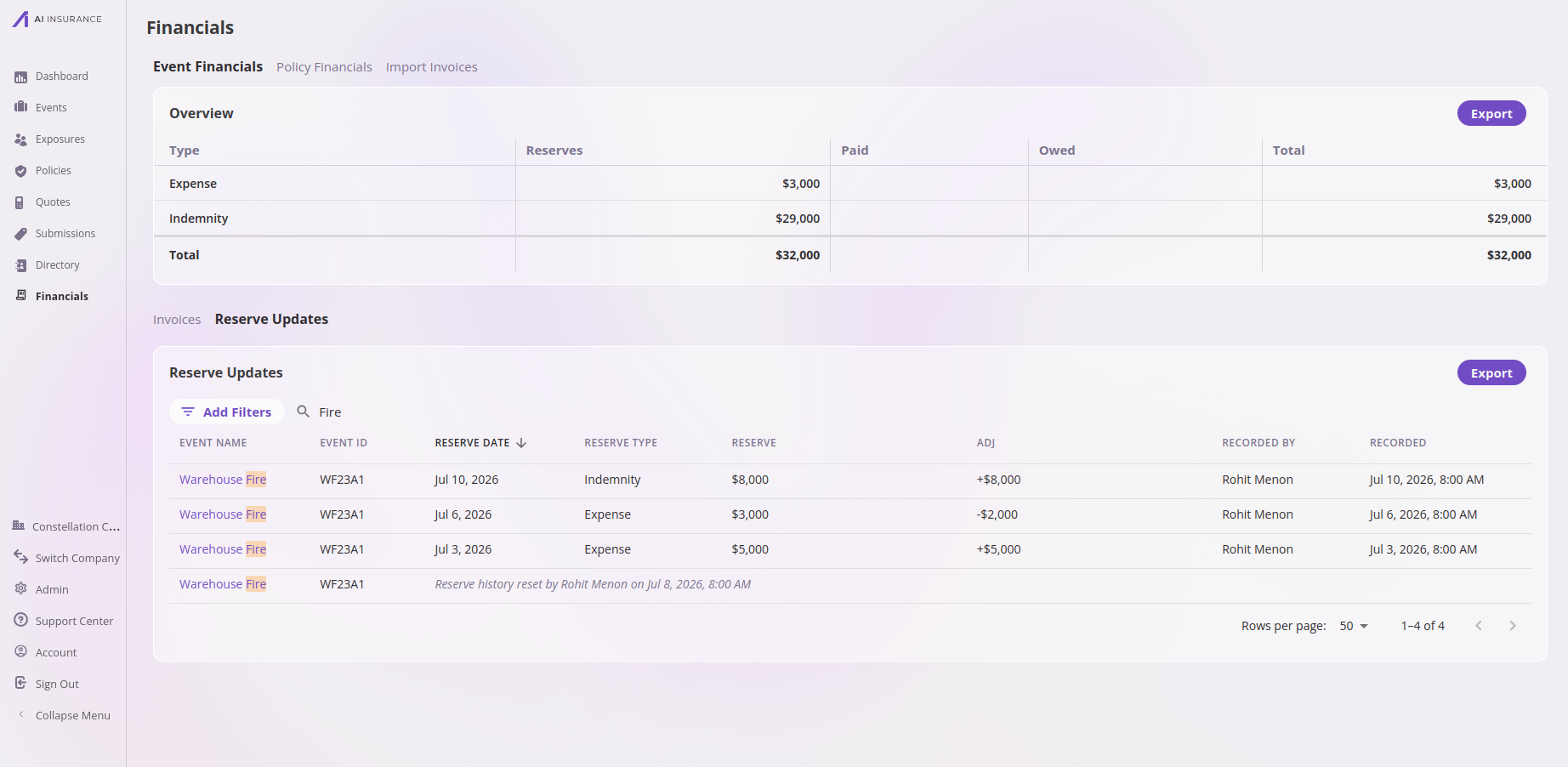
Searching highlights every match in the listing — a search for one event's name keeps its reserve changes and its reset line, and highlights the matching text in each.
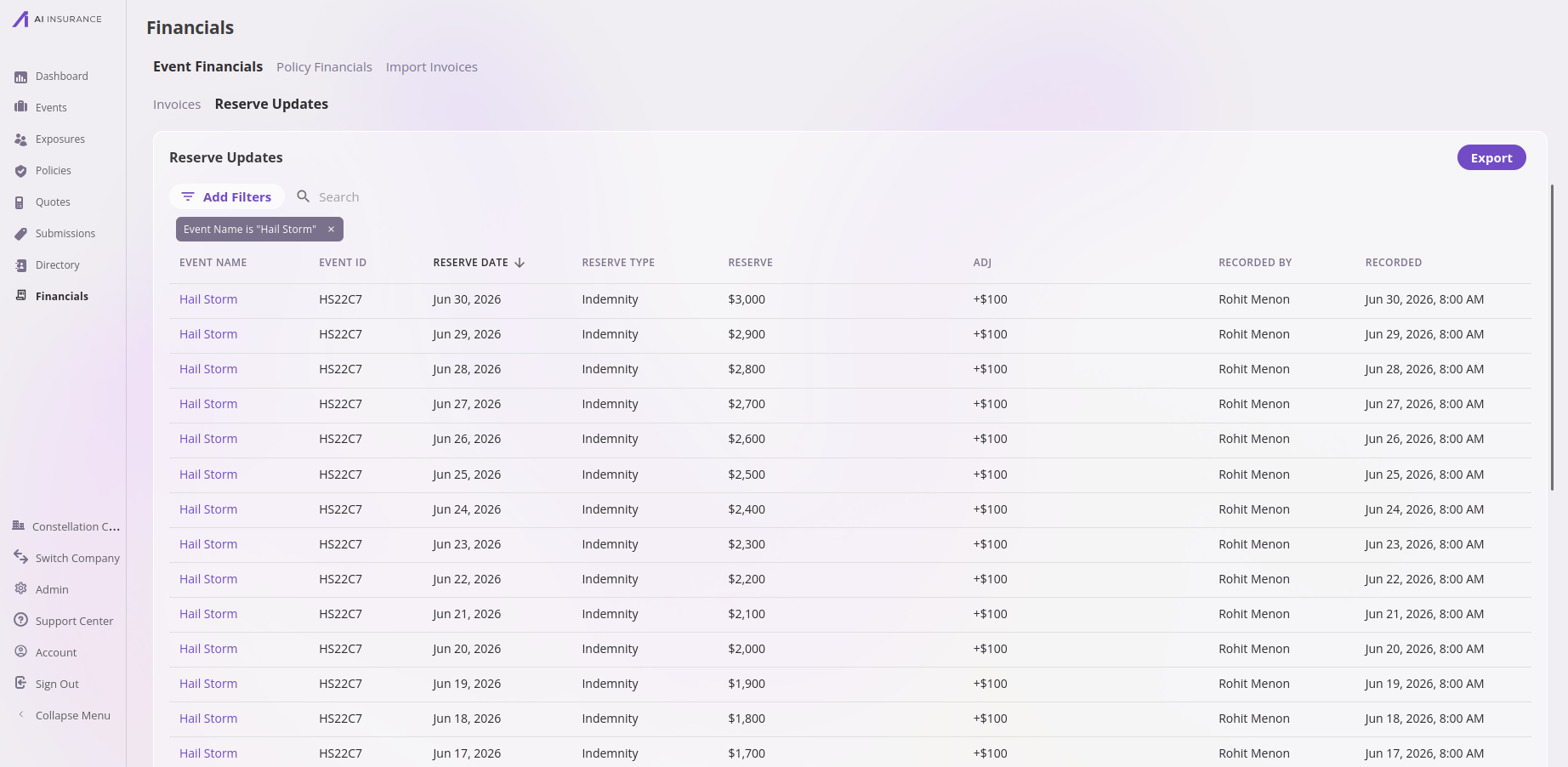
An Event Name filter narrows the company-wide listing to one event's reserve history. Each remaining row keeps its true running Reserve.
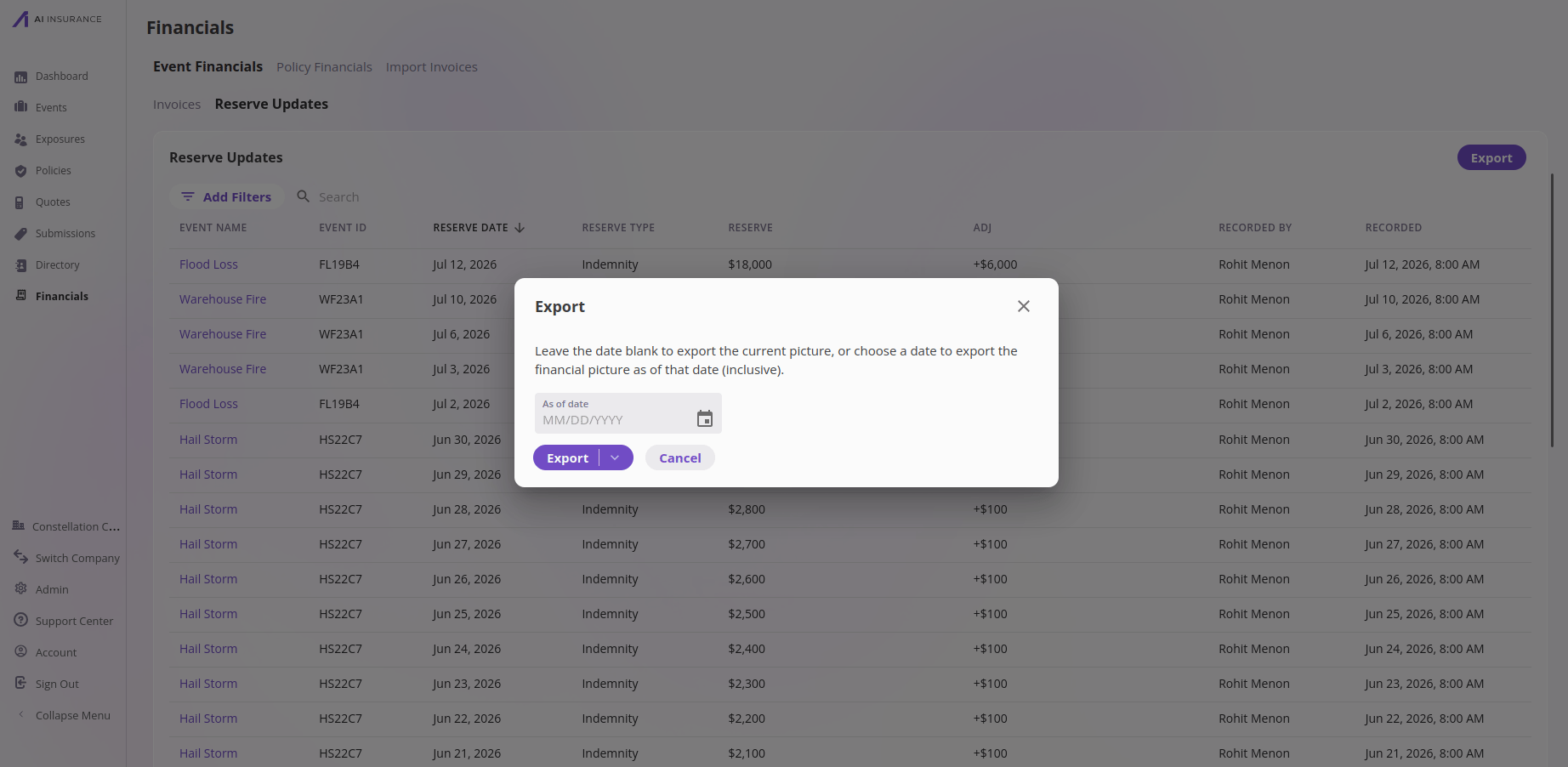
Export asks for an optional as-of date: leave it blank to export the current picture, or choose a date to export the financial picture as of that date.
Invoice Column Reference
The default view shows eight columns. Four more are available through Edit Columns.Filters and Search
Select Add Filters to filter by invoice number, date, type, event, memo, payee, status, amount, approval, direction, or paid date. Multiple filters can be combined, and Search narrows the filtered result further.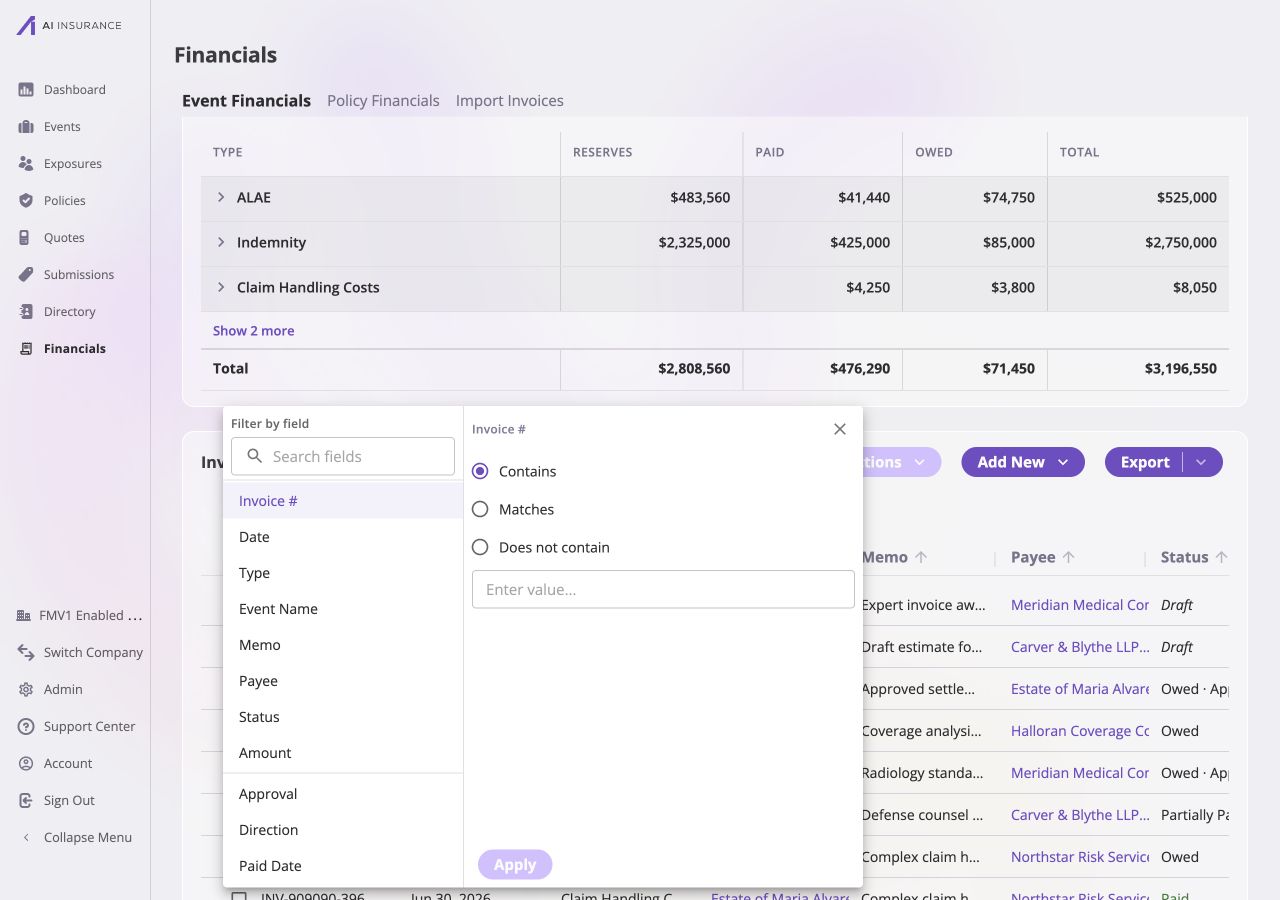
The filter builder. Choose a field on the left, define its operator and value on the right, then apply it to the listing.
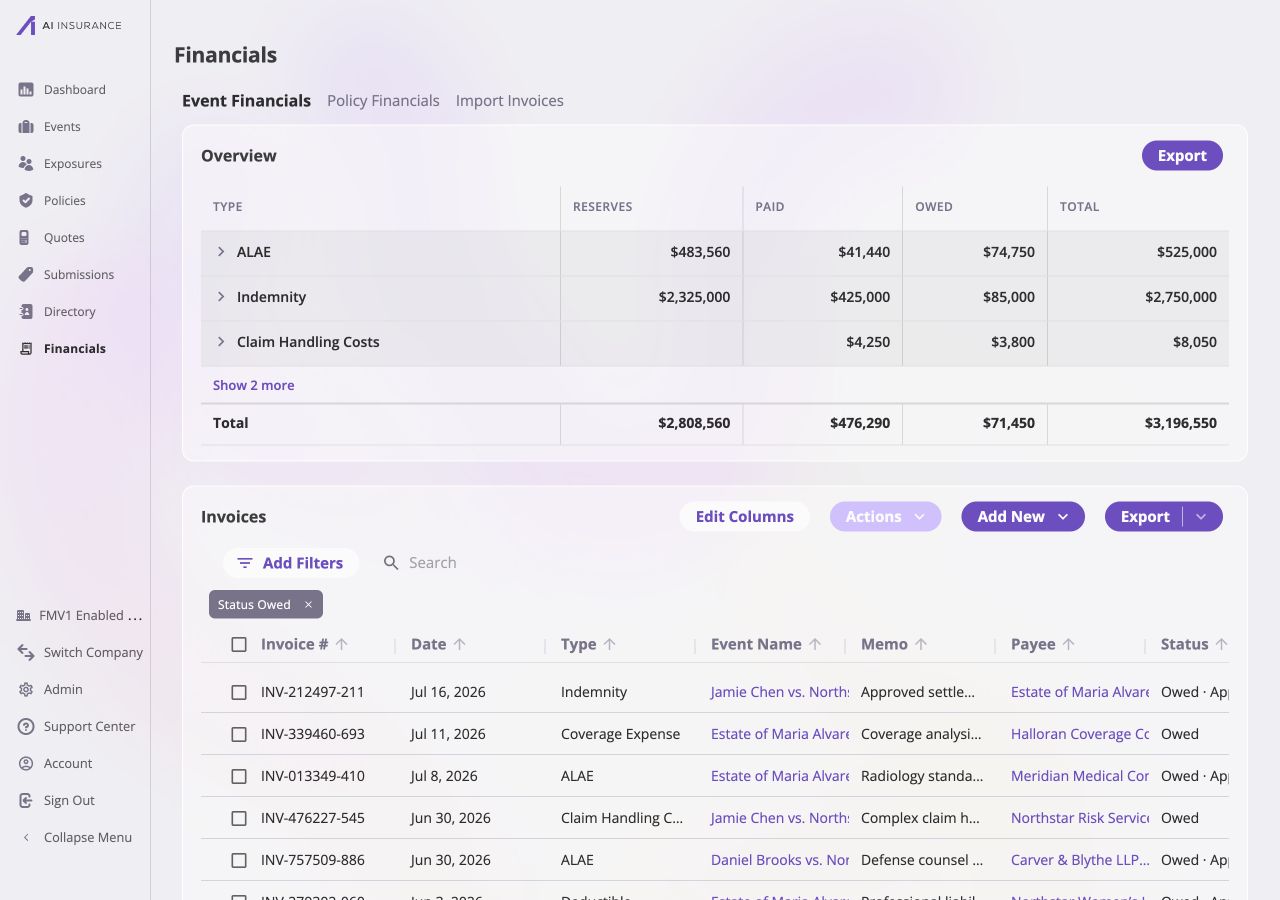
A Status = Owed filter reduces the company-wide list from 15 invoices to the six currently owed.
Columns and Saved Views
Select Edit Columns to choose which fields are visible and reorder them. Select a column to move it between Visible and Available, or drag within the visible list to change its order. Saved Views at the top of the dialog restore a saved arrangement; Reset to Defaults restores the original eight-column view.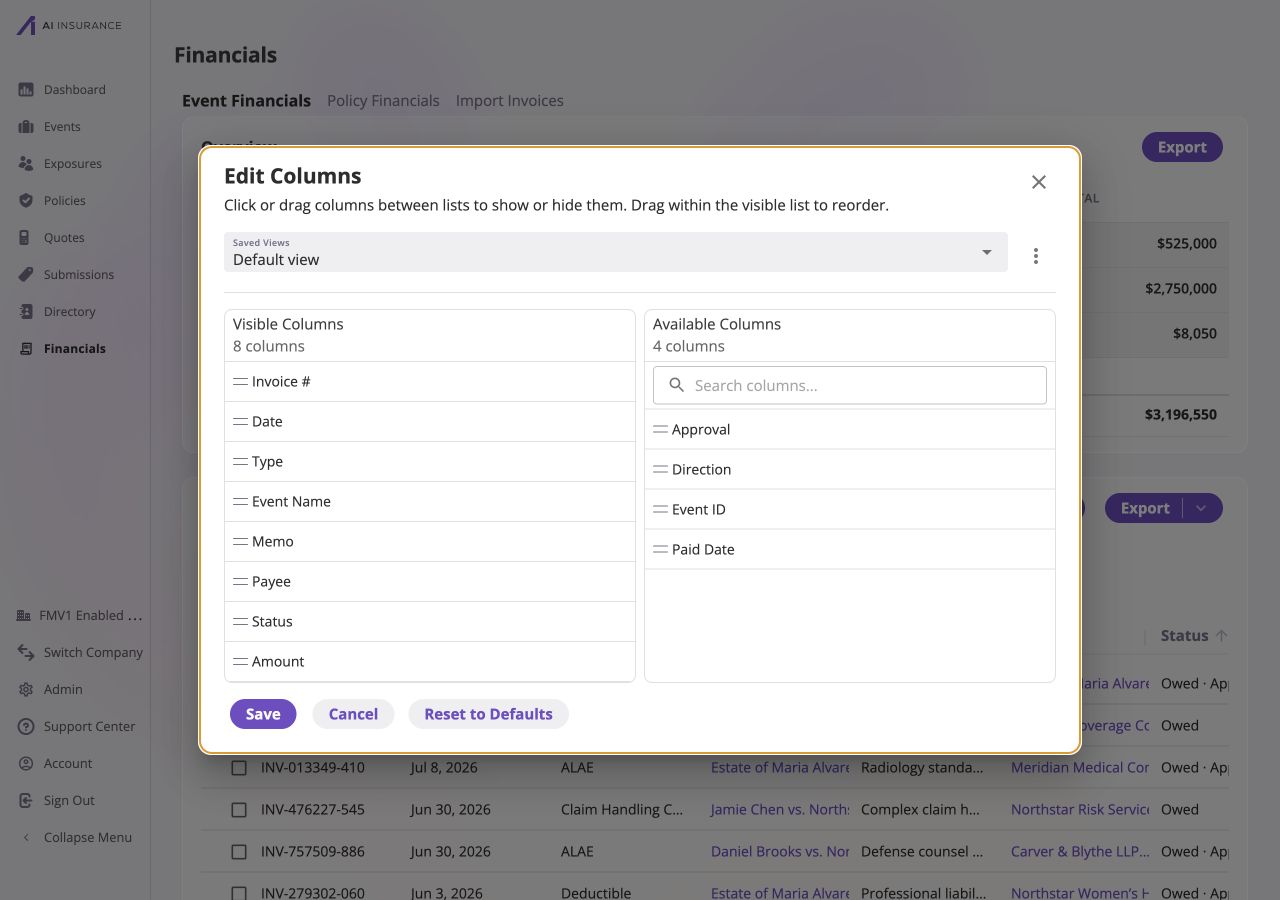
The default view has eight visible columns. Approval, Direction, Event ID, and Paid Date are available when a workflow needs them.
Bulk Actions
Select one or more invoices to make Actions available. The menu can approve the selection, link or unlink it, or open the available Mark As lifecycle transitions. The confirmation explains which selected rows can complete the requested action.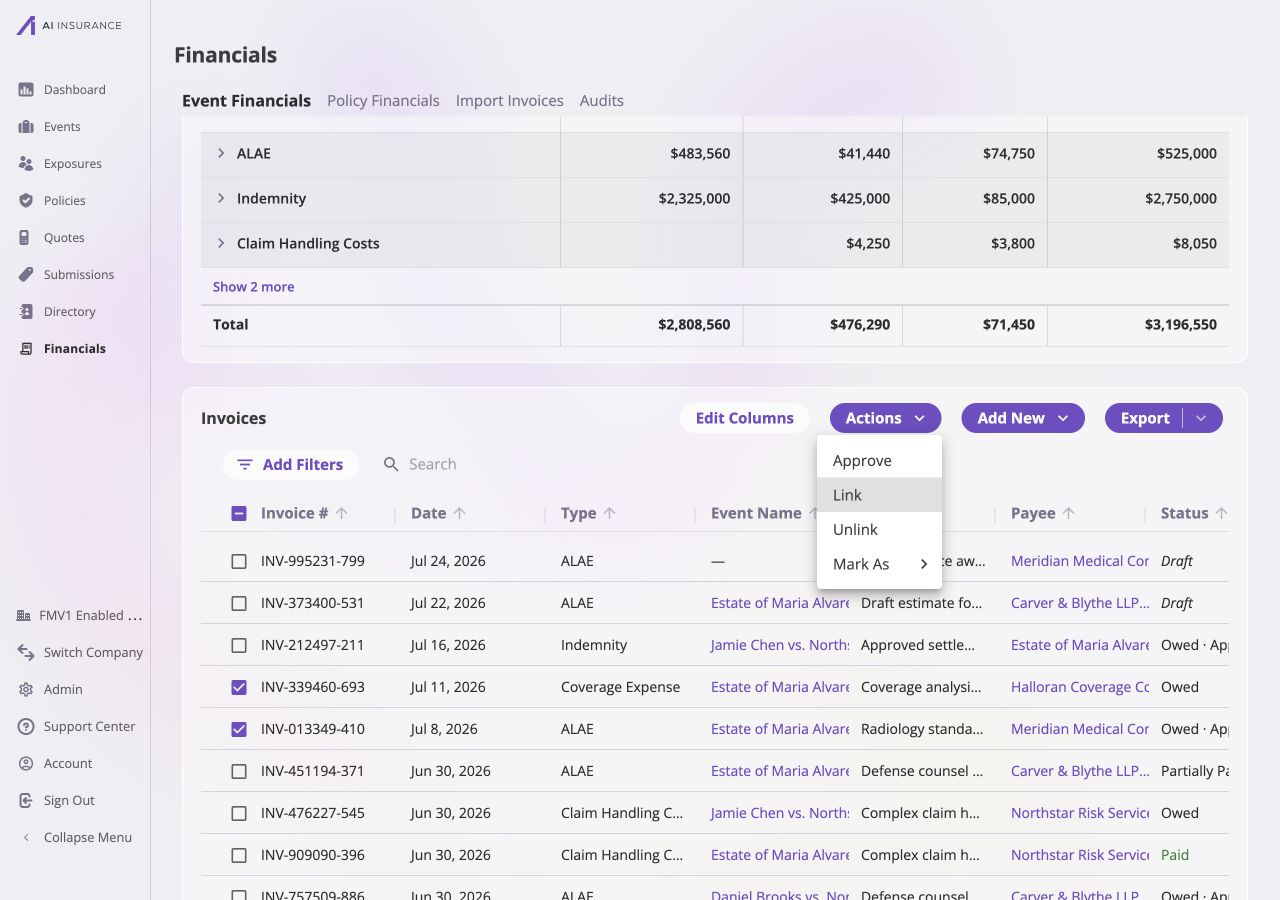
Two invoices selected on the company-wide page. Link and Unlink appear here because this page can move records into or out of event scope.
Exporting Invoices
The invoice Export menu uses the table’s current scope, filters, Search term, visible columns, and column order. Choose Google Drive, Excel (.xlsx),
or CSV.
The export includes every row that matches that state across all result pages,
including matching rows not currently shown in the paginated table. Voided
invoices may remain visible in the app for audit context, but are not included
in the live invoice export.
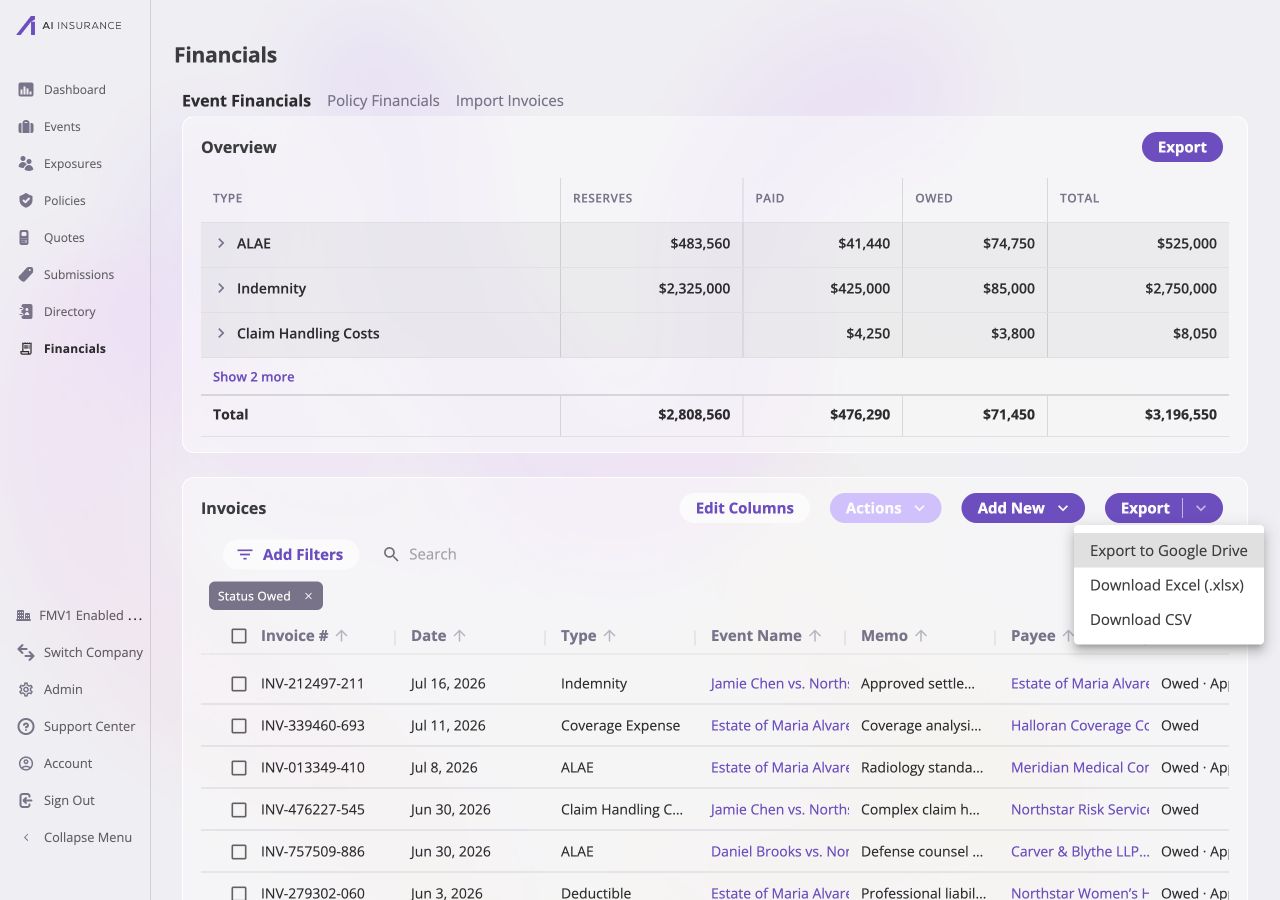
The Status = Owed chip is active when Export is opened, so each export option receives the matching filtered rows and current visible columns.