
Plan the Type
Write down these decisions before opening the editor:
Use names that will still make sense in a report without the invoice memo.
Avoid creating two types whose purpose overlaps: Financials reports totals by
Invoice Type, so splitting one activity across synonyms also splits its totals.
Add the Invoice Type
- Open Admin → Financials → Event Invoice Types.
- Select Edit on Loss/Recovery Invoice Types or Operating Invoice Types. Only one card can be edited at a time.
- Select Add invoice type at the bottom of that card.
- Enter the Invoice type name.
- Select its expected direction:
- Loss means money your company expects to pay out;
- Recovery means money your company expects to receive back;
- Expense means Operating activity that normally pays out; and
- Income means Operating activity that normally pays in.
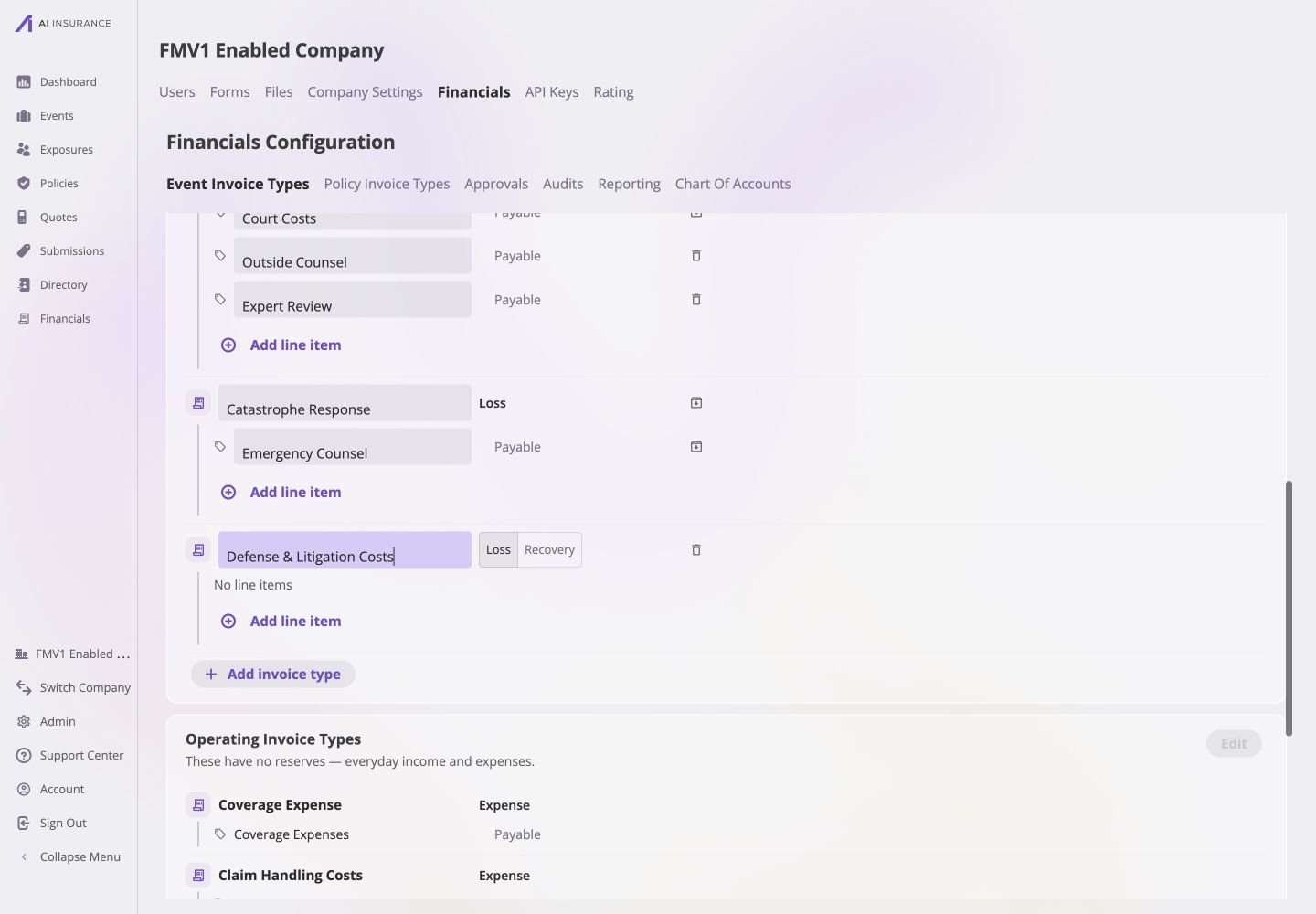
Defense & Litigation Costs is named as a new Loss/Recovery Invoice Type with Loss selected and no Line Item Types added yet.
Add the Initial Line Item Types
Every Invoice Type must contain at least one Line Item Type before the card can be saved.1
Add a line item
Select Add line item under the new Invoice Type and enter a name that
describes one component of the activity.
2
Choose Payable or Receivable
Choose Payable when the line normally records money paid out, or
Receivable when it normally records money paid in. A reverse flow is
still allowed when an invoice is entered.
3
Repeat for the complete breakdown
Add the smallest useful set of mutually distinct lines. A Defense Costs
type might start with Outside Counsel, Experts, and Court Costs.
4
Review the hierarchy
Confirm that every line belongs under the intended Invoice Type and that
its direction is correct.
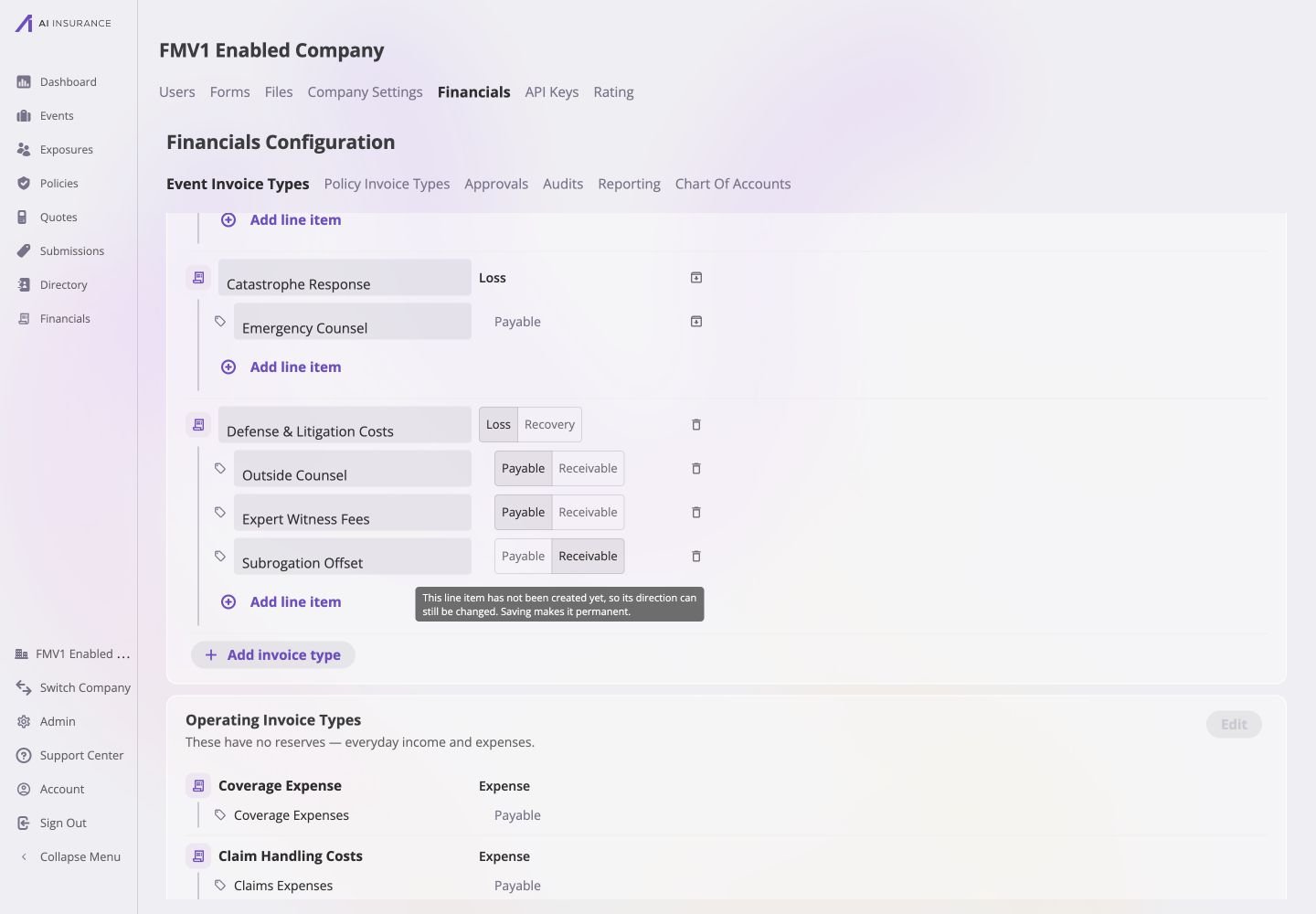
The Defense & Litigation Costs draft includes Outside Counsel and Expert Witness Fees as Payable Line Item Types and Subrogation Offset as Receivable.
Save and Verify
Select the card’s Save. The app creates the type and its generated accounts, returns the card to read mode, and reports that the Financials configuration was saved. If Save is unavailable, hover or focus it to see what is missing. Each Invoice Type needs a name and at least one named Line Item Type.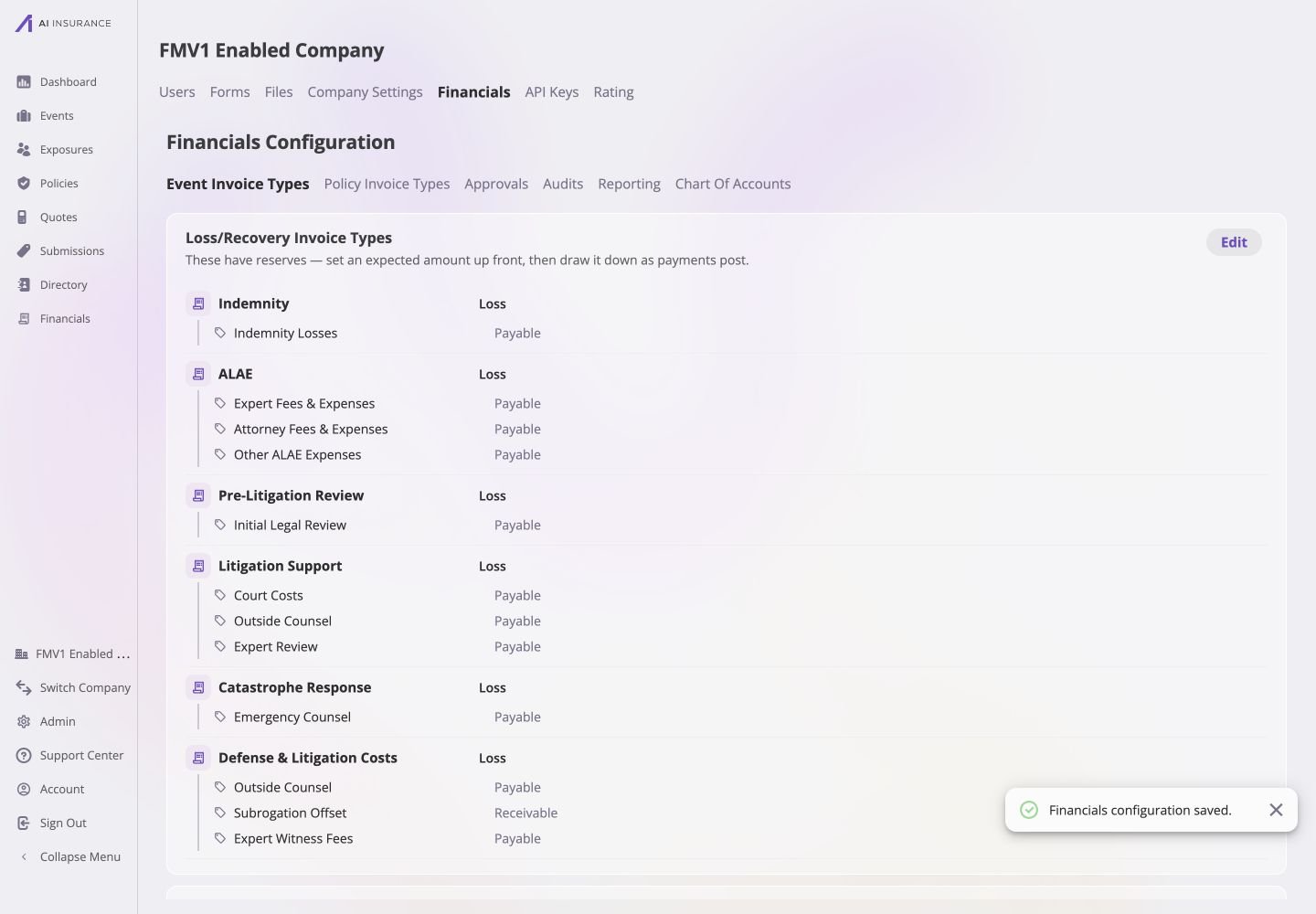
After Save, Defense & Litigation Costs and its three Line Item Types appear as a read-only hierarchy in the Loss/Recovery card.
- the type appears in the intended Loss/Recovery or Operating card;
- every Line Item Type and direction is spelled correctly;
- the new type appears as a row in the Company Event Financials Overview Report; and
- the type and its line items are available when starting a new invoice.