
- Flow — did money come in or go out? Inflow is positive and outflow is negative.
- Type — did activity follow the Invoice Type’s expected direction? Expected activity is positive and reversed activity is negative.
Map the Outputs
Open Admin → Financials → Reporting. The company-wide table contains one independent setting for each surface:
An untouched company uses Flow for all five. Changing one row does not
change the others.
Set Company-Wide Frames
- For each surface, select Flow or Type.
- Read any warning shown below a Type selection.
- Continue through all five rows before saving so the set remains deliberate.
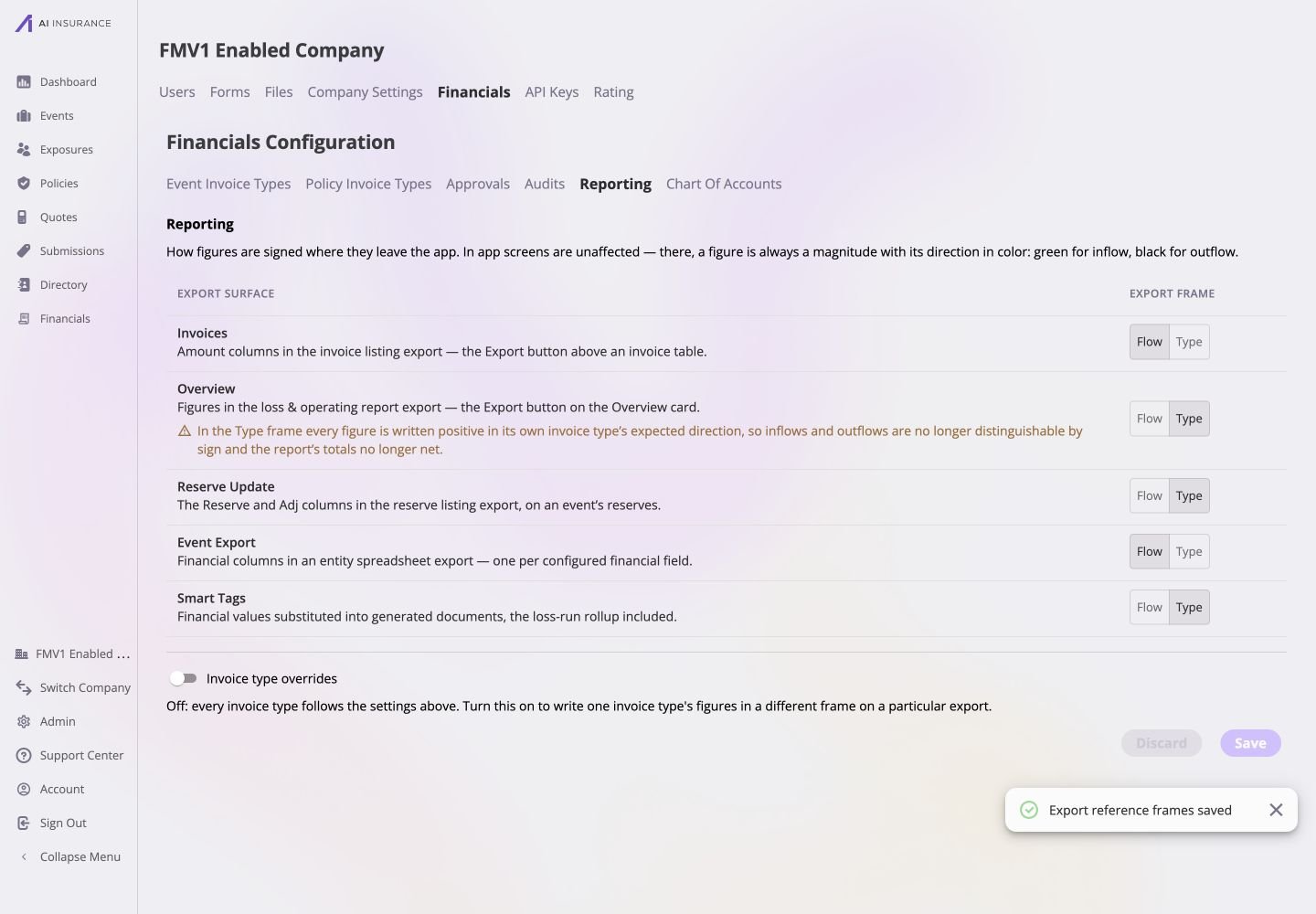
The saved company-wide choices keep Invoices and Event Export in Flow while Overview, Reserve Update, and Smart Tags use Type; Overview's warning explains why mixed Invoice Type totals no longer net.
Add an Invoice Type Override
Use an override when one active Invoice Type needs a different frame on one eligible output.- Turn on Invoice type overrides.
- Select Add Override.
- Choose the Invoice type first. This determines which exports are meaningful for it.
- Choose the Export.
- Choose the Frame.
- Select Add.
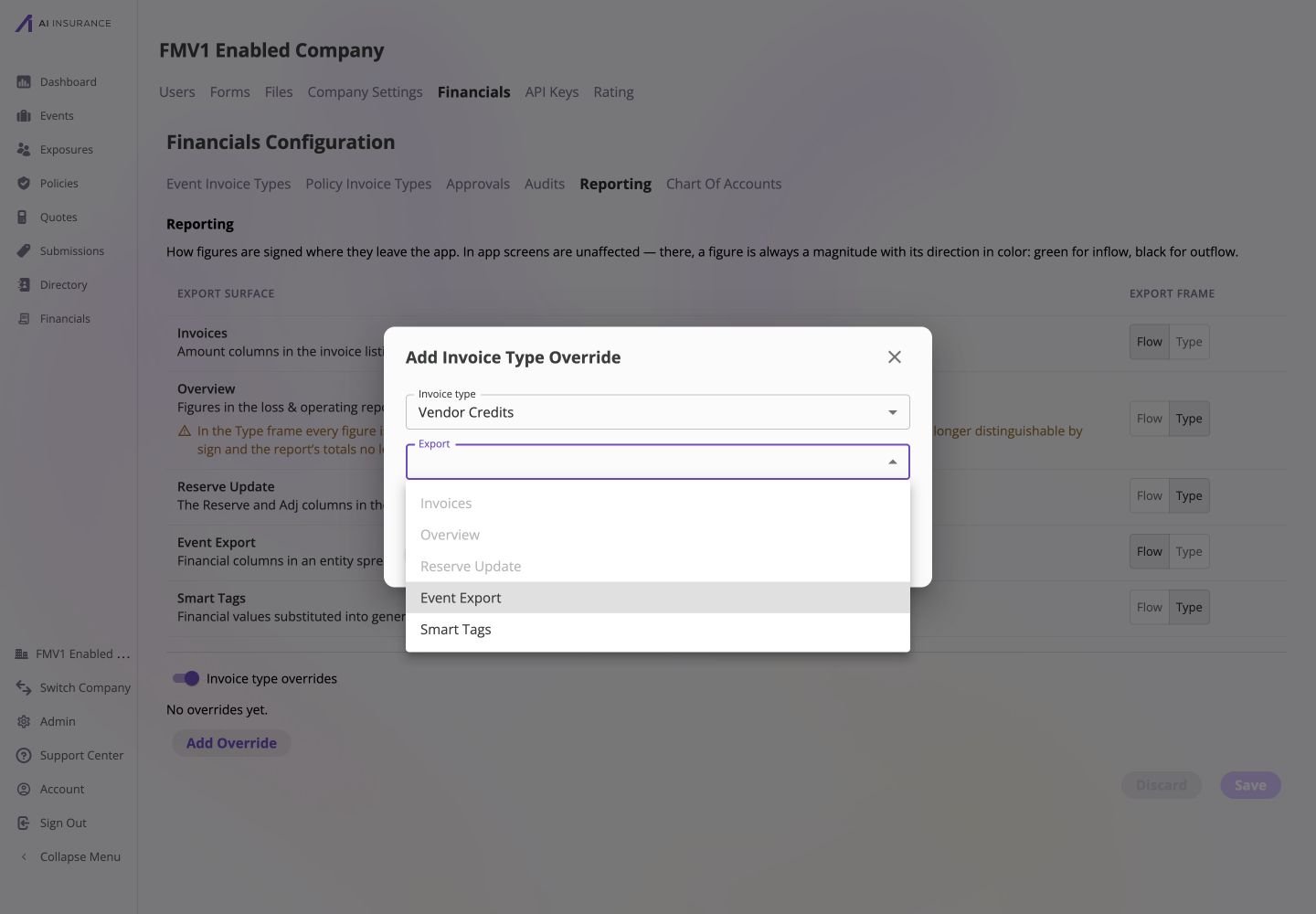
For Vendor Credits, Invoices, Overview, and Reserve Update are unavailable for an override, while Event Export and Smart Tags are available.
- Invoices and Overview must remain uniform across types because their columns aggregate across Invoice Types.
- Reserve Update is available only for Loss/Recovery types.
- A type/export pair that already has an override cannot be added twice.
- Deprecated Invoice Types cannot receive new overrides.
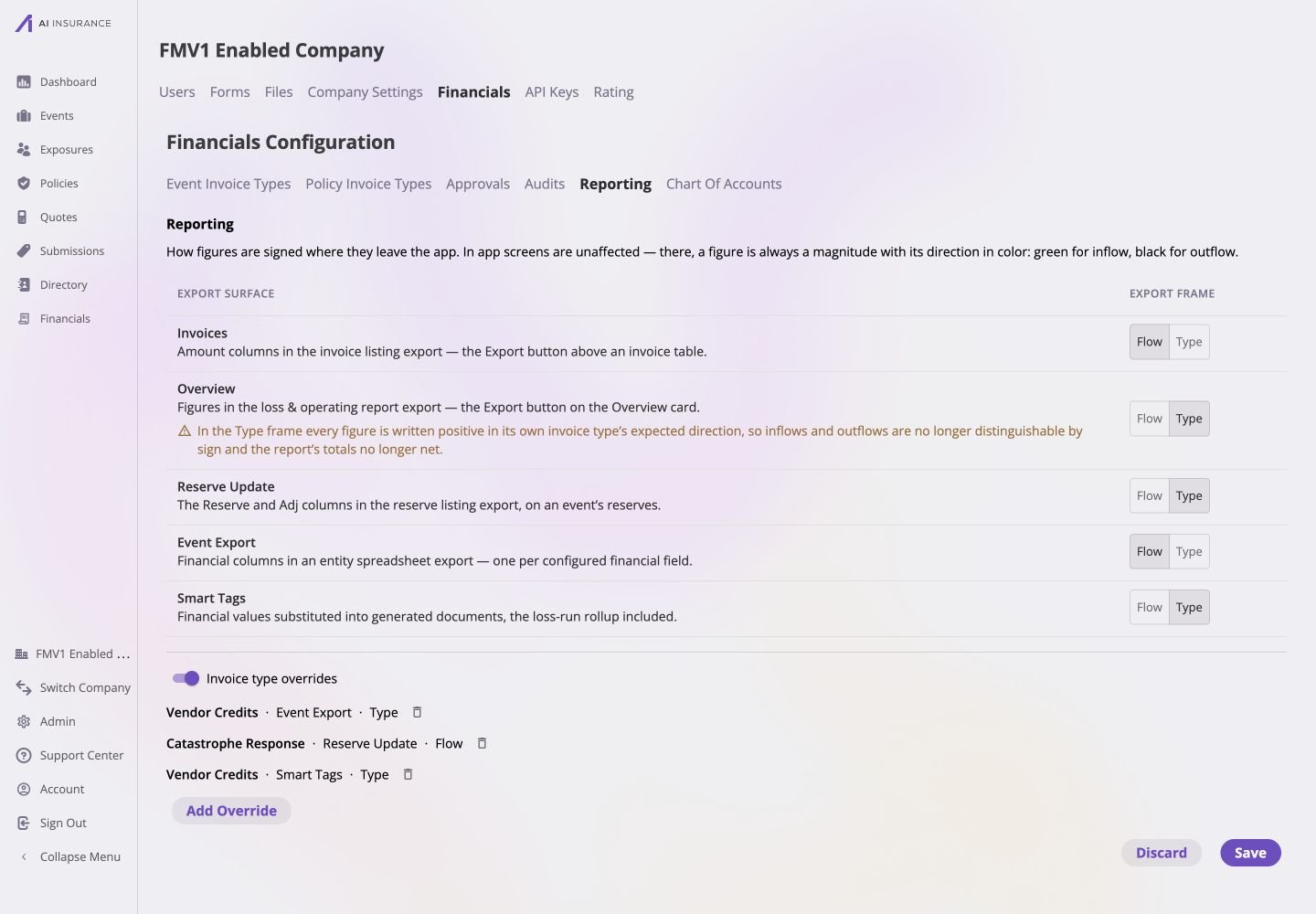
The unsaved draft contains three exceptions: Vendor Credits uses Type for Event Export and Smart Tags, while Catastrophe Response uses Flow for Reserve Update.
Save and Verify
Select Save and wait for the confirmation that export reference frames were saved. The Save and Discard controls become unavailable when the page matches the stored settings. Generate a fresh example from every changed surface. Use an Invoice Type whose expected direction makes the two frames visibly different—for example, an Expense type with outgoing activity:- confirm the screen still shows the unsigned magnitude in black;
- confirm a Flow-framed output writes the outgoing figure as negative;
- confirm a Type-framed output writes expected outgoing activity as positive; and
- confirm a type-specific override differs only on its named surface.
Remove Overrides or Revert a Change
- Select the delete control beside one override to return that pair to its company-wide frame, then Save.
- Turn off Invoice type overrides to remove all override rows. When rows exist, confirm Remove overrides, then Save.
- Change a company-wide row back to its prior frame and Save when the new convention was not appropriate.
- Select Discard before saving to abandon the entire current draft.