
Open the Correct Card
- Open Admin → Financials → Event Invoice Types.
- Locate the type under Loss/Recovery Invoice Types or Operating Invoice Types.
- Select Edit on that card.
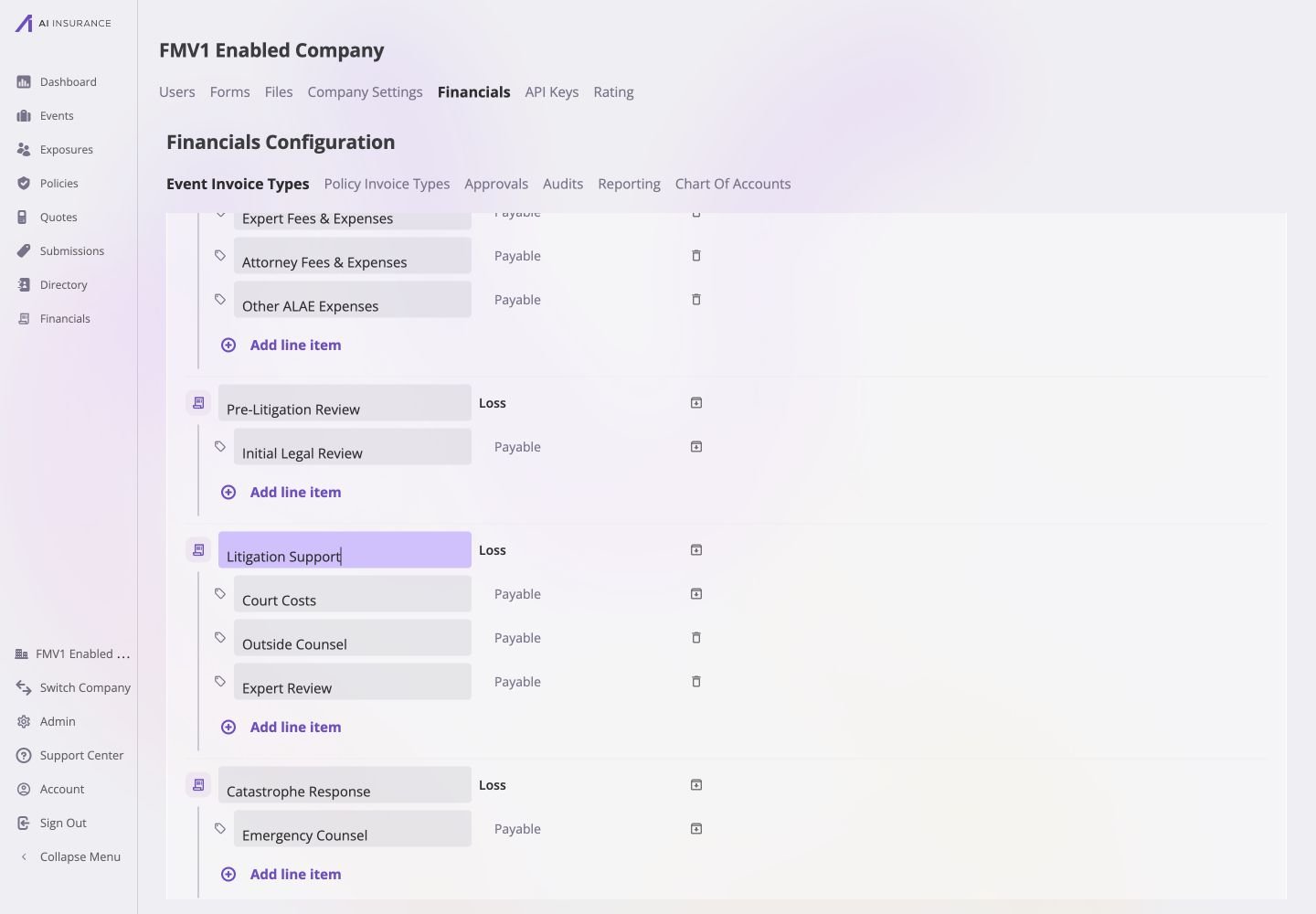
Litigation Support is in edit mode: Court Costs has an archive control because it has invoice history, while unused Outside Counsel and Expert Review have delete controls.
Make a Non-Destructive Update
Use the smallest change that expresses the intended configuration:- Rename a type or line item. Edit its name. Existing invoices and reports use the new label without changing any posted amount.
- Add a Line Item Type. Select Add line item, name it, and choose Payable or Receivable. Its direction becomes permanent when saved.
- Correct an Operating type’s direction. Change Expense or Income. This label remains editable because no account balance is oriented to it.
- Keep a fixed direction. An established Loss/Recovery type remains Loss or Recovery, and an established Line Item Type remains Payable or Receivable. Create a replacement when one of those permanent choices is wrong.
Delete an Unused Entry
An entry that has never appeared on an invoice shows a delete control.- Select the delete control beside the unused Invoice Type or Line Item Type.
- Confirm that the entry disappears from the draft.
- Select Save on the card.
Deprecate a Used Entry
Once an Invoice Type or Line Item Type has recorded activity, it cannot be deleted. Its remove control opens a deprecation confirmation instead.- Select the archive control beside the used entry.
- Read the confirmation, including the count of invoices that use it.
- For an Invoice Type with unused child lines, choose whether to:
- Deprecate all, preserving every Line Item Type; or
- Deprecate & delete unused line items, removing only children with no recorded use.
- Select Deprecate, or the appropriate combined action.
- Select the card’s Save.
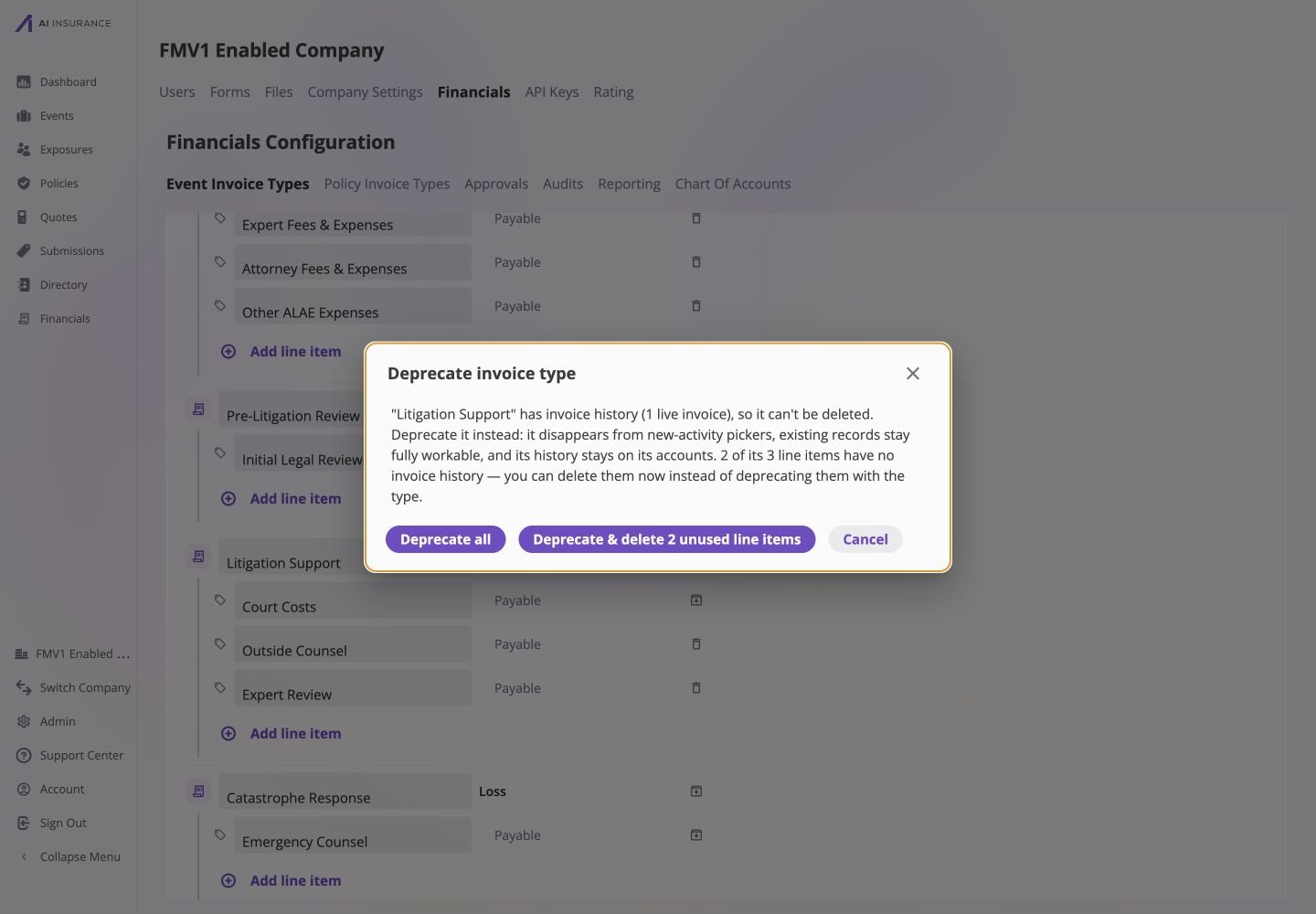
The Litigation Support confirmation reports one live invoice and lets you deprecate all three line items or delete the two unused lines while deprecating the type.
Restore a Deprecated Entry
Restore an entry when it should be available for new activity again.- Select Edit on the card containing the deprecated entry.
- Select Restore beside the Invoice Type or Line Item Type.
- Review its name and the fixed directions that will return to use.
- Select Save.
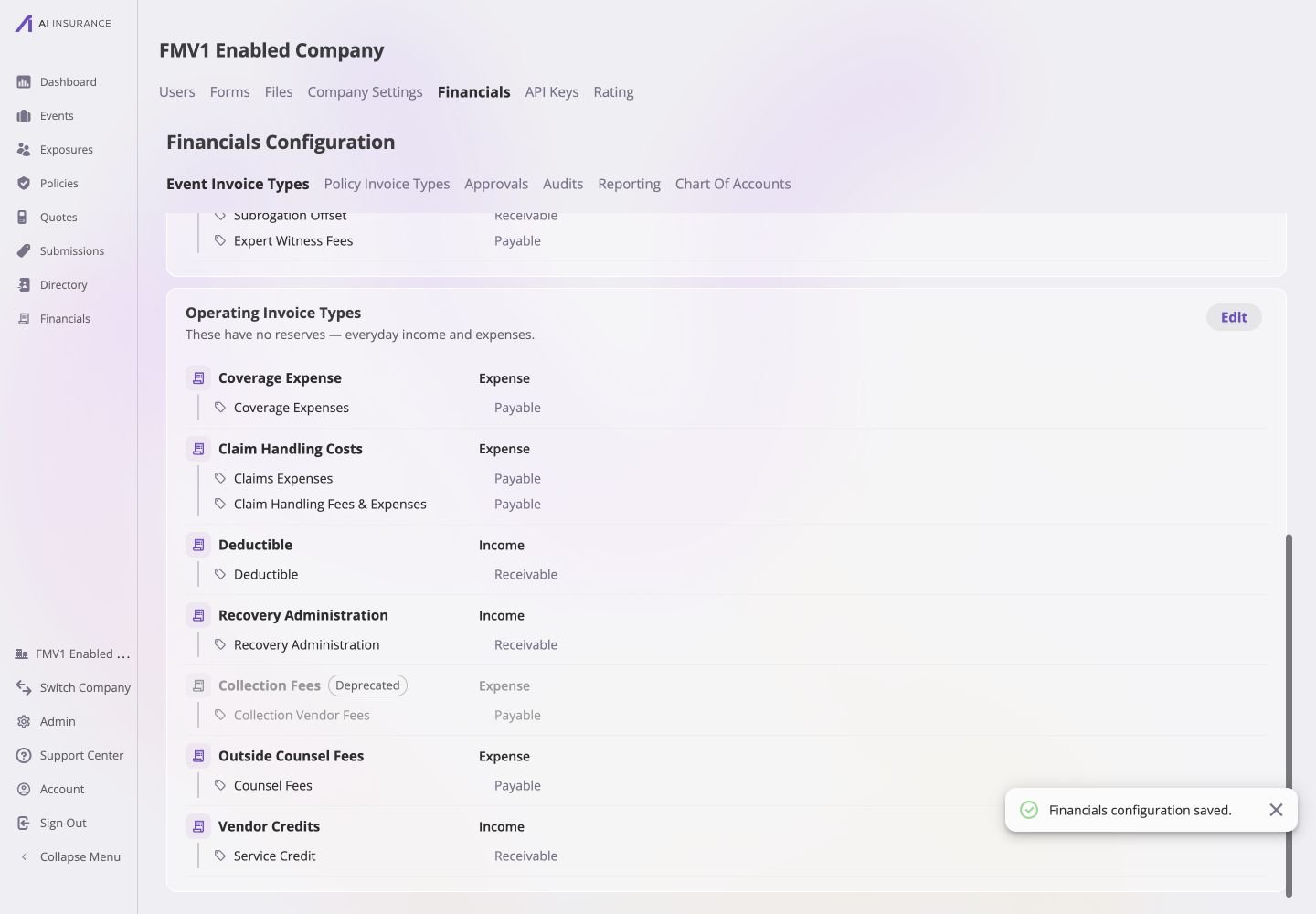
After saving, Recovery Administration is active again while Collection Fees remains visible with a Deprecated badge.
Verify the Change
After saving, confirm the read-mode hierarchy and then start a new invoice without creating it:- renamed and newly added entries appear in the correct place;
- deprecated entries are absent from new-invoice choices;
- restored entries are selectable again;
- existing invoices that used deprecated entries still display their original financial activity; and
- the Overview Report continues to include any non-zero historical totals.