
Design the Authority Model
List the approval levels your company needs before editing. For each level, decide the maximum invoice total it may approve for every active Invoice Type.
The built-in Financial Administrator role always has unlimited authority
for every type, including Invoice Types created later. Use a custom role when
authority needs any narrower scope.
Enable Custom Rules
- Open Admin → Financials → Approvals.
- Turn on Use custom approval rules.
- Confirm that the Roles and Approvers sections appear.
Create a Role
- Under Roles, select Create Role.
- Enter a unique Role name.
- Review every active Invoice Type in Approval limits.
- For each row, keep No limit, choose Not allowed, or choose Specific amount and enter the ceiling.
- Select Create.
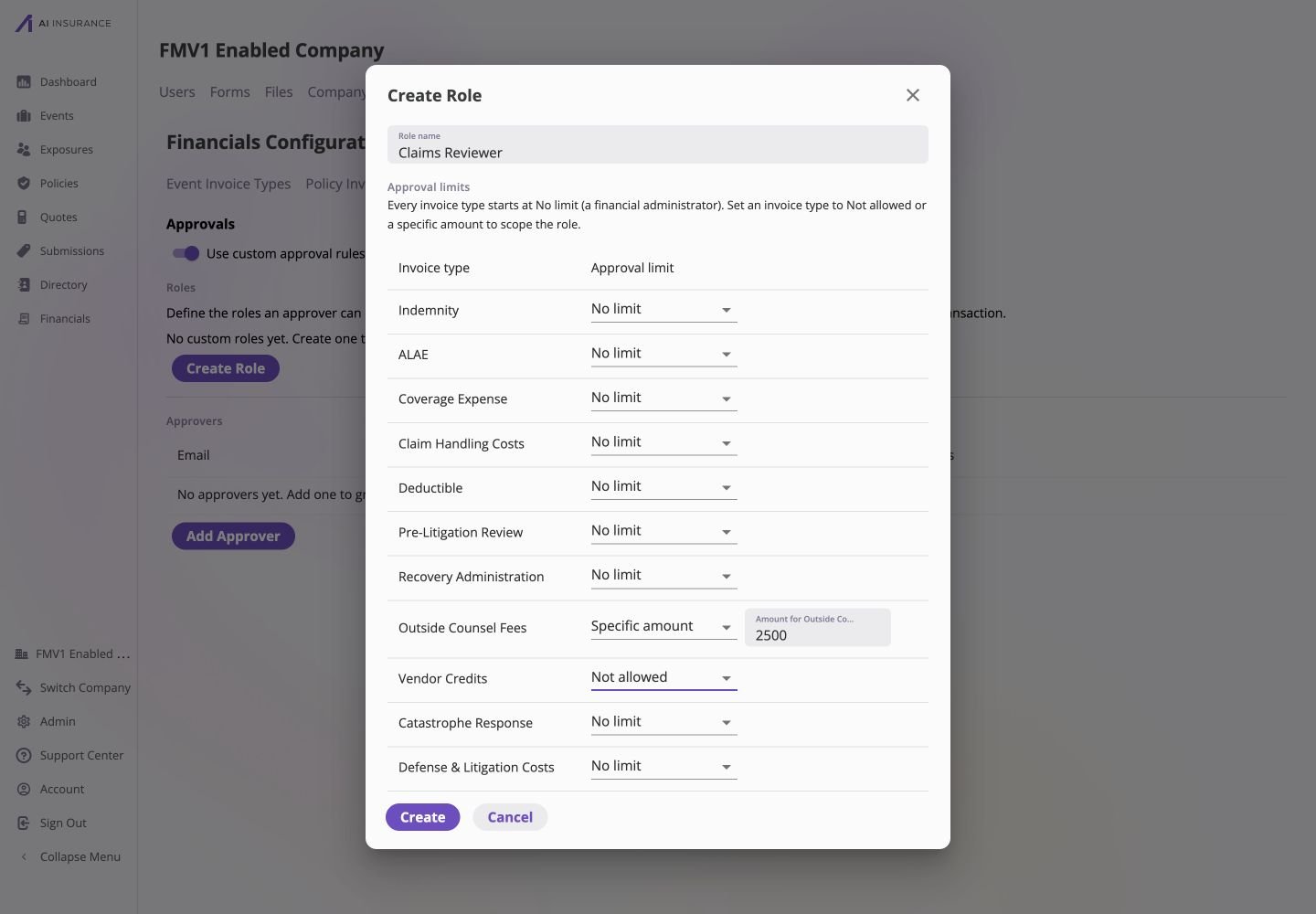
Create Role dialog for Claims Reviewer, with Outside Counsel Fees limited to $2,500, Vendor Credits set to Not allowed, and the remaining visible Invoice Types set to No limit.
A custom role has no authority over an Invoice Type added after the role was
created until that role is edited to include the new type. The built-in
Financial Administrator remains unlimited.
Assign an Approver
Approvers are selected from people in your company’s user directory. The person must have an email address and cannot already be listed.- Under Approvers, select Add Approver.
- Choose the User.
- Choose the Role that should apply to that person.
- Select Add.
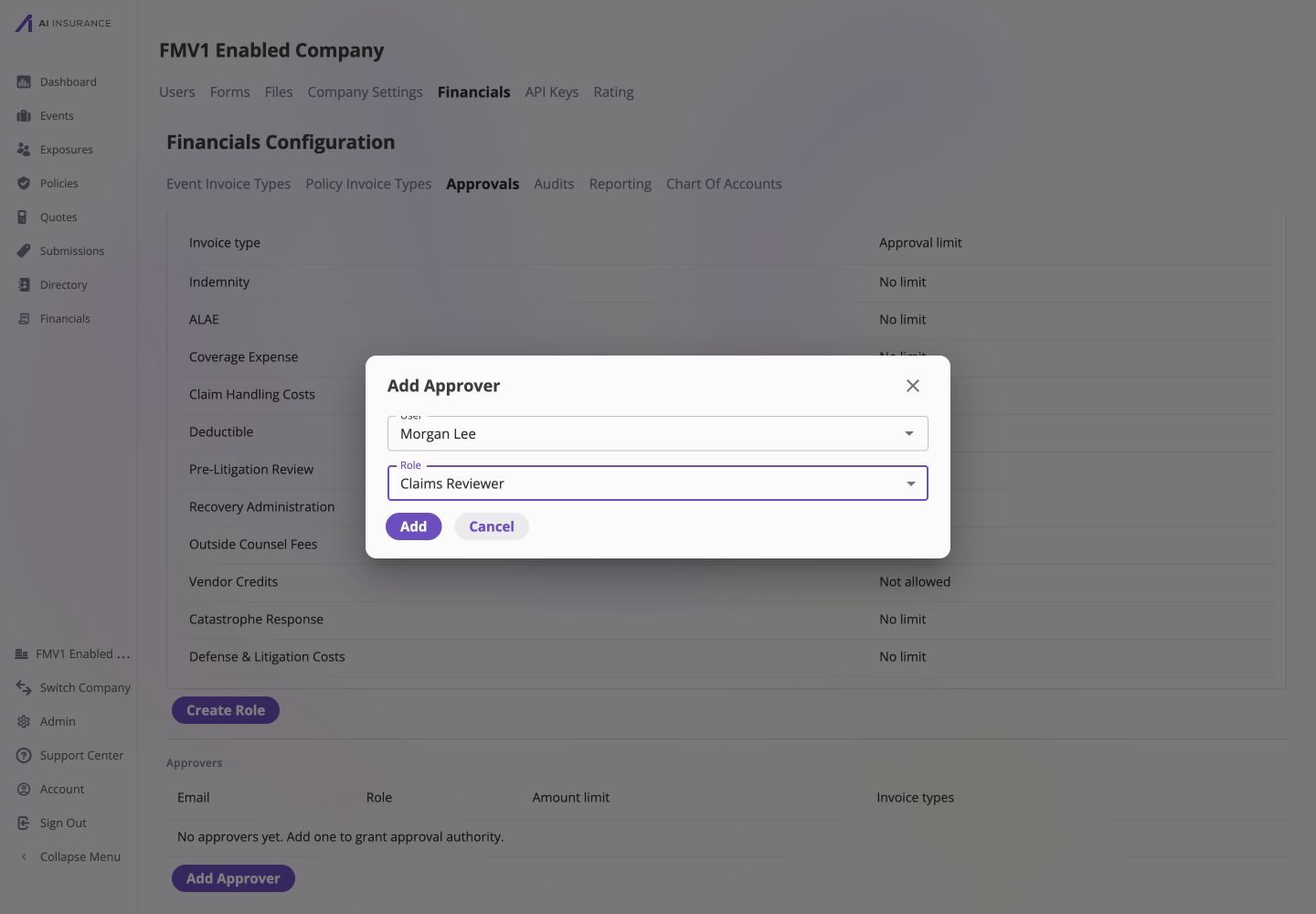
Add Approver dialog with Morgan Lee and the Claims Reviewer role selected, ready to add.
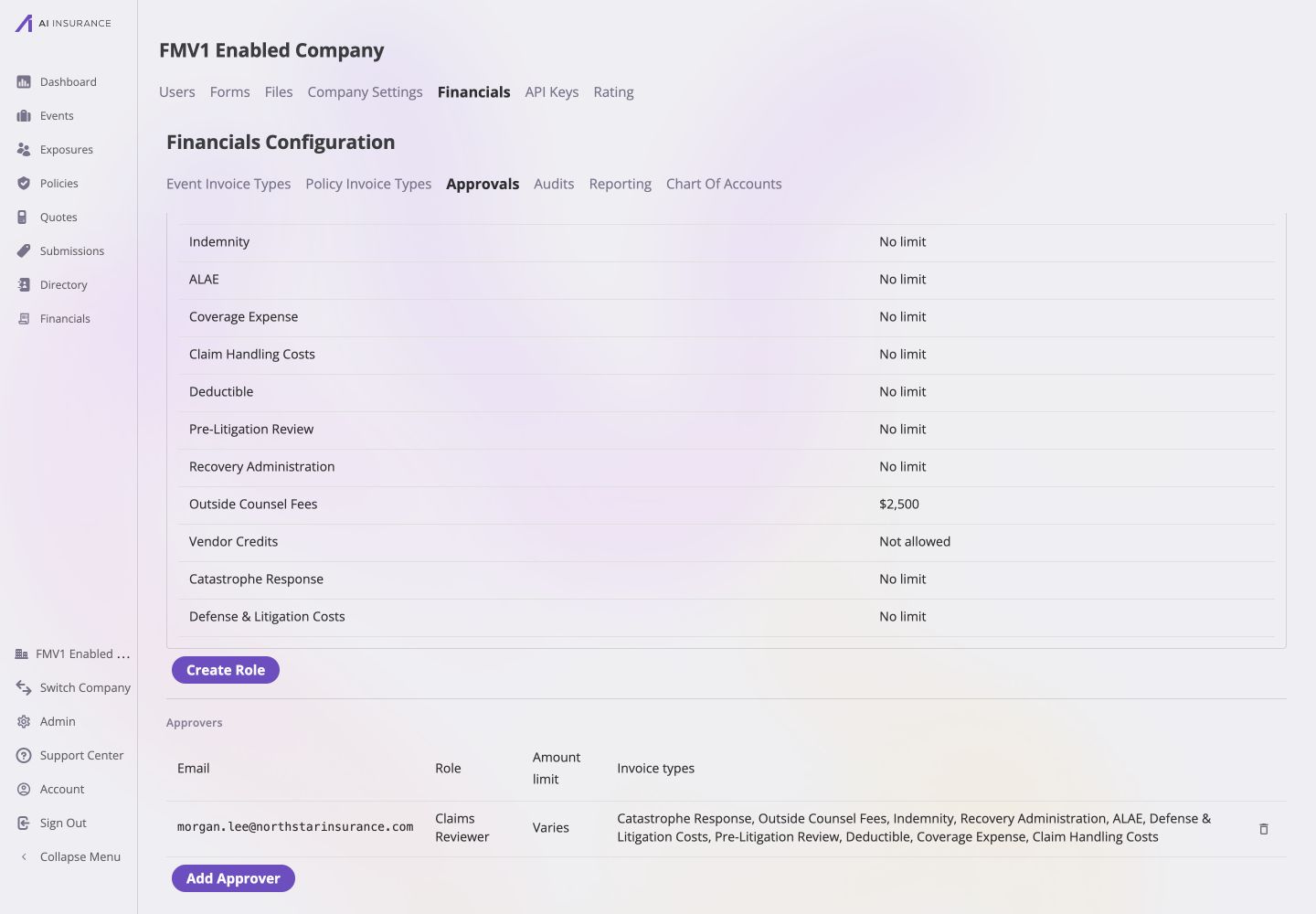
Saved approval rules showing Outside Counsel Fees limited to $2,500, Vendor Credits set to Not allowed, and Morgan Lee assigned the Claims Reviewer role.
Validate the Rules
Use invoices created specifically for this check so a test approval does not affect production work.- Sign in as the assigned approver.
- Open an unpaid invoice whose Type is allowed and whose total is at or below the role’s ceiling.
- Confirm Actions → Approve is available, then approve it if the test is intended to change the invoice.
- Open an invoice above the ceiling or on a Not allowed type.
- Confirm the approval action is unavailable and explains the missing authority.
Maintain Access Safely
- Change a role: edit its limits and select Save.
- Remove an approver: select the delete control on the approver row. Their authority ends immediately.
- Delete a role: first remove or reassign every approver using it. The app blocks deletion while assignments still depend on the role.
- Return to open approval: turn off Use custom approval rules. Everyone can approve again.