
Before You Move an Invoice
Open Financials → Event Financials and locate the invoice in the company-wide list. Add an Event Name filter or search by invoice number when needed. Check the invoice’s current:- Event Name;
- status and recorded payments;
- Invoice Type, especially whether it is Loss/Recovery; and
- destination event’s reserve position when payments will move.
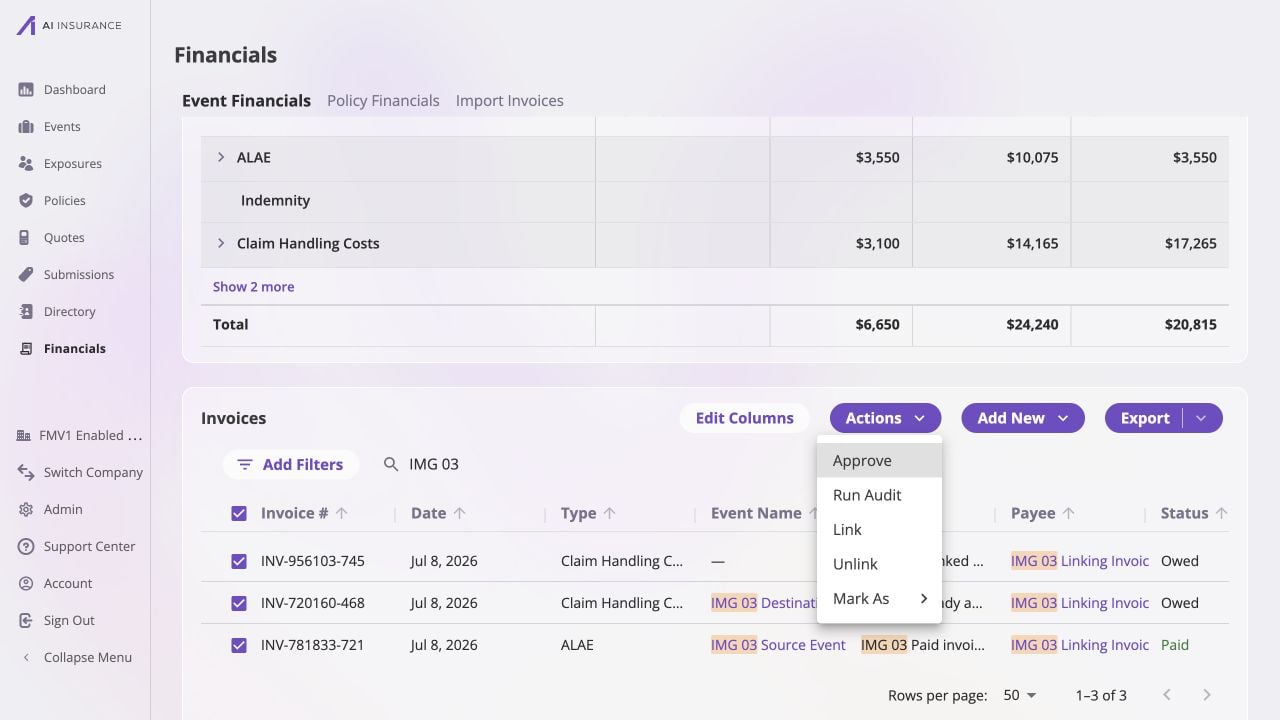
Use the company-wide list and its Actions menu to link or unlink the selected invoices.
The event’s own Financials tab does not show Link or Unlink because every row is
already scoped to that event. Return to the company-wide list to change scope.
Link or Move to an Event
- Select one or more invoices in Company Event Financials.
- Select Actions → Link.
- In Relink Invoices, choose the Destination event.
- Review how many invoices will move and how many are already linked to that event and will be skipped.
- Select Relink Invoices.
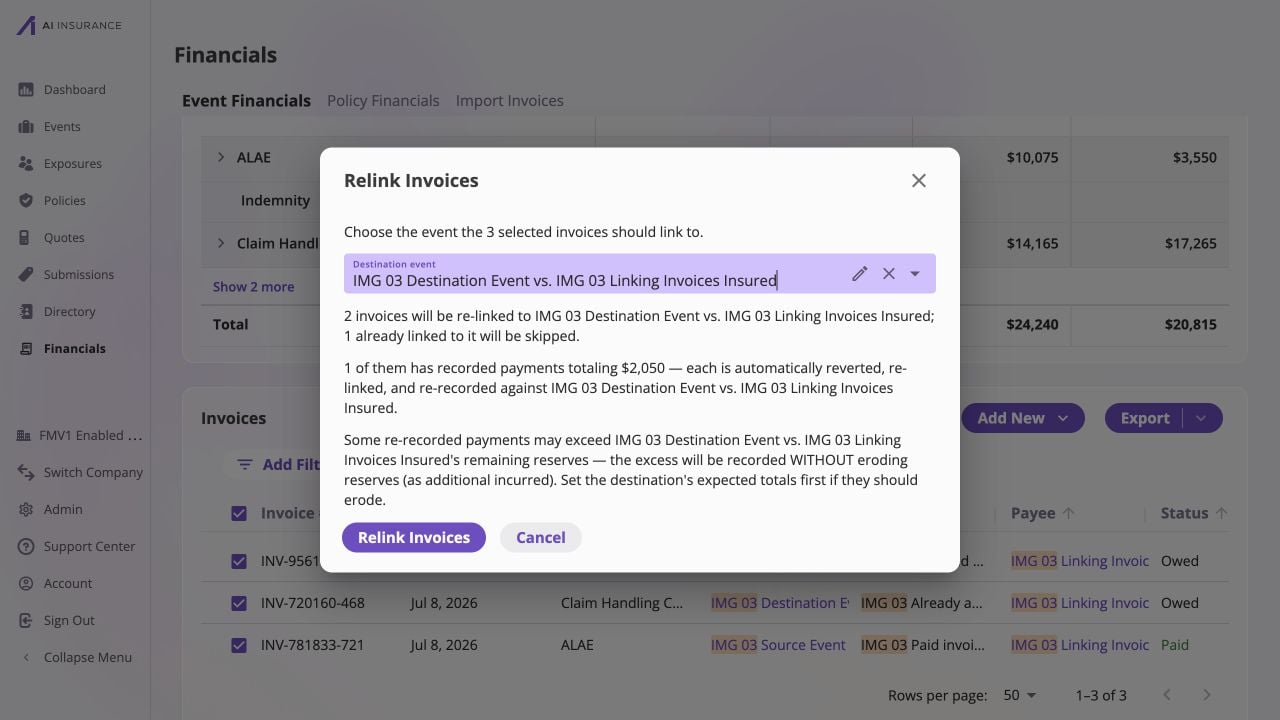
Review the move and skip counts before confirming; recorded payments are moved as part of the relink.
When Recorded Payments Move
A paid or partially paid invoice cannot simply point somewhere else because its payment activity belongs to its current event. The app completes the move as one composed change:- remove each recorded payment from the current link;
- relink the invoice; and
- re-record the same payment amounts, dates, and memos against the destination.
Unlink an Invoice
Use unlinking when the invoice should remain valid but should not count toward an event or policy.- Select the invoice or invoices in Company Event Financials.
- Select Actions → Unlink.
- Review the confirmation. Already-unlinked invoices are skipped.
- Select Unlink Invoices.
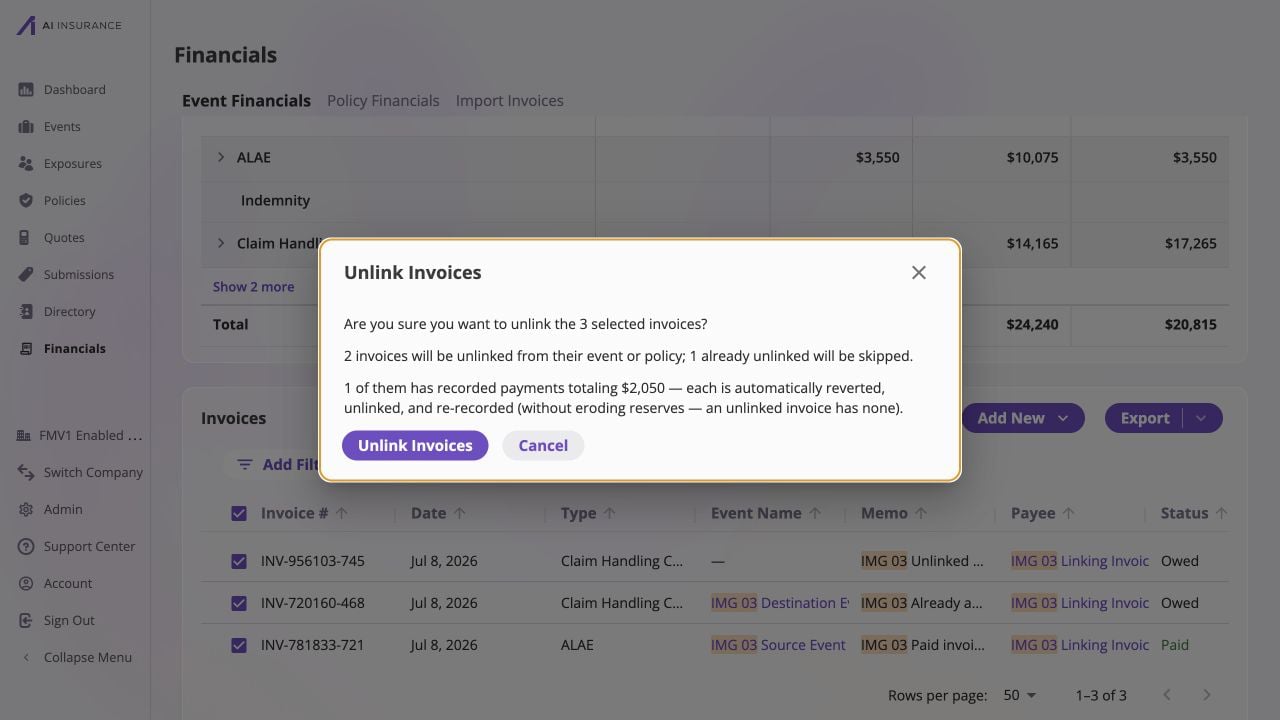
The confirmation distinguishes invoices that will be unlinked from rows that are already unlinked and explains the payment treatment.
Verify the Result
After the action finishes, the app reports updated, skipped, and failed counts. Failed rows remain selected so you can correct the problem and retry. Confirm that:- Event Name shows the destination, or an em dash after unlinking;
- the invoice status and paid amount are correct;
- the source event no longer includes the invoice in its totals;
- the destination event includes it after a link or move; and
- reserve balances reflect the choice shown in the dialog.
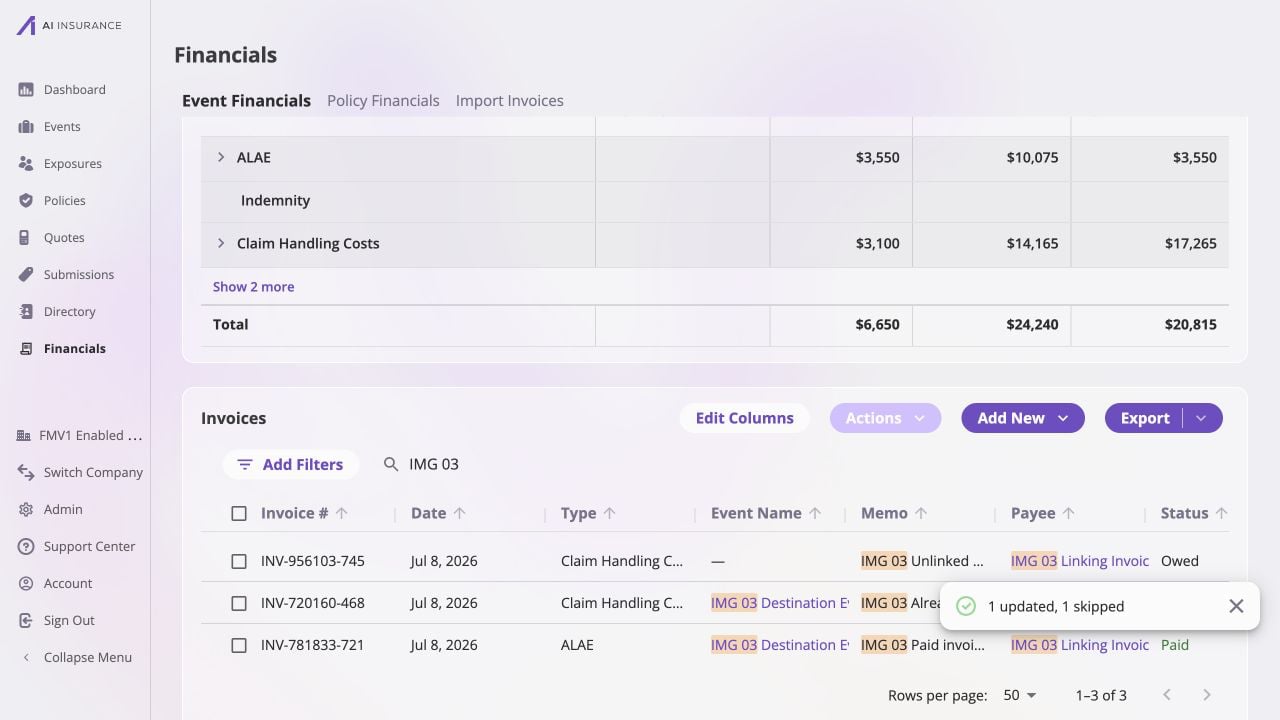
After relinking, confirm the moved paid invoice appears at the destination while the unlinked invoice has no Event Name.