Use bulk actions when the same outcome applies to several invoices. The app evaluates each selected row, shows what will change or be skipped, and reports the result when the action finishes.

Choose the Working Scope

Both invoice lists support multi-select:
  • Financials → Event Financials works company-wide and includes Link and Unlink.
  • Event → Financials is limited to one event and omits linking actions.
Apply filters or Search before selecting rows. Selection follows the current list, so changing a filter can remove rows from the active batch.

Build a Deliberate Selection

  1. Select the checkbox beside each invoice.
  2. Compare the selected rows’ Status, Approval, Type, Amount, and Event Name.
  3. Select Actions.
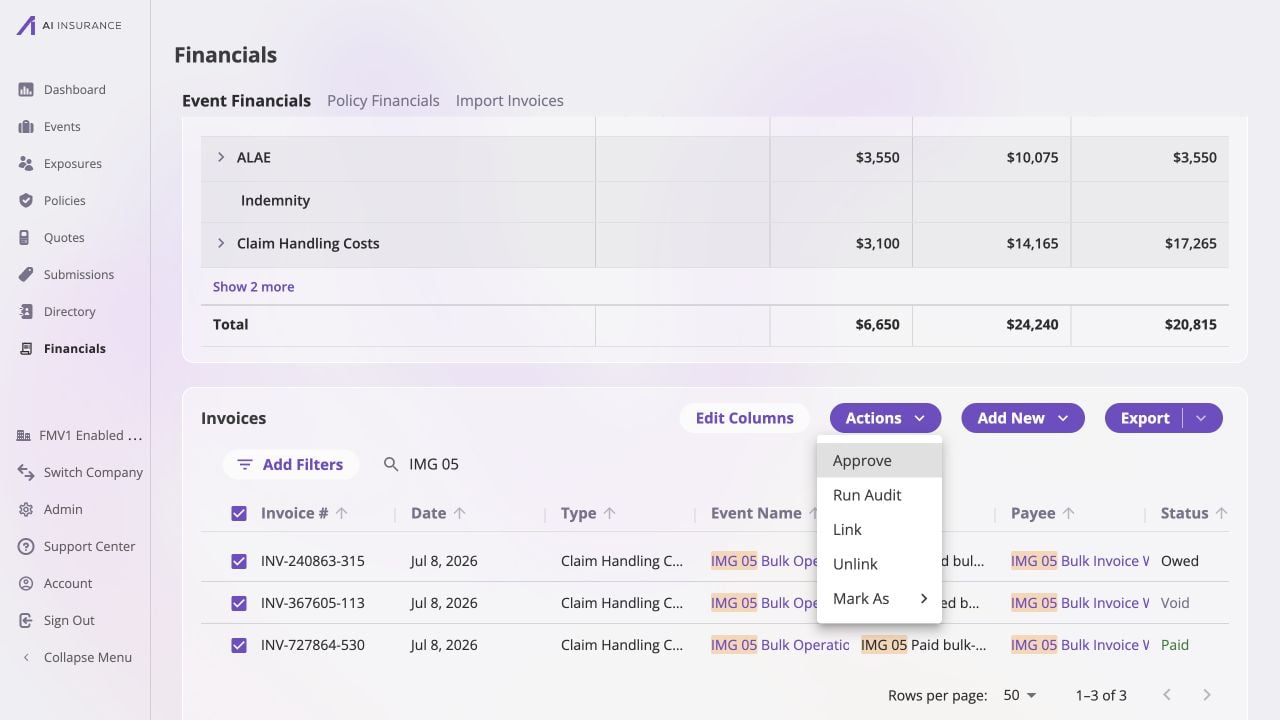
Company Event Financials filtered for IMG 05 with three selected Claim Handling Costs invoices: INV-240863-315 is Owed, INV-367605-113 is Void, and INV-727864-530 is Paid. The Actions menu is open with Approve, Run Bill Review, Link, Unlink, and Mark As available.

The company-wide list is filtered to the three IMG 05 invoices and all are selected, so Actions can apply one reviewed batch across Owed, Void, and Paid statuses.

The available actions are:
Mark As performs the financial actions that make the status true. It does not overwrite a label. For example, Mark As Paid records settlement, and Mark As Owed removes recorded payments.

Review Mixed-Selection Eligibility

Open Mark As and choose the intended target. A target is disabled when none of the selected invoices would change. It remains available for a mixed selection when at least one row can change.
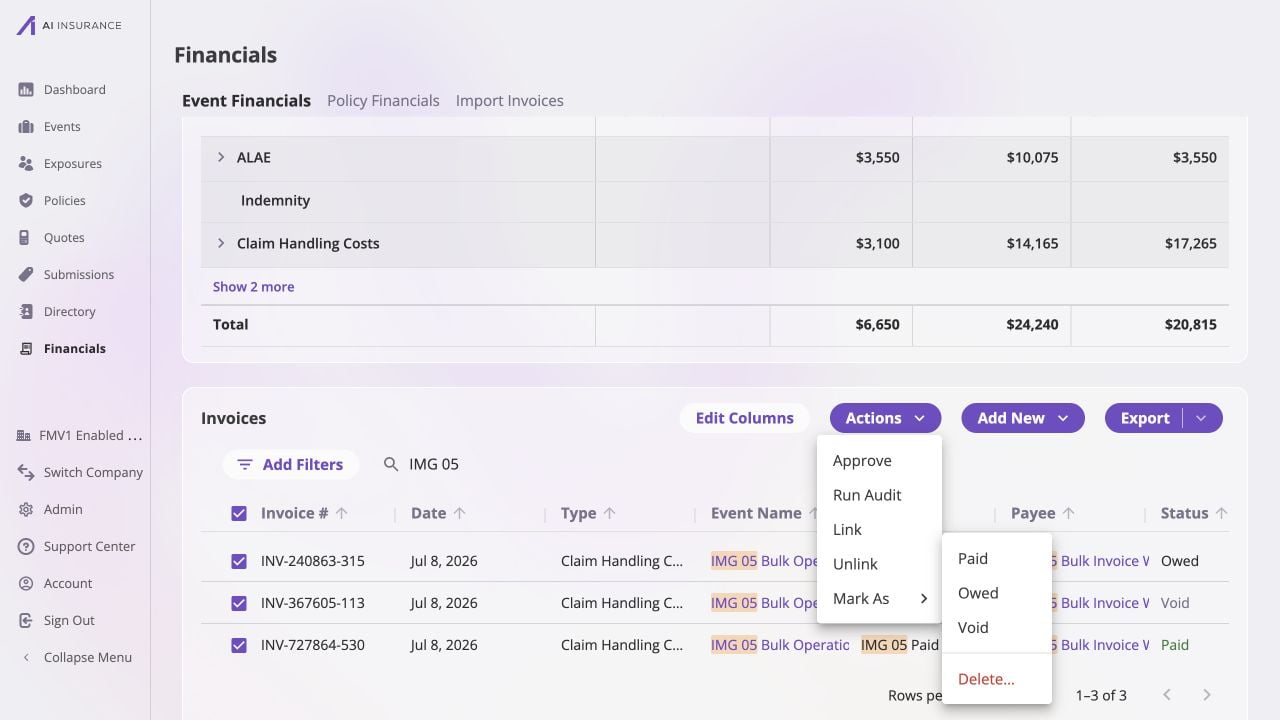
Company Event Financials filtered for IMG 05 with three selected invoice rows and the Actions menu open. The Mark As submenu shows Paid, Owed, and Void, followed by a separator and the red Delete action.

The expanded Mark As menu confirms that this mixed selection has eligible status changes, while separating the irreversible Delete action from the financial status actions.

The confirmation states:
  • how many invoices will change;
  • how many will be skipped because they are already in the target state;
  • whether payments will be removed;
  • whether voided invoices will be restored first; and
  • for payment actions on Loss/Recovery types, any reserve decision that needs attention.
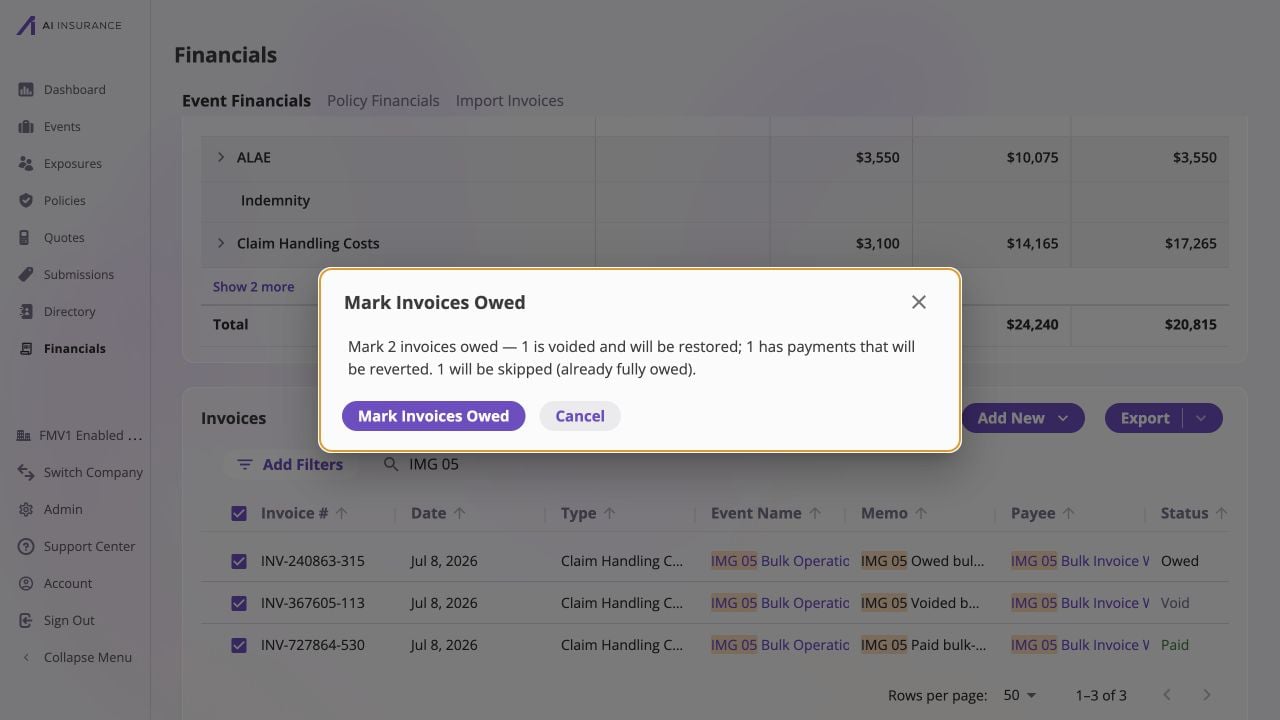
Mark Invoices Owed confirmation over Company Event Financials filtered for IMG 05. The dialog says, 'Mark 2 invoices owed — 1 is voided and will be restored; 1 has payments that will be reverted. 1 will be skipped (already fully owed),' with Mark Invoices Owed and Cancel buttons.

The confirmation separates the two invoices that will change from the already-owed row that will be skipped, making the payment reversal and void restoration visible before anything is recorded.

Select the confirmation action only when those buckets match your intent.

Read the Result and Retry Safely

When the operation completes, a message reports updated, skipped, and failed counts. If every row succeeds or is skipped, the selection clears. If some fail, only the failed rows remain selected, allowing a focused retry after you correct the cause. Verify the changed statuses, approval indicators, event links, amounts, and event-level totals. For the detailed rules behind a specific action, use: