
Deleting an invoice also removes its recorded payments, so deleting a Paid
or Partially Paid invoice needs the Edit a paid invoice permission in
addition to deleting invoices. Of the standard roles, Admin and Finance hold
it. When a selection includes a paid invoice and your role lacks it,
Delete… is grayed out and its tooltip says why. See
Users & roles.
Delete from the Invoice List
- Open Financials → Event Financials, or open an event and select Financials.
- Find the invoice and verify its number, Type, Event, Payee, Status, and Amount.
- Select the invoice’s checkbox. You may select more than one invoice when every selected record should be deleted.
- Select Actions → Mark As → Delete….
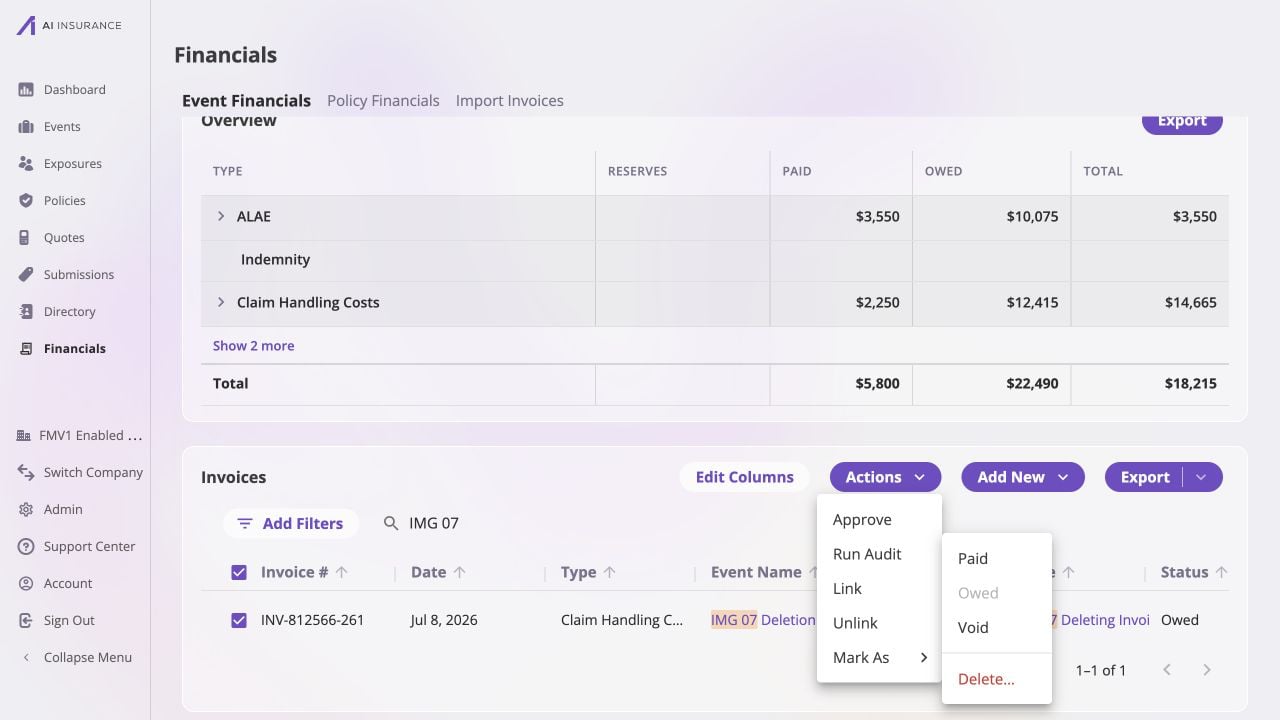
With INV-812566-261 selected in Event Financials, the Actions → Mark As submenu exposes Delete… separately from the available status changes.
Confirm the Irreversible Action
The Delete Invoices dialog states how many invoices will be permanently removed together with their payment history. Check the count, then select Delete Invoices. Select Cancel to keep the records.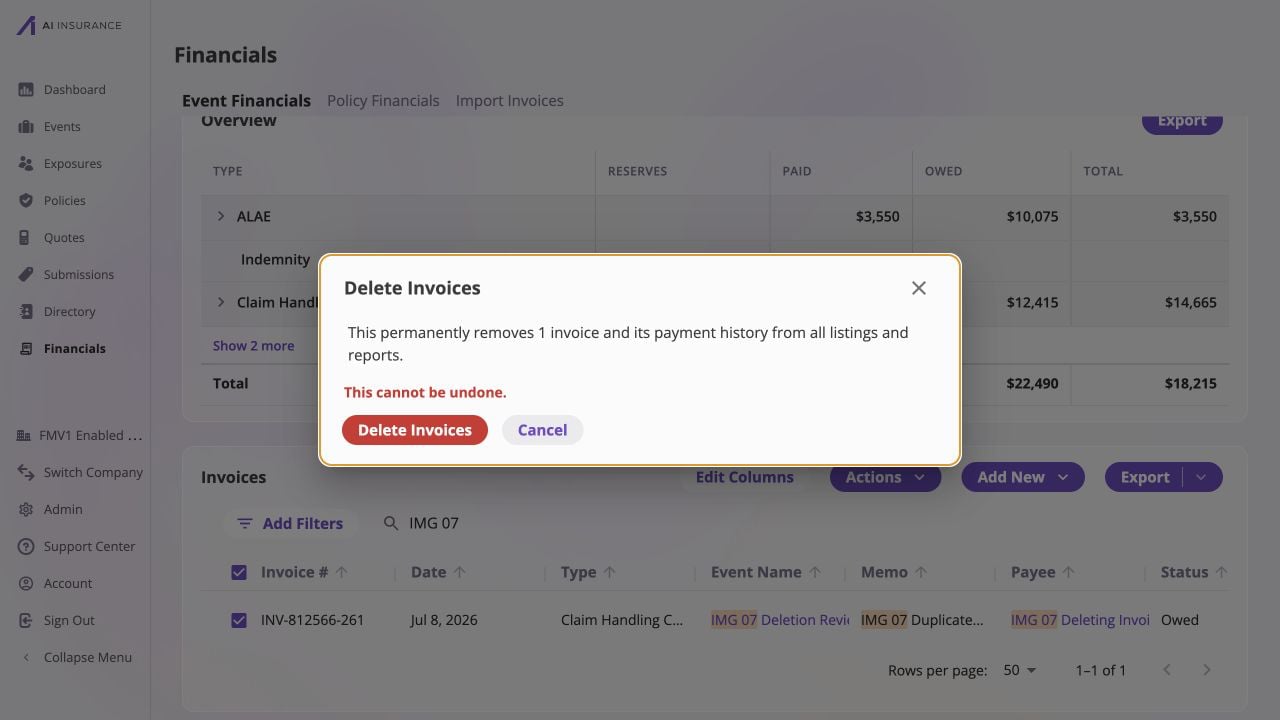
The unconfirmed Delete Invoices dialog warns that the one selected invoice and its payment history will be permanently removed; Cancel or the close control leaves the invoice unchanged.
- confirm the row no longer appears when searching for its invoice number;
- check the affected event and company totals;
- check reserves when the invoice used a Loss/Recovery type; and
- if you are removing financial activity that blocked an event, policy, or payee deletion, retry that record deletion only after every blocker has been cleared.