
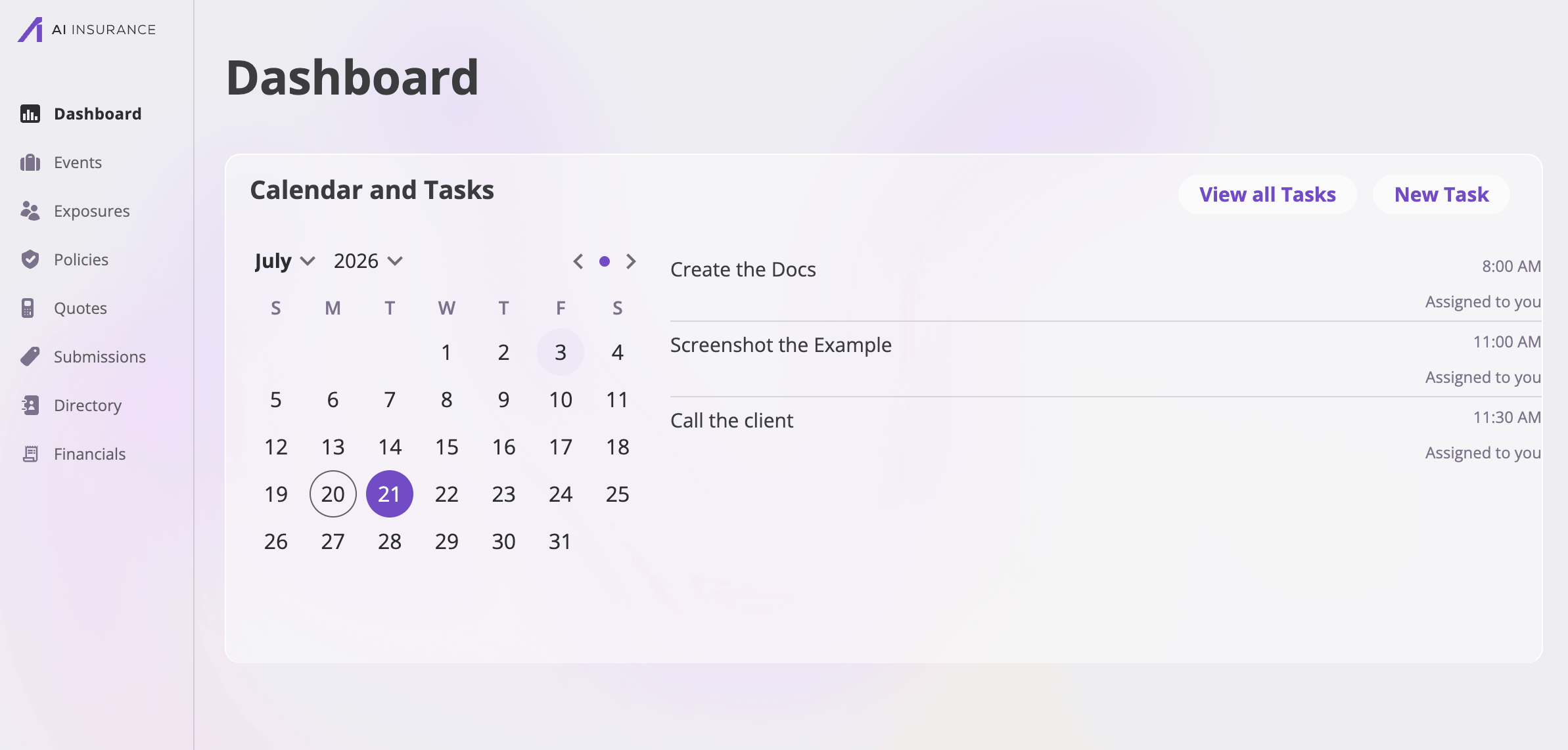
The Dashboard: the Calendar and Tasks card, with the month calendar on the left and the selected day's tasks on the right.
Tasks follow your permissions: the New Task button only appears for
roles that can create tasks, and the edit/delete affordances described below
only show for roles allowed to perform them. If your role can’t view tasks,
the tasks card and the tasks page aren’t available.
The tasks calendar
The calendar on the Dashboard shows your own open work: tasks assigned to you that aren’t complete yet, for the month on display.- Days with a dot have at least one of your incomplete tasks due that day.
- Select a day to see its tasks on the right. The Dashboard shows up to three; if there are more, a +N more items link takes you to the full task list.
- Navigate months with the month and year dropdowns in the calendar header, or the left/right arrows (the arrows move within the displayed year — use the dropdowns to cross into another year). The small dot button between the arrows jumps back to today.
Task cards
Each task renders as a compact card wherever tasks are listed — on the Dashboard, the task list, and a record’s Tasks tab:- The task name (shown in red when the task is overdue).
- The due time (the task list also shows the full date).
- The linked record’s name, when the task is linked to one.
- An assignee summary — “Assigned to you”, “Assigned to you and 2 others”, “Assigned to name”, or “No Assignees”.
- A checkbox (on the task list and calendar views) that marks the task complete — or incomplete again — in one click.
The task list
View all Tasks (or the +N more items link) opens the full task list. It shows every task that matches the current filters, grouped by date:- Overdue — past-due tasks that aren’t complete, listed first with their names in red.
- Day-by-day groups — today’s and upcoming tasks under a header for each date, in date order. Completed tasks keep their place under their date until the date passes.
- Complete — past tasks that were completed.
Searching and filtering
- Search tasks matches against task names as you type, highlighting the match on each card.
- Add Filters opens the filter picker with two filters:
Active filters appear as pills under the search field — select a pill to
edit it, or its × to remove it. So by default the list opens on your
incomplete tasks; clear both filters to see every task in the company.
Creating a task
Select New Task (on the Dashboard or the task list) to open the New Task dialog: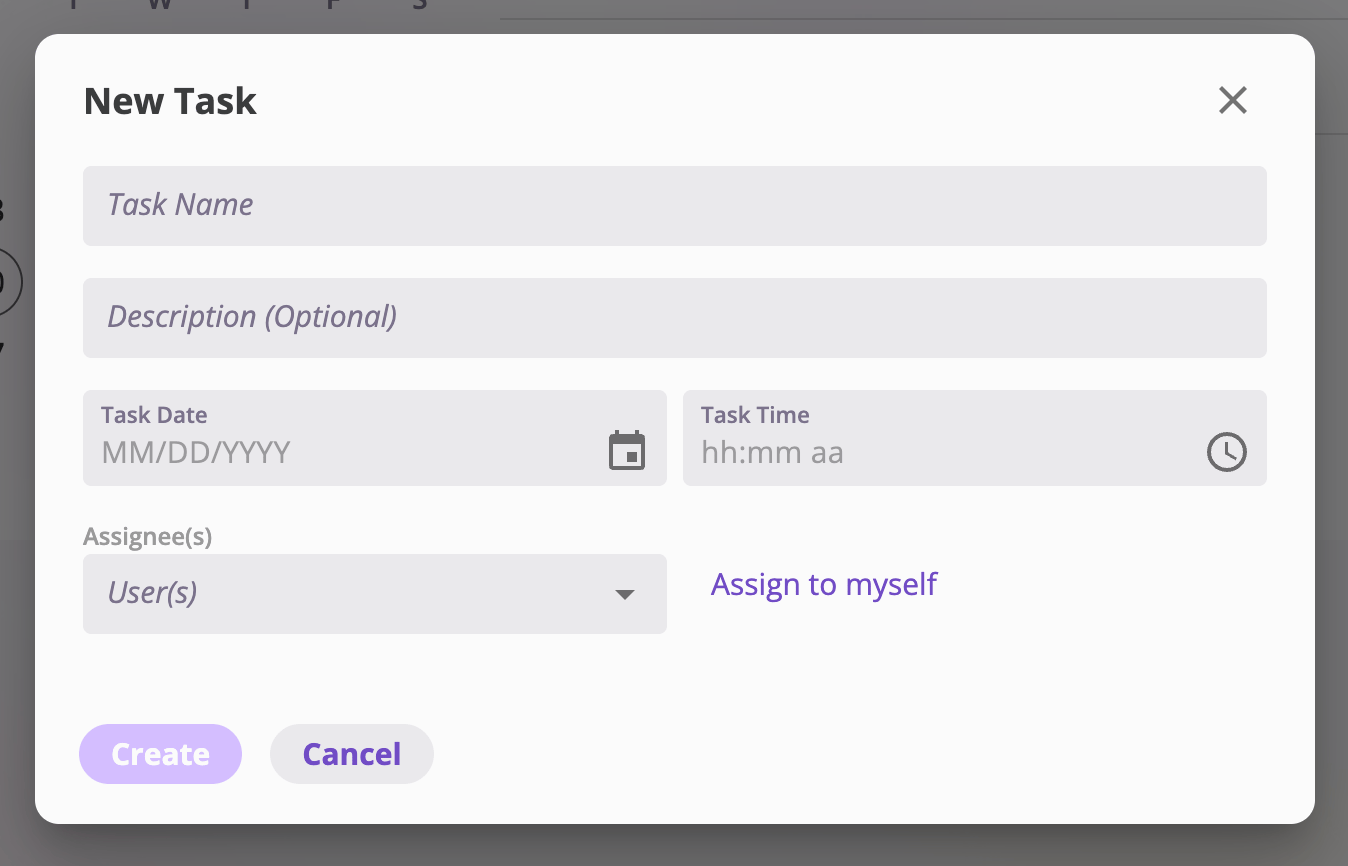
The New Task dialog.
Create saves the task; it appears on each assignee’s Dashboard calendar
and task list.
Linking a task to a record
A task’s linked record comes from where you create it: tasks created from the Dashboard or the task list stand alone, while tasks created from a record are linked to it automatically. For example, an event’s Actions → New Task (and its Tasks tab) creates a task linked to that claim or incident — see Event actions. The dialog shows the linked record above the task fields, and the link can’t be changed afterwards. In the task details dialog, the linked record’s name is a link that takes you straight to it — a policy, an exposure, or an event.Viewing and editing a task
Selecting a task card opens Task Details, a read-only view of the task — linked record, name, author (who created it), description, date, time, and assignees — with these buttons:Completing tasks
There are two ways to complete a task, and both are reversible:- Tick the task card’s checkbox on the task list or calendar.
- Open the task and select Mark Complete.
Task notifications
While you’re on the Dashboard, the app surfaces pop-up notices for tasks that need your attention:- “New task assigned: …” — a task was assigned to you.
- “Task due today: …” — a task assigned to you is due today.