Turn an accepted quote into a policy — where Bind lives, what the bind flow asks for, and what you get once the policy is issued.
Binding is the moment a quote becomes a
policy: the quoted terms stop being a proposal and start
being coverage on your book. In the app, binding is a short, dedicated flow —
three steps that collect the last policy-only details (like the policy number),
assemble the policy’s documents, and confirm.This page follows a new-business quote, but the same flow — and the same
Bind Quote entry on a completed quote’s page — also binds endorsement
and renewal quotes. Those servicing quotes start from the policy’s page —
see Servicing a policy.
It’s a new-business, endorsement, or renewal quote. All three bind
through this same flow. Cancellations and reinstatements never bind
separately — their own short flows confirm directly — see Servicing a
policy.
It’s complete. The Bind action appears once the quote’s status is
Quote Complete — or you can jump straight from the quote wizard’s last
step without the intermediate stop (see below).
It isn’t already bound. A Bound to Policy quote offers
Go to Policy instead.
Its required fields have values. The bind flow won’t finish while
required fields are missing — a View Missing Fields button lists exactly
which ones so you can fill them in.
Bind actions also follow your permissions: if your role can’t update quotes and
create policies, the entry points simply don’t appear.
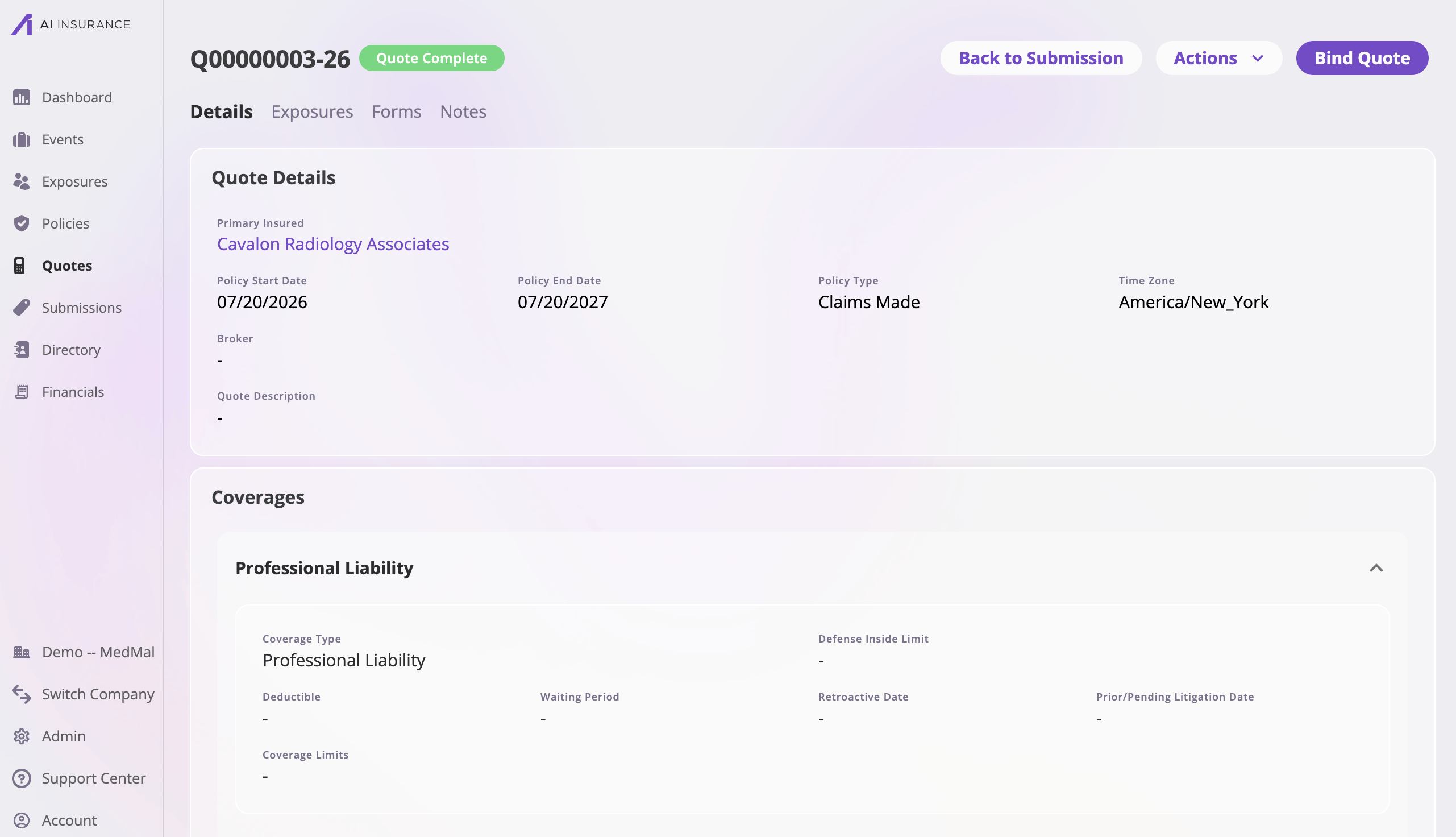
The standout Bind Quote button at the top right — also available as Bind Quote in the Actions menu. Offered on completed new-business, endorsement, and renewal quotes alike (labeled Bind Endorsement on an endorsement).
The new-business quote wizard’s last step
The finishing split button: pick Bind Quote instead of Complete Quote to save and enter the bind flow directly.
The endorsement wizard’s last step
The primary Bind Endorsement button saves the endorsement and enters the bind flow directly; Complete Endorsement Quote beside it completes the quote instead. (The renewal wizard ends with a plain Complete Quote — bind a renewal from the completed quote’s page.)
A completed quote — Bind Quote is the callout button, and also an Actions menu entry.
Entering the bind flow is not a commitment. The quote’s status doesn’t
change when you start binding — if you exit the flow without finishing, the
quote stays exactly as it was, still ready to send or bind later. Only a
completed bind advances it to Bound to Policy.
The bind flow is a small wizard with the same controls as the quote
wizard — steps in
the sidebar, Exit / Save Quote / Back / Next at the top right —
and three steps:
1
Policy Details
The details that only exist once you’re issuing a policy. Out of the box
the headline field is the Policy Number, which is required to bind.
Depending on how your company is configured, you either type it here or
it’s generated for you and shown read-only. The Policy Start Date and
Policy End Date you set while quoting are displayed for reference —
the policy term is the term the quote was priced for.
Policy Details — the policy number, with the term dates carried over from the quote.
Assemble the policy’s document set — declarations pages, policy jackets,
binders — from your company’s policy form templates. The step works
exactly like the quote wizard’s Forms
step: pick templates from the
searchable list, and each form is generated with its values filled from
the quote’s data; edit, preview, refresh, remove, or download them
individually or as a combined packet. Review the set before binding:
Bind Policy records it in the policy’s first immutable
packet, the record of what went out.
The packet, not its working documents, is frozen; a later edit or refresh
of a working document never changes the packet.
Policy Forms — the same forms tooling as quoting, drawing from your policy templates.
3
Review and Confirm
A final read-through of the policy-to-be. If required fields are still
missing, Bind Policy is disabled and View Missing Fields lists
them. When everything’s in place, select Bind Policy. Besides
creating the policy, binding records the Policy Forms in an immutable
Bind packet on the new policy’s Forms tab and records the quote’s own
form set in an immutable Quote packet on the quote’s Forms tab; both may
read Issuing… for a few seconds while their PDFs are rendered. Later
working-document edits or smart-tag refreshes change neither packet.
Review and Confirm — Bind Policy is the finishing action.
The policy is created. The quote’s terms — insured, exposures,
coverages, dates, premium — become the policy’s initial state, covering the
full term. Exactly which quote values reach the policy, and how, is decided
by your company’s conversion rules: a
value moves only when a rule says so, and a rule can rename or combine
values on the way. This is the policy’s first recorded transaction; every
later change (endorsement, cancellation, and so on) is recorded on top of
it. See the Policy entity for the underlying model.
The quote’s status becomes “Bound to Policy” and the quote is linked to
the new policy — it stays on file as the record of what was bound.
You land on the new policy’s detail page, ready to service it.
That’s the new-business outcome. Binding a renewal quote likewise creates
a new policy — the next term, linked to the one it renews — while binding an
endorsement records the change on the existing policy instead of creating
one. See Servicing a policy for what
each servicing bind does.
The freshly bound policy — the policy number in the header, the term timeline, and the policy's data below.
If the bind fails — a validation problem, a missing policy number — the error
is shown and nothing is created: the quote stays unbound and you can fix the
issue and try again.
A bound policy is a different kind of record from a quote:
It lives on the Policies list with its own
detail page — including Overview, Activity, Quotes, Events, Exposures, and
Financials tabs, subject to your role’s permissions.
It’s history-keeping. A policy is a ledger of dated transactions, not a
single editable form. You never edit a policy’s fields directly — you record
changes (endorse, cancel, reinstate, renew), each effective on a date, and
the app derives what the policy looked like on any day of its term. That’s
what powers the View as of date controls and the endorsement history.
The bound quote stays attached. The policy’s Quotes tab lists it,
and the quote’s page offers Go to Policy.
Billing carries forward. The quote’s policy invoice target and invoice
plan become part of the bound policy workflow. Review them on the policy’s
Financials tab, and see Billing &
getting paid.
Bound the wrong thing? A policy that shouldn’t exist can be deleted from its
Actions menu (which also removes the bound quote), and a mistaken recent
change can be undone from the policy’s Activity tab — see Servicing a
policy.