
A policy is dated data: every change to it — the original binding, each
endorsement, a cancellation, a reinstatement — is recorded as a dated
transaction, and the policy’s field values can differ from one date to the
next within the term. Much of this page (the as-of lens, the timeline,
endorsement history, the activity log) exists to let you see the policy as it
stood on any date.
The policies list
The list shows one row per policy in your book.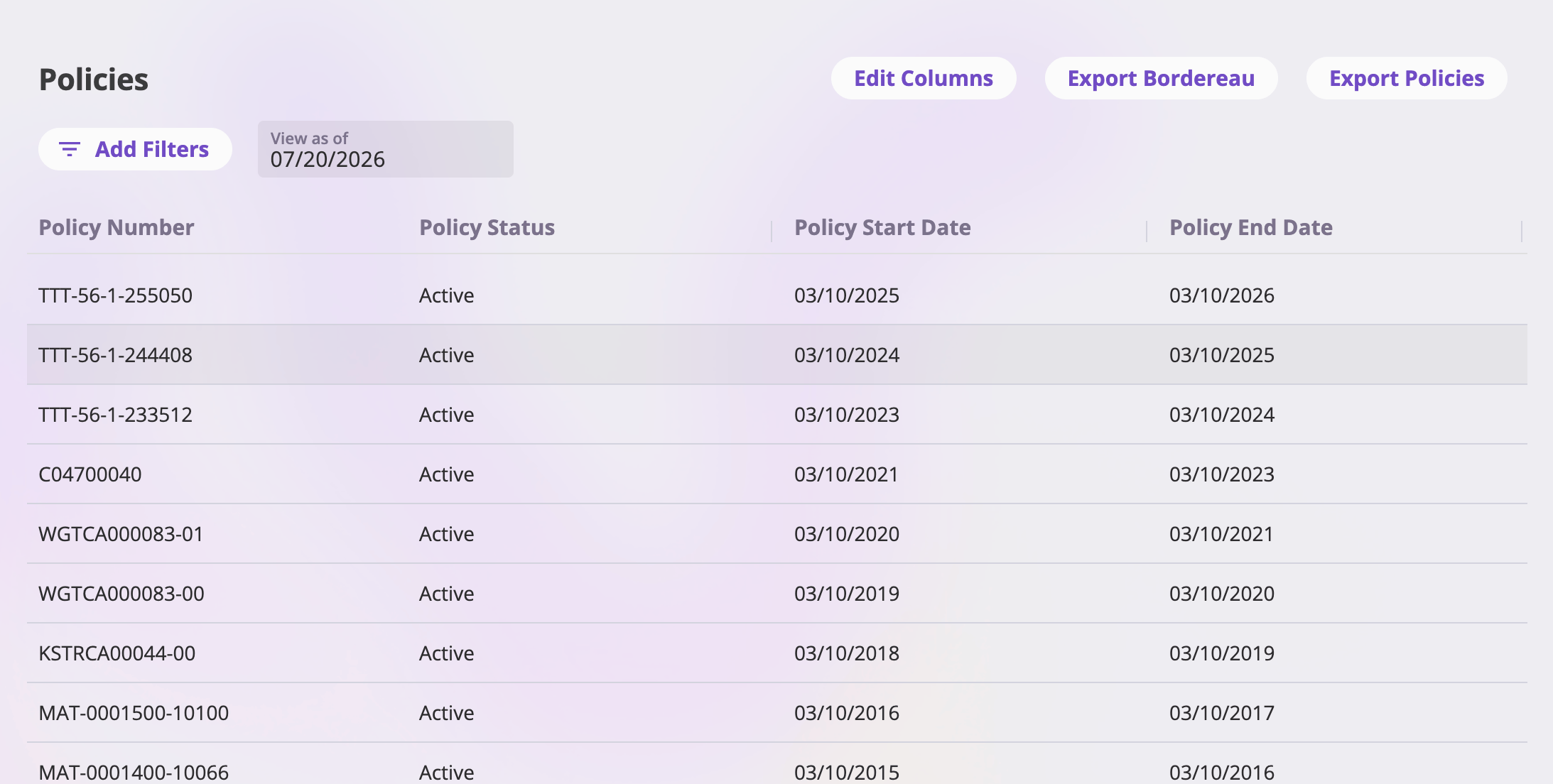
The policies list with the View as of lens, filters, and the export buttons.
- Columns — the default columns are Policy Number (always shown, pinned first), Status, Start Date, and End Date, plus two system date columns: Policy Created (when the policy was bound) and Version Created (when its latest change was filed). Edit Columns adds, removes, and reorders columns — any policy field configured for your company can be shown.
- Sorting — sort by Policy Created or Version Created to order the whole book; the default order is newest version first.
- Filters — Add Filters shows the filters configured for the policy list; they may include calculated values that are not columns. Active filters show as pills. Your filter also travels with you into the exports so the exported set matches what’s on screen.
- Pagination — the list pages at 50 policies per page.
- Opening a policy — click a row to open that policy’s detail page.
- Saved views — column and filter setups can be saved and shared; see Exports & saved views.
Viewing the book as of a date
The View as of date field in the list toolbar is an effective-date lens: every row shows each policy as it stood on that date. It defaults to today.- Pick a date and each policy’s row re-resolves to the values in force on that date — status, premium, and any field an endorsement changed. Every policy stays in the list: a date before a policy’s term shows its state at inception, and a date after its term shows its final state.
- While viewing a date other than today, a Today link appears next to the field — click it (or clear the field) to reset the lens to today.
- The date you pick is remembered for your browser tab, so navigating away from and back to the list keeps your view. A new tab starts at today again.
- Export Policies carries the lens with it, so an export matches the as-of view on screen.
Statuses
A policy’s Status is per-date — it’s the status of the policy on the date you’re viewing:
A mid-term cancellation means the same policy reads Active on dates before
the cancellation date and Cancelled on dates after it.
The policy detail page
Opening a policy shows its detail page. The header carries the policy number as the title and the Actions menu at the top right (see Actions below). If an endorsement has been started on the policy but not yet bound, a banner — “You have an endorsement in progress.” — appears under the header with two buttons: Continue (opens the endorsement’s draft quote to finish it) and Discard Edits (after a confirmation, permanently deletes the in-progress endorsement’s draft quote and submission). The banner stays until the endorsement is bound or discarded.Tabs at a glance
Switching tabs preserves the as-of date you’re viewing, so the Overview lens
survives a round trip through Activity.
The Overview tab
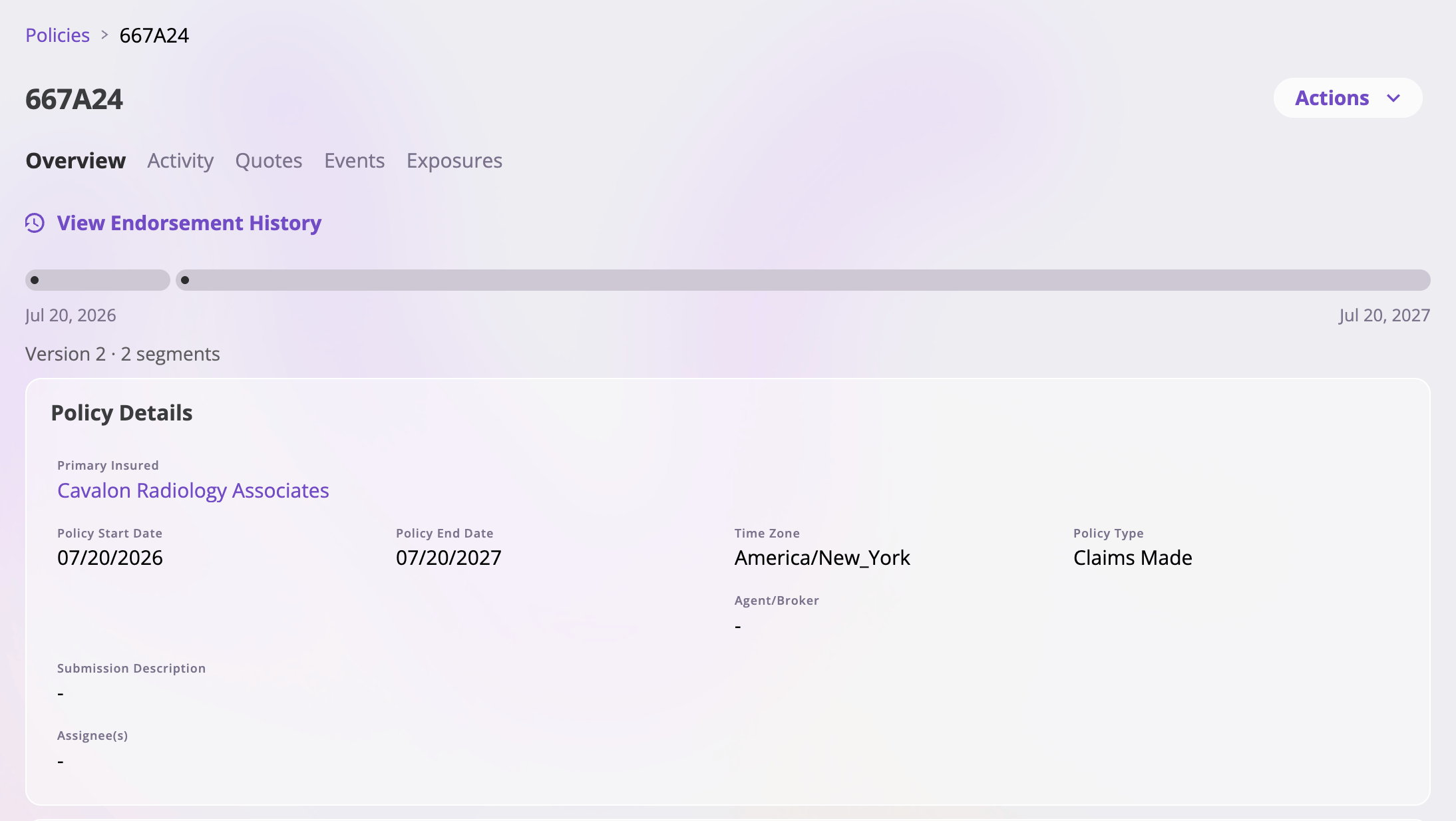
The Overview tab — the term timeline, the renewal chain, and the policy's cards.
The timeline
A horizontal bar spans the policy term exactly, from the start date to the end date (both labeled beneath it):- The bar is broken into one pill per segment — each distinct span of the term with its own field values (a mid-term endorsement or cancellation splits the term into segments).
- Dots mark every transaction’s effective date: the inception plus each endorsement. Hover a dot for its label (Original policy or Endorsement effective ‹date›).
- The purple fill inside the pills shows how much of the term has elapsed as of today.
- Clicking the View Endorsement History link, any dot, or any pill opens endorsement history.
Renewal chains
When the policy is part of a renewal chain, links appear under the timeline:- Renewed From — the expiring policy this one renewed, linked by its policy number.
- Renewed Into — the policy (or policies) that renewed this one, most recent first. When there are several, the most recent shows with a More… link that expands the full list.
The policy’s fields
The rest of the tab is the policy’s fields, laid out in cards. Which cards and fields appear depends on how your company is configured. The values shown are those of the segment in force on the viewed date (today by default). Unlike other records, the cards here are read-only — a policy is changed only through dated transactions (endorse, cancel, reinstate), never by editing a field in place. See Servicing a policy.Endorsement history
Clicking View Endorsement History (or any timeline dot or pill) switches the page into a full-page browse mode for the policy’s endorsements: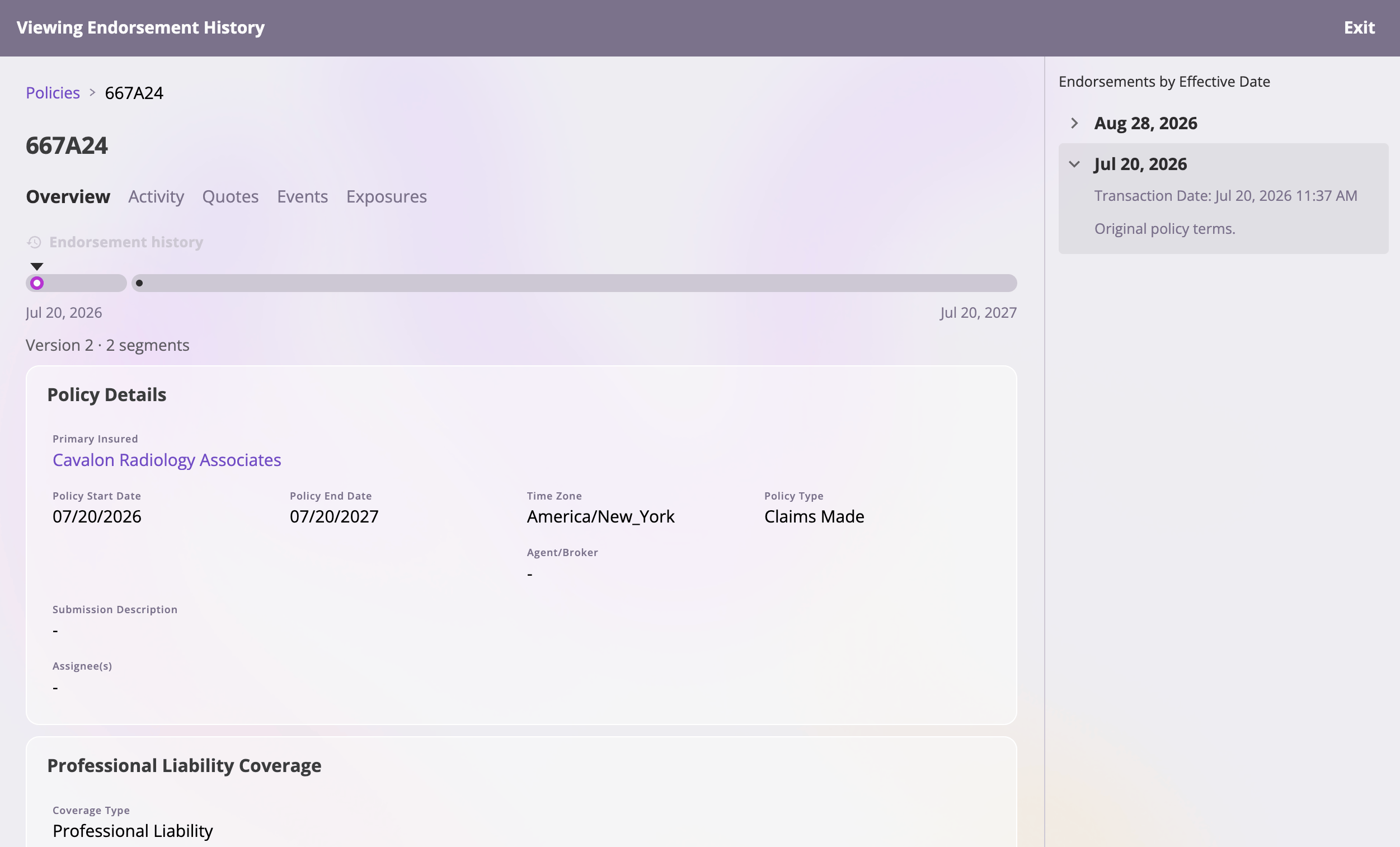
Endorsement history — the banner, the timeline with the selected node, changed-field highlighting, and the side rail.
- A “Viewing Endorsement History” banner spans the top of the page, with an Exit button that returns the policy to its normal current-date view. While browsing, the policy is read-only and the Actions menu is hidden.
- A side rail on the right lists every transaction by effective date, newest first — including endorsements that changed nothing on balance (a change and a same-day revert). Expanding an entry shows the transaction (filed) date and the exact field changes that endorsement made; the inception entry reads Original policy terms. The rail is resizable — drag its left edge.
- Clicking a date (in the rail, or a dot/pill on the timeline) views the policy as of that effective date: the cards re-render with that date’s values, the fields that endorsement changed are highlighted, and any rows the endorsement removed (for example, a deleted coverage) appear as ghost Removed entries.
The Activity tab
The Activity tab is the policy’s transaction log — every dated change ever filed, newest first.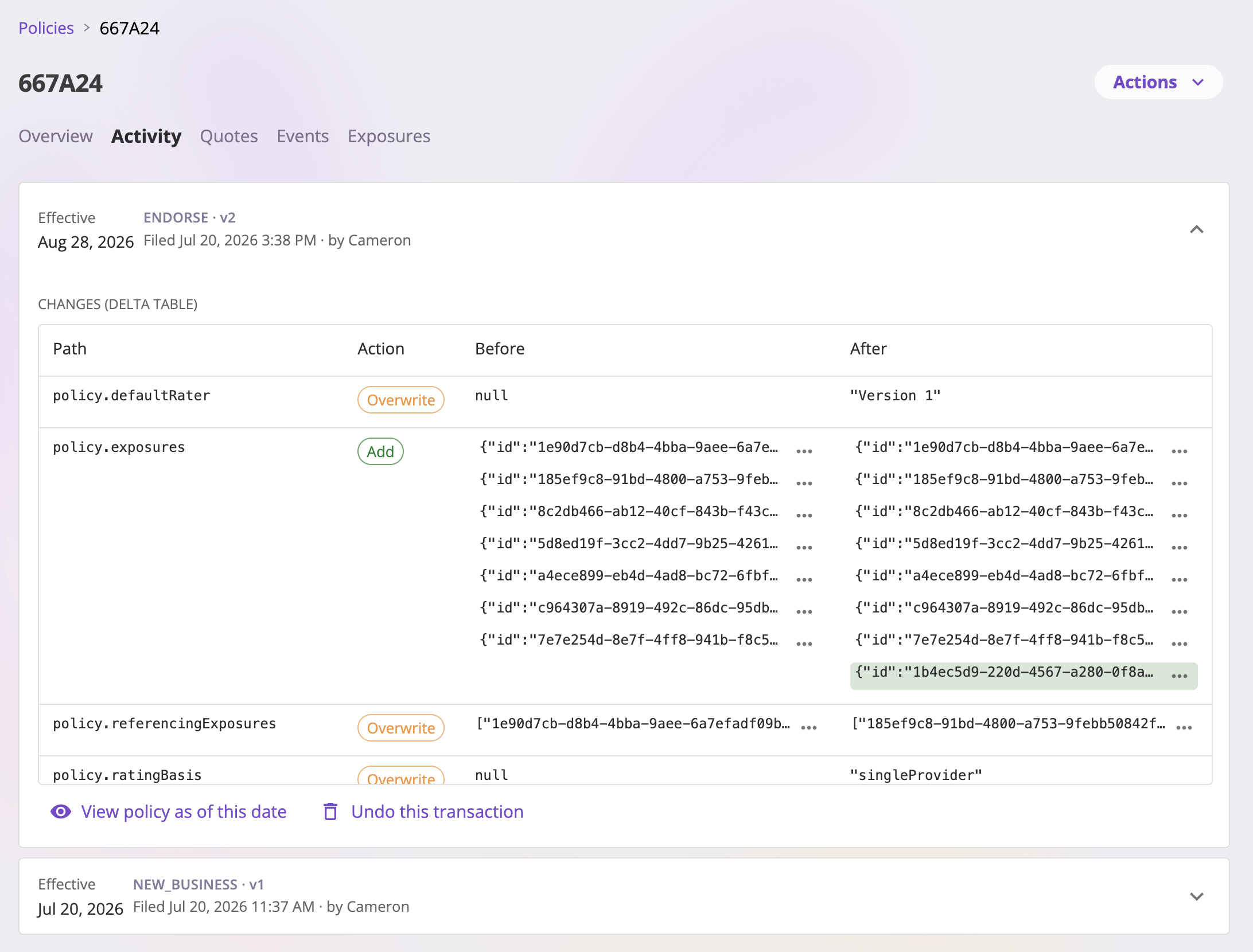
The Activity tab — one expandable row per transaction, with the change table and per-row actions.
- the effective date of the change,
- the transaction type and the policy version it produced — types are New Business (the original binding), Endorse, Renew, Cancel, and Reinstate,
- when it was filed and by whom.
- View policy as of this date — jumps to the Overview tab with the as-of lens set to the transaction’s effective date.
- Undo this transaction — available only on the most recent transaction. After a confirmation, it reverts the policy to its previous version. If later records depend on the transaction, the undo is blocked and the dialog shows the reason instead (with the confirm button disabled).
The Actions menu
The Actions menu at the top right of the detail page collects everything you can do to the policy. Options follow your permissions (actions your role can’t perform don’t appear) and the policy’s state (Cancel and Reinstate swap based on whether a cancellation exists). While browsing endorsement history, the menu is hidden entirely.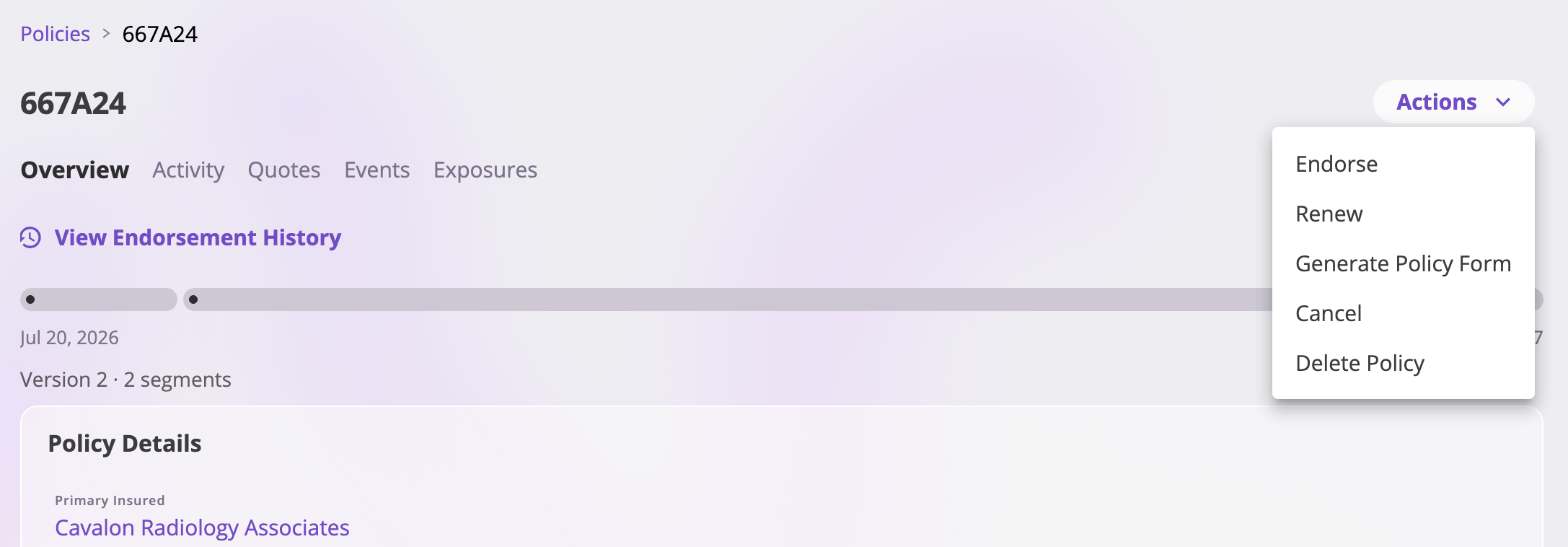
The Actions menu on an active policy.
The menu at a glance
Endorse
Endorse opens a dialog asking for the endorsement’s effective date and the date its changes apply through — either an explicit end date or through the end of the policy (the default). Both dates must fall within the policy term. Confirming takes you into the endorsement flow, where you edit the policy’s values and bind the change — see Servicing a policy. Until that endorsement is bound or discarded, the policy shows the endorsement-in-progress banner.Renew
Renew needs no dates up front — it takes you straight into a renewal quote, pre-filled from the policy’s most recent values, with the new term defaulting to start where the expiring term ends (all editable in the flow). Binding the renewal creates a new policy, linked to this one in the renewal chain.Generate Policy Form
Generate Policy Form opens the policy’s Generate Policy Forms surface: a full screen with an as-of date within the policy term (today, until you change it), your company’s policy form templates, and the forms you’ve composed so far. Because a policy’s values vary by date, the date picks which values fill each form — and the same template can be composed at more than one date. Issue records the composed forms in one immutable packet on the policy’s Forms tab. The packet — not the working documents behind it — is final; a later edit or smart-tag refresh of a working document never changes the issued packet. Same surface as the Generate Policy Form button on that tab. See Generating forms.Cancel
Cancel appears only while the policy is currently active and its latest version has no cancellation booked (a policy with a future-dated cancellation already pending doesn’t offer a second one — reinstate first, then cancel with the new date). The dialog asks for the cancellation date, which must fall within the policy term; Continue takes you into the cancellation flow to review and bind it. Once bound, coverage ends and the policy’s status reads Cancelled from that date through the end of the term.Reinstate
Reinstate appears whenever the latest version carries a cancellation — whether it’s already in effect or future-dated (reinstating during the pending window voids the cancellation before coverage ever stops). The dialog’s reinstatement date is pre-filled with the cancellation date and locked — that’s the only date that leaves no coverage gap. Reinstating voids the cancellation so coverage runs uninterrupted through the end of the term, and the premium is restored to the pre-cancellation amount.Delete Policy
Delete Policy permanently deletes the policy after a confirmation — this also deletes the bound quote it came from, and it cannot be undone. If other records reference the policy, the delete is blocked and the dialog shows the reason instead (with the delete button disabled).Exporting policies
Two exports are available from buttons at the top of the list:- Export Policies — the standard entity export: pick fields, then export to Excel, CSV, or Google Drive. It carries your current filters, sort, and View as of date, so the file matches the on-screen view. See Exports & saved views.
- Export Bordereau — a transaction-level report, described below.
Bordereau export
Export Bordereau opens a dedicated page for producing a bordereau — one row per policy transaction (binding, endorsement, renewal, cancellation, reinstatement), the shape carriers typically require for reporting.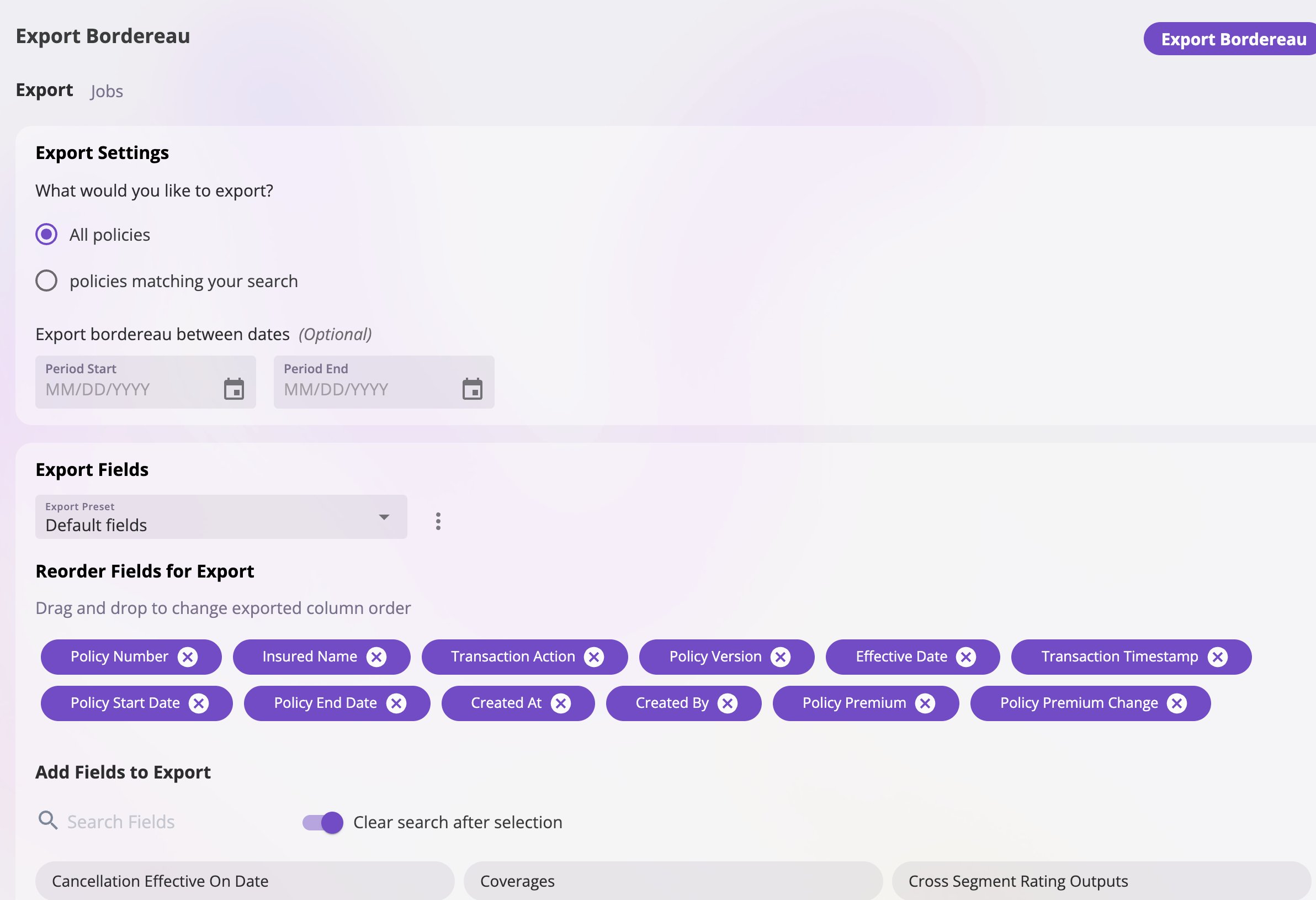
The bordereau export page — scope, date range, and the column picker with presets.
- Scope — if you arrived with a filter active on the policies list, choose between all policies and only the policies matching your search.
- Date range — restrict the report to transactions filed within a start/end date window; leave it open to include everything.
- Columns — the default is the 12 standard bordereau columns, in order: Policy Number, Insured Name, Transaction Action, Policy Version, Effective Date, Transaction Timestamp, Policy Start Date, Policy End Date, Created At, Created By, Policy Premium, Policy Premium Change. You can remove or reorder any of them and add any policy field configured for your company as an extra column — field values are resolved per row as of each transaction’s effective date.
- Presets — save a column set as a named preset (for example, a carrier’s mandated layout), share it, and set a default. If a preset references a field that no longer exists in your configuration, that column is skipped with a notice.
- Export and Jobs — Export Bordereau starts the report in the background and switches you to the Jobs tab, which lists every bordereau export this company has run, newest first, with its status and row count. A finished run is taken as CSV, Excel, or a Google Drive spreadsheet. Because the report runs in the background, a large bordereau no longer ties up the page, and there is no row limit on it.