
Which fields an exposure carries — and which exposure types exist
(property, vehicle, physician, …) — depends entirely on how your company is
configured. See How your app is configured.
The exposures list
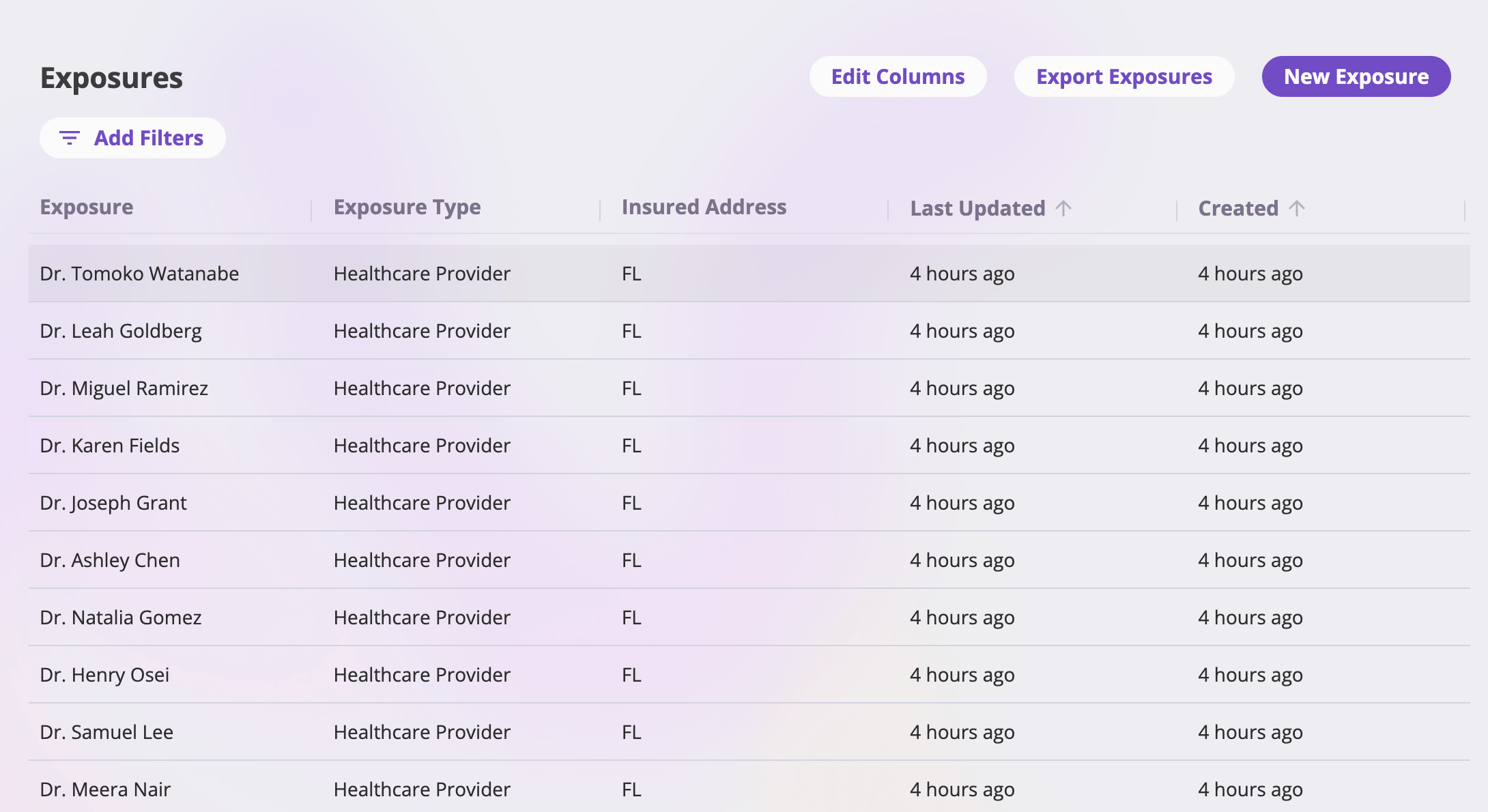
The exposures list with its filters and toolbar buttons.
- Columns — the defaults are Name, Type, Address, Last Updated, and Created. Edit Columns adds, removes, and reorders columns — any configured exposure field, plus the system columns Created, Last Updated, Created By, and Updated By.
- Filters — Add Filters shows the filters configured for the Exposures list; active filters show as pills.
- Sorting & pagination — click a sortable column header to sort (newest updated first by default); pick 25, 50, 100, or 200 rows per page.
- Opening an exposure — click a row to open its detail page.
- Export Exposures — the standard entity export (Excel, CSV, or Google Drive), carrying your current filters. See Exports & saved views.
Creating an exposure
New Exposure at the top right of the list opens the create page: the exposure’s fields as configured for your company, laid out in cards. The Create button stays disabled until every required field is filled; Cancel returns you to the list. Creating saves the exposure and takes you to its detail page.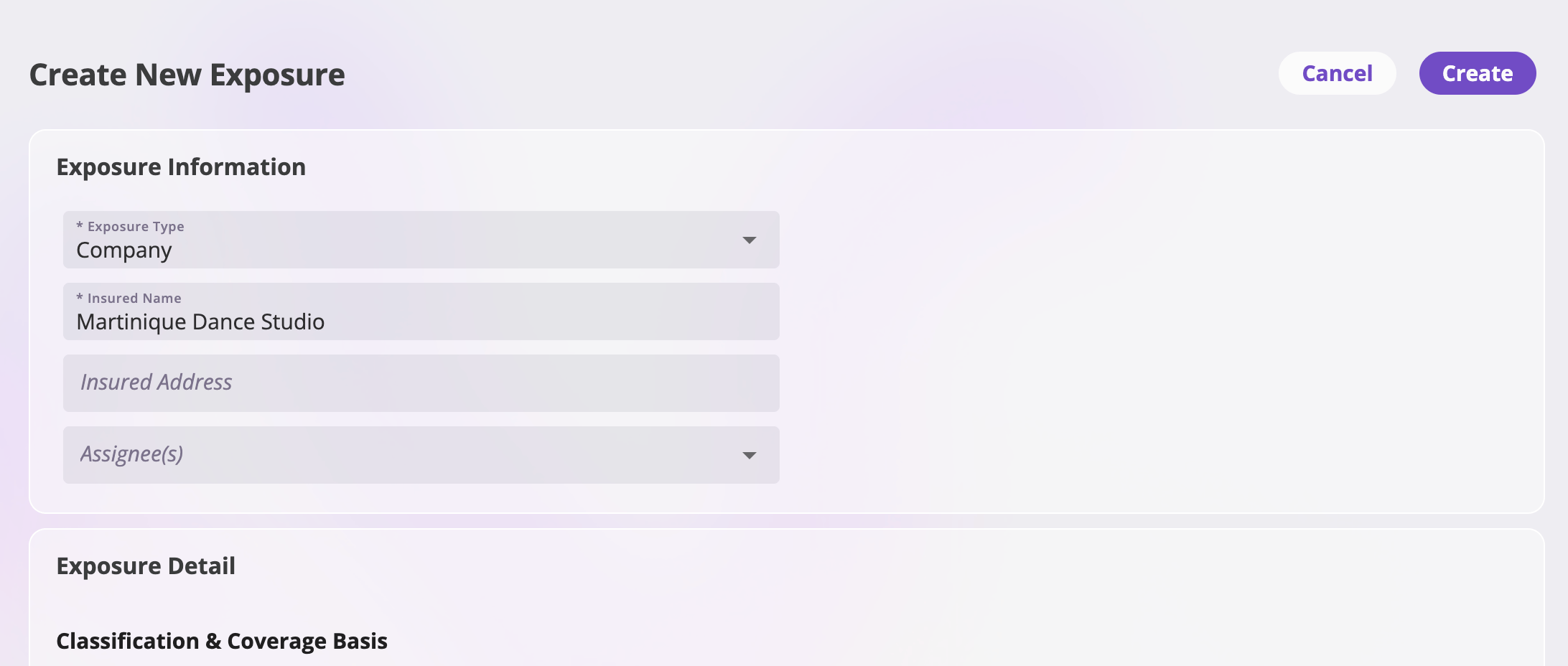
The create page — required fields must be filled before Create enables.
The exposure detail page
The header shows the exposure’s name and the Actions menu (see Actions). Below it, the tabs — each one a different view of what references this exposure:The Details tab
The Details tab shows the exposure’s fields in cards. To change a value, edit the card, make your changes, and save (or cancel to discard). Depending on your configuration, one of the cards may be an OFAC screening card for checking the exposure against sanctions lists.The policy-context lens
An exposure has one set of baseline values — what you see and edit by default — but each policy that covers it captured its own copy of the exposure’s values when it was bound, and those can differ (from the baseline, and from date to date within a policy term). The dropdown at the top of the tab switches between them: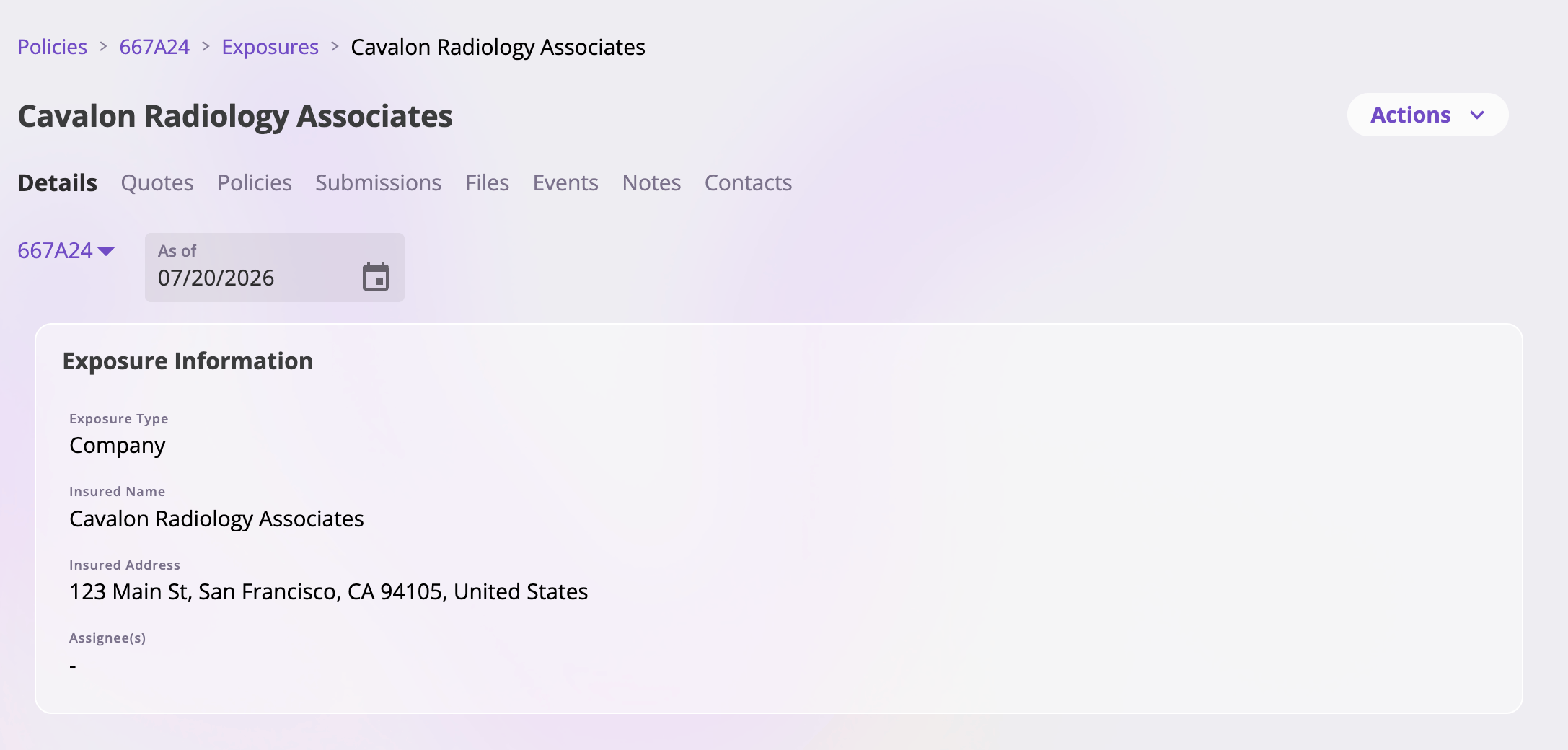
The Details tab with the context dropdown and the policy as-of date picker.
- Baseline (the default) — the exposure’s own current values. This is the only context where the cards are editable.
- A policy — one entry per policy that references the exposure. Selecting one shows the exposure’s values as that policy holds them, read-only, with an As of date picker (bounded to the policy’s term) to view the values in force on any date — an endorsement to the policy may have changed them mid-term. If the selected policy has no data for this exposure on the chosen date, a notice says so.
Editing the baseline does not change what any bound policy holds — a
policy’s copy of the exposure changes only through an endorsement to that
policy. See Servicing a policy.
The cross-reference tabs
Four tabs list the records that reference this exposure. Each is a table with its own Edit Columns button, and each row links to the record’s detail page:- Quotes — every quote that includes this exposure. Default columns: Quote Number (pinned), Submission, Status, Type, Last Updated, Created — mirroring the Quotes list. See Quotes.
- Policies — every policy that covers this exposure, or covered it during any part of its term — one row per policy, shown at its latest state. Default columns mirror the Policies list.
- Submissions — every submission that references this exposure. Default columns: Submission Number (pinned), Name, Status, Type, Last Updated, Created. See Submissions.
- Events — the claims and incidents filed against this exposure, with a search box. Default columns: Event Name (pinned), Event Type, Reference ID, Status. See Events.
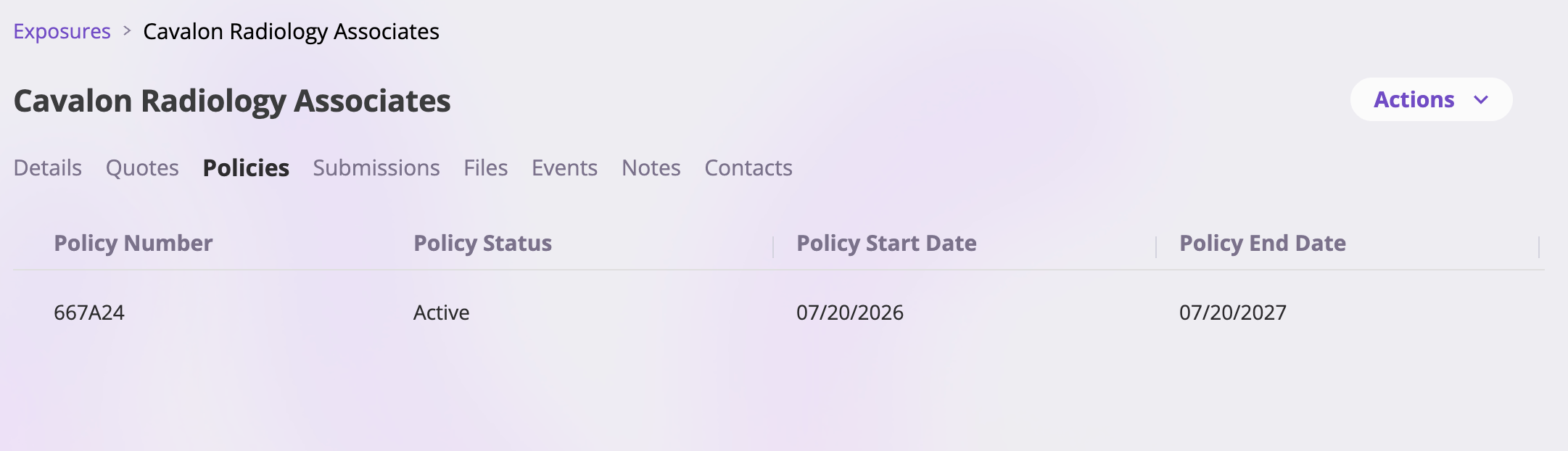
The Policies tab — every policy that has ever covered this exposure.
The Actions menu
The Actions menu at the top right holds one action:
Before showing the confirmation, the app checks whether anything still
references the exposure. If something does — a quote, policy, submission, or
event still linked to it — the dialog explains why the exposure can’t be
deleted, and the delete button is disabled. Otherwise, confirming deletes the
exposure and returns you to the list.