
Forms follow your permissions: a Forms tab shows only for roles that
can read forms, the generate actions and template pickers only for roles that
can create them, and the Edit, Refresh, Issue, and Retry
affordances described below only appear if your role can update forms.
Where forms happen
Generating on an event
On a claim or incident, open the Actions menu and choose Generate Claim Form (or Generate Incident Form) — the same action also appears on the event’s Forms tab while it’s empty. The Generate Event Form dialog asks you to Select a Form from your company’s claim/incident templates; select Generate and you’re taken to the generated document, pre-filled from the event’s data. Review the document (and edit it if needed), then select Save to attach it to the event — saved forms appear on the event’s Forms tab. If you leave without saving, nothing is attached; you can simply generate again later. See Event actions for the action’s place in the menu. On the event’s Forms tab, each saved form offers Preview (read-only), Edit (if your role can edit forms), Download, and Delete. Deleting asks for confirmation — “Delete «name»? This removes the form from this event.”Generating on a policy
A bound policy generates its own policy-category documents on the Generate Policy Forms surface — reached from Actions → Generate Policy Form on the policy, or from the Generate Policy Form button on its Forms tab. It’s a full screen, laid out like the quote wizard’s Forms step: the as-of date and the template picker on the left, the Selected Forms list on the right.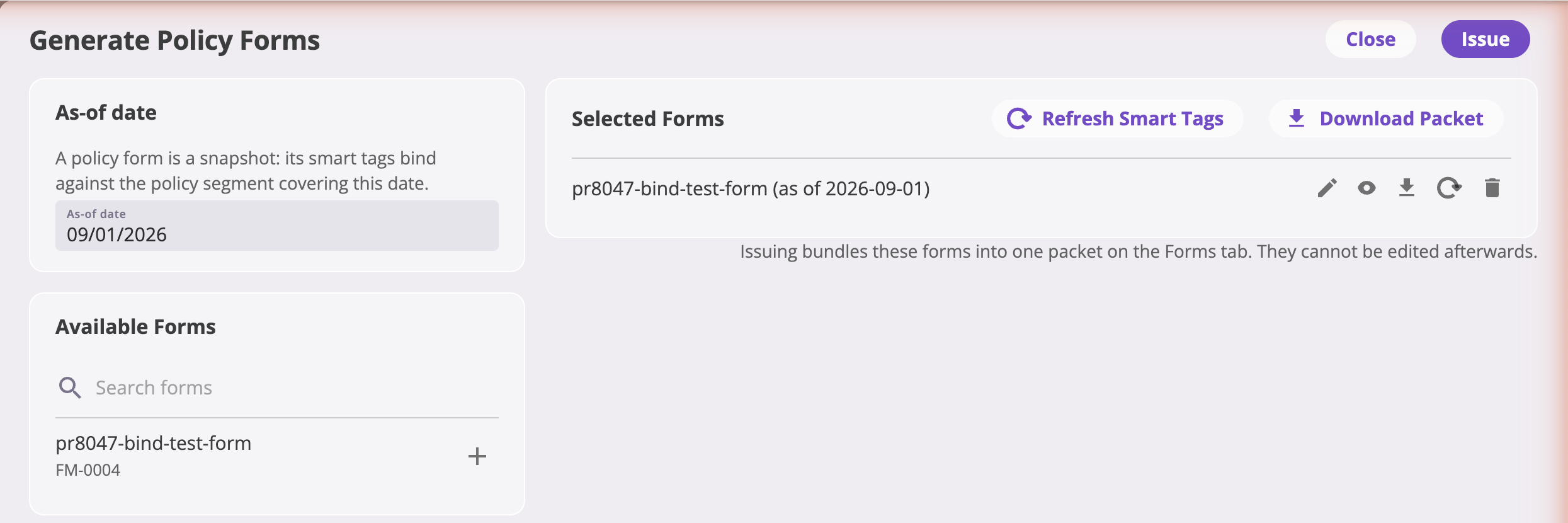
Generate Policy Forms — the as-of date (today by default) and template picker on the left, the composition on the right, and Issue in the header.
- As-of date — a date within the policy term. Because a policy’s data changes over its life (endorsements create new versions), this picks which version of the policy fills the forms. It defaults to today (in your browser’s time zone), which suits most notices and letters; change it to document the policy as it stood on another date. A date outside the term is refused with the term’s start and end shown, and nothing can be generated until the date is inside the term.
- The template picker — your company’s policy form templates. Picking one generates it right away, bound against the chosen date, and adds it to Selected Forms. The same template can be picked more than once at different as-of dates — those are two legitimately different documents, and each row’s name carries the date it was bound against.
- Selected Forms — the composition list: the documents you have generated in this visit and not yet issued. Each row offers Edit, Preview, Download, Refresh Smart Tags, and Remove, exactly as in the quote wizard, and Download Packet in the header merges the whole list into one PDF for a look before you issue. A refresh re-binds the form against its own as-of date and the policy transaction it was generated from, so a dated snapshot never silently drifts to a later version of the policy.
- Issue — records the composed forms as one immutable packet on the policy. The packet appears on the policy’s Forms tab tagged Issued, stamped with the moment you issued it; a document you generate and then leave without issuing is not kept.
Forms while quoting
The quote wizard’s Forms step is where a quote’s form set is built: pick templates from the picker on the left and they land in the Selected Forms list, already filled from the quote’s answers. Depending on your company’s configuration, the right forms are staged for you automatically by auto-added forms rules — and the Add Recommended Forms button re-applies those rules on demand.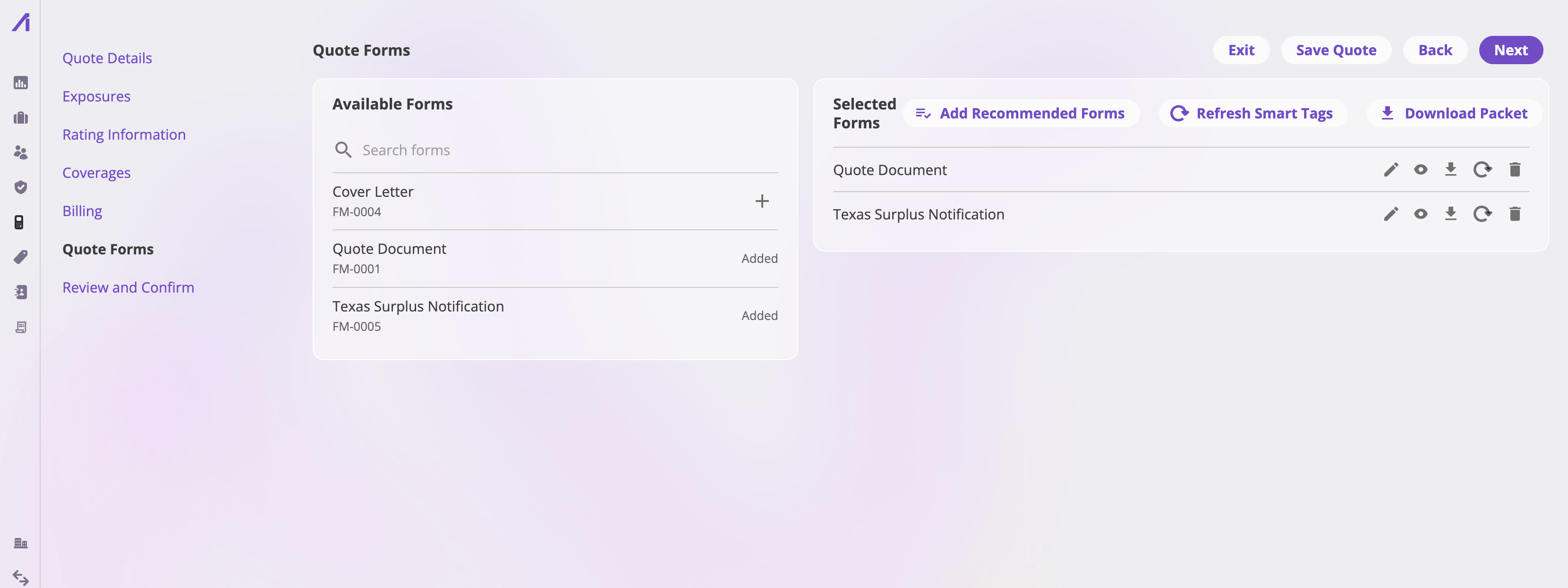
The quote wizard's Forms step — the template picker and the Selected Forms list with per-form actions.
The Forms tab on a quote
The quote detail page’s Forms tab lists the quote’s issued packets — for a quote that has been completed or bound, the Quote packet holding its forms exactly as they were at that moment. Expand the packet to see and download each document, or Download packet for the whole set as one PDF. While a quote is still in progress it has no packet yet: its forms are the working set you see and change on the quote wizard’s Forms step.The Forms tab on a policy
The policy detail page’s Forms tab is the record of every document set that went out on the policy, as issued packets, newest first. Generate Policy Form at the top opens the Generate Policy Forms surface.- A Bind packet holds the documents staged on the bind flow’s Policy Forms step when the policy was bound; an Endorsement, Renewal, Cancellation, or Reinstatement packet holds the documents of that transaction’s bind.
- An Issued packet holds a set you composed and issued on the generate surface — a notice, a cover letter — outside any transaction.
Packets are the only thing this tab shows. The documents themselves are read
through the packet they went out in — there is no separate list of loose
forms, and nothing appears here until a bind or an issuance has happened. A
policy with no bound quote (an imported or migrated policy) starts with an
empty tab.
Smart tags: how forms are filled
Templates are filled by smart tags — named placeholders bound to your entity fields. You don’t normally deal with tags at all: the generated document arrives with every tag already replaced by the record’s current values. The editor tells you when something needs attention, with a banner at the top of the document:- “N tag(s) had no value: …” — the record has no data for those tags yet.
- “N tag(s) failed to bind: …” — a tag couldn’t be resolved.
Refreshing after data changes
A generated form is a snapshot — if the record’s data changes afterwards, the document doesn’t update by itself. Refresh Smart Tags re-resolves every tag against the latest data. A policy document is the exception once its policy exists: it belongs to the policy transaction it was bound or generated for, so a refresh reproduces that transaction and never reads a later endorsement. To print the policy as it stands now, generate a new document from the policy. Where to refresh:- In a Selected Forms list — the quote wizard’s Forms step, the bind flow’s Policy Forms step, or a policy’s generate surface: per form (the refresh icon on the row) or Refresh Smart Tags in the header to refresh all, with a per-form progress indicator. While quoting, a warning banner — “N smart tag(s) may not reflect the latest values: …” — flags forms that look out of date. A policy form carries no such flag: it is a snapshot of a date you chose, not of the record’s latest state, so there is nothing for it to fall behind.
- In the document editor: the Refresh Smart Tags toolbar button (“Re-resolve all Smart Tags (bound and unbound) with the latest data”) updates the open document live.
Editing the generated document
Generated forms open in a full-screen document editor built into the app — no download-edit-reupload cycle. In view mode you can read and Download; select Edit (if your role can edit forms) to change anything in the document — text, formatting, inserted tags. A standing notice reminds you that “Editing this document will not change the original template.”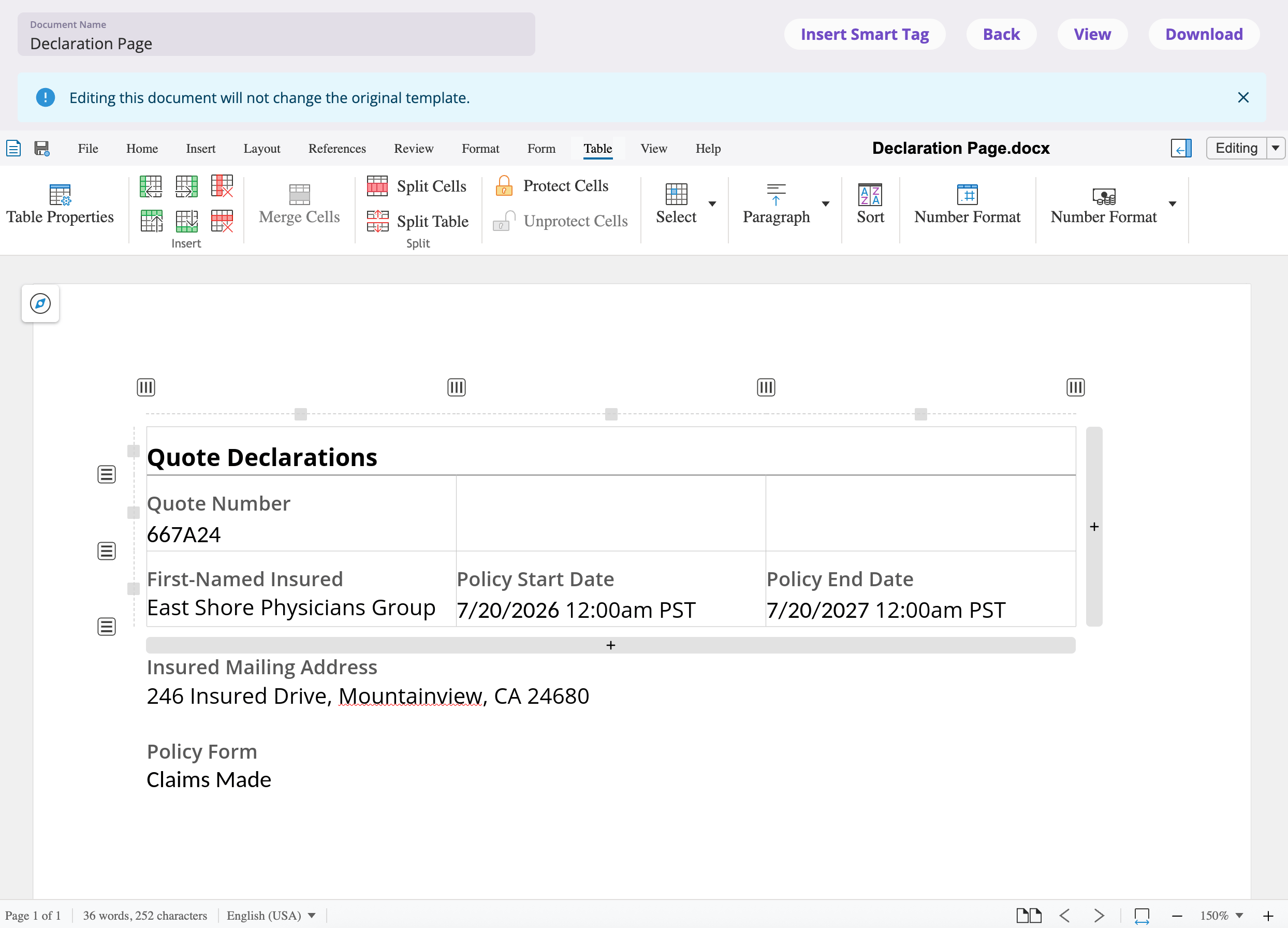
The built-in document editor — the generated form, with Insert Smart Tag and Refresh Smart Tags in the toolbar.
- View / Edit toggles between reading and editing (edits are saved when you toggle back to View).
- The Document Name field renames the generated form.
- In the quote wizard, leaving an edited form asks whether to keep your work — Save and Exit keeps the edits on the quote’s form; Exit discards them.
- On an event’s generate preview, Save attaches the document to the event (the button flips to Saved).
- On a policy’s generate surface, edits go straight into the form you’re composing; the surface’s own Issue is what records the finished set in an immutable packet on the policy.
Downloading
Download — on a form row, in the preview, or in the editor — downloads the generated form as a PDF. Downloading from the editor while editing saves your pending changes first, so the PDF always matches what you see.Form packets
A packet is the record of the documents that went out at one moment of a quote’s or policy’s life, merged into a single PDF — the thing that was sent as one attachment. You never build a packet by hand; the app issues one when:- a quote is completed or bound — its current form set is recorded in a Quote packet on the quote’s Forms tab;
- a quote is bound — the bind flow’s current Policy Forms set is recorded in a Bind (or Endorsement, Renewal…) packet on the policy’s Forms tab, one per transaction;
- you Issue a set on a policy’s Generate Policy Forms surface — an Issued packet on the policy’s Forms tab.
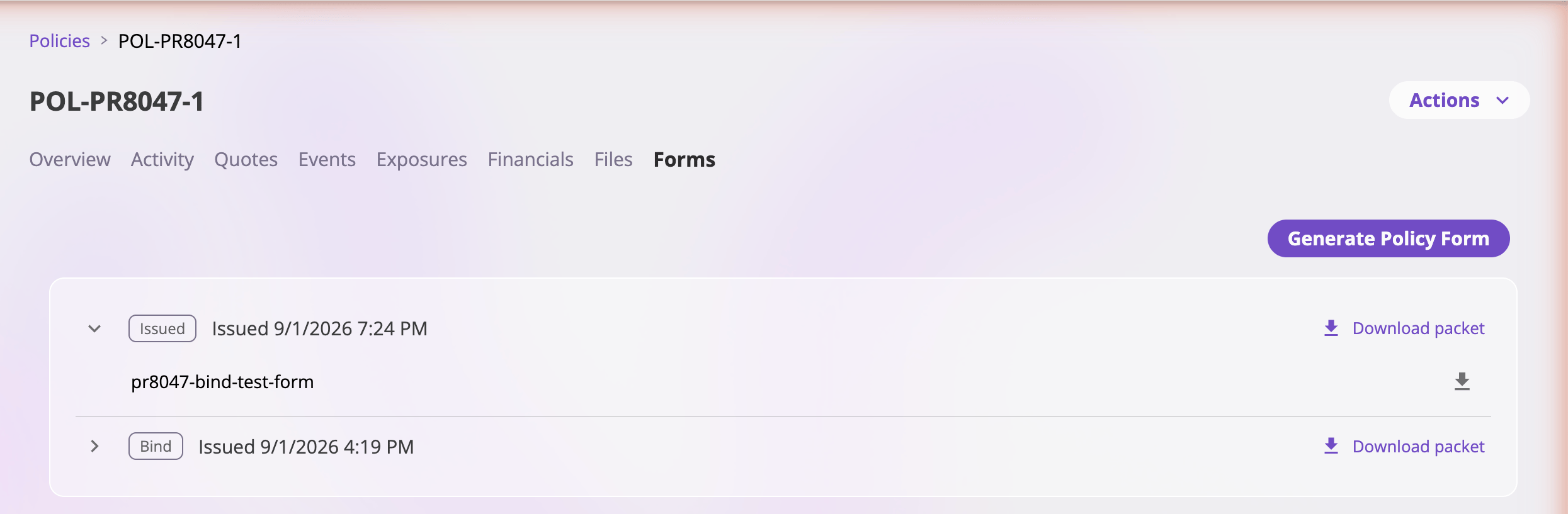
A policy's Forms tab — one packet per bind or issuance, newest first, each expandable to its documents.