
The sidebar
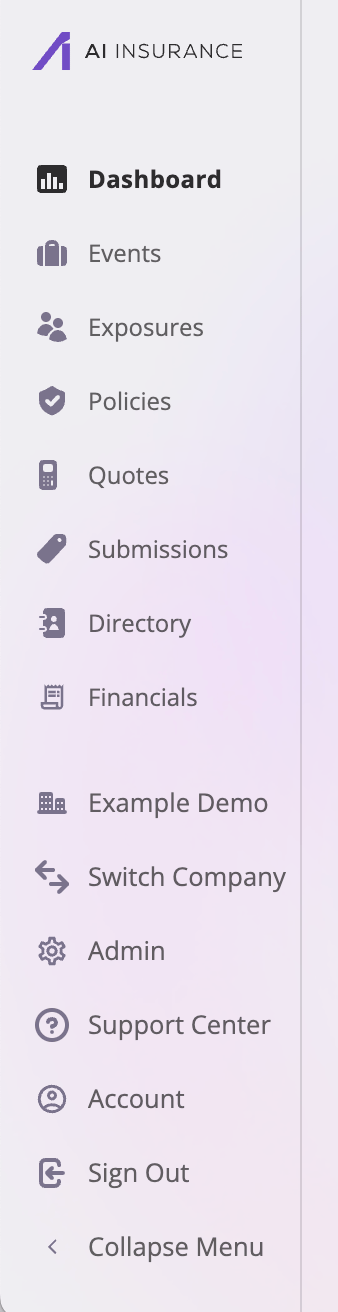
The sidebar: work areas on top, account and company controls on the bottom.
The bottom group holds account and company controls:
The sidebar shows only what you’re allowed to use. Areas your role can’t
read — and administration tabs you can’t manage — simply don’t appear, so
your sidebar may be shorter than the one pictured.
The record workspace
Every record — a submission, quote, policy, event, exposure, or directory entry — opens into the same kind of detail page: a header with the record’s name, status, and an Actions menu, and a row of tabs underneath. The first tab is the record’s own fields; the rest attach related work to the record so everything about it lives in one place.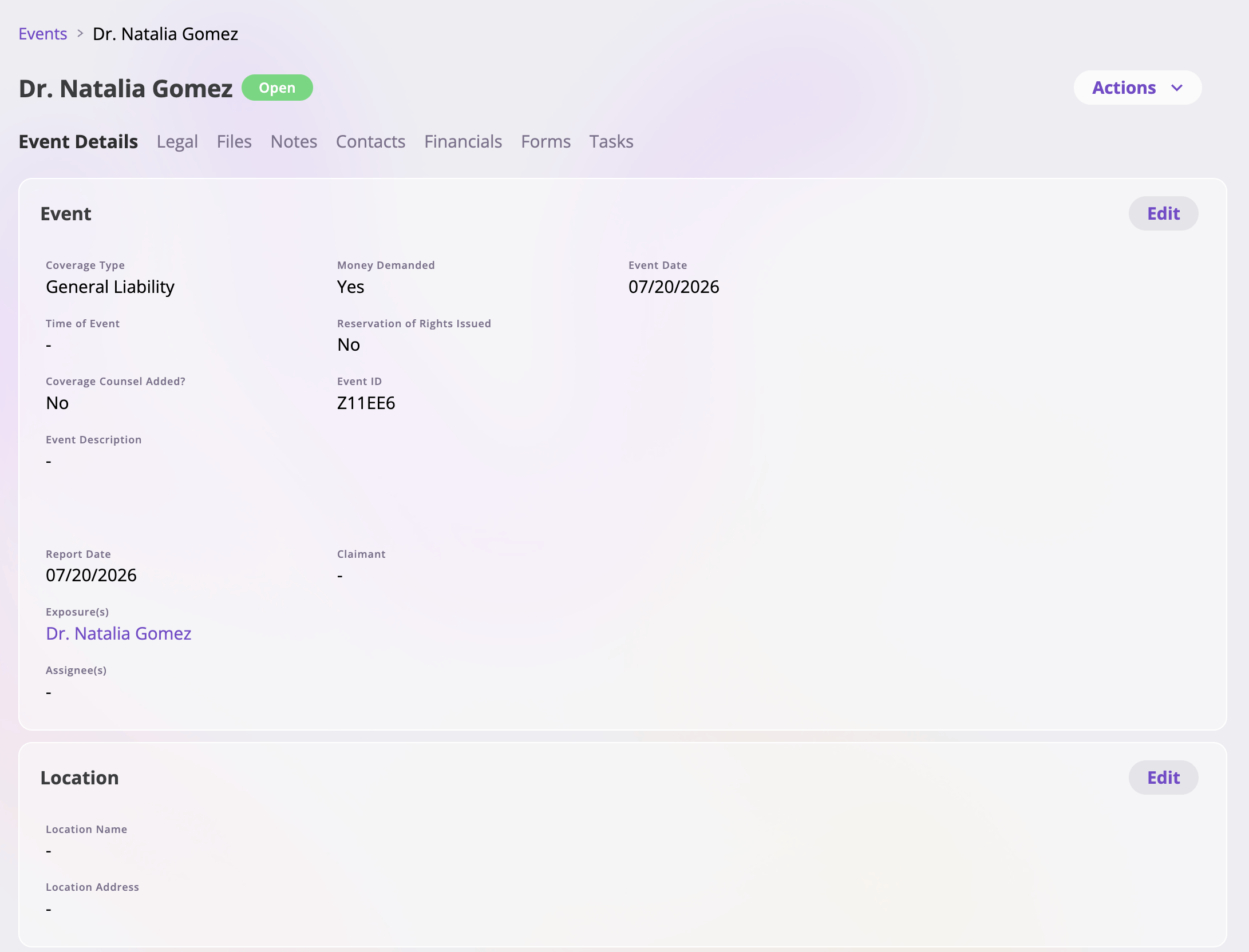
A claim's workspace: the header with status and Actions, and tabs for everything attached to the event.
A few notes on reading this table:
- The shared tools work the same everywhere they appear. Files, notes, and forms behave identically on every record type — see Files & notes and Generating forms.
- Cross-reference tabs are live lists. An exposure’s Policies tab, a policy’s Events tab, and so on are real list tables of the related records — filterable and column-editable like any list.
- Tabs follow your permissions. A tab you can’t read doesn’t render, so two users can see different tab sets on the same record.
List pages
Each work area opens on a list page: the page title and action buttons (such as Edit Columns and Export) across the top, a filter toolbar, and the table itself. Selecting a row opens that record’s workspace.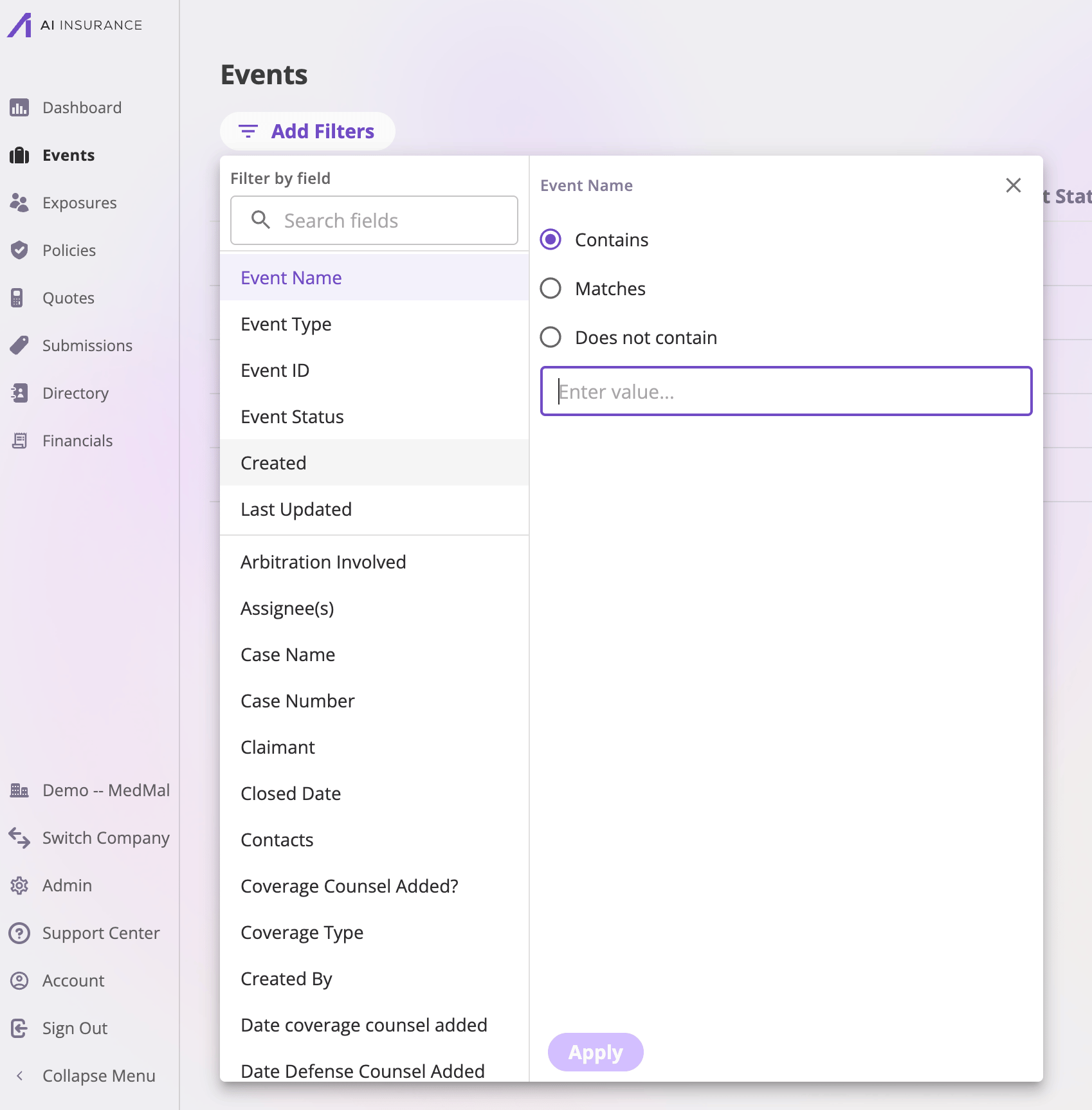
A list page: Add Filters with active filters shown as removable pills, sortable column headers, and toolbar actions.
Filtering
Select Add Filters to open the filter panel: pick a configured filter from the left, then set the condition on the right. Your company defines the filters available on each list, including calculated filters that are not columns. Each definition also controls its conditions and input — for example, date ranges, dropdown choices, linked-record pickers, or amount comparisons. Active filters appear as pills below the toolbar — select a pill’s × to remove that filter. On some tables (mostly embedded tabs and pickers) a free-text search box sits alongside the filter button.Sorting
Click a column header to sort by it; click again to flip the direction. Not every column is sortable — sortable headers show it on hover.Choosing columns
Select Edit Columns to control what the table shows. The dialog has two lists — visible columns and the remaining available ones. Drag columns to reorder, move them between the lists, and search the available columns to find the one you want. Every field configured on the record type is available as a column, plus system columns like created and updated dates.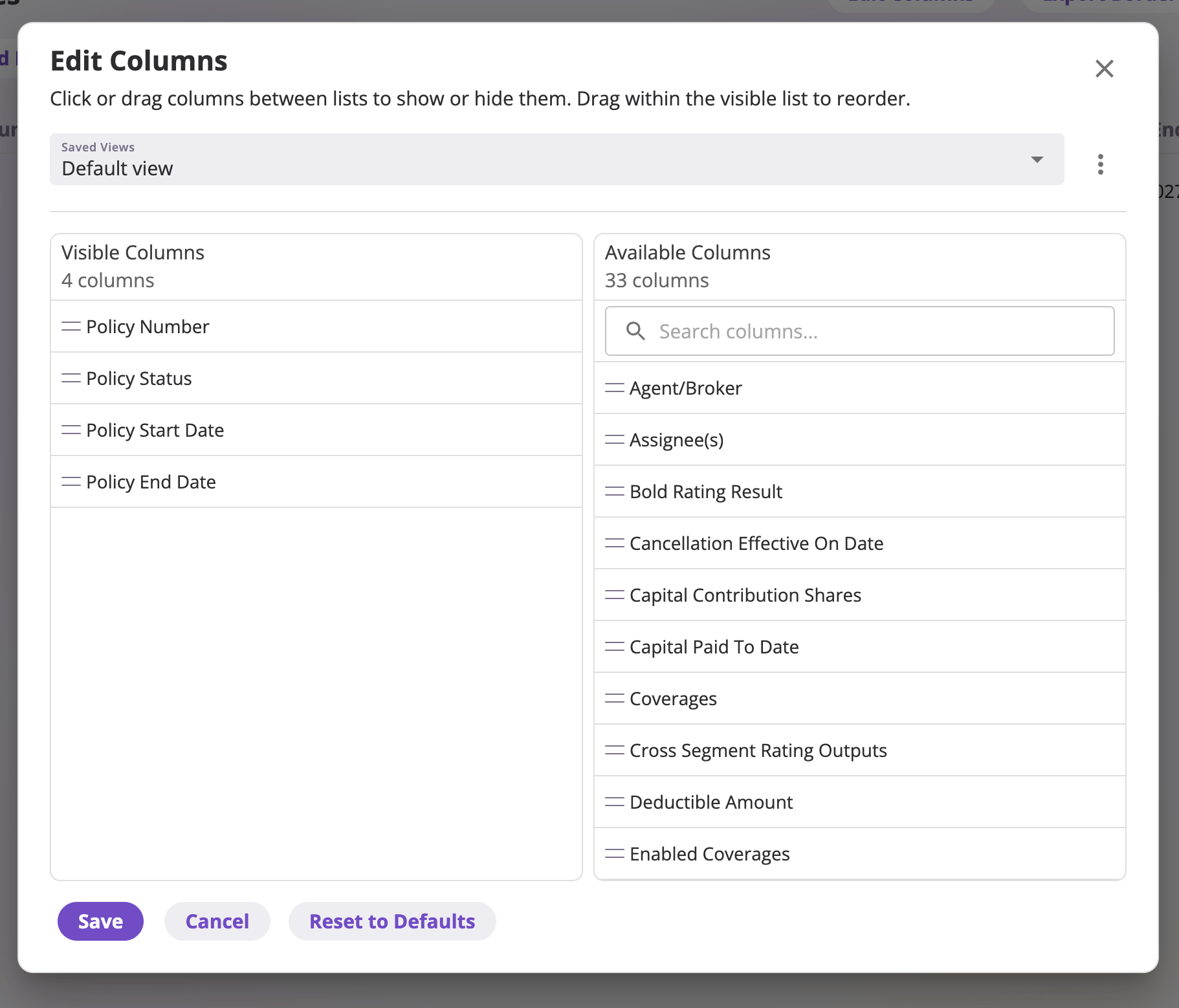
Edit Columns: drag to reorder, move columns between visible and available, and manage saved views.
Saved views
A column arrangement you like can be kept as a saved view, managed from the Saved Views dropdown and its ⋮ menu inside Edit Columns:
Views shared by teammates appear in the dropdown under Shared with me. You
can apply them, but only the owner can change them — to tweak one, save your
own copy. See Exports & saved views for
the full story, including export presets.
Exactly which columns, filters, and default views you see depends on your
company’s configuration — the fields configured on each record type are what
the tables offer. See
How your app is configured.